Applicable Products
QMiroPlus-201W
Scenario
I recently bought a QMiroPlus-201W and tried to install it. I was good while the NAS was directly connected to my PC. But when I try to put the NAS on my home network, Qfinder is not able to see the NAS.
Solution
The QMiroPlus-201W is a hybrid router and NAS device. This article describes how to physically install and initialize your QMiroPlus-201W for first-time setup.
1. Before you begin
Make sure you have:
- QMiroPlus-201W device and its power adapter
- At least two Ethernet cables (Cat 5e or above)
- Your ISP internet box/router
- A computer (Windows or macOS)
- Access to your home network
2. Step-by-Step Setup
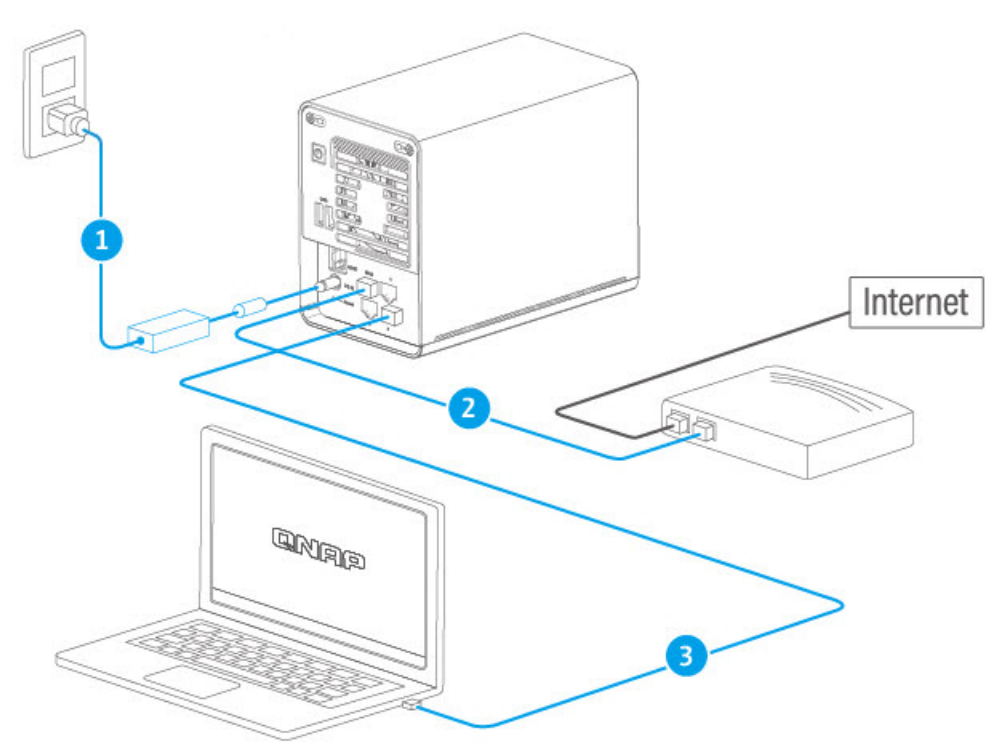
Step 1 - Physical Connections
Connect the QMiroPlus-201W to the power source.
Connect the QMiroPlus-201W WAN port to your Internet router using one Ethernet cable.
Connect the QMiroPlus-201W LAN port to your computer using another Ethernet cable.
Power on the QMiroPlus-201W and wait until the status LED turns solid blue (ready).
Step 2 - Initialize Configuration
Download & install Qfinder Pro from:
https://www.qnap.com/utilities
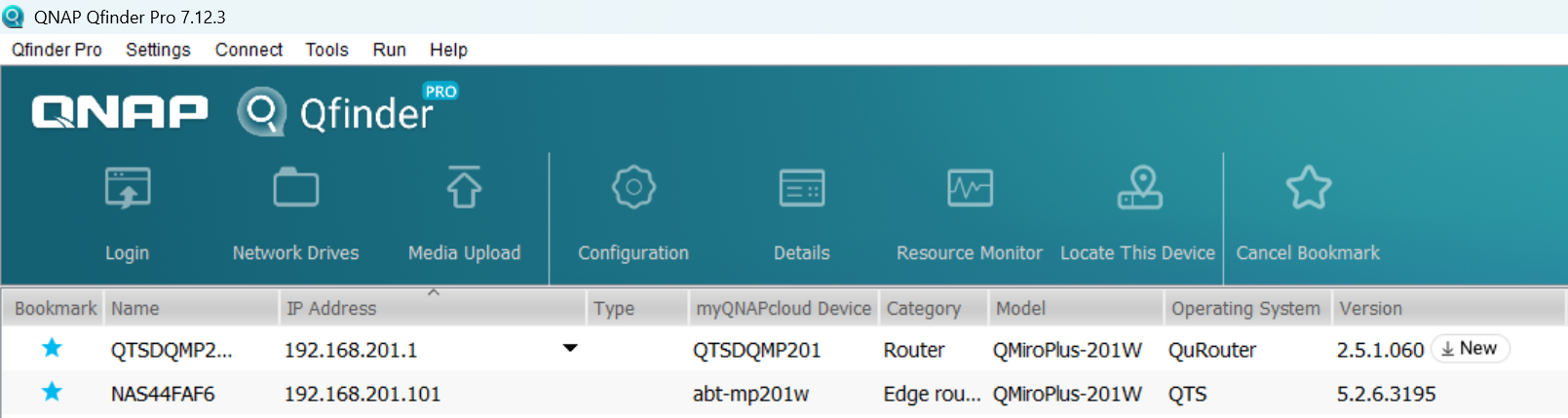
Open Qfinder Pro and wait for it to detect your QMiroPlus-201W.
In Qfinder, you should see two entries for your device:
Double-click the NAS entry (QTS) to open its web interface in your browser.
Follow the Smart Installation Guide to set:
Device name
Admin password
Network settings
2.1 Using QMiroPlus-201W as NAS Only
Besides the above standard wired installation (WAN + LAN connection), you can also choose the alternative NAS-only usage (LAN-only, WAN unused)
Lauch QuRouter App on the desktop
Go to Network → WAN and LAN → LAN Settings → DHCP Settings → Choose None to disable DHCP service
Connect the QMiroPlus-201W LAN port to your Internet router.
Do not connect WAN port.
Connect the QMiroPlus-201W LAN port to your netwotk switch or you computer.
Access via Qfinder
3. Troubleshooting: Qfinder Can't Detect the NAS
If Qfinder Pro does not see your QMiroPlus-201W:
Check Cabling
Check Network
Confirm your PC and QMiroPlus-201W are on the same subnet.
If unsure, temporarily connect your PC directly to the QMiroPlus-201W LAN port.
Disable Firewalls Temporarily
Direct IP Access
Log in to your Internet router’s web interface.
Look for the device named QNAP or QMiroPlus-201W in the DHCP client list.
Copy its IP address and paste it into your browser’s address bar.
Further Reading
適用產品
QMiroPlus-201W
情境
我最近購買了 QMiroPlus-201W 並嘗試安裝。當 NAS 直接連接到我的電腦時,一切正常。但當我嘗試將 NAS 連接到家庭網路時, Qfinder 無法找到 NAS。
解決方案
QMiroPlus-201W 是一款混合路由器和 NAS 裝置。本文描述如何首次安裝和初始化您的 QMiroPlus-201W。
1. 開始之前
請確保您擁有:
- QMiroPlus-201W 裝置及其電源介面卡
- 至少兩條乙太網路線(Cat 5e 或以上)
- 您的 ISP 網路盒 / 路由器
- 一臺電腦(Windows 或 macOS)
- 家庭網路的存取權
2. 步驟設定
步驟 1 - 實體連接
將QMiroPlus-201W連接到電源。
連線 QMiroPlus-201WWAN 埠使用一條乙太網路線連線到您的網路路由器。
連線 QMiroPlus-201WLAN 埠使用另一條乙太網路線連線到您的電腦。
開啟 QMiroPlus-201W,等待狀態 LED 變為藍燈恆亮(準備就緒)。
步驟 2 - 初始化設定
下載並安裝Qfinder Pro從:
https://www.qnap.com/utilities
打開 Qfinder Pro 並等待它檢測您的 QMiroPlus-201W。
在 Qfinder 中,您應該看到兩個裝置條目:
雙擊 NAS 條目(QTS)以在瀏覽器中開啟其網頁介面。
遵循智慧安裝指南設定:
2.1 僅使用 QMiroPlus-201W 作為 NAS
除了上述標準有線安裝(WAN + LAN 連線),您還可以選擇替代的僅 NAS 使用(僅 LAN,WAN 未使用)
啟動QuRouter桌面上的應用程式
前往網路→WAN 和 LAN→LAN 設定→DHCP 設定→ 選擇無以停用 DHCP 服務
連線 QMiroPlus-201WLAN 埠到您的網際網路路由器。
不要連線WAN 埠。
連線 QMiroPlus-201WLAN 埠到您的網路交換器或電腦。
透過 Qfinder 存取
3. 疑難排解:Qfinder 無法偵測到 NAS
如果Qfinder Pro無法看到您的 QMiroPlus-201W:
檢查線纜
檢查網路
暫時停用防火牆
直接 IP 存取
進一步閱讀