


How do I Install the QMiroPlus-201W
Applicable Products
QMiroPlus-201W
Scenario
I recently bought a QMiroPlus-201W and tried to install it. I was good while the NAS was directly connected to my PC. But when I try to put the NAS on my home network, Qfinder is not able to see the NAS.
Solution
The QMiroPlus-201W is a hybrid router and NAS device. This article describes how to physically install and initialize your QMiroPlus-201W for first-time setup.
1. Before you begin
Make sure you have:
- QMiroPlus-201W device and its power adapter
- At least two Ethernet cables (Cat 5e or above)
- Your ISP internet box/router
- A computer (Windows or macOS)
- Access to your home network
2. Step-by-Step Setup
Step 1 - Physical Connections
Connect the QMiroPlus-201W to the power source.
Connect the QMiroPlus-201W WAN port to your Internet router using one Ethernet cable.
Connect the QMiroPlus-201W LAN port to your computer using another Ethernet cable.
Power on the QMiroPlus-201W and wait until the status LED turns solid blue (ready).
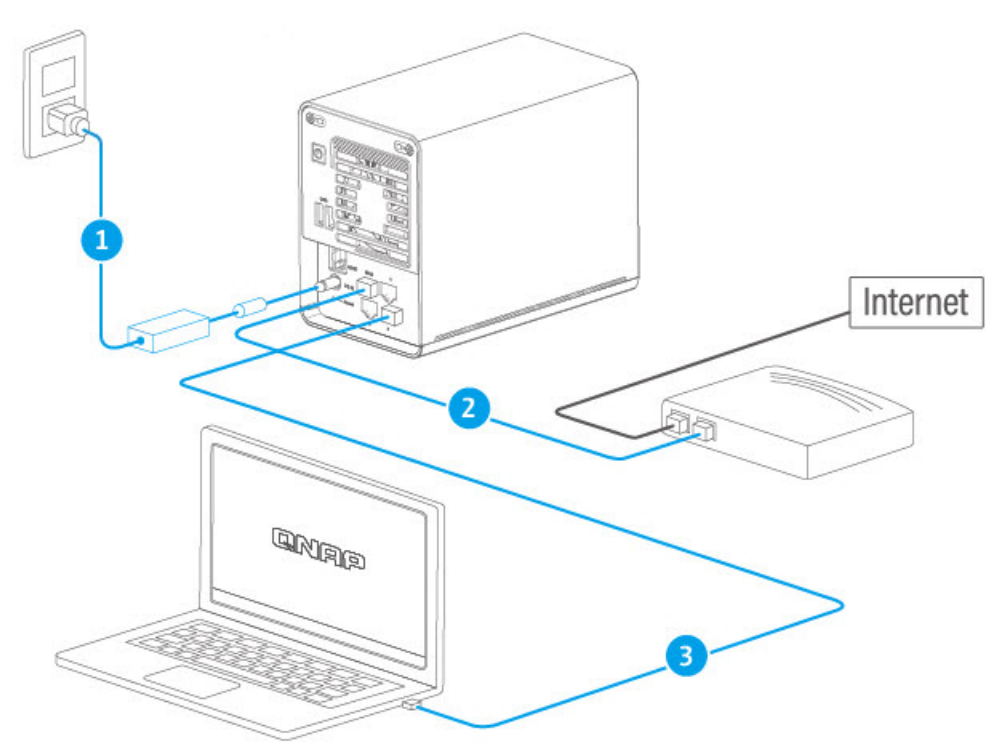
Step 2 - Initialize Configuration
Download & install Qfinder Pro from:
https://www.qnap.com/utilitiesOpen Qfinder Pro and wait for it to detect your QMiroPlus-201W.
In Qfinder, you should see two entries for your device:
Router interface (QuRouter OS) – usually IP 192.168.201.1
NAS interface (QTS OS) – usually IP 192.168.201.xxx
Example: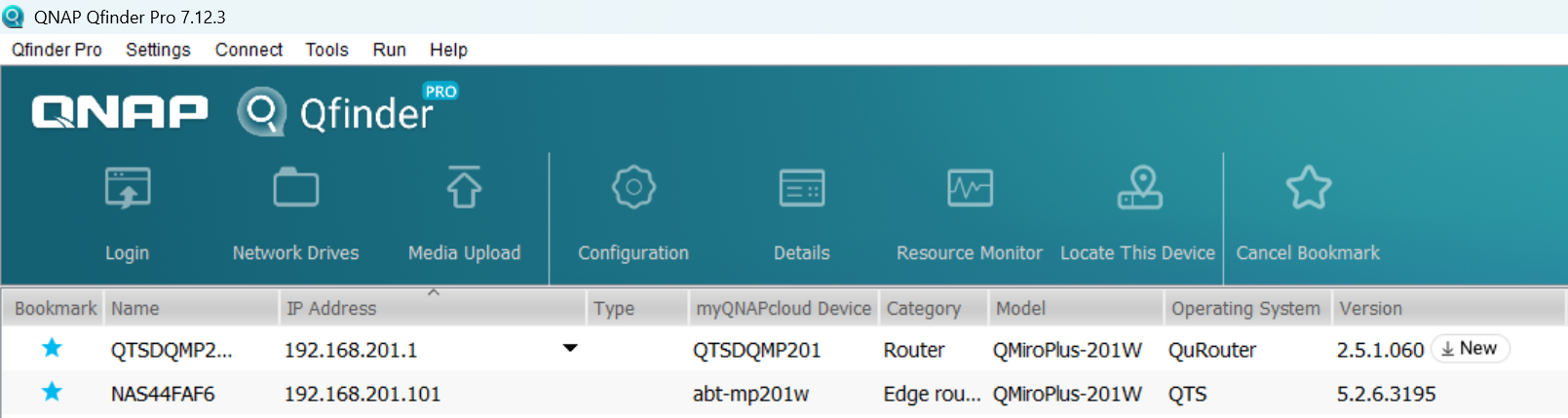
Double-click the NAS entry (QTS) to open its web interface in your browser.
Follow the Smart Installation Guide to set:
Device name
Admin password
Network settings
2.1 Using QMiroPlus-201W as NAS Only
Besides the above standard wired installation (WAN + LAN connection), you can also choose the alternative NAS-only usage (LAN-only, WAN unused)
Lauch QuRouter App on the desktop
Go to Network → WAN and LAN → LAN Settings → DHCP Settings → Choose None to disable DHCP service
Connect the QMiroPlus-201W LAN port to your Internet router.
Do not connect WAN port.
Connect the QMiroPlus-201W LAN port to your netwotk switch or you computer.
Access via Qfinder
3. Troubleshooting: Qfinder Can't Detect the NAS
If Qfinder Pro does not see your QMiroPlus-201W:
Check Cabling
Ensure both Ethernet cables are firmly connected to the correct ports.
Try another Ethernet cable or another port on your router/switch.
Check Network
Confirm your PC and QMiroPlus-201W are on the same subnet.
If unsure, temporarily connect your PC directly to the QMiroPlus-201W LAN port.
Disable Firewalls Temporarily
Some firewall/antivirus software may block Qfinder broadcasts. Temporarily disable them and try again.
Direct IP Access
Log in to your Internet router’s web interface.
Look for the device named QNAP or QMiroPlus-201W in the DHCP client list.
Copy its IP address and paste it into your browser’s address bar.
Further Reading
For further assistance, ask other users and QNAP experts in the community. Go to QNAP Community


