


How to set up Qsirch with OpenAI-Compatible APIs
Applicable Products
Qsirch 5.6.0 or later versions on all platforms
What is "OpenAI-Compatible"?
Some language-model providers offer APIs that match OpenAI's REST format (same request and response structure). Qsirch can connect to these services by configuring three fields: API endpoint URL, API key, and Model name. Once set, Qsirch's RAG workflow - retrieving content from your selected files and returning answers with source citations - operates the same as with OpenAI.
Recomended services for OpenAI-Compatible
The services listed below are the ones we have validated with Qsirch using the OpenAI-compatible interface. Other providers may also work - refer to each provider's OpenAI-compatible documentation for details.
xAI Grok
Grok provides an OpenAI-compatible REST API that can be used as a drop-in alternative.
- Sign up in the xAI Console: https://console.x.ai/.
- Create an API key in your account.
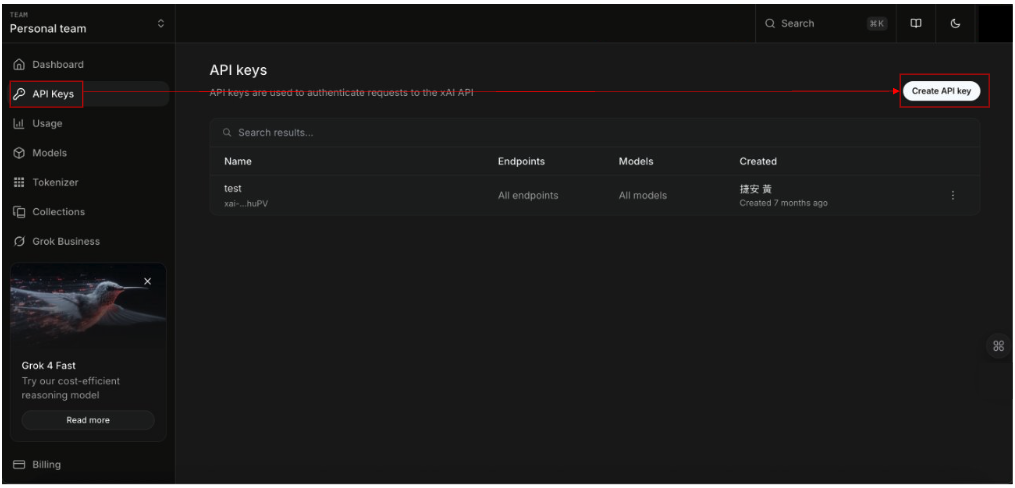
3.Note the API endpoint URL: https://api.x.ai/v1
4.Pick a Model name, e.g., grok-4-fast-non-reasoning
5.In Qsirch → Settings → Administrator setting → RAG Search → Cloud Services → Add, choose OpenAI-Compatible, then enter the API endpoint URL, API key, and Model name.
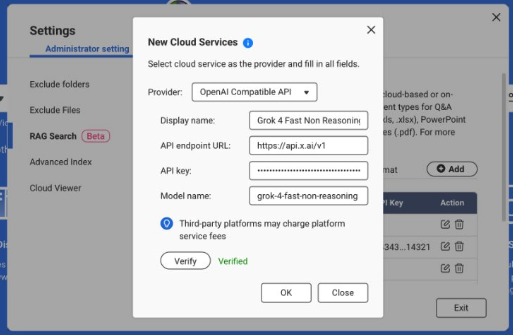
For more information, see the xAI API Documentation: https://docs.x.ai/docs/api-reference.
DeepSeek
DeepSeek offers OpenAI-style endpoints for chat and reasoning models.
1. Open the DeepSeek API portal: https://platform.deepseek.com/api_keys.
2. Create an API key.
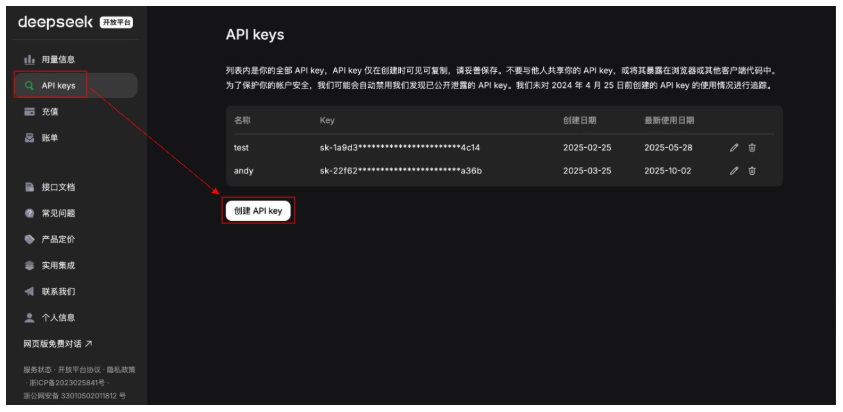
3. Note the API endpoint URL: https://api.deepseek.com (some environments use …/v1).
4. Choose a Model, e.g., deepseek-chat or deepseek-reasoner.
5. In Qsirch → Settings → Administrator setting → RAG Search → Cloud Services → Add, select OpenAI-Compatible and enter the API endpoint URL, API key, and Model name.
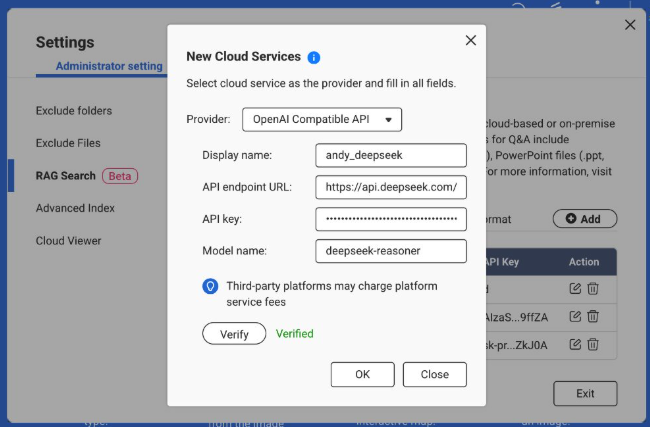
For more information, see the DeepSeek API Documentation: https://api-docs.deepseek.com/.
Baidu Qianfan
Qianfan provides ERNIE and other models; some routes emulate OpenAI patterns, but authentication typically uses AK/SK and provider-specific endpoints.
1. Sign in to Baidu AI Cloud and enable Qianfan: https://cloud.baidu.com/doc/qianfan-api/s/3m7of64lb.
2. Create an API key https://cloud.baidu.com/doc/qianfan-api/s/ym9chdsy5.
3. Note the API endpoint URL: https://qianfan.baidubce.com/v2.
4. Choose a Model, e.g., ernie-4.5-turbo-128k . https://cloud.baidu.com/doc/qianfan-docs/s/7m95lyy43.
5. In Qsirch → Settings → Administrator setting → RAG Search → Cloud Services → Add, choose OpenAI-Compatible, then enter the API endpoint URL, API key, and Model name.
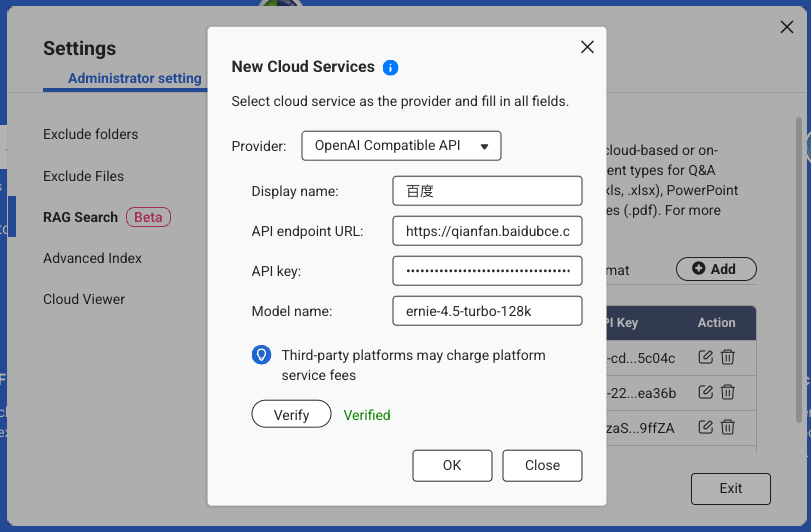
For more information, see the Qianfan Documentation: https://cloud.baidu.com/doc/WENXINWORKSHOP/index.html
Alibaba Cloud
DashScope exposes OpenAI-compatible endpoints for Qwen models and can be used as a drop-in provider.
Sign in to Alibaba Cloud Model Studio (DashScope) and create an API key: https://dashscope.console.aliyun.com/apiKey.
Note the API endpoint (Base URL):
International (Singapore): https://dashscope-intl.aliyuncs.com/compatible-mode/v1
China (Beijing): https://dashscope.aliyuncs.com/compatible-mode/v1
Pick a Model, e.g., qwen-turbo, qwen-plus, or qwen-max. (Availability varies by region/account.)
In Qsirch → Settings → Administrator setting → RAG Search → Cloud Services → Add, choose OpenAI-Compatible, then enter the API endpoint URL, API key, and Model name.
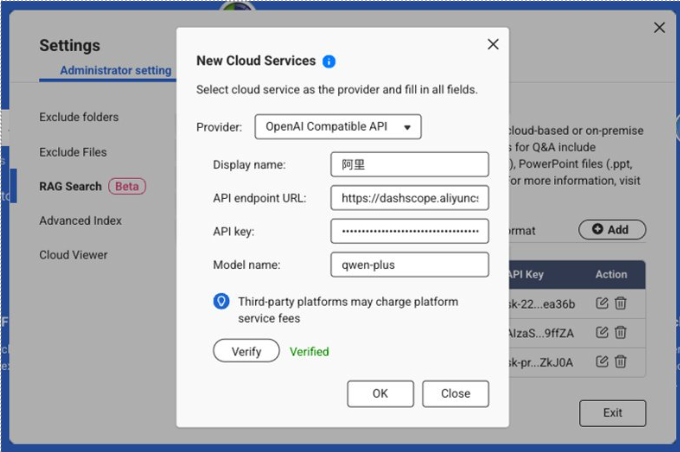
For further assistance, ask other users and QNAP experts in the community. Go to QNAP Community


