


How do I replace a faulty QNAP router that has been added to a QuWAN network?
Applicable Products
Hardware
- QHora-301W
- QHora-321
- QHora-322
- QMiro-201W
- QMiroPlus-201W
Software
- QuRouter 2.3.0 and later
- QuWAN Orchestrator
Scenario
You can use the Replace Faulty QuWAN Device feature if a router is experiencing hardware failure, requires a firmware update, needs to be deployed in a different environment, or is exhibiting network performance problems. This feature allows you to back up the configuration of the malfunctioning router and then configure the replacement router with the backed-up configuration.
This feature provides the following benefits to your QNAP organization in the QuWAN network:
- Smooth operation of the QuWAN network: Ensure your QuWAN network continues operating smoothly even when a router fails or requires maintenance.
- Support for high demands of a modern enterprise network: Keep your QuWAN network available and reliable, even when a router fails, to meet the high demands of modern enterprise networks.
- Reduced downtime: Minimize disruptions to your business operations by quickly replacing a faulty router.
Procedure
Downloading the configuration file of the faulty router
- Connect your computer to the router.
- Log in to QuRouter.
- Go to System > System Settings > Reset / Backup / Restore.
- Click Backup.
The router exports the system settings as a BIN file and downloads the file to your computer.
Replacing the faulty QuWAN device with a compatible device
- Do not connect the replacement router has not been connected to a QuWAN network prior to performing the following steps.
- Make sure you unbind your QNAP ID from the replacement router before initiating the replacement process.
- Connect your computer to the replacement router.
- Log in to QuRouter.
- Go to System > System Settings > Replace QuWAN Device.
- Click Replace QuWAN Device.
The Replace Faulty QuWAN Device window appears. - Enter your QNAP account username and password.
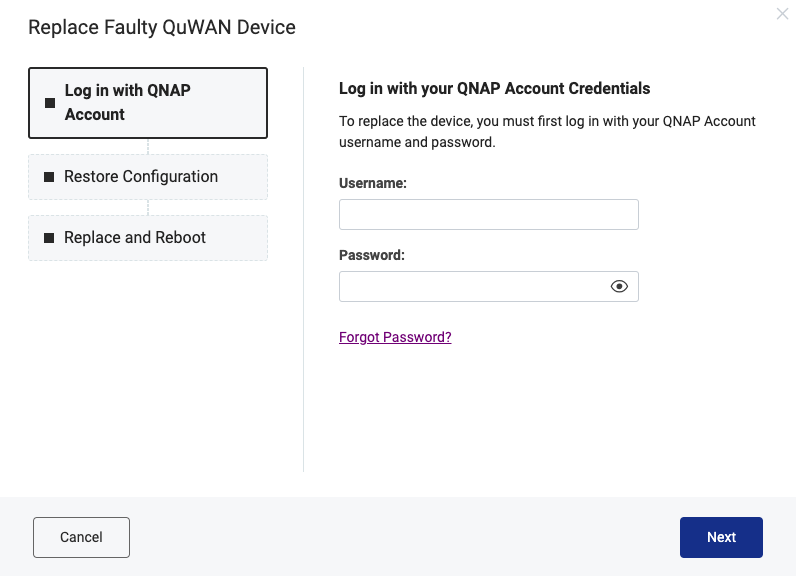
- Click Next.
The Restore Router Configuration window appears. - Click Browse.
A File Explorer window appears. - Select the backup configuration file of the faulty router.

- Click OK.
The File Explorer window closes. - Click Next.
The Replace and Reboot window appears. - Verify the organization and device name.NoteThe details should be the same as the organization and device name of the faulty router.
- Click Replace.
QuRouter initiates the replacement and reboot process.
Further Reading
Để được hỗ trợ thêm, hãy hỏi những người dùng khác và chuyên gia QNAP trong cộng đồng. Đến Cộng đồng QNAP


