Applicable Products
Scenario 1: Regular User Forgot Password → Ask the Administrator to Reset It
Note
Regular users cannot reset their own passwords. You must contact the NAS administrator, who can update your password from the Control Panel without affecting any other account settings. You can log in with the new password once the reset is complete.
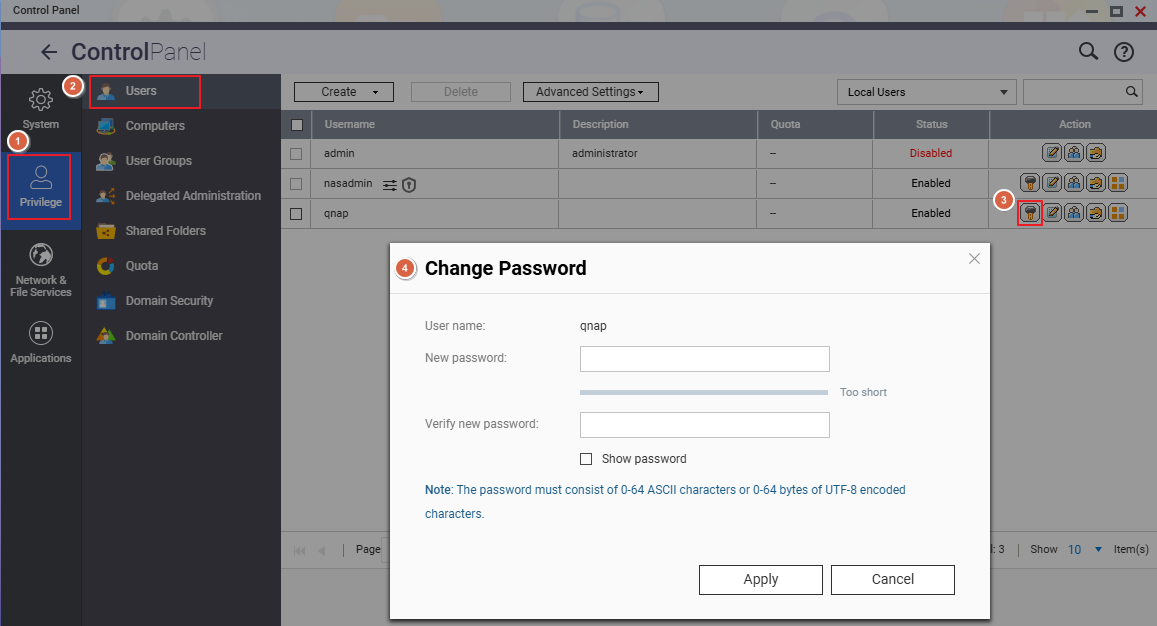
NAS administrator Change sthe Password for a Local User Account
- Log in to QTS or QuTS hero as an administrator.
- Go to Control Panel > Privilege > Users.
- Locate the account that needs a password change.
- In the Action column, click Change Password.
- In the Change Password dialog:
- Enter the new password.
- Re-enter the password in the Verify New Password field.
- Click Apply to save the changes.
Important
Only an administrator can perform this action. The new password must meet the system's complexity requirements.
Scenario 2: Administrator Forgot the NAS Admin Password
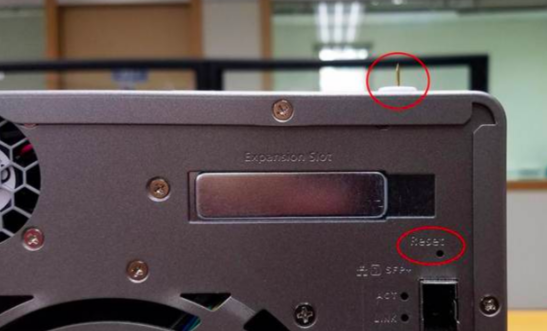
Reset the Admin Password via the Reset Button
When to use: You have physical access to the back panel of the NAS.
Insert a straightened paperclip or pin into the reset hole on the back of the NAS and press:
| Press Duration |
Beep Indicator |
Reset Effect |
| Short press (3 seconds) |
1 beep |
✅ All user data and shared folders preserved
• Admin password reset to default
• Security level reset to "Low" (allow all connections)
• Service binding and system ports restored to default
• Network (TCP/IP) settings: Switched to DHCP, disables Jumbo Frame and VLANs,Port Trunking set to Active Backup (on dual LAN models) |
| Long press (10 seconds) |
1 beep at 3 sec + 1 beep at 10 sec (2 beeps total) |
✅ User data on disks preserved
• All shared folder configurations are deleted. To restore, see here
• All system settings restored to default |
Warning
A 10-second long press deletes all shared folder configurations. To restore them, use the Backup/Restore function afterward.
After Reset — Log In with the Default Password
After completing a reset, log in using the default admin password. The default password depends on your firmware version:
| Firmware Version |
Default Admin Account |
Default Password |
| QTS/QuTS hero 5.2.0 and later |
admin |
The device's Cloud Key printed on the label (typically an 8-character alphanumeric string) |
| QTS/QuTS hero 4.4.2 – 5.1.x |
admin |
MAC address of the first network adapter (Adapter 1), colons removed, all uppercase |
| QTS/QuTS hero 4.4.1 and earlier |
admin |
admin |
Example (MAC address)
MAC address 00:08:9B:AA:BB:CC → password is 00089BAABBCC
Example (Cloud Key)
Cloud Key printed as Q1234-5678 → password is Q12345678 (uppercase letters, special characters removed)
Where to Find Your Cloud Key and MAC Address
Finding the Cloud Key
| Method |
Steps |
| ① Device label / Quick Installation Guide |
Check the sticker on the back or bottom of the NAS chassis for a field labeled "Cloud Key", or refer to the included Quick Installation Guide (QIG). |
| ② Qfinder Pro (when unable to log in to NAS) |
1. Power off the NAS
2. Remove all hard drives, M.2 SSDs, and QM2 PCIe expansion cards
3. Power on the NAS
4. Open Qfinder Pro, select the device in the list
5. Click Details → the Cloud Key is shown in the Device Details window |
| ③ Qfinder Pro (when able to log in normally) |
1. Open Qfinder Pro and select the device
2. Click Details, then enter your NAS credentials when prompted
3. The Cloud Key is shown in the Device Details window |
| ④ myQNAPcloud website |
1. Go to myQNAPcloud and log in with your QNAP ID
2. Go to Device Management and click your device
3. Click Device Details → the Cloud Key is shown in the details tab |
Note
If none of the above methods work, contact QNAP Customer Support for assistance.
Finding the MAC Address
| Method |
Steps |
| ① Device label |
The sticker on the NAS chassis lists the model name, serial number, and MAC address (format: XX:XX:XX:XX:XX:XX). |
| ② Qfinder Pro |
Open Qfinder Pro, locate your NAS in the list — the MAC Address field is shown directly in the device information. |
Note
When used as the default password, remove the colons from the MAC address and convert all letters to uppercase.
Example: 00:08:9B:AA:BB:CC → password is 00089BAABBCC
Related Articles
적용되는 제품
시나리오 1: 일반 사용자 암호 분실 → 관리자에게 재설정을 요청
참고
일반 사용자는 자신의 암호를 재설정할 수 없습니다. NAS 관리자에게 연락하여제어판에서 암호를 업데이트하도록 해야 하며, 다른 계정 설정에는 영향을 미치지 않습니다. 재설정이 완료되면 새 암호로 로그인할 수 있습니다.
NAS 관리자가 로컬 사용자 계정의 암호를 변경합니다
- QTS 또는QuTS hero에관리자로 로그인합니다.
- 제어판 > 권한 > 사용자로 이동합니다.
- 암호 변경이 필요한 계정을 찾습니다.
- 작업열에서암호 변경을 클릭합니다.
- 암호 변경대화 상자에서:
- 새 암호를 입력합니다.
- 암호를새 암호 확인필드에 다시 입력합니다.
- 적용을 클릭하여 변경 내용을 저장합니다.
중요
이 작업은관리자만 수행할 수 있습니다. 새 암호는 시스템의 복잡성 요구 사항을 충족해야 합니다.
시나리오 2: 관리자가 NAS admin암호를 잊어버린 경우
재설정 버튼을 통해admin암호 재설정
사용 시기: NAS의 후면 패널에 물리적으로 접근할 수 있는 경우.
NAS 뒷면의 재설정 구멍에 곧게 편 클립이나 핀을 삽입하고 누릅니다:
| 누르는 시간 |
경고음 표시기 |
재설정 효과 |
| 짧게 누르기(3초) |
1회 경고음 |
✅ 모든 사용자 데이터 및 공유 폴더 보존
• admin암호가 기본값으로 재설정됨
• 보안 수준이 "낮음"으로 재설정됨 (모든 연결 허용)
• 서비스 바인딩및 시스템 포트가 기본값으로 복원됨
• 네트워크 (TCP/IP) 설정: DHCP로 전환, 점보 프레임및 VLAN 비활성화, 포트 트렁킹가 Active Backup으로 설정됨 (듀얼 LAN 모델에서) |
| 길게 누르기(10초) |
3초에 1회 경고음 + 10초에 1회 경고음 (총 2회 경고음) |
✅ 디스크의 사용자 데이터 보존
• 모든 공유 폴더 설정이 삭제됩니다. 복원하려면여기
을(를) 참조하십시오• 모든 시스템 설정이 기본값으로 복원됩니다 |
경고
10초 동안 길게 누르면 모든 공유 폴더 설정이 삭제됩니다. 복원하려면 나중에백업/복구기능을 사용하십시오.
재설정 후 — 기본 암호로 로그인
재설정을 완료한 후 기본admin암호를 사용하여 로그인하십시오. 기본 암호는펌웨어버전에 따라 다릅니다:
| 펌웨어버전 |
기본admin계정 |
기본 암호 |
| QTS/QuTS hero 5.2.0 이상 |
admin |
장치의Cloud Key라벨에 인쇄된 것 (일반적으로 8자 영숫자 문자열) |
| QTS/QuTS hero 4.4.2 – 5.1.x |
admin |
첫 번째 네트워크 어댑터(어댑터 1)의MAC 주소, 콜론 제거, 모두 대문자 |
| QTS/QuTS hero 4.4.1 이전 |
admin |
admin |
예시 (MAC 주소)
MAC 주소00:08:9B:AA:BB:CC → 암호는00089BAABBCC
예시 (Cloud Key)
Cloud Key인쇄된 것Q1234-5678 → 암호는Q12345678 (대문자, 특수 문자 제거)
Cloud Key및 MAC 주소 찾기
Cloud Key찾기
| 방법 |
단계 |
| ① 장치 라벨 / 빠른 설치 가이드 |
NAS 섀시의 뒷면 또는 하단에 있는 "Cloud Key" 라벨이 붙은 스티커를 확인하거나, 포함된 빠른 설치 가이드(QIG)를 참조하십시오. |
| ② Qfinder Pro (NAS에 로그인할 수 없는 경우) |
1. NAS 전원 끄기
2. 모든 하드 드라이브, M.2 SSD 및 QM2 PCIe 확장 카드 제거
3. NAS 전원 켜기
4. Qfinder Pro열기, 목록에서 장치 선택
5. 세부 정보클릭 → 장치 세부 정보 창에Cloud Key표시됨 |
| ③ Qfinder Pro (정상적으로 로그인할 수 있는 경우) |
1. Qfinder Pro열고 장치 선택
2. 세부 정보클릭, NAS 자격 증명 입력 요청 시 입력
3. 장치 세부 정보 창에Cloud Key표시됨 |
| ④ myQNAPcloud 웹사이트 |
1. myQNAPcloud로 이동하여 QNAP ID로 로그인합니다
2. 장치 관리로 이동하여 장치를 클릭합니다
3. 장치 세부사항을 클릭합니다 → 세부사항 탭에Cloud Key가 표시됩니다 |
참고
위의 방법이 모두 작동하지 않으면QNAP 고객 지원에 문의하여 지원을 받으십시오.
MAC 주소 찾기
| 방법 |
단계 |
| ① 장치 라벨 |
NAS 섀시의 스티커에는 모델 이름, 일련 번호 및 MAC 주소가 나와 있습니다 (형식: XX:XX:XX:XX:XX:XX). |
| ② Qfinder Pro |
Qfinder Pro을 열고 목록에서 NAS를 찾습니다 — 장치 정보에MAC 주소필드가 직접 표시됩니다. |
참고
기본 암호로 사용될 때는 MAC 주소에서 콜론을 제거하고 모든 문자를대문자로 변환합니다.
예: 00:08:9B:AA:BB:CC → 암호는00089BAABBCC
관련 기사


