


What is the default system administrator password for my NAS?
Applicable Products
QTS, QuTS hero
Introduction
All NAS devices have the default system administrator account "admin". This "admin" account can configure settings, create users, and install applications. This account cannot be deleted and depending on your QTS/QuTS hero version may be disabled by default. To protect your system from malicious attacks, we recommend creating a new administrator account and disable the "admin" account. A new administrator account can perform the same actions as the "admin" account and helps keep your device secure.
To comply with the EU’s cybersecurity requirements, manufacturers must avoid universal default credentials. Corresponding EU/industry standards require no universal default passwords, mandating unique per-device credentials or enforcing a password change on first use. Accordingly, starting with QTS/QuTS hero 5.2.0, the default administrator password was changed to the device’s Cloud Key (earlier versions used the first NIC’s MAC; much older versions used admin/admin), aligning with these requirements.
Details
QTS/QuTS hero 5.2.0 and later (such as 5.2.x, 5.3.x, 6.0.0)
The following default system administrator account is used:
- Username: admin
- Password: The Cloud Key of your device in uppercase letters and without any special characters. For example, if the Cloud Key is Q1234-5678, the password is Q12345678
Finding your device's Cloud Key
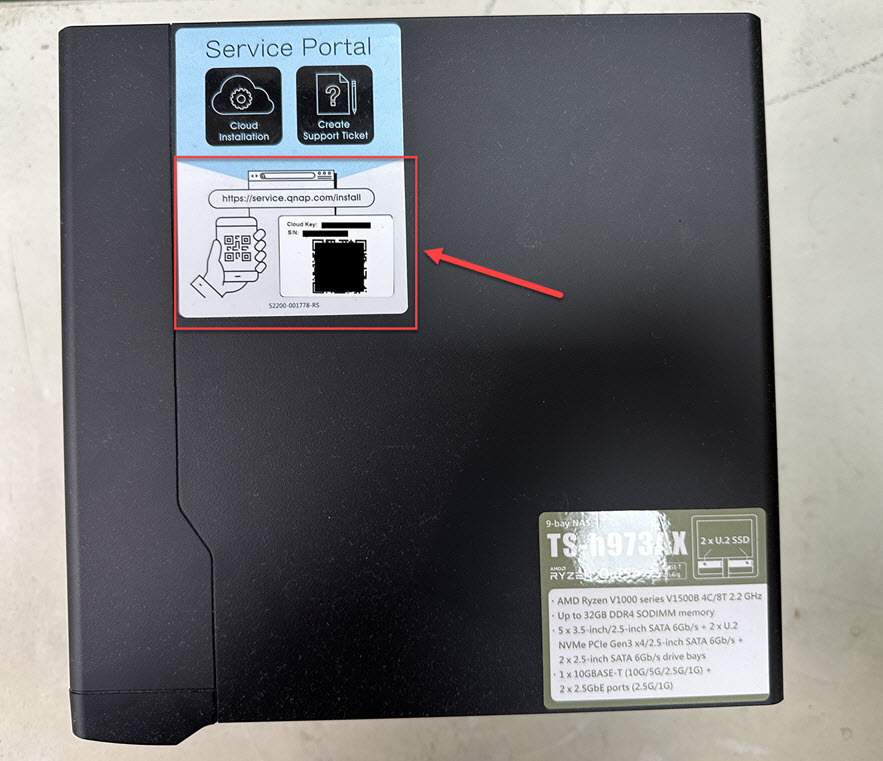
You can find the Cloud Key of your device with any of the following methods:Method A: From the device sticker or the Quick Installation Guide
You can find your Cloud Key from the sticker attached to the cover of your NAS or from the Quick Installation Guide that comes with your NAS.
Method B: Use Qfinder Pro
- Use Qfinder Pro without a NAS user account:
- Power off your NAS.
- Remove all hard drives from your NAS.
- Remove all internal M.2 SSDs and QM2 PCIe expansion card if any.
- Power on your NAS.
- Download and install Qfinder Pro.
- Open Qfinder Pro.
- Select your device.
- Click Details.
- The Device Details window appears.
Your device's Cloud Key is displayed in the Device Details window.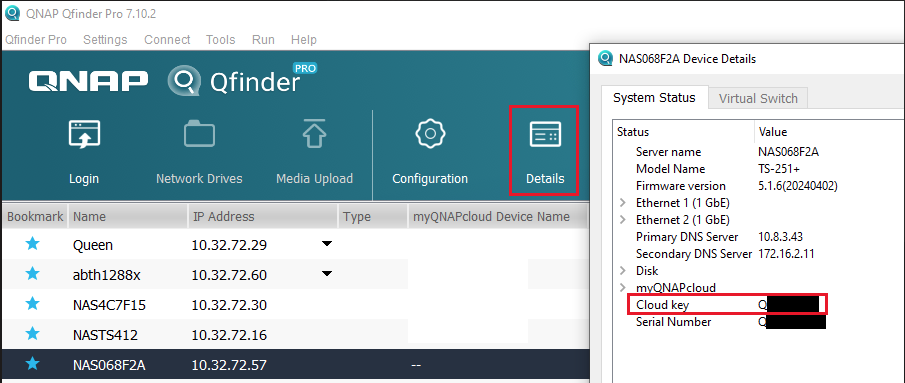
- Use Qfinder Pro with a NAS user account:
- Download and install Qfinder Pro.
- Open Qfinder Pro.
- Select your device.
- Click Details.
The Login window appears. Enter your NAS account username and password and click OK.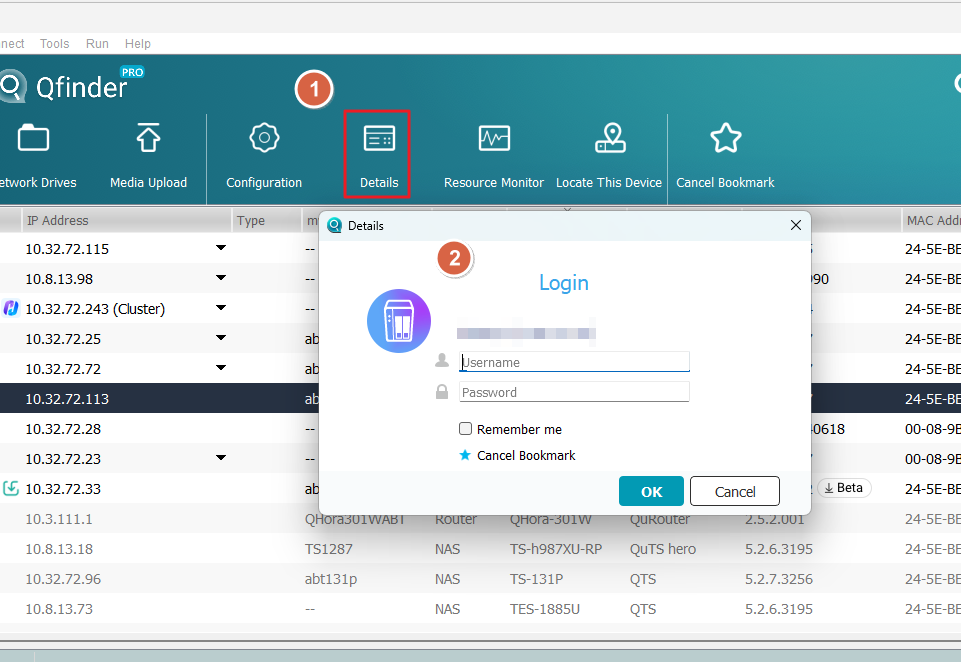
- The Device Details window appears.
Your device's Cloud Key is displayed in the Device Details window.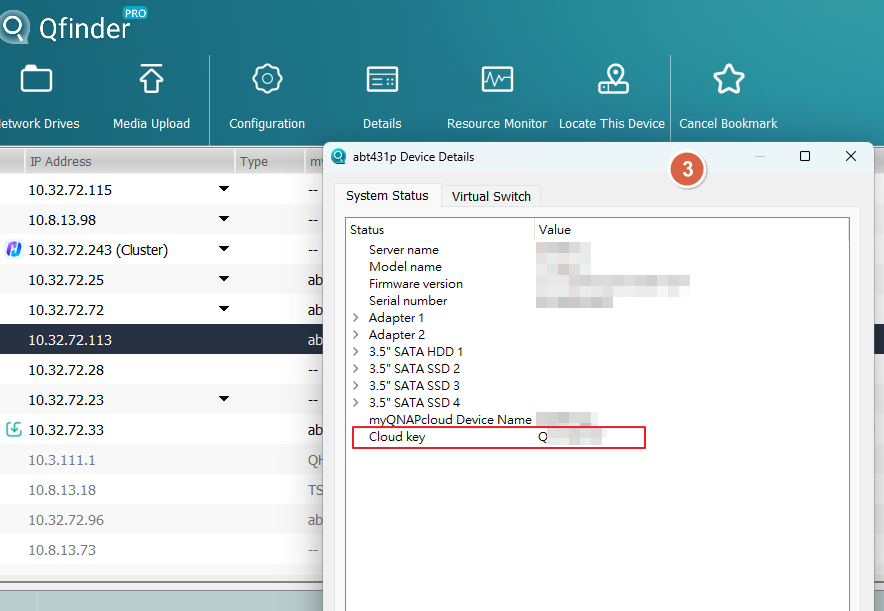
Method C: Use myQNAPcloud
- Log in to myQNAPcloudwith your QNAP ID:
- Login to myQNAPcloud.
- Go to Device Management.
- Locate and click on your device.
- Click Device Detail.
Your device's Cloud Key is displayed in the Device Detail tab.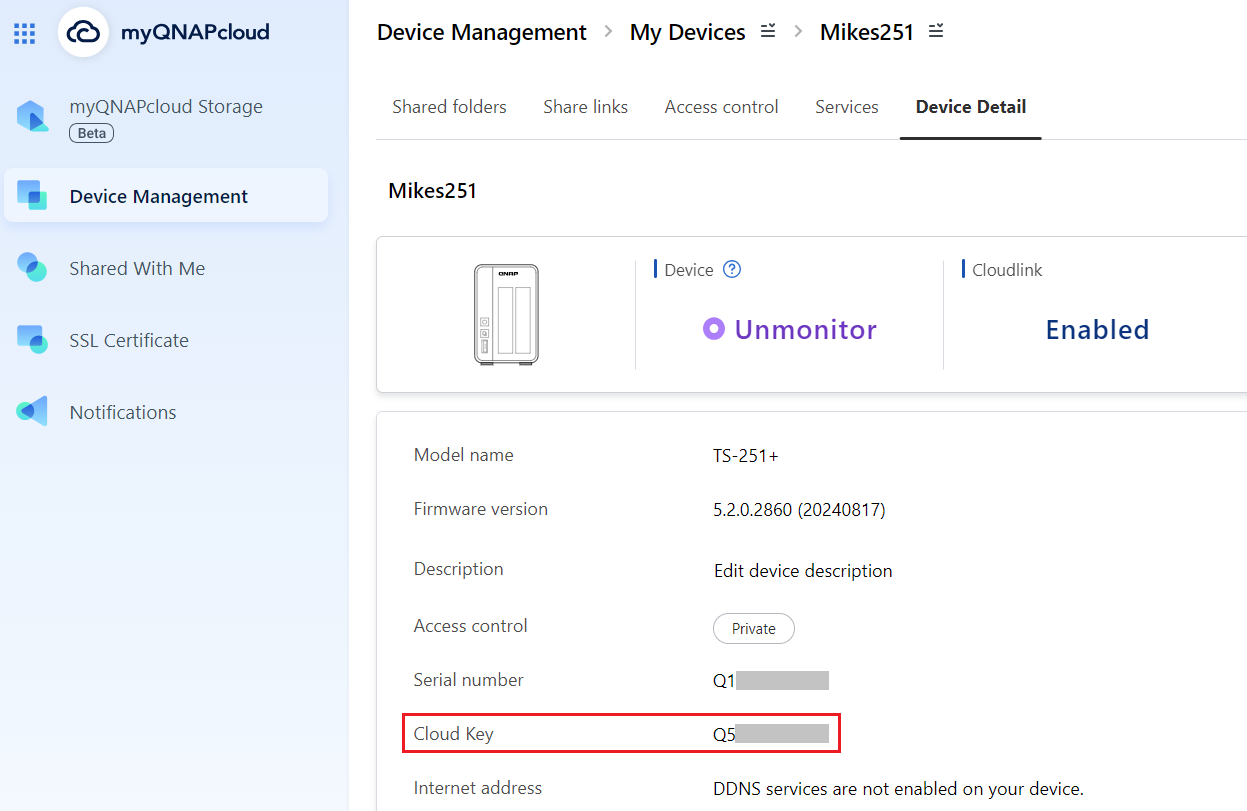
If you cannot find your device's Cloud Key from the above methods, please contact QNAP customer support.
If you manually enable the "admin" account in Control Panel, you will need to specify a new password that is different from the Cloud Key of your device. If your firmware was updated from version 5.1.x or earlier, and you were using the default "admin" account with the default password, you will be required to change the password to something different than the Cloud Key of your device.
QTS/QuTS hero 4.4.2 - 5.1.x
The following default system administrator account is used:
- Username: admin
- Password: The first MAC address of the NAS in uppercase letters and without special characters. For example, if the MAC address was 00-08-9B-F6-15-75, the password is 00089BF61575
The MAC address sticker is physically attached to the rear of the NAS. If your NAS has multiple NICs, use the MAC address listed as MAC1: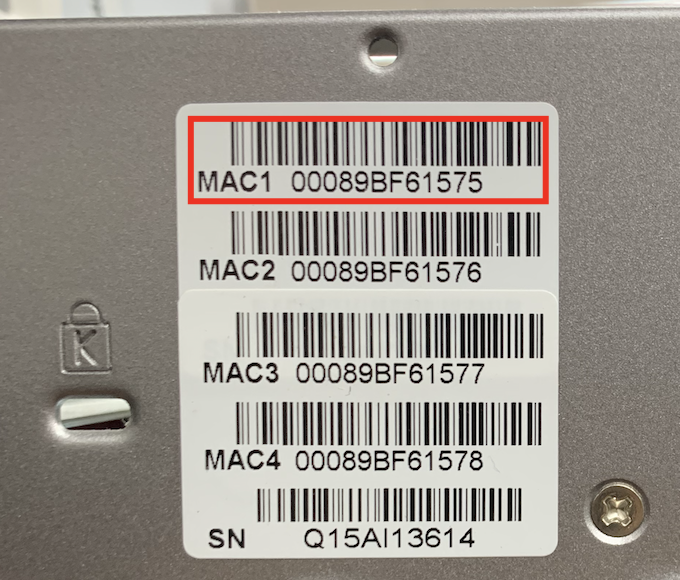
In Qfinder Pro, the value is listed in the MAC Address column: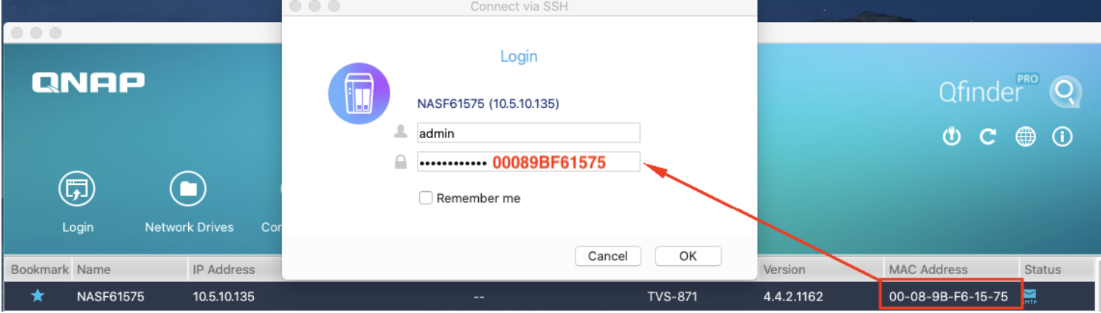
QTS/QuTS hero 4.4.1 - 4.3.6 or earlier
The following default system administrator account is used:
- Username: admin
- Password: admin
Further Reading
How do I reset the administrator password of my NAS?
How to disable the ''admin'' user account?
Are there any impacts if I disable the default admin account?


