


How to collect and submit NAS diagnostic logs to QNAP Tech Support?
Last modified date:
2025-06-23
Applicable Products
QTS, QuTS hero, Helpdesk
Overview
Diagnostic logs contain technical details about the system operations and errors on your NAS. Submitting diagnostic logs can help QNAP Tech Support identify and troubleshoot potential issues.
This article explains how to collect and send logs from your QNAP NAS to QNAP Tech Support.
Solution
There are several ways to collect and submit these logs, depending on your preferences or use case.
Method 1: Using the Helpdesk App (Recommended)
Step 1: Access the Helpdesk App
- Log in to your QNAP NAS using the administrator account.
- Open the App Center and ensure that the Helpdesk app is installed and updated.
- Launch the Helpdesk app.

Step 2: Collect NAS Diagnostic Logs
- In the Helpdesk, go to Diagnostic Tool > Download Logs.
- Download.
- The system will generate a zip file containing system logs and diagnostics.
- Save the file to your computer.

Step 3: Create a Support Ticket
- In the Helpdesk, click Help Request.

- Fill out the form with the following information:
- Description of the issue
- NAS model
- Operating system
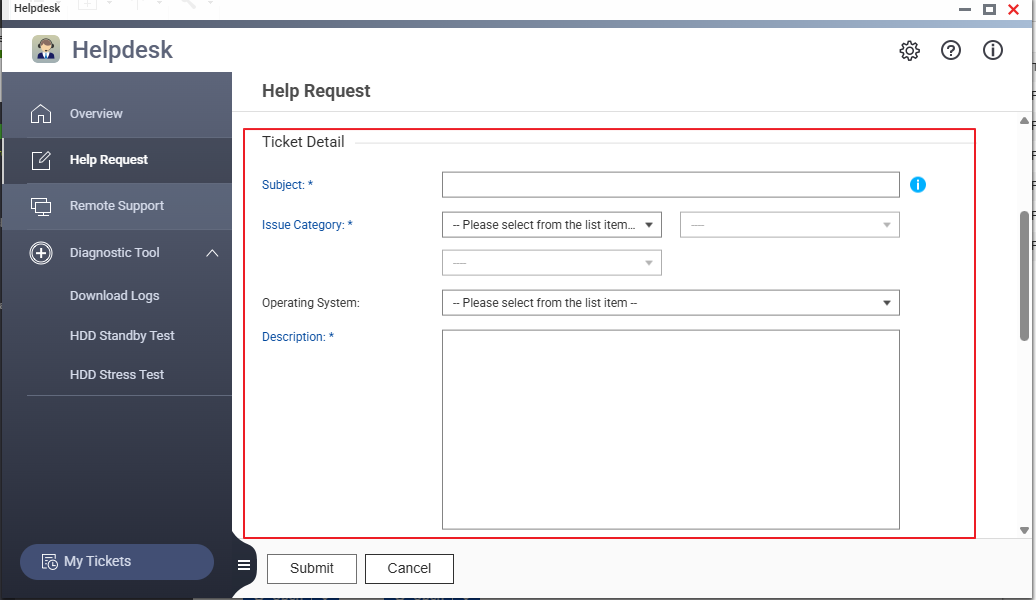
- Attach the log file you just downloaded.

- Submit the support ticket.

Method 2: Collect Logs via SSH (for advanced users or when the web Interface is unavailable)
Step 1: Access the NAS via SSH
- Use an SSH client like PuTTY to log in to your NAS.
Connect with your NAS IP address and administrator credentials.
Step 2: Generate the Diagnostic Log
Run the following command:
/mnt/ext/opt/qdesk/www/data/script/get_log $(get_hwsn)
If successful, the log file will be saved to:
/mnt/diag/<serial-number>.zip

Step 3: Make the Log Downloadable
Copy the log file to the public folder so you can download it easily:
cp /mnt/diag/$(get_hwsn).zip /share/Public/- Now you can:
- Use File Station to access the Public folder and download the zip file
- Or access the Public folder via SMB from your PC

Method 3: Export System Logs from Control Panel (basic logs only)
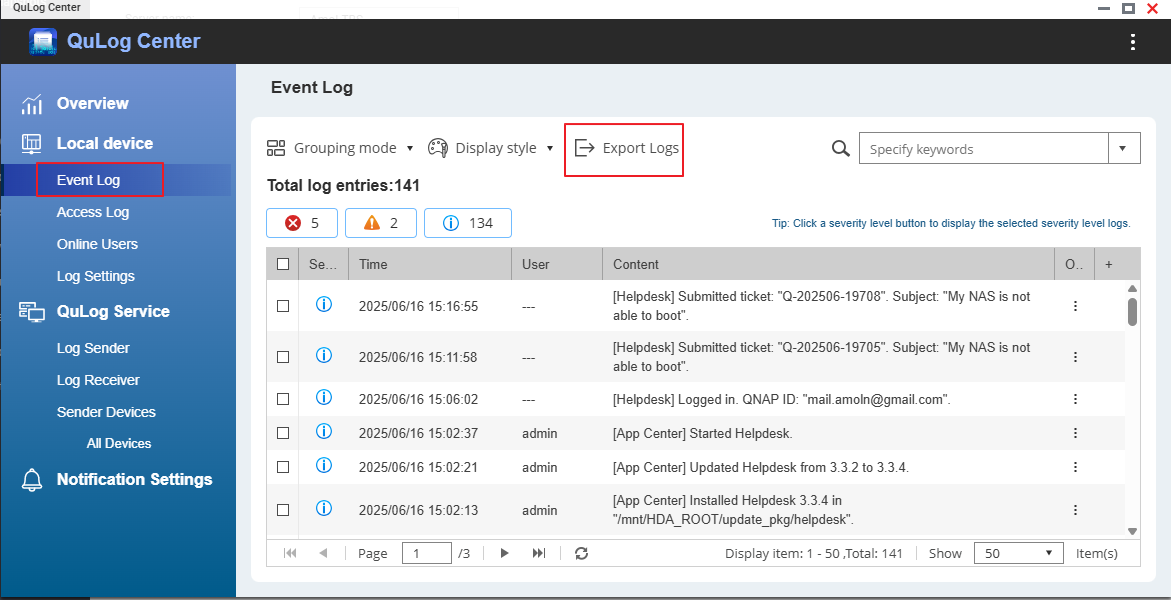
- Log in to your NAS and go to Control Panel > QuLog Center > Local device > Event Log
- Click Export Logs.
- Select a file format for the log file and select Download to PC. You can choose to compress the file.
- Click Export.
Note: This method only includes basic system logs and may not be sufficient for troubleshooting.
Method 4: Submit via QNAP Service Portal (Web-Based)
- Go to the QNAP Service Portal: https://service.qnap.com/
- Log in using your QNAP ID
- Go to Support > Create Support Ticket
- Fill out the form with the following information:
- Description of the issue
- NAS model and firmware
- Attach the log file you downloaded via Helpdesk or SSH
- Submit the ticket

Further Reading
- How to use the Helpdesk app to solve issues and provide feedback
- https://docs.qnap.com/operating-system/quts-hero/5.2.x/en-us/helpdesk-1204CEB9.html


