[ประกาศแจ้งเตือนความปลอดภัย] ตรวจพบเว็บไซต์ Qfinder Pro ปลอม เรียนรู้เพิ่มเติม >

Creating a QTS Account


Last modified date: 2020-08-20

QTS is the QNAP NAS operating system designed to enhance your productivity and enrich your digital life. While QTS makes file sharing easy, users only get the full benefits of using a NAS with a user account.

Users with administrator privileges can easily create a user account to share the NAS with family members, friends, or colleagues.

  1. Log on to QTS.
    Note:

    The default URL of QTS is http://<IP address>:<port>. For example, http://10.10.0.100:8080.

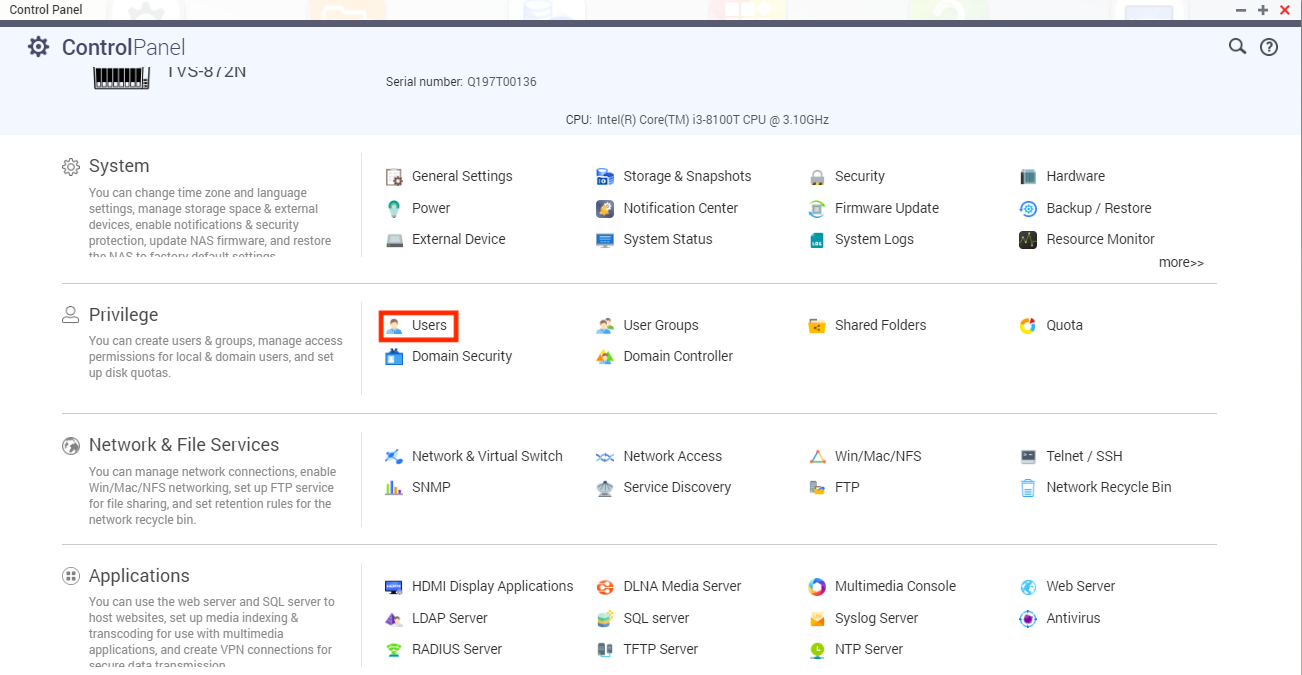
  2. Go to Control Panel > Privilege > Users.

    The Users screen appears.

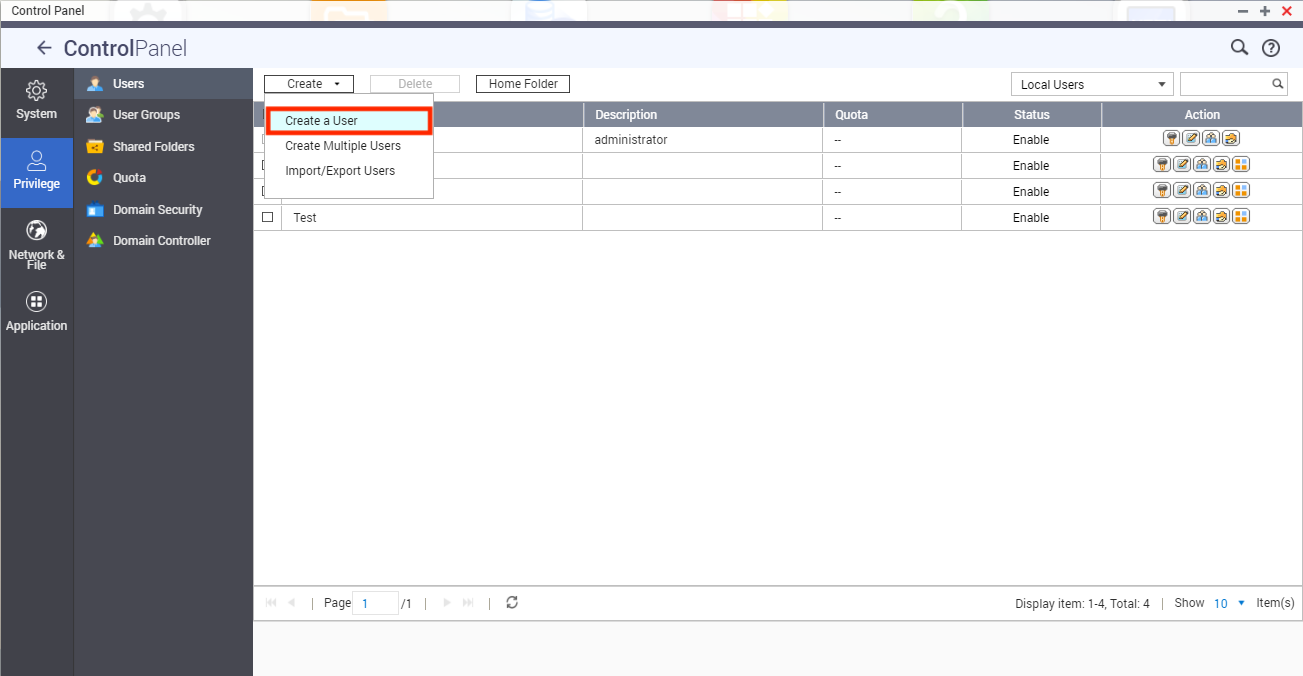
  3. Click Create and then select Create a User.
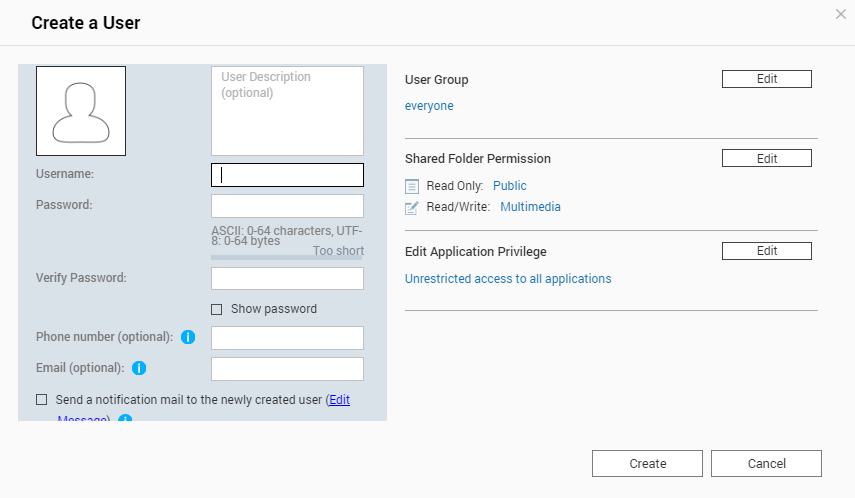
    The Create a User screen appears.

  4. Specify the username and password.
  5. Optional: Specify the user description, phone number, and email address.
  6. Optional: Select Send a notification mail to the newly created user.
    Tip:

    To modify the default email subject and message, click Edit Message.

  7. Optional: Modify the default user group, shared folder permission, application privilege, and quota settings.
    Important:

    Before you can configure the quota settings, you must first select Enable quota for all users. Go to Control Panel > Privilege > Quota.

  8. Click Create.

The account is created and added to the Users list.

Was this article helpful?

65% of people think it helps.
Thank you for your feedback.

หากต้องการความช่วยเหลือเพิ่มเติม สอบถามผู้ใช้รายอื่นและผู้เชี่ยวชาญของ QNAP ได้ในคอมมูนิตี้ ไปที่ QNAP Community

Please tell us how this article can be improved:

If you want to provide additional feedback, please include it below.

เลือกสเปค

      ดูเพิ่มเติม น้อยลง
      เลือกประเทศหรือภูมิภาคของคุณ
      แชทกับเราได้เลย! แชทกับเราได้เลย!
      back to top