Why is your blazing fast NAS, but remote file transfer feels like it's crawling?
You spent a fortune upgrading to a 10GbE home network and bought a high-performance QNAP NAS, but when you try to access photos with Qfile Pro on your 5G phone outside, the speed is so slow it makes you question life? Usually, it's not the 5G's fault, but your “connection path” is wrong.
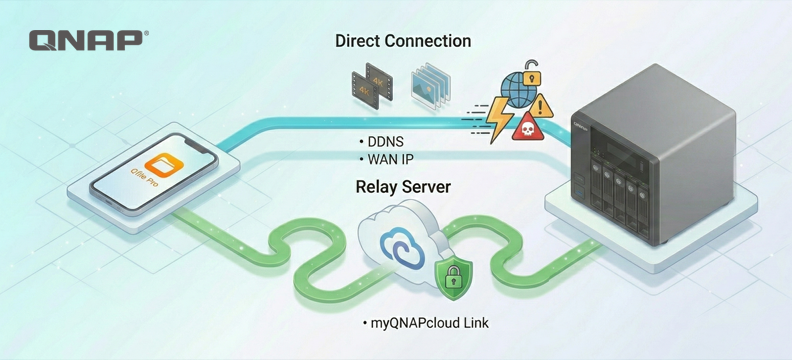
In QNAP's remote ecosystem, there are two distinctly different transmission routes: one is a survival path (Relay) that exists to ensure connectivity, and the other is an ultra-fast highway (Direct) designed for maximum bandwidth.
Diagram of QNAP secure connection mechanism: route determination explained
To optimize connection speed, let's first look at the physical limits of these two options:

1. Relay Server (myQNAPcloud Link) — Indirect relay mode
When your Router firewall is as strict as a fortress and no port forwarding is enabled at all, the system will automatically activate this "Guaranteed Connectivity" rescue mechanism.
-
Transmission path: [Mobile Device] → [ISP Networking] → [QNAP Global Relay Server] → [Home NAS].
-
Effectiveness Reality: Since it is a "relay", data must go through a third-party server. In situations where global users share bandwidth, speeds are usually limited to 1-2 Mbps. Reading a PDF or changing a setting is still doable at this bandwidth, but syncing tens of thousands of photos? That's simply impossible.
2. Direct Connection (Port Forwarding) — Ultra-fast public route mode
Through simple port forwarding settings, allow your phone to establish a direct point-to-point (P2P) connection with NAS, bypassing all intermediaries.
-
Transmission route: [Phone] → [ISP Networking] → [Home Router] → [Home NAS].
-
Performance Reality: This is the only solution to unleash your true physical bandwidth. If your home has 500M fiber upload, your remote storage can run at the full 500M. This is what we call 'as fast as being next door,' letting you enjoy LAN-like storage speeds even at a café.
Dissecting the five connection paths of Qfile Pro: Which path is your data taking?

When we open the connection list in Qfile Pro, those five routes secretly hold the keys to speed and security. myQNAPcloud Smart URL will attempt the optimal solution, but manual intervention often achieves the ultimate result:
-
LAN IP: The dedicated "internal elevator" for the local network, with bandwidth typically limited to Router and Switch within the home.
-
myQNAPcloud Link (Relay Mode): This is the most common 'last resort' for beginners. Traffic must be relayed through the official server, and bandwidth is usually limited to 1-2 Mbps. If you find that transferring 4K video is extremely slow, it's usually because you've entered this route.
-
DDNS and WAN IP (Direct Connection Mode): This is the express ticket for external network access. Through xxxx.myQNAPcloud.com or a physical IP, you can bypass the relay server's limitations and directly access your home's full bandwidth.
The last line of defense and endpoint presentation
Although the Relay Server is slow, it is QNAP's "last resort" for you. When you are at an airport Wi-Fi or under a strictly controlled enterprise network where all direct connection ports are blocked, Relay ensures you can still connect back home to access data. However, regardless, please first make sure that muQNAPcloud on the NAS end has both myQNAPcloud Link and DDNS properly enabled to ensure Networking connection remains uninterrupted.

But if you’re after the ultimate experience—if you want to instantly stream 4K multimedia or transfer tens of thousands of photos in seconds during the mobile office boom of 2026—then configuring “Direct Connection Mode” is essential to unleash the full hardware performance of QNAP NAS. Don’t let the wrong path bury the true capabilities of your NAS.
Waarom is je razendsnelle NAS zo snel, maar voelt het overzetten van bestanden op afstand alsof het kruipt?
Je hebt een fortuin uitgegeven aan het upgraden naar een 10GbE thuisnetwerk en een high-performance QNAP NAS gekocht, maar wanneer je buiten via Qfile Pro op je 5G-telefoon foto's probeert te openen, is de snelheid zo traag dat je aan het leven gaat twijfelen? Meestal ligt het niet aan 5G, maar is je “verbindingstraject” verkeerd.
In het remote-ecosysteem van QNAP zijn er twee duidelijk verschillende transmissieroutes: één is een overlevingspad (Relay) dat bestaat om connectiviteit te garanderen, en de andere is een ultrasnelle snelweg (Direct) ontworpen voor maximale bandbreedte.
Diagram van QNAP's beveiligde verbindingsmechanisme: routebepaling uitgelegd
Om de verbindingssnelheid te optimaliseren, kijken we eerst naar de fysieke limieten van deze twee opties:
1. Relay Server (myQNAPcloud Link) — Indirecte relay-modus
Wanneer je router-firewall zo streng is als een fort en er helemaal geen port forwarding is ingeschakeld, zal het systeem automatisch dit "Gegarandeerde Connectiviteit"-reddingsmechanisme activeren.
-
Transmissiepad: [Mobiel apparaat] → [ISP-netwerk] → [QNAP Global Relay Server] → [Thuis NAS].
-
Effectiviteit in de praktijk: Omdat het een "relay" is, moet data via een derde partij server gaan. In situaties waarin wereldwijde gebruikers bandbreedte delen, is de snelheid meestal beperkt tot 1-2 Mbps. Een PDF lezen of een instelling wijzigen is op deze bandbreedte nog mogelijk, maar tienduizenden foto's synchroniseren? Dat is simpelweg onmogelijk.
2. Directe verbinding (Port Forwarding) — Ultrasnelle publieke route-modus
Via eenvoudige port forwarding-instellingen kun je je telefoon een directe point-to-point (P2P) verbinding laten maken met de NAS, waarbij alle tussenpersonen worden omzeild.
-
Transmissieroute: [Telefoon] → [ISP-netwerk] → [Thuisrouter] → [Thuis NAS].
-
Prestaties in de praktijk: Dit is de enige oplossing om je echte fysieke bandbreedte te benutten. Als je thuis een 500M fiber upload hebt, kan je remote opslag op de volle 500M draaien. Dit noemen we 'zo snel als de buurman', zodat je zelfs in een café van LAN-achtige opslag snelheden kunt genieten.
De vijf verbindingspaden van Qfile Pro ontleed: Welke route neemt jouw data?
Wanneer we de verbindingslijst in Qfile Pro openen, houden die vijf routes stiekem de sleutel tot snelheid en veiligheid vast. myQNAPcloud Smart URL probeert de optimale oplossing, maar handmatige interventie levert vaak het ultieme resultaat op:
-
LAN IP: De speciale "interne lift" voor het lokale netwerk, met bandbreedte meestal beperkt tot router en switch binnen het huis.
-
myQNAPcloud Link (Relay-modus): Dit is het meest voorkomende 'laatste redmiddel' voor beginners. Verkeer moet via de officiële server worden gerouteerd en bandbreedte is meestal beperkt tot 1-2 Mbps. Als je merkt dat het overzetten van 4K-video extreem traag is, komt dat meestal doordat je deze route gebruikt.
-
DDNS en WAN IP (Directe verbinding modus): Dit is het express-ticket voor toegang tot het externe netwerk. Via xxxx.myQNAPcloud.com of een fysiek IP kun je de beperkingen van de relay server omzeilen en direct toegang krijgen tot de volledige bandbreedte van je thuis.
De laatste verdedigingslinie en endpoint-presentatie
Hoewel de Relay Server traag is, is het QNAP's "laatste redmiddel" voor jou. Wanneer je op een luchthaven-wifi zit of onder een streng gecontroleerd bedrijfsnetwerk waar alle directe verbindingspoorten zijn geblokkeerd, zorgt Relay ervoor dat je toch thuis kunt verbinden om data te openen. Zorg er echter altijd voor dat muQNAPcloud op de NAS zowel myQNAPcloud Link als DDNS correct heeft ingeschakeld om te garanderen dat de netwerkverbinding ononderbroken blijft.
Maar als je op zoek bent naar de ultieme ervaring—als je direct 4K-multimedia wilt streamen of tienduizenden foto's in seconden wilt overzetten tijdens de mobiele kantoorrevolutie van 2026—dan is het configureren van de “Direct Connection Mode” essentieel om de volledige hardwareprestaties van QNAP NAS te benutten. Laat het verkeerde pad niet de ware capaciteiten van je NAS begraven.


 4 min lezen