


How to view photos/videos using QuMagie?
Applicable Products
QuMagie Android / iOS 2.0.0
Solution
First, you need to login NAS web management page with administrative privilege. Then install and launch Multimedia Console from the App Center to configure Content Management settings of QuMagie. Go to Multimedia Console > Content Management > QuMagie > Edit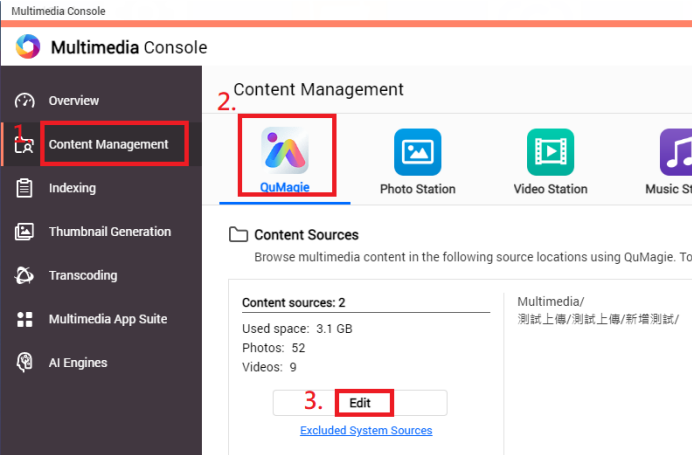 Choose the path of the folder which contains photos/video files and then click Apply to save the settings.
After completing the settings in the NAS, now you can launch the QuMagie on your smartphone and log in.
Then you can tap Photo icon at the bottom to view photos and tap Video icon at the bottom to view video files.
หากต้องการความช่วยเหลือเพิ่มเติม สอบถามผู้ใช้รายอื่นและผู้เชี่ยวชาญของ QNAP ได้ในคอมมูนิตี้ ไปที่ QNAP Community


