Applicable Products
Scenario
My NAS file transfer is much slower than expected. What preliminary checks I can do to help expedite the problem solved.
Solution
You may perform the following three quick tests before opening a support case. These checks help confirm whether the bottleneck is in the NAS network path, NAS disks, or the client-side storage.
Test 1: Verify NAS network link speed
- Log in to the NAS web interface.
- Go to Control Panel > Network & Virtual Switch > Interfaces > Information > Hardware.
- Check the active LAN port link speed (for example, 1GbE, 2.5GbE, 10GbE).
- Confirm the negotiated speed matches your expected hardware capability.

Speed: NAS interface page showing the active adapter and negotiated link speed.
If the link speed is lower than expected, check cable type, switch port capability, and NIC negotiation settings first.
Test 2: Test NAS disk speed (identify abnormally slow disk)
- Go to Storage & Snapshots.
- Open Disks/VJBOD.
- Run the disk performance/Sequential Read Test on all disks. .

- Compare each disk result and verify there is no single disk with extremely low performance.

Screenshot needed 2: Disk list or test result screen showing per-disk status/performance values.
If one disk is significantly slower than others, record the slot number and disk model/serial for support analysis.
Test 3: Validate client machine disk performance with a USB external drive
- Connect a USB external drive to the client machine.
- On the client machine, run a local read/write test to that USB external drive.
- Verify the client-side disk path can deliver normal read/write speed for that system.
This step helps rule out local client storage bottlenecks that can be mistaken as NAS transfer issues.
Verification Checklist
- NAS link speed is confirmed and documented.
- NAS disk test confirms no specific disk with abnormally low speed.
- Client-side USB external drive read/write performance is confirmed to be normal.
After performing the above preliminary checks, if each item of checklist is normal but the problem is still not solved. You may conatct QNAP support for further assisitances.
While opening a support request, enclose the following information can help expedite the process:
- NAS model and firmware version.
- NAS system dump logs.
- Test 1 result (network link speed) with screenshot.
- Test 2 result (disk check) with screenshot.
- Test 3 result summary (client local USB read/write test).
- Brief topology note (client <-> switch <-> NAS).
Further Reading
적용되는 제품
시나리오
내 NAS 파일 전송 속도가 예상보다 훨씬 느립니다. 문제 해결을 가속화하기 위해 할 수 있는 초기 확인 사항은 무엇입니까?
솔루션
지원 케이스를 열기 전에 다음 세 가지 빠른 테스트를 수행할 수 있습니다. 이러한 확인은 NAS 네트워크 경로, NAS 디스크 또는 클라이언트 측스토리지에서 병목 현상이 발생하는지 확인하는 데 도움이 됩니다.
테스트 1: NAS 네트워크 링크 속도 확인
- NAS 웹 인터페이스에 로그인합니다.
- 제어판 > 네트워크 및 가상 스위치 > Interfaces > Information > Hardware로 이동합니다.
- 활성 LAN 포트 링크 속도를 확인합니다 (예: 1GbE, 2.5GbE, 10GbE).
- 협상된 속도가 예상되는 하드웨어 기능과 일치하는지 확인합니다.
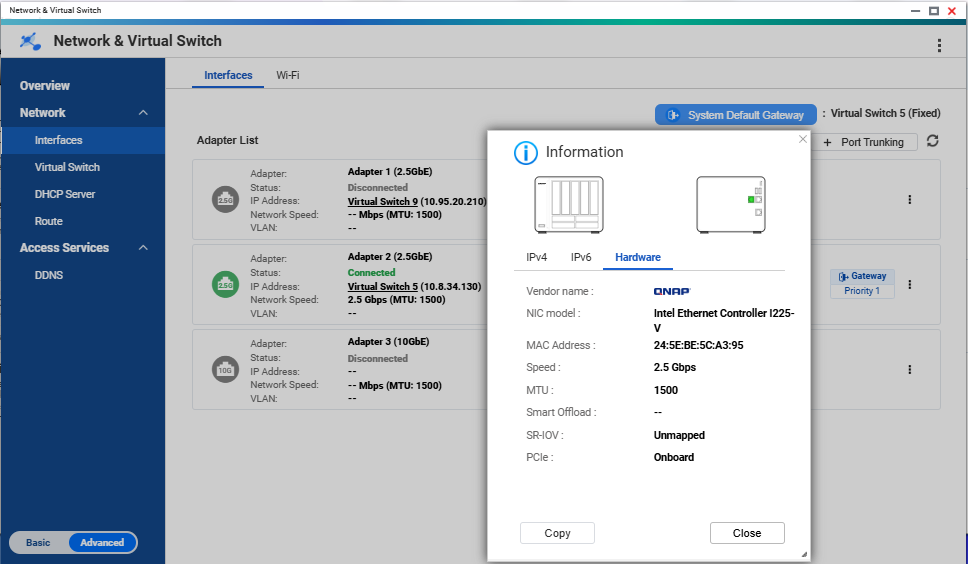
속도: NAS 인터페이스 페이지에 활성 어댑터와 협상된 링크 속도가 표시됩니다.
링크 속도가 예상보다 낮으면 케이블 유형, 스위치 포트 기능 및 NIC 협상 설정을 먼저 확인하십시오.
테스트 2: NAS 디스크 속도 테스트 (비정상적으로 느린 디스크 식별)
- 스토리지 및 스냅샷로 이동합니다.
- 디스크/VJBOD를 엽니다.
- 모든 디스크에서 디스크 성능/순차 읽기 테스트를 실행합니다.
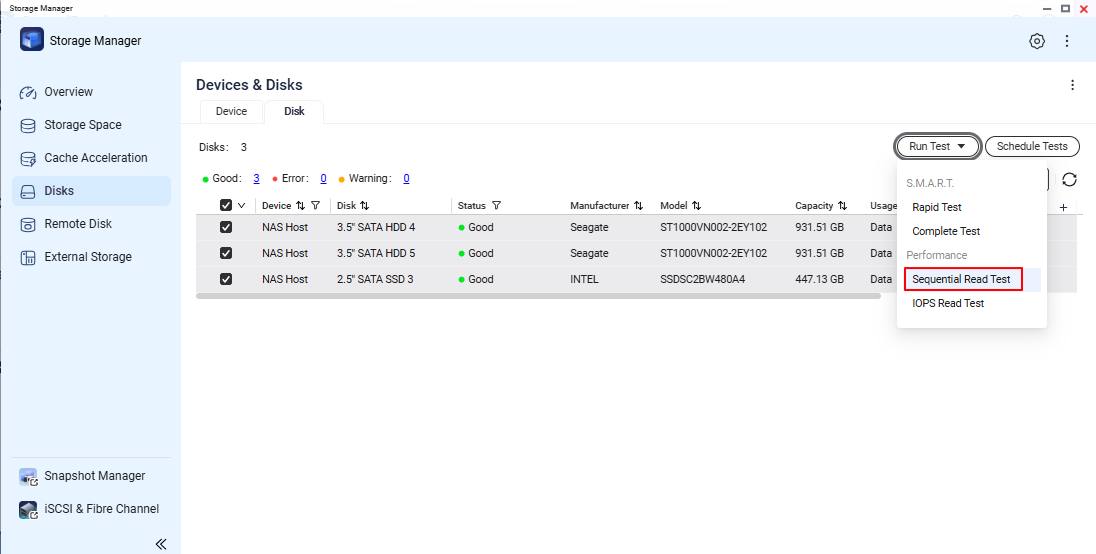
- 각 디스크 결과를 비교하고 성능이 극도로 낮은 단일 디스크가 없는지 확인합니다.
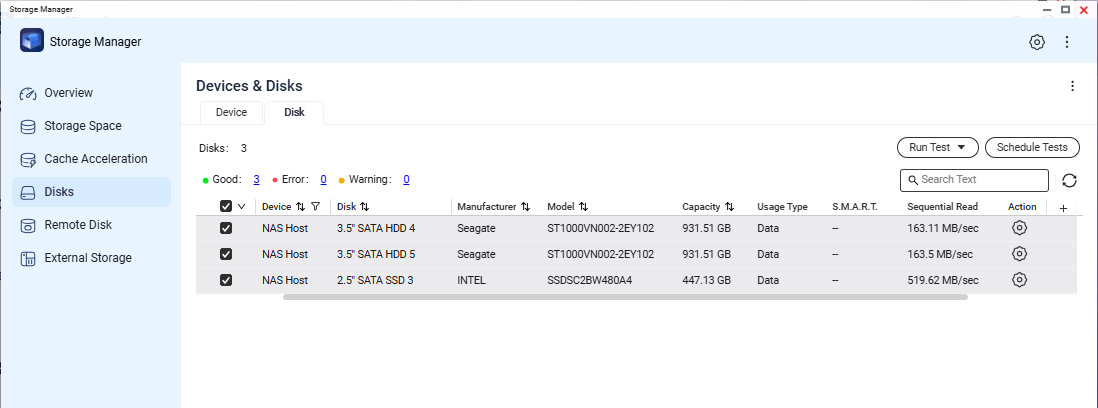
스크린샷 필요 2:디스크 목록 또는 테스트 결과 화면에 디스크별 상태/성능 값이 표시됩니다.
하나의 디스크가 다른 디스크보다 현저히 느리다면, 지원 분석을 위해 슬롯 번호와 디스크 모델/시리얼을 기록합니다.
테스트 3: USB 외장 드라이브로 클라이언트 머신 디스크 성능 검증
- 클라이언트 머신에 USB 외장 드라이브를 연결합니다.
- 클라이언트 컴퓨터에서 해당 USB 외장 드라이브에 대한 로컬 읽기/쓰기 테스트를 실행합니다.
- 클라이언트 측 디스크 경로가 해당 시스템에 대해 정상적인 읽기/쓰기 속도를 제공할 수 있는지 확인합니다.
이 단계는 NAS 전송 문제로 오인될 수 있는 로컬 클라이언트스토리지병목 현상을 배제하는 데 도움이 됩니다.
검증 체크리스트
- NAS 링크 속도가 확인되고 문서화되었습니다.
- NAS 디스크 테스트에서 비정상적으로 낮은 속도의 특정 디스크가 없음을 확인합니다.
- 클라이언트 측 USB 외장 드라이브의 읽기/쓰기 성능이 정상임을 확인합니다.
위의 예비 점검을 수행한 후, 체크리스트의 각 항목이 정상인데도 문제가 해결되지 않는 경우, 추가 지원을 위해QNAP 지원에 문의할 수 있습니다.
지원 요청 열기동안, 다음 정보를 포함하면 프로세스를 신속하게 진행하는 데 도움이 됩니다:
- NAS 모델 및펌웨어버전.
- NAS 시스템 덤프 로그.
- 테스트 1 결과 (네트워크 링크 속도) 스크린샷 포함.
- 테스트 2 결과 (디스크 검사) 스크린샷 포함.
- 테스트 3 결과 요약 (클라이언트 로컬 USB 읽기/쓰기 테스트).
- 간단한 토폴로지 노트 (클라이언트 <-> 스위치 <-> NAS).
추가 읽기