


How do I migrate HBS from HDDs to SSDs for higher IOPS when using QuDedup?
HBS is a powerful backup and sync application for QNAP NAS devices running QTS, that can back up and sync your files to storage servers, NAS devices, or cloud storage space.
HSB has a built-in deduplication feature called QuDedup, which allows you to deduplicate backup data to save space and network bandwidth. When QuDedup is enabled on a backup job, HBS creates a local database containing a file index which it must constantly query. As more data is deduplicated, this database grows larger resulting in increased IOPS latency.

If you use QuDedup on any backup jobs, then you should install HBS on an SSD volume for higher IOPS. If HBS is already installed on an HDD volume, then you can migrate the HBS application and database to an SSD volume by following the steps below.
Before you Start
Install one or more compatible SSDs in the NAS. For a list of compatible SSDs, see https://www.qnap.com/compatibility.
- Install an SSD on a drive tray.
- Insert the drive tray into an empty drive bay.
- Wait for the NAS to issue an audio alert, indicating that the disk has been detected.
- Repeat the above steps for each SSD.
Tip: If an SSD is not detected after being inserted into the drive bay, restart the NAS.
Create a New SSD Storage Pool and Volume
- Log into QTS.
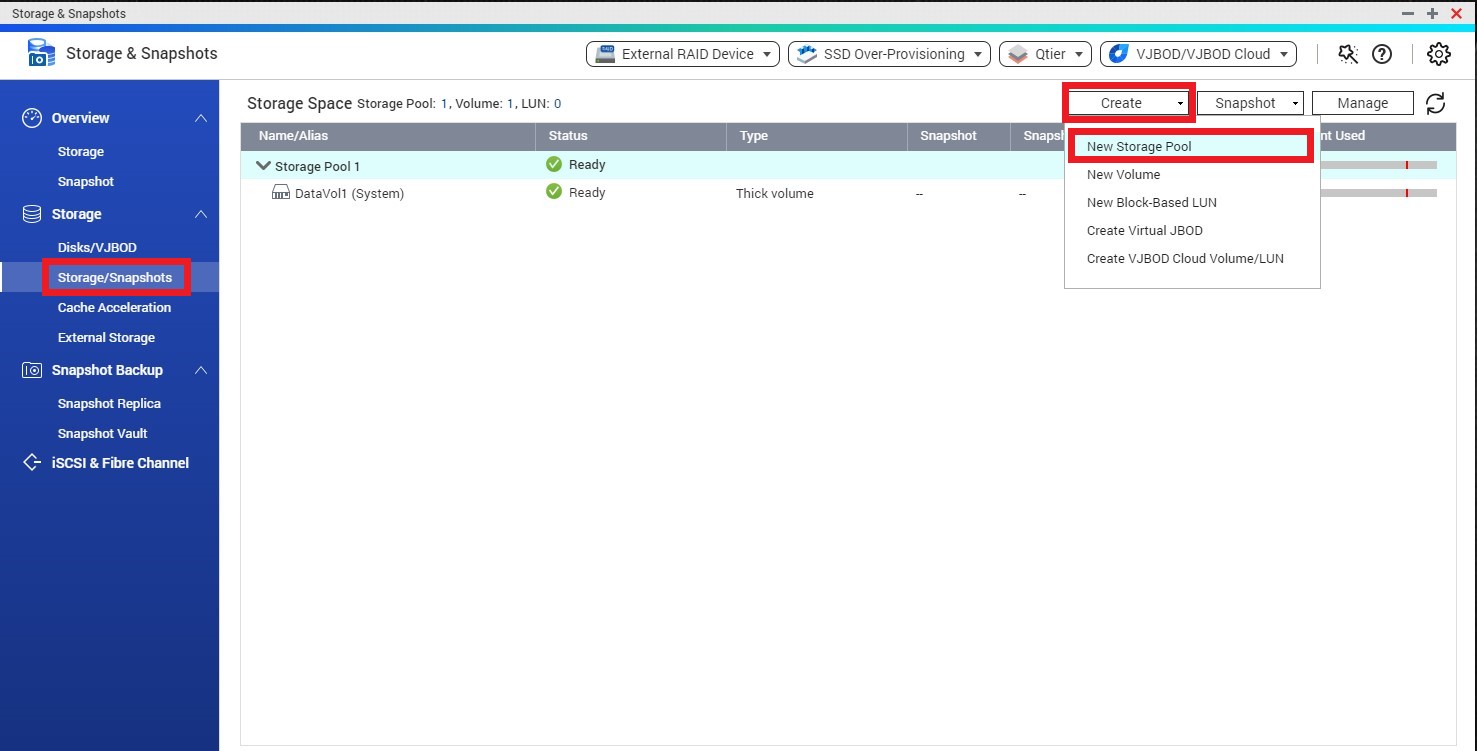
- Open Storage & Snapshots, and then go to Storage/Snapshot.
- Click Create, and then select New Storage Pool.
- Following the Create Storage Pool Wizard, ensuring to select only SSDs on the Select Disk(s) page.
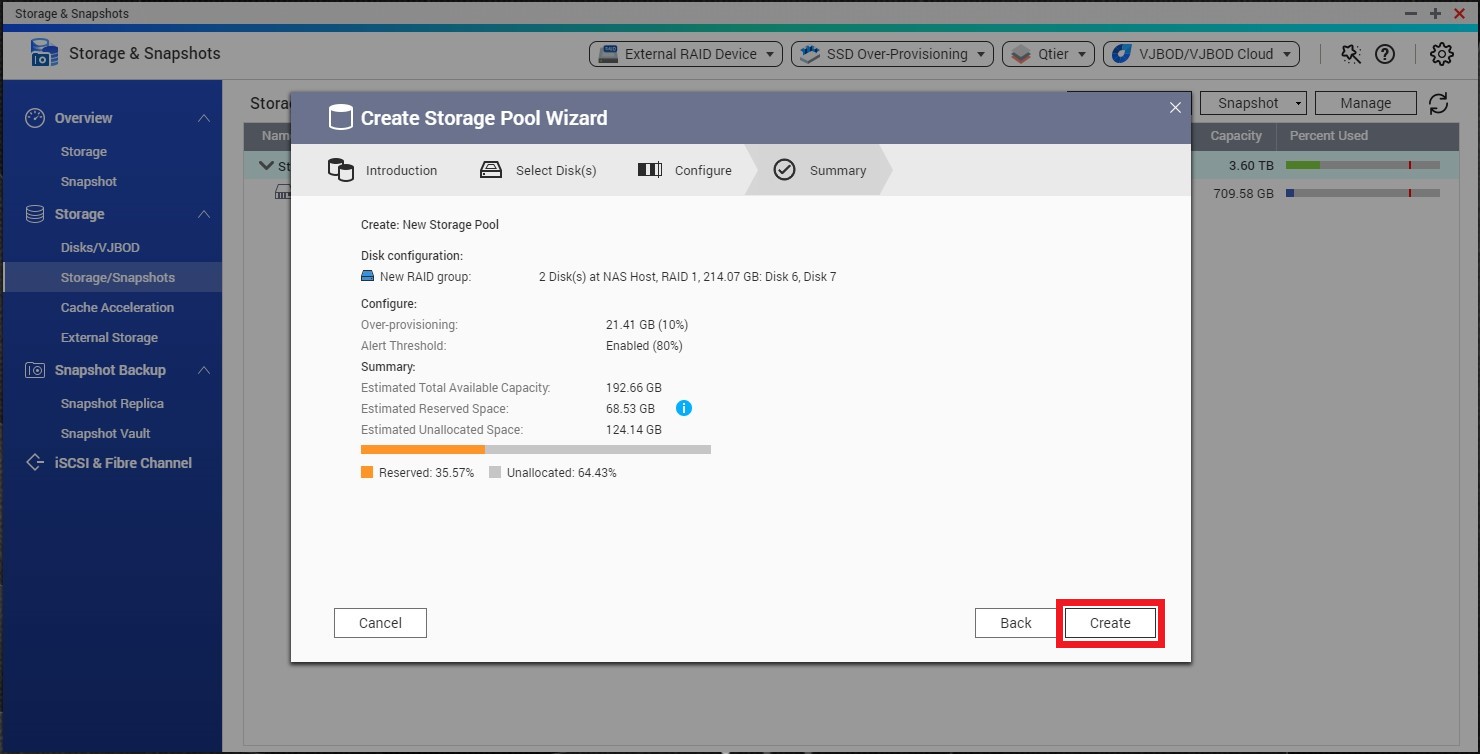
- On the Summary page, review the summary information and then click Create.
- Click OK to confirm that all data on the SSDs will be deleted.
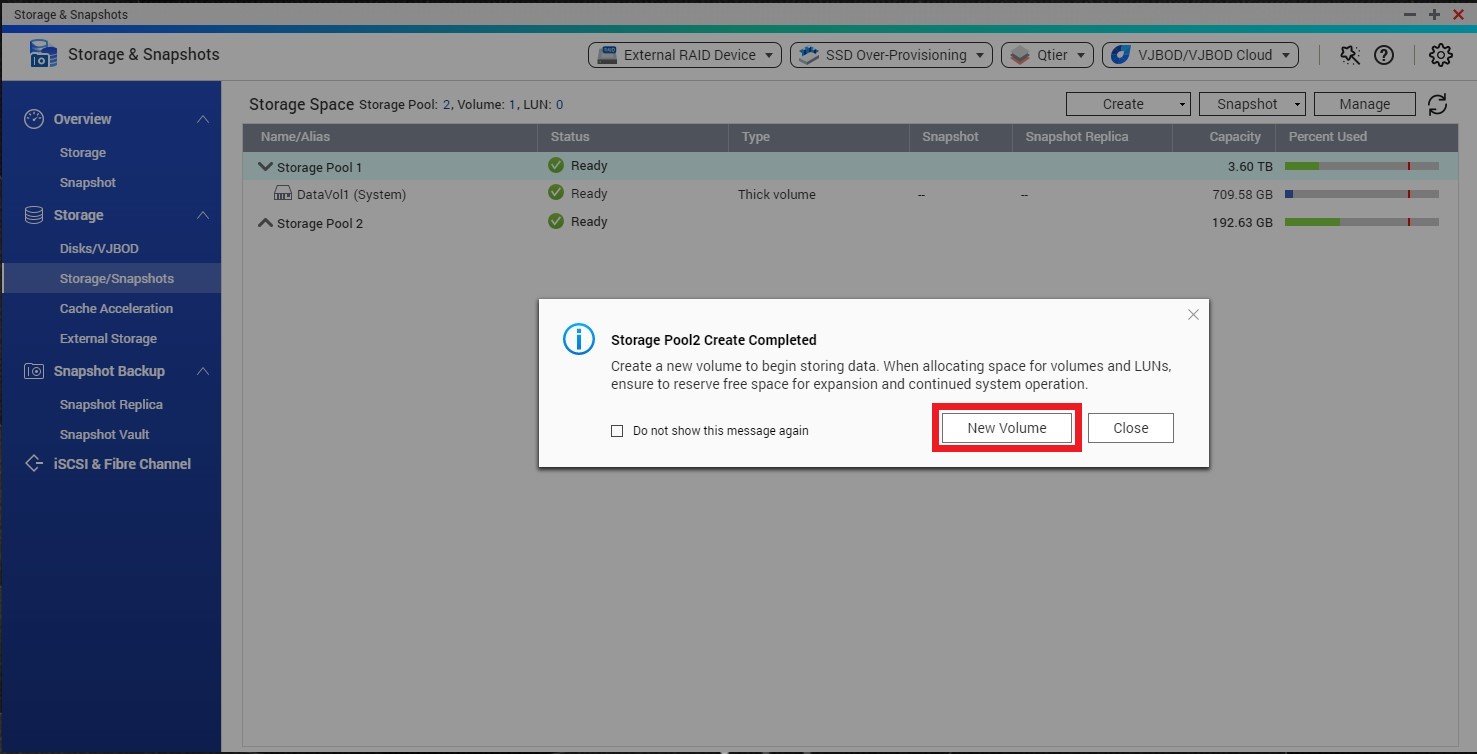
- In the window that pops up, click New Volume.
- Under Location, select the SSD storage pool.
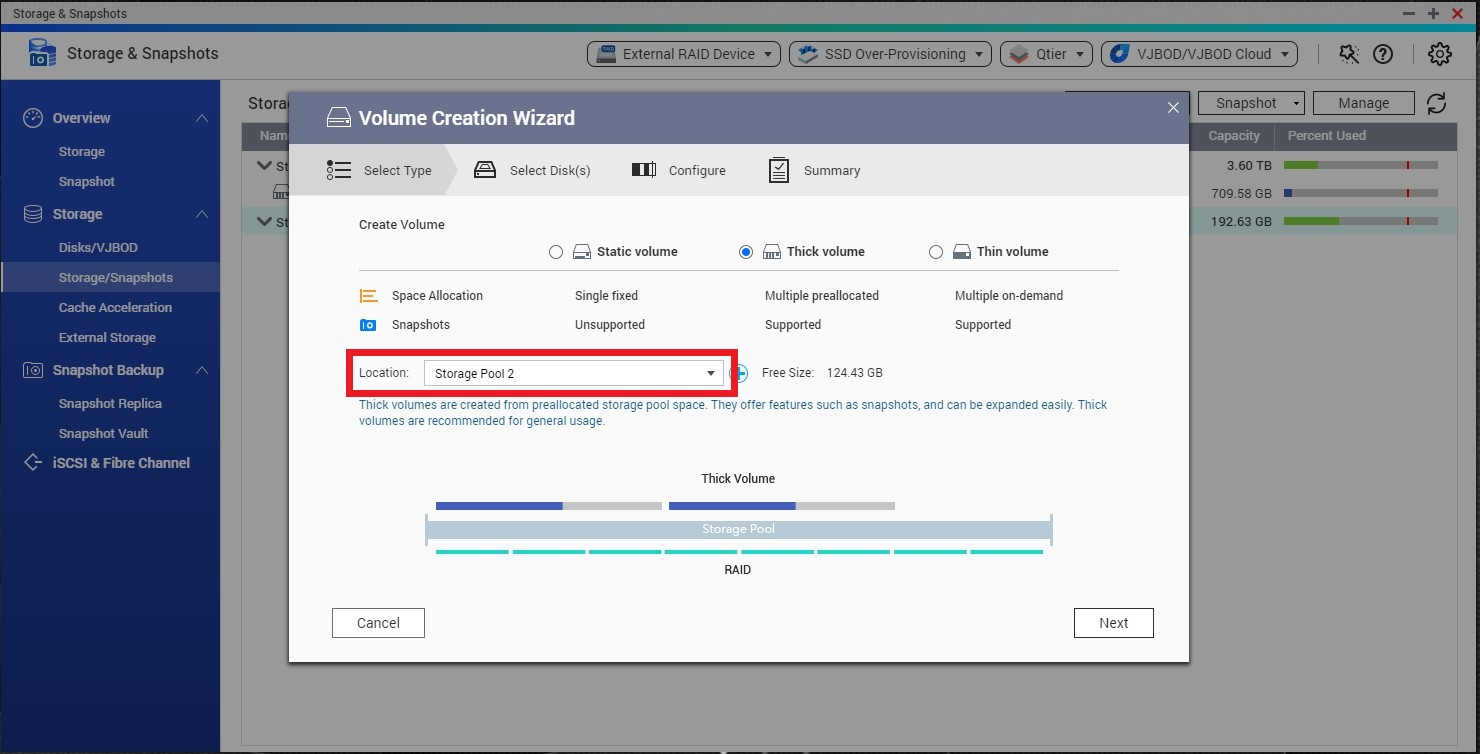
- Follow the volume creation wizard.
- On the Summary page, review the summary information and then click Create.
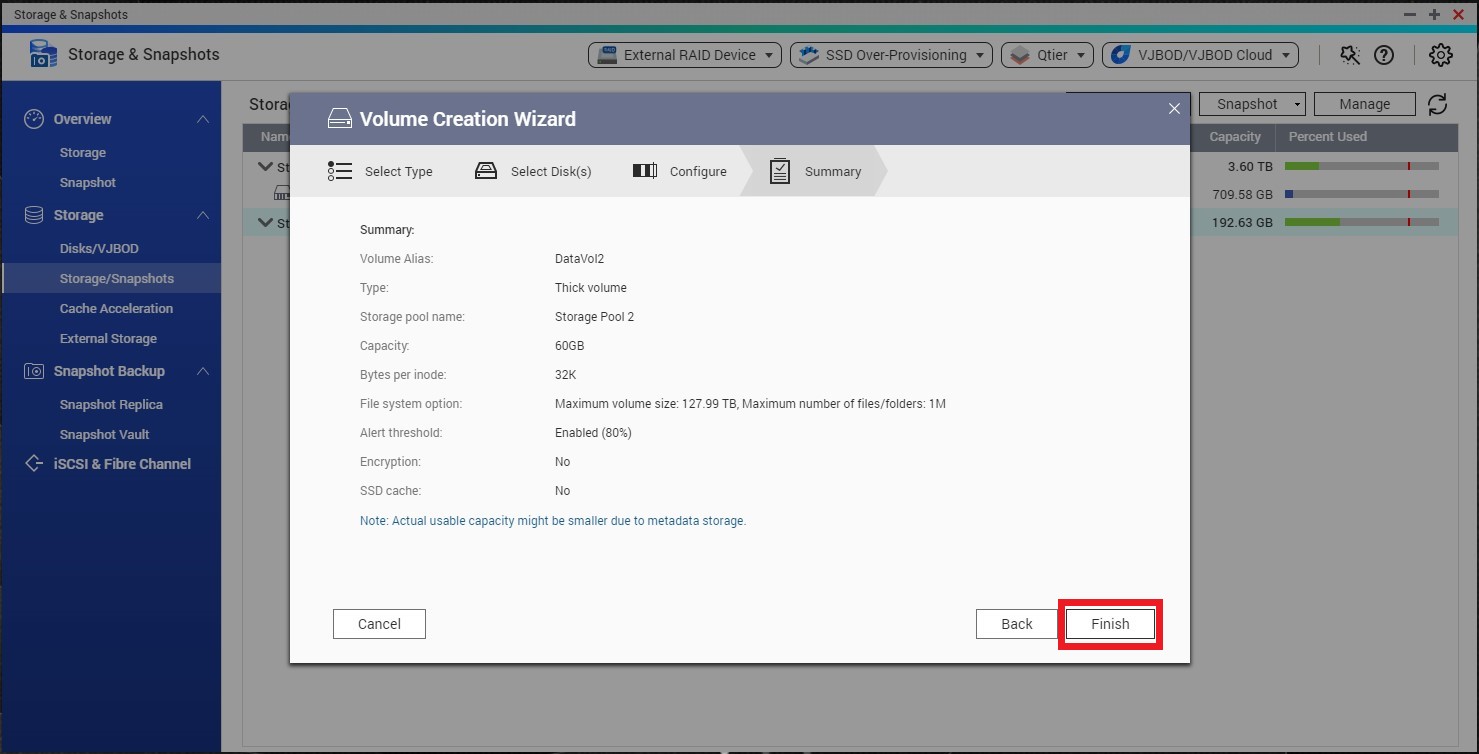
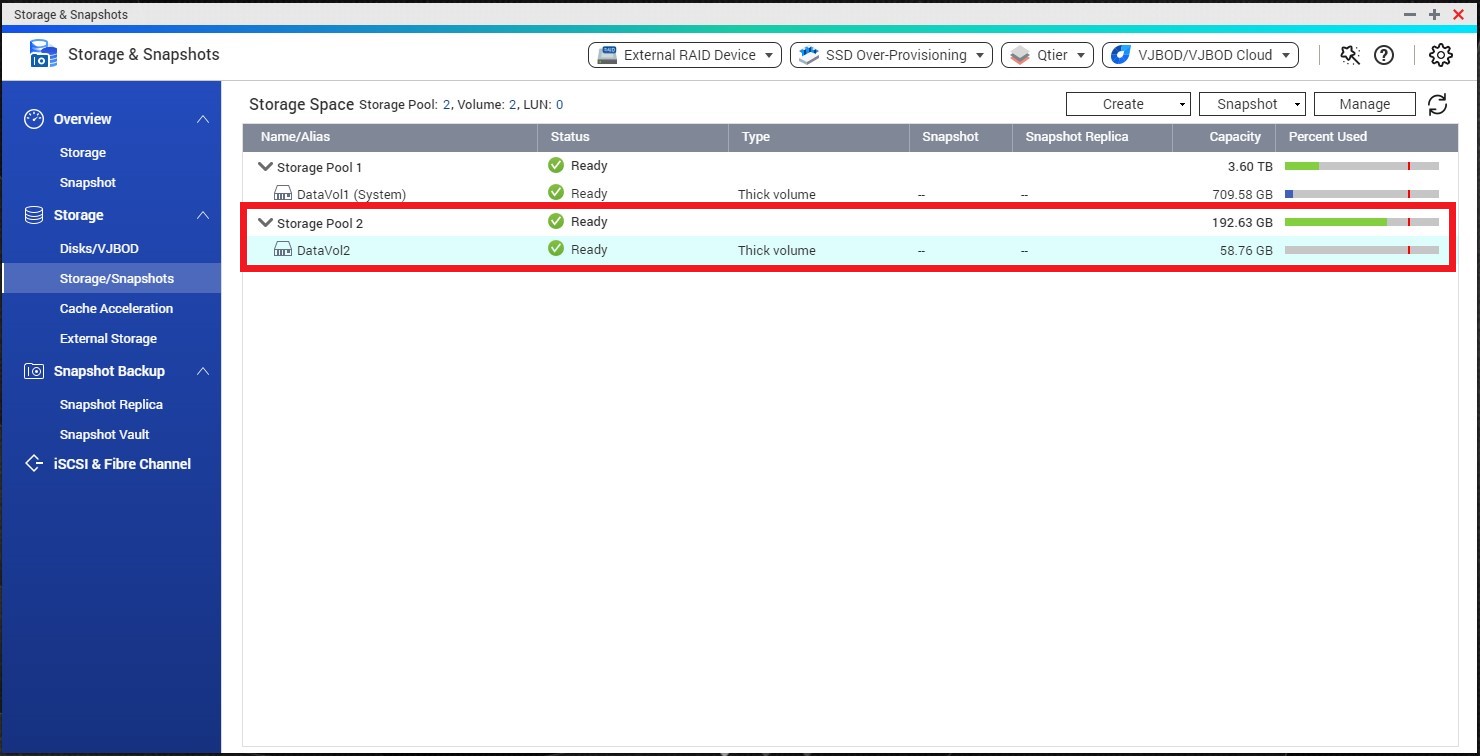
The NAS now contains an SSD storage pool and SSD volume.
Migrate HBS from HDDs to SSDs
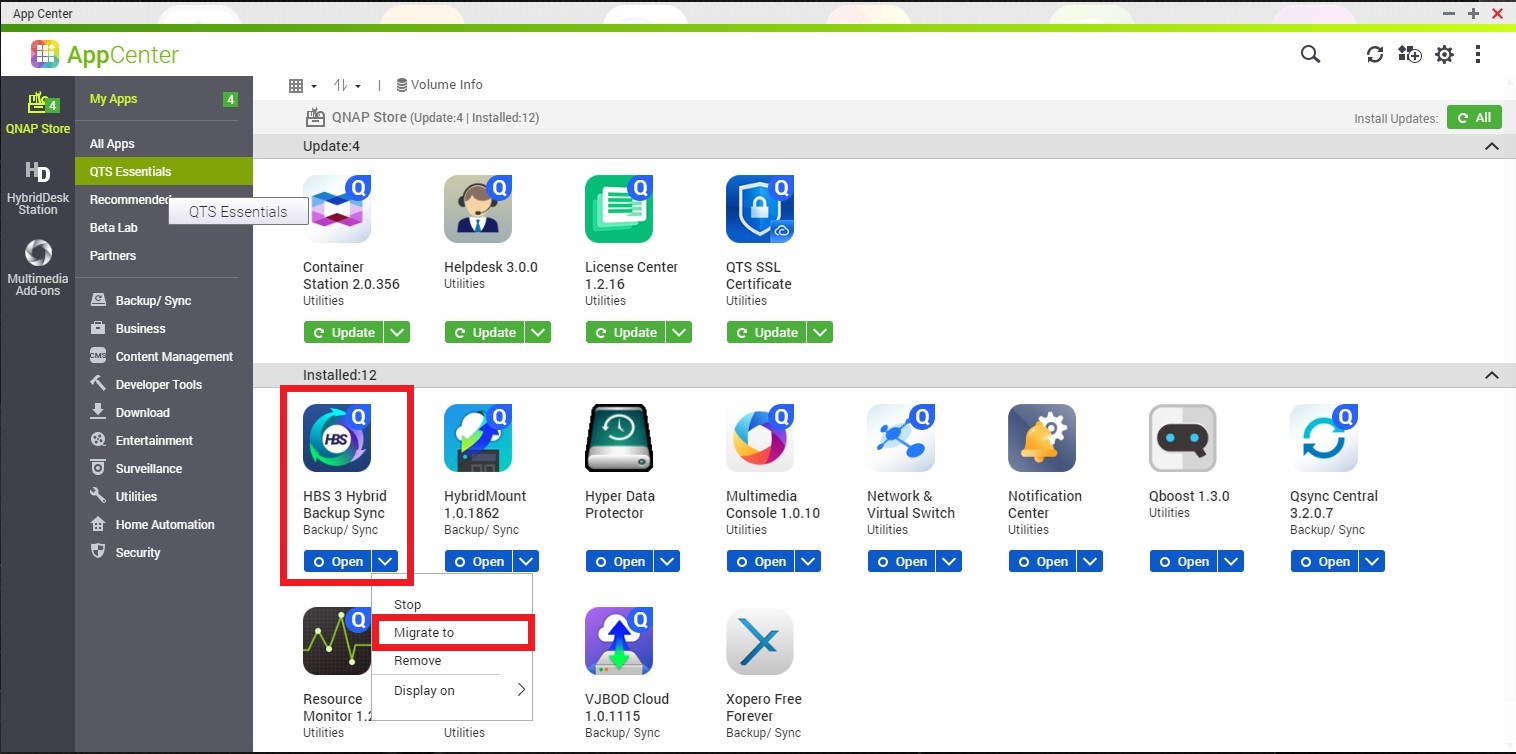
- Open App Center.
- Locate the HBS app.
- Click
 , and then select Migrate to.
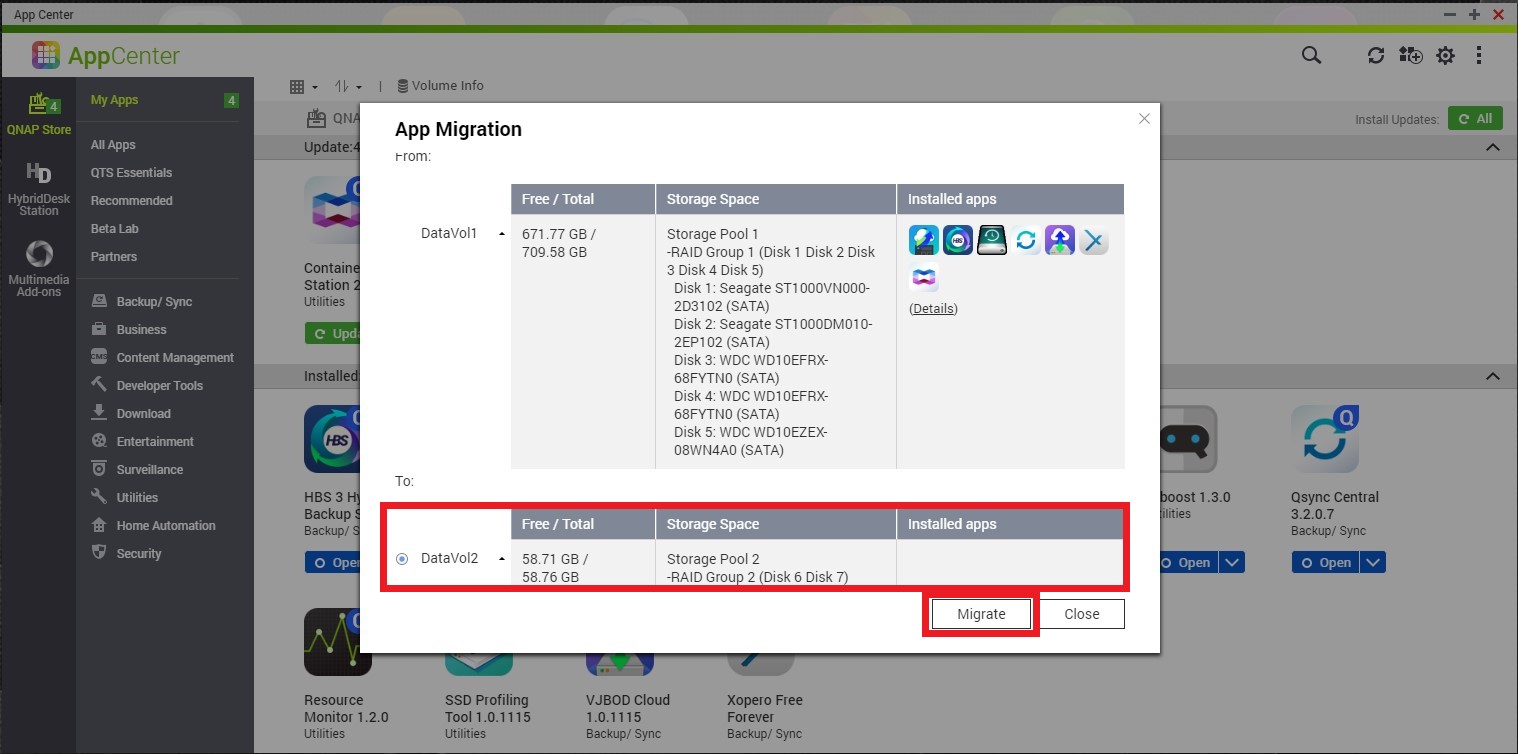
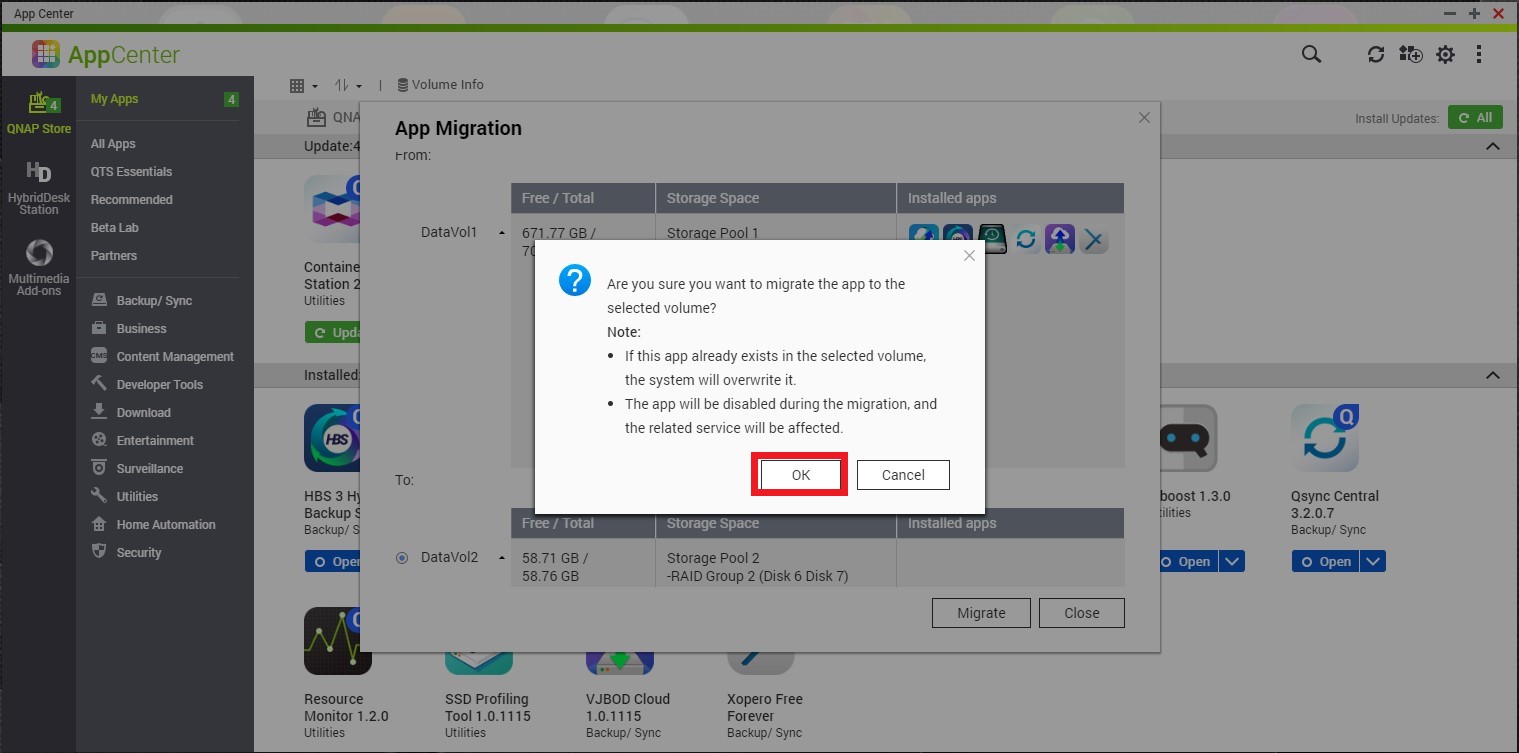
- In the App Migration window, select the SSD volume and then click Migrate.
- In the confirmation popup message, click OK.
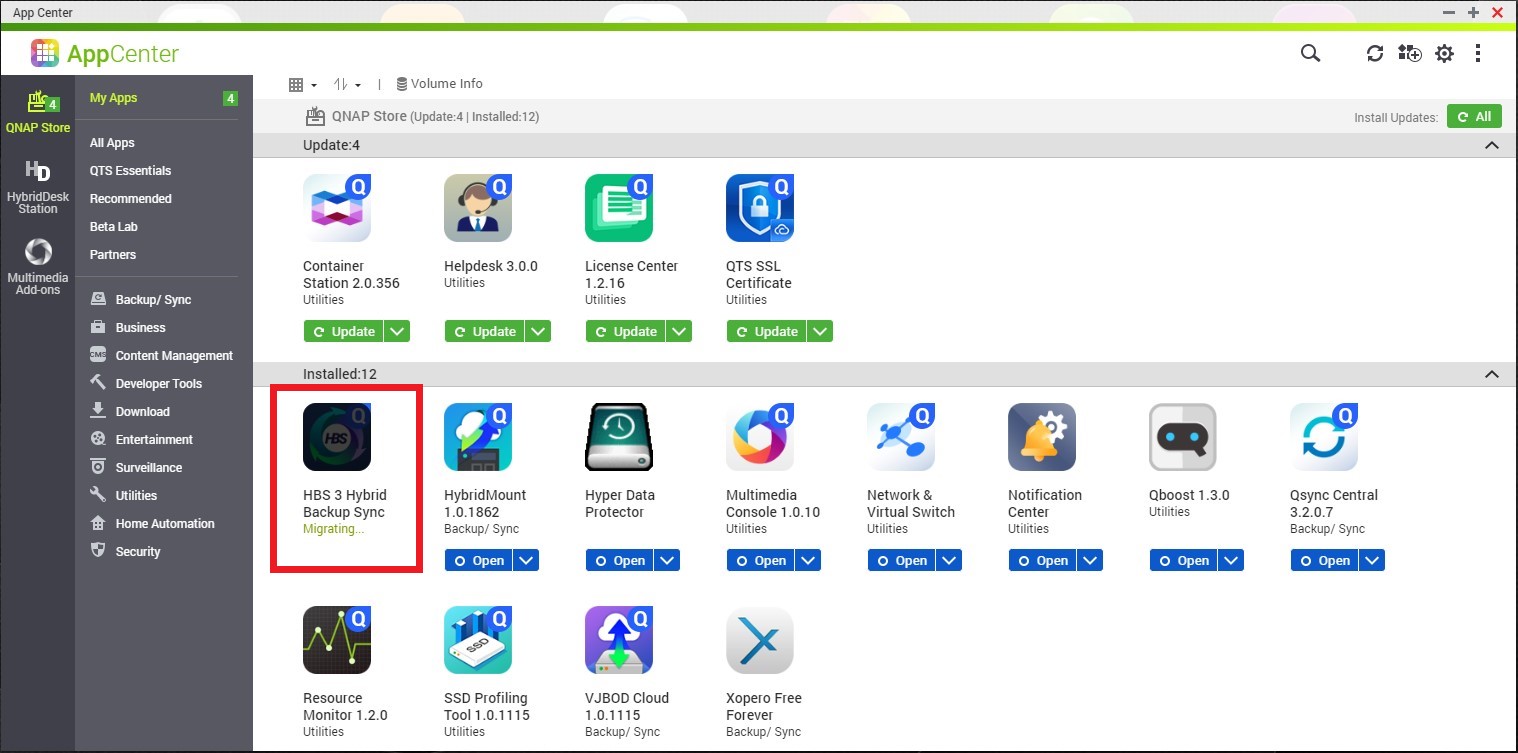
The app status changes to Migrating….The status returns to normal after migration has finished.
Verify that HBS is Stored on the SSD Volume
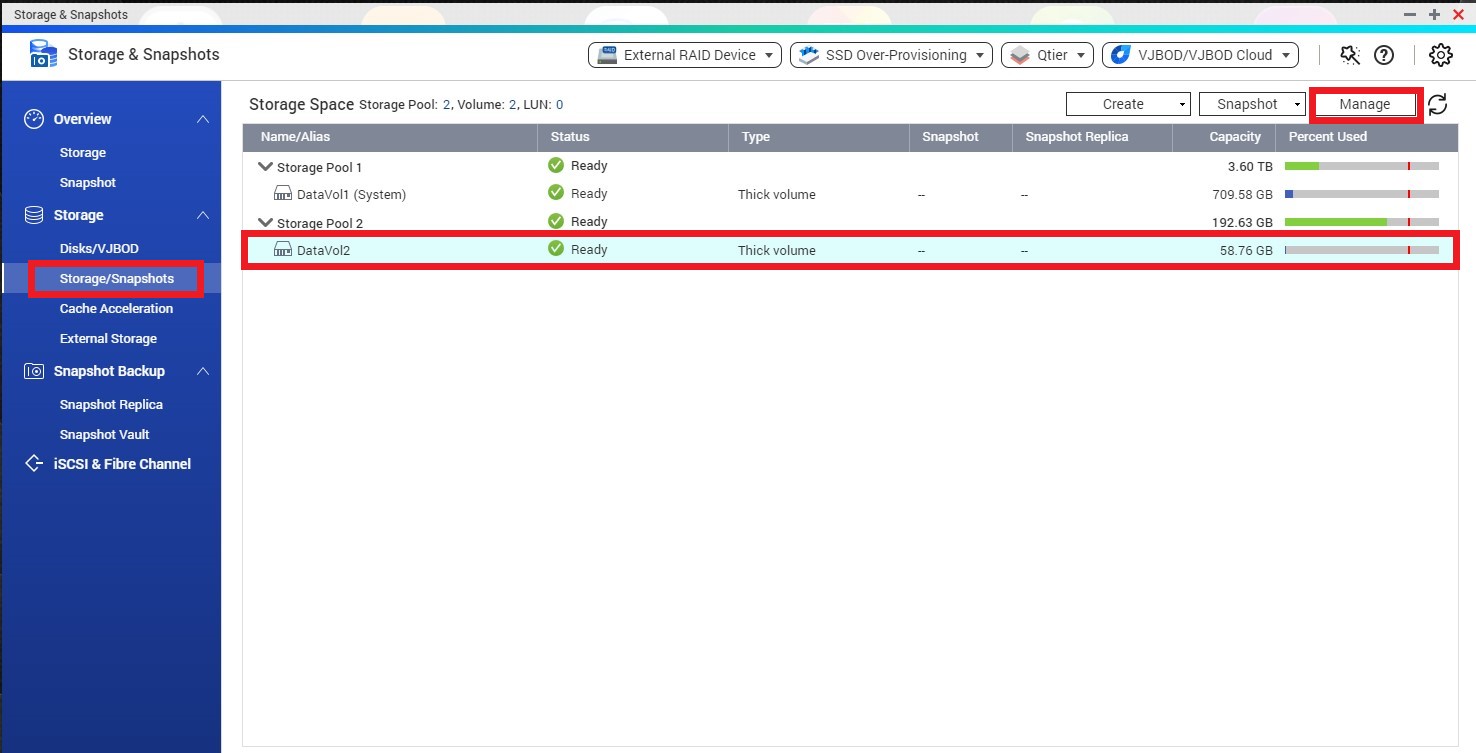
- Open Storage & Snapshots, and then go to Storage/Snapshot.
- Select the SSD volume, and then click Manage.
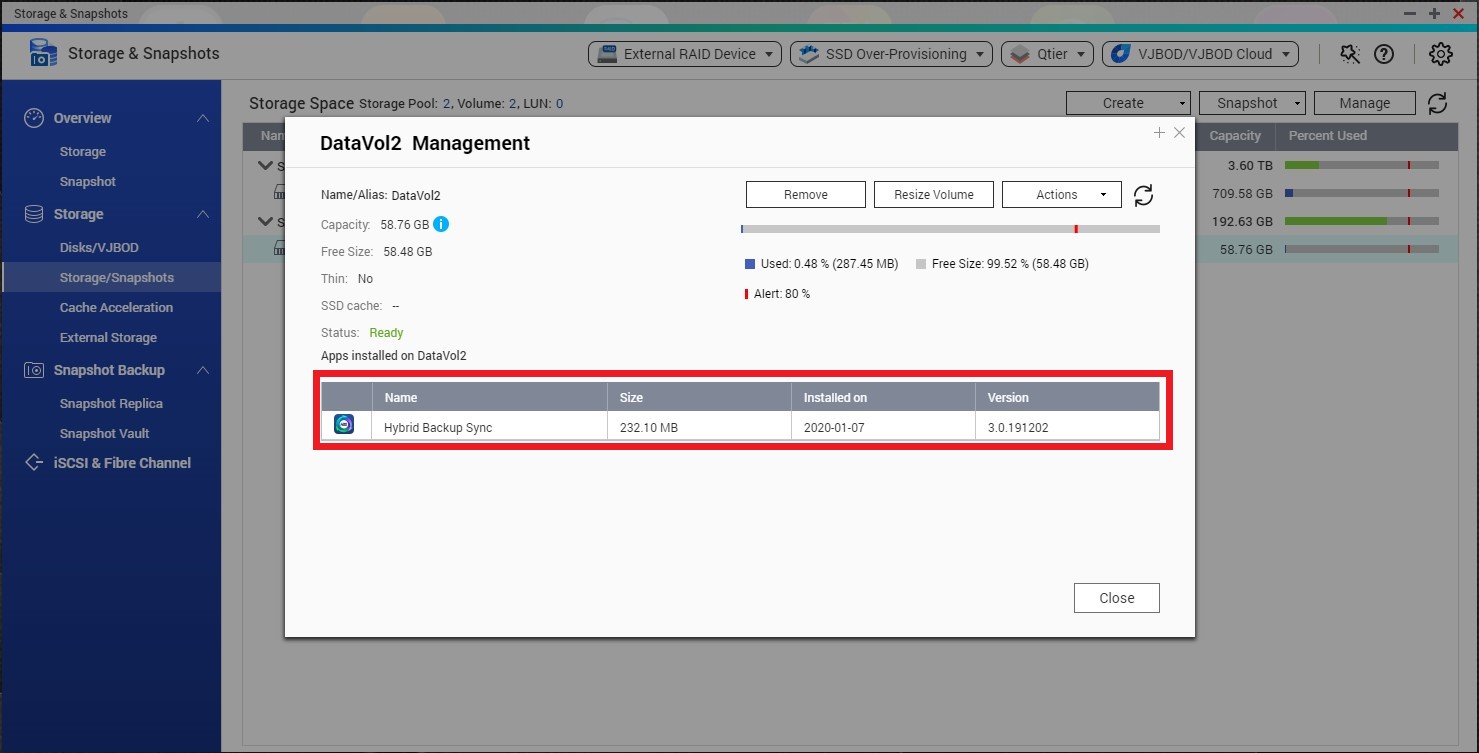
- Under Apps Installed on, verify that you can see HBS.
For further assistance, ask other users and QNAP experts in the community. Go to QNAP Community


