


How to change the license of the channel in myQNAPcloud Surveillance?
Applicable products
- myQNAPcloud Surveillance
- QVR Surveillance 3.0.0 or later version
Details
You can change the license of the channel by removing the license first, and then assign it to another license; or you can upgrade the license.
Method 1: Remove the Backup Channel & Type and Re-assign
1. Go to Recording Storage > Channel Management > myQNAPcloud Surveillance
2. Locate the Backup channel & type and click the trash bin icon.
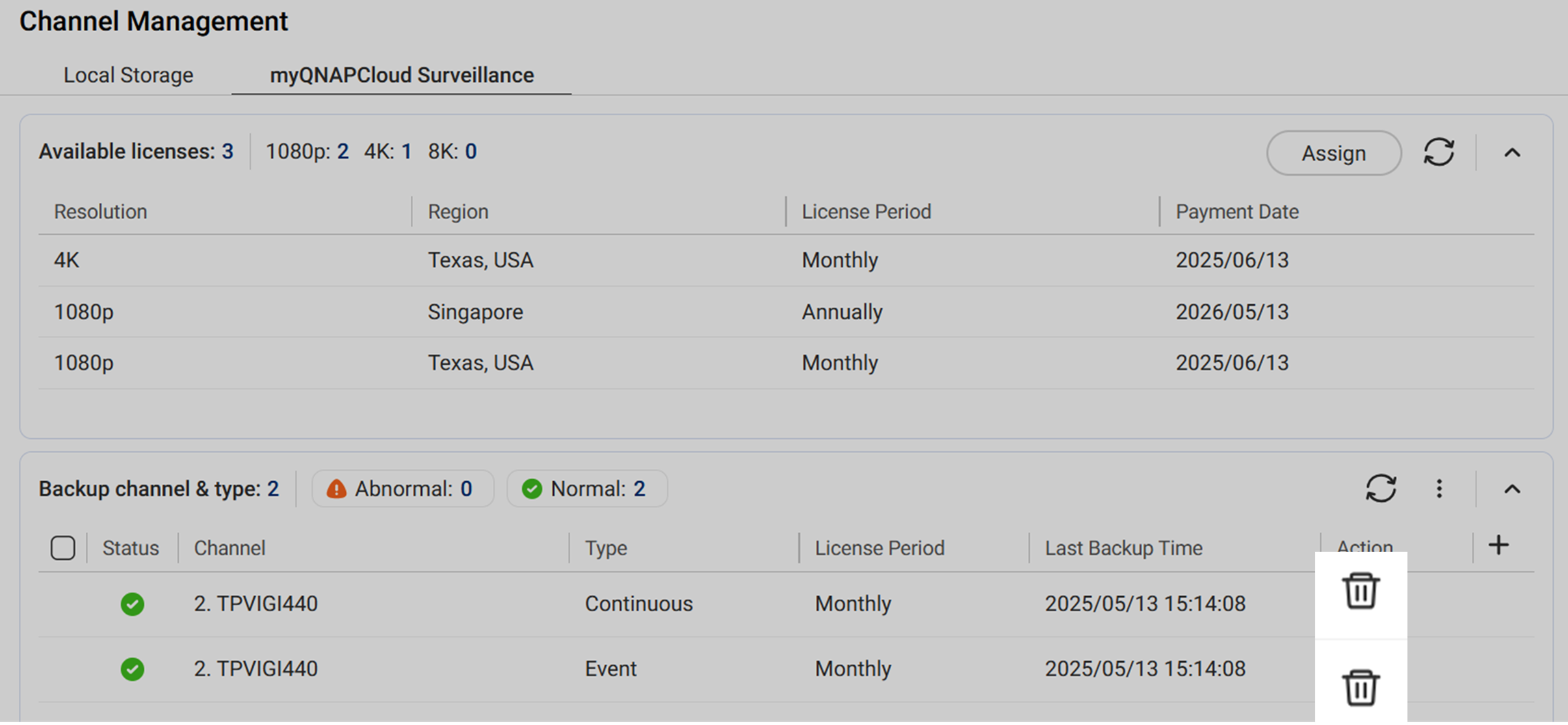
3. (Optional) Delete recordings in myQNAPcloud Surveillance.
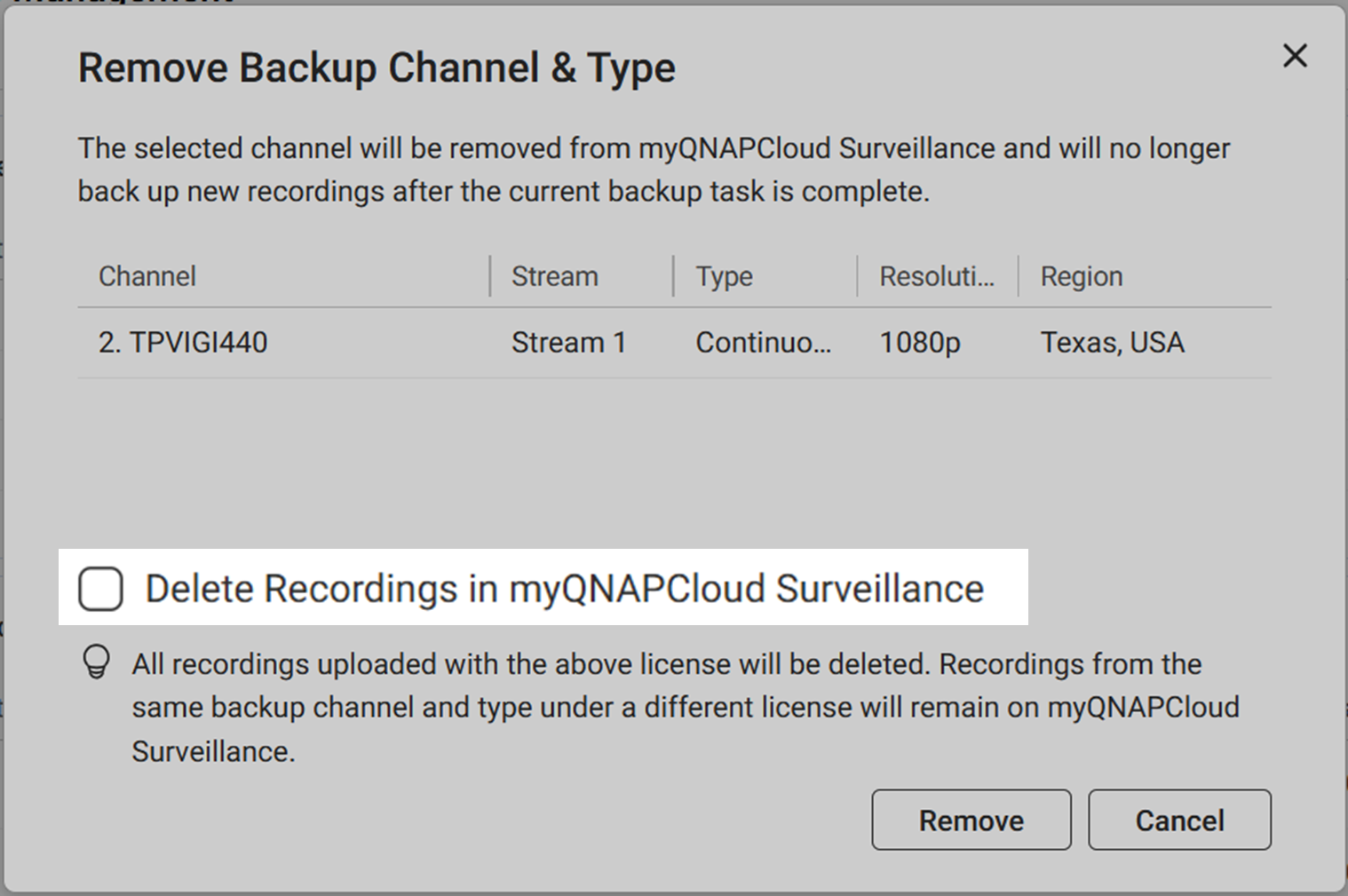
Note
Removing the backup channel & type from myQNAPcloud Surveillance without deleting the recording have the following implications:
- The recordings are related to the license. The recording can be viewed, downloaded, or deleted after removing the license to a channel.
- When the removed license is assigned to another channel and starts uploading recordings, the recordings related to the previous channel(s) will be deleted after the total backup days uploaded with the license has reached the license criteria (i.e. 30 days or 360 days)
4. Click Remove. The backup channel & type is removed from myQNAPcloud Surveillance and the license is now available for other channel. The recordings will be deleted from myQNAPcloud Surveillance if you check the "Delete Recordings in myQNAPcloud Surveillance" option.
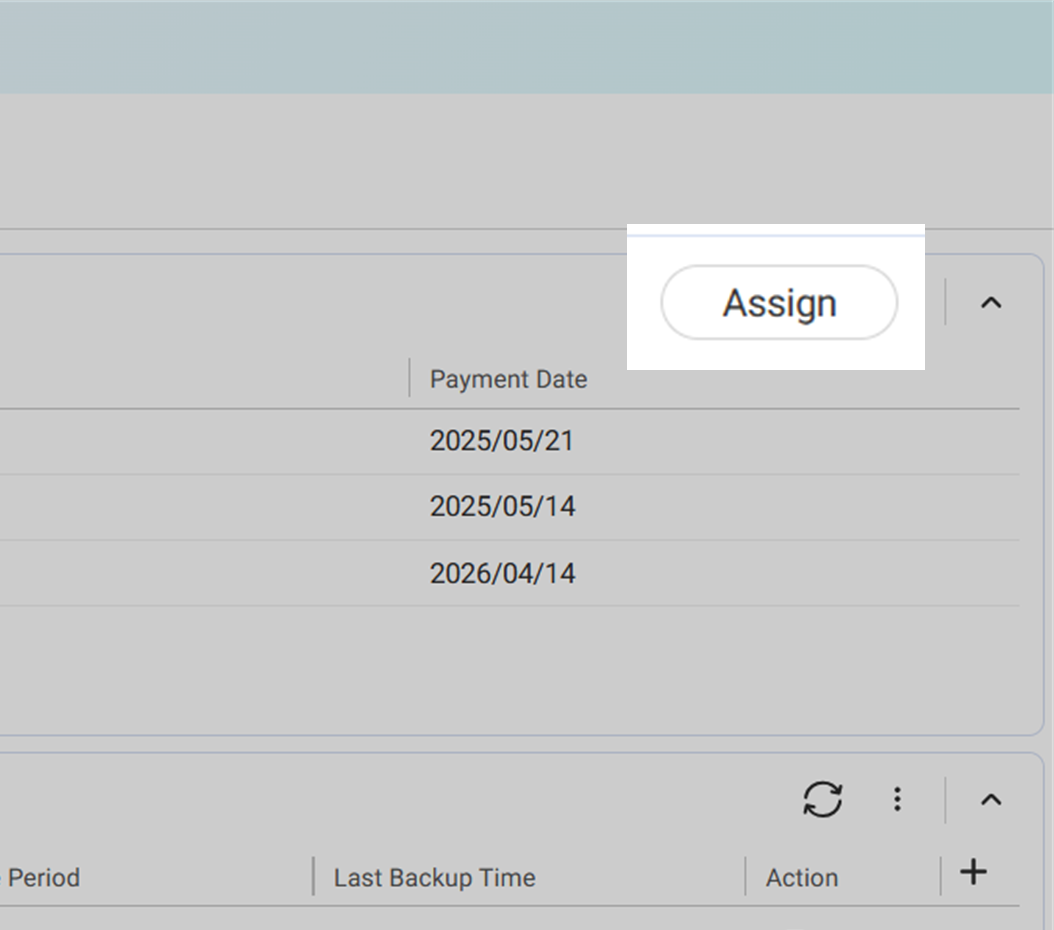
5. Click Assign on the top right corner.
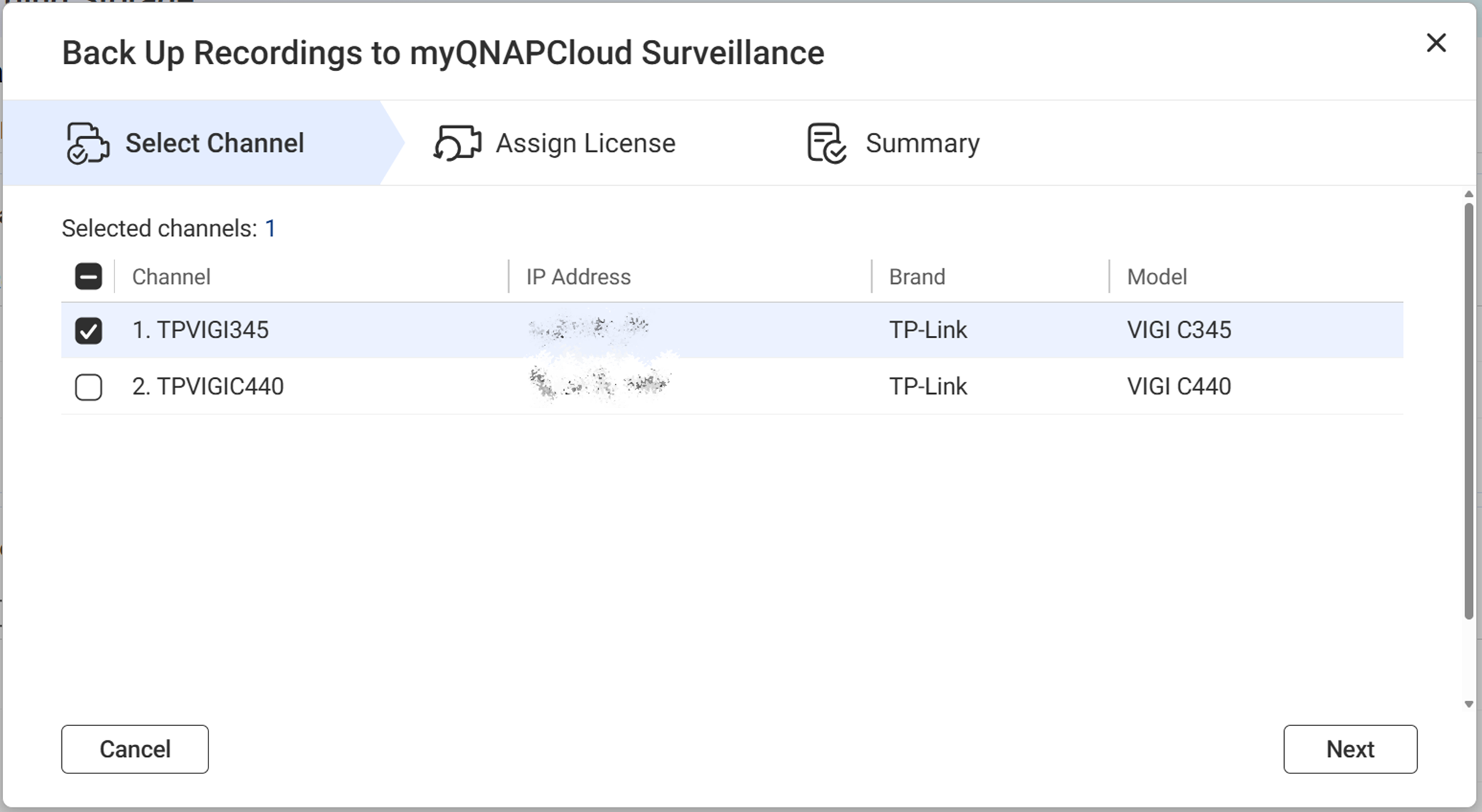
6. Select the channel from the list.
7. Confirm stream and the recording type, review the selected license, and then click Next.
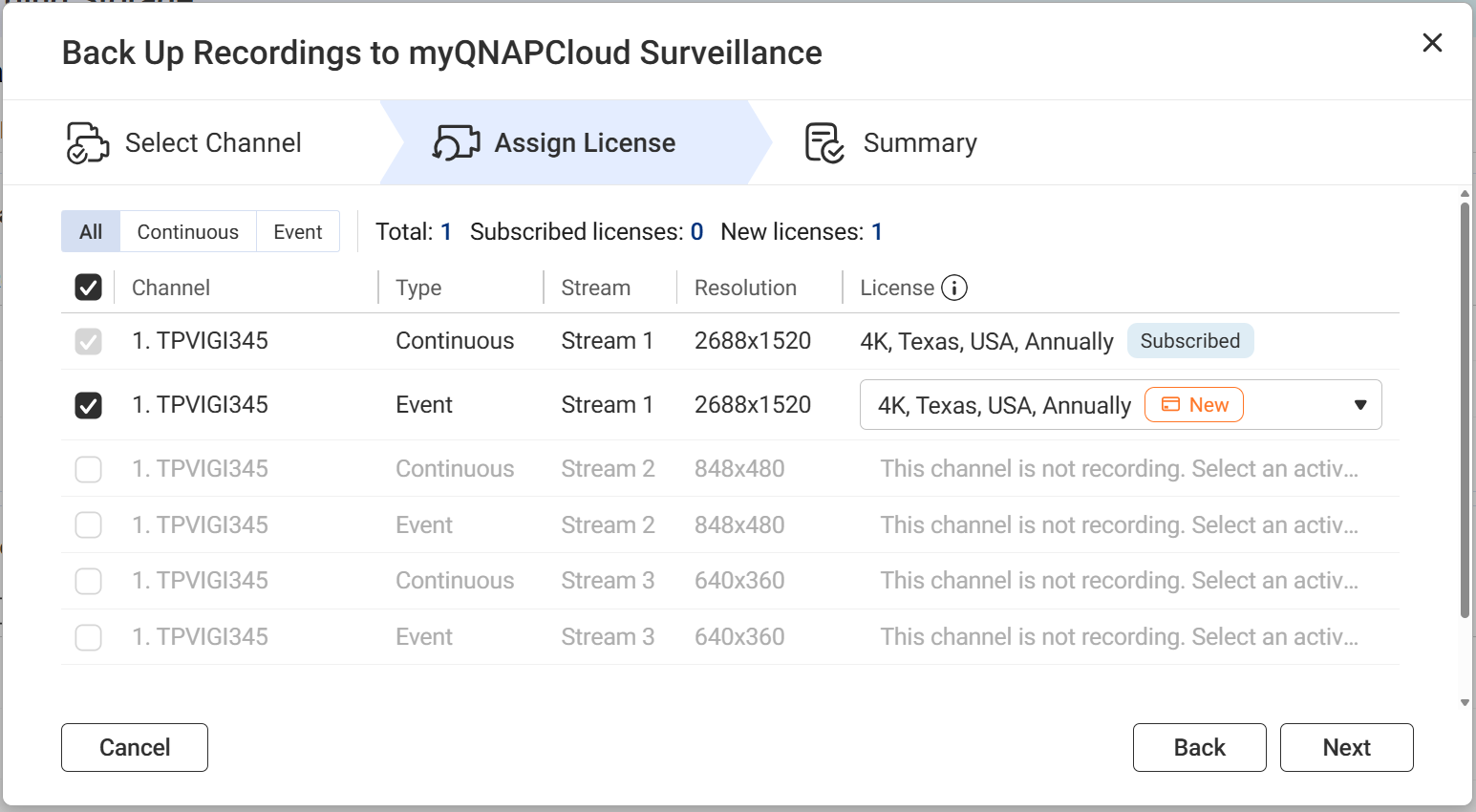
- Subscribed:
- This means you have already purchased this license.
- If you cannot select your purchased license, the stream's resolution may not meet the license criteria. Adjust your stream's settings to match the license resolution in Camera Settings, then restart the process.
- For more details, see What license should I prepare for myQNAPcloud Surveillance.
- New:
- This means you need to purchase the license after clicking Assign on the final step.
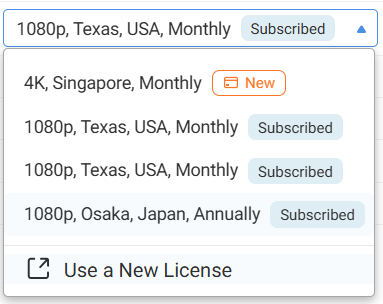
- You can change the resolution, region, or the subscription period of the pre-assigned license by selecting Use a New License from the drop-down menu.
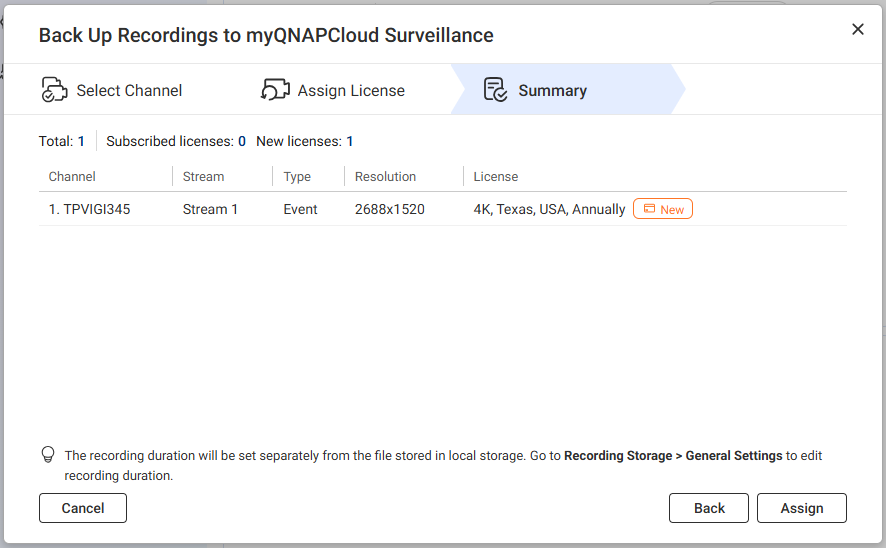
7. Review the summary, then click Assign.
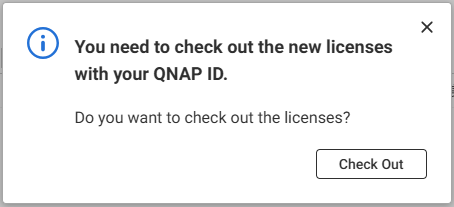
8. (Optional) Click Check Out to start the checkout process for the new license(s) used in this assignment.
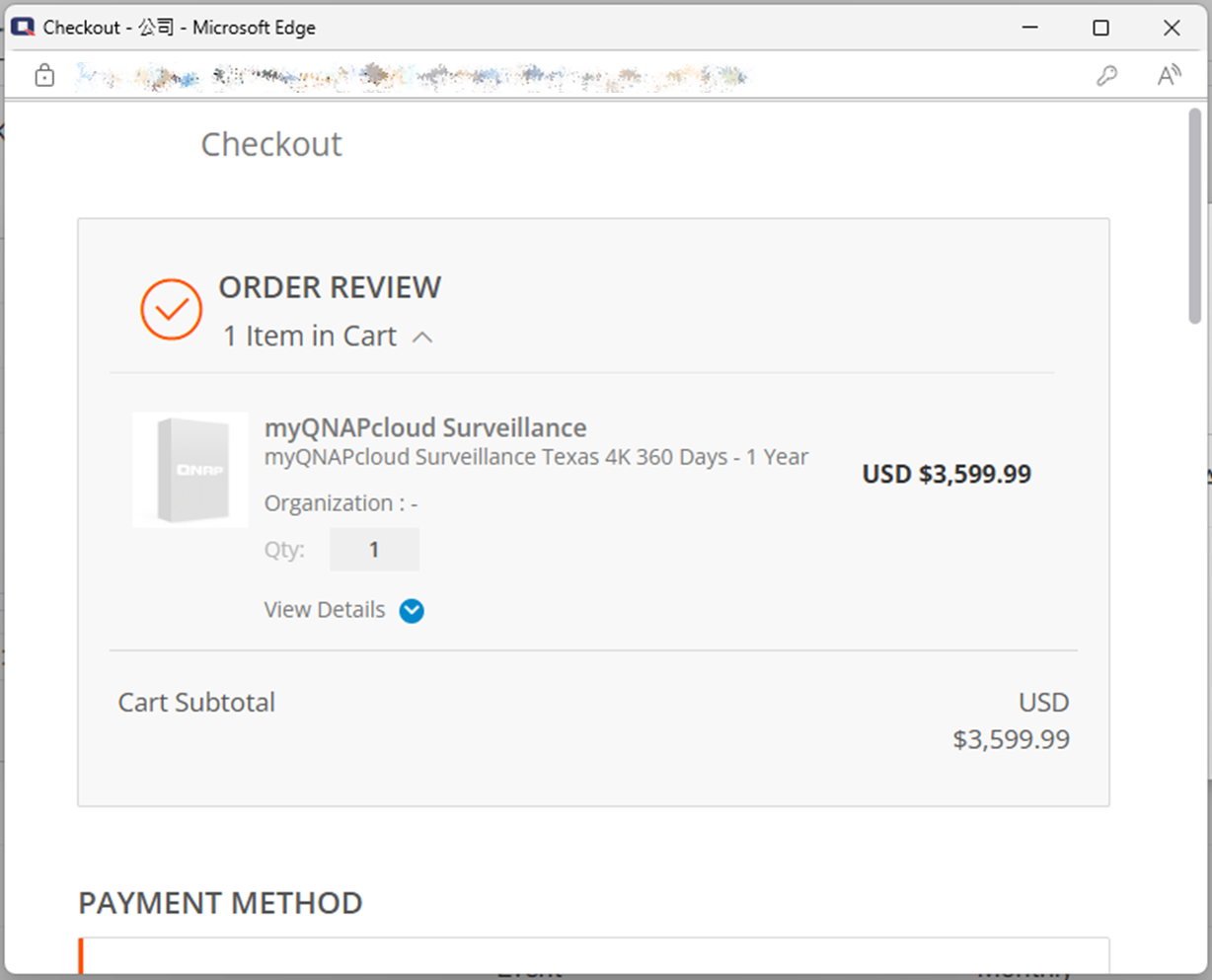
9. Confirm the assignment status.
Important
- Closing the Result window does not cancel the checkout or assignment process.
- After closing the window, you can check the result in Surveillance Logs > myQNAPcloud Logs.
- If the assign process keeps failing, see Why can't I assign myQNAPcloud Surveillance license to channels?
Method 2: Upgrade license
1. Go to QNAP Software Store > My account > Upgrade Plans.
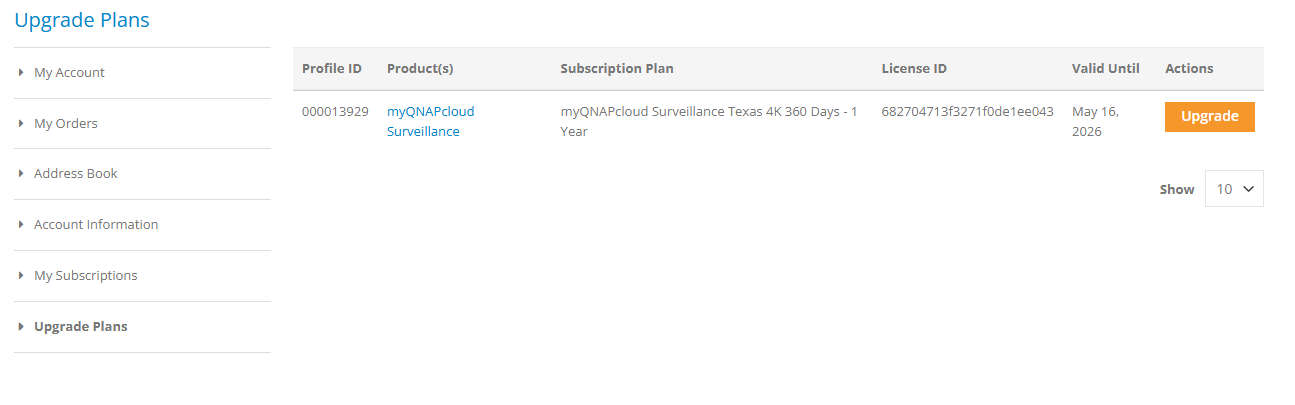
2. Locate the license to upgrade and click Upgrade.
Note
- myQNAPcloud Surveillance currently supports upgrading the license to a higher resolution. To upgrade subscription period/retention days, simply subscribe to a new license after your license expires.
- Subscribing to a new license, then assigning it to the same channel does not keep the recordings uploaded with the original license in myQNAPcloud Surveillance. The recordings will be erased after the grace period when original license expires.


