What Is Ransomware Guard?
Applicable Products
Malware Remover 7.0.0 and later versions
Overview
Ransomware Guard is a real-time protection feature in Malware Remover, available on QuTS hero h6.0.0 and later. It continuously monitors your QNAP NAS, automatically detecting and blocking ransomware attacks before damage can spread.
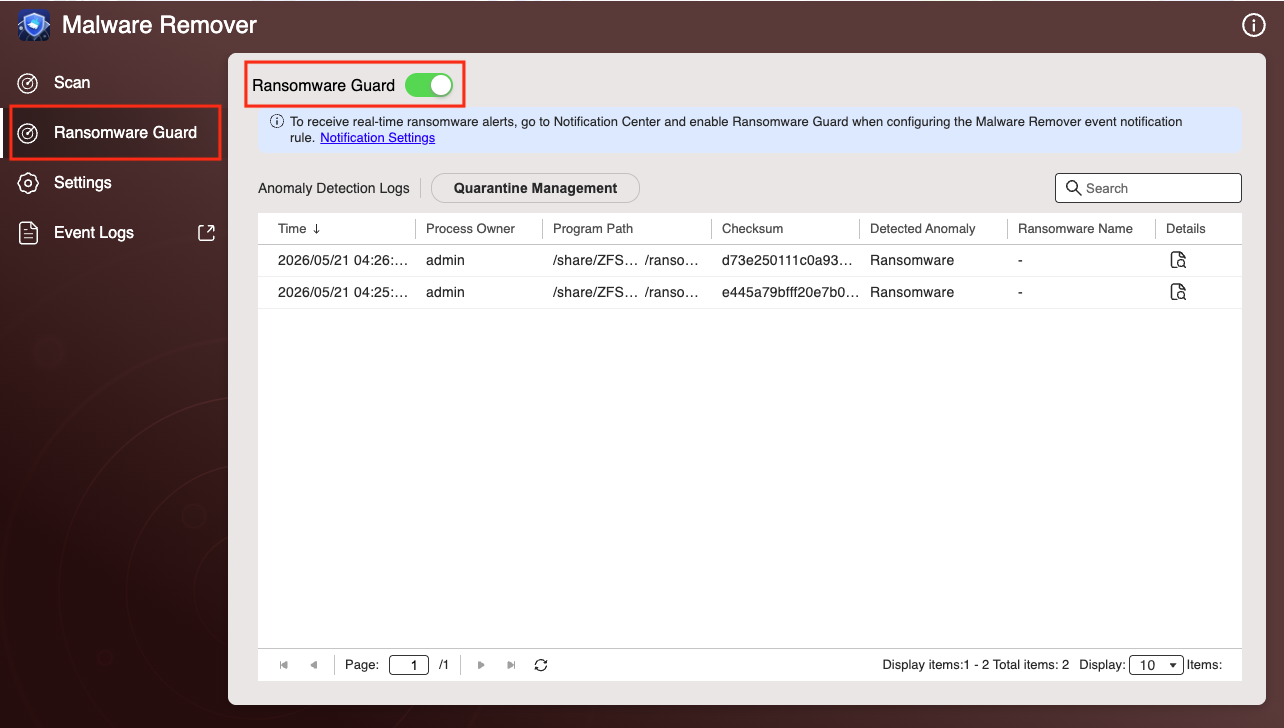
To use Ransomware Guard, go to Malware Remover > Ransomware Guard and enable the toggle.
Detection Methods
Ransomware Guard uses two complementary detection methods:
- Behavior-based detection: Monitors running processes for suspicious patterns, including mass file encryption, mass file renaming, and abnormally high read/write activity.
- Signature-based detection: Compares programs against a database of known ransomware patterns, updated through Malware Remover.
Automatic Response
When a threat is identified, Ransomware Guard responds automatically:
- Stops the malicious program from accessing files: Prevents further encryption or overwriting immediately.
- Quarantines the program: Isolates the threat without interrupting other running programs.
- Logs the event: Records event details such as the time, affected program, and the type of suspicious behavior detected. You can review the logs in Malware Remover > Ransomware Guard > Anomaly Detection Logs.
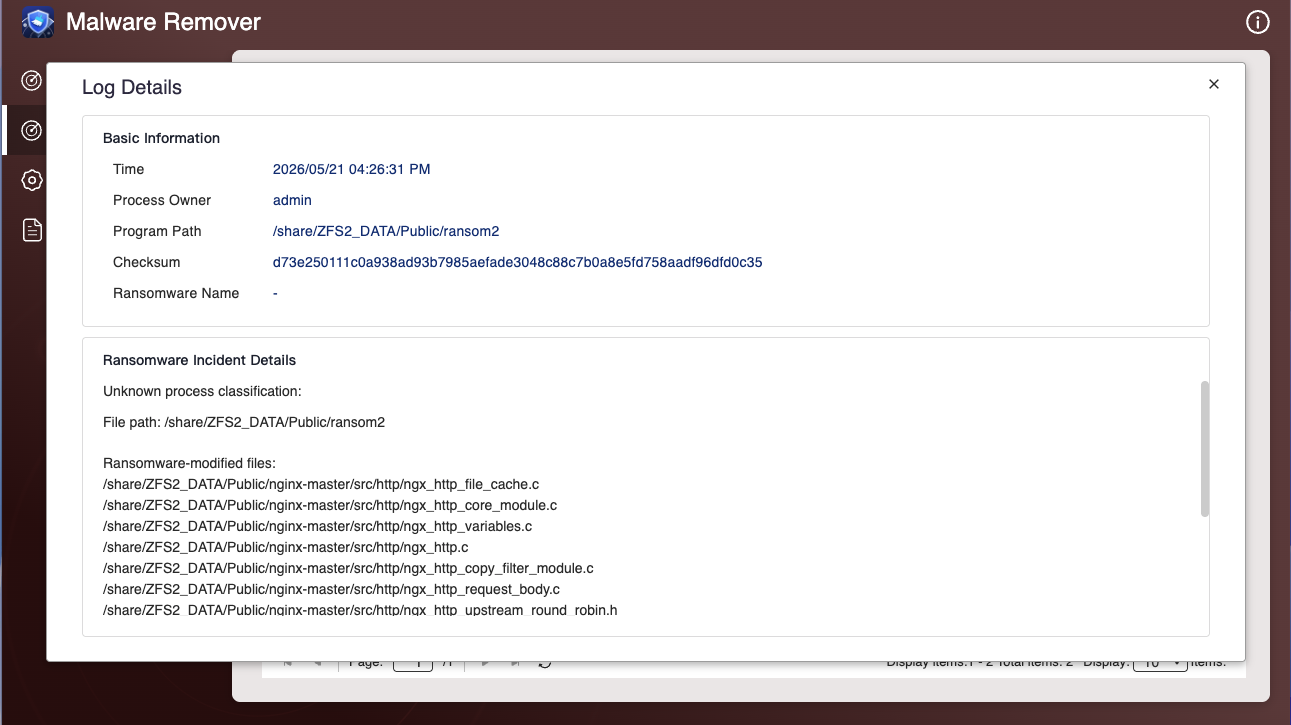
To view the full details of a detection event, click the details icon in the log list.
Managing False Positives
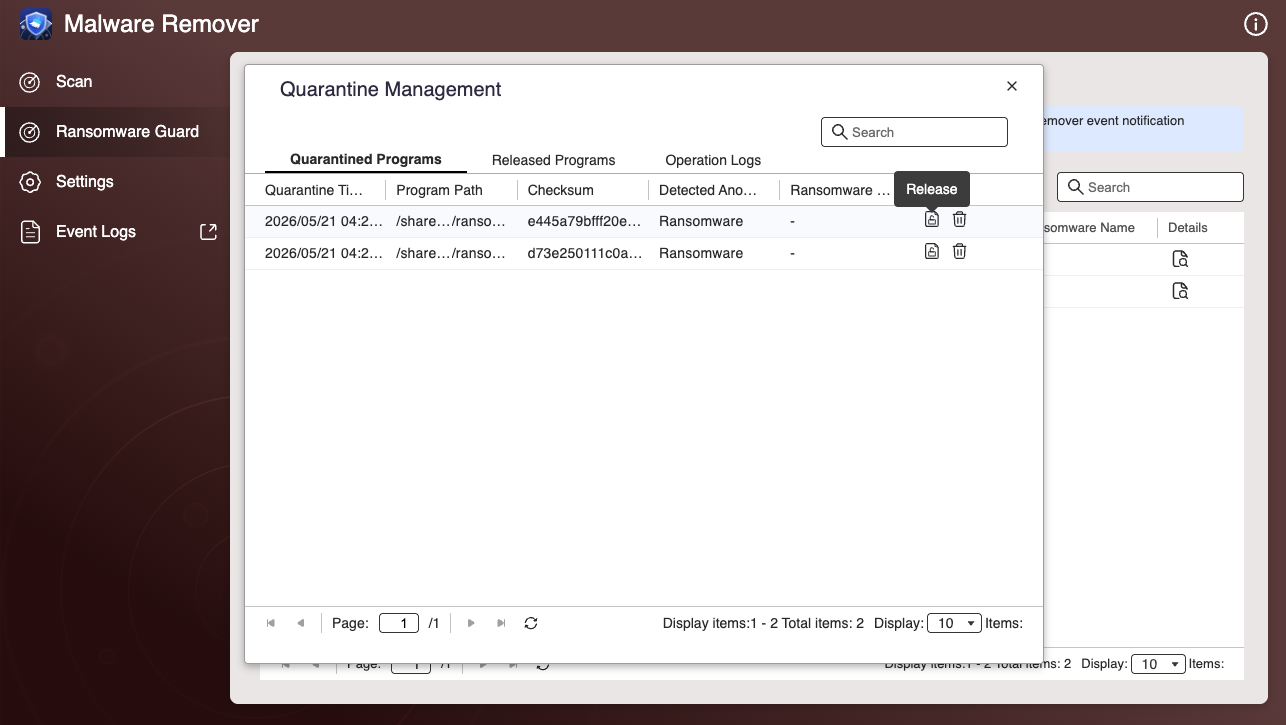
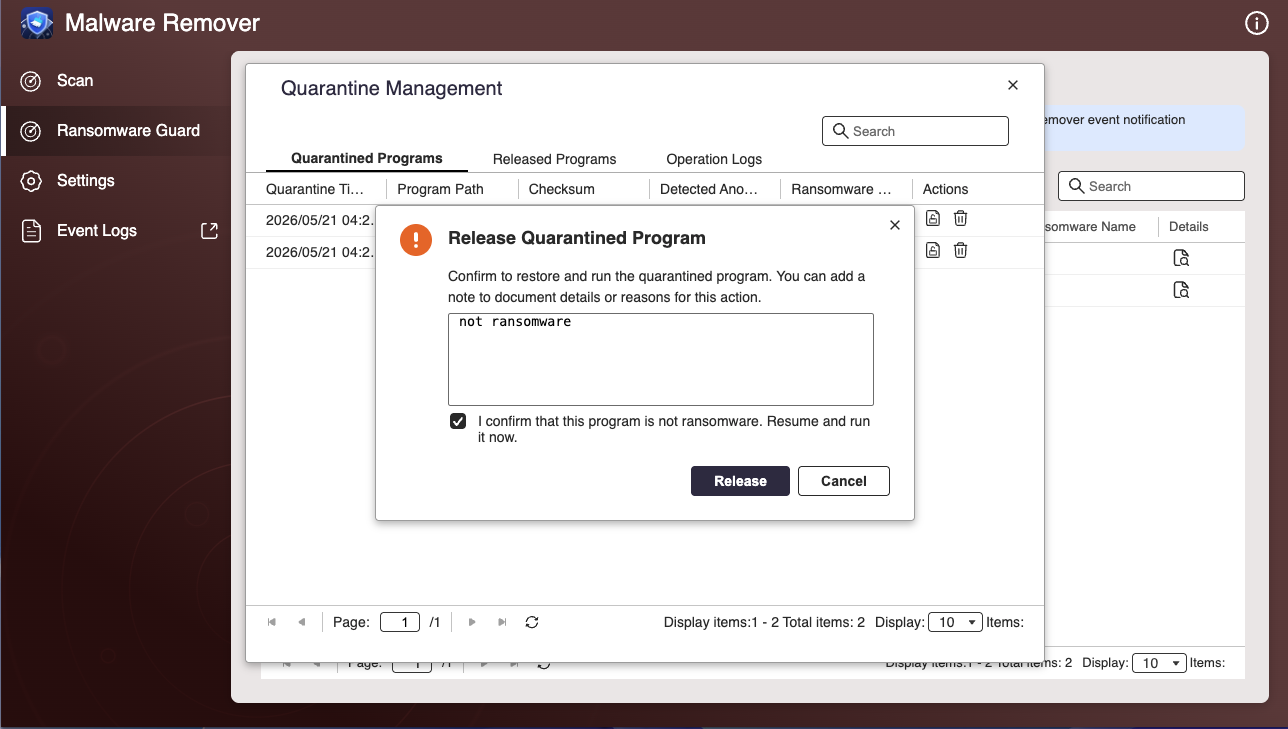
If Ransomware Guard blocks a program you trust, you can manage it in Malware Remover > Ransomware Guard > Quarantine Management.
To release a quarantined program
- In the Quarantined Programs tab, click Release next to the program.
- Add a note to document the reason, then select the confirmation checkbox.
- Click Release.
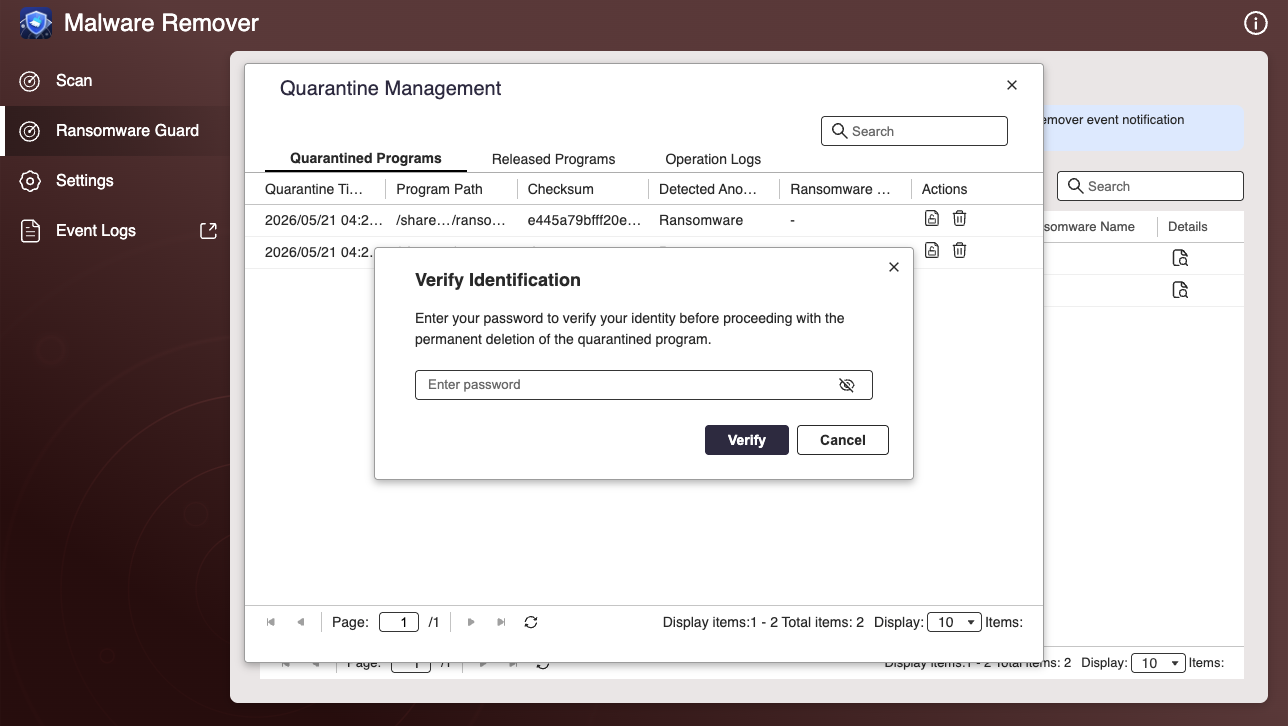
- Enter your password to verify your identity and click Verify.
To permanently delete a quarantined program
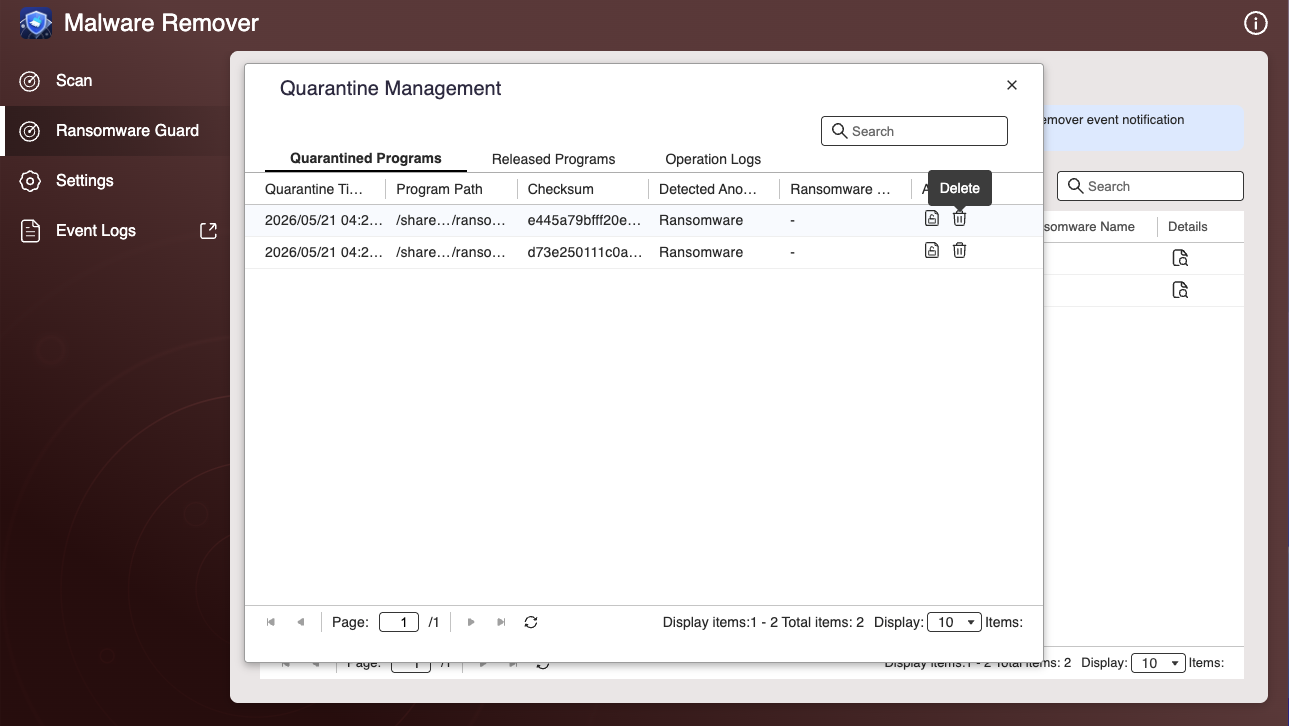
- Click the delete icon next to the program.
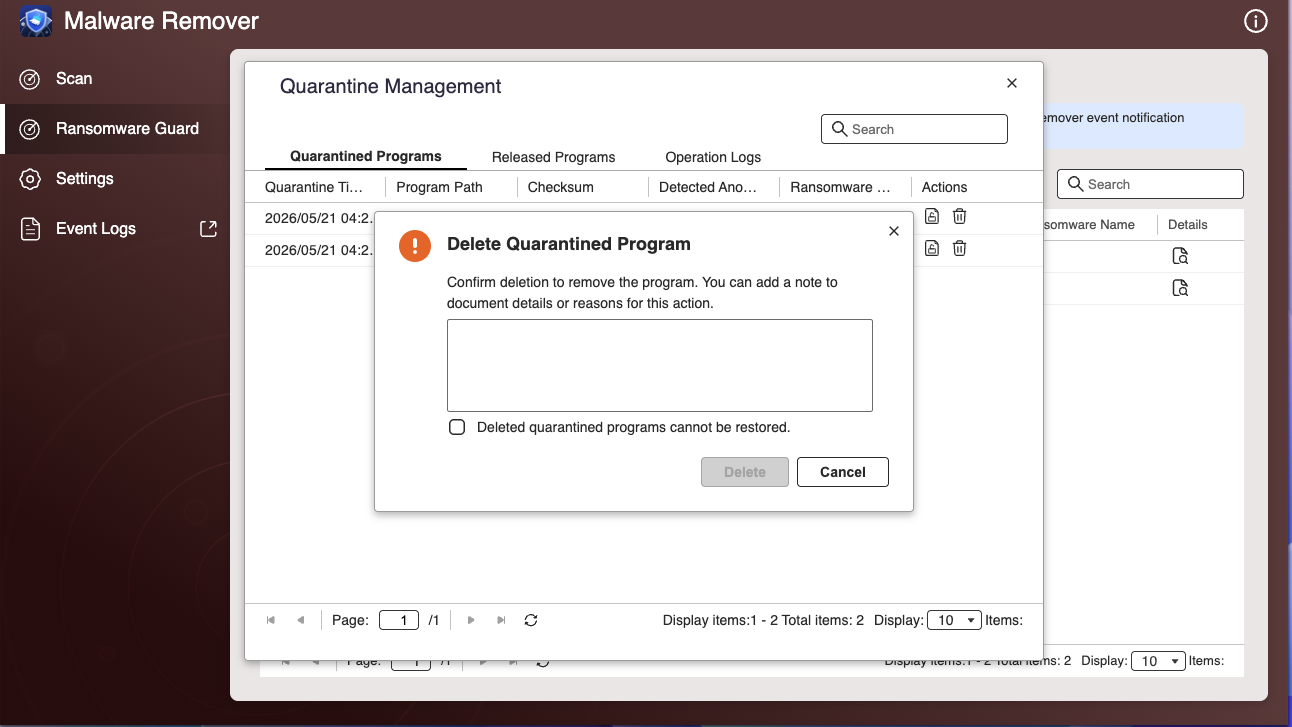
- Add a note if needed, then select the confirmation checkbox.
- Click Delete.
- Enter your password to verify your identity and click Verify.
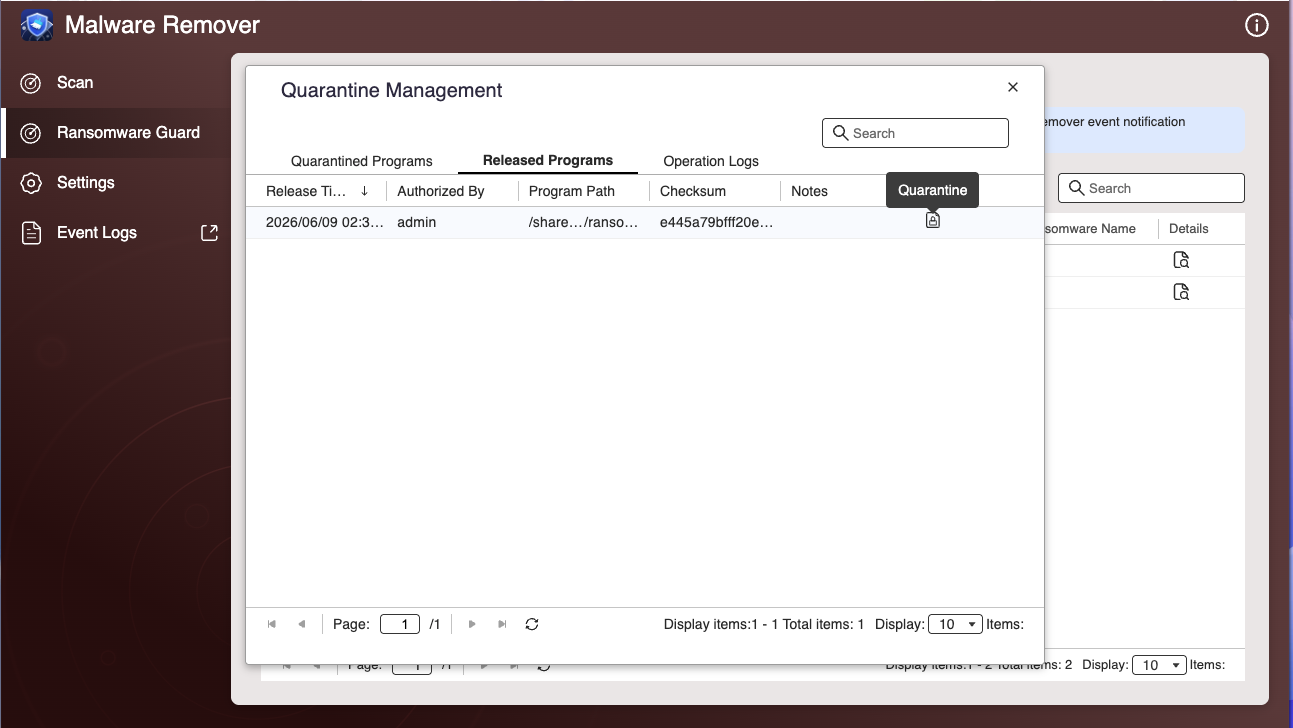
To view released programs
Click the Released Programs tab to see all programs that have been released from quarantine. Released programs will not be blocked or quarantined again.
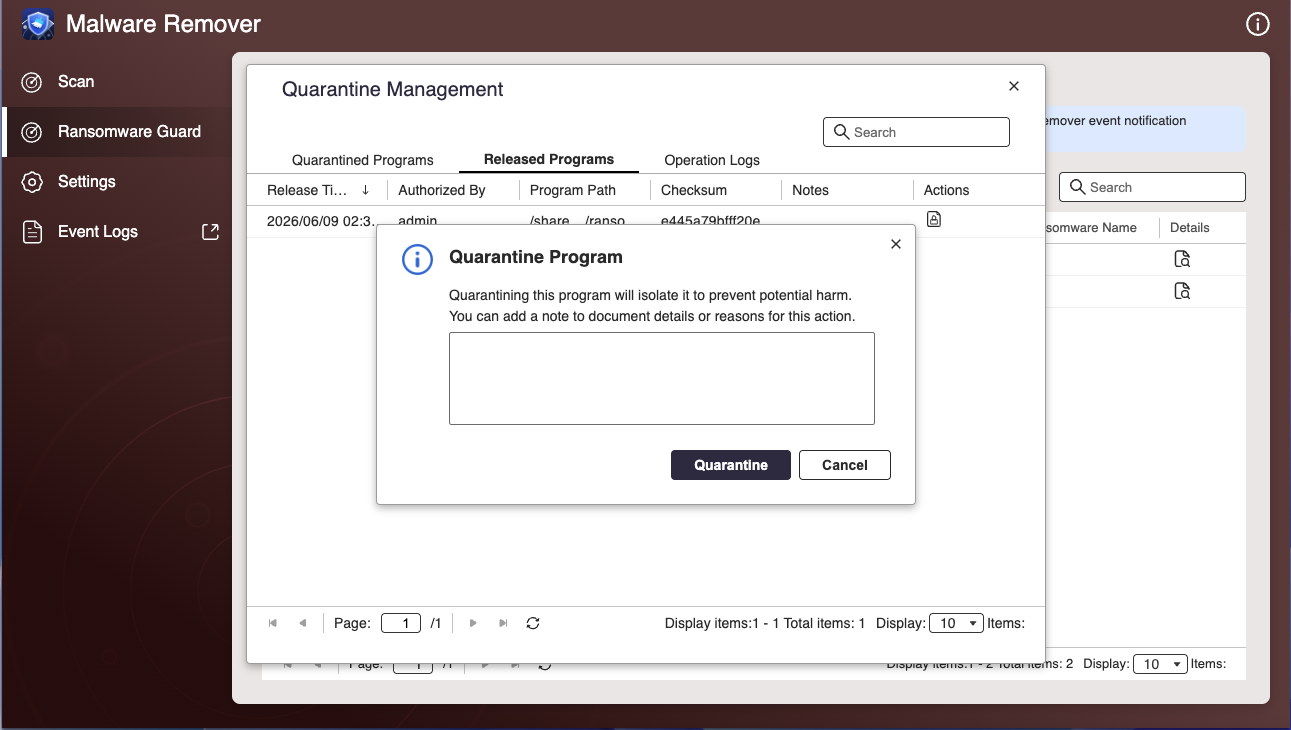
If you need to re-quarantine a released program, click Quarantine next to it.
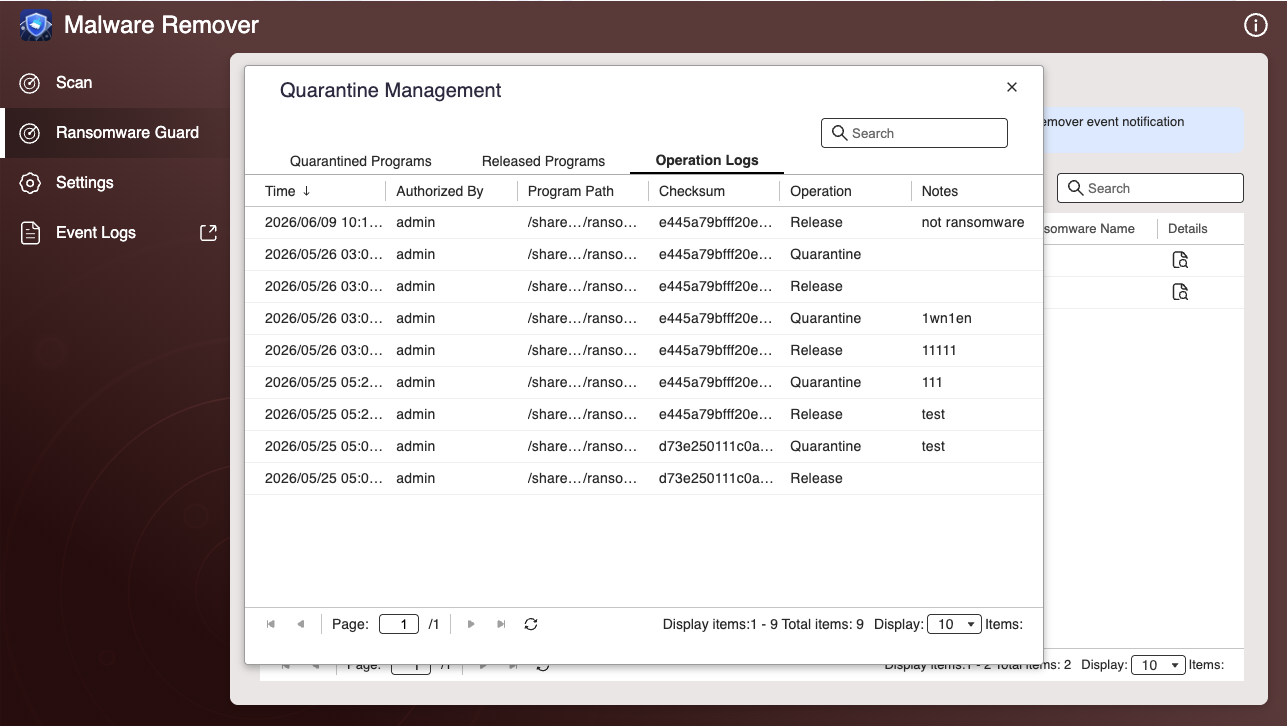
To view the operation history
Click the Operation Logs tab to review a full history of quarantine and release actions, including the time, operator, and notes.