


How do I reinitialize the NAS?
Last modified date:
2026-01-29
Applicable products
- All NAS series
Procedure
Warning
Initializing will format and remove all data on the drives if there are any. Ensure to backup these data first if you wish to keep them.
You can reinitialize the NAS in two ways. Both methods erase all data on the installed drives.
- Reinitialize the NAS from Control Panel
- Log in to QTS/QuTS hero as an administrator.
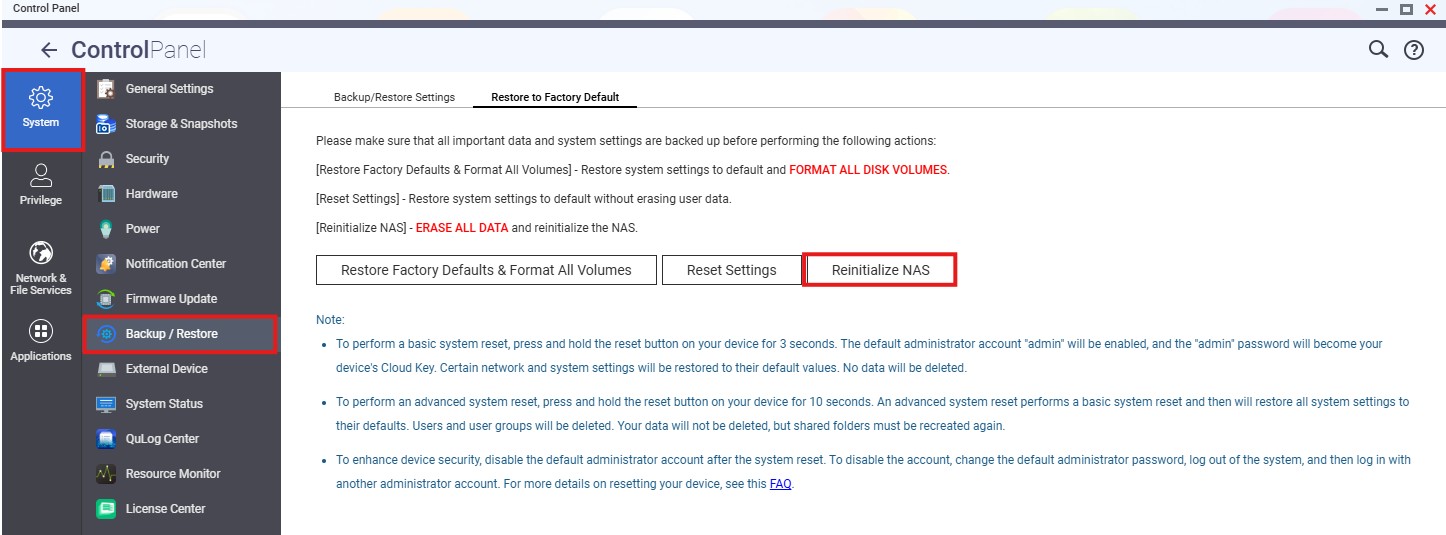
- Go to Control Panel > System > Backup/Restore > Restore to Factory Default.
- Click Reinitialize NAS.
- Confirm the warning message. The NAS will erase all data on all disks, including any M.2 SSDs. After the process completes, choose whether to restart or power off the NAS.
- Reinitialize the NAS using empty boot
- Power off the NAS.
- Remove all drives, including any M.2 SSDs.
- Power on the NAS without any drives installed.
- Use Qfinder Pro to find and connect to the NAS.
- In the NAS web interface, you will see a message indicating that no drives are installed. At this point, insert the drives into the NAS.
- Follow the on-screen instructions. The system will prompt you to format the drives and reinitialize the NAS.
Further reading
For further assistance, ask other users and QNAP experts in the community. Go to QNAP Community


