


How do I organize virtual adapters for microservices in Container Station?
Last modified date:
2025-10-28
Applicable Products
- Container Station
Scenario
Suppose you have four Docker containers (A, B, C, and D) running in Container Station. You want all containers to communicate with each other, but only App A should have access to the internet. Apps B, C, and D should only communicate within the group and not have external network access.
Overview
This example uses four Docker containers:
- App A: traefik (
traefik:v3) - App B: redis (
redis:7) - App C: rabbitmq (
rabbitmq:management) - App D: uvicorn-gunicorn-fastapi (
tiangolo/uvicorn-gunicorn-fastapi:python3.11)
Procedure
- Pull Docker images:
- Open Container Station.
- Go to Images and click the Pull button.
- Enter the Docker image name (for example, traefik:v3) and click Pull.
- Repeat these steps for the other three images.
- Deploy your containers:
- In the Images list, click the Deploy icon in the Actions column for each image.
Deploy Icon Example:
- Follow the Create Container wizard to complete deployment for each container.
Create Container wizard view: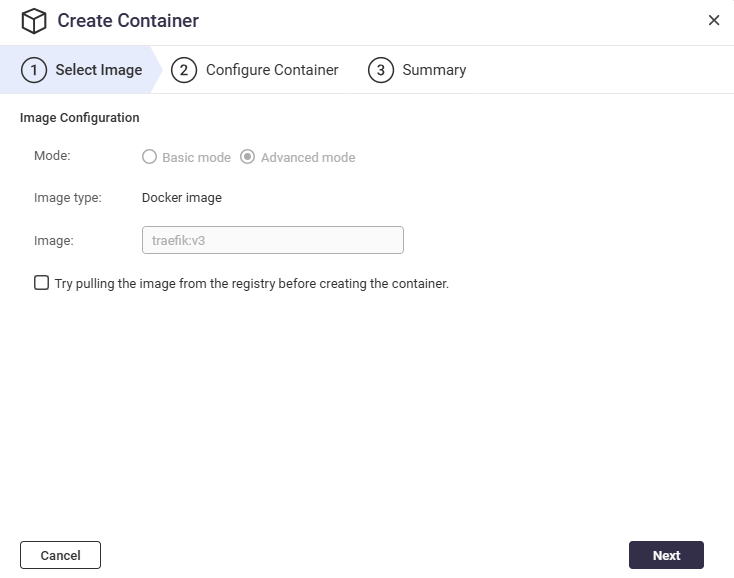
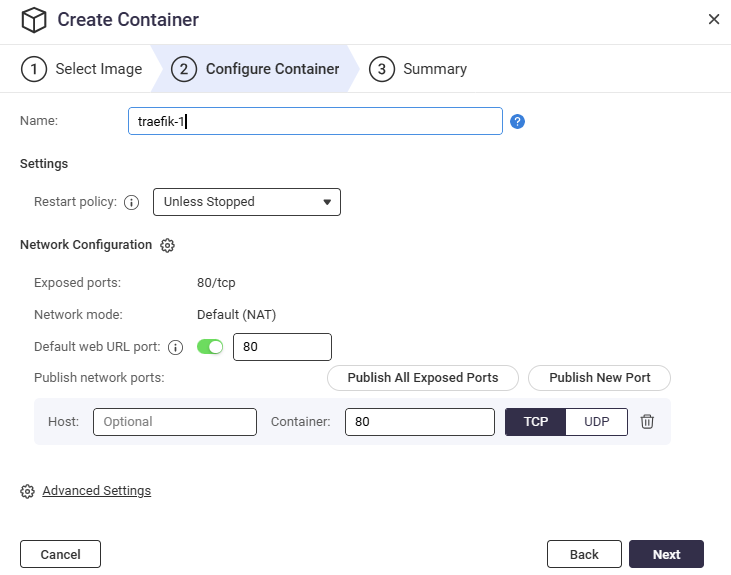
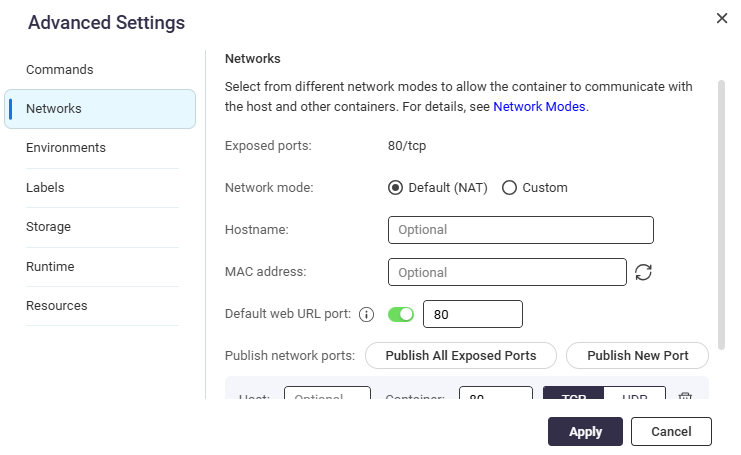
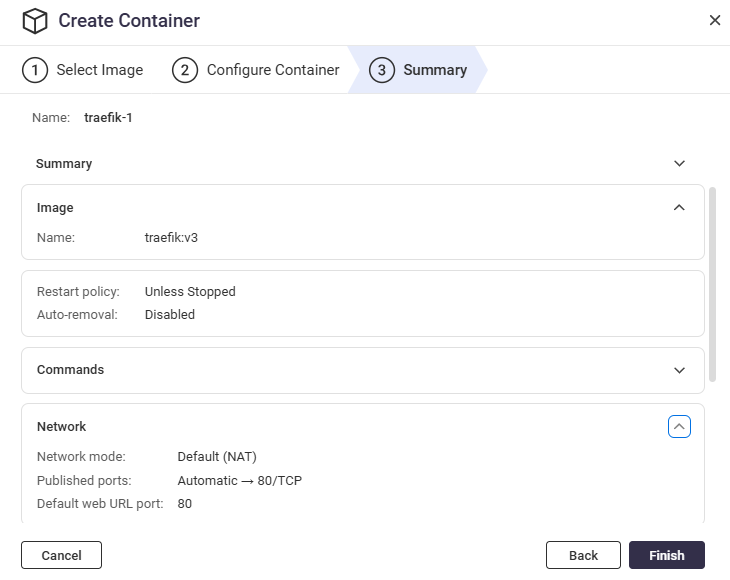
- Once deployment is complete, the four containers will appear in the list.
Container List Example: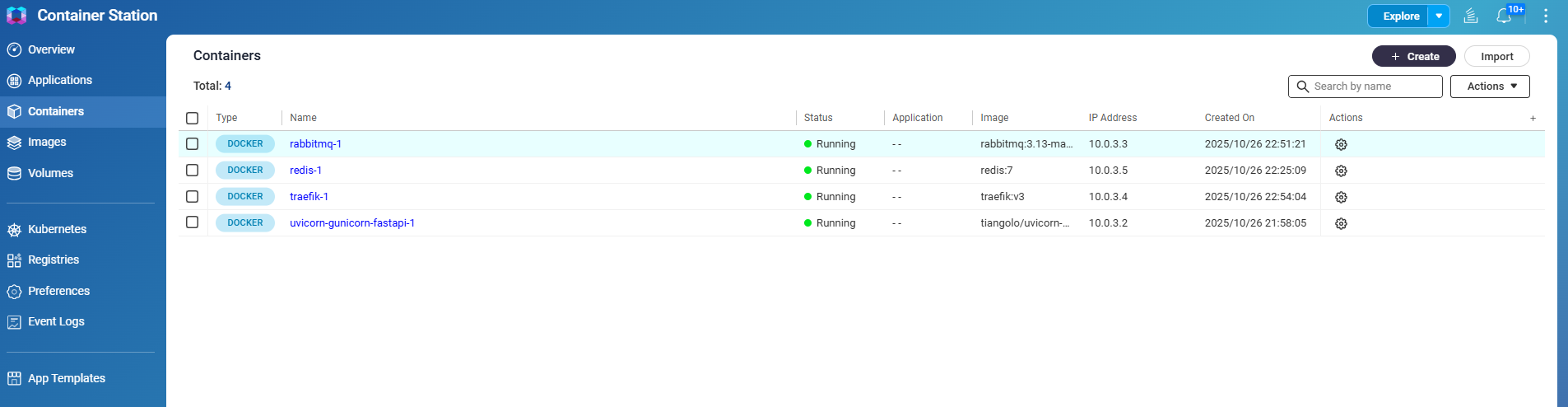
- Important: When creating each container, ensure that the network mode is set to Default (NAT). This allows all containers to communicate with each other internally.
- In the Images list, click the Deploy icon in the Actions column for each image.
- Configure internet access for App A only:
- Go to Containers, locate App A (e.g., traefik-1), click the Actions icon, and select Edit.
Actions Icon Example:
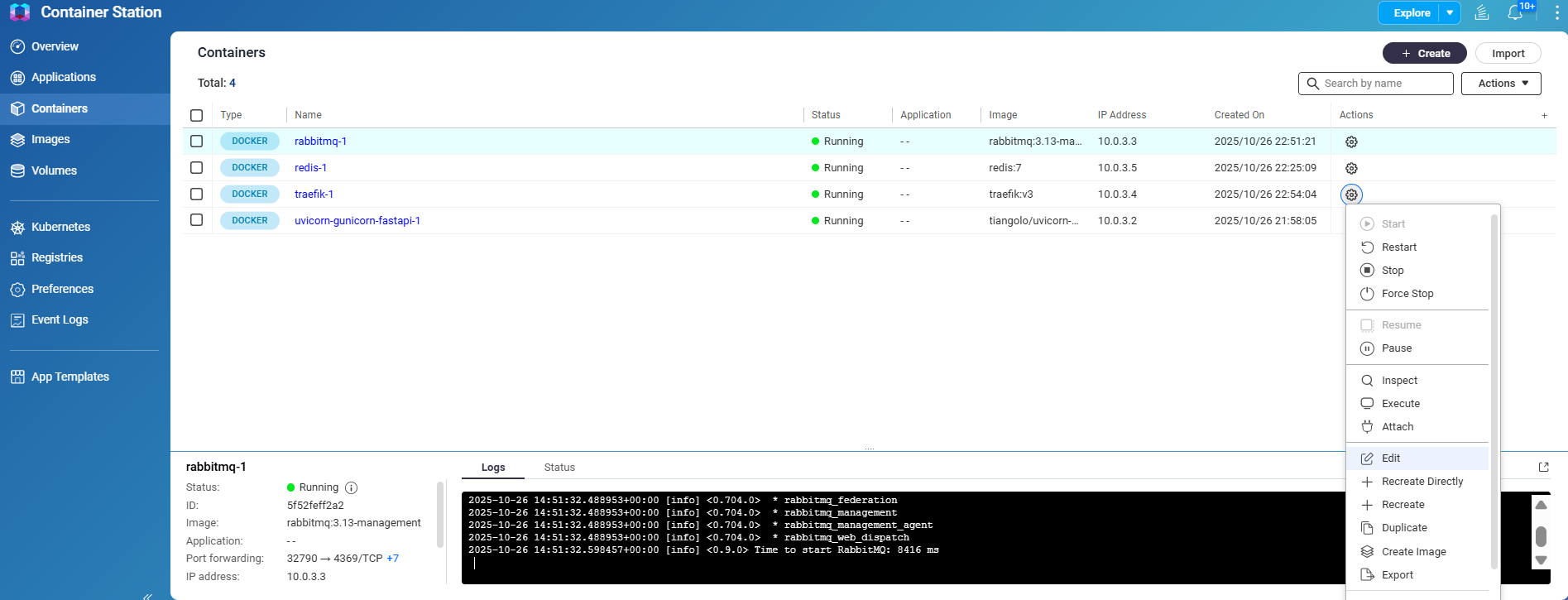
- In the container edit wizard, go to the Network section and click Add.
Add network interface: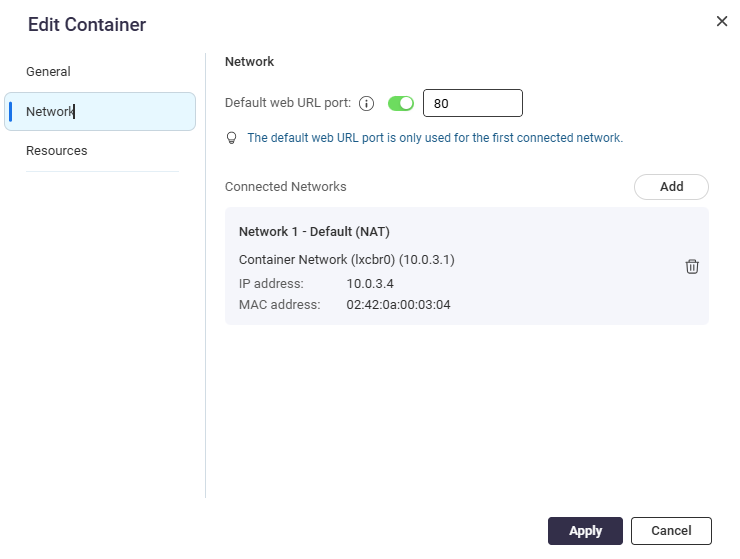
- Select Bridge as the network mode.
Select Bridge Mode: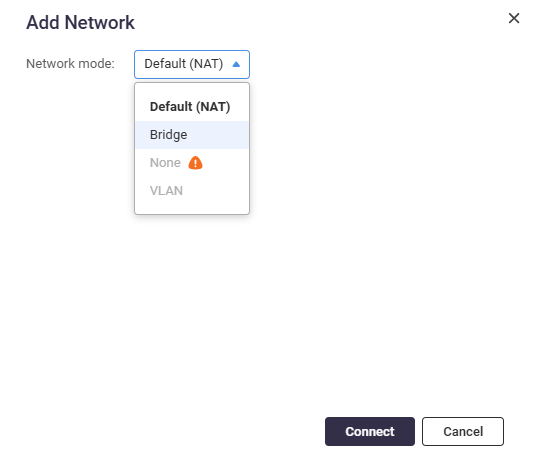
- Choose the network interface with internet access and click Connect.
Select Network Interface: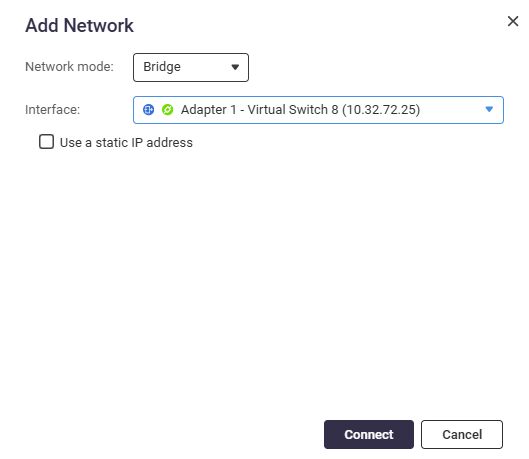
- Click Apply to complete the settings.
Apply Settings: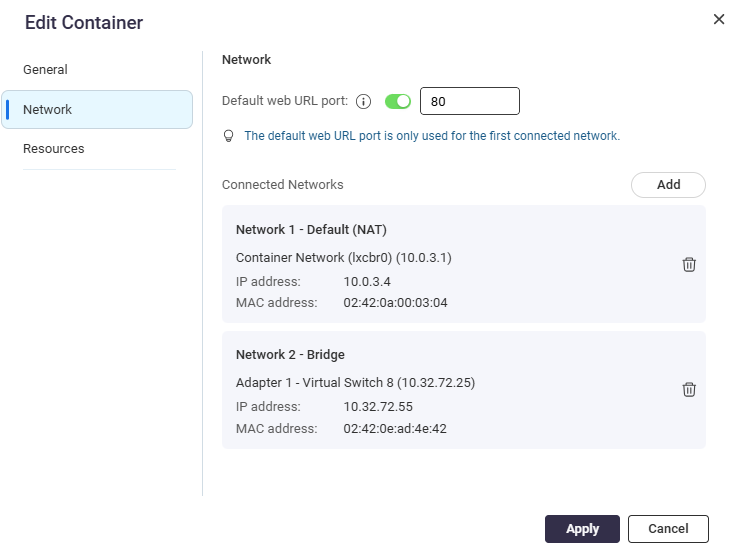
- At this point, App A can communicate with Apps B, C, and D, and can access the internet.
Container Status Example: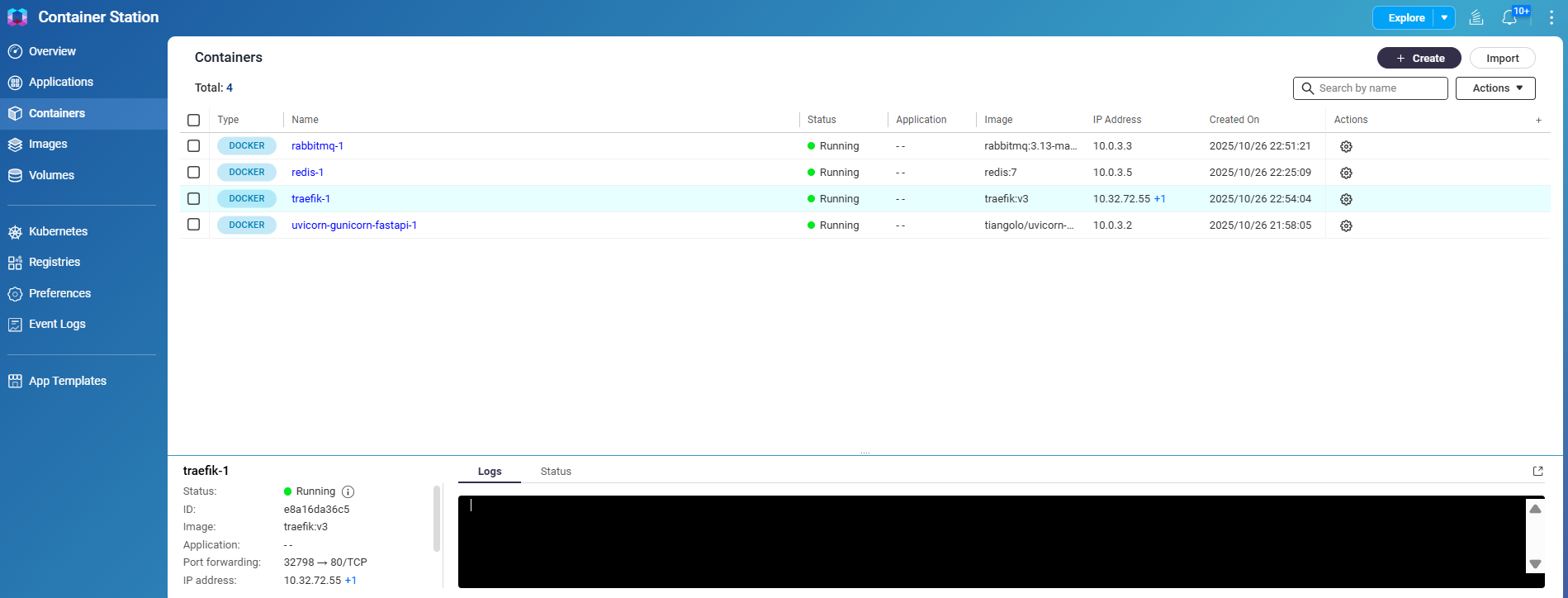
- Go to Containers, locate App A (e.g., traefik-1), click the Actions icon, and select Edit.
- Verify connectivity:
- Open Network & Virtual Switch and go to Overview.
Overview Screenshot: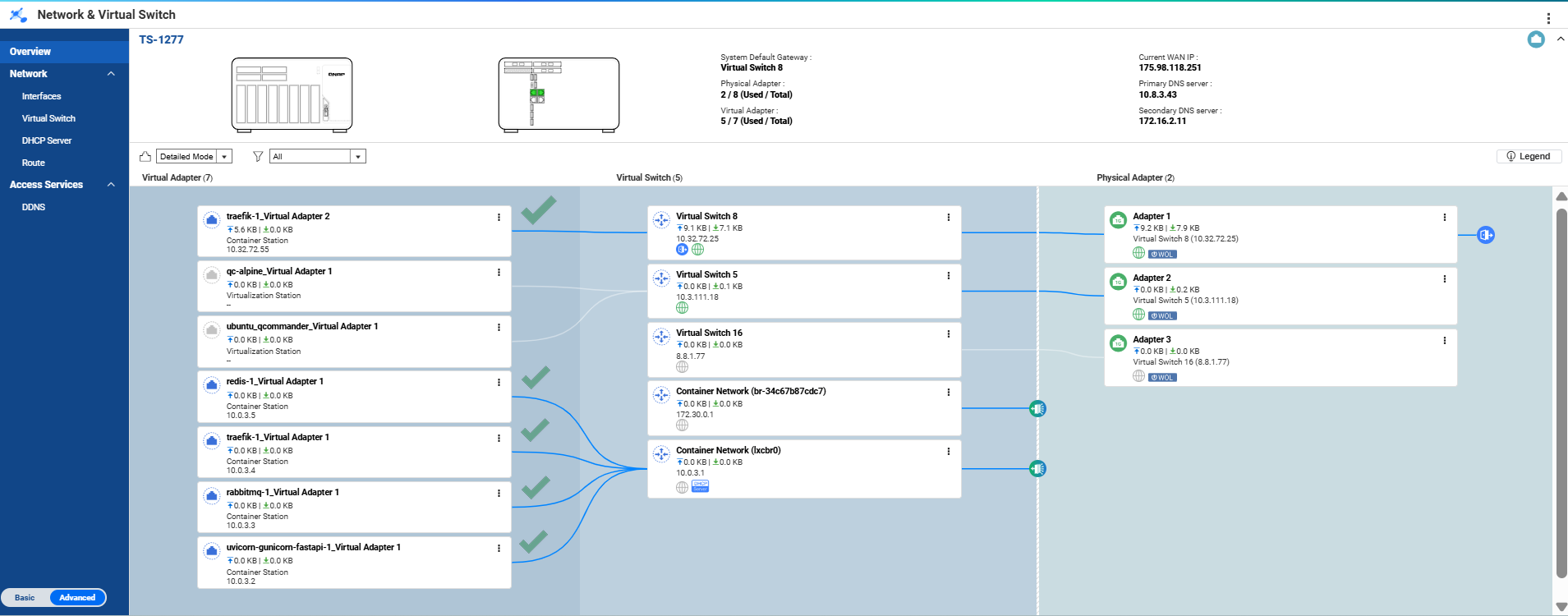
- Confirm that App A (traefik-1) can communicate with Apps B, C, and D, and can access the internet.
- Apps B, C, and D can communicate internally (with each other and with App A), but cannot access the internet.
- Open Network & Virtual Switch and go to Overview.


