Applicable Models
- TS-128A, TS-228A, TS-328
- TS-216, TS-216G, TS-416
- TS-130, TS-230
- TS-133, TS-233, TS-433
- TS-433eU
- TS-AI642
Overview
This FAQ explains how to manually recover your NAS when it fails to start up. This FAQ only applies to the NAS models listed above.
NAS Recovery Requirements
To recover the NAS, you will need the following:
- An empty USB drive of at least 4 GB capacity
- A Windows PC
Recovering The NAS
You can recover your NAS by first creating a USB boot drive to restore basic NAS functionality and then updating the firmware with Qfinder Pro. If any part of the recovery process fails, see Further Troubleshooting below. To recover your NAS, perform the following steps:
Create a USB boot drive
- Download the Rufus with this link: https://github.com/pbatard/rufus/releases/download/v3.4/rufus-3.4.exe
- Download the NAS system image corresponding to your NAS:
- Connect the USB drive to your PC.
- Open Rufus.
- Under Boot Selection, Click Select.
- Select the downloaded NAS system image.
- Click Open.
- Click Start.
Rufus formats the USB drive and installs the NAS system image onto the USB drive.
Warning
Formatting a USB flash drive will erase all its existing data. If you have data on the USB flash drive you want to preserve, copy the data to your PC first, then after formatting the USB flash drive, copy the data back.
Use USB boot drive to recover the NAS
- Power off the NAS.
- Remove all drive trays.
- Connect the USB boot drive to a rear USB port of the NAS.
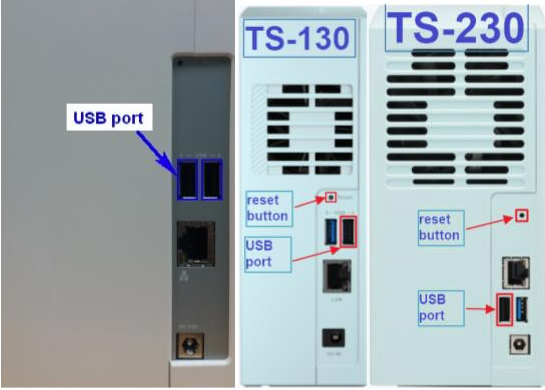
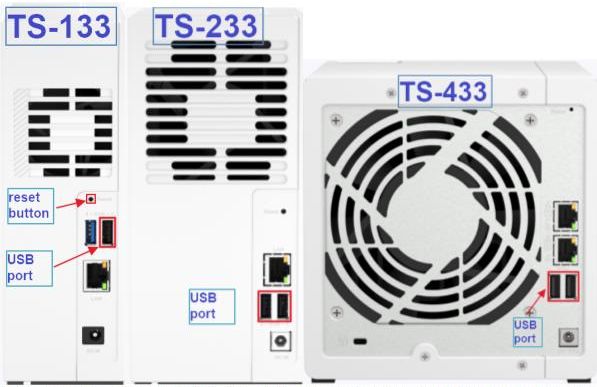
- Power on the NAS with the following steps:
- Press and hold the USB One Touch Copy button or reset button.
- Press the power button.
- Continue holding the USB One Touch Copy button or reset button until a NAS audio alert is triggered.
- Release the USB One Touch Copy button or reset button.
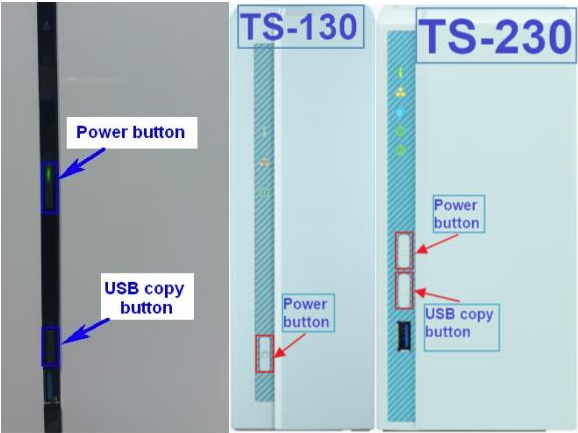
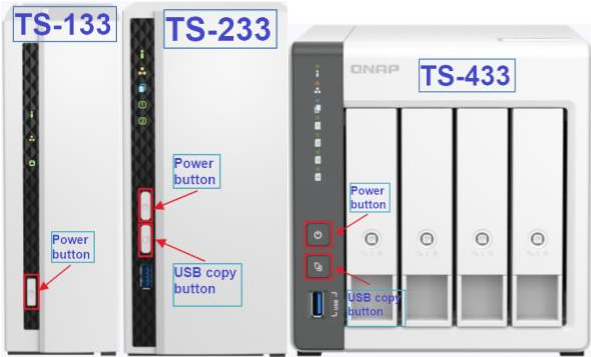
- If your NAS a TS-128A, TS-228A, TS-328, TS-130, or TS-230 then perform the following:
- Wait until one of the following occurs:
- A NAS audio alert of 3 short beeps is triggered.
The NAS firmware recovery process starts. - No audio alert is triggered after waiting 3 minutes.
The NAS firmware recovery process failed. Repeat steps 4 & 5. If the NAS recovery process is still not successful, see the Further Troubleshooting section below.
- Wait for the NAS firmware recovery process to finish.
When the NAS firmware recovery process is finished a NAS audio alert of one long beep will be triggered and the NAS will automatically shut down. - If a NAS audio alert of two long beeps is triggered, or the NAS does not automatically shut down 5 minutes after the long beep audio alert, then the NAS firmware recovery process was not successful. Repeat steps 4 & 5. If the NAS recovery process is still not successful, see the Further Troubleshooting section below.
- If your NAS is a TS-133, TS-233, TS-433, TS-216, TS-216G, TS-416 or TS-AI642 then perform the following:
- Wait until the system status LED starts flashing alternate red & green.
The NAS firmware recovery process starts. - When the NAS firmware recovery process is finished, a NAS audio alert of 3 short beeps is triggered.
- If the system status LED became solid red and a NAS audio alert of 2 long beeps was triggered during the recovery process, then the NAS recovery process failed. Retry the recovery process by repeating steps 4 & 6. If the NAS recovery process is still not successful, see the Further Troubleshooting section below.
- After the NAS firmware process is finished, remove the USB boot drive from the NAS.
- Power on the NAS.
Qfinder Pro can now find your NAS.
Install the latest firmware version on your NAS with Qfinder Pro
- Download and install Qfinder Pro.
- Open Qfinder Pro.
- Locate your NAS in the device list.
- Right click on your NAS.
- Select Update Firmware.
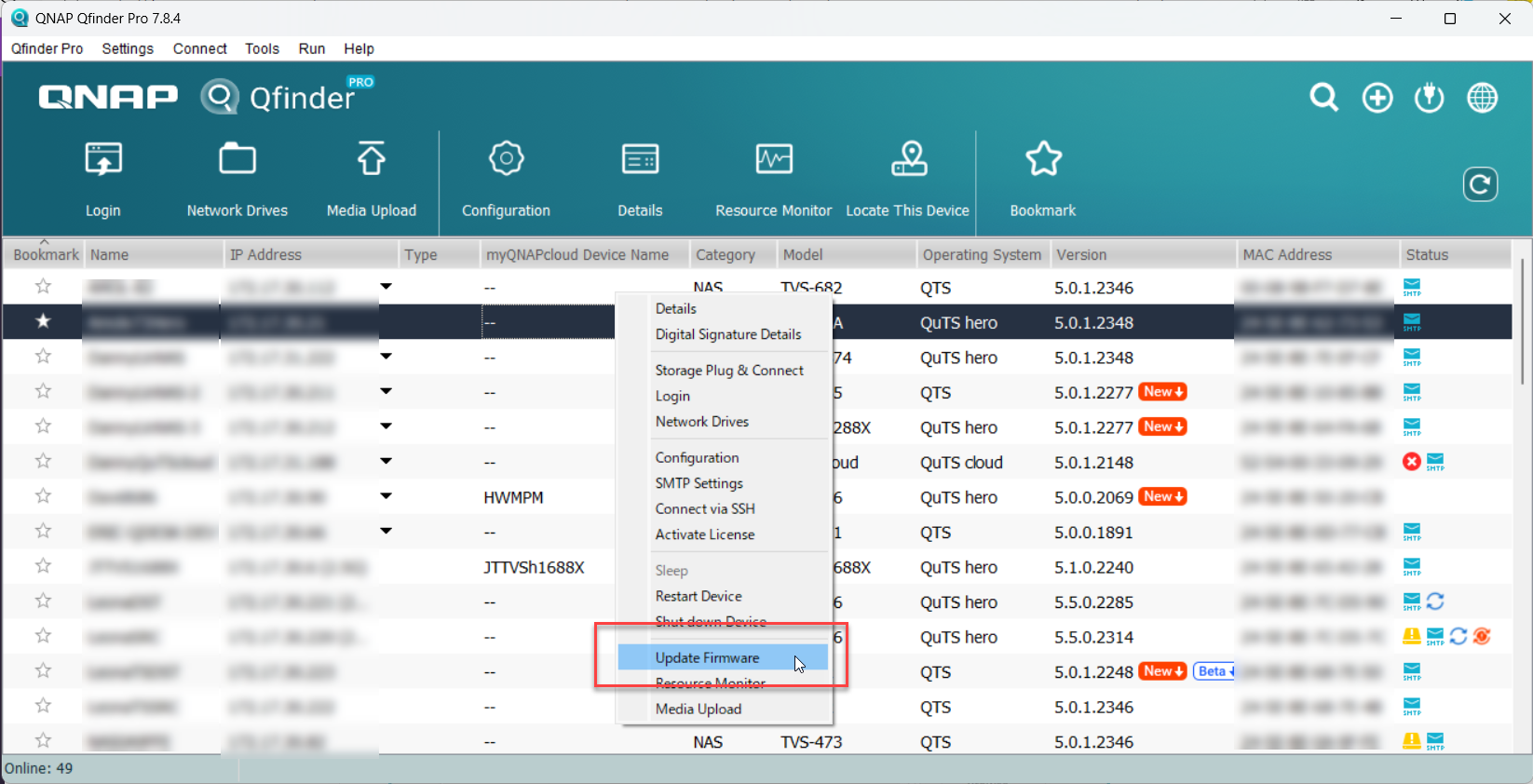 The Update Firmware window opens.
 - Select Automatically update the firmware to the latest version.
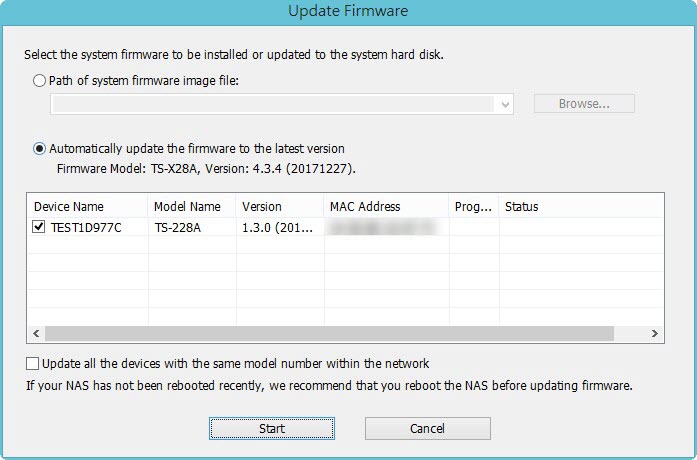
- Click Start.
The NAS firmware will be updated to the latest version.
Install hard drives
- After the firmware is upated, perform the following steps to install hard drives:
- Attach the hard drives to the drive trays.
- Insert the drive trays into the NAS.
For details on installing hard drives, see the NAS User Guide available for download from Download Center. - If the hard drives are not new, the firmware must be updated again while the hard drives are installed. For details, see Updating the NAS Firmware Using Qfinder Pro in How to search and manage a QNAP NAS using Qfinder Pro.
- If the hard drives are new, you can continue to initialize the NAS. For initializing QTS or QuTS hero on your NAS, see the following:
- QuTS hero Initialization (5.0.x)
- QTS Initialization (5.0.x)
Further Troubleshooting
- If the NAS BIOS failed to display:
Your NAS needs to be physically serviced by a qualified hardware technician. - If the steps of this guide could not be successfully completed:
Your NAS needs to be physically serviced by a qualified hardware technician. - If you were able to install the latest firmware version on your NAS with Qfinder Pro but after installing the hard drives, the NAS will not boot up:
The hard drives are faulty and need to be replaced. A NAS will fail to start up if the hard drives are faulty.
Further Reading
Firmware Recovery Guide
What to do if Firmware update is stuck?
Why won't my NAS boot after a firmware update?
What can I do if I can not access my NAS after firmware update?
What do I do if there was a power failure or network disconnection during a firmware update?
適用機種
- TS-128A, TS-228A, TS-328
- TS-130, TS-230
- TS-133, TS-233, TS-433
概覽
本常見問題解釋了當您的NAS啟動失敗時,如何手動恢復您的NAS。此常見問題僅適用於上述列出的NAS型號。
NAS恢復要求
要恢復NAS,您將需要以下物品:
- 一個至少2GB容量的空USB驅動器
- 一臺Windows PC
恢復NAS
您可以透過首先建立一個USB啟動驅動器來恢復基本的NAS功能,然後使用 韌體 更新 Qfinder Pro 來恢復您的NAS。如果恢復過程的任何部分失敗,請參見下面的進一步故障排除。要恢復您的NAS,請執行以下步驟:
建立一個USB啟動驅動器
使用 USB 啟動驅動器恢復 NAS
- 關閉 NAS 電源。
- 移除所有驅動器託盤。
- 將 USB 啟動驅動器連線到 NAS 的後部 USB 埠。


- 按住 USB 複製按鈕或重置按鈕,然後按下電源按鈕以開啟 NAS。
- 按照以下步驟開啟 NAS:
- 按住 USB 一鍵複製按鈕或重置按鈕。
- 按下電源按鈕。
- 繼續按住 USB 一鍵複製按鈕或重置按鈕,直到 NAS 觸發音訊警報。
- 釋放USB 一鍵複製按鈕或重置按鈕。


- 如果您的 NAS 是 TS-128A、TS-228A、TS-328、TS-130 或 TS-230,則執行以下操作:
- 等待以下情況之一發生:
- NAS發出3短聲音提示被觸發。
NAS 韌體 恢復過程開始。 - 等待3分鐘後沒有觸發音訊提示。
NAS 韌體 恢復過程失敗。重複步驟5和6。如果NAS恢復過程仍然不成功,請檢視下面的進一步故障排除部分。
- 等待NAS 韌體 恢復過程完成。
當NAS 韌體 恢復過程完成後,將觸發一個長音提示,並且NAS將自動關機。 - 如果觸發了兩個長音提示的NAS音訊警報,或者在長音提示音訊警報後5分鐘NAS沒有自動關機,則NAS 韌體 恢復過程不成功。重複步驟5和6。如果NAS恢復過程仍然不成功,請檢視下面的進一步故障排除部分。
- 如果您的NAS是TS-133、TS-233或TS-433,則執行以下操作:
- 等到系統狀態LED開始交替閃爍紅色和綠色。
NAS 韌體 恢復過程開始。 - 當NAS 韌體 恢復過程完成時,將觸發3短聲音提示。
- 如果系統狀態 LED 變為紅色並且在恢復過程中觸發了 2 長聲音提示,則 NAS 恢復過程失敗。透過重複步驟 5 和 7 重試恢復過程。如果 NAS 恢復過程仍然不成功,請檢視下面的進一步故障排除部分。
- 在 NAS 韌體 過程完成後,從 NAS 中移除 USB 啟動驅動器。
- 開啟 NAS。
Qfinder Pro 現在可以找到您的 NAS。
在您的 NAS 上安裝最新的 韌體 版本,使用 Qfinder Pro
- 下載並安裝 Qfinder Pro 。
- 開啟 Qfinder Pro 。
- 在裝置列表中找到您的 NAS。
- 右鍵點選您的 NAS。
- 選擇 更新 韌體 .
 更新 韌體 視窗將開啟。
 - 選擇 自動將 韌體 更新至最新版本.
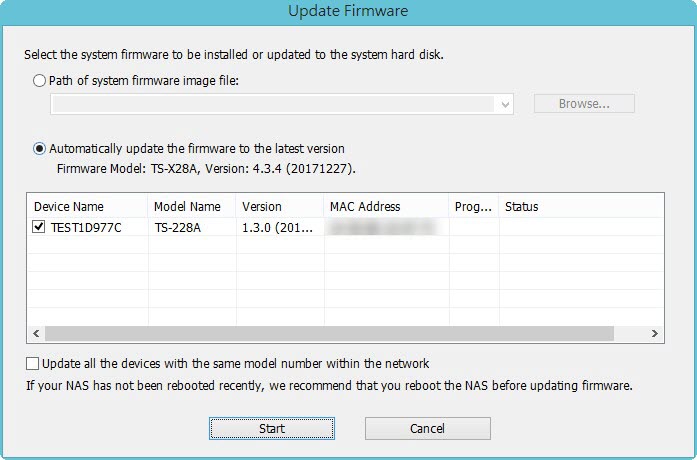
- 點選 開始.
NAS 韌體 將被更新至最新版本。
安裝硬碟
進一步故障排除
- 如果 NAS BIOS 未能顯示:
您的 NAS 需要由合格的硬體技術人員進行實體維修。 - 如果無法成功完成本指南的步驟:
您的 NAS 需要由合格的硬體技術人員進行實體維修。 - 如果您能夠在您的 NAS 上安裝最新的 韌體 版本,使用 Qfinder Pro 但在安裝硬碟後,NAS 將無法啟動:
硬碟有故障並需要更換。如果硬碟有故障,NAS 將無法啟動。
進一步閱讀
Firmware Recovery Guide
What to do if Firmware update is stuck?
Why won't my NAS boot after a firmware update?
What can I do if I can not access my NAS after firmware update?
What do I do if there was a power failure or network disconnection during a firmware update?


