Applicable Products
- SSL Certificate
- myQNAPcloud
Overview
If you use a myQNAPcloud SSL certificate on your QNAP NAS, this article explains what is changing and what you need to do.
Your myQNAPcloud SSL certificate is issued by TWCA. To comply with international certificate standards, TWCA is updating its certificate infrastructure, and certificates issued under its old intermediate certificate stops being trusted on November 5, 2026 at 16:00 UTC (November 6, 2026 at 00:00 UTC+8).
What you need to do
Update the SSL Certificate app on your NAS to version 2.2.80 or later. After updating, a new certificate will be issued and installed automatically. No other action is needed.
If you do not update before the deadline, browsers will show a security warning, and services accessed through your myQNAPcloud domain may become unavailable.
This change does not affect the security of your NAS or your data, and there is no additional charge.
Frequently Asked Questions
Is my NAS affected by the TWCA intermediate certificate revocation?
Your NAS is affected if it uses a myQNAPcloud SSL certificate that:
- was purchased from QNAP for a domain such as
xxxx.myqnapcloud.com or xxxx.mycloudnas.com, and - was issued before November 1, 2026, 00:00 UTC.
The following certificates are not affected:
- Let's Encrypt certificates
- Certificates you uploaded yourself
- The default self-signed certificate on the NAS
To check your certificate, see How do I check in my browser whether my myQNAPcloud SSL certificate is new or old?
Which version of the SSL Certificate app do I need?
Update the SSL Certificate app to version 2.2.80 or later. The update is available for QTS, QuTS hero, QuTScloud, and QVP.
- Log in to your NAS.
- Open App Center.
- Find SSL Certificate.
- Click Update.
After I update the SSL Certificate app, how long does it take to get the new certificate?
After the update, your NAS automatically requests and installs a new certificate within 0 to 4 hours. You do not need to do anything else.
The wait time is random, so that many devices do not send requests to the certificate authority at the same time.
- Keep your NAS connected to the Internet during this time.
- When the new certificate is installed, web connections to the NAS may drop for a few seconds. This is normal.
If you need the certificate replaced urgently, contact QNAP Customer Service.
Why wasn't my myQNAPcloud SSL certificate replaced after I updated the SSL Certificate app?
The certificate is not replaced automatically in the following cases:
| Cause | Action |
|---|
| Your myQNAPcloud SSL license has expired. | Renew the license. |
| Your license has been moved to another NAS. | Make sure the license is assigned to this NAS. |
| Your NAS is not connected to the Internet. | Connect the NAS to the Internet and wait up to 4 hours. |
| The SSL Certificate app is older than version 2.2.80. | Check the version in App Center and update the app. |
If none of these apply and more than 4 hours have passed since the update, contact QNAP Customer Service.
How do I check in my browser whether my myQNAPcloud SSL certificate is new or old?
You can check two things in the certificate details:
| New certificate | Old certificate |
|---|
| Issue date | November 1, 2026, 00:00 UTC or later | Before November 1, 2026, 00:00 UTC |
| Authority Key Identifier (optional) | Starts with 93:44:9A:89 | Starts with F2:28:D4:F9 or 92:E7:FA:62 |
Checking the issue date is enough for most users. The Authority Key Identifier is a more precise check.
Before you start
- Open your NAS using your myQNAPcloud domain, for example
https://yourname.myqnapcloud.com. If you open it with an IP address, the browser shows a different certificate. - Use a private or incognito window, so the browser shows the certificate your NAS is using now.
Google Chrome or Microsoft Edge
- Open a new incognito window (Edge: InPrivate window). Press Ctrl+Shift+N on Windows, or Command+Shift+N on macOS.
- Enter your myQNAPcloud domain in the address bar, for example
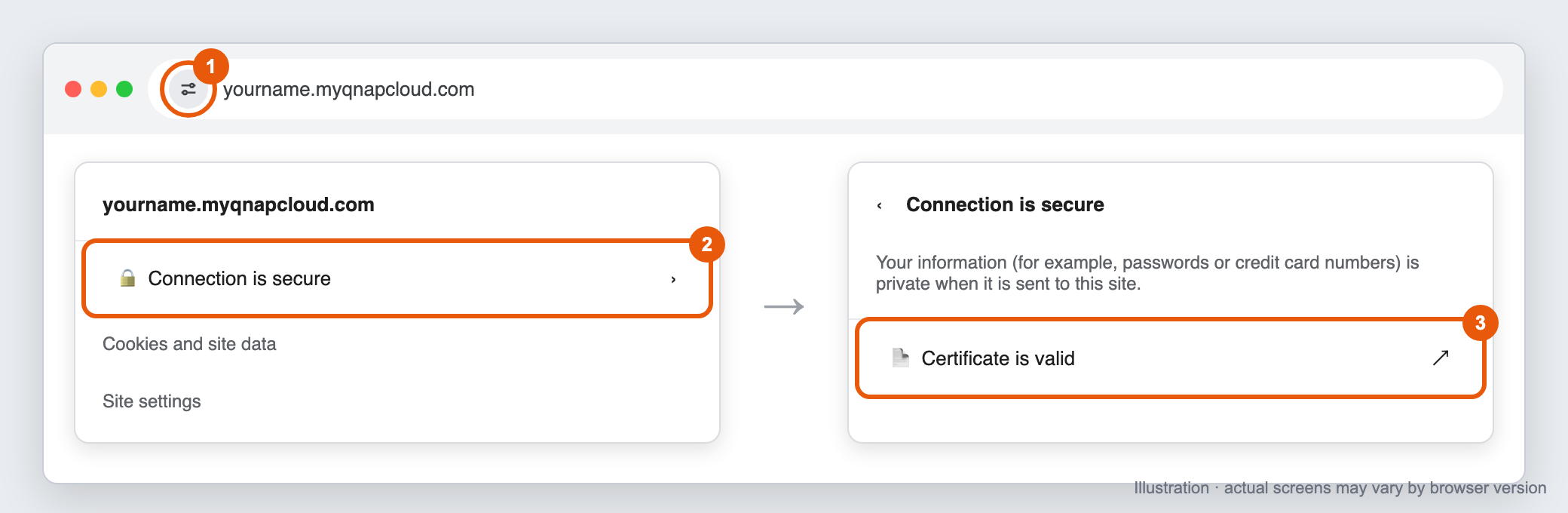
https://yourname.myqnapcloud.com, and press Enter. - Click the icon on the left side of the address bar. Depending on the version, it looks like two sliders or a lock. If the address bar shows Not secure, click that instead.
- Click Connection is secure (or Your connection to this site isn't secure).
- Click Certificate is valid (or Certificate is not valid). In Edge, click the certificate icon in the upper-right corner of the panel.
Chrome: click the site information icon, then Connection is secure, then Certificate is valid
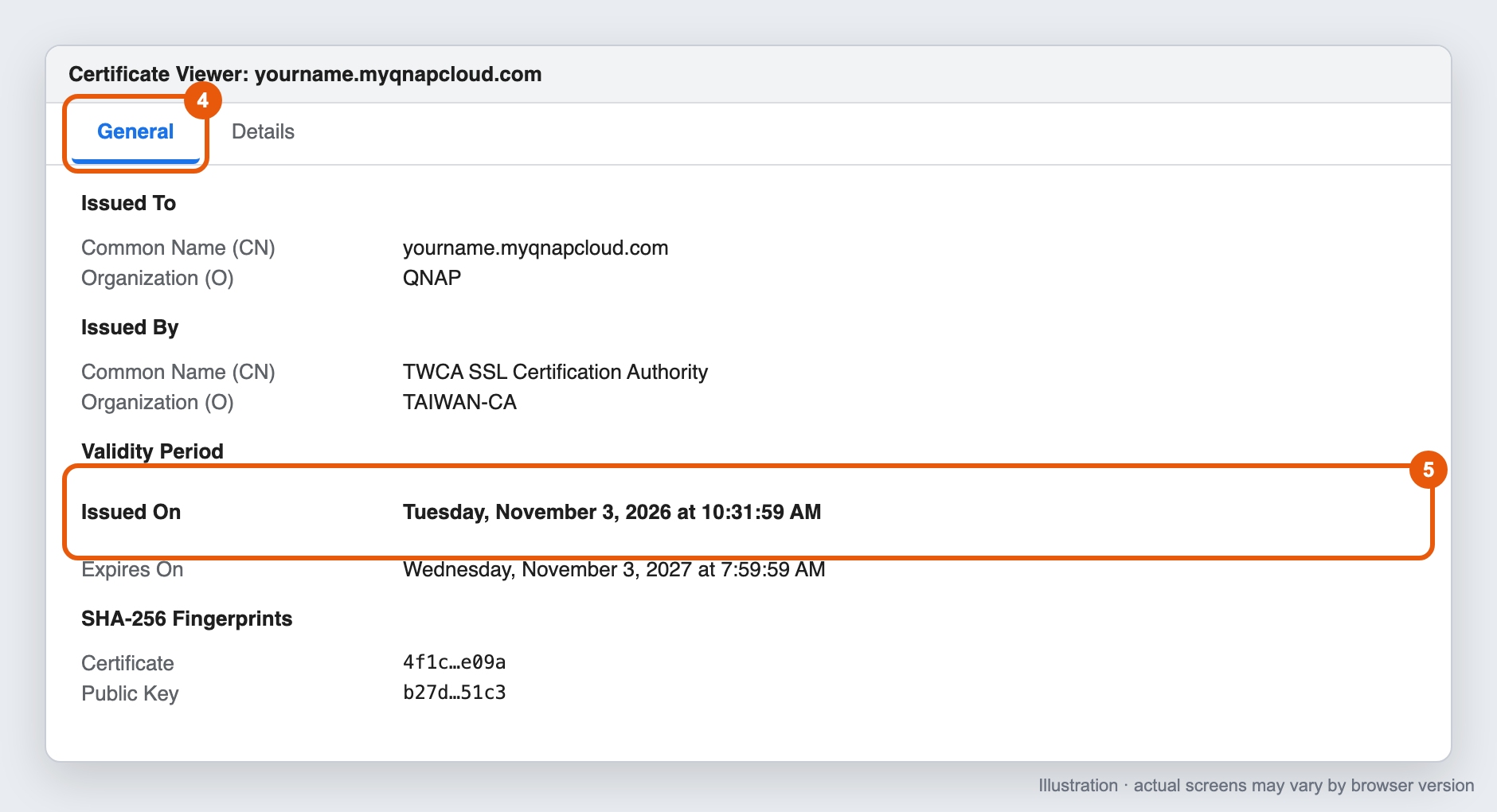
- The Certificate Viewer window opens. On the General tab, find Validity Period and check the Issued On date.
Chrome Certificate Viewer, General tab, showing the Issued On date under Validity Period
Optional: check the Authority Key Identifier
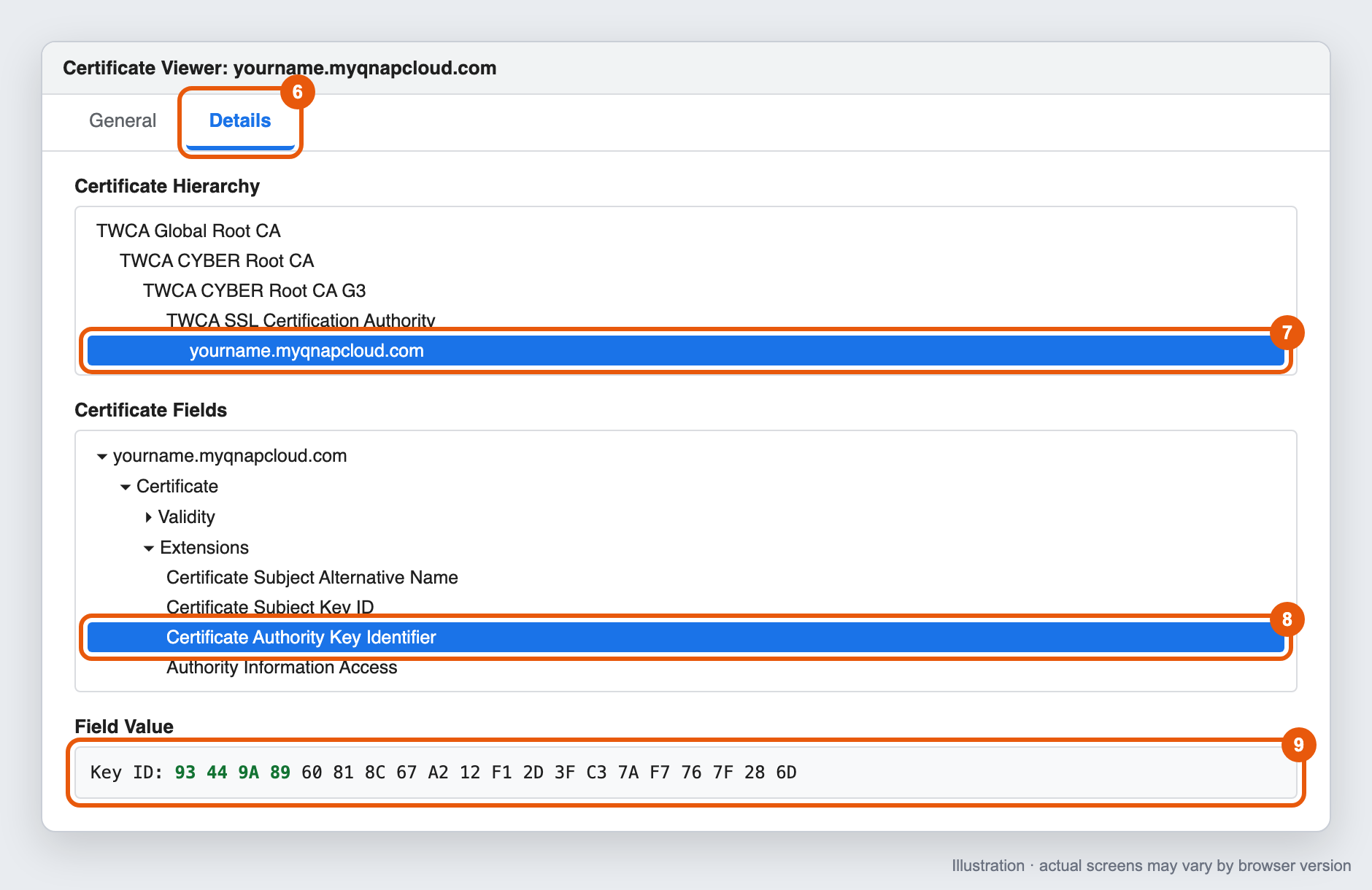
- In the Certificate Viewer, click the Details tab.
- Under Certificate Hierarchy, select the last item (your myQNAPcloud domain).
- Under Certificate Fields, expand Extensions and select Certificate Authority Key Identifier.
- Check the value under Field Value, for example
Key ID: 93 44 9A 89 ....
Chrome Certificate Viewer, Details tab, showing the Certificate Authority Key Identifier value
Mozilla Firefox
- Open a new private window. Press Ctrl+Shift+P on Windows, or Command+Shift+P on macOS.
- Enter your myQNAPcloud domain in the address bar and press Enter.
- Click the lock icon on the left side of the address bar.
- Click Connection secure (or Connection not secure), then click More information.
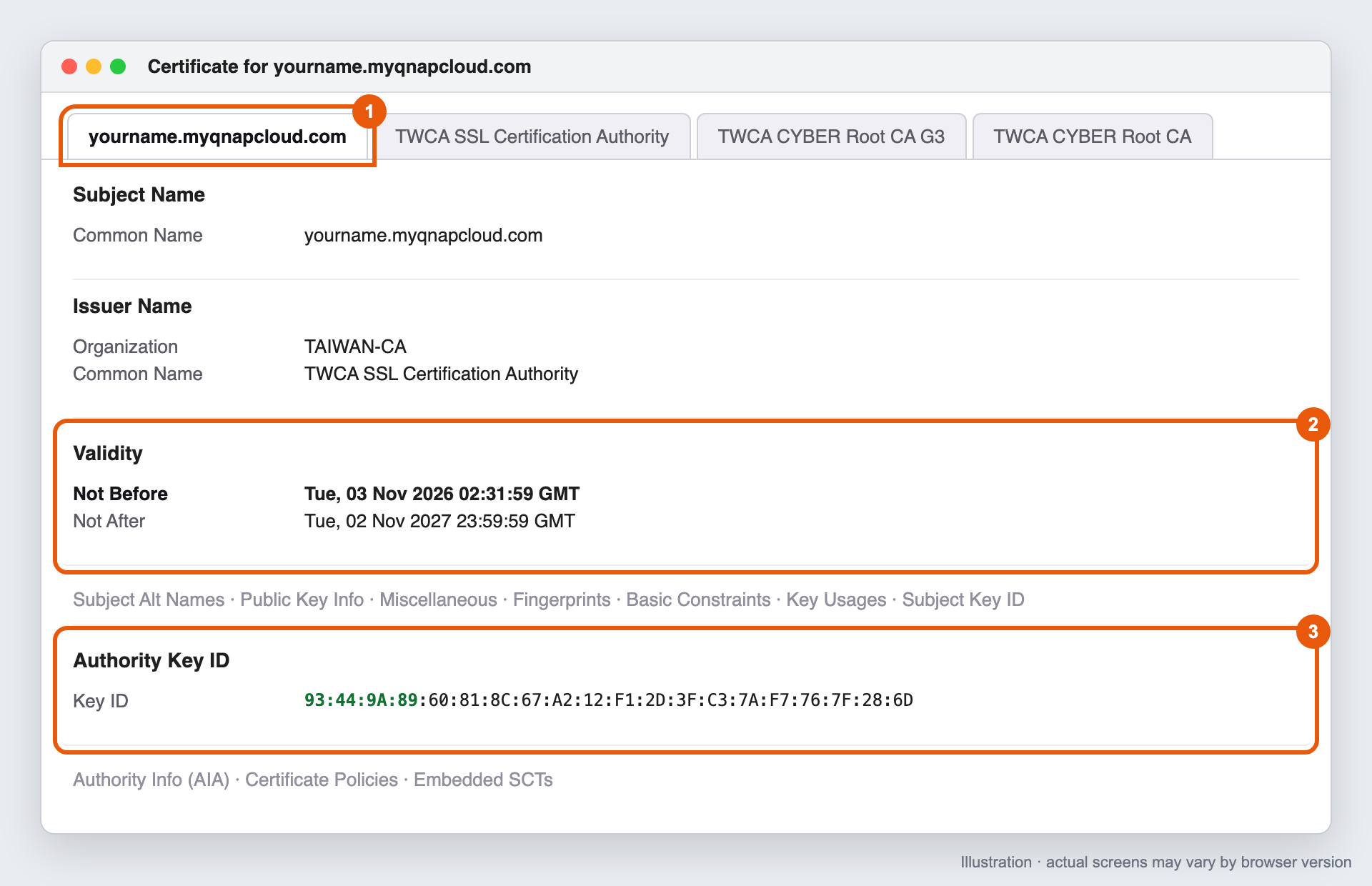
- In the Page Info window, on the Security tab, click View Certificate. A new browser tab opens. Each certificate in the chain has its own tab at the top of the page.
- Make sure the first tab (your myQNAPcloud domain) is selected.
- Under Validity, check the Not Before date.
- Optional: scroll down to Authority Key ID and check the Key ID value.
Firefox certificate page, showing Not Before under Validity and the Authority Key ID
Safari (macOS)
- Open a new private window. Choose File > New Private Window, or press Shift+Command+N.
- Enter your myQNAPcloud domain in the address bar and press Return.
- Click the lock icon in the address bar, then click Show Certificate.
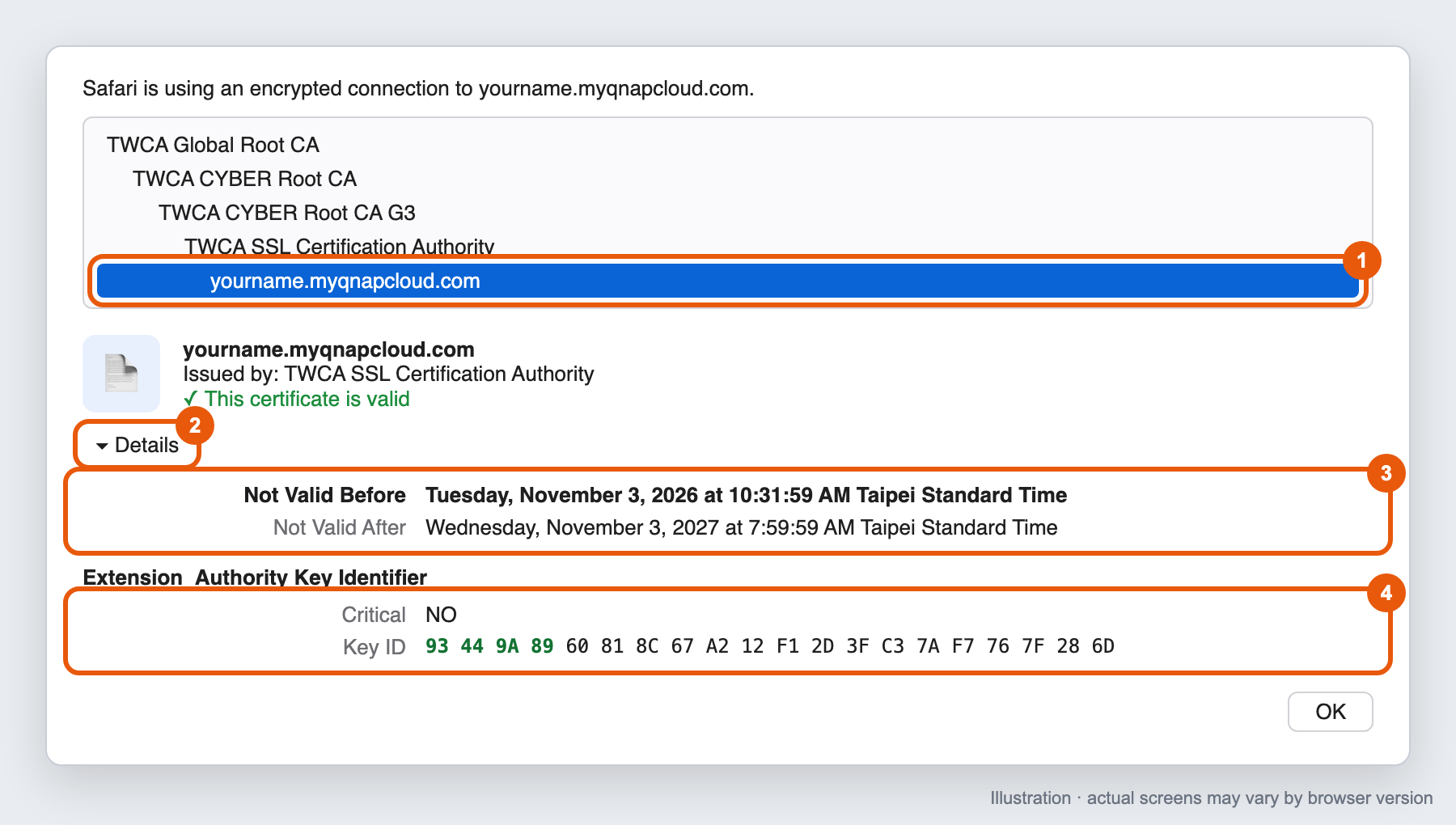
- In the certificate list, select the last item (your myQNAPcloud domain).
- Click the arrow next to Details to expand it.
- Check the Not Valid Before date.
- Optional: scroll down to Authority Key Identifier and check the Key ID value.
Safari certificate window, showing Not Valid Before and the Authority Key Identifier
What the results mean
| What you see | What to do |
|---|
| Issue date is November 1, 2026, 00:00 UTC or later | Your certificate has been replaced. No action needed. |
| Issue date is before November 1, 2026, 00:00 UTC, and you have not updated the app | Update the SSL Certificate app to version 2.2.80 or later. |
| Issue date is before November 1, 2026, 00:00 UTC, and you updated the app less than 4 hours ago | Wait up to 4 hours, then close all private windows, open a new one, and check again. |
| Issue date is before November 1, 2026, 00:00 UTC, and you updated the app more than 4 hours ago | See Why wasn't my myQNAPcloud SSL certificate replaced after I updated the SSL Certificate app? |
Note
- The cut-off is November 1, 2026, 00:00 UTC. Browsers show the date in your computer's time zone, so the cut-off appears differently depending on where you are. For example, it is November 1, 08:00 in Taiwan (UTC+8) and October 31, 20:00 in New York (UTC-4). If the date shown is close to the cut-off, also check the Authority Key Identifier.
- The old and new intermediate certificates can have the same name, such as TWCA SSL Certification Authority. Do not use the issuer name to decide whether your certificate is new or old.
Are myQNAPcloud SSL certificates purchased after November 1, 2026, 00:00 UTC affected by this change?
No. myQNAPcloud SSL certificates issued on or after November 1, 2026, 00:00 UTC are issued under TWCA's new intermediate certificate and are not affected by the revocation.
We still recommend updating the SSL Certificate app to version 2.2.80 or later, so that your NAS installs the complete certificate chain and all apps can connect normally.
What happens if I update the SSL Certificate app after November 5, 2026, 16:00 UTC?
You can still update the app after the deadline. After the update, your NAS replaces the certificate automatically within 0 to 4 hours.
Until the new certificate is installed:
- Browsers will show a security warning when you connect to your NAS through your myQNAPcloud domain.
- Qfile, Qsync, and other apps that connect through your myQNAPcloud domain may fail to connect.
To avoid these problems, update before the deadline.
適用產品
- SSL Certificate
- myQNAPcloud
概覽
如果您在 QNAP NAS 上使用 myQNAPcloud SSL 憑證,本文將解釋變更內容及您需要採取的措施。
您的 myQNAPcloud SSL 憑證由 TWCA 發行。為符合國際憑證標準,TWCA 正在更新其憑證基礎架構,並且在其舊的中介憑證下發行的憑證將於2026 年 11 月 5 日 16:00 UTC(2026 年 11 月 6 日 00:00 UTC+8)停止被信任。
您需要採取的措施
將 NAS 上的SSL 憑證應用程式更新至2.2.80或更高版本。更新後,將自動發行並安裝新憑證。無需其他操作。
如果您未在截止日期前更新,瀏覽器將顯示安全警告,並且透過 myQNAPcloud 網域訪問的服務可能會變得不可用。
此變更不影響您的 NAS 或資料的安全性,且不會產生額外費用。
常見問題
我的 NAS 是否受到 TWCA 中介憑證撤銷的影響?
如果您的 NAS 使用 myQNAPcloud SSL 憑證,則會受到影響,該憑證:
- 是從 QNAP 購買的,用於
xxxx.myqnapcloud.com或xxxx.mycloudnas.com等域名,並且 - 是在 2026 年 11 月 1 日 00:00 UTC 之前發行的。
以下憑證不受影響:
- Let's Encrypt 憑證
- 您自行上傳的憑證
- NAS 上的預設自簽憑證
要檢查您的憑證,請參閱如何在瀏覽器中檢查我的 myQNAPcloud SSL 憑證是新的還是舊的?
我需要哪個版本的 SSL 憑證應用程式?
將SSL 憑證應用程式更新至版本 2.2.80 或更新。此更新適用於 QTS、QuTS hero、QuTScloud 和 QVP。
- 登入您的 NAS。
- 開啟App Center。
- 找到SSL 憑證。
- 點擊更新。
更新 SSL 憑證應用程式後,獲得新憑證需要多長時間?
更新後,您的 NAS 會自動請求並安裝新憑證在 0 到 4 小時內。您不需要做其他事情。
等待時間是隨機的,以避免許多裝置同時向憑證機構傳送請求。
- 在此期間保持您的 NAS 連線到網際網路。
- 當新憑證安裝時,與 NAS 的網路連線可能會中斷幾秒鐘。這是正常的。
如果您需要緊急更換憑證,請聯絡QNAP 客戶服務。
為什麼在我更新 SSL 憑證應用程式後,myQNAPcloud SSL 憑證沒有被替換?
在以下情況下,憑證不會自動替換:
| 原因 | 行動 |
|---|
| 您的 myQNAPcloud SSL 授權已過期。 | 續約授權。 |
| 您的授權已移至另一台 NAS。 | 確保授權已分配給此 NAS。 |
| 您的 NAS 未連線到網際網路。 | 將 NAS 連線到網際網路並等待最多 4 小時。 |
| SSL 憑證應用程式版本低於 2.2.80。 | 在 App Center 中檢查版本並更新應用程式。 |
如果以上情況都不適用且更新已超過 4 小時,請聯絡QNAP 客戶服務。
如何在瀏覽器中檢查我的 myQNAPcloud SSL 憑證是新的還是舊的?
您可以在憑證詳細資訊中檢查兩項內容:
| 新憑證 | 舊憑證 |
|---|
| 發行日期 | 2026 年 11 月 1 日 00:00 UTC 或之後 | 2026 年 11 月 1 日 00:00 UTC 之前 |
| Authority Key Identifier (選擇性) | 以93:44:9A:89開始 | 以F2:28:D4:F9或92:E7:FA:62開始 |
檢查發行日期對大多數使用者來說已足夠。Authority Key Identifier 是更精確的檢查。
開始之前
- 使用您的myQNAPcloud 網域開啟 NAS,例如
https://yourname.myqnapcloud.com。如果使用 IP 位址開啟,瀏覽器會顯示不同的憑證。 - 使用私人或隱身視窗,讓瀏覽器顯示 NAS 現在使用的憑證。
Google Chrome 或 Microsoft Edge
- 開啟新的隱身視窗(Edge:InPrivate 視窗)。在 Windows 上按Ctrl+Shift+N,或在 macOS 上按Command+Shift+N。
- 在地址欄中輸入您的 myQNAPcloud 網域,例如
https://yourname.myqnapcloud.com,然後按Enter。 - 點擊地址欄左側的圖示。根據版本不同,它看起來像兩個滑桿或一個鎖。如果地址欄顯示不安全,請點擊該圖示。
- 點擊連線安全(或您與此網站的連線不安全)。
- 點擊憑證有效(或憑證無效)。在 Edge 中,點擊面板右上角的憑證圖示。
Chrome:點選網站資訊圖示,然後點選連線安全,再點選憑證有效
- 憑證檢視器視窗開啟。在一般標籤中,找到有效期並檢查簽發日期。
Chrome 憑證檢視器,一般標籤,顯示在有效期下的簽發日期
可選:檢查授權金鑰識別碼
- 在憑證檢視器中,點擊詳細資訊標籤。
- 在憑證層次下,選擇最後一項(您的 myQNAPcloud 網域)。
- 在憑證欄位下,展開擴展並選擇憑證授權金鑰識別碼。
- 檢查欄位值下的值,例如
Key ID: 93 44 9A 89 ...。
Chrome 憑證檢視器,詳細資訊標籤,顯示憑證授權金鑰識別碼值
Mozilla Firefox
- 開啟新的私人視窗。在 Windows 上按Ctrl+Shift+P,或在 macOS 上按Command+Shift+P。
- 在地址欄中輸入您的 myQNAPcloud 網域,然後按Enter。
- 點選位址列左側的鎖定圖示。
- 點擊連線安全(或連線不安全),然後點擊更多資訊。
- 在頁面資訊視窗中,於安全性標籤下,點擊檢視憑證。將開啟一個新的瀏覽器分頁。鏈中的每個憑證都有其自己的分頁在頁面頂部。
- 確保選擇了第一個分頁(您的 myQNAPcloud 網域)。
- 在有效性下,檢查起始日期。
- 可選:向下滾動至授權金鑰 ID,並檢查金鑰 ID值。
Firefox 憑證頁面,顯示起始日期在有效性下和授權金鑰 ID
Safari (macOS)
- 開啟新的私人視窗。選擇檔案 > 新私人視窗,或按Shift+Command+N。
- 在地址欄中輸入您的 myQNAPcloud 網域,然後按下Return。
- 點擊地址欄中的鎖定圖示,然後點擊顯示憑證。
- 在憑證列表中,選擇最後一項(您的 myQNAPcloud 網域)。
- 點擊詳細資訊旁的箭頭以展開。
- 檢查不早於的日期。
- 可選:向下滾動至授權金鑰識別碼,並檢查金鑰 ID的值。
Safari 憑證視窗,顯示不早於和授權金鑰識別碼
結果的意義
| 您看到的內容 | 應該做什麼 |
|---|
| 發行日期為 2026 年 11 月 1 日 00:00 UTC 或之後 | 您的憑證已被替換。無需採取任何行動。 |
| 發行日期在 2026 年 11 月 1 日 00:00 UTC 之前,且您尚未更新應用程式 | 將 SSL 憑證應用程式更新至 2.2.80 或更新版本。 |
| 發行日期在 2026 年 11 月 1 日 00:00 UTC 之前,且您在不到 4 小時前更新了應用程式 | 等待最多 4 小時,然後關閉所有私人視窗,開啟新視窗,再次檢查。 |
| 發行日期在 2026 年 11 月 1 日 00:00 UTC 之前,且您在超過 4 小時前更新了應用程式 | 查看為什麼在我更新 SSL 憑證應用程式後,myQNAPcloud SSL 憑證沒有被替換? |
註
- 截止日期是2026 年 11 月 1 日 00:00 UTC。瀏覽器會顯示您電腦時區的日期,因此截止日期會因地點不同而有所不同。例如,在台灣(UTC+8)是 11 月 1 日 08:00,在紐約(UTC-4)是 10 月 31 日 20:00。如果顯示的日期接近截止日期,請同時檢查 Authority Key Identifier。
- 舊的和新的中間憑證可能具有相同的名稱,例如TWCA SSL Certification Authority。不要使用發行者名稱來判斷您的憑證是新的還是舊的。
2026 年 11 月 1 日 00:00 UTC 之後購買的 myQNAPcloud SSL 憑證是否受到此變更的影響?
不。2026 年 11 月 1 日 00:00 UTC 或之後發行的 myQNAPcloud SSL 憑證是由 TWCA 的新中間憑證發行的,不受撤銷影響。
我們仍然建議將 SSL 憑證應用程式更新至版本 2.2.80 或更新版本,以便您的 NAS 安裝完整的憑證鏈,所有應用程式都能正常連線。
如果我在 2026 年 11 月 5 日 16:00 UTC 之後更新 SSL 憑證應用程式會發生什麼事?
您仍然可以在截止日期後更新應用程式。更新後,您的 NAS 會在 0 到 4 小時內自動替換憑證。
在新憑證安裝之前:
- 當您透過 myQNAPcloud 網域連線到您的 NAS 時,瀏覽器會顯示安全警告。
- Qfile、Qsync 和其他透過 myQNAPcloud 網域連接的應用程式可能無法連接。
為避免這些問題,請在截止日期前更新。


