Applicable Products
- All QNAP NAS series
- Windows Server (any supported version)
Scenario
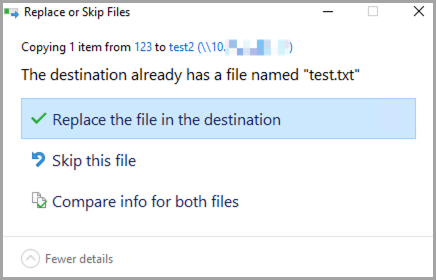
A user accesses a QNAP NAS shared folder via Network File Services (NFS) from a Windows Server running a supported version. When copying a file with the same name, Windows displays the Replace or Skip Files prompt, indicating that an existing file is present on the NAS.
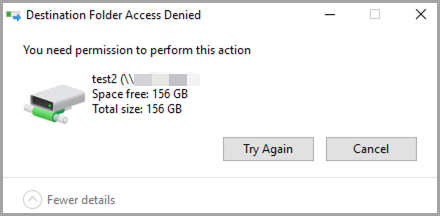
However, after selecting Replace the file in the destination, the operation fails with an access denied or permission error, preventing the file from being overwritten or updated.
Root Cause
This behavior is a known limitation of the Client for NFS feature in Windows Server and is independent of the NAS configuration. The same behavior is observed across all supported Windows Server versions that include Client for NFS.
- Client for NFS supports only NFSv2 and NFSv3 and does not support NFSv4 ACLs. As a result, it cannot negotiate or modify POSIX ACLs over NFS.
- By default, Client for NFS accesses NFS shares using an anonymous UID and GID. If the NAS does not grant write permissions to this anonymous identity, write operations fail.
- Access is denied unless the anonymous UID and GID are explicitly mapped to a UID and GID that the NAS recognizes and allows to write to the shared folder, regardless of the shared folder’s configured write permissions.
Note
These settings must be configured on the Windows Server.
Solution
To resolve this issue, map the anonymous NFS user on the Windows Server to a UID and GID that the NAS allows to write to the shared folder.
You can apply the configuration using one of the following methods.
Method 1: Configure Using PowerShell (Recommended)
- Open PowerShell as an Administrator.
- Launch PowerShell with administrative privileges.
- Run the following commands to map the anonymous UID and GID to
0, which corresponds to the QNAP root user.Set-ItemProperty -Path "HKLM:\SOFTWARE\Microsoft\ClientForNFS\CurrentVersion\Default" -Name AnonymousUid -Value 0 -PropertyType DWord
Set-ItemProperty -Path "HKLM:\SOFTWARE\Microsoft\ClientForNFS\CurrentVersion\Default" -Name AnonymousGid -Value 0 -PropertyType DWord
- Run the following command to restart Client for NFS or reboot the system to apply the changes:
nfsadmin client restart
Tip
Alternatively, you can restart the Windows Server.
Method 2: Configure Using the Windows Registry
- Press Win + R.
- Type
regedit. - Press Enter.
- Navigate to the following registry path:
HKEY_LOCAL_MACHINE\SOFTWARE\Microsoft\ClientForNFS\CurrentVersion\Default
- Go to Edit > New, and then click DWORD (32-bit) Value.
- Create the following two DWORD (32-bit) values inside the default folder:
- AnonymousUid = 0
- AnonymousGid = 0
- Apply the changes by restarting the NFS client:
nfsadmin client restart
Tip
Alternatively, you can restart the Windows Server.
Important
- Mapping the UID and GID to
0 allows Client for NFS to access the NAS as the root user. Ensure that the NAS shared folder grants write permissions to this identity. - Apply these settings on each Windows Server that accesses the NFS share.
- This applies to all Windows versions that support the Client for NFS feature.
- For environments that require fine-grained permission control or NFSv4 ACL support, Windows Server acting as an NFS client is not supported.
Further Reading
적용되는 제품
- All QNAP NAS series
- Windows Server (any supported version)
시나리오
사용자가 지원되는 버전의 Windows Server에서 Network File Services(NFS)를 통해 QNAP NAS 공유 폴더에 액세스합니다. 동일한 이름의 파일을 복사할 때 Windows는 파일 교체 또는 건너뛰기 프롬프트를 표시하여 NAS에 기존 파일이 있음을 나타냅니다.
그러나 대상에서 파일 교체를 선택한 후, 액세스 거부 또는 권한 오류로 인해 파일을 덮어쓰거나 업데이트할 수 없습니다.
근본 원인
이 동작은 Windows Server의 NFS 클라이언트 기능의 알려진 제한 사항이며 NAS 구성과는 무관합니다. NFS 클라이언트를 포함하는 모든 지원되는 Windows Server 버전에서 동일한 동작이 관찰됩니다.
- NFS 클라이언트는 NFSv2 및 NFSv3만 지원하며 NFSv4 ACL을 지원하지 않습니다. 결과적으로 NFS를 통해 POSIX ACL을 협상하거나 수정할 수 없습니다.
- 기본적으로 NFS 클라이언트는 익명 UID 및 GID를 사용하여 NFS 공유에 액세스합니다. NAS가 이 익명 ID에 쓰기 권한을 부여하지 않으면 쓰기 작업이 실패합니다.
- 익명 UID 및 GID가 NAS가 인식하고 공유 폴더에 쓰기를 허용하는 UID 및 GID로 명시적으로 매핑되지 않는 한 액세스가 거부됩니다. 공유 폴더의 구성된 쓰기 권한과는 무관합니다.
참고
이 설정은 Windows Server에서 구성해야 합니다.
해결책
이 문제를 해결하려면 Windows Server에서 익명 NFS 사용자를 NAS가 공유 폴더에 쓰기를 허용하는 UID 및 GID로 매핑하십시오.
다음 방법 중 하나를 사용하여 구성을 적용할 수 있습니다.
방법 1: PowerShell 사용하여 구성(권장)
- PowerShell을관리자로 엽니다.
- 실행 PowerShell을 관리자 권한으로 실행합니다.
- 익명 UID 및 GID를 매핑하기 위해 다음 명령을 실행합니다
0, 이는 QNAP 루트 사용자에 해당합니다.Set-ItemProperty -Path "HKLM:\SOFTWARE\Microsoft\ClientForNFS\CurrentVersion\Default" -Name AnonymousUid -Value 0 -PropertyType DWord
Set-ItemProperty -Path "HKLM:\SOFTWARE\Microsoft\ClientForNFS\CurrentVersion\Default" -Name AnonymousGid -Value 0 -PropertyType DWord
- 다음 명령을 실행하여 NFS 클라이언트를 다시 시작하거나 시스템을 재부팅하여 변경 사항을 적용합니다:
nfsadmin client restart
팁
또는 Windows Server를 재시작할 수 있습니다.
방법 2: Windows 레지스트리를 사용하여 구성
- 누르기 Win + R.
- 입력합니다
regedit. - 누릅니다 Enter(엔터).
- 다음 레지스트리 경로로 이동합니다:
HKEY_LOCAL_MACHINE\SOFTWARE\Microsoft\ClientForNFS\CurrentVersion\Default
- 이동합니다 편집 > 새로만들기, 그런 다음 클릭합니다 DWORD(32비트) 값.
- 기본 폴더 내에 다음 두 DWORD(32비트) 값을 생성합니다:
- AnonymousUid = 0
- AnonymousGid = 0
- NFS 클라이언트를 재시작하여 변경 사항을 적용합니다:
nfsadmin client restart
팁
또는 Windows Server를 재시작할 수 있습니다.
중요
- UID 및 GID를 매핑하면
0 Client for NFS가 NAS에 루트 사용자로 액세스할 수 있습니다. NAS 공유 폴더가 이 사용자에게 쓰기 권한을 부여하는지 확인하십시오. - NFS 공유에 액세스하는 각 Windows Server에 이러한 설정을 적용합니다.
- 이것은 Client for NFS 기능을 지원하는 모든 Windows 버전에 적용됩니다.
- 세밀한 권한 제어 또는 NFSv4 ACL 지원이 필요한 환경에서는 NFS 클라이언트로 작동하는 Windows Server가 지원되지 않습니다.
추가 읽기