


How to deploy Ollama on the QNAP NAS using Container Station
Applicable Products
QTS, QuTS hero
Container Station
Scenario
You want to run large language models (LLMs) locally on your QNAP NAS for private AI chat, code assistance, or document analysis without sending data to the cloud. Ollama is the most popular and beginner-friendly inference engine for this purpose. This tutorial explains how to deploy Ollama on the QNAP NAS using Container Station.
System Requirements
| Requirement | Detail |
|---|---|
| QNAP App | Container Station 3.x or later |
| NAS Architecture | x86_64 (Intel or AMD CPU) (Only a few ARM-based models are supported.) |
| Memory |
|
| Storage Space |
|
| GPU (Optional) | Compatible NVIDIA GPUs (see the compatibility list) GPU should be set to Container Station Mode in the Control Panel. |
Ollama will attempt to load the entire model into memory by default. If your NAS has only 8–16 GB of RAM, loading a 14B or larger model may exhaust system memory, causing NAS services to become unresponsive or the system to restart.
Data Loss Risk
If you do not mount a persistent volume for
/root/.ollama, all downloaded models and configuration will be lost when the container is removed or recreated. Always follow the volume mounting instructions in this tutorial.- Check the model size against your available RAM in advance.
- Set memory limits to cap container memory usage.
- Start with small models (1B or 3B) and assess system stability before attempting larger models.
Procedure
Method 1: CPU-Only Deployment (No GPU Required)
Create storage folders.
Open File Station and create the following folder to store Ollama model data:
/share/Container/ollama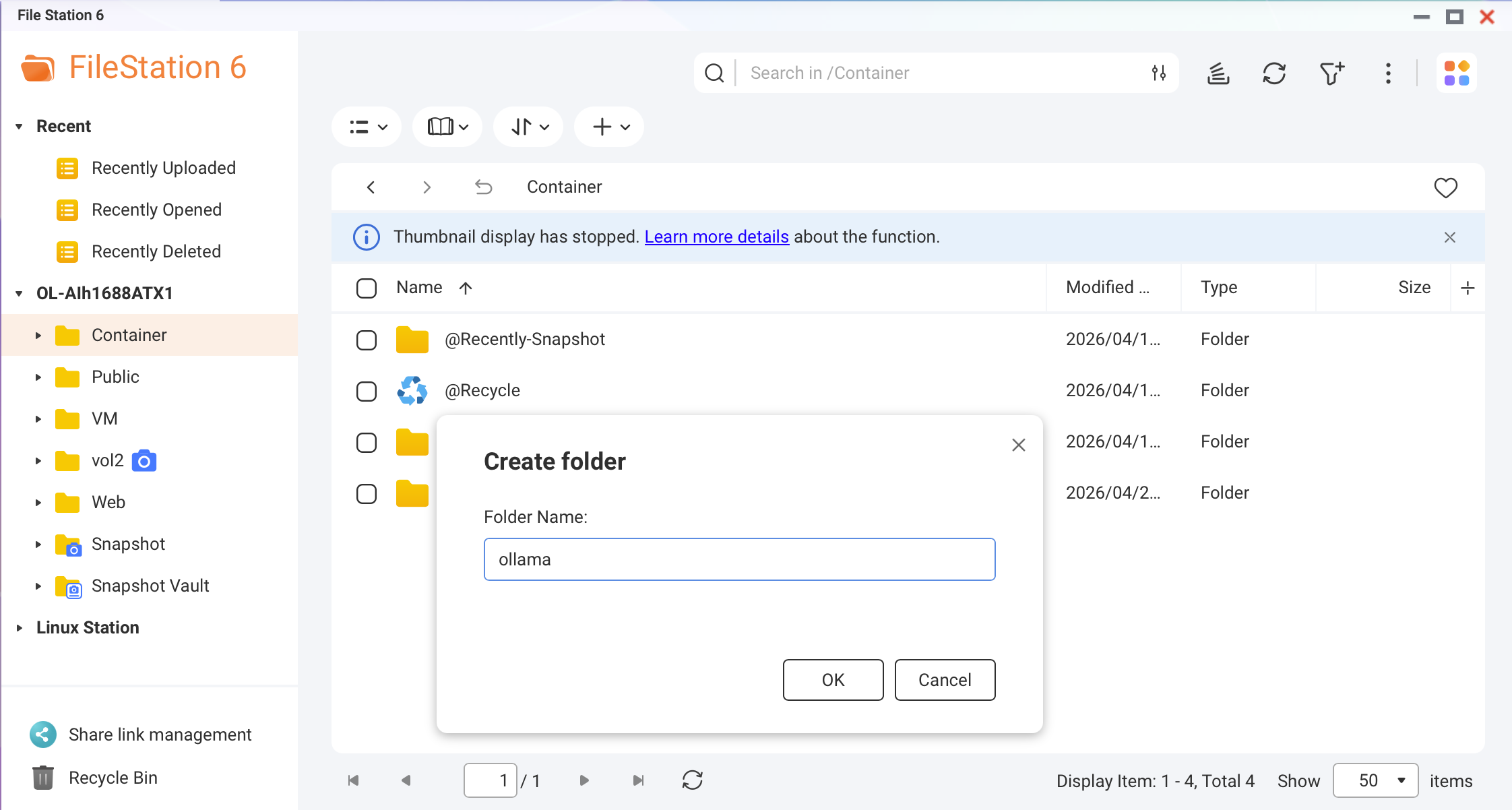 Screenshot: File Station — creating the Ollama folder under /share/Container/Best PracticeIf your NAS has an NVMe SSD cache or SSD volume, create this folder on the SSD. Model loading speed improves by up to 10 times compared to HDDs.
Create a Docker Compose file.
In Container Station, go to Applications > Create. Name the application
ollamaand paste the following YAML:version: "3.8" services: ollama: image: ollama/ollama:latest container_name: ollama restart: unless-stopped ports: - "11434:11434" volumes: - /share/Container/ollama:/root/.ollama environment: - OLLAMA_HOST=0.0.0.0 - OLLAMA_KEEP_ALIVE=10m networks: - ai-network networks: ai-network: name: ai-network driver: bridge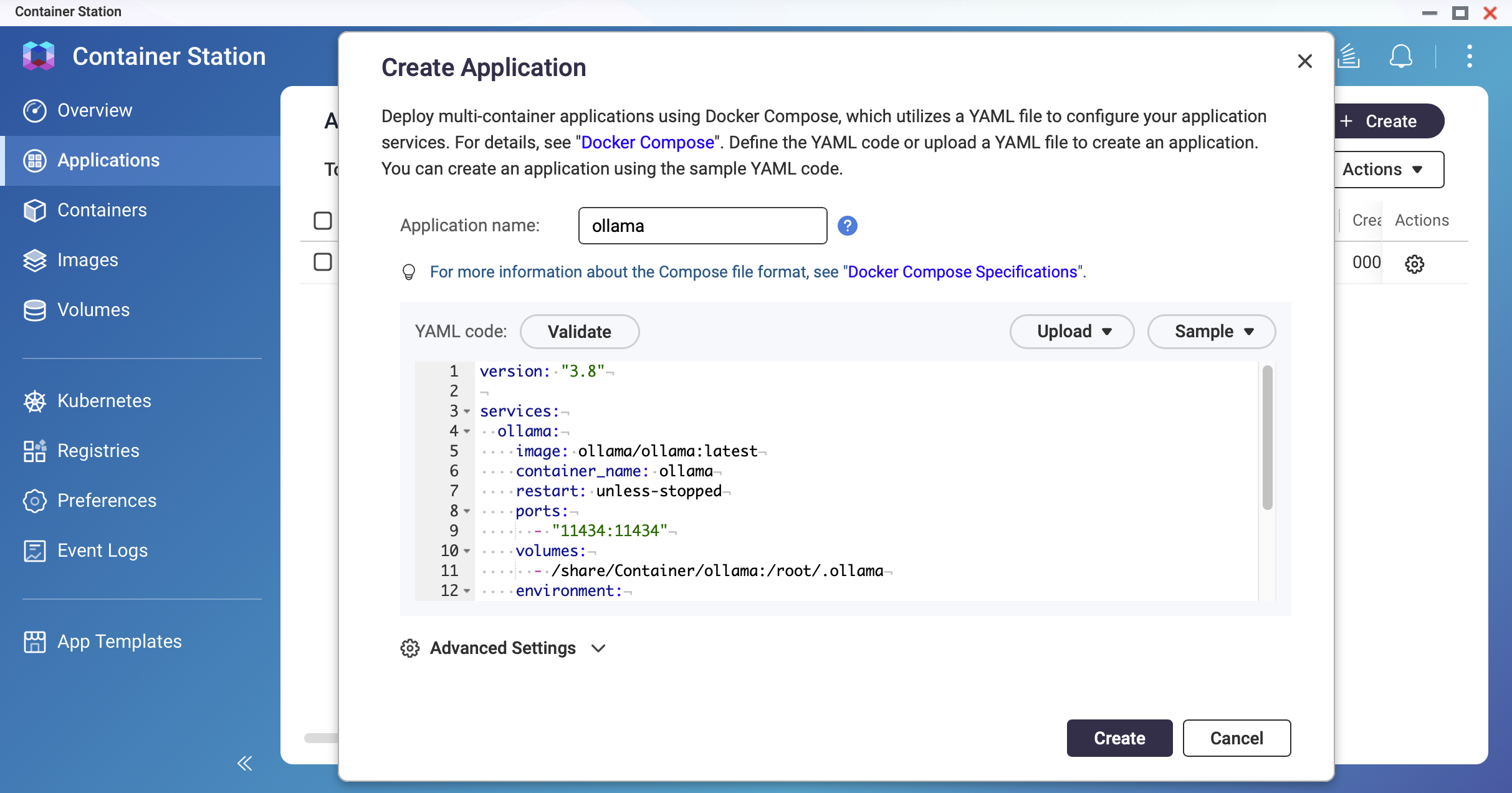 Screenshot: Container Station — Application creation screen with YAML editor
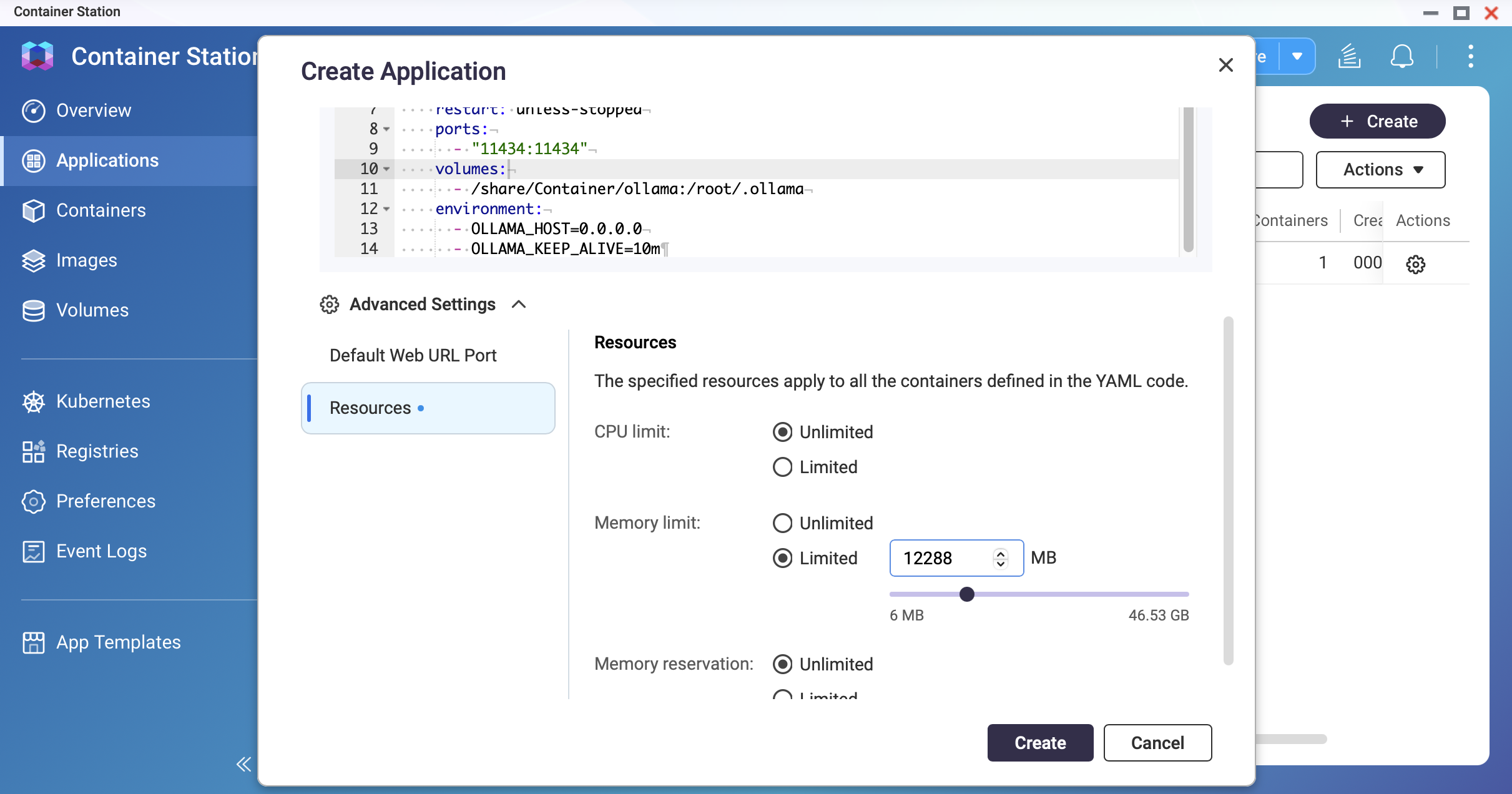 Screenshot: Container Station — Set the memory limit
Deploy the container.
Click Create. Container Station will pull the Ollama image and start the container. Wait until the status shows Running.
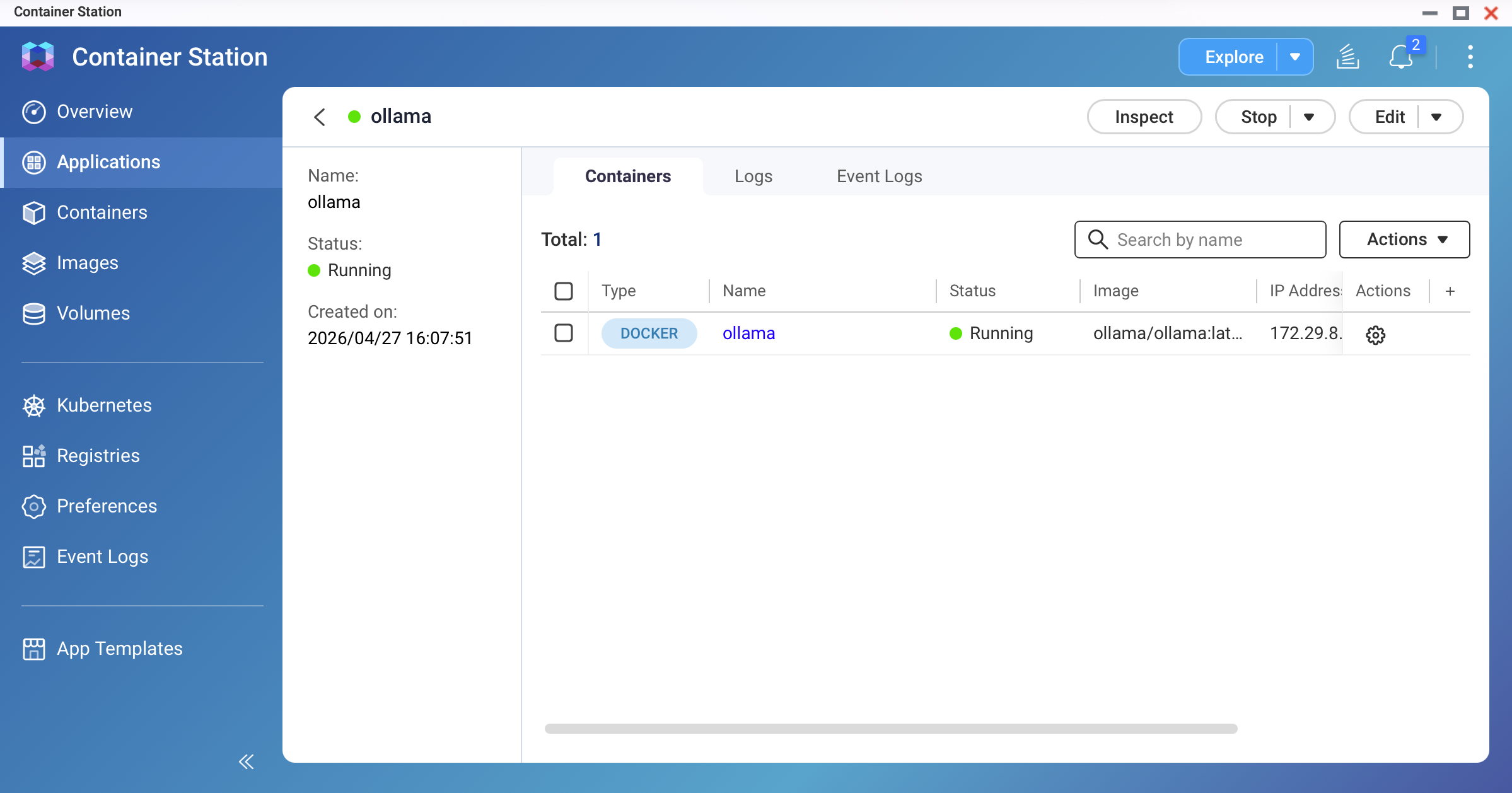 Screenshot: Container Station — ollama container showing "Running" status
Pull your first model.
Open the container's Terminal (or SSH into your NAS and exec you Docker) and run:
# For a lightweight 3B model (recommended for first test):
ollama pull llama3.2:3b

# For a standard 9B model (requires 16 GB+ RAM):
ollama pull qwen3.5:9b
The download may take several minutes depending on your internet speed. A 9B Q4_K_M model is approximately 4–7 GB.
Note- Verify you have sufficient disk space before pulling. Use
ollama listto check existing models and their sizes. - For ARM-based NAS models, we recommend starting with the <1B model to monitor memory usage.
- Verify you have sufficient disk space before pulling. Use
Test the model.
In the container terminal, run:
ollama run qwen3.5:9bType a prompt and confirm that you receive a response. Type
/byeto exit.
Method 2: NVIDIA GPU-Accelerated Deployment
Additional prerequisites for GPU Mode:
- NVIDIA GPU installed and detected by QTS/QuTS hero
- GPU set to Container Station Mode in the Control Panel
- NVIDIA GPU Driver and NvKernelDriver installed from App Center
Use the GPU-enabled Docker Compose configuration.
Replace the YAML from Method 1 with the following:
version: "3.8" services: ollama: image: ollama/ollama:latest container_name: ollama restart: unless-stopped ports: - "11434:11434" volumes: - /share/Container/ollama:/root/.ollama environment: - OLLAMA_HOST=0.0.0.0 - OLLAMA_KEEP_ALIVE=10m - NVIDIA_VISIBLE_DEVICES=all deploy: resources: reservations: devices: - driver: nvidia count: all capabilities: [gpu] networks: - ai-network networks: ai-network: name: ai-network driver: bridge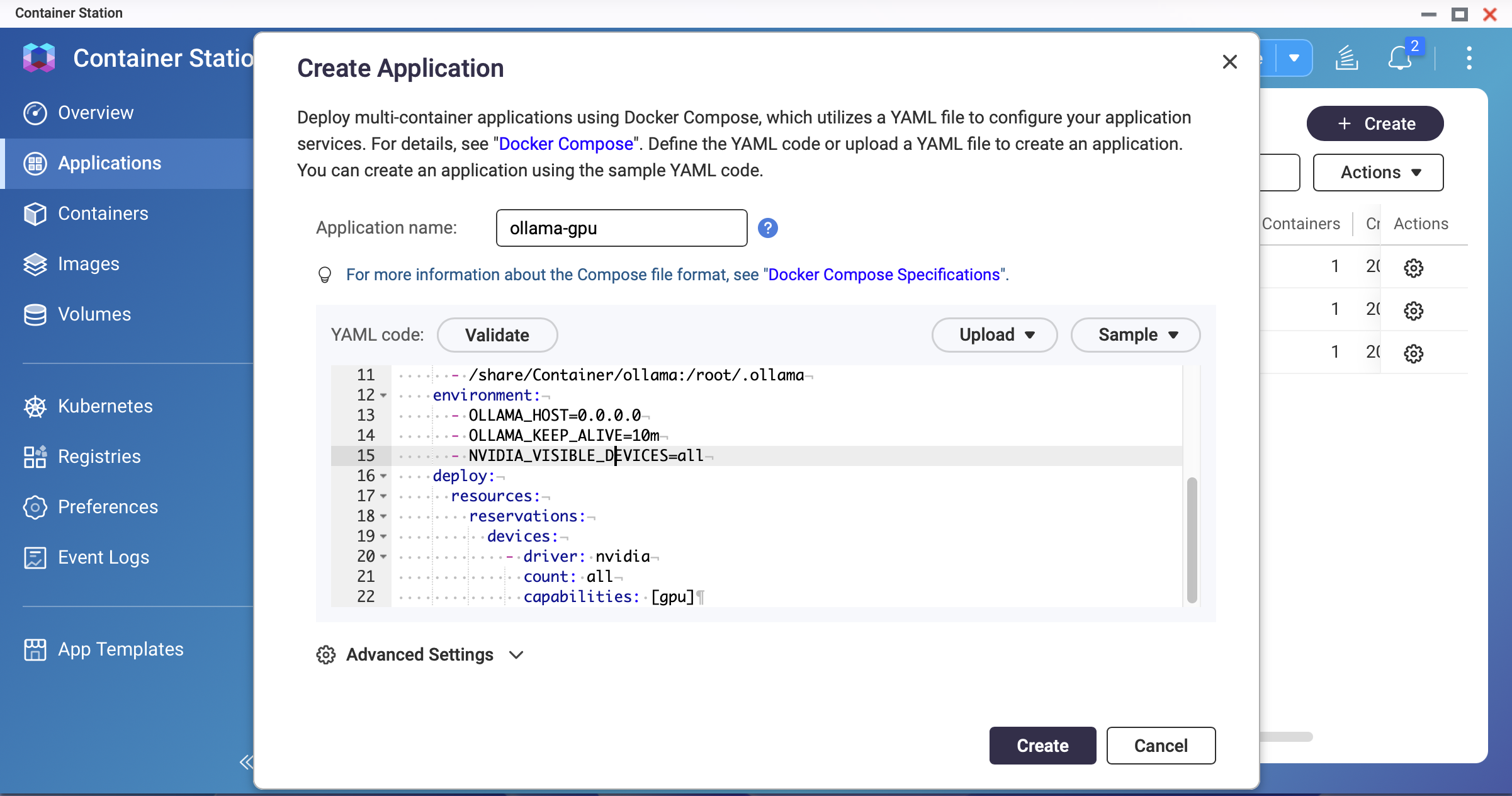 Screenshot: Container Station — GPU-enabled Docker Compose YAMLNoteQNAP's bundled NVIDIA drivers may be older than the latest release. If the container fails to start with GPU enabled, check the driver version with
nvidia-smion the host and ensure it is compatible with the Ollama image versionDeploy and verify GPU access.
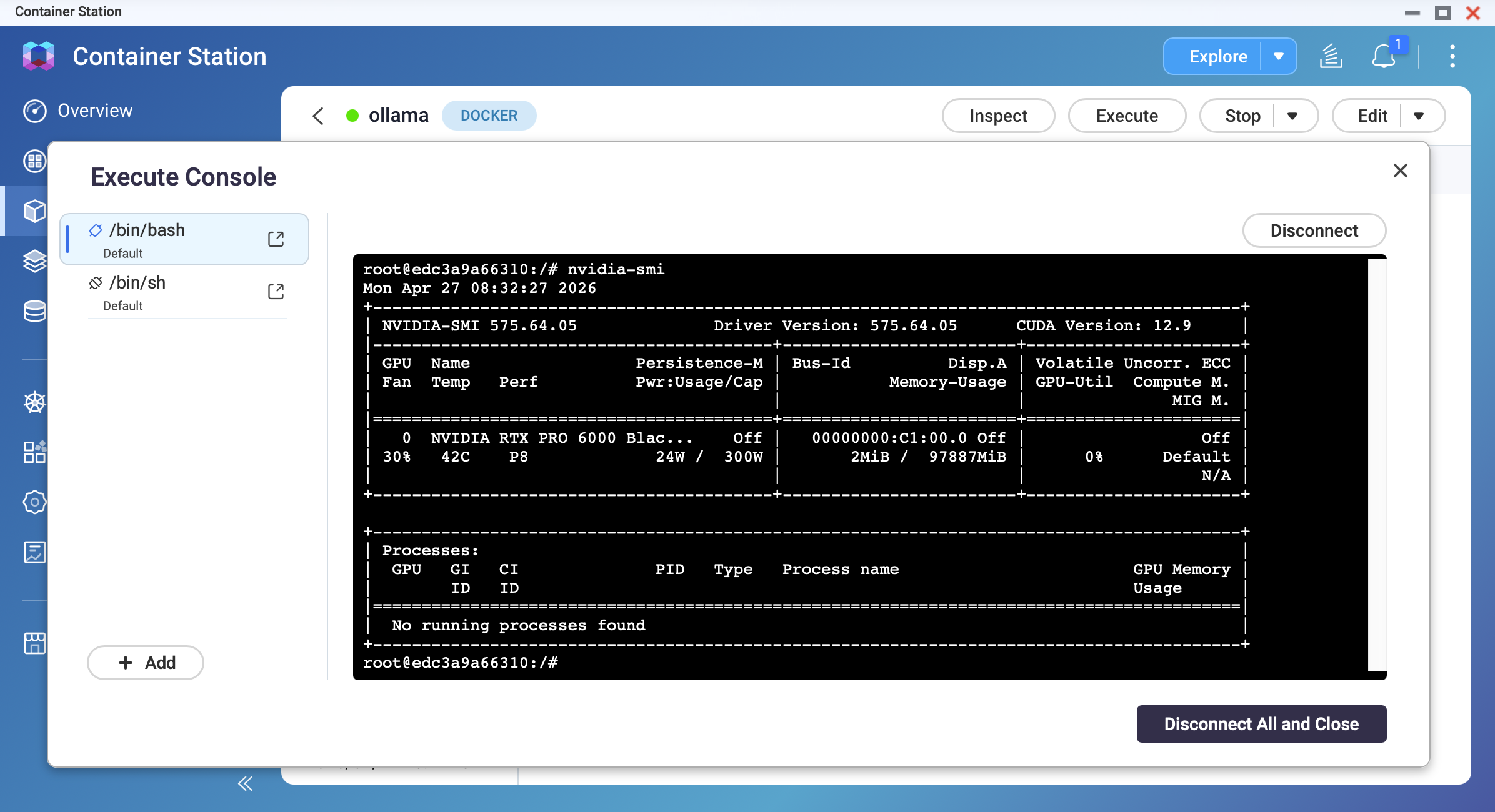
After the container starts, open its terminal and run:
nvidia-smiYou should see your GPU model, driver version, and memory information.
Pull a model and confirm GPU acceleration.
ollama pull qwen3.5:9b
ollama run qwen3.5:9b
While the model is generating a response, open another terminal and run
nvidia-smi. You should observe GPU memory usage and GPU utilization increasing.
Result
After completing this tutorial, you will have:
- Ollama running on your QNAP NAS at
http://<NAS-IP>:11434 - Model data persisted in
/share/Container/ollama(survives container rebuilds) - A working LLM accessible via the Ollama API
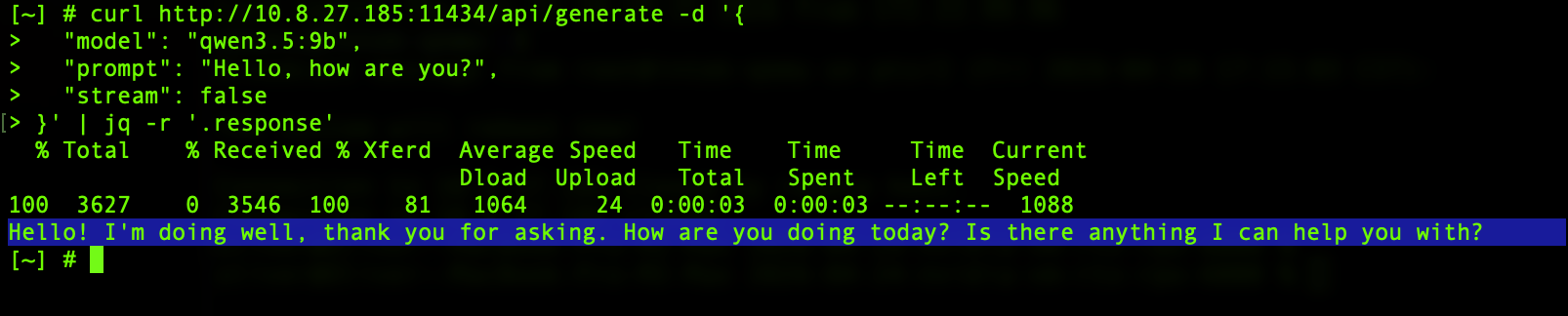
You can test the API from any device on your local network:
curl http://<NAS-IP>:11434/api/generate -d '{
  "model": "qwen3.5:9b",
  "prompt": "Hello, how are you?",
  "stream": false
}'
OLLAMA_HOST=0.0.0.0 setting exposes the Ollama API on all network interfaces. Do not expose port 11434 to the internet. Use firewall rules or QNAP's network settings to restrict access to your local network only.Troubleshooting
Container exits immediately after starting
This may be caused by insufficient RAM or GPU driver mismatch. Check container logs in Container Station. Reduce memory limitations or disable GPU mode.
Model pull fails midway
This may result from insufficient disk space or network timeout. Try to free up storage space. Re-run ollama pull; the system resumes from where it stopped.
Response speed is very slow (1–3 tokens per second)
The model may be running on CPU instead of GPU, or the model is too large for your RAM. Verify your GPU access with nvidia-smi inside the container. Try to use a smaller model.
The NAS becomes unresponsive during inference
This can be an "out of memory" issue: the model is consuming all the system memory. We recommend restarting the NAS. Set a memory usage limit in the application. Or use a smaller model.
"Cannot connect to Ollama" message from Open WebUI
This may be caused by a wrong API URL or Docker network isolation. You can use http://ollama:11434 if you are on the same Docker network.
For further assistance, ask other users and QNAP experts in the community. Go to QNAP Community


