Applicable Products
QTS, QuTS hero
Container Station
Scenario
You want to run large language models (LLMs) locally on your QNAP NAS for private AI chat, code assistance, or document analysis without sending data to the cloud. Ollama is the most popular and beginner-friendly inference engine for this purpose. This tutorial explains how to deploy Ollama on the QNAP NAS using Container Station.
System Requirements
| Requirement | Detail |
|---|
| QNAP App | Container Station 3.x or later |
| NAS Architecture | x86_64 (Intel or AMD CPU)
(Only a few ARM-based models are supported.) |
| Memory | - At least 8 GB (for 3B models)
- At least 16 GB (for 7B models)
|
| Storage Space | - At least 20 GB of extra free storage space in addition to the model file size.
- Use an SSD volume if possible.
|
| GPU (Optional) | Compatible NVIDIA GPUs (see the compatibility list)
GPU should be set to Container Station Mode in the Control Panel. |
Warning
OOM (Out of Memory) Risk
Ollama will attempt to load the entire model into memory by default. If your NAS has only 8–16 GB of RAM, loading a 14B or larger model may exhaust system memory, causing NAS services to become unresponsive or the system to restart.
Data Loss Risk
If you do not mount a persistent volume for /root/.ollama, all downloaded models and configuration will be lost when the container is removed or recreated. Always follow the volume mounting instructions in this tutorial.
Best Practice
- Check the model size against your available RAM in advance.
- Set memory limits to cap container memory usage.
- Start with small models (1B or 3B) and assess system stability before attempting larger models.
Procedure
Method 1: CPU-Only Deployment (No GPU Required)
Create storage folders.
Open File Station and create the following folder to store Ollama model data:
/share/Container/ollama
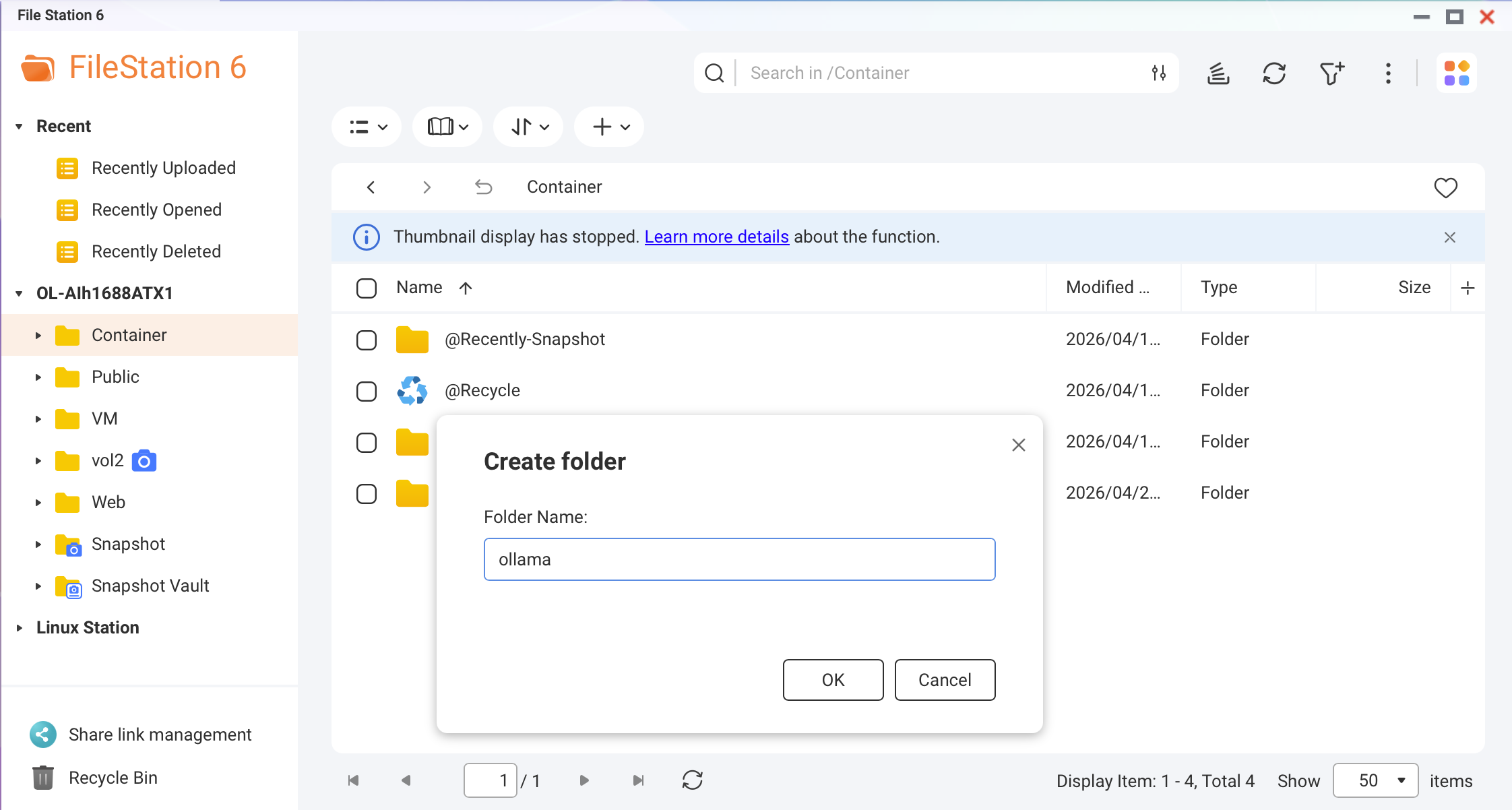 Screenshot: File Station — creating the Ollama folder under /share/Container/
Best Practice
If your NAS has an NVMe SSD cache or SSD volume, create this folder on the SSD. Model loading speed improves by up to 10 times compared to HDDs.
Create a Docker Compose file.
In Container Station, go to Applications > Create. Name the application ollama and paste the following YAML:
version: "3.8"

services:
  ollama:
    image: ollama/ollama:latest
    container_name: ollama
    restart: unless-stopped
    ports:
      - "11434:11434"
    volumes:
      - /share/Container/ollama:/root/.ollama
    environment:
      - OLLAMA_HOST=0.0.0.0
      - OLLAMA_KEEP_ALIVE=10m
    networks:
      - ai-network

networks:
  ai-network:
    name: ai-network
    driver: bridge
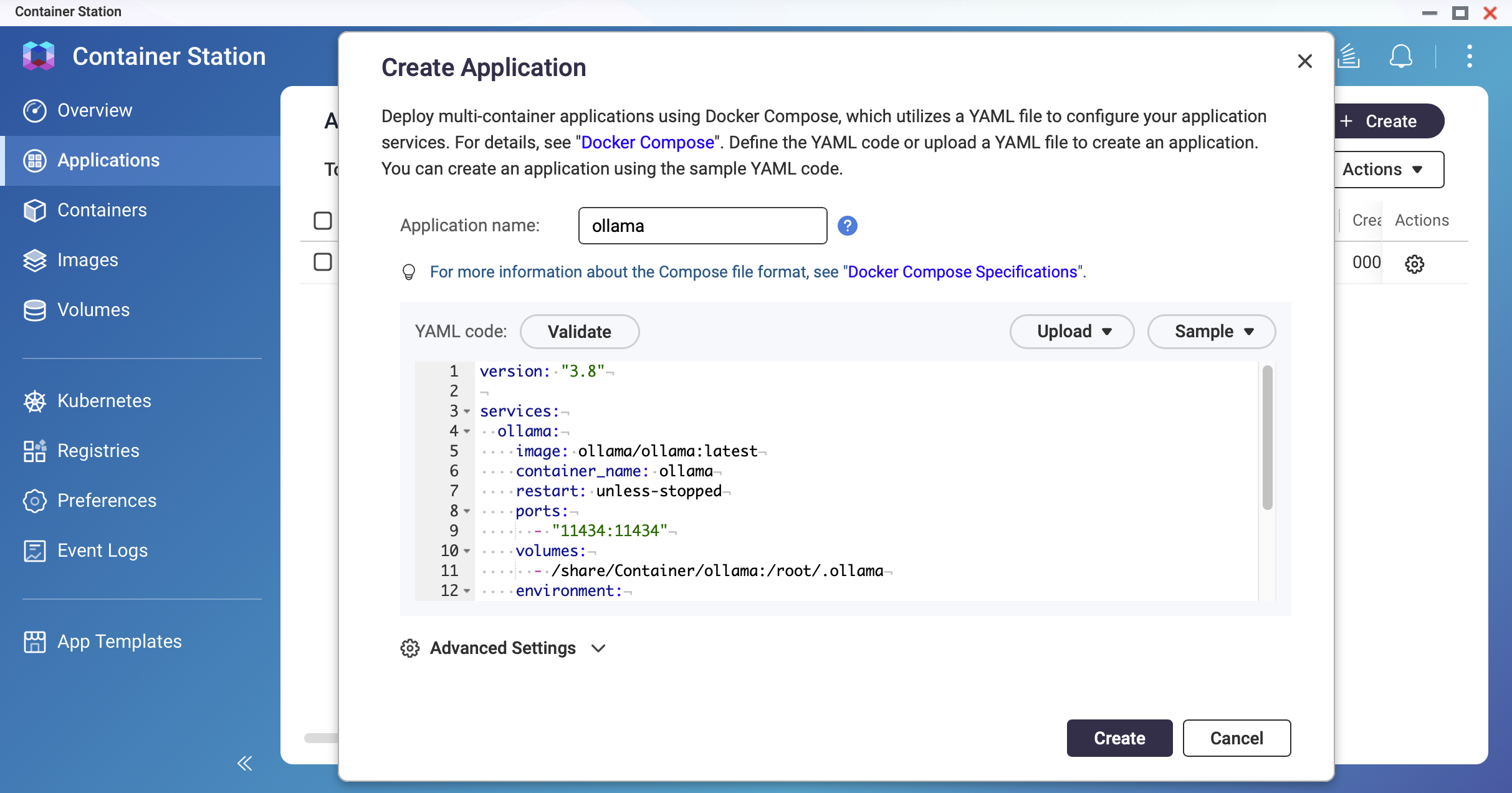 Screenshot: Container Station — Application creation screen with YAML editor
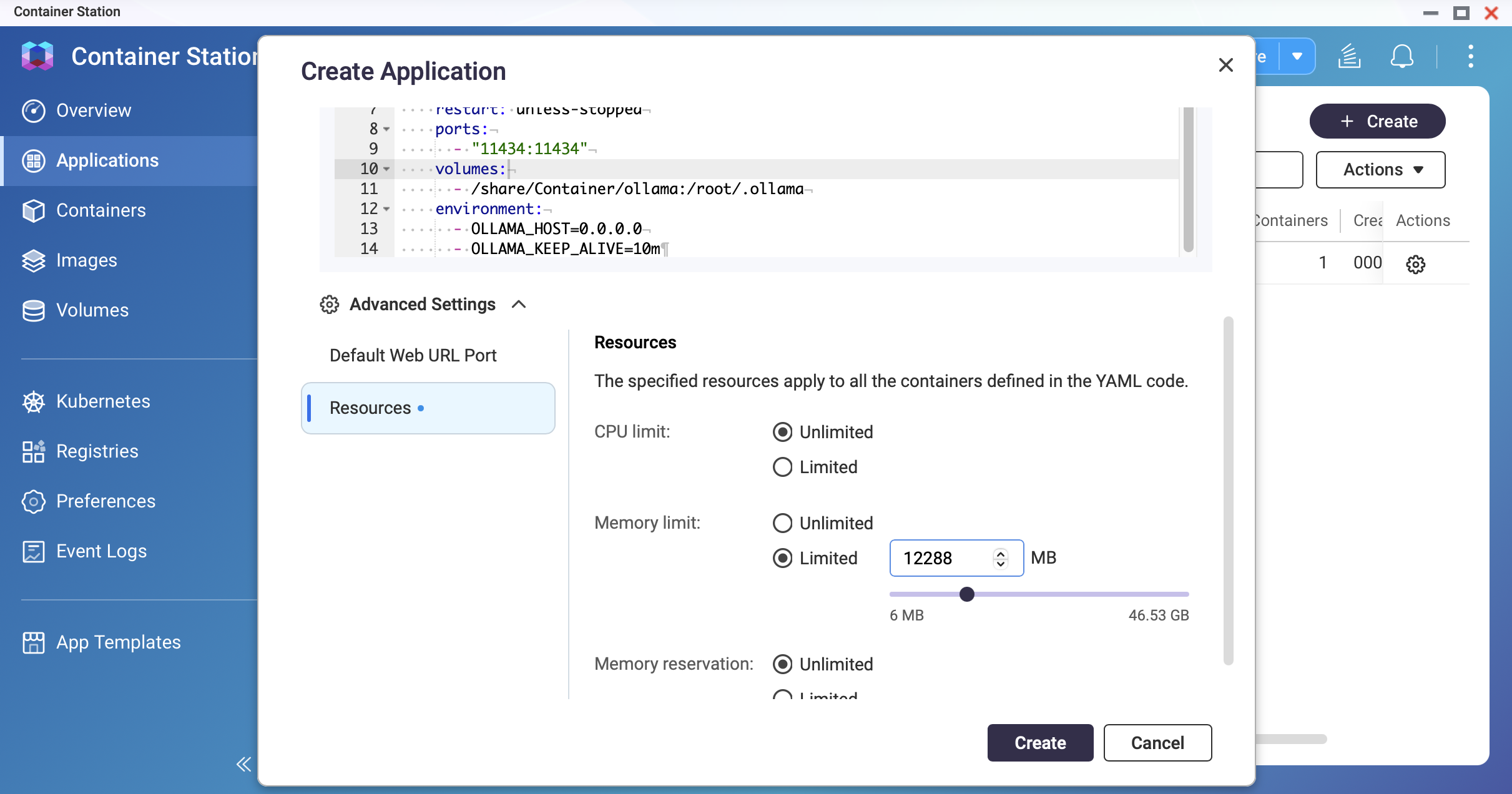 Screenshot: Container Station — Set the memory limit
Deploy the container.
Click Create. Container Station will pull the Ollama image and start the container. Wait until the status shows Running.
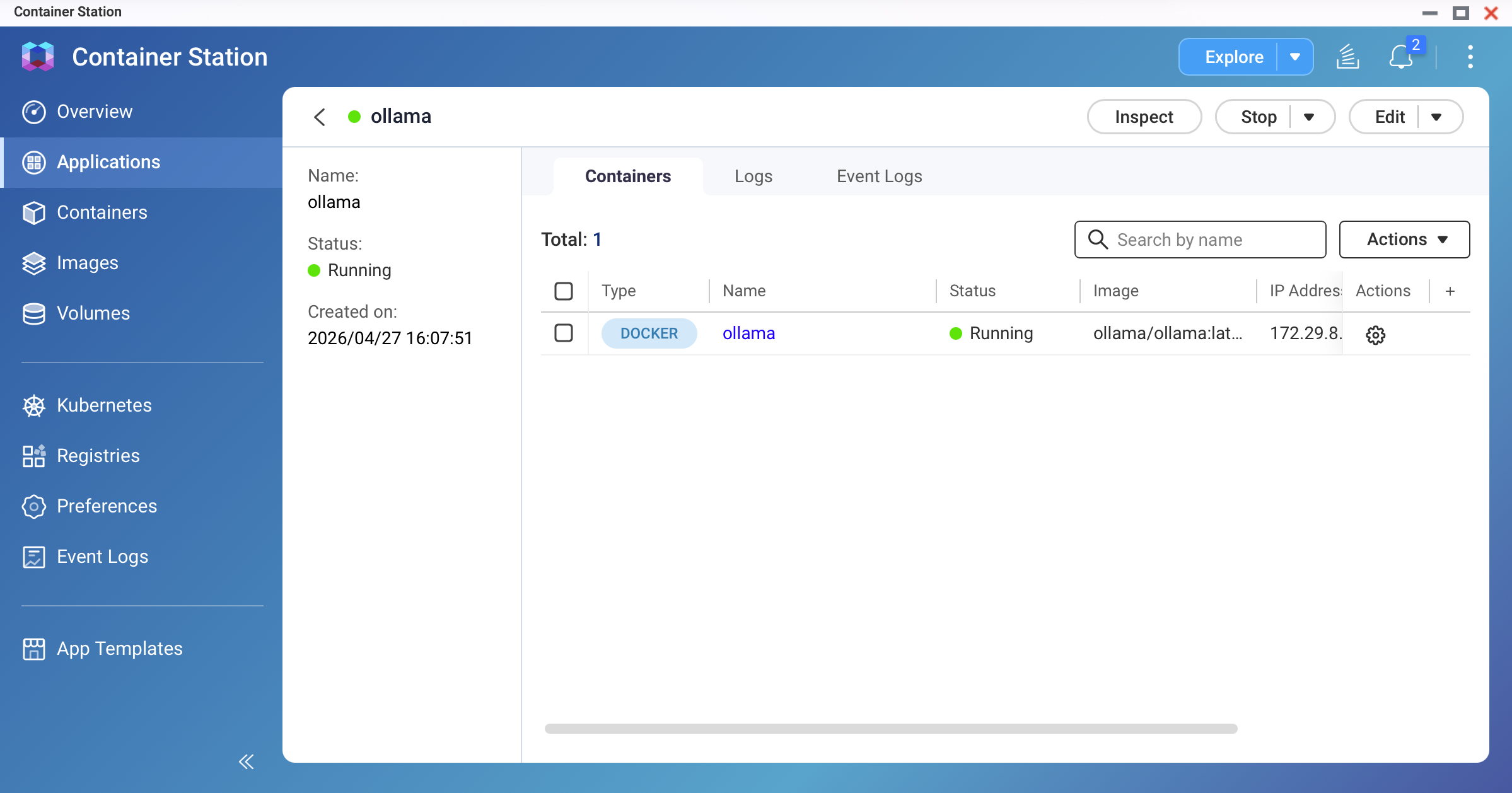 Screenshot: Container Station — ollama container showing "Running" status
Pull your first model.
Open the container's Terminal (or SSH into your NAS and exec you Docker) and run:
# For a lightweight 3B model (recommended for first test):
ollama pull llama3.2:3b

# For a standard 9B model (requires 16 GB+ RAM):
ollama pull qwen3.5:9b
The download may take several minutes depending on your internet speed. A 9B Q4_K_M model is approximately 4–7 GB.
Note
- Verify you have sufficient disk space before pulling. Use
ollama list to check existing models and their sizes. - For ARM-based NAS models, we recommend starting with the <1B model to monitor memory usage.
Test the model.
In the container terminal, run:
ollama run qwen3.5:9b
Type a prompt and confirm that you receive a response. Type /bye to exit.
Method 2: NVIDIA GPU-Accelerated Deployment
Note
Additional prerequisites for GPU Mode:
- NVIDIA GPU installed and detected by QTS/QuTS hero
- GPU set to Container Station Mode in the Control Panel
- NVIDIA GPU Driver and NvKernelDriver installed from App Center
Use the GPU-enabled Docker Compose configuration.
Replace the YAML from Method 1 with the following:
version: "3.8"

services:
  ollama:
    image: ollama/ollama:latest
    container_name: ollama
    restart: unless-stopped
    ports:
      - "11434:11434"
    volumes:
      - /share/Container/ollama:/root/.ollama
    environment:
      - OLLAMA_HOST=0.0.0.0
      - OLLAMA_KEEP_ALIVE=10m
      - NVIDIA_VISIBLE_DEVICES=all
    deploy:
      resources:
        reservations:
          devices:
            - driver: nvidia
              count: all
              capabilities: [gpu]
    networks:
      - ai-network

networks:
  ai-network:
    name: ai-network
    driver: bridge
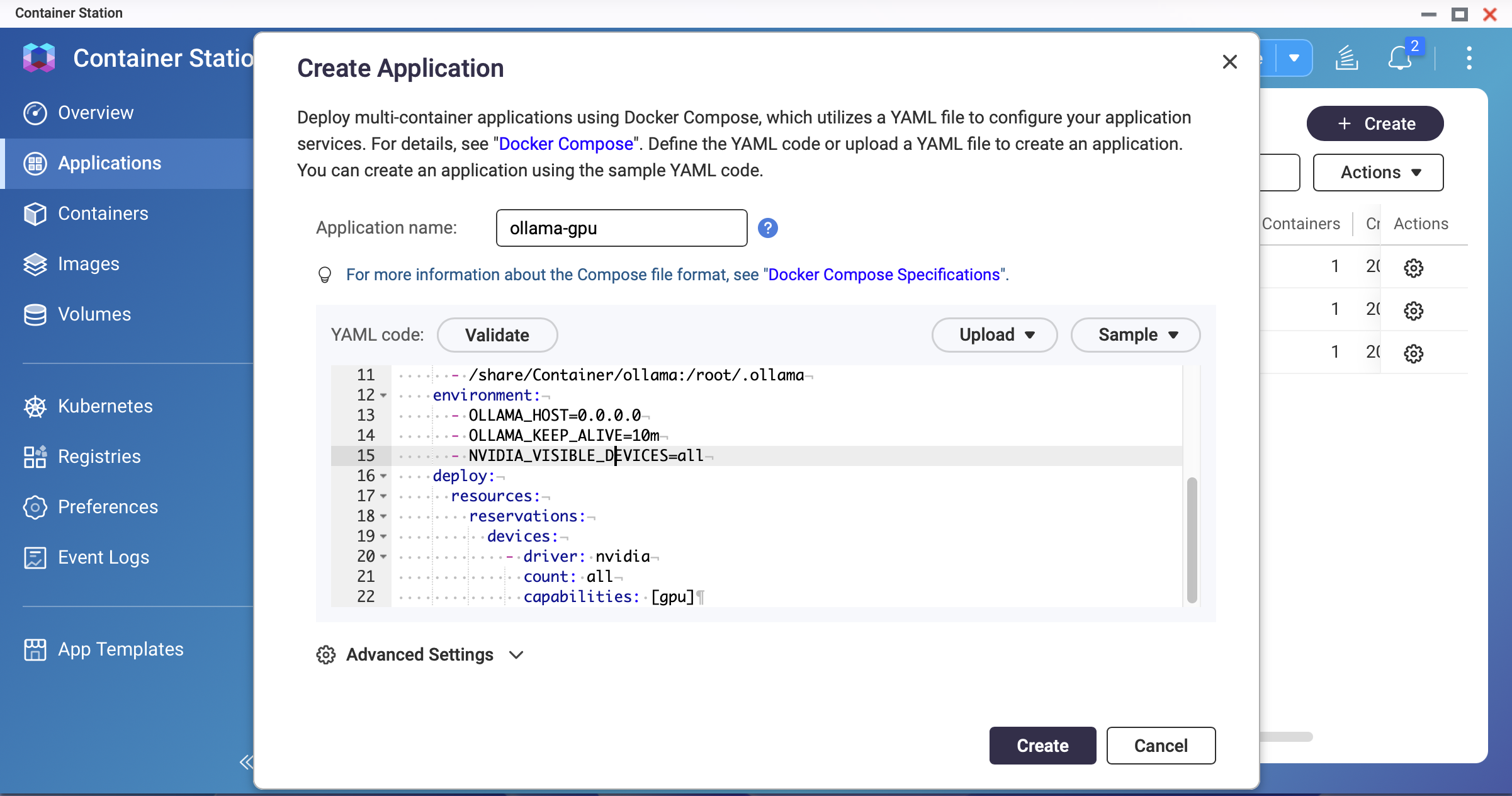 Screenshot: Container Station — GPU-enabled Docker Compose YAML
Note
QNAP's bundled NVIDIA drivers may be older than the latest release. If the container fails to start with GPU enabled, check the driver version with nvidia-smi on the host and ensure it is compatible with the Ollama image version
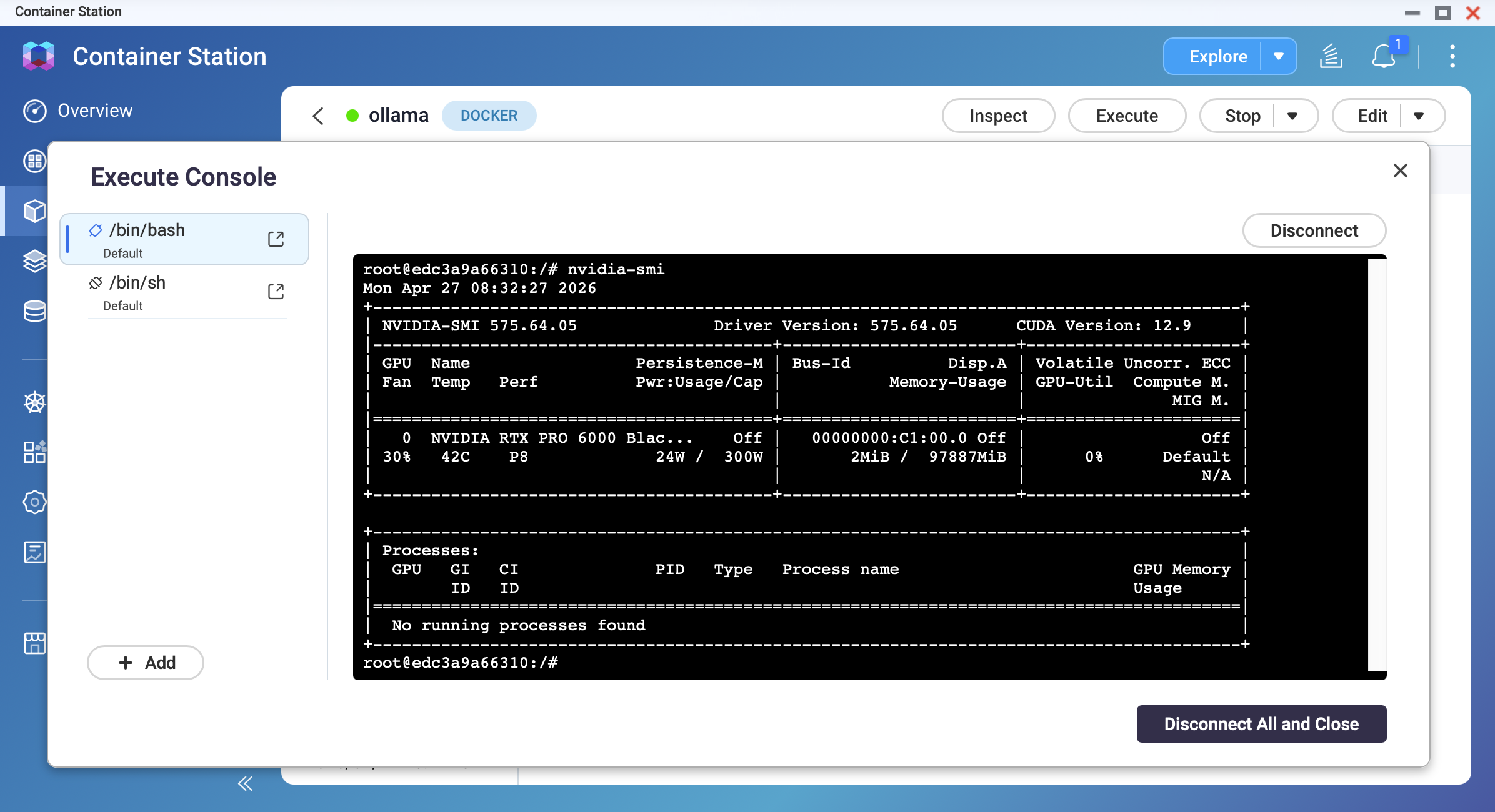
Deploy and verify GPU access.
After the container starts, open its terminal and run:
nvidia-smi
You should see your GPU model, driver version, and memory information.
Pull a model and confirm GPU acceleration.
ollama pull qwen3.5:9b
ollama run qwen3.5:9b
While the model is generating a response, open another terminal and run nvidia-smi. You should observe GPU memory usage and GPU utilization increasing.
Result
After completing this tutorial, you will have:
- Ollama running on your QNAP NAS at
http://<NAS-IP>:11434 - Model data persisted in
/share/Container/ollama (survives container rebuilds) - A working LLM accessible via the Ollama API
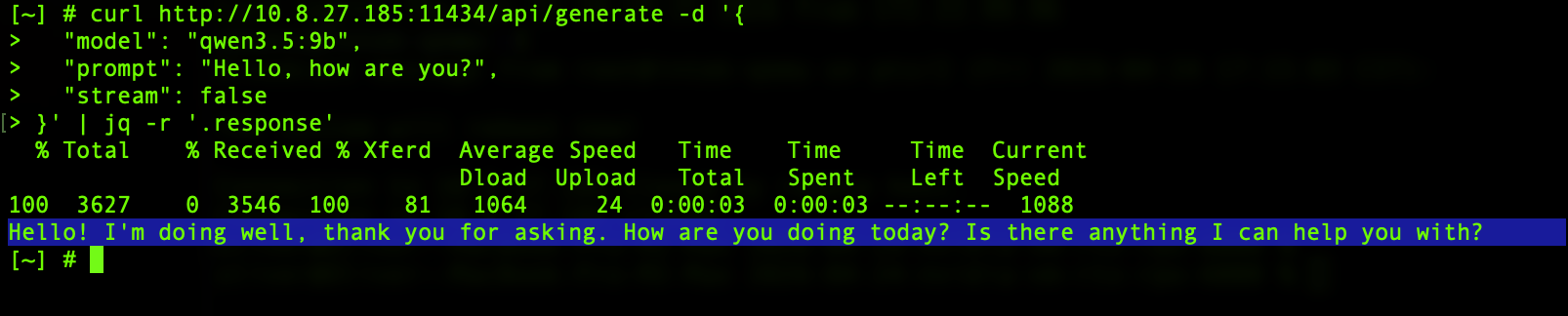
You can test the API from any device on your local network:
curl http://<NAS-IP>:11434/api/generate -d '{
  "model": "qwen3.5:9b",
  "prompt": "Hello, how are you?",
  "stream": false
}'
Important
The OLLAMA_HOST=0.0.0.0 setting exposes the Ollama API on all network interfaces. Do not expose port 11434 to the internet. Use firewall rules or QNAP's network settings to restrict access to your local network only.
Troubleshooting
Container exits immediately after starting
This may be caused by insufficient RAM or GPU driver mismatch. Check container logs in Container Station. Reduce memory limitations or disable GPU mode.
Model pull fails midway
This may result from insufficient disk space or network timeout. Try to free up storage space. Re-run ollama pull; the system resumes from where it stopped.
Response speed is very slow (1–3 tokens per second)
The model may be running on CPU instead of GPU, or the model is too large for your RAM. Verify your GPU access with nvidia-smi inside the container. Try to use a smaller model.
The NAS becomes unresponsive during inference
This can be an "out of memory" issue: the model is consuming all the system memory. We recommend restarting the NAS. Set a memory usage limit in the application. Or use a smaller model.
"Cannot connect to Ollama" message from Open WebUI
This may be caused by a wrong API URL or Docker network isolation. You can use http://ollama:11434 if you are on the same Docker network.
적용되는 제품
QTS, QuTS hero
Container Station
시나리오
데이터를 클라우드로 전송하지 않고 QNAP NAS에서 개인 AI 채팅, 코드 지원 또는 문서 분석을 위해 대형 언어 모델(LLM)을 로컬에서 실행하고자 합니다. Ollama는 이 목적에 가장 인기 있고 초보자 친화적인 추론 엔진입니다. 이 튜토리얼은Container Station을 사용하여 QNAP NAS에 Ollama를 배포하는 방법을 설명합니다.
시스템 요구 사항
| 요구 사항 | 세부 정보 |
|---|
| QNAP 앱 | Container Station 3.x 이상 |
| NAS 아키텍처 | x86_64 (Intel 또는 AMD CPU)
(일부 ARM 기반 모델만 지원됩니다.) |
| 메모리 | - 최소 8 GB (3B 모델용)
- 최소 16 GB (7B 모델용)
|
| 스토리지공간 | - 모델 파일 크기 외에 최소 20 GB의 추가스토리지여유 공간이 필요합니다.
- 가능하면 SSD 볼륨을 사용하세요.
|
| GPU (선택 사항) | 호환 가능한 NVIDIA GPU(자세한 내용은호환성 목록참조)
GPU는제어판에서Container Station모드로 설정해야 합니다. |
경고
OOM(메모리 부족) 위험
Ollama는 기본적으로 전체 모델을 메모리에 로드하려고 시도합니다. NAS에 8~16 GB의 RAM만 있는 경우, 14B 이상의 모델을 로드하면 시스템 메모리가 소진되어 NAS 서비스가 응답하지 않거나 시스템이 재시작될 수 있습니다.
데이터 손실 위험
/root/.ollama에 대한 지속적인 볼륨을 마운트하지 않으면, 컨테이너가 제거되거나 재생성될 때 모든 다운로드된 모델과 구성은 손실됩니다. 항상 이 튜토리얼의 볼륨 마운트 지침을 따르십시오.
베스트 프랙티스
- 모델 크기를 미리 사용 가능한 RAM과 비교하세요.
- 컨테이너 메모리 사용량을 제한하기 위해 메모리 한도를 설정하세요.
- 작은 모델(1B 또는 3B)로 시작하여 시스템 안정성을 평가한 후 더 큰 모델을 시도하세요.
절차
방법 1: CPU 전용 배포 (GPU 필요 없음)
스토리지폴더를 만듭니다.
File Station을 열고 Ollama 모델 데이터를 저장할 다음 폴더를 만듭니다:
/share/Container/ollama
스크린샷: File Station — /share/Container/ 아래에 Ollama 폴더 생성
베스트 프랙티스
NAS에 NVMe SSD 캐시 또는 SSD 볼륨이 있는 경우, 이 폴더를 SSD에 만드세요. 모델 로딩 속도가 HDD에 비해 최대 10배 향상됩니다.
Docker Compose 파일을 만듭니다.
Container Station에서Applications > Create로 이동합니다. 애플리케이션 이름을ollama로 지정하고 다음 YAML을 붙여넣습니다:
version: "3.8"

services:
  ollama:
    image: ollama/ollama:latest
    container_name: ollama
    restart: unless-stopped
    ports:
      - "11434:11434"
    volumes:
      - /share/Container/ollama:/root/.ollama
    environment:
      - OLLAMA_HOST=0.0.0.0
      - OLLAMA_KEEP_ALIVE=10m
    networks:
      - ai-network

networks:
  ai-network:
    name: ai-network
    driver: bridge
스크린샷: Container Station — YAML 편집기가 있는 애플리케이션 생성 화면
스크린샷: Container Station — 메모리 한도 설정
컨테이너를 배포합니다.
Create을 클릭합니다. Container Station이 Ollama 이미지를 가져오고 컨테이너를 시작합니다. 상태가Running으로 표시될 때까지 기다립니다.
스크린샷: Container Station — ollama 컨테이너가 "Running" 상태를 표시합니다
첫 번째 모델을 가져옵니다.
컨테이너의Terminal을 열거나 NAS에 SSH로 접속하여Docker을 실행하고 다음을 실행합니다:
# 가벼운 3B 모델(첫 테스트에 권장):
ollama pull llama3.2:3b

# 표준 9B 모델(16 GB 이상의 RAM 필요):
ollama pull qwen3.5:9b
다운로드는 인터넷 속도에 따라 몇 분 정도 걸릴 수 있습니다. 9B Q4_K_M 모델은 약 4–7 GB입니다.
참고
- 가져오기 전에 충분한 디스크 공간이 있는지 확인하십시오. 기존 모델과 그 크기를 확인하려면
ollama list을 사용하십시오. - ARM 기반 NAS 모델의 경우, 메모리 사용량을 모니터링하기 위해 <1B 모델로 시작하는 것을 권장합니다.
모델을 테스트합니다.
컨테이너 터미널에서 다음을 실행합니다:
ollama run qwen3.5:9b
프롬프트를 입력하고 응답을 받는지 확인합니다. 종료하려면/bye을 입력합니다.
방법 2: NVIDIA GPU 가속 배포
참고
GPU 모드에 대한 추가 전제 조건:
- NVIDIA GPU가 QTS/QuTS hero에 설치되고 감지됨
- GPU가제어판에서Container Station모드로 설정됨
- App Center에서 NVIDIA GPU 드라이버와 NvKernelDriver 설치됨
GPU가 활성화된Docker Compose 구성을 사용합니다.
방법 1의 YAML을 다음으로 교체하십시오:
version: "3.8"

services:
  ollama:
    image: ollama/ollama:latest
    container_name: ollama
    restart: unless-stopped
    ports:
      - "11434:11434"
    volumes:
      - /share/Container/ollama:/root/.ollama
    environment:
      - OLLAMA_HOST=0.0.0.0
      - OLLAMA_KEEP_ALIVE=10m
      - NVIDIA_VISIBLE_DEVICES=all
    deploy:
      resources:
        reservations:
          devices:
            - driver: nvidia
              count: all
              capabilities: [gpu]
    networks:
      - ai-network

networks:
  ai-network:
    name: ai-network
    driver: bridge
스크린샷: Container Station — GPU가 활성화된Docker Compose YAML
참고
QNAP의 번들 NVIDIA 드라이버는 최신 릴리스보다 오래될 수 있습니다. GPU가 활성화된 상태에서 컨테이너가 시작되지 않으면 호스트에서nvidia-smi로 드라이버 버전을 확인하고 Ollama 이미지 버전과 호환되는지 확인하십시오
GPU 액세스를 배포하고 확인합니다.
컨테이너가 시작된 후 터미널을 열고 다음을 실행합니다:
nvidia-smi
GPU 모델, 드라이버 버전 및 메모리 정보를 확인할 수 있어야 합니다.
모델을 가져오고 GPU 가속을 확인합니다.
ollama pull qwen3.5:9b
ollama run qwen3.5:9b
모델이 응답을 생성하는 동안 다른 터미널을 열고nvidia-smi을 실행합니다. GPU 메모리 사용량과 GPU 활용도가 증가하는 것을 관찰할 수 있어야 합니다.
결과
이 튜토리얼을 완료한 후, 당신은 다음을 갖게 됩니다:
- QNAP NAS에서
http://<NAS-IP>:11434에 실행 중인 Ollama /share/Container/ollama에 지속되는 모델 데이터(컨테이너 재구축 시에도 유지)- Ollama API를 통해 접근 가능한 작동하는 LLM
로컬 네트워크의 모든 장치에서 API를 테스트할 수 있습니다:
curl http://<nas-ip>:11434/api/generate -d '{"model":"qwen3.5:9b","prompt":"Hello, how are you?","stream": false}'
중요
OLLAMA_HOST=0.0.0.0설정은 모든 네트워크 인터페이스에서 Ollama API를 노출합니다. 포트 11434를 인터넷에 노출하지 마십시오. 방화벽규칙이나 QNAP의 네트워크 설정을 사용하여 로컬 네트워크에만 접근을 제한하십시오.
문제 해결
컨테이너가 시작 직후 종료됩니다
이는 RAM 부족이나 GPU 드라이버 불일치로 인해 발생할 수 있습니다. Container Station에서 컨테이너 로그를 확인하십시오. 메모리 제한을 줄이거나 GPU 모드를 비활성화하십시오.
모델 풀링이 중간에 실패합니다
이는 디스크 공간 부족이나 네트워크 타임아웃으로 인해 발생할 수 있습니다. 스토리지공간을 확보하십시오. ollama pull을 다시 실행하십시오. 시스템은 중단된 지점에서 다시 시작합니다.
응답 속도가 매우 느립니다 (1-3 토큰/초)
모델이 GPU 대신 CPU에서 실행 중이거나, 모델이 RAM에 비해 너무 클 수 있습니다. 컨테이너 내에서nvidia-smi으로 GPU 접근을 확인하십시오. 더 작은 모델을 사용해 보십시오.
추론 중 NAS가 응답하지 않습니다
이는 "메모리 부족" 문제일 수 있습니다: 모델이 시스템 메모리를 모두 사용하고 있습니다. NAS를 재시작하는 것을 권장합니다. 애플리케이션에서 메모리 사용 제한을 설정하십시오. 또는 더 작은 모델을 사용하십시오.
Open WebUI에서 "Ollama에 연결할 수 없음" 메시지
이는 잘못된 API URL이나Docker네트워크 격리로 인해 발생할 수 있습니다. 동일한Docker네트워크에 있는 경우http://ollama:11434을 사용할 수 있습니다.


