


How to manually upgrade/downgrade firmware by Qfinder
Procedures
Follow these steps below to upgrade/downgrade the firmware of your NAS.
1. Find the model name and firmware version of your device by this method.
2. Go to Download Center
3. Select NAS/EXpansion as Product Type, find which type of your NAS, Model then choose Operating System to download the desired Firmware Version you want to upgrade/downgrade.
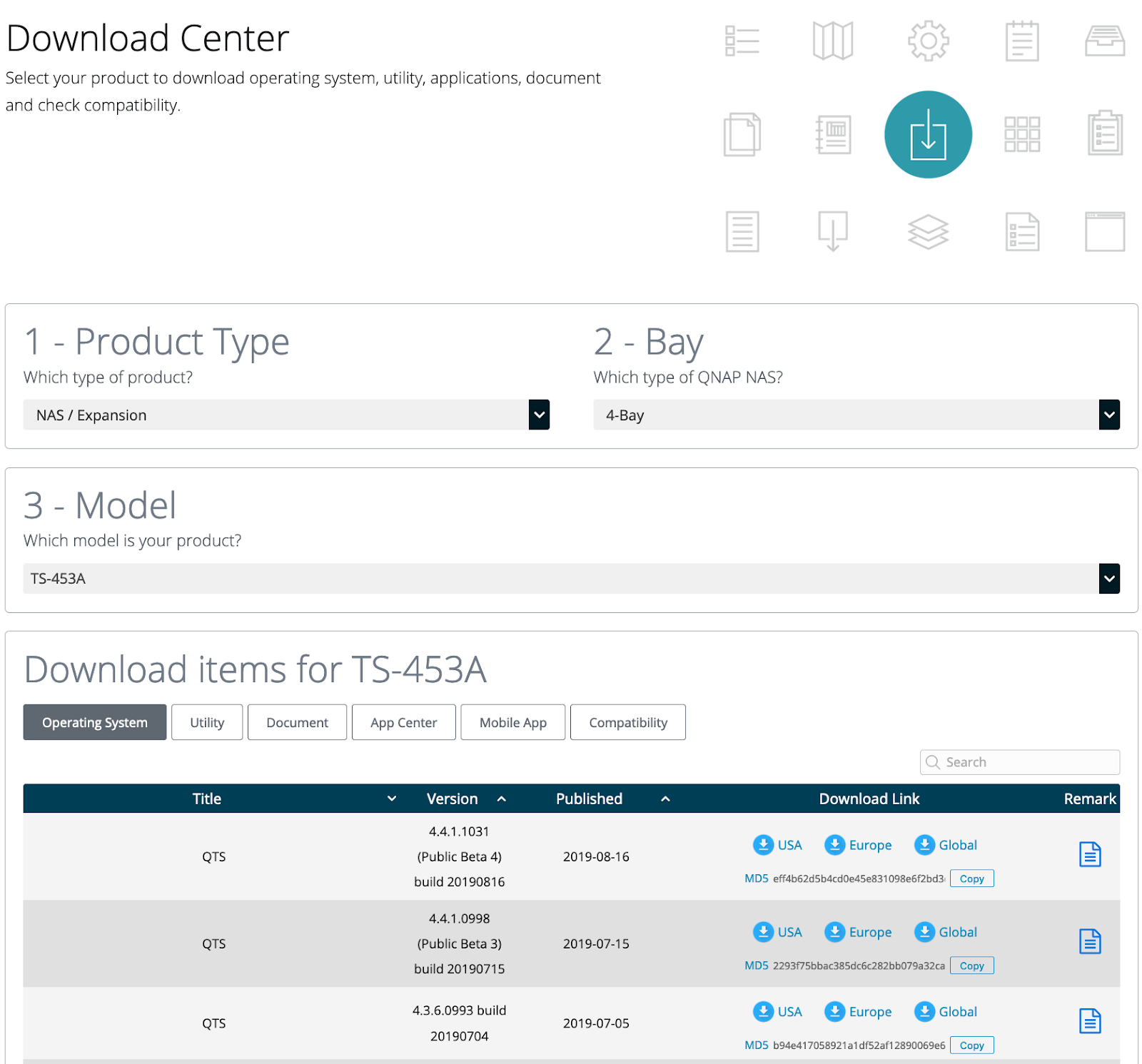
3. Click on the Remarks button to read the release notes for the selected firmware version as they may contain specific instructions

4. The downloaded file is a zipped file, please extract image file from it.

5. Open Qfinder and select your NAS first then find Tools > Update Firmware.

6.Input admin and Password of admin.

7. Select Path of system firmware image file and Browse the img file on your PC/Mac. 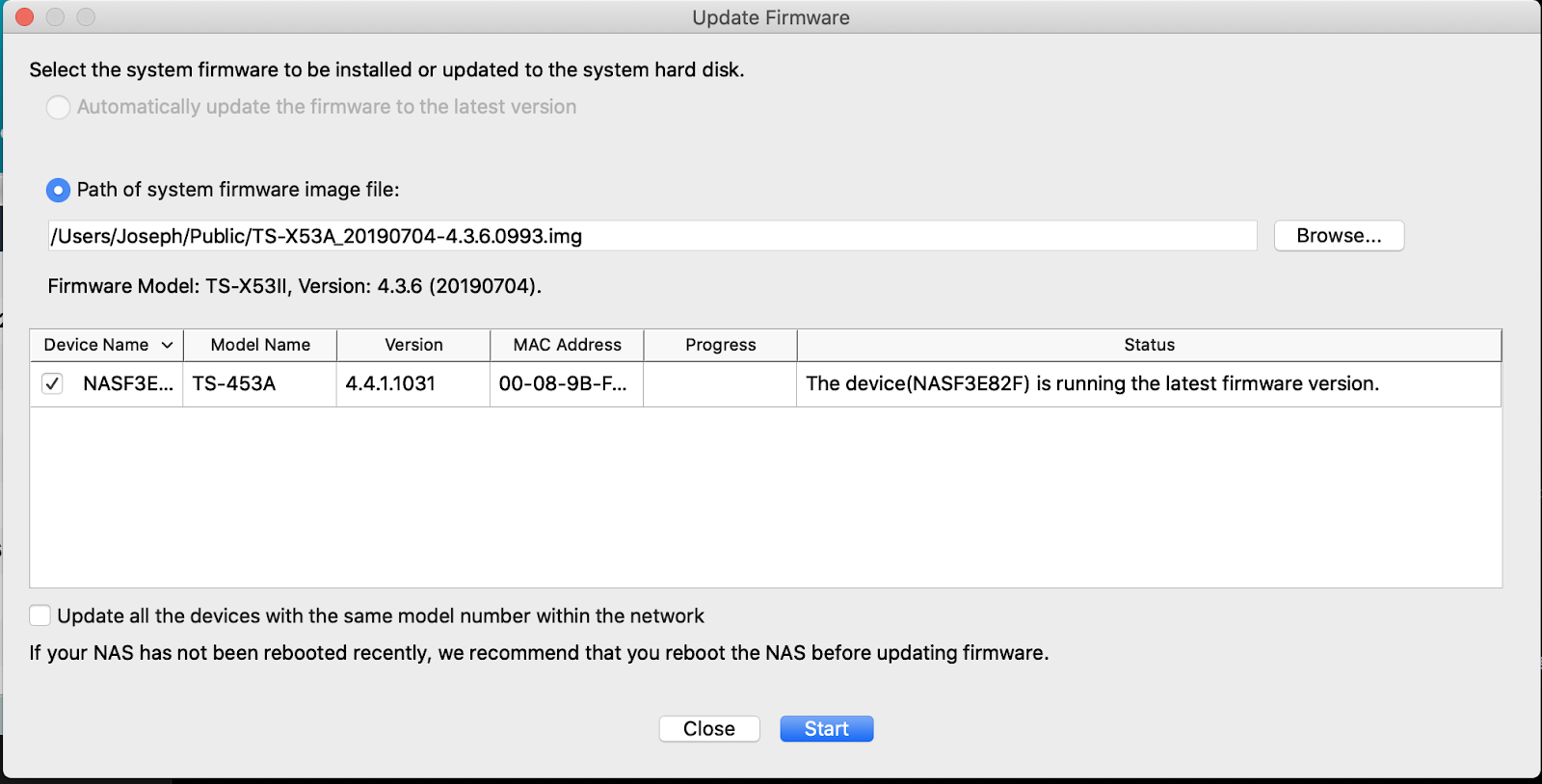
8. If the selected firmware version is older than the current firmware version, following prompt will pop.Please read them and check I have read the above and understand the risks of downgrading firmware if you want to proceed, click OK.

9. Wait for firmware upgrading process finished.
Related links
1. Manually Upgrade/Downgrade firmware by QTS web interface
For further assistance, ask other users and QNAP experts in the community. Go to QNAP Community


