[ประกาศแจ้งเตือนความปลอดภัย] ตรวจพบเว็บไซต์ Qfinder Pro ปลอม เรียนรู้เพิ่มเติม >

Mobile App

QNAP offers a wide range of mobile apps for NAS management, multimedia, surveillance, and download management, providing you with a hands-on way to control your NAS wherever you are.

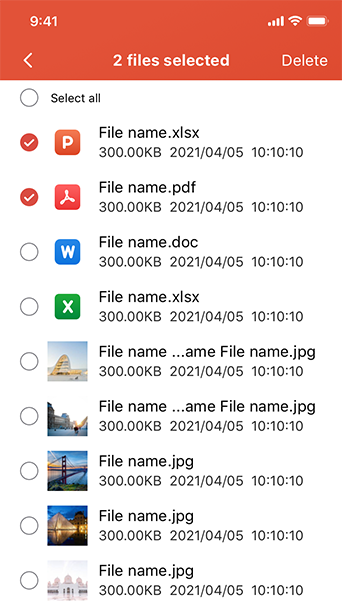
Qfile Pro

Qfile Pro is a must-have mobile app for accessing NAS files from your mobile devices. It’s also the best app to back up mobile photos, videos, and documents to your NAS. Qfile Pro adds integration with Qsync Pro to make your user experience even better!

Use Qfile AI Assistant to let AI help you intelligently manage files > Learn more

Recently processed files
Auto upload
Browse your folders
Access myQNAPcloud Storage
File sharing
Background task
Storage and Cache
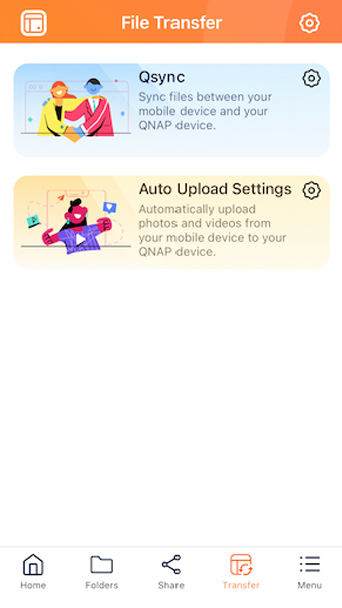
Qsync feature
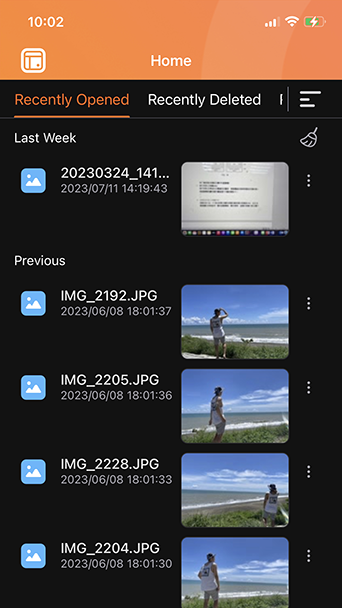
Recently processed files

Display files that have been recently accessed and deleted, allowing you to quickly find desired files.

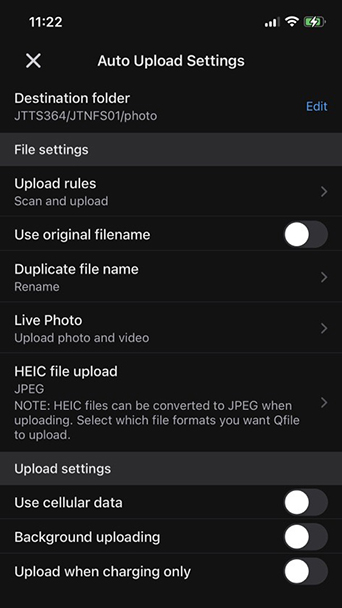
Auto upload

Automatically upload your mobile photos/videos to the NAS.

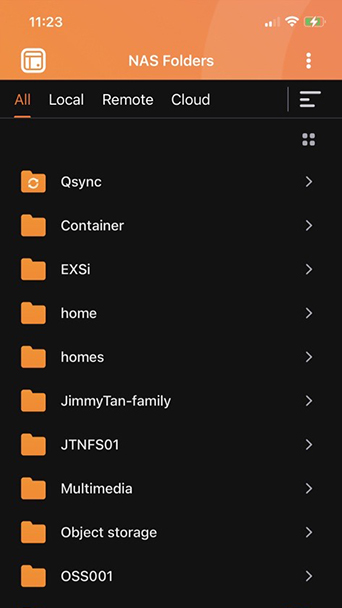
Browse your folders

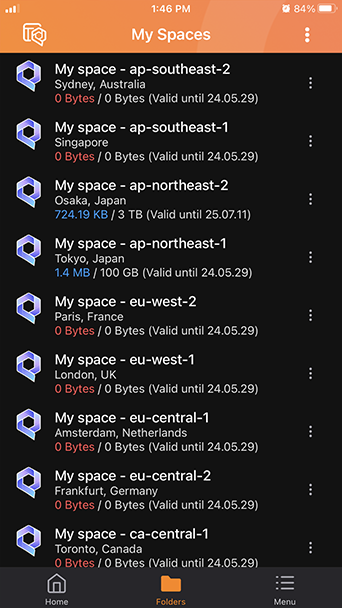
Conveniently browse all NAS folders, including folders from local NAS, remote NAS/servers, or cloud storage.

Access myQNAPcloud Storage

Access files stored in QNAP-hosted cloud “myQNAPcloud Storage” .

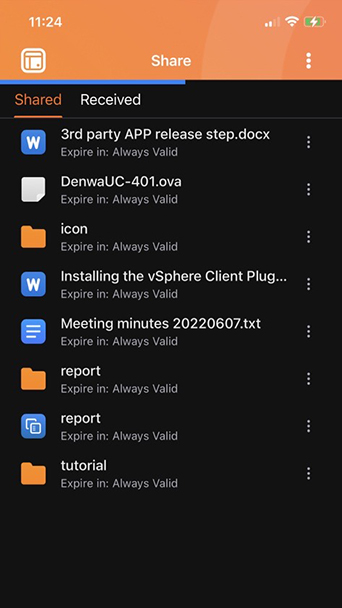
File sharing

Check your Sharing Links and Team Folder.

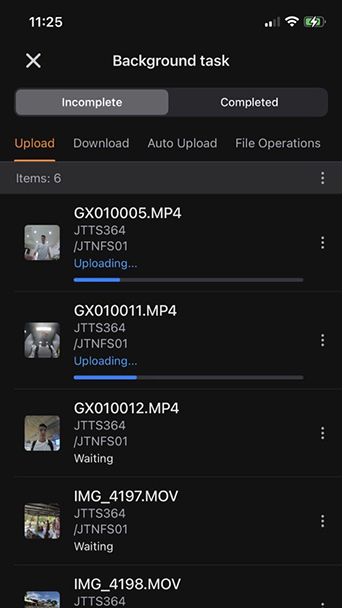
Background task

Lists current task progress, such as auto uploads, synchronization, and more.

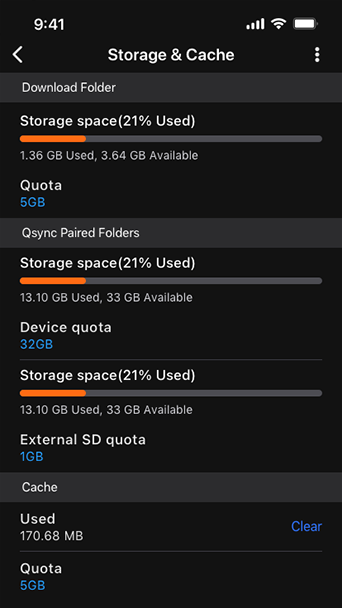
Storage and Cache

Check your current storage and cache usage.

Qsync feature

Sync NAS folders between your mobile devices and NAS.

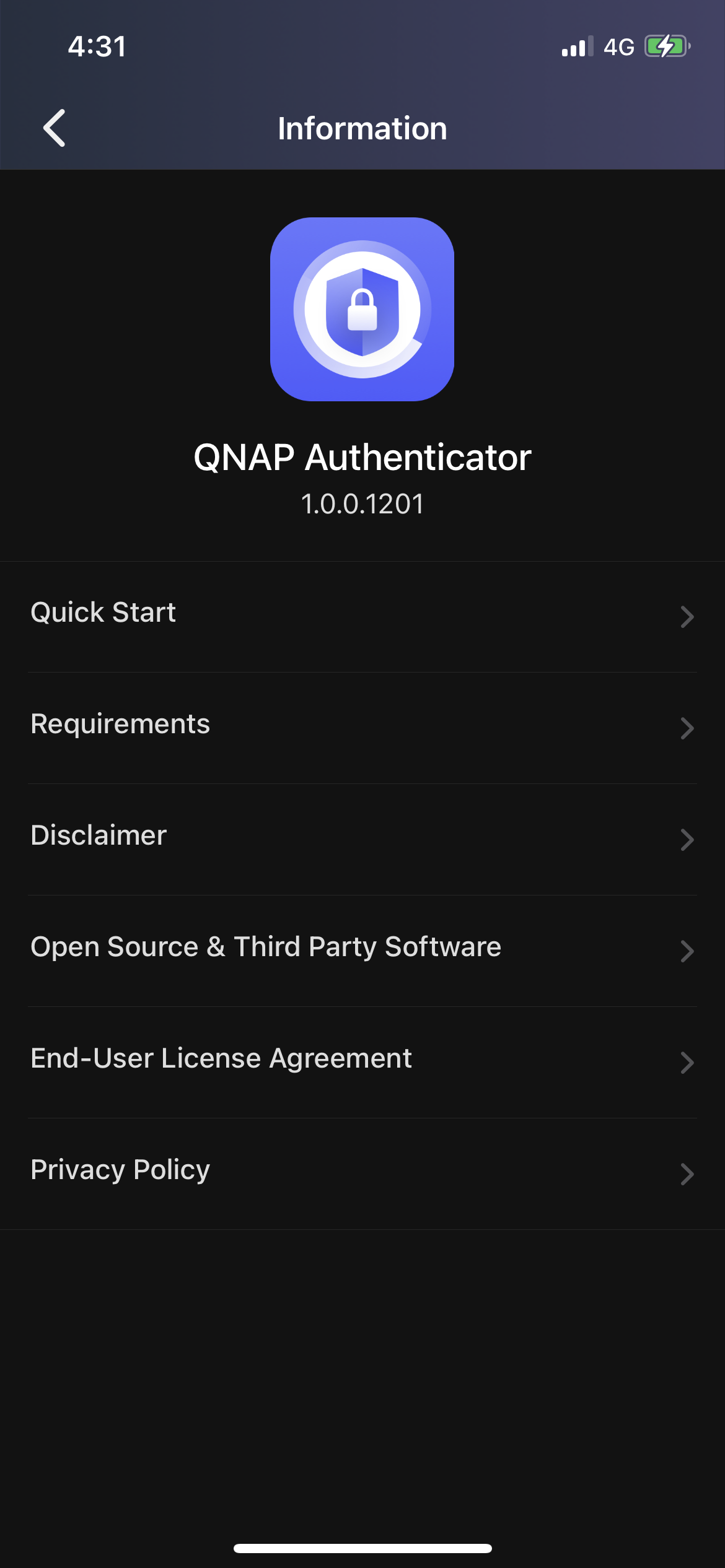
QNAP Authenticator

Add an extra layer of security to your user accounts. QNAP Authenticator provides multiple login options to keep your NAS accounts safe from unauthorized access.

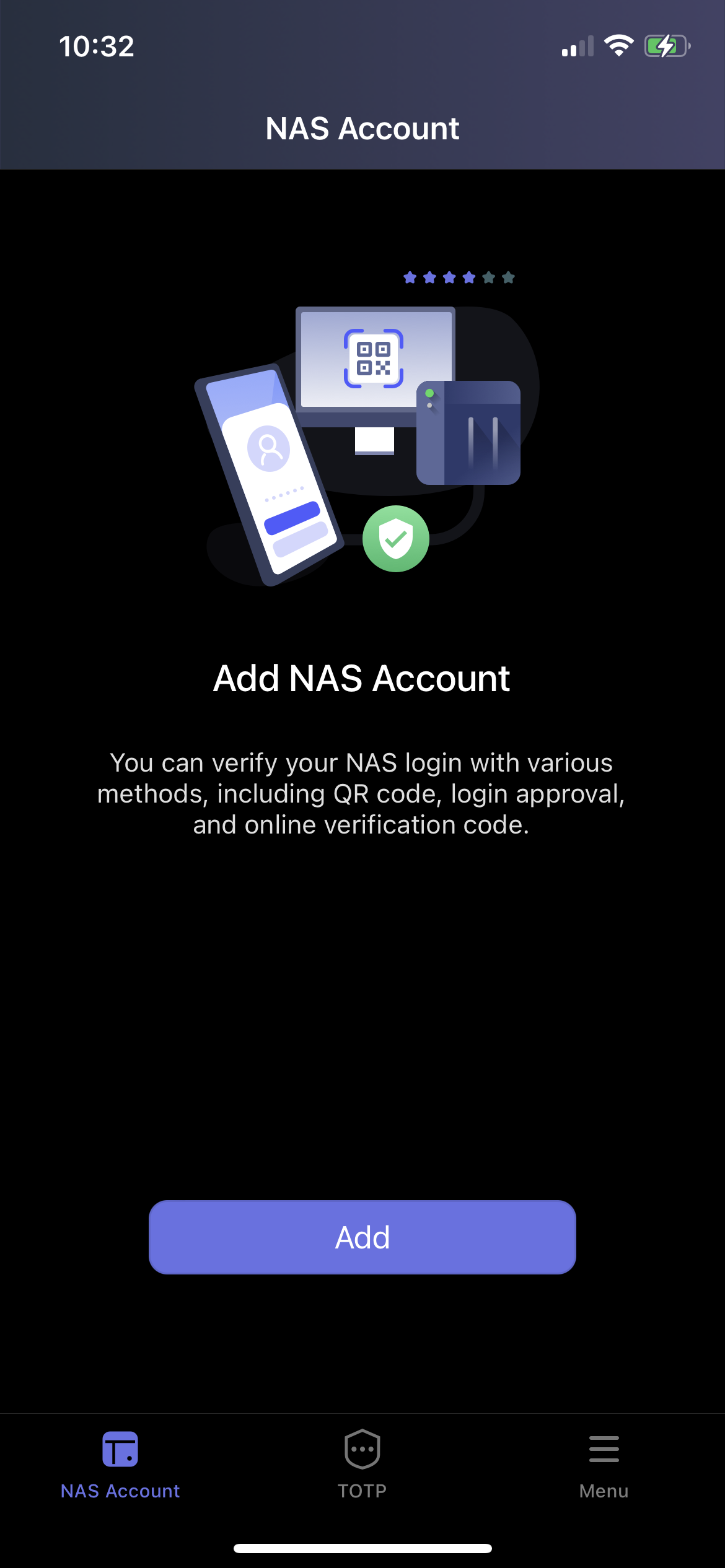
Pair multiple NAS accounts
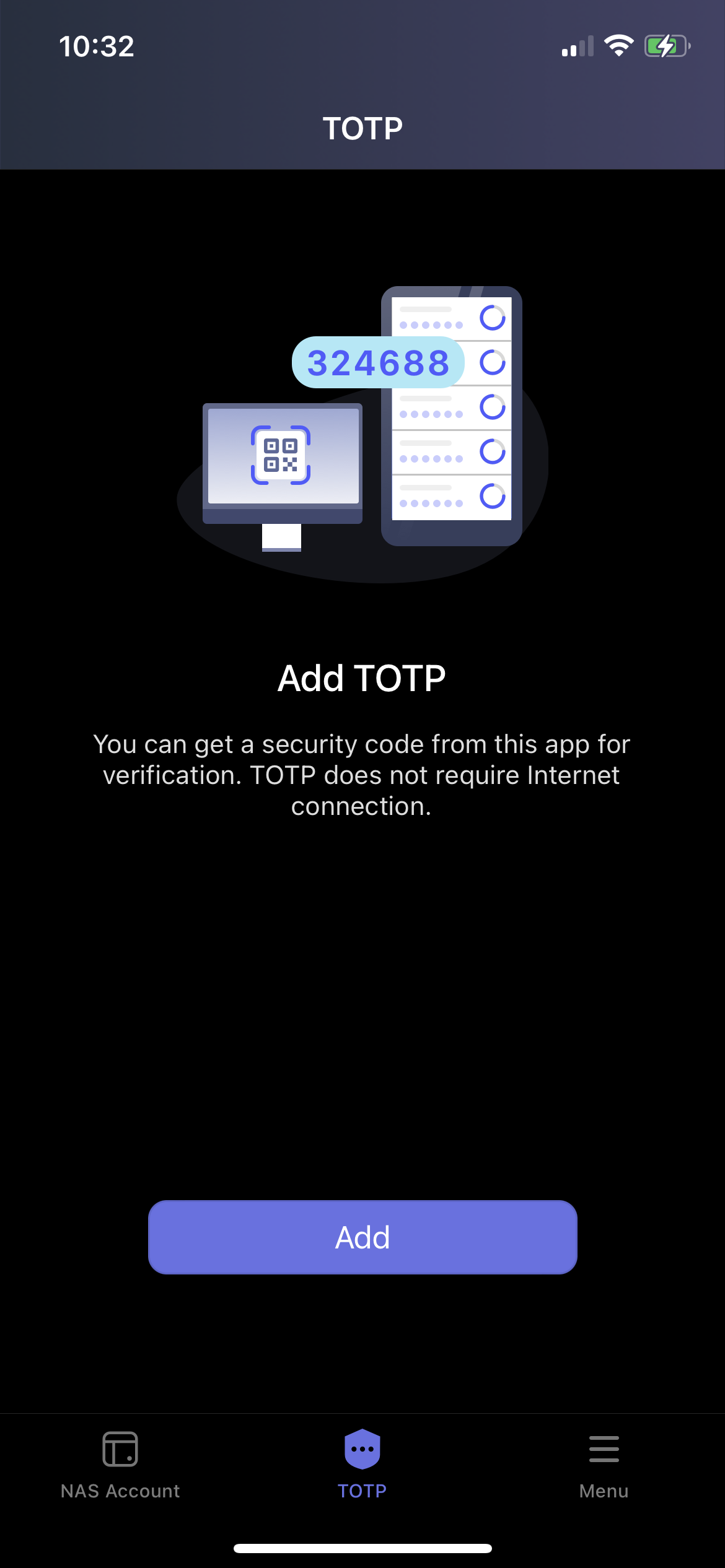
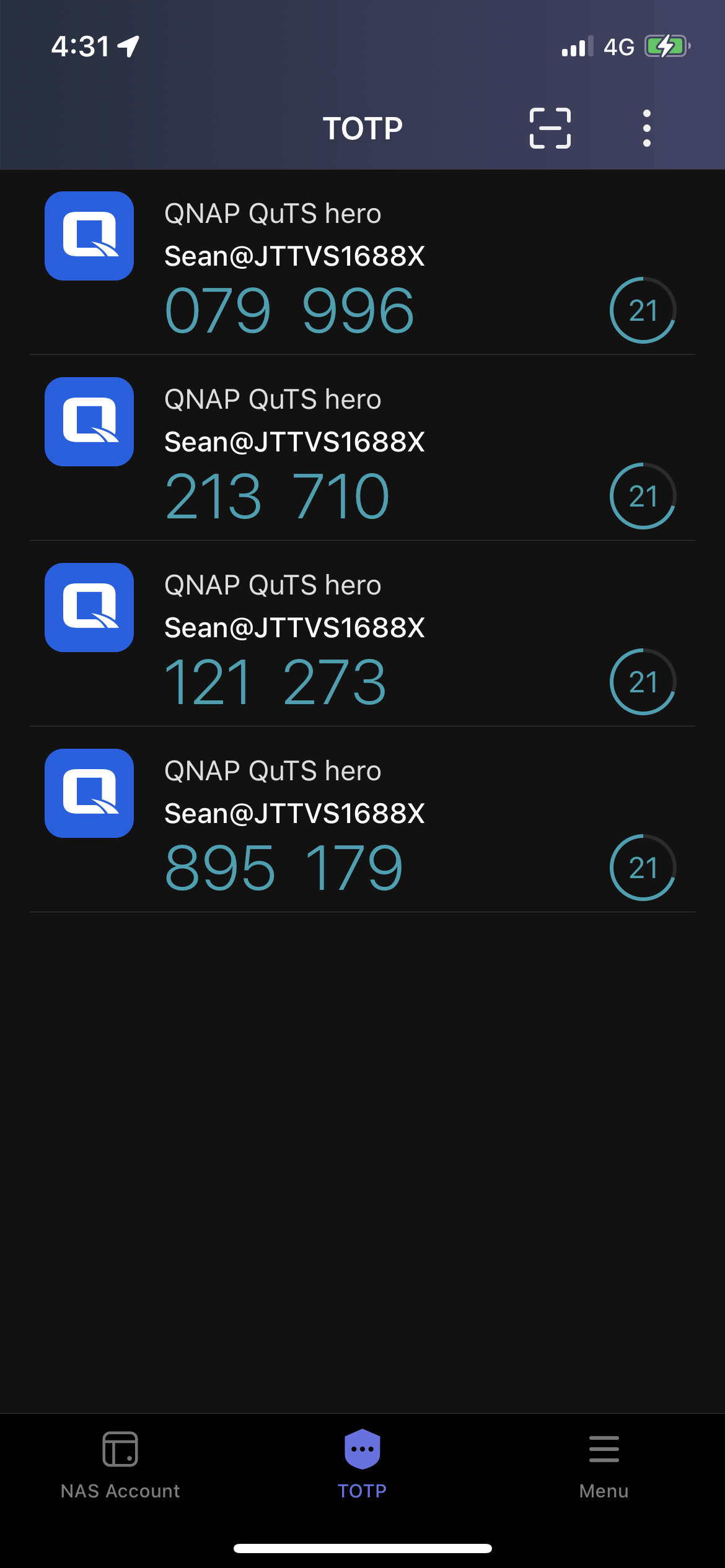
Get security code with TOTP
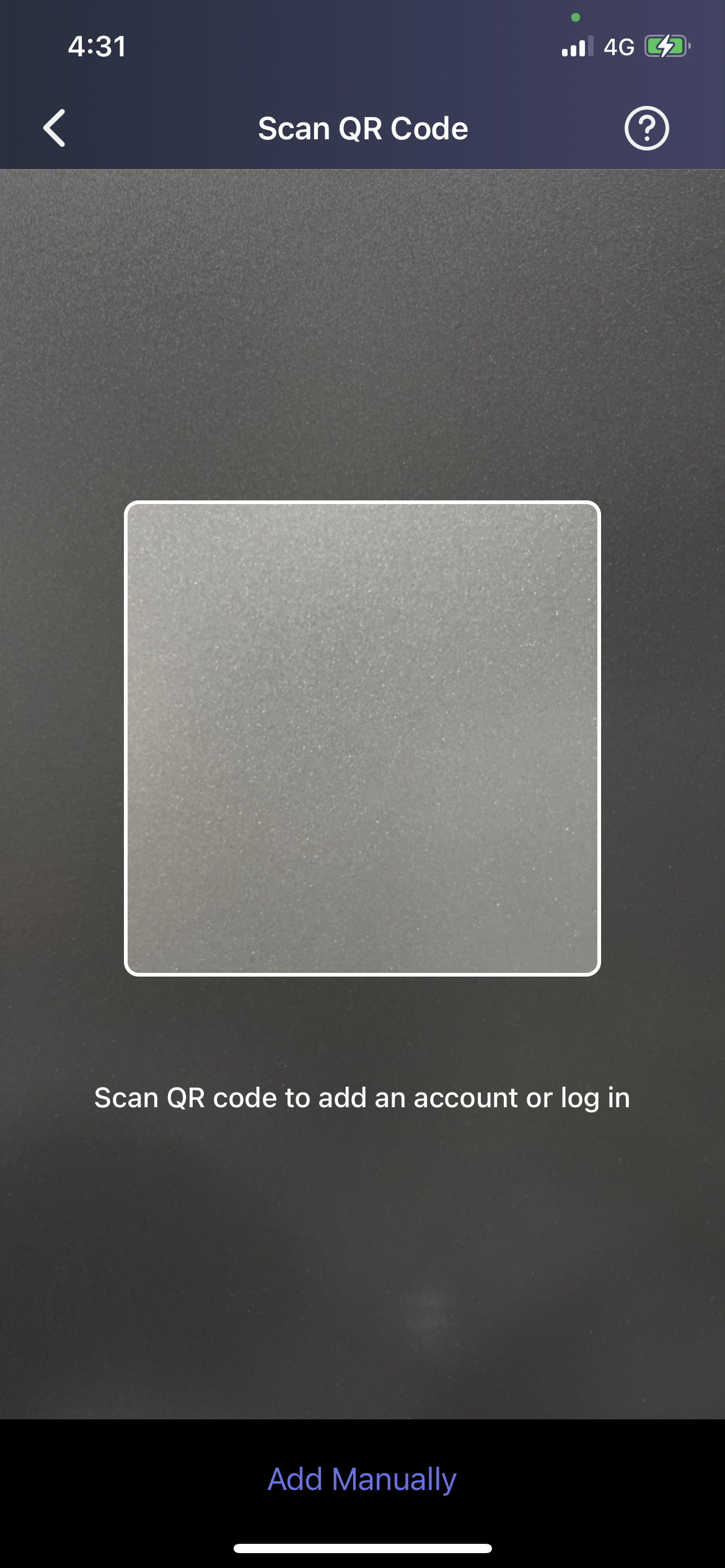
Log In with a QR code
Support TOTP-compliant platforms
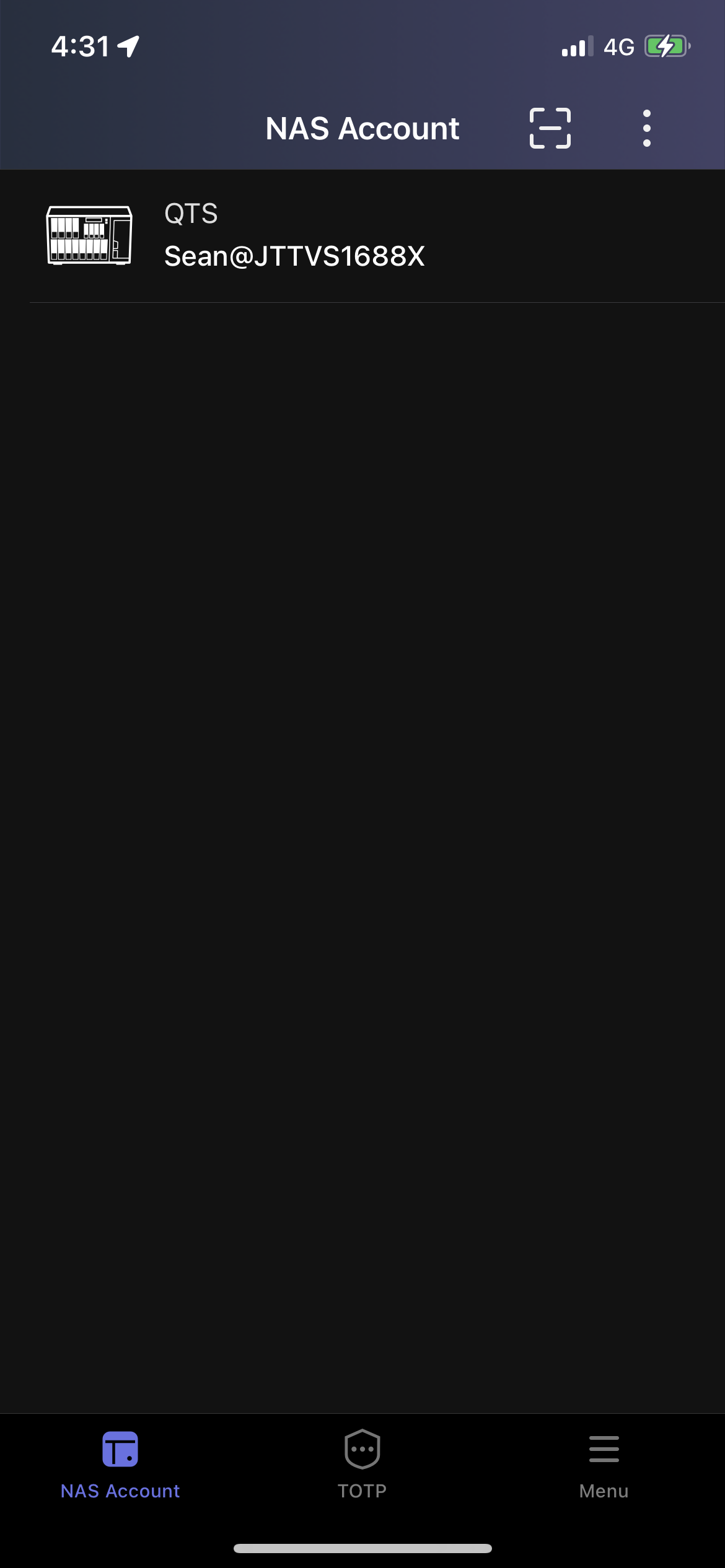
List of paired NAS accounts
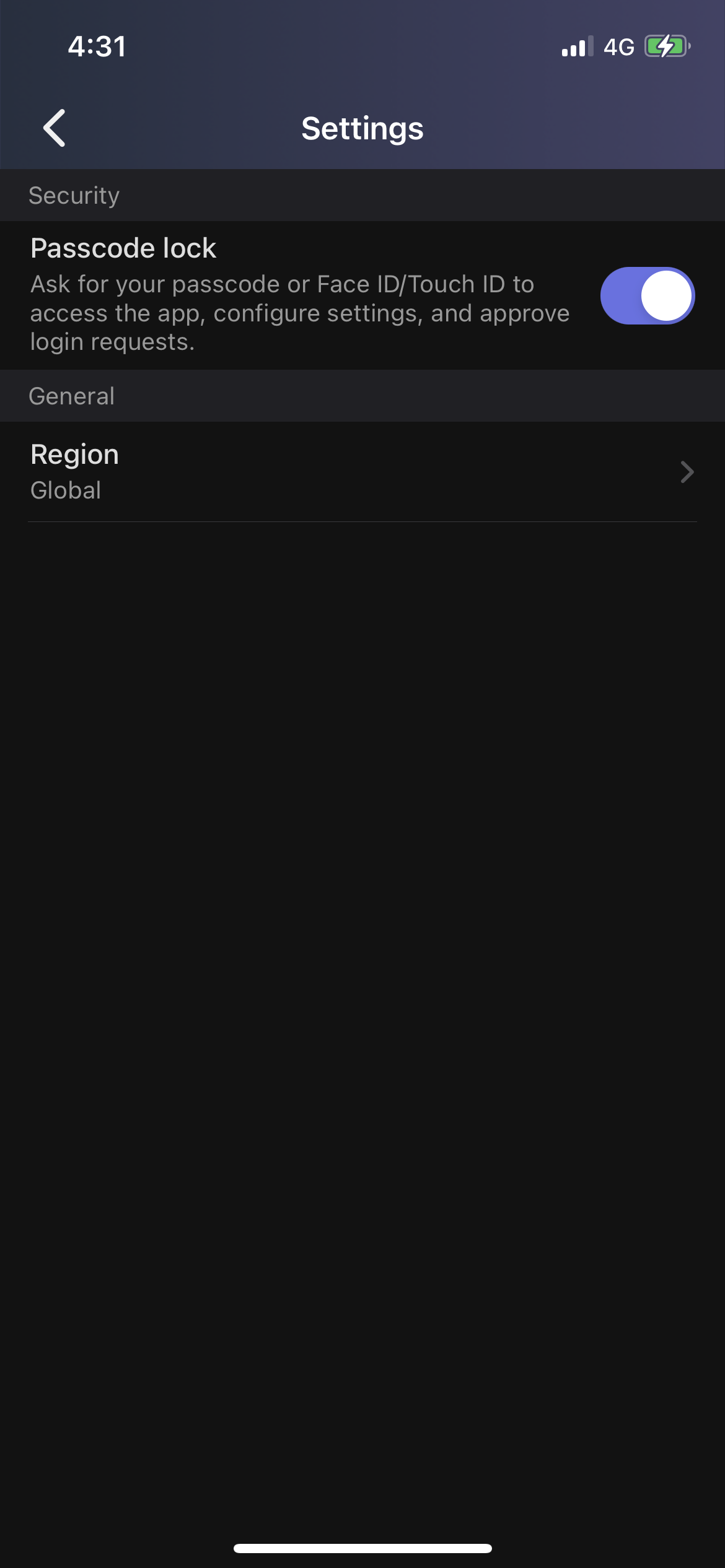
Unlock your app with biometric login
Advanced information
Pair multiple NAS accounts

Add NAS accounts and use various login methods with an extra layer of security.

Get security code with TOTP

Make login safer and more secure with two-step verification using TOTP (time-based one-time password).

Log In with a QR code

Forgot password? Don’t worry. Conveniently scan the QR code with the QNAP Authenticator app QR code reader, approve the sign-in request, then log in to your NAS.

Support TOTP-compliant platforms

Quickly check all the bindings including QNAP NAS and other TOTP-compliant platforms, apps, and web accounts. Each account periodically generates a real-time security code.

List of paired NAS accounts

Easily check all the QNAP NAS accounts paired with your device.

Unlock your app with biometric login

Login to QNAP Authenticator app with Face ID or Touch ID. Biometric authentication provides speedy and convenient access.

Advanced information

Quickly start QNAP Authenticator with instructions and FAQ.

Qmanager

Ever wanted to monitor and manage your Turbo NAS with your iOS® or Android™ mobile device? The Qmanager app makes it easy.

Smart NAS Management Made Easy with Qmanager AI Assistant > Learn More

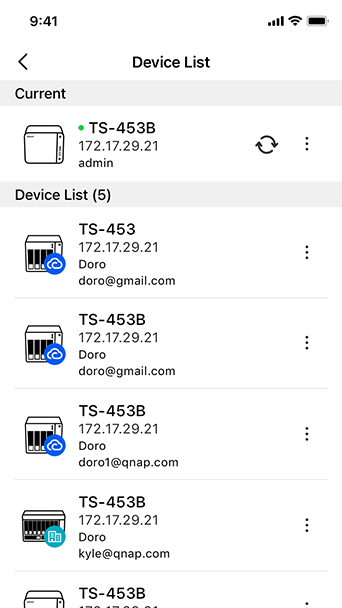
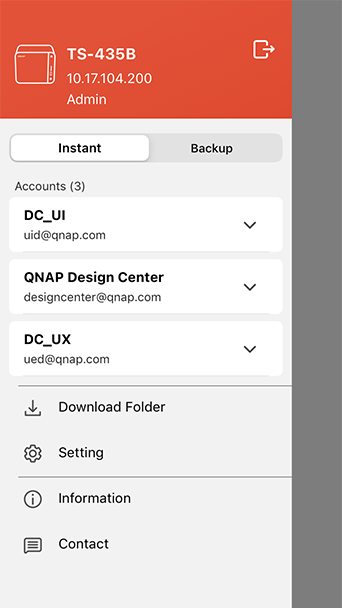
Manage multiple Turbo NAS units
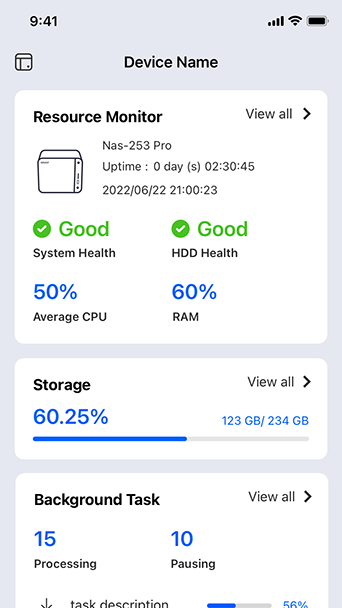
Monitor system status
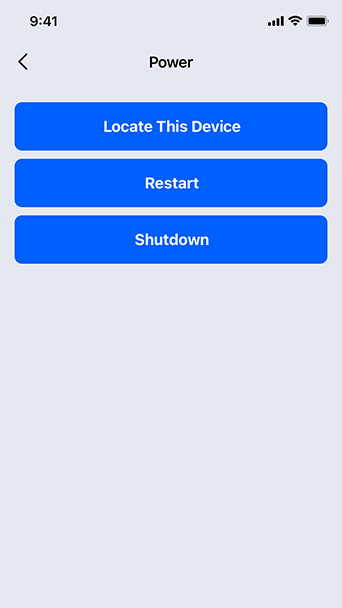
Shutdown/restart remotely
Monitor connection status
Manage system services
Manage download/backup tasks
Identify the NAS
Manage multiple Turbo NAS units

Add multiple Turbo NAS units on Qmanager, and conveniently manage anyone of them, anytime and anywhere.

Monitor system status

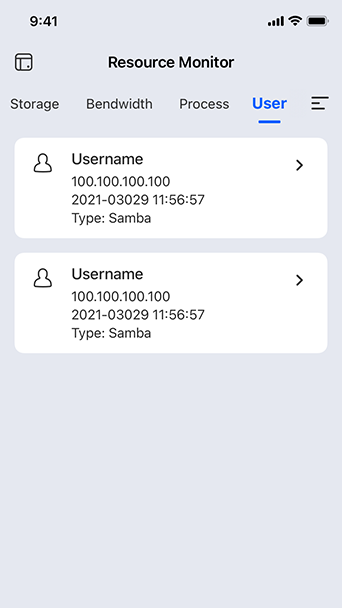
Monitor your system information, such as CPU usage, memory usage, system event info, online users, etc.

Shutdown/restart remotely

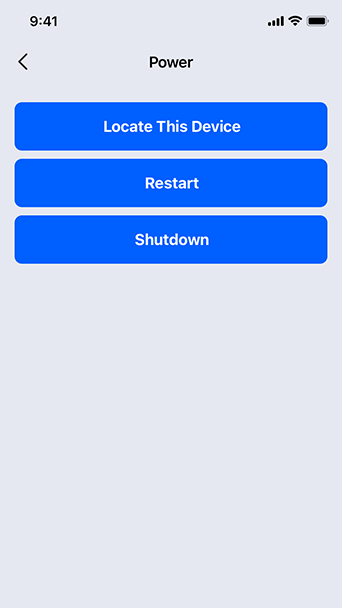
Restart or shutdown your Turbo NAS remotely.

Monitor connection status

Check connection status or logged in users remotely, to prevent invasion.

Manage system services

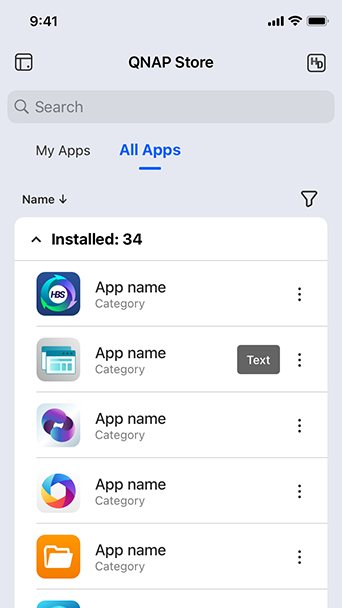
Easily turn on/off application services of the Turbo NAS via Qmanager. It only takes one click!

Manage download/backup tasks

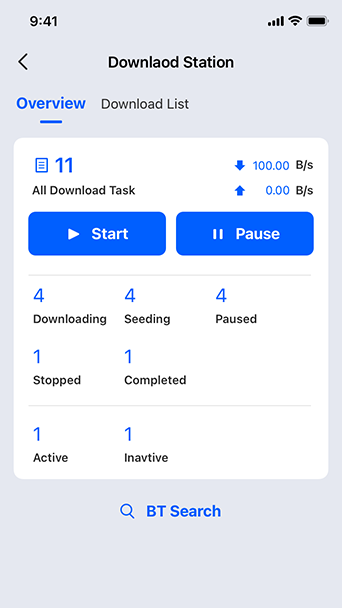
Check the Download Station or backup task info. You can also pause or run the download or backup tasks remotely.

Identify the NAS

Use "Find My NAS" to turn on the NAS "Beep" sound to easily identify its location.

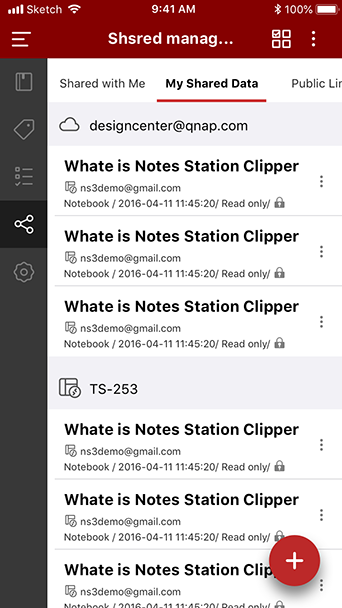
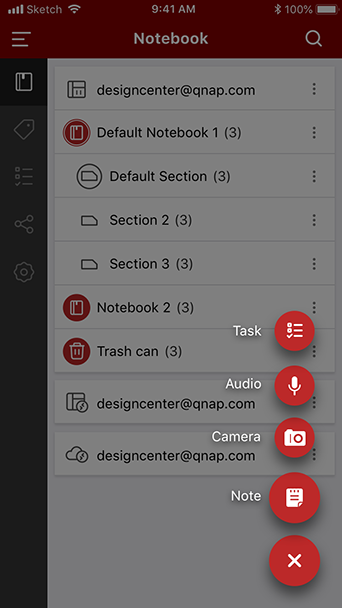
Qnotes3

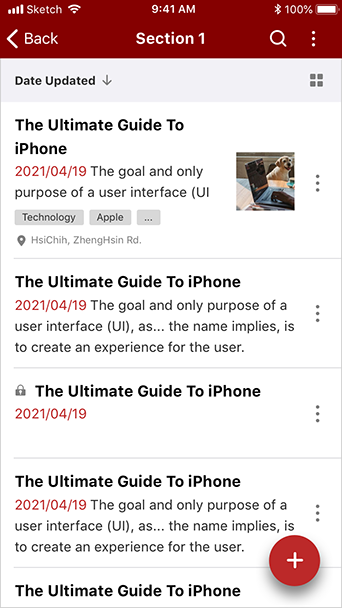
Share your inspirations with a convenient note-taking tool for mobile devices.

Brand-new user interface
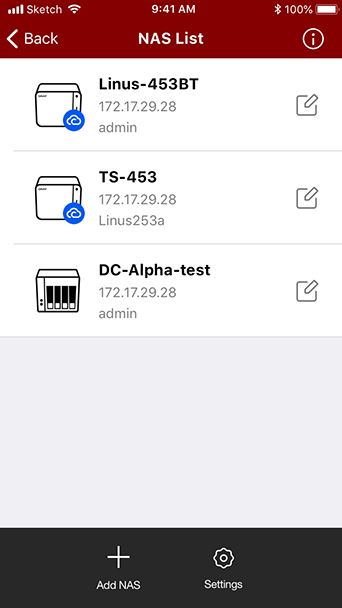
Synchronization and offline editing
Add tags
Team Collaboration
Share notes and manage shared list
Audiovisual notes
Brand-new user interface

Get started with an intuitive and user-friendly interface.

Synchronization and offline editing

Instantly sync with Notes Station 3 on your NAS. Create or edit notes even when you're not connected to your NAS.

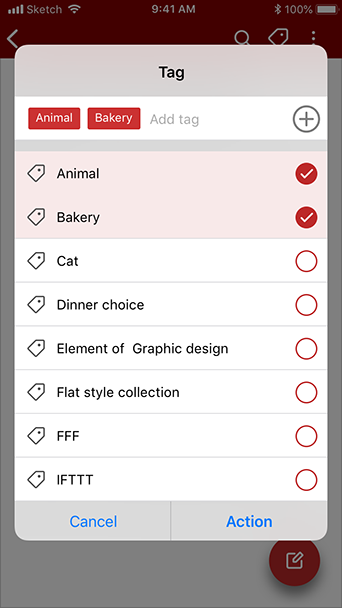
Add tags

Easily manage and search for notes by using tags.

Team Collaboration

Improve your team's productivity and efficiency with collaborative note-taking.

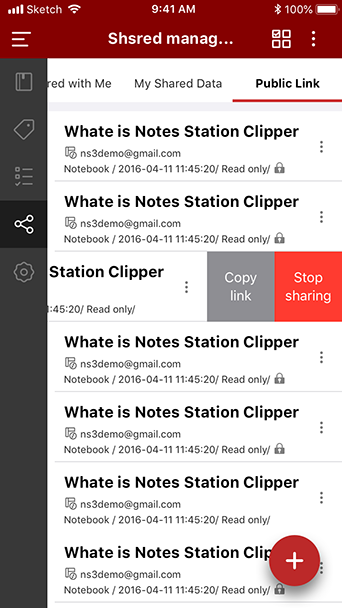
Share notes and manage shared list

Share your notes with others and easily manage your shared list.

Audiovisual notes

Create notes from audio or photos to ensure no details are lost.

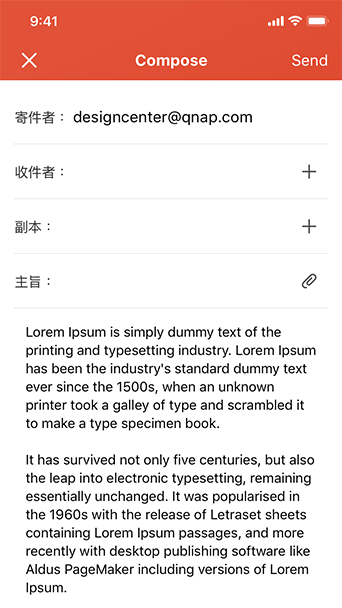
QmailClient

Quickly check & manage multiple email accounts anytime and anywhere

Instantly switch multiple email accounts
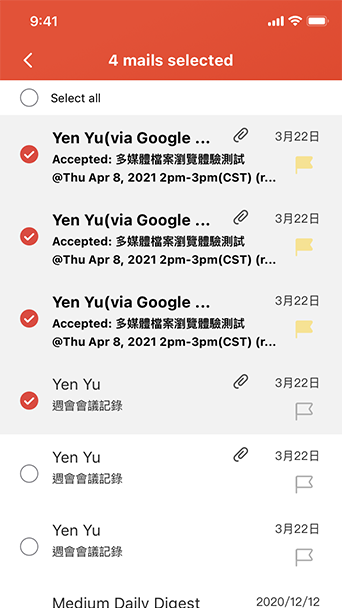
Easily manage your Inbox
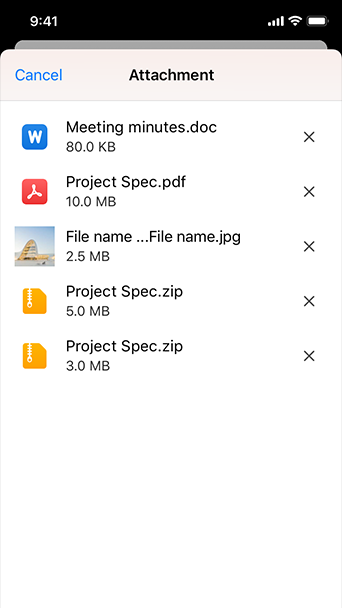
Send emails and attachments directly from your NAS or cloud accounts
Send emails with large attachments
Easy to use
Push Notifications
Instantly switch multiple email accounts

Switch between multiple email accounts in QmailClient to check your latest emails, and quickly find desired emails using search criteria (such as sender, receiver or subject).

Easily manage your Inbox

Managing your emails is easy with familiar touchscreen controls. Just swipe the screen to archive/delete emails, add tags, or mark emails as read/unread.

Send emails and attachments directly from your NAS or cloud accounts

Use File Station to browse saved emails and to quickly send content stored on your NAS and connected cloud services.

Send emails with large attachments

Use "SmartShare" to avoid attachment size limits by sending links to files (on your NAS or Google Drive account) instead of attaching the files themselves.

Easy to use

Use familiar touchscreen controls to read, write, reply, and forward emails.

Push Notifications

Instantly receive real-time push notifications on your mobile devices when new emails arrive and if connection errors occur.

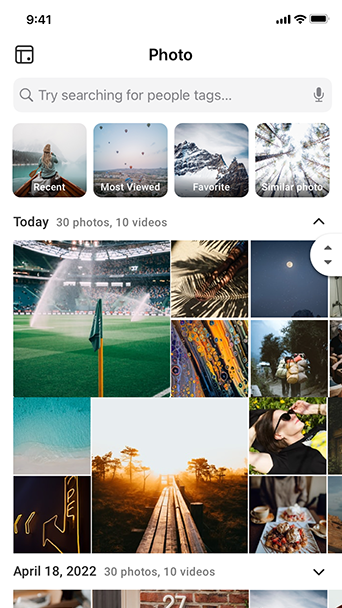
QuMagie Mobile

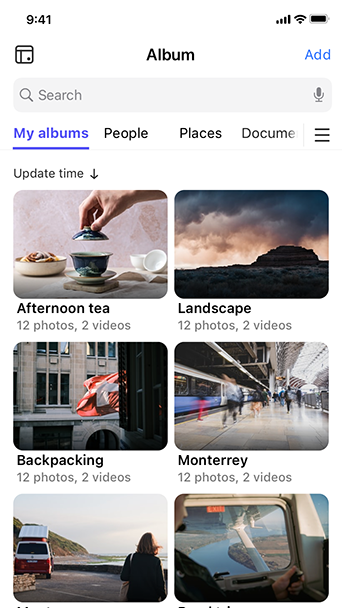
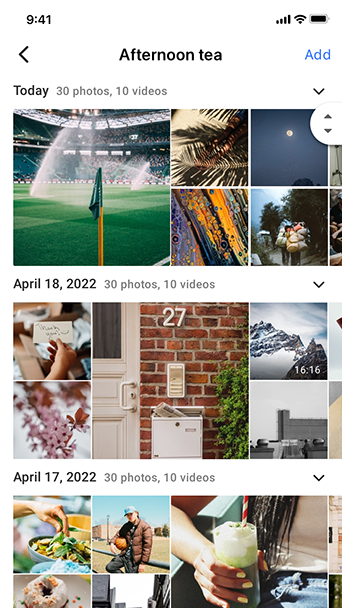
QuMagie Mobile allows you to view photos in the NAS on mobile devices anytime and anywhere.

Use QuMagie AI Assistant to let AI help you intelligently manage photos > Learn more

View photos anytime and anywhere
Group and manage photos in different albums
View people photos in specified album
View things photos in specified album
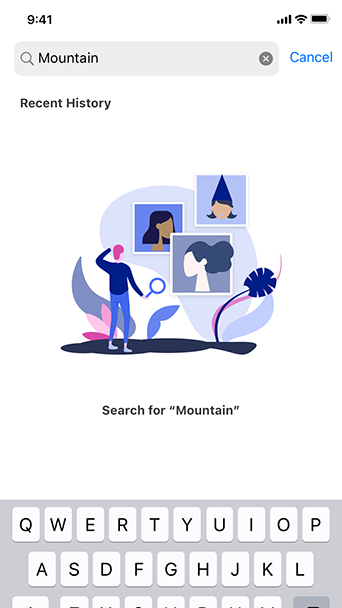
Find photos faster
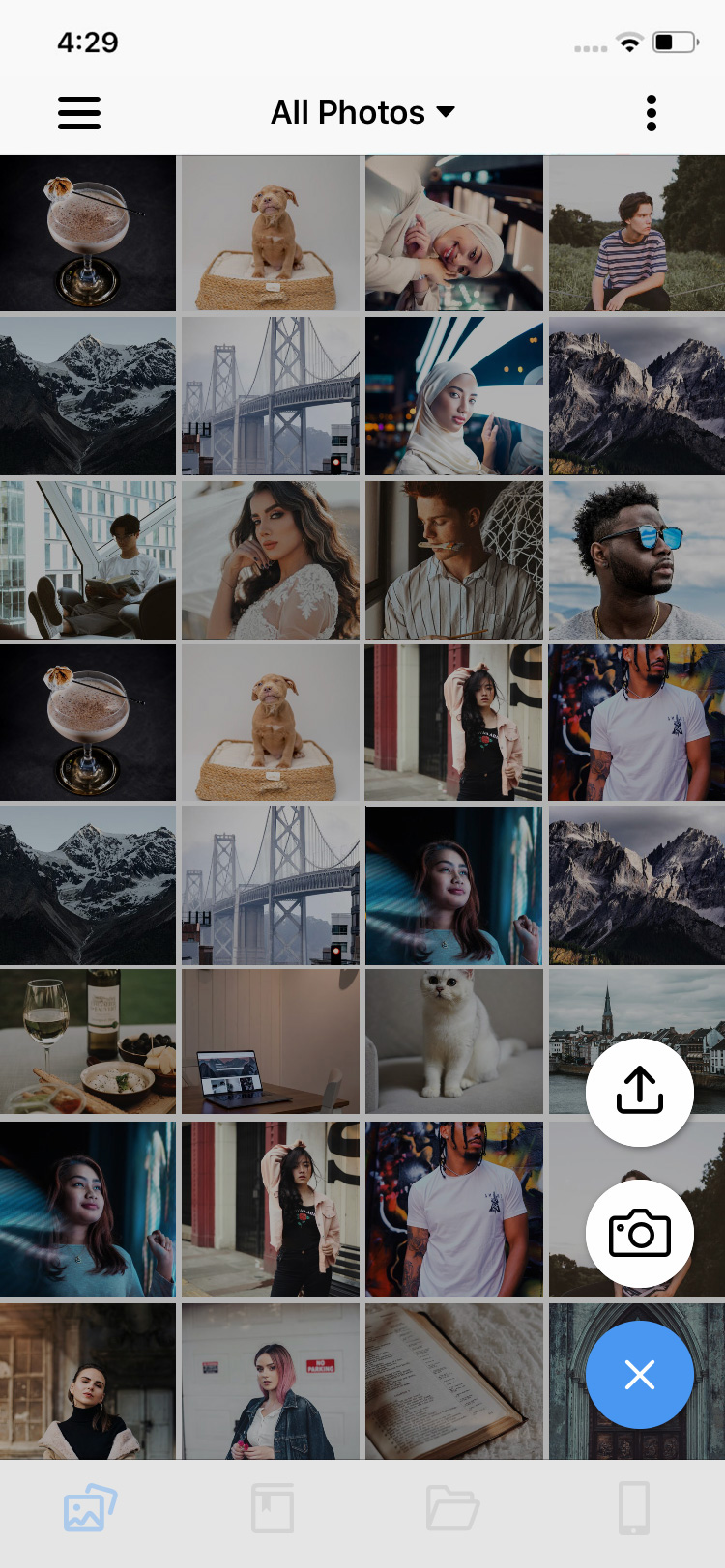
Automatically upload photos
View photos anytime and anywhere

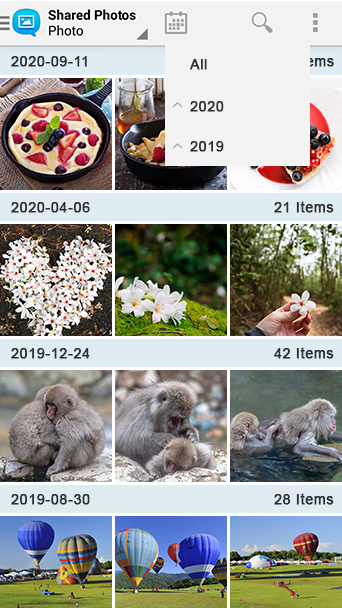
Simply connect to the Internet to view all your photos in QuMagie anytime and anywhere.

Group and manage photos in different albums

Manage photos with QuMagie’s in-built AI image recognition technology. The QuMagie AI image recognition technology can detect people, objects, and locations. Similar photos are then categorized into the following three albums: People, Things, and Places.

View people photos in specified album

QuMagie Core AI technology features facial recognition. You can view photos related to people in the QuMagie album People on mobile devices.

View things photos in specified album

QuMagie Core intelligent AI technology enables subject identification. You can view photos related to objects in the QuMagie album Things on mobile devices.

Find photos faster

Powerful search filters allow you to quickly find photos through customized tags, people, dates, and titles.

Automatically upload photos

You can automatically back up mobile photos and videos to your NAS by enabling "Auto upload". Files can also be organized with fast filtering by file types.

Qmusic

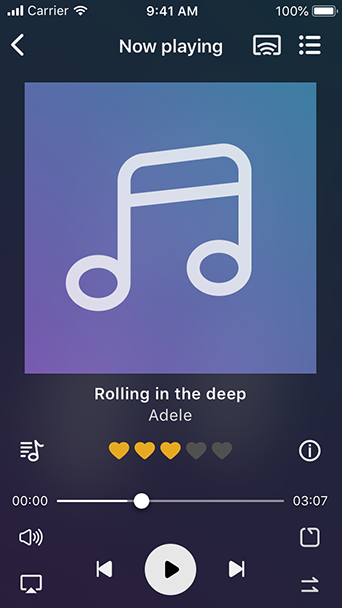
Ever wanted to stream and enjoy the music stored on your Turbo NAS with iOS® and Android™ mobile device? The free Qmusic app allows you to listen to your terabytes of music collection on the Turbo NAS anytime and anywhere.

Play music on demand
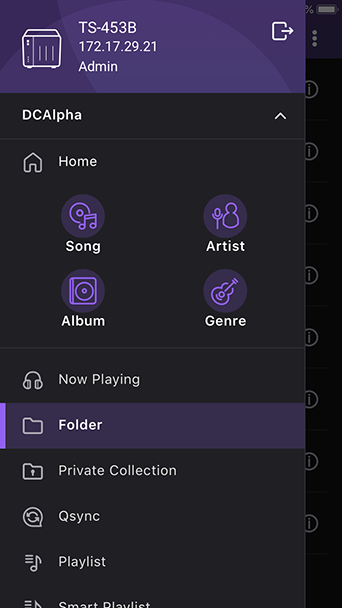
Browse music library flexibly
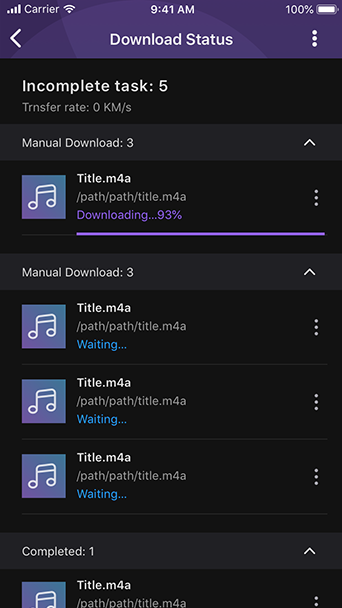
Play music offline
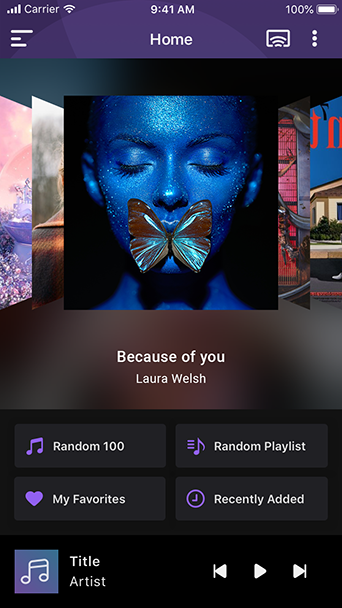
Enjoy music with one click
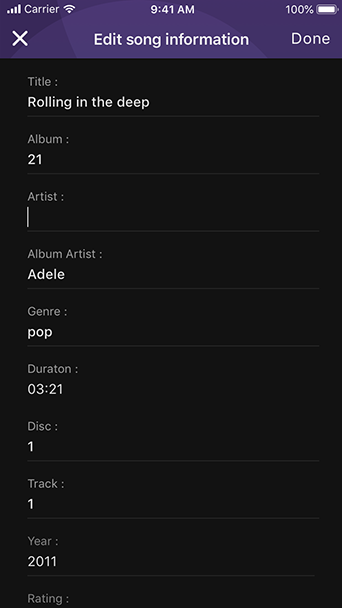
Edit playlists online
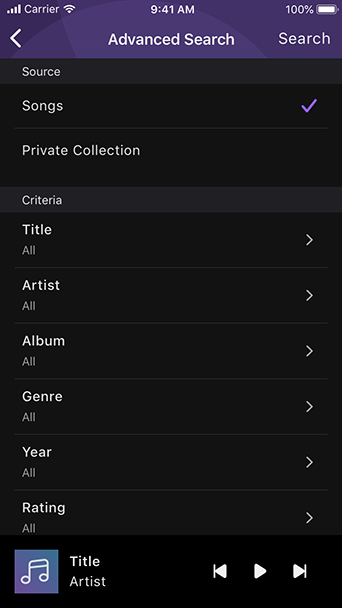
Music searching
Play music on demand

Easily connect to the Turbo NAS and play the music collection with simple operations. It’s 1-2-3 to have a mobile music box!

Browse music library flexibly

Browse music collection on the Turbo NAS by song, singer, album, or folder.

Play music offline

Click the “Download” button to instantly download the music on the Turbo NAS to your mobile device for offline listening. The music never stops even when the Internet is not available.

Enjoy music with one click

4 ways to play the music immediately: Random song, Random playlist, My favorite, and Recently added.

Edit playlists online

You can easily create playlists, edit the playlist contents, or add the songs in the “Now playing ” list to the playlist.

Music searching

Search songs by title, album, or artist to find the right tracks for your mood. * Currently available for Android.  

Qvideo

The free Qvideo app allows you to enjoy and share the video collection stored on your Turbo NAS from mobile devices anytime and anywhere.

Enjoy videos on demand
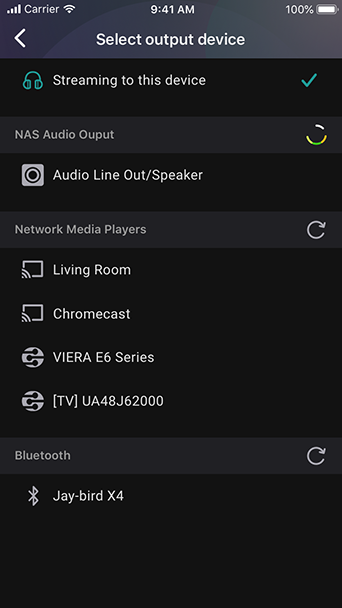
Stream videos via Chromecast
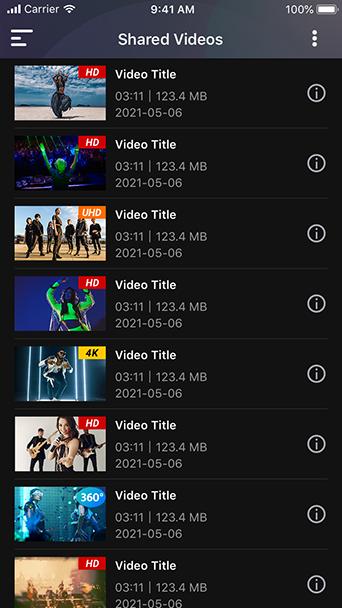
Video browsing
Share beautiful moments
Organize videos
Sync videos with your Turbo NAS
Enjoy videos on demand

Watch any of the videos stored on your Turbo NAS using mobile devices at anytime, anywhere.

Stream videos via Chromecast

Stream videos stored on the Turbo NAS directly on TV via Chromecast device.

Video browsing

Browse your video collection using a timeline view, thumbnails, detailed list and folders.

Share beautiful moments

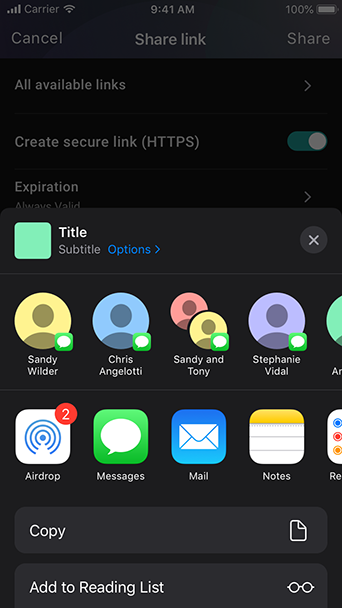
Share interesting videos with family and friends via email, message and social networks.

Organize videos

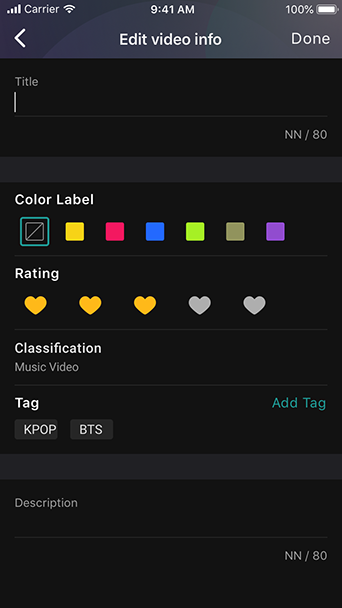
Organize your videos by category, tags, ratings, or labels for a clearer display and easier searching.

Sync videos with your Turbo NAS

Qvideo supports Qsync, a handy service that synchronizes files between Qsync-enabled devices/applications and a Turbo NAS, making it ideal for frequent travelers to access and share the most up-to-date files.

Qphoto

The Qphoto app allows you to easily browse and share the photos on your Turbo NAS anytime and anywhere with mobile devices.

The Photo Station software has reached its end of life. You can use the new QuMagie Mobile app to browse or edit photos on your NAS. For more information, please click here.
Photo browsing
Easily search for photos
Enjoy slideshows
Instant photo sharing
Save your great moments
Sync photos with NAS
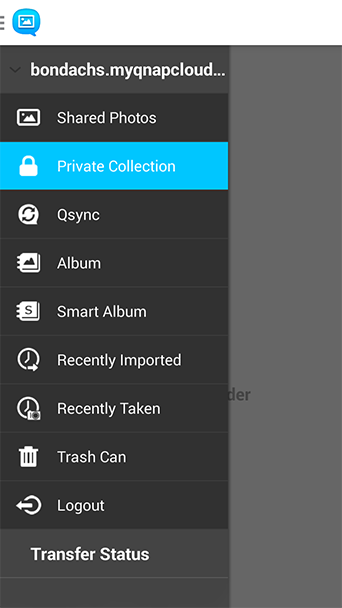
Private Collection
Instant Upload to NAS
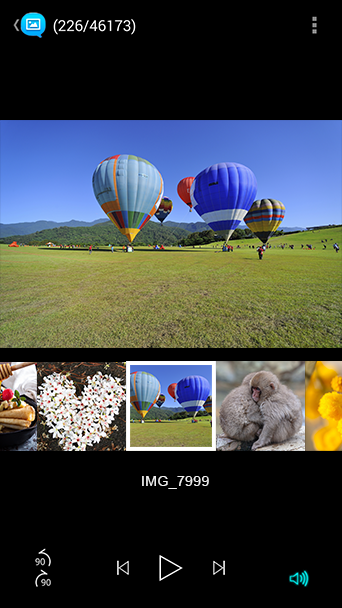
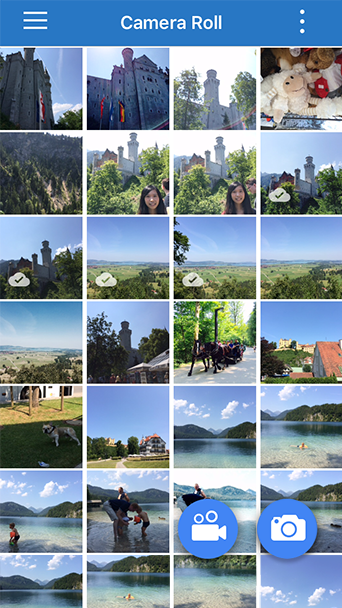
View Photos on your Mobile Device
Photo browsing

Browse your photo collection using a timeline view, thumbnails, detailed list and folders.

Easily search for photos

Use keywords or tags to easily find specific photos & videos on your Turbo NAS.

Enjoy slideshows

Create and enjoy slideshows with photos and background music from your mobile devices.

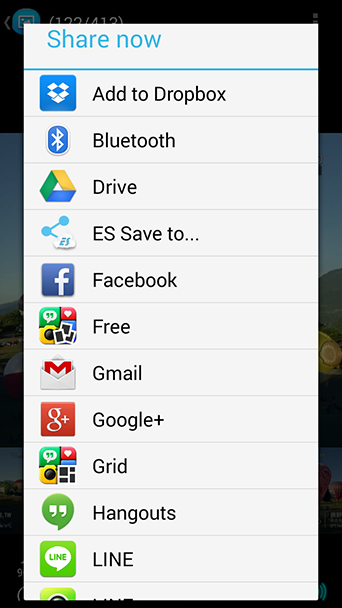
Instant photo sharing

Share photos from your Turbo NAS via Facebook, Twitter, Google+, WhatsApp, Line, Instagram, Gmail, and more.

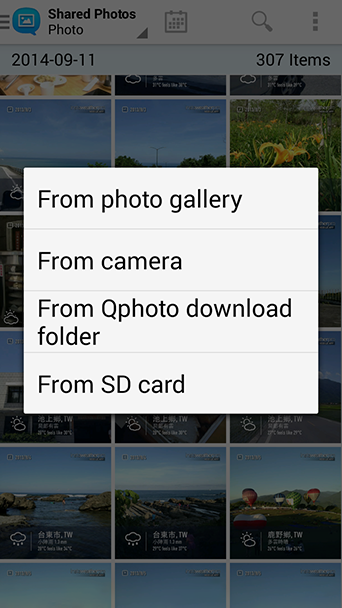
Save your great moments

Upload photos directly to your Turbo NAS from your device camera and gallery or the inserted SD card to save your great moments.

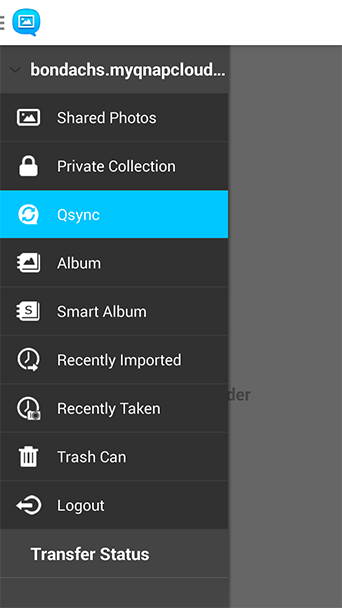
Sync photos with NAS

Qphoto supports Qsync that synchronizes files between Qsync-enabled devices/applications and a Turbo NAS. If photos or videos are accidentally deleted from your mobile devices, you can still retrieve them from the “Trash Can” folder.

Private Collection

Archive personal photos in the password-protected “Private Collection”. Your private photos cannot be accessed by other Turbo NAS users.

Instant Upload to NAS

Save space on your mobile device by instantly uploading photos and videos to your NAS as you take them. It’s convenient and provides peace of mind that your photos and videos are securely saved on your NAS.

View Photos on your Mobile Device

Directly browse the photos on your mobile device for easier and faster photo backup and management.

Qremote

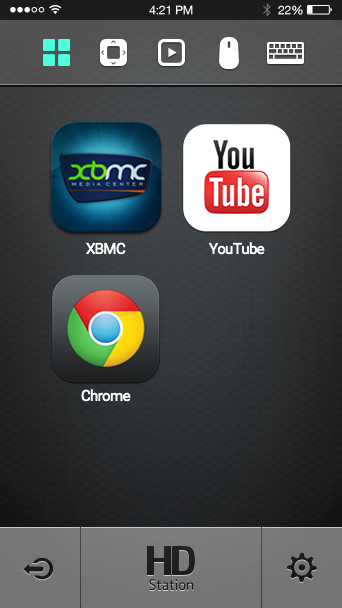
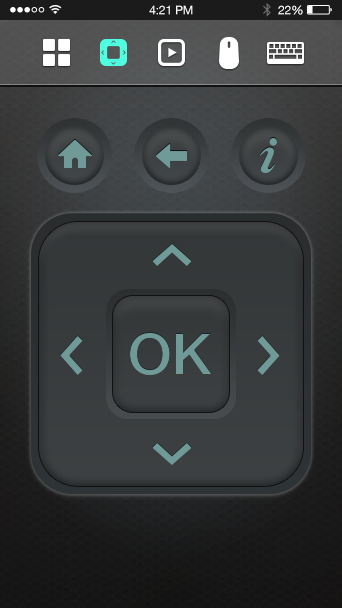
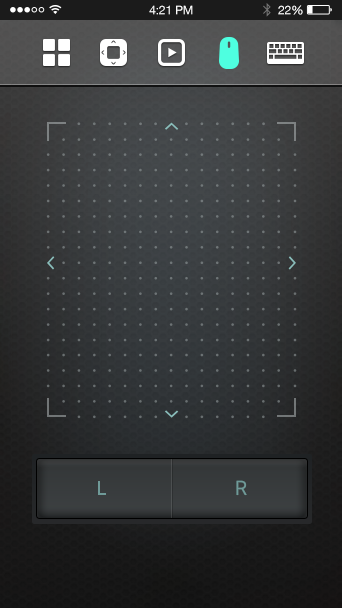
When enjoying the HD Station, rather than hardware remotes, Qremote app is so convenient to make your mobile devices as a handy remote control.

Multimedia content playback

Control playback of videos, music and photos stored in the Turbo NAS remotely and enjoy them on TV without additional gadgets like a controller, USB keyboard or mouse.

Multimedia content playback

Control playback of videos, music and photos stored in the Turbo NAS remotely and enjoy them on TV without additional gadgets like a controller, USB keyboard or mouse.

Multimedia content playback

Control playback of videos, music and photos stored in the Turbo NAS remotely and enjoy them on TV without additional gadgets like a controller, USB keyboard or mouse.

QVR Client

Monitor surveillance videos at anytime with a powerful mobile app.

One-touch switching between playback and live monitoring
Multi-channel browsing
Electronic map (E-map)
PTZ control and preset position control
Event notifications
Low bandwidth mode
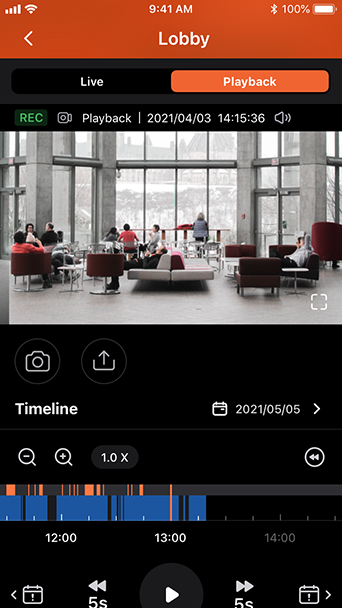
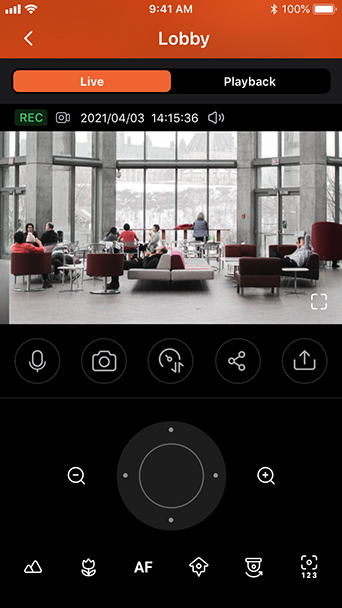
One-touch switching between playback and live monitoring

Quickly switch to live monitoring or video playback in a single view. Simply touch the timeline to play back videos at the specific time spot.

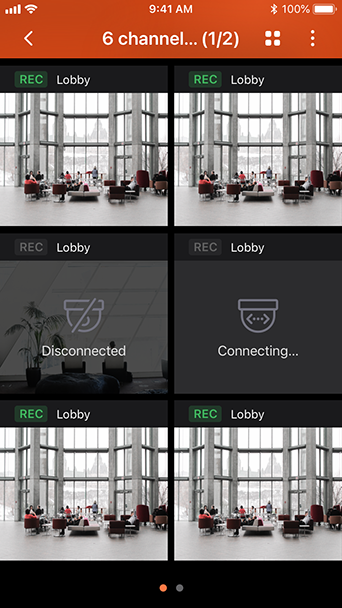
Multi-channel browsing

Choose from several monitoring modes and monitor multiple channels at once.

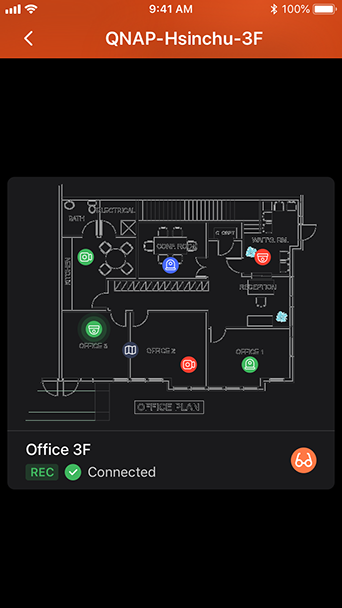
Electronic map (E-map)

Use E-maps to quickly identify the position of IP cameras, and instantly react to events and alerts.

PTZ control and preset position control

Remotely control PTZ (Pan/Tilt/Zoom) cameras, and adjust monitoring angles and preset monitoring positions.

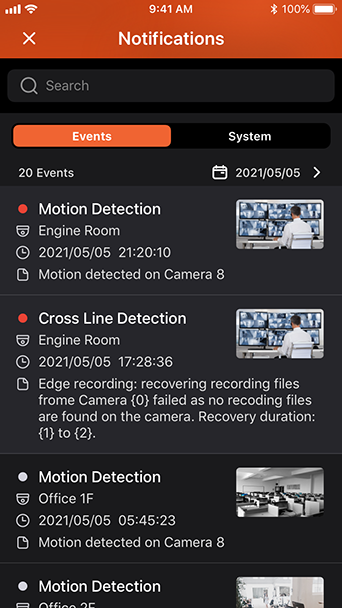
Event notifications

When an event occurs, QVR Pro Client provides immediate alerts via ringtone, vibration or push notifications. You can set customized text of push notifications.

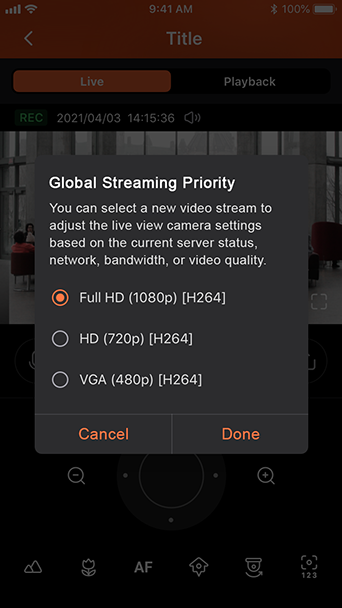
Low bandwidth mode

If you have a slow or metered Internet connection, you can select a stream optimized for low bandwidth to provide smooth video playback at slower speeds. Using the low bandwidth mode does not affect the quality of the video recordings.

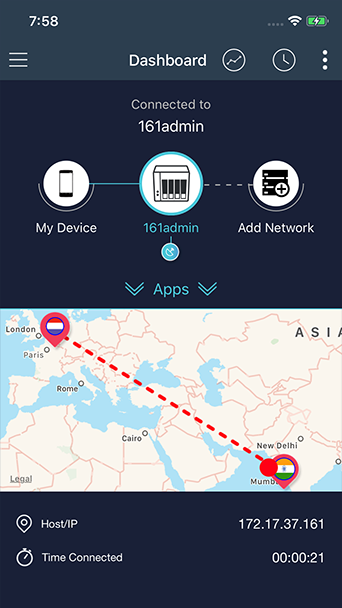
QVPN Device Client

Connect to your QNAP devices over VPN with QBelt

Supported OS: QTS 4.3.5 (or later) with QVPN 2.0 to enable the QBelt protocol.
Easy connectivity
Tier 2 VPN Connections
Speed Control
Connection History
Advanced Settings
Easy connectivity

Powered by QNAP's proprietary QBelt protocol, connecting to your QNAP devices from your mobile device has never been easier.

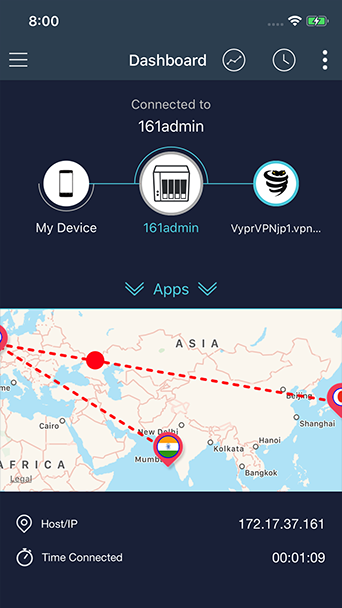
Tier 2 VPN Connections

Set up a Tier 2 VPN connection directly from your mobile device using QBelt, PPTP, OpenVPN, L2TP, or VPN services such as VyprVPN.

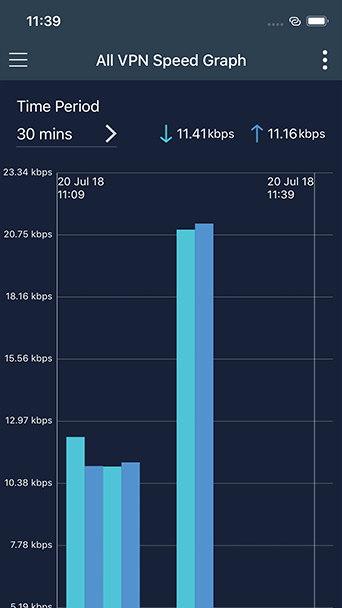
Speed Control

Powerful measurement tools provide a wealth of information about the speed of your VPN connections.

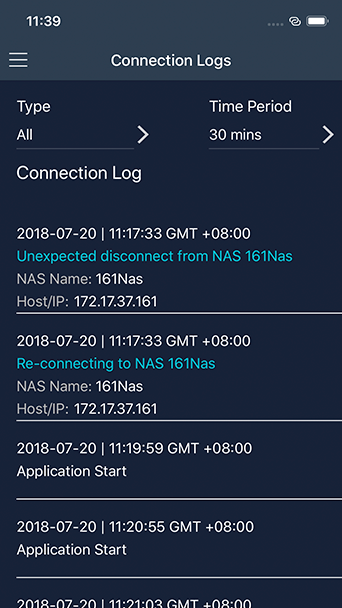
Connection History

Track previous connections to your QNAP devices from your mobile device.

Advanced Settings

Control how the QVPN Device Client connects to your QNAP devices.

QuRouter

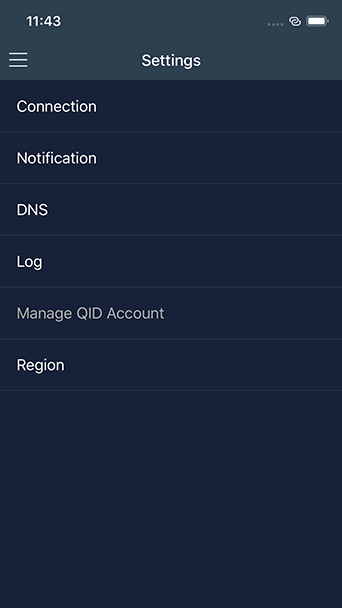
You can easily complete network settings for your QMiro/ QMiroPlus routers using the QuRouter App. With Bluetooth and a settings wizard you are only five steps away from setting up your smart home network and cloud storage applications.

1. Mobile devices running Android 9/iOS 12 (or later).
2. The QuRouter mobile app is only supported by routers bound to the QNAP Account (QID). The QuRouter mobile app is not supported on the QuWAN device.
Log in to your device
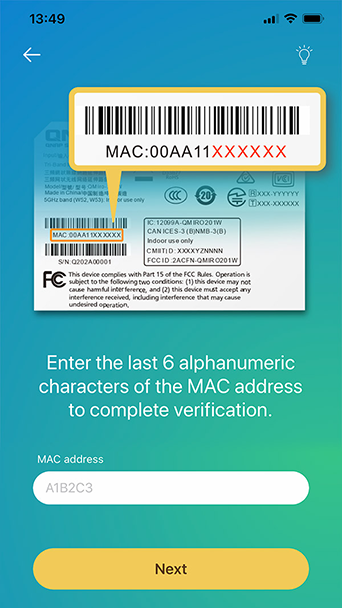
Verify your device
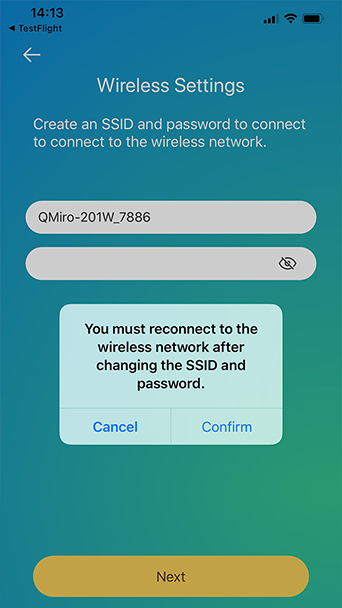
Set up wireless network
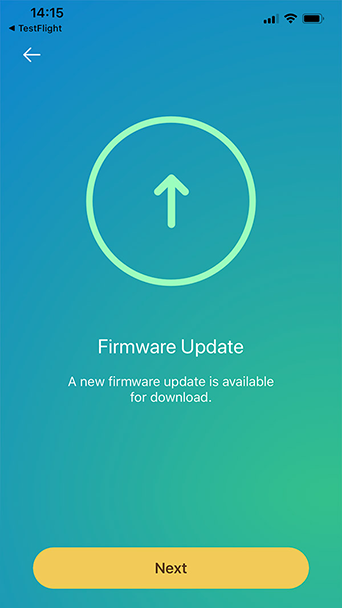
Firmware update notification
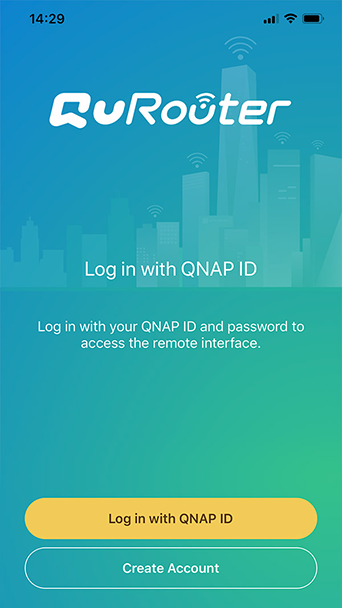
Log in with your QNAP ID
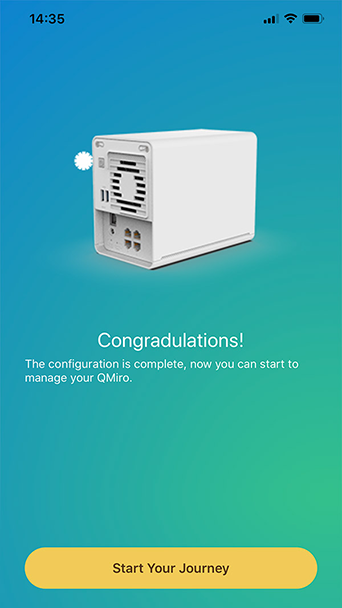
Start your QMiro journey
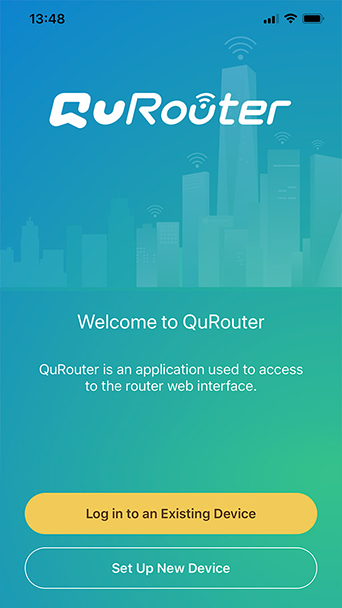
Log in to your device

Open the QuRouter App and log in to an existing device.

Verify your device

Enter the last 6 characters of the MAC address from the sticker on the device to complete verification.

Set up wireless network

Change the Wi-Fi SSID and password to connect to wireless network.

Firmware update notification

Users will be notified with the new firmware version for quick updates.

Log in with your QNAP ID

Login with your QNAP ID to register the device.

Start your QMiro journey

Once login, users can start to manage the QMiro.

เลือกสเปค

      ดูเพิ่มเติม น้อยลง
      เลือกประเทศหรือภูมิภาคของคุณ
      แชทกับเราได้เลย! แชทกับเราได้เลย!
      back to top