


How can I use a USB storage device with QuWakeUp?
Applicable Products
QuWakeUp
Details
USB storage devices can be used to upgrade the firmware, download debug reports, and backup/restore the system configuration of your QuWakeUp device.
Ensure that you have set up your USB storage device before carrying out these tasks.
Set up a USB storage device
- Format a USB storage device to use the FAT32 file system.
- Create a folder called QWU on the root of the USB storage device.
When connecting the USB storage device to your QuWakeUp device, use the indicated USB Type-A port.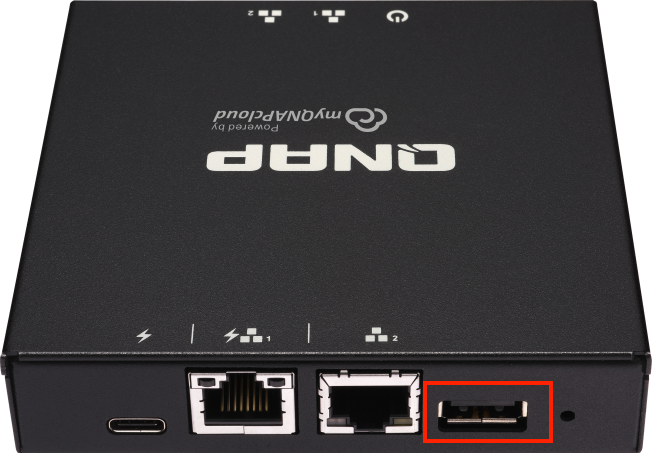
Upgrade QuWakeUp firmware from a USB storage device
- Download the latest firmware file for your device.
- Go to the QNAP Download Center.
- Select the Product Type QWU Wake on WAN Devices.
- Select your Model.
- Click the Global, USA, or Europe Download Link for the latest firmware file.
- Move the firmware file to the QWU folder on your USB storage device.
- Connect the USB storage device to your QuWakeUp device.
- Log in to QuWakeUp.
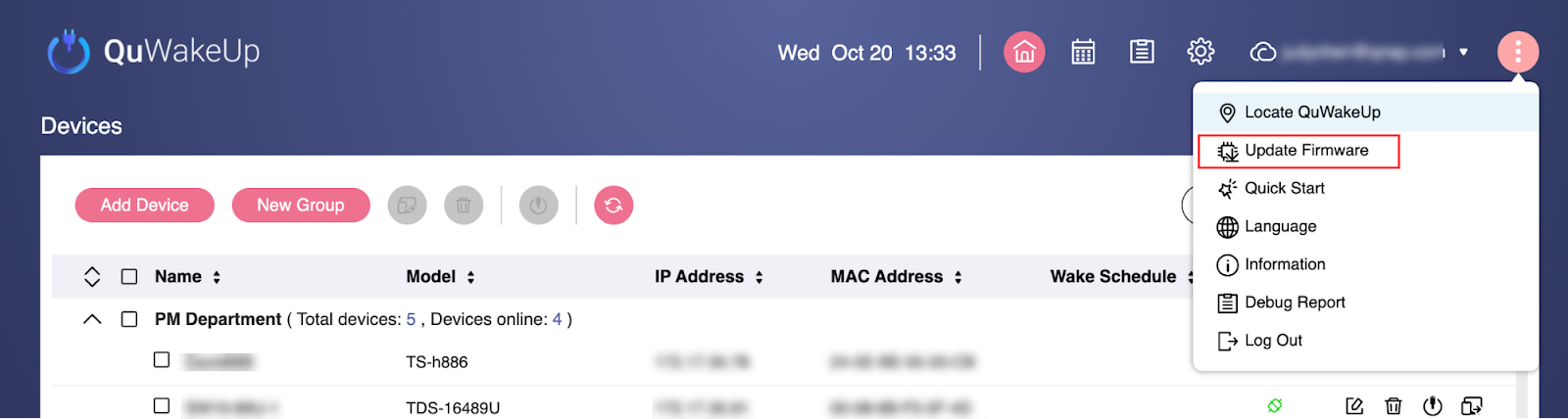
- Go to More > Update Firmware.
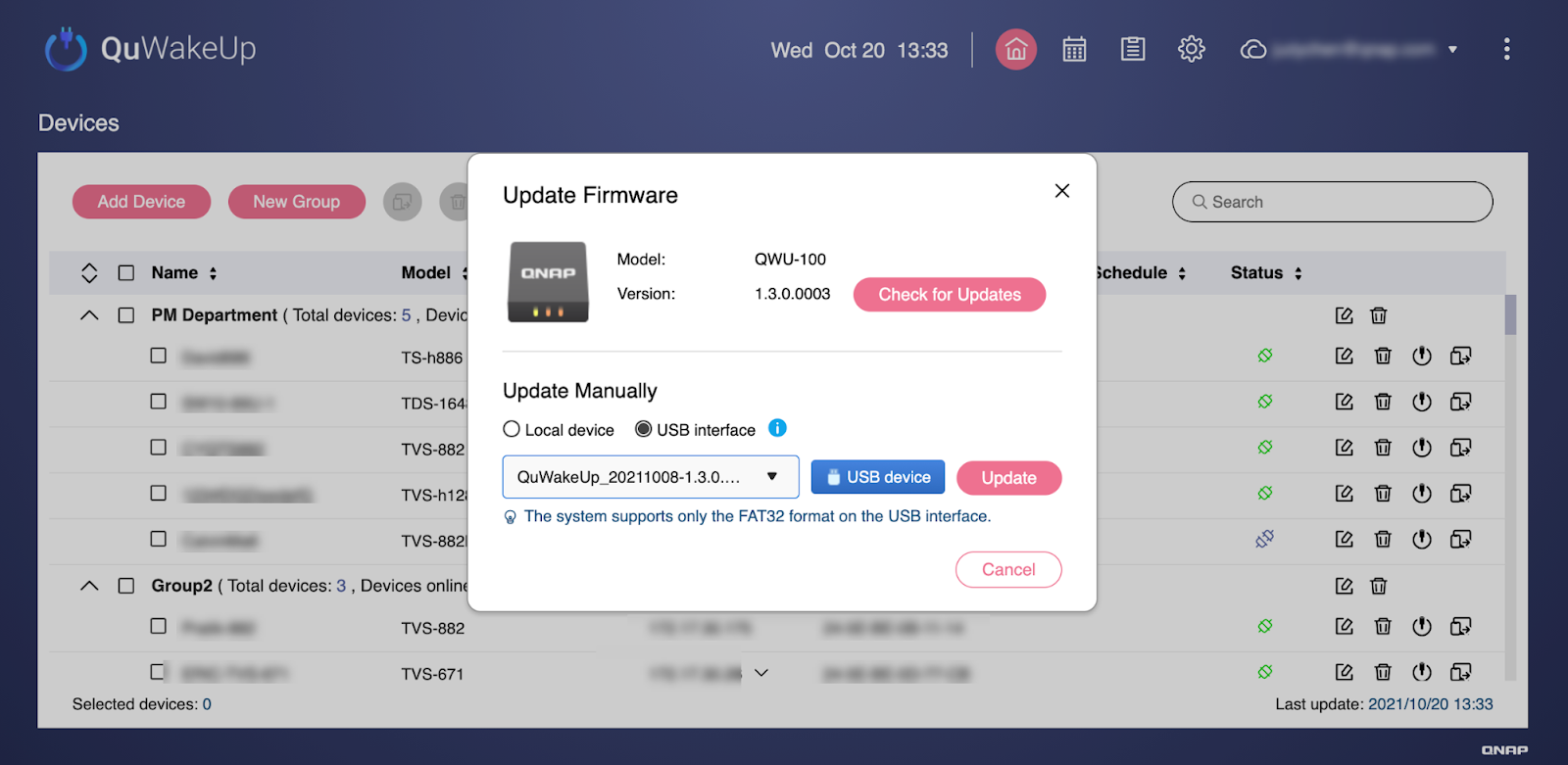
- Under Update Manually, select USB Interface and click USB device.
- Select the firmware file and click Update.
Save QuWakeUp debug reports to a USB storage device
- Log in to QuWakeUp.
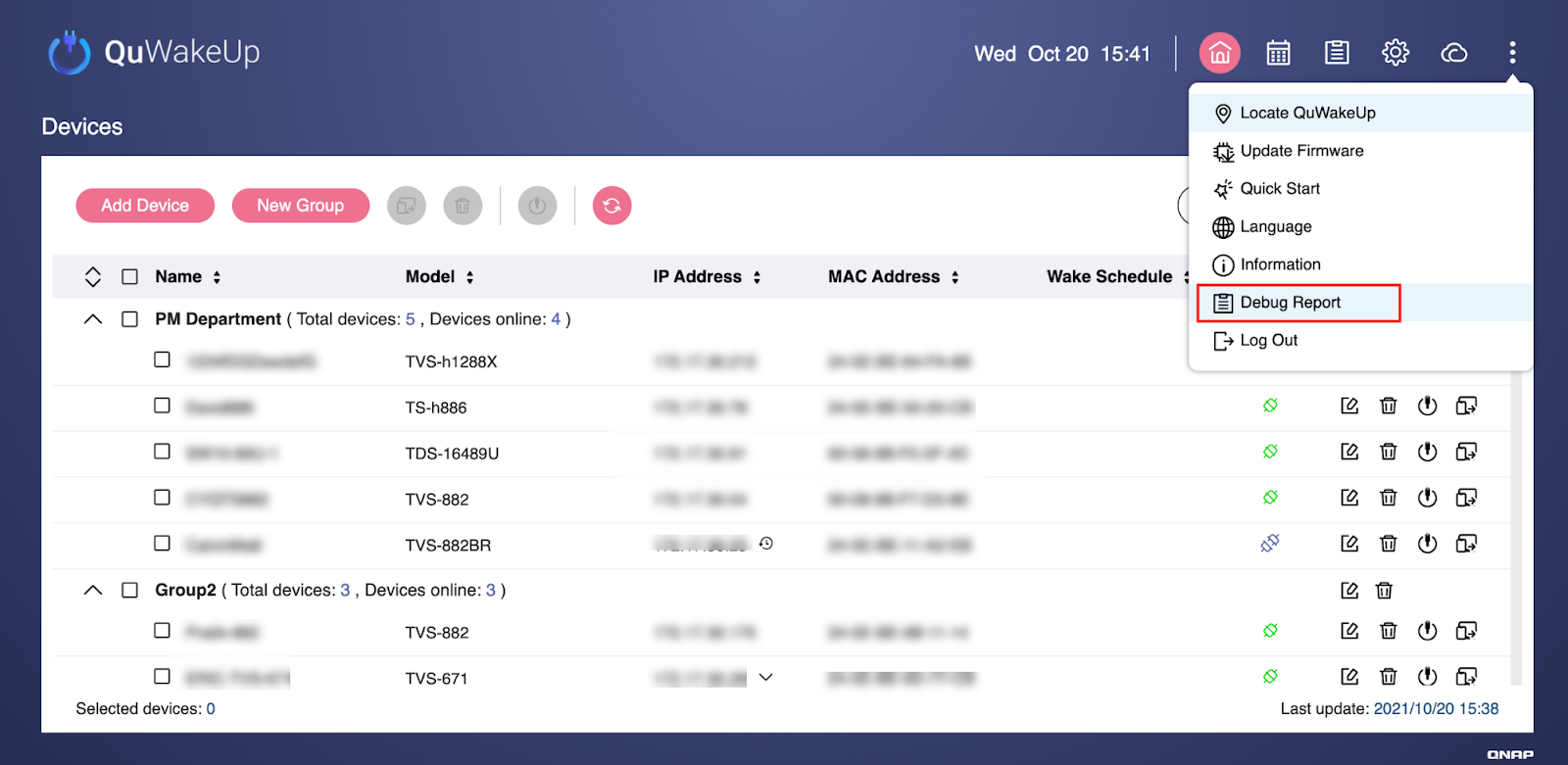
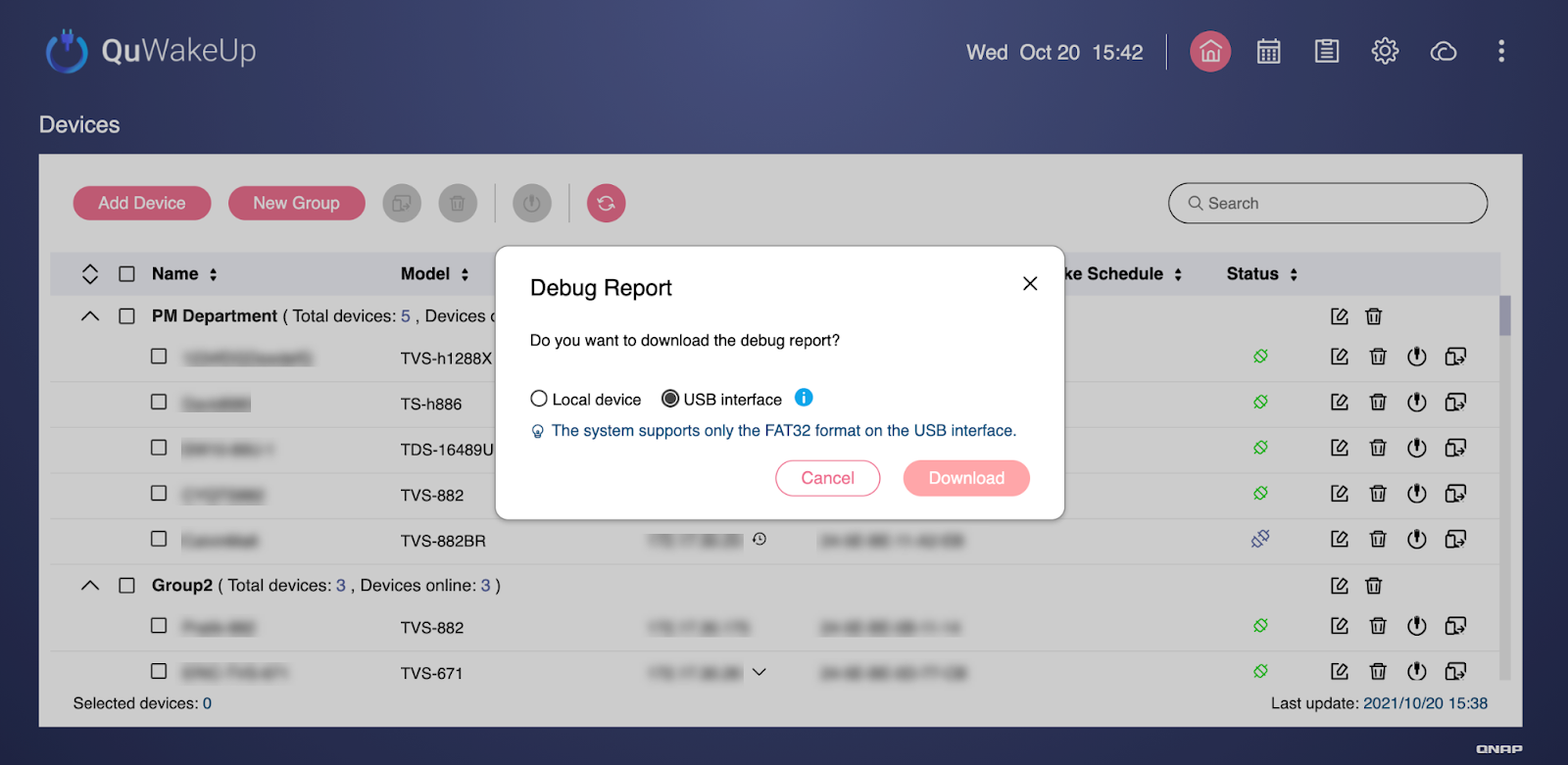
- Go to More > Debug Report.
- Select USB interface and click Download.
Back up QuWakeUp System Configuration files to a USB storage device
System Configuration files from earlier firmware versions cannot be restored.
You should back up your QuWakeUp System Configuration after updating your firmware.
QuWakeUp System Configuration files contain the following information.
- All devices listed on the QuWakeUp home page
- All manually added devices (including MAC address)
- Wake schedules
- Device Grouping
- System logs, Access logs, Unknown device list
- System Settings
- System administration
- Password
- Time
- Network configuration
- Notification
- Designated Devices
- Device Scan settings
Your QNAP ID or myQNAPcloud configuration is not included in the QuWakeUp System Configuration file.
After restoring a QuWakeUp System Configuration file, you must reconnect your QNAP ID with myQNAPcloud.
- Log in to QuWakeUp.
- Go to Settings > Backup and Restore.
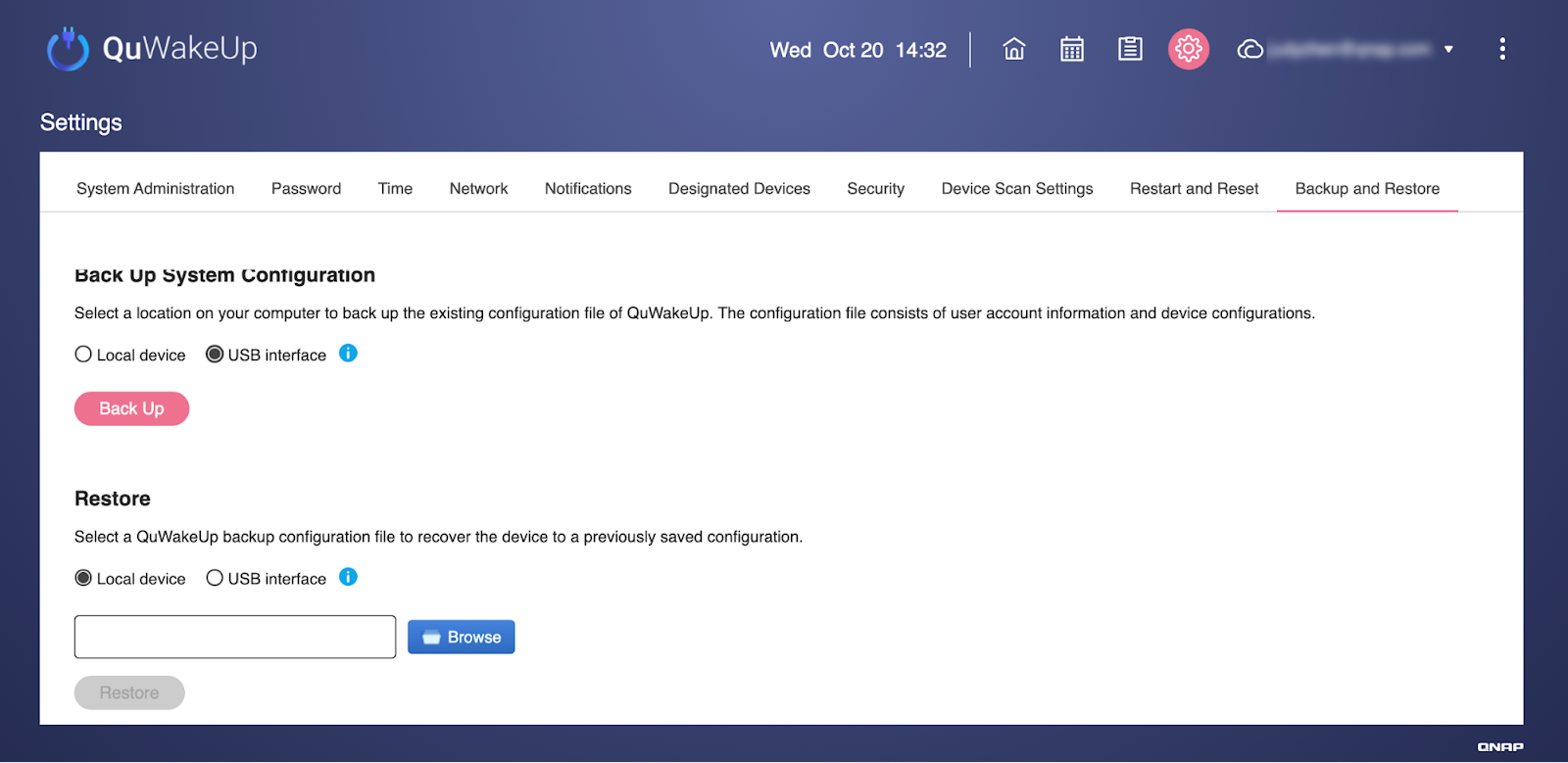
- Under Back Up System Configuration, select USB interface and click Back Up.
- Enter your QuWakeUp password and click OK.
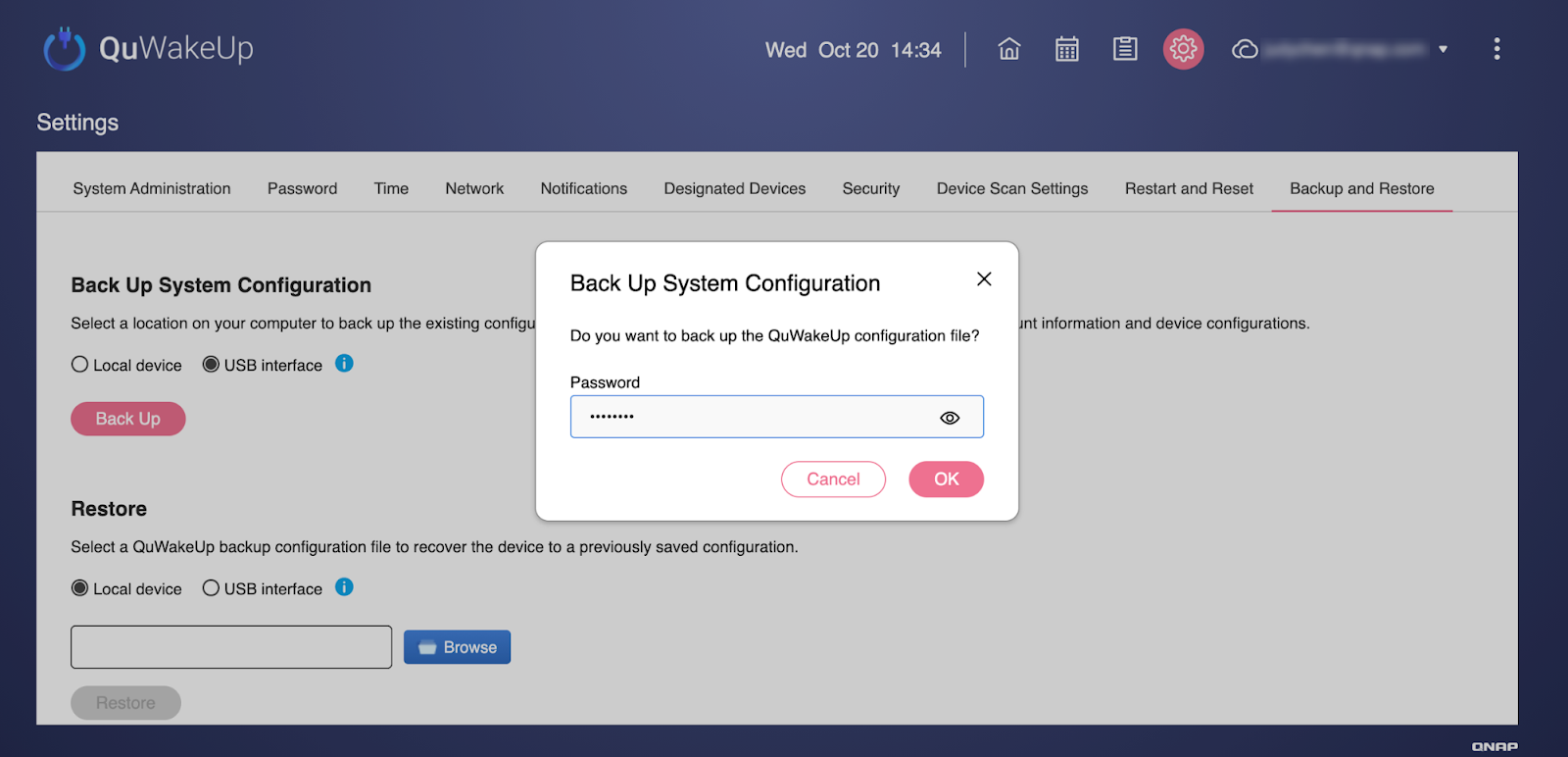
Do not rename the backup file. QuWakeUp only detects backup files that use the default naming format.
Restore QuWakeUp System Configuration from a USB storage device
System Configuration files from earlier firmware versions cannot be restored.
- Log in to QuWakeUp.
- Go to Settings > Backup and Restore.
- Under Restore, select USB interface and click USB device.
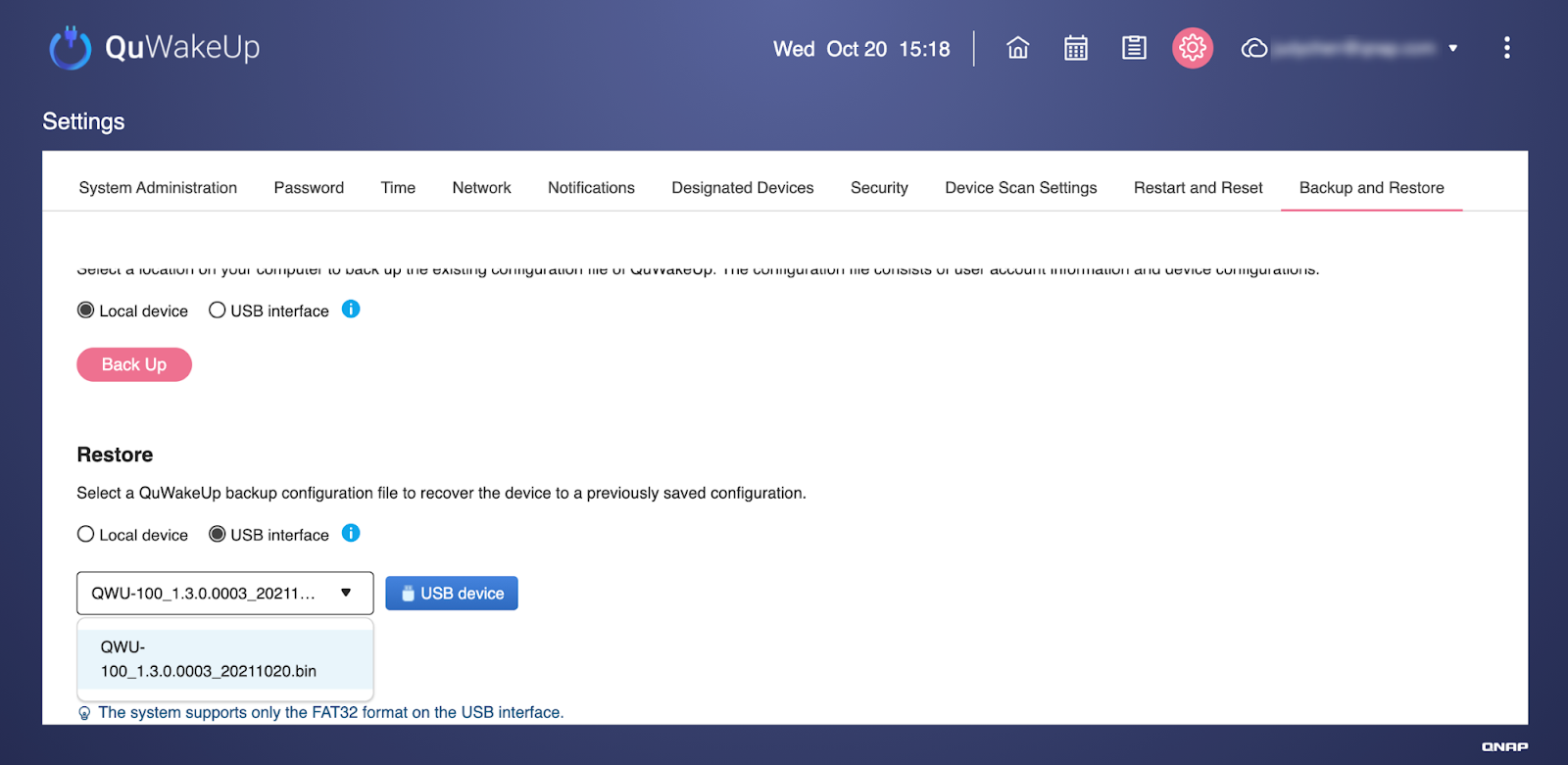
- Select a backup file and click Restore.
หากต้องการความช่วยเหลือเพิ่มเติม สอบถามผู้ใช้รายอื่นและผู้เชี่ยวชาญของ QNAP ได้ในคอมมูนิตี้ ไปที่ QNAP Community


