


How to use Qsync Client 6?
Applicable Products
Qsync Client is the Qsync computer application that lets you sync files and folders stored on your NAS with multiple client devices. Go to the QNAP Utilities to download Qsync for your client device.
This tutorial applies to Qsync Client 6.0.0 for Windows and Qsync Client 6.0.0 for Mac, as well as later versions.
(For the tutorial of earlier versions, refer to How to use Qsync Client?.)
Backup/Sync Task Startup Page
When setting up Qsync Client for the first time, you are prompted to choose your desired task type. A sync task allows you to create paired folders to keep your local folders and the NAS in sync. A backup task lets you specify local folders on your computer to be backed up to the NAS. For detailed instructions on how to create each type of task, refer to the "Creating a Sync Task" and "Creating a Backup Task" topics below.

Creating a Sync Task
- Open Qsync Client.
- Enter your NAS credentials to connect to your NAS.
- Click Add paired folders.
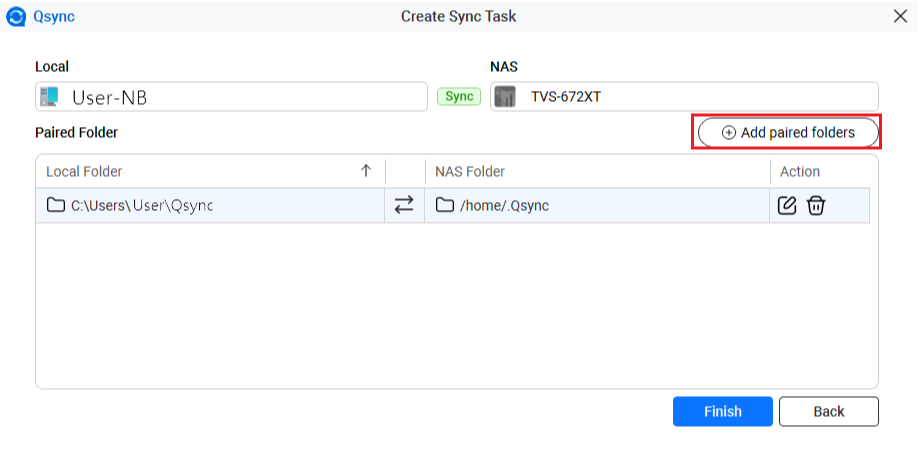
The Folder Pair Settings window appears.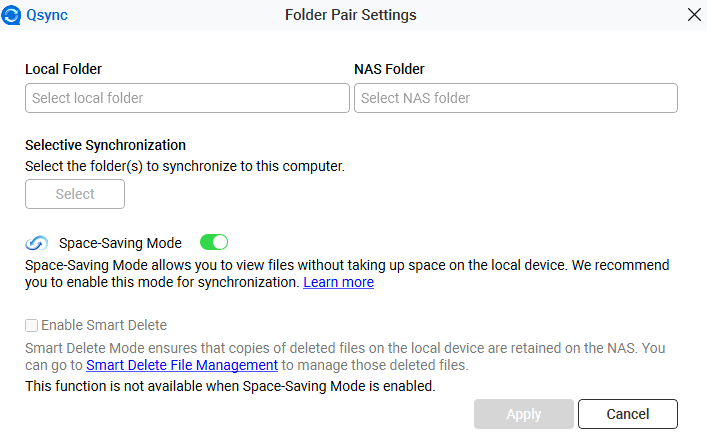
- Select your local folder and NAS folder.
- Click Apply.
Creating a Backup Task
- Open Qsync Client.
- Enter your NAS credentials to connect to your NAS.
- Select your local folder (backup source) and NAS folder (backup destination).
- Optional: Configure backup frequency.
- Click Settings.
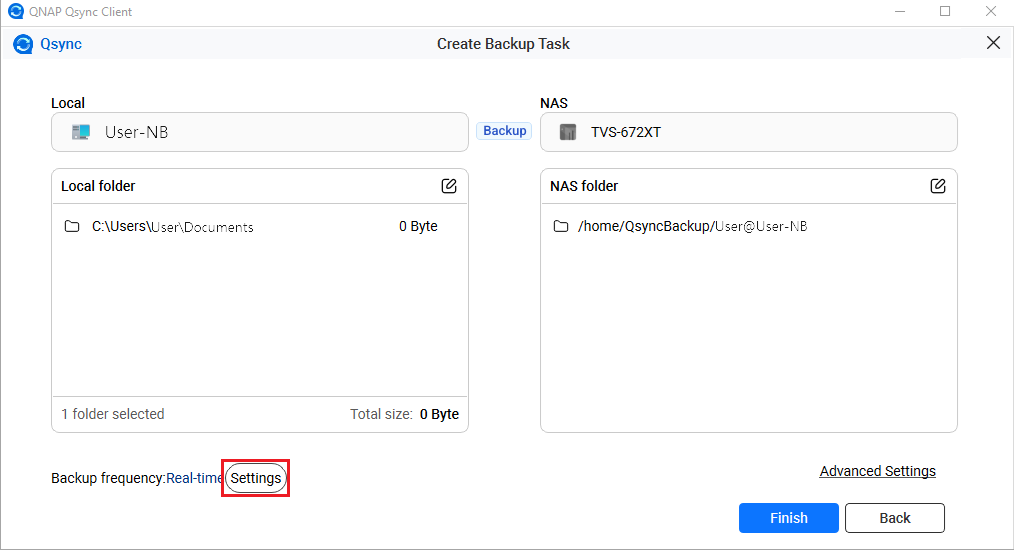 The Frequency Settings window opens.
- Select one of the following options.
- Real-time: Back up immediately whenever files are modified.
- Manual: Back up when you manually click the button.
- Scheduled: Back up on a defined schedule.
- Click Save.
- Click Settings.
Main Page
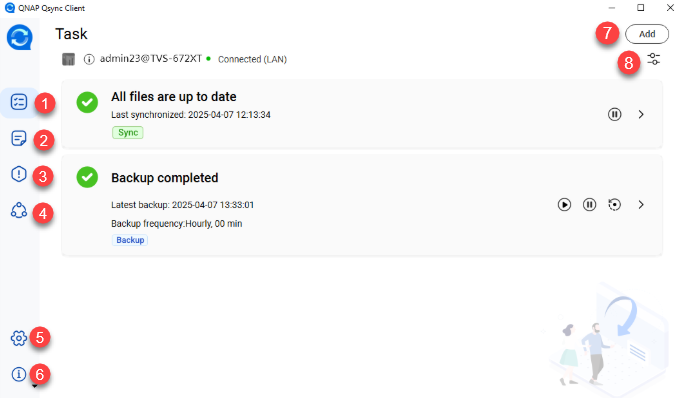
| No | Description | User Action |
|---|---|---|
| 1 | Displays the list of task statuses after a task is created. | Click  . For details, see the "Task List" section. . For details, see the "Task List" section. |
| 2 | Views the logs of updated files and folders. | Click  . For details, see the "File Update Center" section. . For details, see the "File Update Center" section. |
| 3 | Views the logs of failed files and folders for sync tasks and backup tasks. | Click  . For details, see the "Error List" section. . For details, see the "Error List" section. |
| 4 | Views team folders and share links. | Click  . For details, see the following topics in this tutorial. . For details, see the following topics in this tutorial.
|
| 5 |
Modifies Qsync Client settings. | Click  . For details, see the following topics in this tutorial. . For details, see the following topics in this tutorial.
|
| 6 | Provides a list of options to guide you through Qsync Client. |
|
| 7 | Adds a new backup or sync task. | Click Add. The Create Task window opens. |
| 8 | Manages the NAS connection. |
|
 .
.Modifying NAS Connection Settings
- Open Qsync Client.
- Click
 on the top right corner.
 - Select Edit Connection.
The Edit Connection window opens. - Modify any of the following information.
- Specify the NAS.
Method User Action Use IP address Specify the NAS IP address. TipIf the port used for the NAS connection changes, append the port number to the IP address. The default port number is 8080.Search via LAN NoteThis option is currently only available on Qsync for Windows and Ubuntu.- Click
 .
.
The Search NAS window opens. - Select the NAS from the list.
- Click Select.
Search via QID NoteThis option is currently available only on Qsync for Windows, Mac, and Ubuntu.- Click QNAP ID.
The Sign in to QNAP Account window opens. - Specify your email address and password.
- Click Sign in.
The Search NAS window opens. - Select the NAS from the list.
- Click Select.
- Click
- Specify a computer name in the Computer name field.Note
Your computer name can only include letters (A-Z, a-z), numbers (0-9), and hyphens (-). This name will appear on the list of devices in Qsync Central.
- Click OK.
A confirmation dialog appears. - Click Yes.
- Specify the NAS.
Qsync applies the changes and reconnects the device.
Task List
The Task List tab displays the status of each task and its most recent sync or backup timestamp.

| No | Description | User Action | |||||||||||||
|---|---|---|---|---|---|---|---|---|---|---|---|---|---|---|---|
| 1 | Displays the status of the sync task. | Refer to the table below for the meaning of each status.
| |||||||||||||
| 2 | Displays the status of the backup task. | Refer to the table below for the meaning of each status.
| |||||||||||||
| 3 | Indicates that the task is a sync task. | N/A | |||||||||||||
| 4 | Stops the sync task. | Click  . Icon changes to . Icon changes to  to indicate you can resume the task. to indicate you can resume the task. | |||||||||||||
| 5 | Manages the sync task. | Click  . .The Task/Sync task window opens. For details, see the "Task/Sync Task Page" topic. | |||||||||||||
| 6 | Indicates that the task is a backup task. | N/A | |||||||||||||
| 7 | Starts the backup task. | Click  . . | |||||||||||||
| 8 | Stops the backup task. | Click . | |||||||||||||
| 9 | Restores the files or folders. | Click  . .The Restore Files window opens. You can specify the date and time to restore your files to their previous versions. For details, see the "Restoring Files or Folders" topic below. | |||||||||||||
| 10 | Manges the backup task. | Click . The Task/Backup task window opens. For details, see the "Task/Backup Task Page" topic. |


Restoring Files or Folders
- On the Task List tab, Click in the backup task section.
The Restore Files window opens.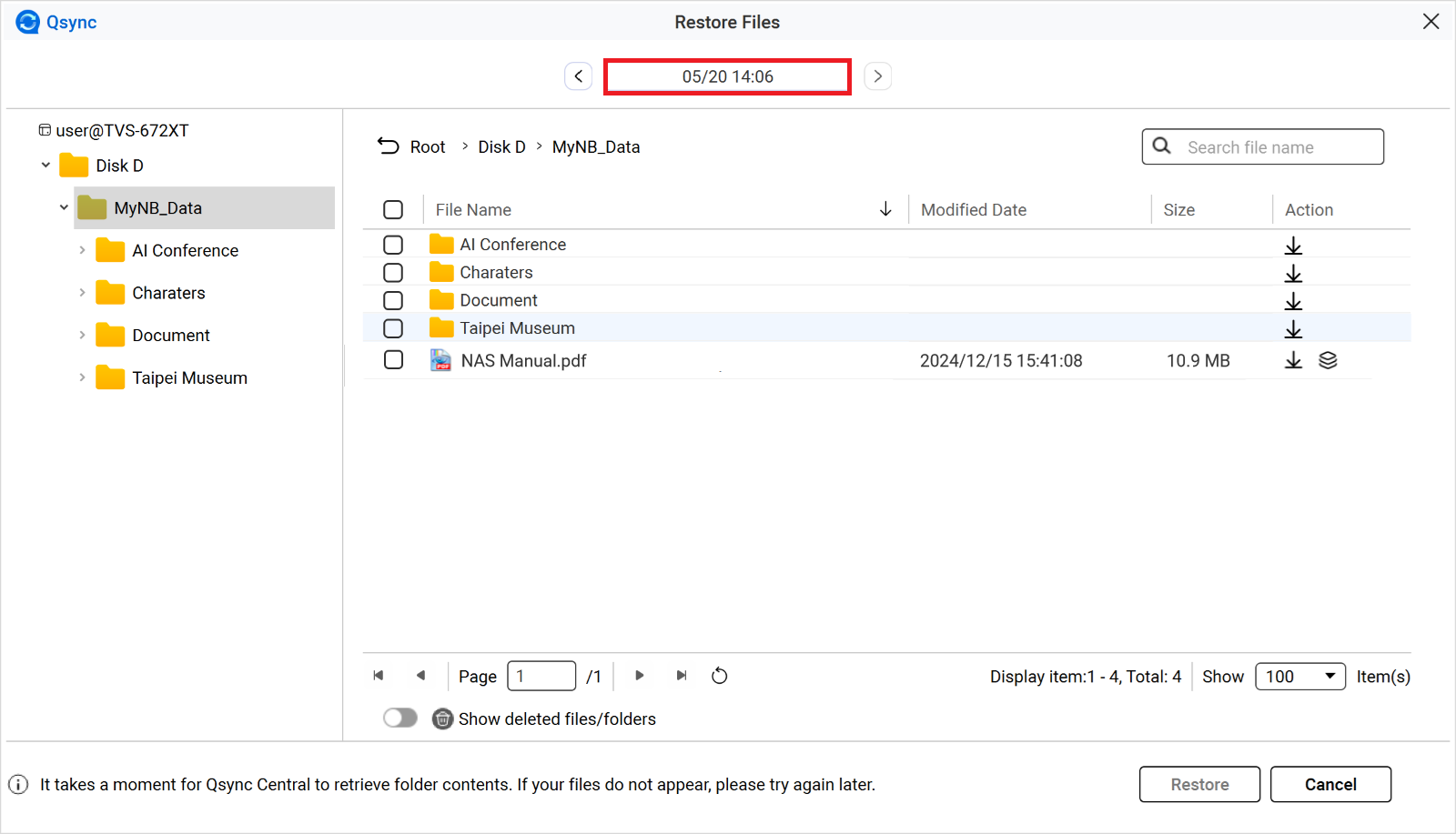
- Click the date/time button at the top center of the page.
A calendar appears. - Select the desired year, date, and time to which you want to restore your files.
- Click Apply.
- Select the files or folders that you wish to restore.
- Click Restore at the bottom right corner.
- Optional: Other Actions.
| No | Description | User Action |
|---|---|---|
 | Downloads the file or folder. |
|
 | Views previous versions. | Click |
 in the Action column.
 in the
 Task/Sync Task Page
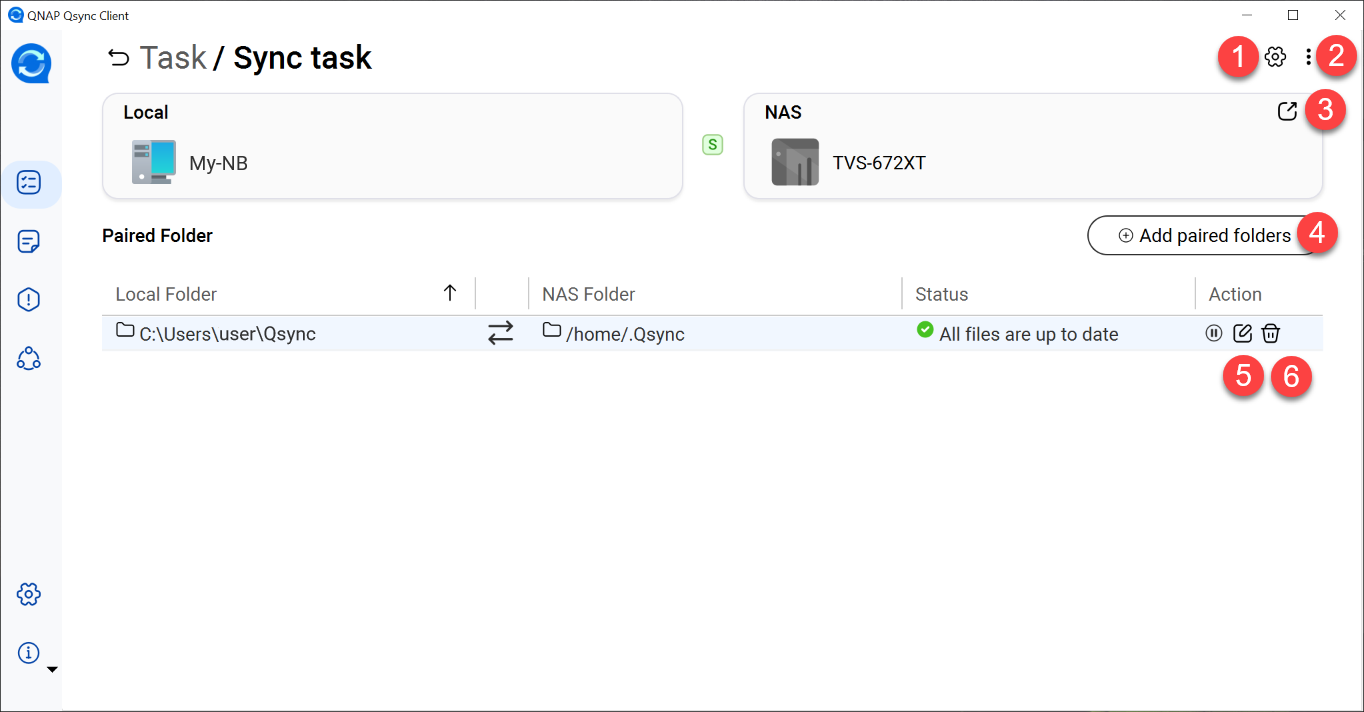
| No | Description | User Action |
|---|---|---|
| 1 | Configures synchronization behaviors. |
|
| 2 | Accesses additional synchronization management options. |
|
| 3 | Accesses the File Station web page. | Click  . .The File Station web page opens. |
| 4 | Adds paired folders. | Click Add paired folders. The Folder Pair Settings window opens. |
| 5 | Edits the paired folder. | Click  . .The Folder Pair Settings window opens. |
| 6 | Deletes the paired folder. |
|
 .
. .
. .
.Task/Backup Task Page
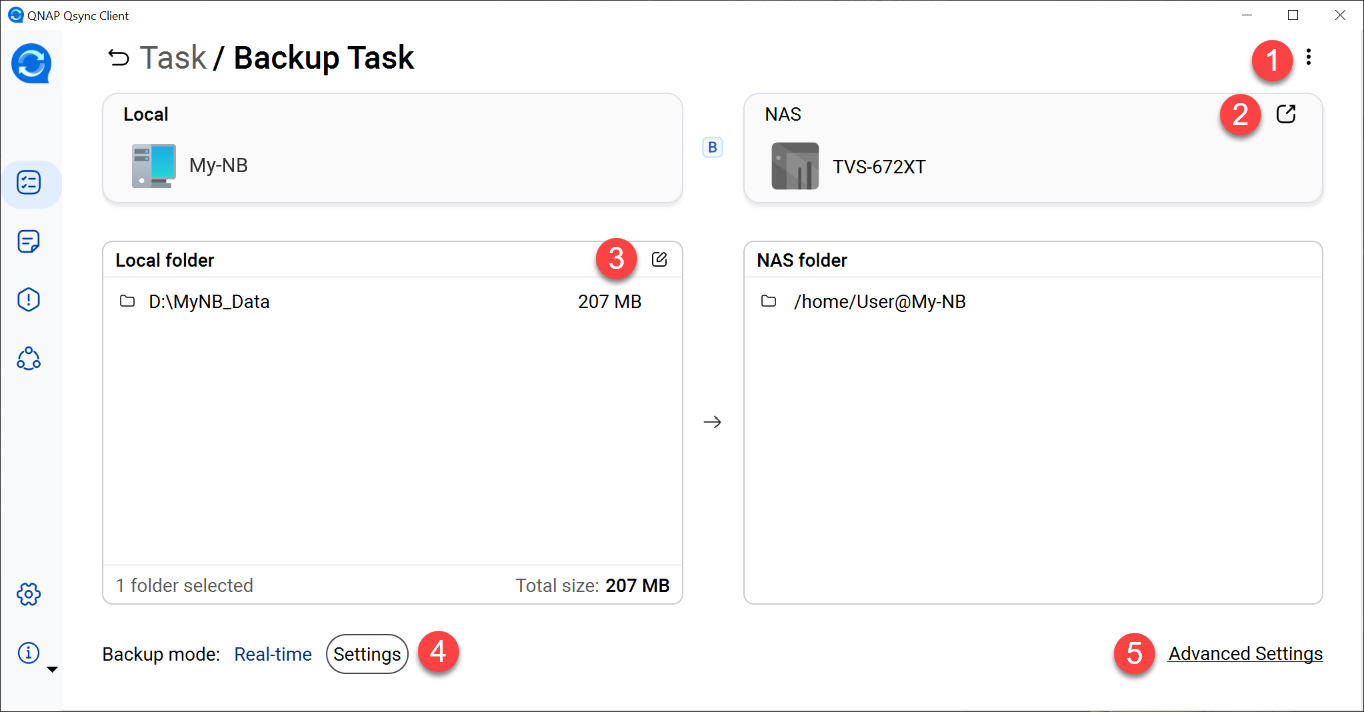
| No | Description | User Action |
|---|---|---|
| 1 | Deletes the backup task. |
|
| 2 | Accesses the Qsync Backup Folder on the File Station web page. | Click . The Qsync Backup Folder on the File Station web page opens. |
| 3 | Selects local folders. | Click . The Select local folder window opens. |
| 4 | Configures the backup frequency. |
|
| 5 | Defines what files or folders are excluded from backup. |
|
File Update Center
The File Update Center tab allows you to view all Qsync logs on the selected device. You can search by specific file name, sort logs according to activity, or clear the list of logs.
Error List
The Error List tab lists all files and folders that failed to sync or back up.
Sharing Center
The Sharing Center tab allows you to view and manage your team folders and share links.
Managing Team Folders
The Team Folder tab display the shared team folders that you have shared or that have been shared with you. You can choose to accept or reject the team folders other people have shared with you. For team folders that you have shared, you can either unshare it or modify user access. For details on sharing team folders, see this tutorial.
- Open Qsync Client.
- Click on the side menu.
- Click the icon in the Action column to perform a task listed below.
| Icon | Description | User Action |
|---|---|---|
 | Views the team folder information. |
|
 | Modifies the team folder users. |
|
 | Unshares the team folder. |
|
Managing Share Links
The Share Link tab displays the list of all share file and folder links. You can copy or delete a share link. For details on how to create a share link, see the QTS User Guide.
- Open Qsync Client.
- Click on the side menu.
- Go to the Share Link tab.
- Click an icon in the Action column to perform a task listed below.
| Icon | Description | User Action |
|---|---|---|
 | Copies a share link. |
|
 | Edits a share link. |
|
 | Deletes a share link. |
|
Settings
The Settings tab allows you to set modify your Qsync and NAS synchronization settings.
Configuring Proxy Settings
Proxy settings allow you to manually specify a proxy server or let Qsync automatically detect proxy settings.
- Open Qsync Client.
- Click on the side menu.
- Select one of the following options.
Option User Action No proxy Select No proxy if you don't want to use a proxy. Auto-detect We recommend selecting this option for Qsync to automatically detect the proxy.
- Select Auto-detect.
- Optional: Select Proxy server requires a password.
- Optional: Specify a username and passward.
Manual Select Manual to manually configure the proxy. - Select Manual.
- Specify a server IP address or URL.
- Specify the port.
- Optional: Select Proxy server requires a password.
- Optional: Specify a username and passward.
- Click Apply.
- Click OK.
Configuring Personal Settings
Personal settings allow you to set a preferred language and region, modify startup settings, and specify a default folder for automatic importing of photos and videos from USB devices.
- Open Qsync Client.
- Click on the side menu.
- Go to the Personal tab.
- Optional: Select Launch Qsync at startup.
- Select a language.
- Select a region.ImportantSelect the correct region to ensure better connectivity.
- Configure the photo and video import settings.
- Select Import photos and videos when there are USB external devices connected.
- Select the default folder to save the imported files.
- Click Apply.
- Click OK.
Configuring Advanced Settings
Advanced settings allow you to enable options like desktop notifications, debug logs, and LAN sync.
- Open Qsync Client.
- Click on the side menu.
- Go to the Advanced tab.
- Configure the settings.
| Option | Description | User Action |
|---|---|---|
| Enable debug log | Records all synchronization activities between the NAS and your client device. You can download the logs to diagnose technical issues yourself or send them to QNAP Helpdesk. Important Enabling this option may affect synchronization performance. | Select Enable debug log. Optional: Click Send Logs to download the logs or click Clear Logs to clear the current debug log. |
| Show desktop notifications | Sends desktop notifications for each Qsync activity. | Select Show desktop notifications. |
| Automatically check for updates | Checks automatically for and notify you of software updates. | Select Automatically check for updates. |
| Enable LAN sync | Transfers the latest versions of files and folders across other client devices on the same local area network (LAN). This increases synchronization efficiency. This feature is currently available only on Qsync for Windows and Mac. Important Only use LAN sync with Qsync Central versions 3.0.3 or later installed on QTS versions 4.3.4 or later. |
Note This NAS selection option is currently only available on Qsync for Windows. Tip To better secure your connection, enable Secure login in your NAS connection settings before enabling LAN sync. For details, see Modifying NAS Connection Settings. |
Freeing Up Space
- Open Qsync Client.
- Click on the side menu.
- Go to the Free up space tab.
- Configure the settings.
| Option | Description | User Action |
|---|---|---|
| Free up space automatically | Frees up space automatically based on selected criteria. |
|
| Free Up Space Now | Frees up space immediately. | Click Free Up Space Now. |
For further assistance, ask other users and QNAP experts in the community. Go to QNAP Community


