Applicable Products
- SSL Certificate
- myQNAPcloud
Overview
If you use a myQNAPcloud SSL certificate on your QNAP NAS, this article explains what is changing and what you need to do.
Your myQNAPcloud SSL certificate is issued by TWCA. To comply with international certificate standards, TWCA is updating its certificate infrastructure, and certificates issued under its old intermediate certificate stops being trusted on November 5, 2026 at 16:00 UTC (November 6, 2026 at 00:00 UTC+8).
What you need to do
Update the SSL Certificate app on your NAS to version 2.2.80 or later. After updating, a new certificate will be issued and installed automatically. No other action is needed.
If you do not update before the deadline, browsers will show a security warning, and services accessed through your myQNAPcloud domain may become unavailable.
This change does not affect the security of your NAS or your data, and there is no additional charge.
Frequently Asked Questions
Is my NAS affected by the TWCA intermediate certificate revocation?
Your NAS is affected if it uses a myQNAPcloud SSL certificate that:
- was purchased from QNAP for a domain such as
xxxx.myqnapcloud.com or xxxx.mycloudnas.com, and - was issued before November 1, 2026, 00:00 UTC.
The following certificates are not affected:
- Let's Encrypt certificates
- Certificates you uploaded yourself
- The default self-signed certificate on the NAS
To check your certificate, see How do I check in my browser whether my myQNAPcloud SSL certificate is new or old?
Which version of the SSL Certificate app do I need?
Update the SSL Certificate app to version 2.2.80 or later. The update is available for QTS, QuTS hero, QuTScloud, and QVP.
- Log in to your NAS.
- Open App Center.
- Find SSL Certificate.
- Click Update.
After I update the SSL Certificate app, how long does it take to get the new certificate?
After the update, your NAS automatically requests and installs a new certificate within 0 to 4 hours. You do not need to do anything else.
The wait time is random, so that many devices do not send requests to the certificate authority at the same time.
- Keep your NAS connected to the Internet during this time.
- When the new certificate is installed, web connections to the NAS may drop for a few seconds. This is normal.
If you need the certificate replaced urgently, contact QNAP Customer Service.
Why wasn't my myQNAPcloud SSL certificate replaced after I updated the SSL Certificate app?
The certificate is not replaced automatically in the following cases:
| Cause | Action |
|---|
| Your myQNAPcloud SSL license has expired. | Renew the license. |
| Your license has been moved to another NAS. | Make sure the license is assigned to this NAS. |
| Your NAS is not connected to the Internet. | Connect the NAS to the Internet and wait up to 4 hours. |
| The SSL Certificate app is older than version 2.2.80. | Check the version in App Center and update the app. |
If none of these apply and more than 4 hours have passed since the update, contact QNAP Customer Service.
How do I check in my browser whether my myQNAPcloud SSL certificate is new or old?
You can check two things in the certificate details:
| New certificate | Old certificate |
|---|
| Issue date | November 1, 2026, 00:00 UTC or later | Before November 1, 2026, 00:00 UTC |
| Authority Key Identifier (optional) | Starts with 93:44:9A:89 | Starts with F2:28:D4:F9 or 92:E7:FA:62 |
Checking the issue date is enough for most users. The Authority Key Identifier is a more precise check.
Before you start
- Open your NAS using your myQNAPcloud domain, for example
https://yourname.myqnapcloud.com. If you open it with an IP address, the browser shows a different certificate. - Use a private or incognito window, so the browser shows the certificate your NAS is using now.
Google Chrome or Microsoft Edge
- Open a new incognito window (Edge: InPrivate window). Press Ctrl+Shift+N on Windows, or Command+Shift+N on macOS.
- Enter your myQNAPcloud domain in the address bar, for example
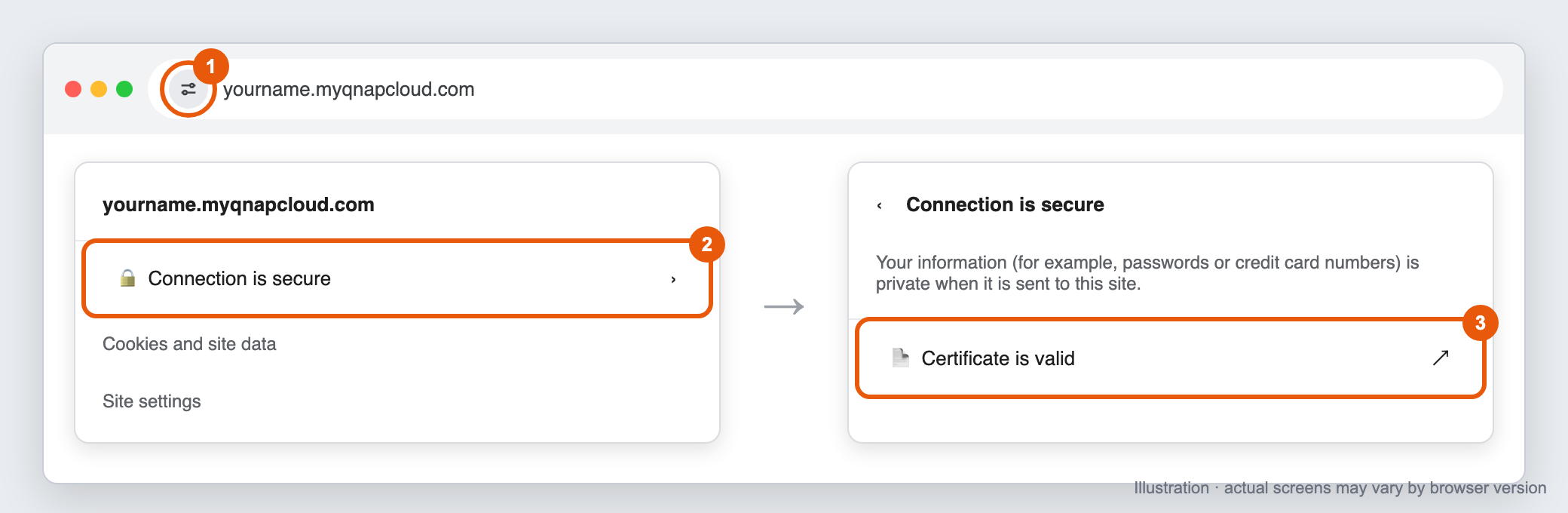
https://yourname.myqnapcloud.com, and press Enter. - Click the icon on the left side of the address bar. Depending on the version, it looks like two sliders or a lock. If the address bar shows Not secure, click that instead.
- Click Connection is secure (or Your connection to this site isn't secure).
- Click Certificate is valid (or Certificate is not valid). In Edge, click the certificate icon in the upper-right corner of the panel.
Chrome: click the site information icon, then Connection is secure, then Certificate is valid
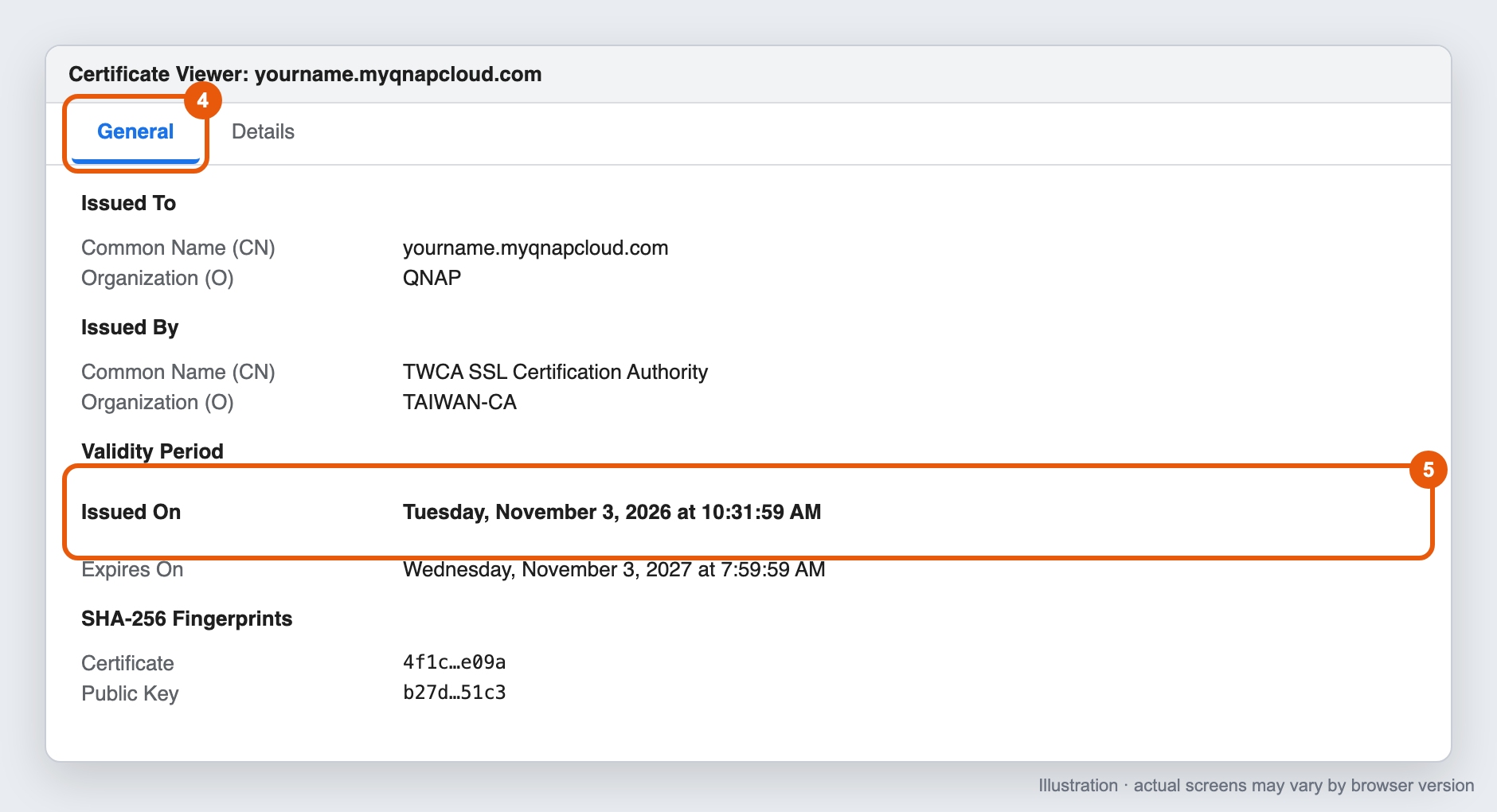
- The Certificate Viewer window opens. On the General tab, find Validity Period and check the Issued On date.
Chrome Certificate Viewer, General tab, showing the Issued On date under Validity Period
Optional: check the Authority Key Identifier
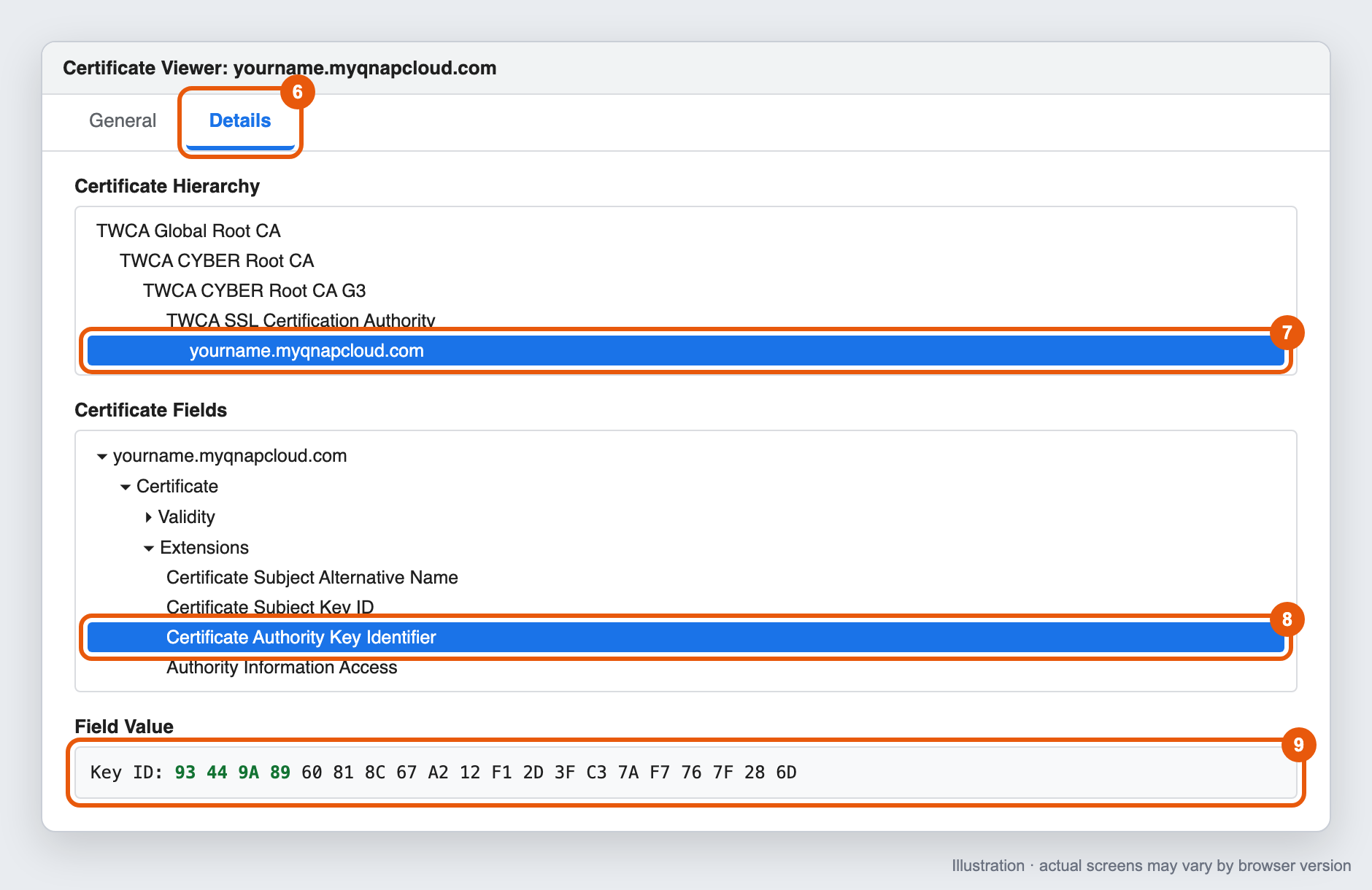
- In the Certificate Viewer, click the Details tab.
- Under Certificate Hierarchy, select the last item (your myQNAPcloud domain).
- Under Certificate Fields, expand Extensions and select Certificate Authority Key Identifier.
- Check the value under Field Value, for example
Key ID: 93 44 9A 89 ....
Chrome Certificate Viewer, Details tab, showing the Certificate Authority Key Identifier value
Mozilla Firefox
- Open a new private window. Press Ctrl+Shift+P on Windows, or Command+Shift+P on macOS.
- Enter your myQNAPcloud domain in the address bar and press Enter.
- Click the lock icon on the left side of the address bar.
- Click Connection secure (or Connection not secure), then click More information.
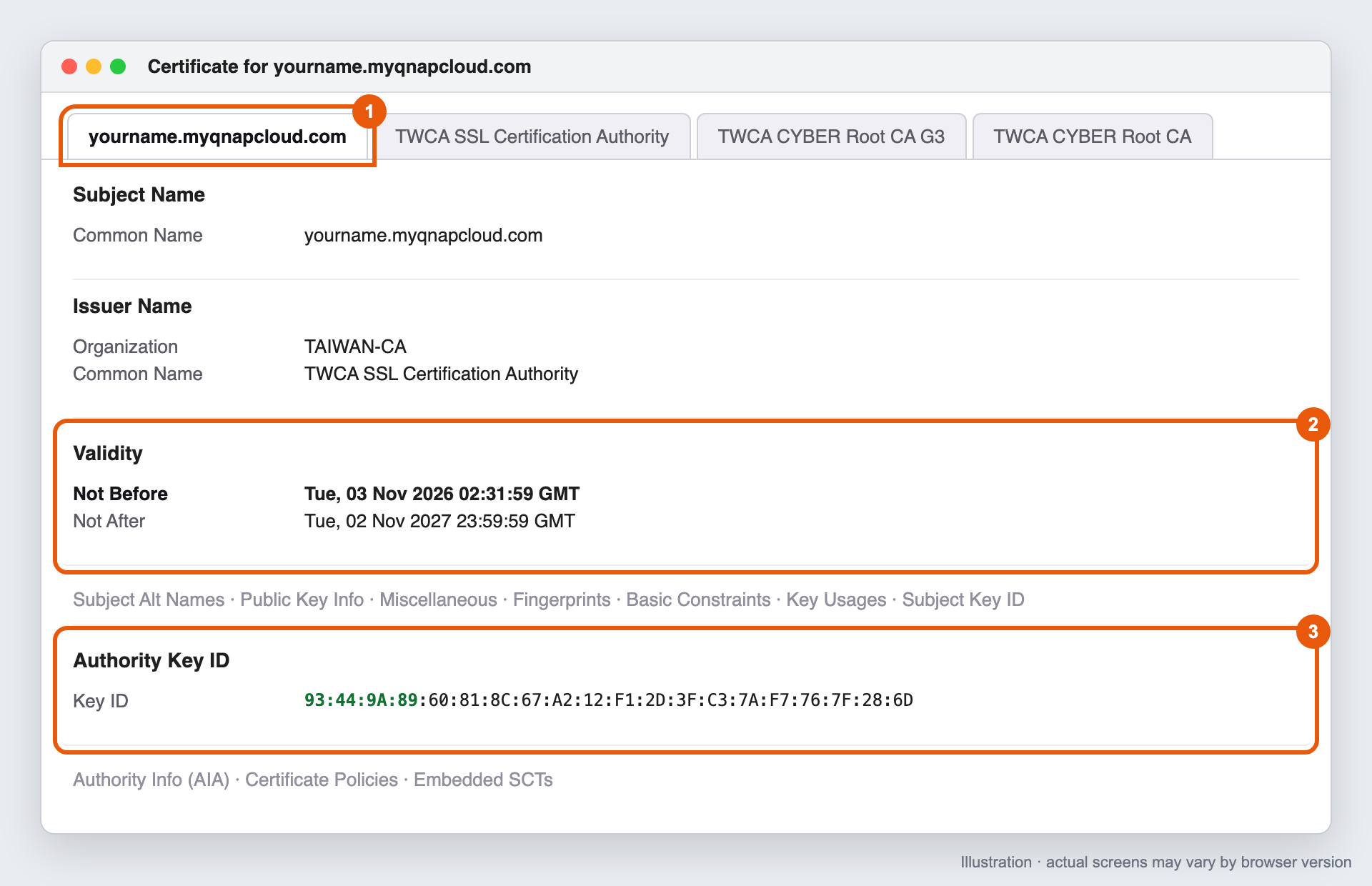
- In the Page Info window, on the Security tab, click View Certificate. A new browser tab opens. Each certificate in the chain has its own tab at the top of the page.
- Make sure the first tab (your myQNAPcloud domain) is selected.
- Under Validity, check the Not Before date.
- Optional: scroll down to Authority Key ID and check the Key ID value.
Firefox certificate page, showing Not Before under Validity and the Authority Key ID
Safari (macOS)
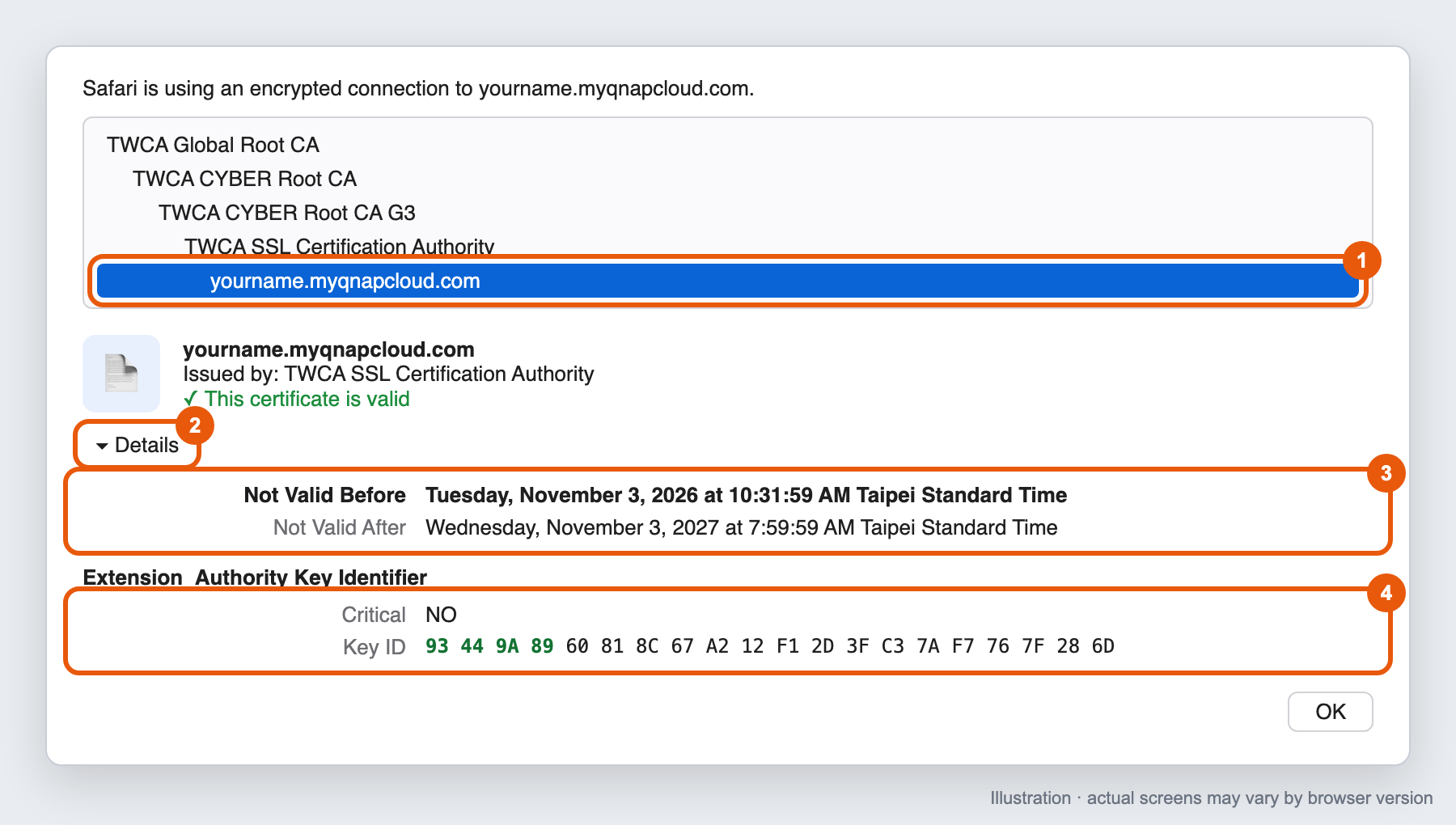
- Open a new private window. Choose File > New Private Window, or press Shift+Command+N.
- Enter your myQNAPcloud domain in the address bar and press Return.
- Click the lock icon in the address bar, then click Show Certificate.
- In the certificate list, select the last item (your myQNAPcloud domain).
- Click the arrow next to Details to expand it.
- Check the Not Valid Before date.
- Optional: scroll down to Authority Key Identifier and check the Key ID value.
Safari certificate window, showing Not Valid Before and the Authority Key Identifier
What the results mean
| What you see | What to do |
|---|
| Issue date is November 1, 2026, 00:00 UTC or later | Your certificate has been replaced. No action needed. |
| Issue date is before November 1, 2026, 00:00 UTC, and you have not updated the app | Update the SSL Certificate app to version 2.2.80 or later. |
| Issue date is before November 1, 2026, 00:00 UTC, and you updated the app less than 4 hours ago | Wait up to 4 hours, then close all private windows, open a new one, and check again. |
| Issue date is before November 1, 2026, 00:00 UTC, and you updated the app more than 4 hours ago | See Why wasn't my myQNAPcloud SSL certificate replaced after I updated the SSL Certificate app? |
Note
- The cut-off is November 1, 2026, 00:00 UTC. Browsers show the date in your computer's time zone, so the cut-off appears differently depending on where you are. For example, it is November 1, 08:00 in Taiwan (UTC+8) and October 31, 20:00 in New York (UTC-4). If the date shown is close to the cut-off, also check the Authority Key Identifier.
- The old and new intermediate certificates can have the same name, such as TWCA SSL Certification Authority. Do not use the issuer name to decide whether your certificate is new or old.
Are myQNAPcloud SSL certificates purchased after November 1, 2026, 00:00 UTC affected by this change?
No. myQNAPcloud SSL certificates issued on or after November 1, 2026, 00:00 UTC are issued under TWCA's new intermediate certificate and are not affected by the revocation.
We still recommend updating the SSL Certificate app to version 2.2.80 or later, so that your NAS installs the complete certificate chain and all apps can connect normally.
What happens if I update the SSL Certificate app after November 5, 2026, 16:00 UTC?
You can still update the app after the deadline. After the update, your NAS replaces the certificate automatically within 0 to 4 hours.
Until the new certificate is installed:
- Browsers will show a security warning when you connect to your NAS through your myQNAPcloud domain.
- Qfile, Qsync, and other apps that connect through your myQNAPcloud domain may fail to connect.
To avoid these problems, update before the deadline.
적용되는 제품
- SSL Certificate
- myQNAPcloud
개요
QNAP NAS에서 myQNAPcloud SSL 인증서를 사용하는 경우, 이 문서는 변경 사항과 필요한 조치를 설명합니다.
귀하의 myQNAPcloud SSL 인증서는 TWCA에서 발급합니다. 국제 인증서 표준을 준수하기 위해 TWCA는 인증서 인프라를 업데이트하고 있으며, 이전 중간 인증서로 발급된 인증서는2026년 11월 5일 16:00 UTC (2026년 11월 6일 00:00 UTC+8)에 신뢰를 잃게 됩니다.
필요한 조치
NAS에서SSL 인증서앱을 버전2.2.80이상으로 업데이트하십시오. 업데이트 후, 새로운 인증서가 자동으로 발급 및 설치됩니다. 다른 조치는 필요하지 않습니다.
마감일 전에 업데이트하지 않으면 브라우저에서 보안 경고가 표시되며, myQNAPcloud 도메인을 통해 액세스하는 서비스가 사용할 수 없게 될 수 있습니다.
이 변경은 NAS나 데이터의 보안에 영향을 미치지 않으며, 추가 비용도 없습니다.
자주 묻는 질문
내 NAS가 TWCA 중간 인증서 폐지의 영향을 받습니까?
다음과 같은 myQNAPcloud SSL 인증서를 사용하는 경우 NAS가 영향을 받습니다:
xxxx.myqnapcloud.com또는xxxx.mycloudnas.com와 같은 도메인에 대해 QNAP에서 구매한 경우,- 2026년 11월 1일 00:00 UTC 이전에 발급된 경우.
다음 인증서는해당되지 않습니다:
- Let's Encrypt 인증서
- 직접 업로드한 인증서
- NAS의 기본 자체 서명된 인증서
인증서를 확인하려면브라우저에서 내 myQNAPcloud SSL 인증서가 새로운 것인지 오래된 것인지 어떻게 확인합니까?을 참조하십시오.
어떤 버전의 SSL Certificate 앱이 필요합니까?
SSL Certificate앱을버전 2.2.80 이상으로 업데이트하십시오. 이 업데이트는 QTS, QuTS hero, QuTScloud 및 QVP에서 사용할 수 있습니다.
- NAS에 로그인합니다.
- App Center을 엽니다.
- SSL Certificate을 찾습니다.
- Update를 클릭합니다.
SSL Certificate 앱을 업데이트한 후 새 인증서를 받는 데 얼마나 걸립니까?
업데이트 후, NAS는 자동으로 새 인증서를 요청하고 설치합니다0에서 4시간 이내에. 추가로 할 필요가 없습니다.
대기 시간은 무작위로 설정되어 많은 장치가 동시에 인증 기관에 요청을 보내지 않도록 합니다.
- 이 시간 동안 NAS를 인터넷에 연결된 상태로 유지하십시오.
- 새 인증서가 설치되면 NAS에 대한 웹 연결이 몇 초 동안 끊길 수 있습니다. 이는 정상입니다.
인증서 교체가 긴급한 경우, QNAP 고객 서비스에 문의하십시오.
SSL Certificate 앱을 업데이트한 후에도 myQNAPcloud SSL 인증서가 교체되지 않은 이유는 무엇입니까?
다음 경우에는 인증서가 자동으로 교체되지 않습니다:
| 원인 | 조치 |
|---|
| myQNAPcloud SSL 라이선스이 만료되었습니다. | 라이선스을 갱신하십시오. |
| 라이선스이 다른 NAS로 이동되었습니다. | 라이선스이 이 NAS에 할당되어 있는지 확인하십시오. |
| NAS가 인터넷에 연결되어 있지 않습니다. | NAS를 인터넷에 연결하고 최대 4시간 기다리십시오. |
| SSL Certificate 앱이 버전 2.2.80보다 오래되었습니다. | App Center에서 버전을 확인하고 앱을 업데이트하십시오. |
이 중 어느 것도 해당되지 않고 업데이트 후 4시간 이상이 경과한 경우QNAP 고객 서비스에 문의하십시오.
브라우저에서 내 myQNAPcloud SSL 인증서가 새로운 것인지 오래된 것인지 어떻게 확인합니까?
인증서 세부 정보에서 두 가지를 확인할 수 있습니다:
| 새 인증서 | 오래된 인증서 |
|---|
| 발급일 | 2026년 11월 1일 00:00 UTC 이후 | 2026년 11월 1일 00:00 UTC 이전 |
| Authority Key Identifier (선택 사항) | 93:44:9A:89로 시작 | F2:28:D4:F9또는92:E7:FA:62로 시작 |
대부분의 사용자에게는 발급일을 확인하는 것으로 충분합니다. Authority Key Identifier는 더 정확한 확인 방법입니다.
시작하기 전에
- myQNAPcloud 도메인을 사용하여 NAS를 엽니다. 예를 들어
https://yourname.myqnapcloud.com. IP 주소로 열면 브라우저가 다른 인증서를 표시합니다. - 브라우저가 현재 NAS에서 사용하는 인증서를 표시하도록개인 또는 시크릿 창을 사용하십시오.
Google Chrome 또는 Microsoft 엣지
- 새 시크릿 창(엣지: InPrivate 창)을 엽니다. Windows에서는Ctrl+Shift+N을, macOS에서는Command+Shift+N을 누르십시오.
- 주소 표시줄에 myQNAPcloud 도메인을 입력합니다. 예를 들어
https://yourname.myqnapcloud.com을 입력하고Enter키를 누릅니다. - 주소 표시줄 왼쪽에 있는 아이콘을 클릭합니다. 버전에 따라 두 개의 슬라이더 또는 자물쇠 모양일 수 있습니다. 주소 표시줄에보안되지 않음이 표시되면 대신 그것을 클릭합니다.
- 연결이 안전함을 클릭합니다 (또는이 사이트와의 연결이 안전하지 않음을 클릭합니다).
- 인증서가 유효함을 클릭합니다 (또는인증서가 유효하지 않음을 클릭합니다). 엣지에서 패널의 오른쪽 상단에 있는 인증서 아이콘을 클릭합니다.
Chrome: 사이트 정보 아이콘을 클릭한 다음 연결이 안전함을 클릭하고, 인증서가 유효함을 클릭합니다.
- 인증서 뷰어창이 열립니다. 일반탭에서유효 기간을 찾아발급일을 확인합니다.
Chrome 인증서 뷰어, 일반 탭, 유효 기간 아래에 발급일 표시
선택 사항: 권한 키 식별자를 확인합니다.
- 인증서 뷰어에서세부 정보탭을 클릭합니다.
- 인증서 계층아래에서 마지막 항목(귀하의 myQNAPcloud 도메인)을 선택합니다.
- 인증서 필드아래에서확장을 확장하고인증 기관 키 식별자를 선택합니다.
- 필드 값아래의 값을 확인합니다. 예를 들어
Key ID: 93 44 9A 89 ....
Chrome 인증서 뷰어, 세부 정보 탭, 인증 기관 키 식별자 값 표시
Mozilla Firefox
- 새 개인 창을 엽니다. Windows에서는Ctrl+Shift+P를, macOS에서는Command+Shift+P를 누릅니다.
- 주소 표시줄에 myQNAPcloud 도메인을 입력하고Enter를 누릅니다.
- 주소 표시줄 왼쪽에 있는 잠금 아이콘을 클릭합니다.
- Connection secure(또는Connection not secure)을 클릭한 다음More information을 클릭합니다.
- Page Info창의Security탭에서View Certificate를 클릭합니다. 새 브라우저 탭이 열립니다. 체인의 각 인증서는 페이지 상단에 자체 탭을 가지고 있습니다.
- 첫 번째 탭(myQNAPcloud 도메인)이 선택되어 있는지 확인합니다.
- Validity아래에서Not Before날짜를 확인합니다.
- 선택 사항: Authority Key ID로 스크롤하여Key ID값을 확인합니다.
Firefox 인증서 페이지, Validity 아래에Not Before와 Authority Key ID를 표시합니다
Safari(macOS)
- 새 개인 창을 엽니다. File > New Private Window를 선택하거나Shift+Command+N를 누릅니다.
- 주소 표시줄에 myQNAPcloud 도메인을 입력하고Return을 누릅니다.
- 주소 표시줄의 자물쇠 아이콘을 클릭한 다음Show Certificate를 클릭합니다.
- 인증서 목록에서 마지막 항목(myQNAPcloud 도메인)을 선택합니다.
- Details옆의 화살표를 클릭하여 확장합니다.
- Not Valid Before날짜를 확인합니다.
- 선택 사항: 아래로 스크롤하여Authority Key Identifier를 확인하고Key ID값을 확인합니다.
Safari 인증서 창, Not Valid Before 및 Authority Key Identifier 표시
결과의 의미
| 보이는 것 | 해야 할 일 |
|---|
| 발급일이 2026년 11월 1일 00:00 UTC 이후입니다. | 인증서가 교체되었습니다. 아무 작업도 필요하지 않습니다. |
| 발급일이 2026년 11월 1일 00:00 UTC 이전이며 앱을 업데이트하지 않았습니다. | SSL Certificate 앱을 버전 2.2.80 이상으로 업데이트합니다. |
| 발급일이 2026년 11월 1일 00:00 UTC 이전이며 앱을 업데이트한 지 4시간이 지나지 않았습니다. | 최대 4시간 기다린 후 모든 개인 창을 닫고 새 창을 열어 다시 확인합니다. |
| 발급일이 2026년 11월 1일 00:00 UTC 이전이며 앱을 업데이트한 지 4시간 이상 지났습니다. | SSL Certificate 앱을 업데이트한 후에 내 myQNAPcloud SSL 인증서가 교체되지 않은 이유는 무엇입니까?을 참조하십시오. |
참고
- 마감일은2026년 11월 1일 00:00 UTC입니다. 브라우저는 컴퓨터의 시간대에 따라 날짜를 표시하므로, 위치에 따라 마감일이 다르게 나타납니다. 예를 들어, 대만(UTC+8)에서는 11월 1일 08:00이고, 뉴욕(UTC-4)에서는 10월 31일 20:00입니다. 표시된 날짜가 마감일에 가까운 경우, Authority Key Identifier도 확인하십시오.
- 기존 및 새로운 중간 인증서는TWCA SSL Certification Authority와 같은 동일한 이름을 가질 수 있습니다. 인증서가 새로운 것인지 오래된 것인지 결정할 때 발급자 이름을 사용하지 마십시오.
2026년 11월 1일 00:00 UTC 이후에 구매한 myQNAPcloud SSL 인증서가 이 변경에 영향을 받습니까?
아니요. 2026년 11월 1일 00:00 UTC 이후에 발급된 myQNAPcloud SSL 인증서는 TWCA의 새로운 중간 인증서로 발급되며, 취소의 영향을 받지 않습니다.
NAS가 전체 인증서 체인을 설치하고 모든 앱이 정상적으로 연결될 수 있도록 SSL Certificate 앱을 버전 2.2.80 이상으로 업데이트할 것을 여전히 권장합니다.
2026년 11월 5일 16:00 UTC 이후에 SSL Certificate 앱을 업데이트하면 어떻게 됩니까?
마감일 이후에도 앱을 업데이트할 수 있습니다. 업데이트 후, NAS는 0~4시간 내에 인증서를 자동으로 교체합니다.
새 인증서가 설치될 때까지:
- 브라우저는 myQNAPcloud 도메인을 통해 NAS에 연결할 때 보안 경고를 표시합니다.
- Qfile, Qsync 및 myQNAPcloud 도메인을 통해 연결하는 다른 앱이 연결에 실패할 수 있습니다.
이러한 문제를 피하려면 마감일 전에 업데이트하십시오.


