


Why aren't all my DA Drive Analyzer licenses displayed in License Manager?
Last modified date:
2024-10-14
Applicable Products
DA Drive Analyzer, License Manager
Scenario
You purchased additional DA Drive Analyzer licenses for your NAS, but they aren't displayed in License Center.
Solution
Note
DA Drive Analyzer comes with one free perpetual license seat on each NAS. You can use this free license seat to test DA Drive Analyzer service for one installed drive on each NAS. To obtain health predictions for additional drives, please purchase additional licenses.
- Sign in to your NAS as an administrator.
- Open License Center.
- Click Activate License.
The License Activation window opens. - Specify the number of seats to activate.
- Click Activate.
The License Activation window closes. The licenses are displayed in the active license list. - In DA Drive Analyzer, go to the Overview page.
- Click License Seat Assignment.
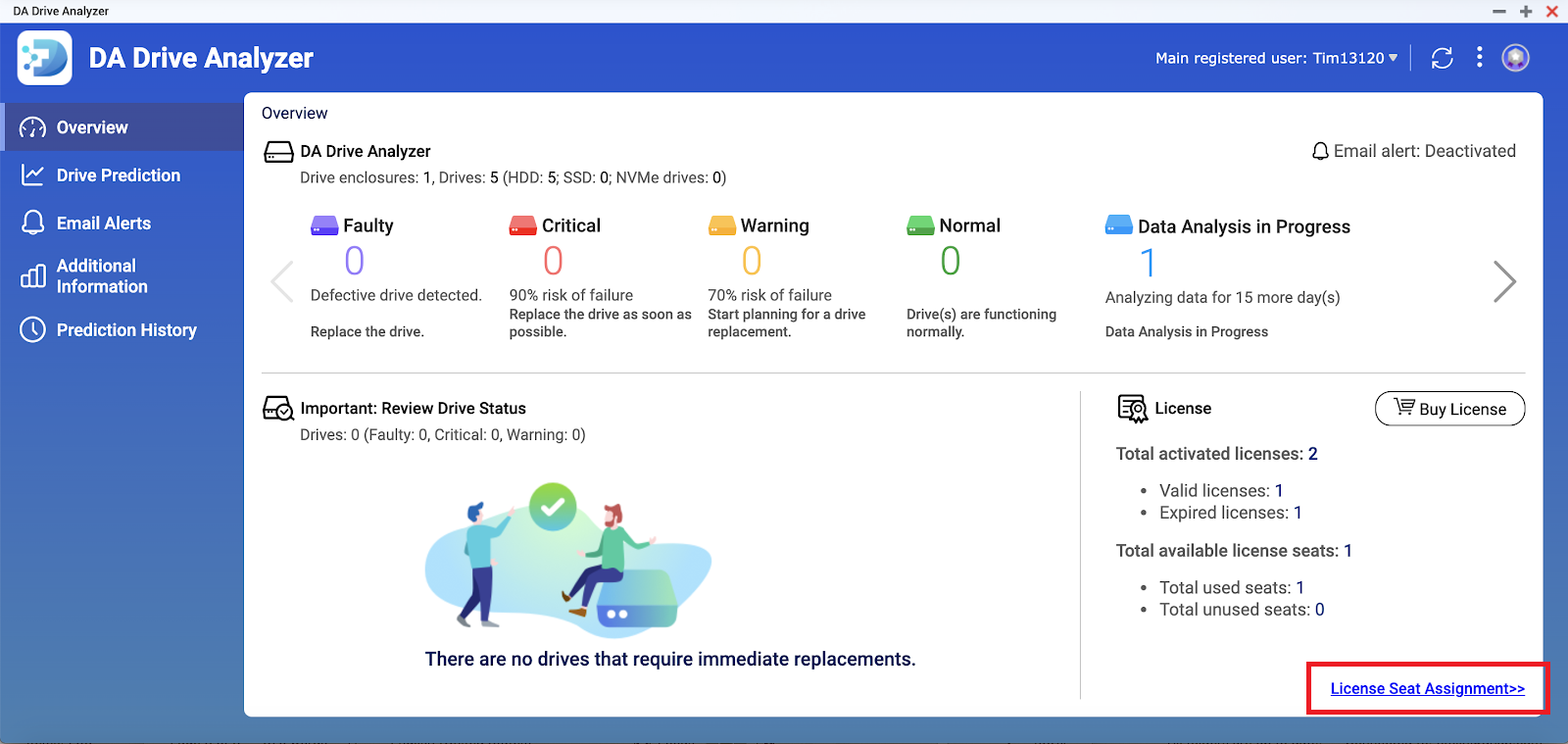
The License Seat Assignment window opens.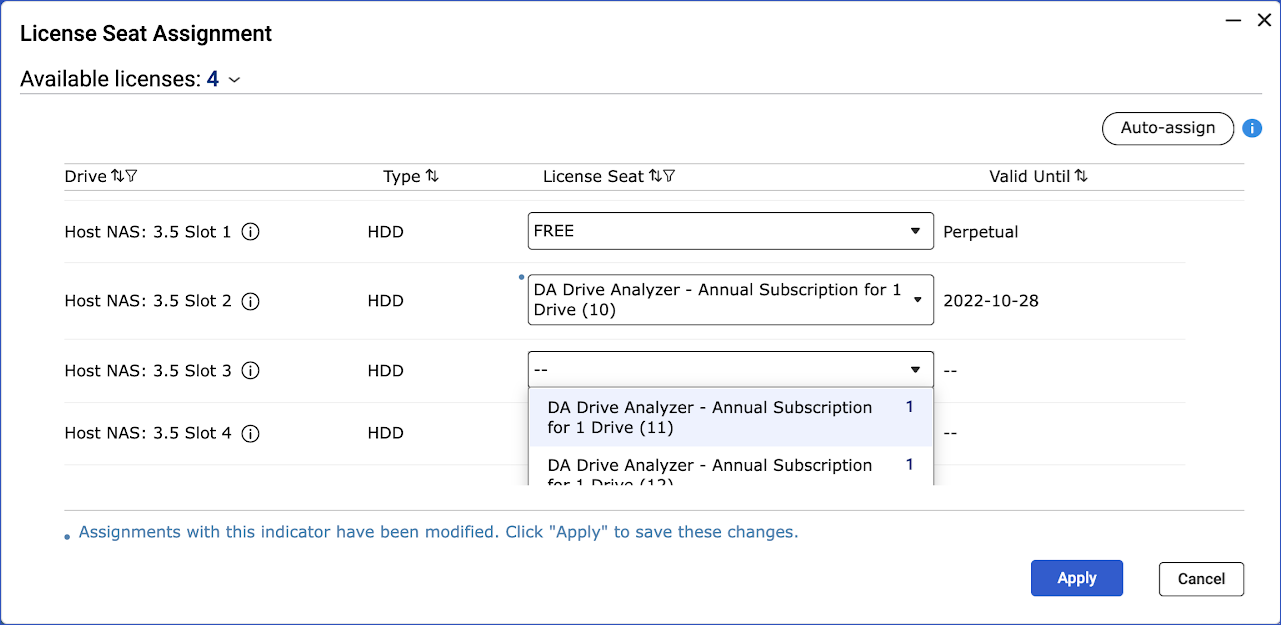
- Optional: Click Auto-assign to sequentially assign seats to available drives.
- Optional: Manually assign individual license seats to drives.
- Identify a drive.
- Under License Seat, click the drop-down menu to select an available license seat.
- Repeat the above steps for additional drive slots.
- Click Apply.
The licenses are applied and the License Seat Assignment window closes.
Note
- Assigning a license to an unlicensed drive may cause a new data collection period of 1–2 days.
- Once the AI engine finishes analyzing the drive data, drive health predictions will be available in DA Drive Analyzer and also the DA Portal.
- Up to one day of processing time is required before drive health predictions are updated.
For further assistance, ask other users and QNAP experts in the community. Go to QNAP Community


