


How to eliminate the certificate warning message whenever creating the VPN tunnel to NAS using OpenVPN app
Applied products:
- All NAS with QTS operating system
- QVPN Service
- Android OS

Ans: To get rid of this warning message, you can follow the steps below.
Step 1:
Refer to How to download the client certificate and the client key for OpenVPN use FAQ to download NAS certificate and key.
Step 2:
Launch QVPN Service of your NAS and go to the OpenVPN page to download OpenVPN configuration file.
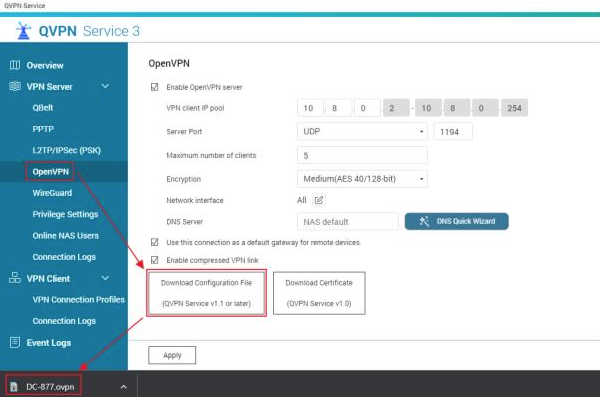
Step 3:
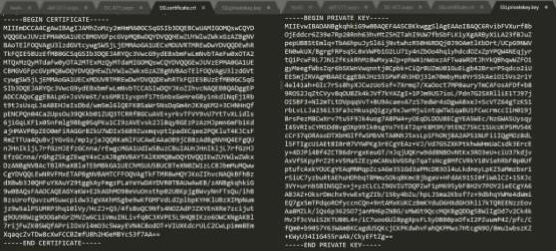
Extract the SSL_all.zip that you downloaded in Step 1 and open the files, SSLcertificate.crt and SSLprivatekey.key using the text editor.
These two file contents look like below.
Step 4:
Open and edit the OpenVPN configuration file (*.ovpn) downloaded in Step 2 using the text editor.

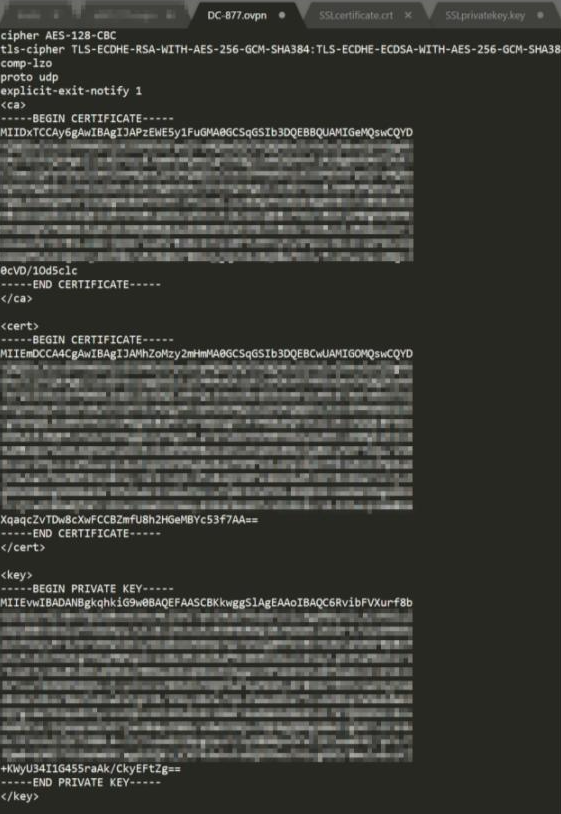
Copy the contents of SSLcertificate.crt and SSLprivatekey.key and append them into the OpenVPN configuration file (*.ovpn) and save it.
Eg: Add contents of SSLcertificate.crt between tags <cert> </cert>
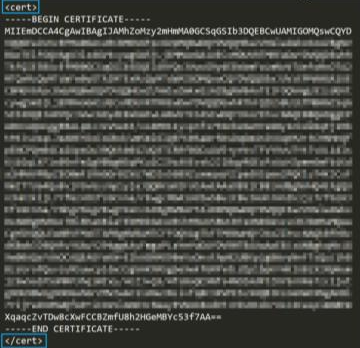
Add contents of SSLprivatekey.key between tags <key> </key>
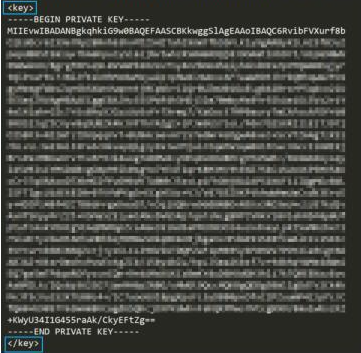
After completing appending them, the OpenVPN configuration file looks similar to this.
Step 5:
Copy this new OpenVPN configuration file into your mobile phone and import it to the OpenVPN app of your mobile phone. Then try to connect to the VPN.

The VPN connection is created directly without certificate warning messages pop-up.
Pro další pomoc se zeptejte ostatních uživatelů a odborníků QNAP v komunitě. Přejít do komunity QNAP


