


How to Remove a Storage Pool/Volume?
Applied models:
-
All NAS Series
Applied Firmware:
-
4.4.1 or above
Storage Pools and Volumes can be removed from Storage & Snapshots > Storage > Storage/Snapshots page.
Notes:
-
All data contained in a volume will be deleted after its removal
-
If apps are installed in the volume, it is possible to migrate some of them to another volume prior to removing it 1
-
If the System Volume is removed, the NAS must be rebooted to recreate the default shared folders in another volume 2
How to remove a Volume:
-
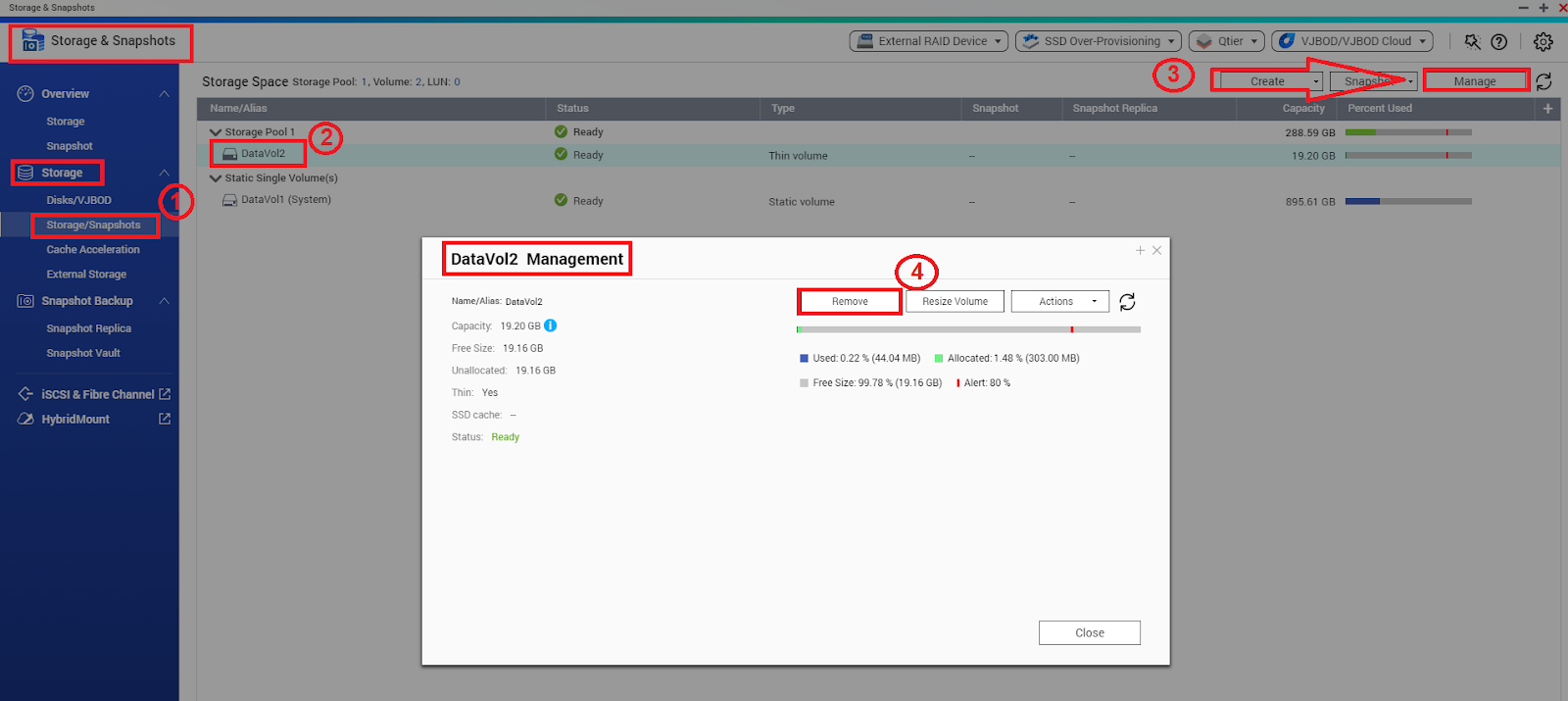
Go to Storage & Snapshots > Storage > Storage/Snapshots
-
Select the volume and click on "Manage"
-
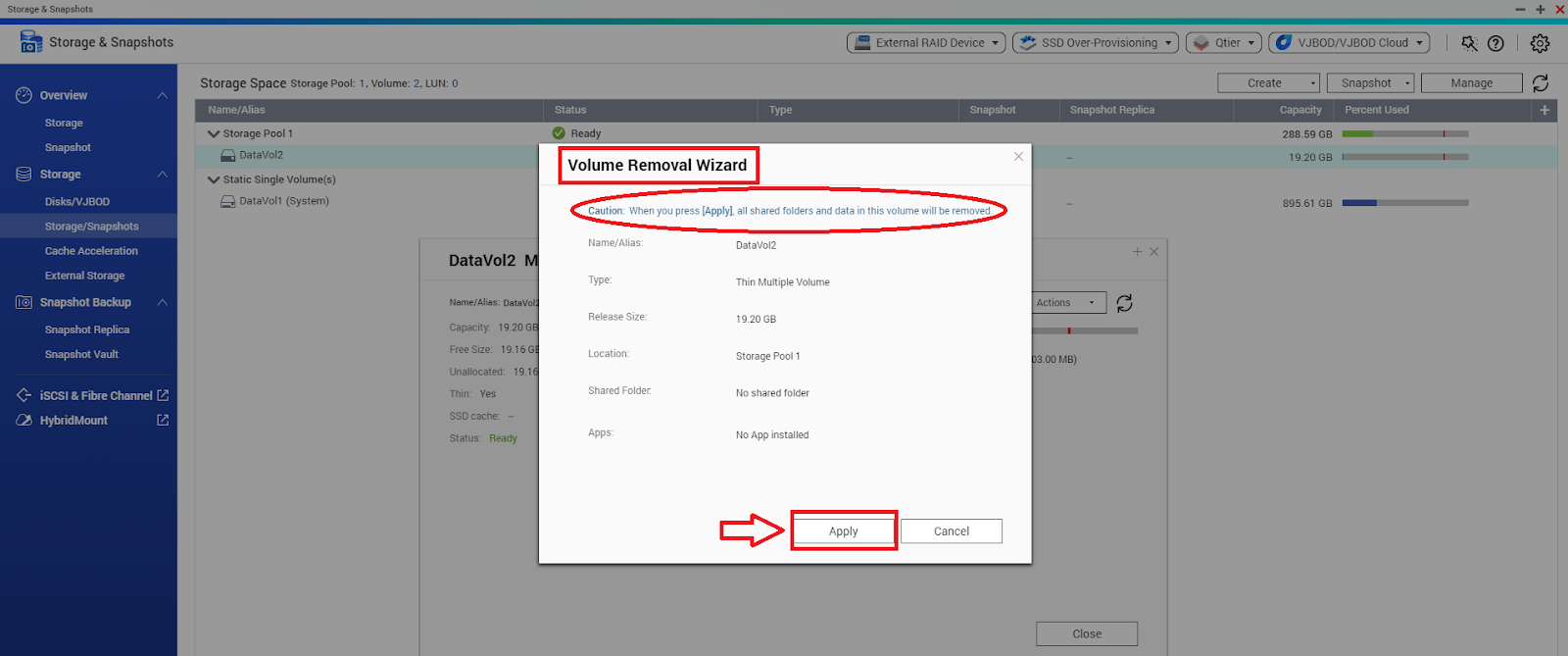
In the volume management window, click on "Remove" to open the Volume Removal Wizard
-
Confirm the removal by clicking on “Apply”.
How to remove a Storage Pool:
-
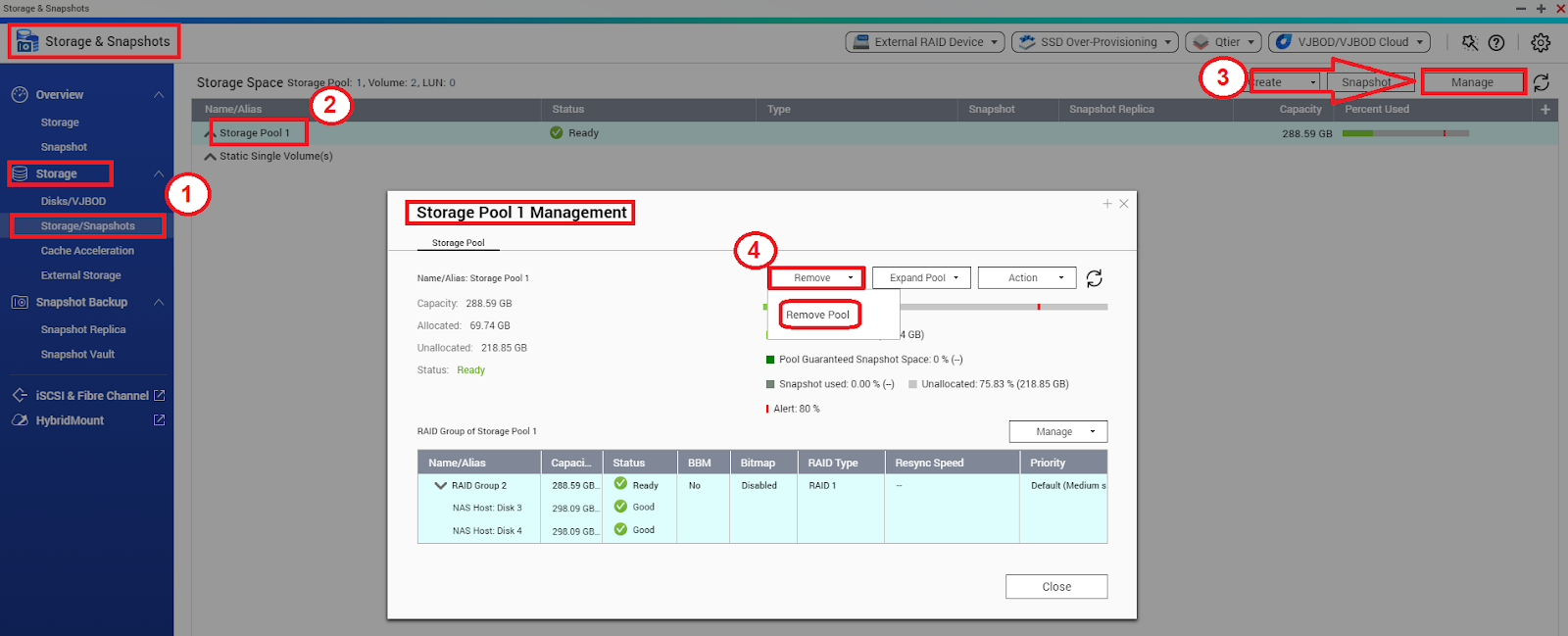
Go to Storage & Snapshots > Storage > Storage/Snapshots
-
Select the pool and click on "Manage"
-
In the storage pool management window, click on "Remove” > “Remove Pool”
-
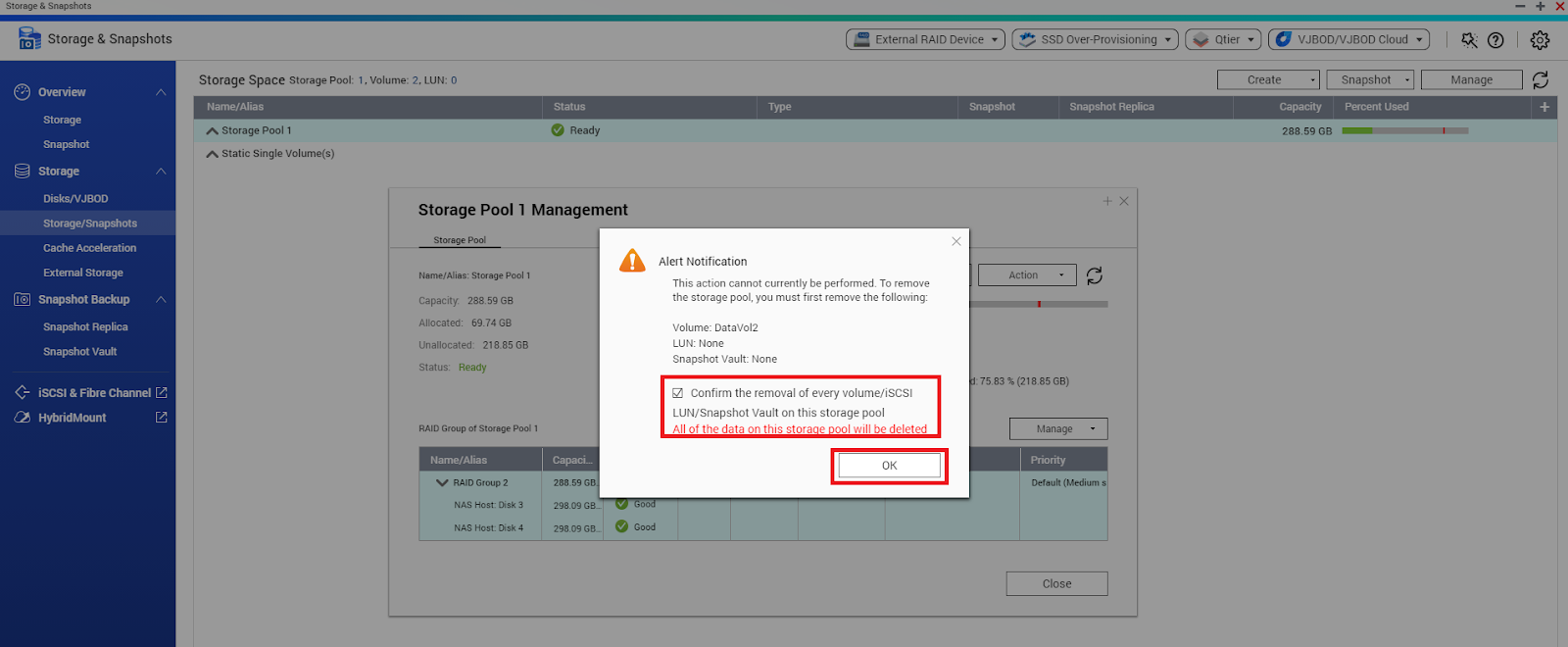
Confirm the removal of all volumes/iSCSI LUN/Snapshots contained in the pool and click on “OK”.
Related documents:
Pro další pomoc se zeptejte ostatních uživatelů a odborníků QNAP v komunitě. Přejít do komunity QNAP


