


How to use access keys on myQNAPcloud Object
Last modified date:
2025-11-11
Applicable Products
myQNAPcloud Object
Procedure
myQNAPcloud Object requires S3 Access Keys to communicate and perform nearly all of the actions of the application. This is called the "Primary Key". You must have one Access Key at all times, as only a single set is provided.
This article includes the following sections:
- Generating a New Access Key
- Deleting an Access Key
- Resetting Access Keys
Generating a New Access Key
Generate a new S3 Access Key and Secret Key to connect through a third-party application.
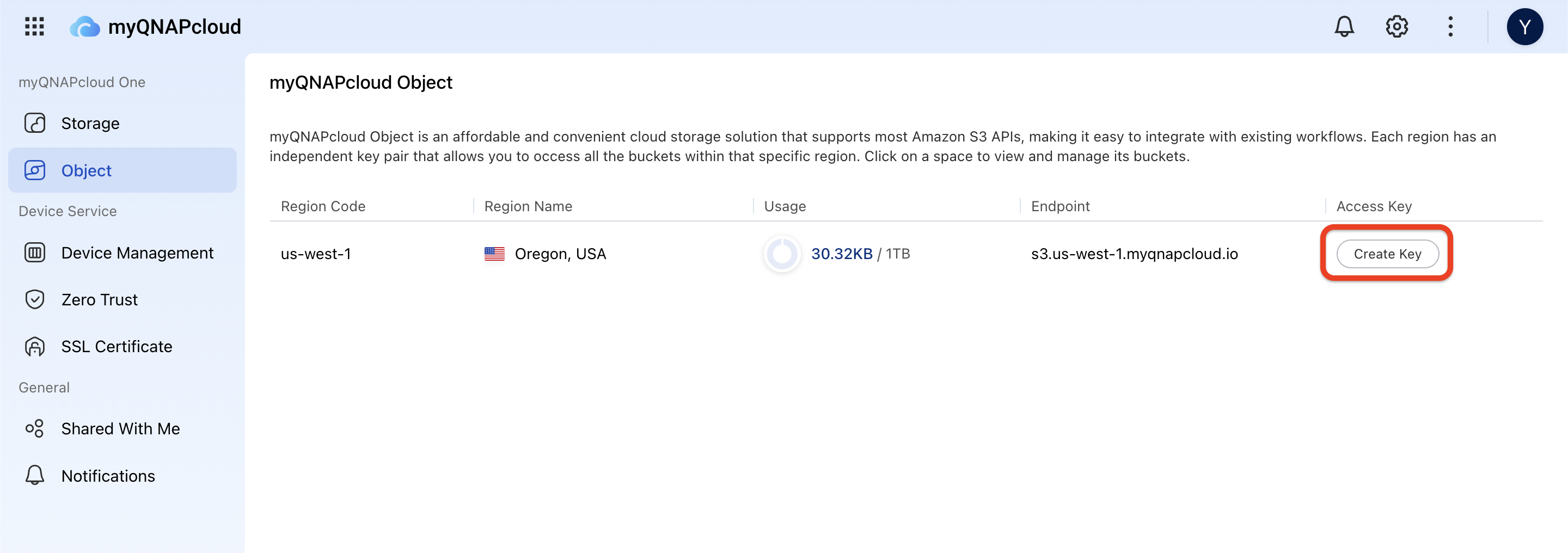
- Go to myQNAPcloud Portal, select Object under myQNAPcloud One.
- Click the Create Key button.
- Copy or download keys.
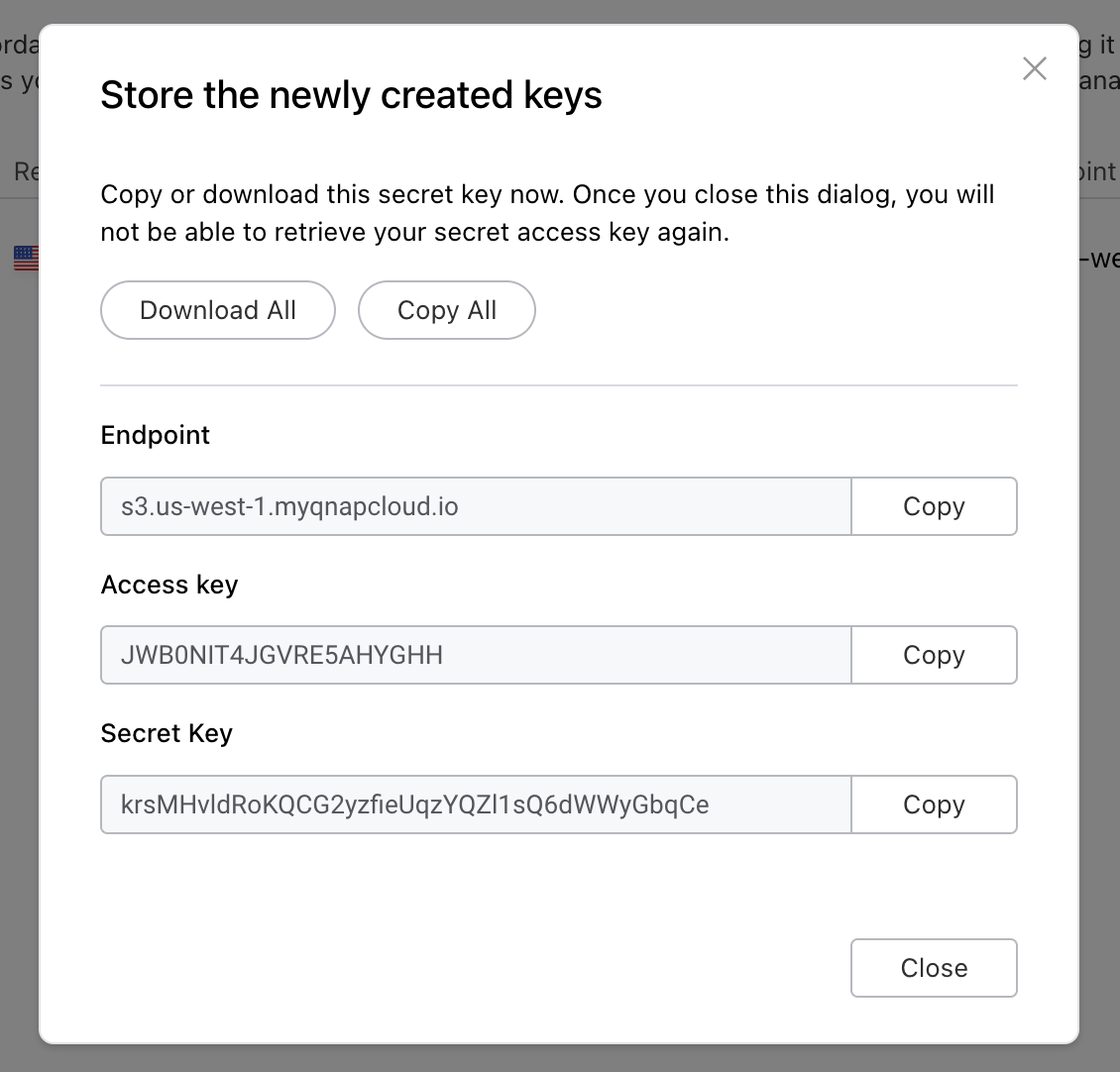
Store keys in a safe place because this is the only time these keys will be available.
Important
Once you have created an access key, you cannot delete it. However, you can reset a key to invalidate its old settings.
Resetting Access Key
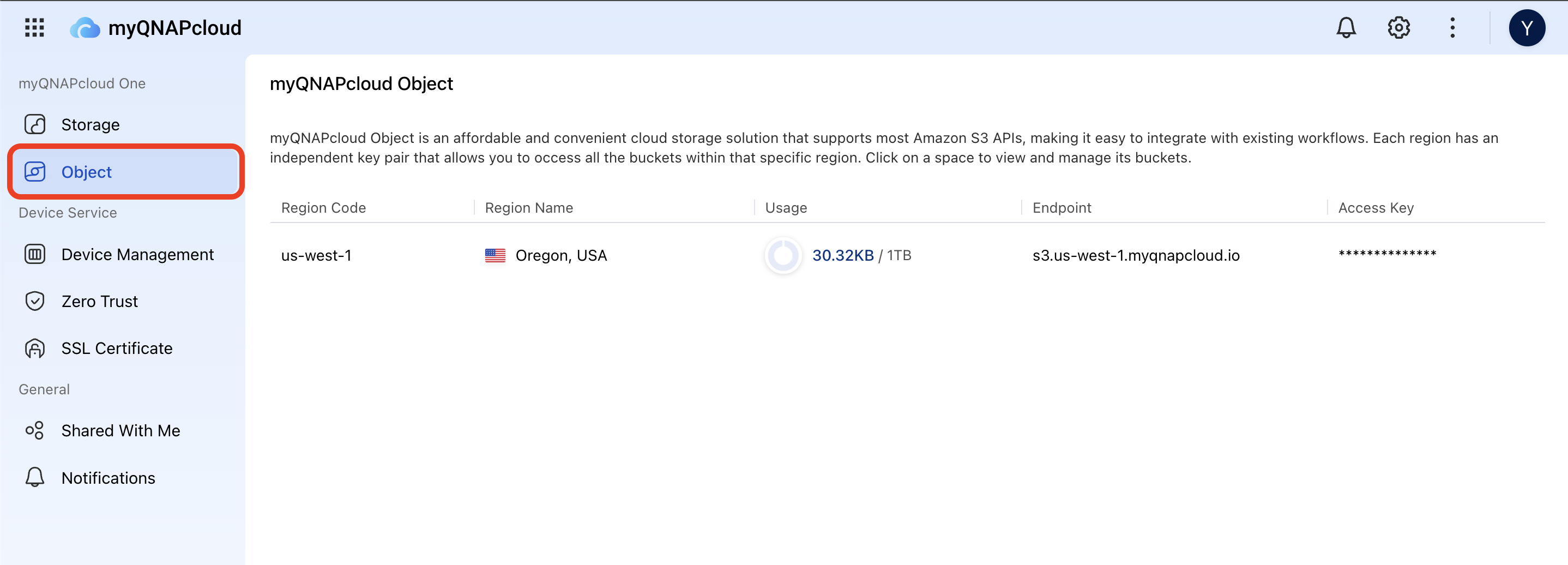
- Log in to the myQNAPcloud Portal and select Object from the left menu.
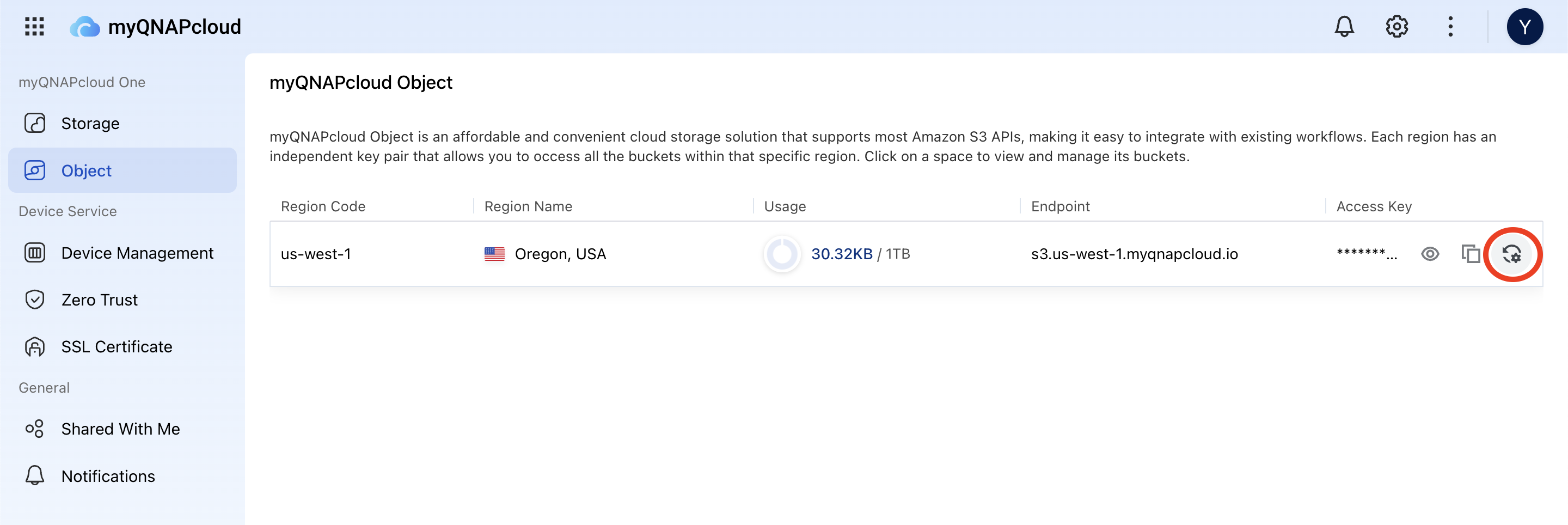
- Hover over the Access Key column for the specific region and click the Reset icon.
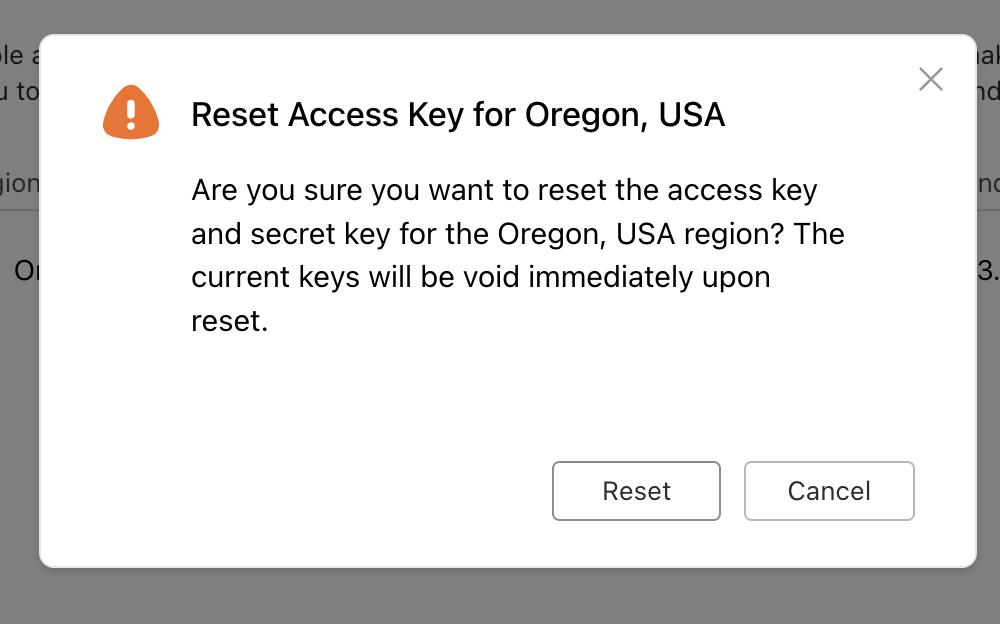
- In the pop-up confirmation dialog, click the Reset button to confirm.
Important
- The old Access Key will be invalidated immediately after the reset.
- Update any applications or services that use the old Access Key to avoid interruptions.
Để được hỗ trợ thêm, hãy hỏi những người dùng khác và chuyên gia QNAP trong cộng đồng. Đến Cộng đồng QNAP


