


Using Text Editor
Last modified date:
2017-10-31
Text Editor is an application that enables quick text editing from your QNAP NAS and works seamlessly with File Station.
- Opening Text Files
- Editing Text Files
- Using Search
- Modifying the Settings
- Availability and Requirements
Opening Text Files
Select one of the following methods.
- Open the file from File Station.
- Locate the file.
- Right-click the file and then select Open with Text Editor.

- Open the file from Text Editor.
- Go to File > Open and then locate the file.
Text Editor allows you to open files from local (USB devices, optical drives, and SD cards) and remote (SMB and FTP) folders. - Select the type.
The default type is text file (.txt). To open other file types, select Any. - Select the encoding.
Text Editor automatically detects the encoding format of a file but you can choose to use a different encoding standard.

- Go to File > Open and then locate the file.
Editing Text Files
Text Editor allows you to perform the following tasks:
- Create new text files.
By default, files created on Text Editor use UTF-8 encoding. You can change the encoding format before making any changes to the file.

- Modify text files.
You can edit multiple files at the same time.

- Translate text from Traditional Chinese to Simplified Chinese or from Simplified Chinese to Traditional Chinese.

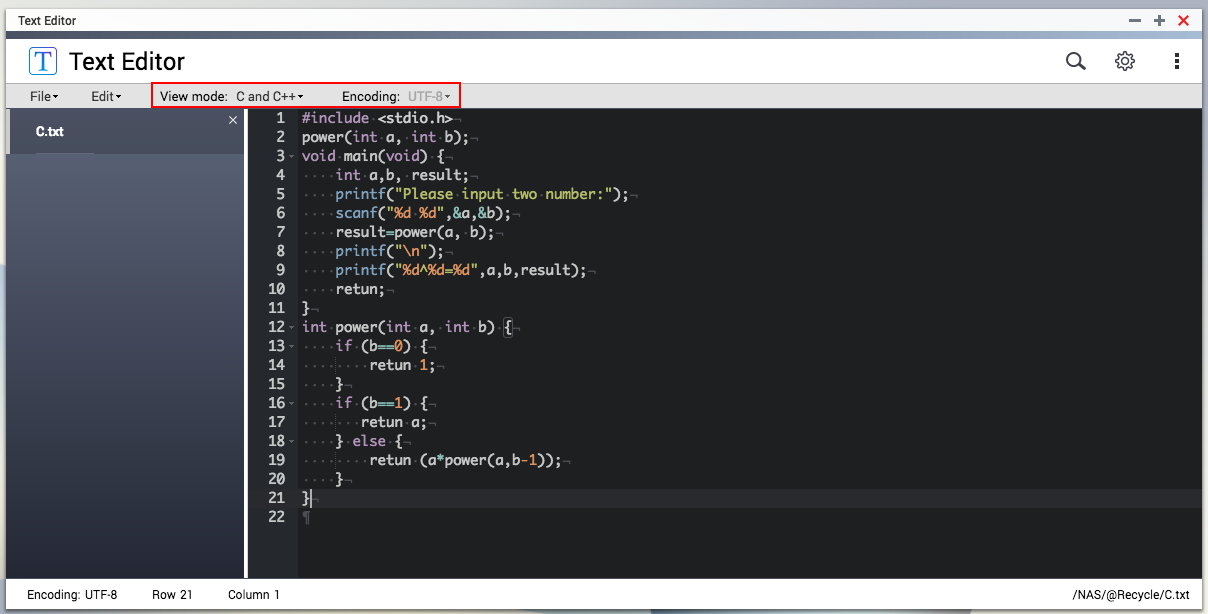
- Write or modify code.
Text Editor supports multi-language code. To modify the programming language, select the View mode. To modify the encoding format, select the Encoding.
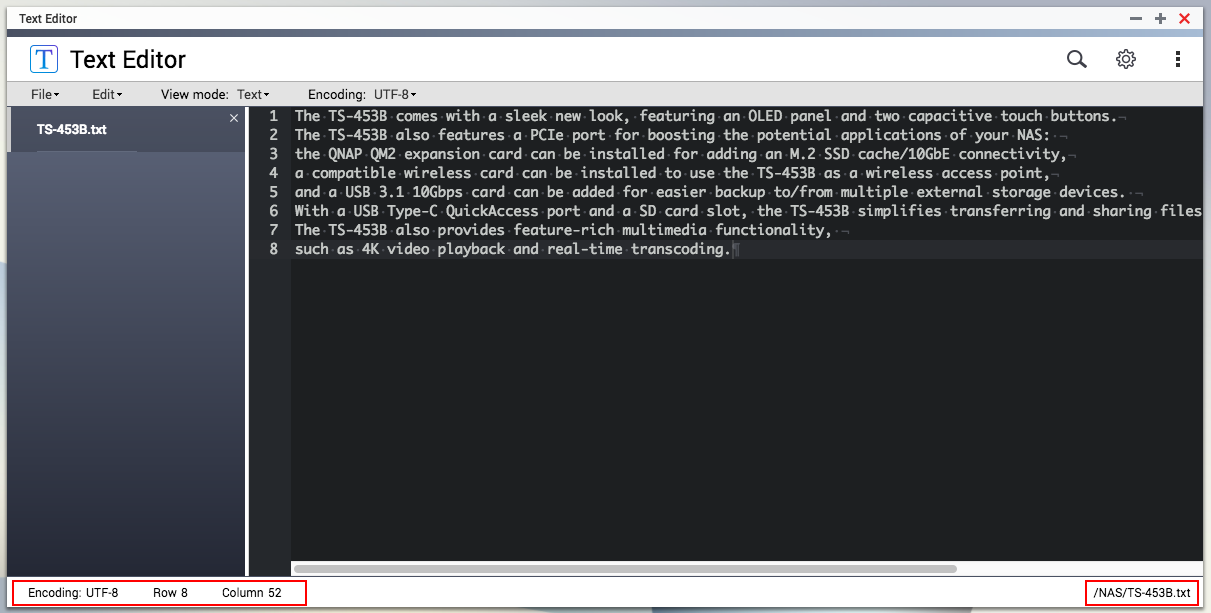
- Review the the following information on the status bar.
- Encoding
- Row
- Column
- File path
Using Search
Text Editor allows you to perform the following tasks:
- Search for strings.
- Click Search (
 ) and then select Find.
- Click any of the following criteria.
- .* (Regular Expression): A series of strings that match a syntax rule.
- Ab (Case Sensitive): Text or typed input that is sensitive to the capitalization of letters.
- \b (Whole Word): Search results must exactly match the specified string.
- Type the search string and then press ENTER.
Text Editor allows you to use typical search strings without requiring //. For example, use TS-453B$ instead of /TS-453B$/.

- Click Search (
- Replace strings.
- Click Search ( ) and then select Replace.
- Type the string you want to locate.
- Type the string that will replace the specified string.
- Click Replace or press ENTER.
You can also click All to replace all instances of the specified string.

- Click Search (
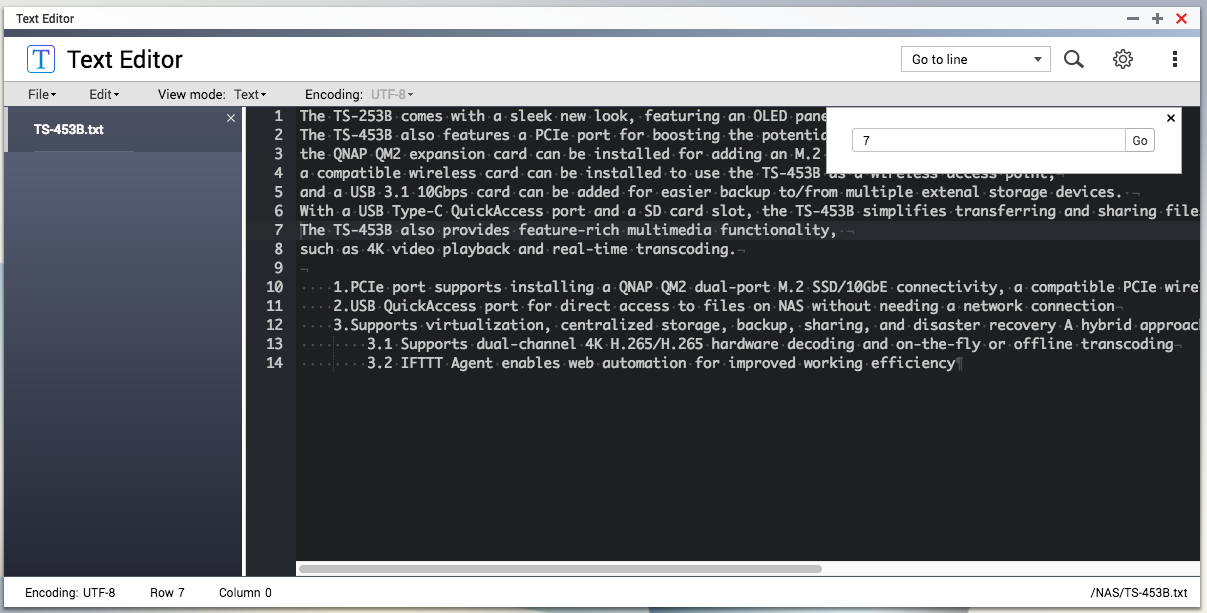
- Go to a specified line.
- Click Search ( ) and then select Go to line.
- Type the line number.
Text Editor supports up to eight (8) digits. - Click Go.
- Click Search (
Modifying the Settings
- Click Settings (
 ) and then modify the following settings.
Option Description View Select or deselect any of the following:
- Highlight current line
- Show invisible characters
- Show indent guides
- Show line numbers
- Enable code folding
Note: All features are enabled by default.
Return Select one of the following options:
- Off
- Wrap at window edge
- Wrap at column number
Layout Select font size and background color. - Click Save.

Availability and Requirements
To install Text Editor, go to the QTS App Center.
Processor: x86 or ARM
QTS operating system: QTS 4.3.4.
Limitations:
- The text editor cannot open files larger than 10MB in size.
- Only text files are supported. Rich text format (RTF) files are not supported.
Bạn vẫn cần hỗ trợ?
Hãy đăng câu hỏi của bạn trong Cộng đồng QNAP. Nhân viên QNAP và những người dùng giàu kinh nghiệm sẽ trả lời.


