


What should I do if my NAS reports "File system is not clean."?
Applicable Products
All models with QTS installed, excluding QuTS hero.
Root Cause
If you see the following warning message in System Event Log, a volume that contains data may not be properly mounted.
File system is not clean. [Volume Name]
This issue usually occurs in the following circumstances:
- The NAS has experienced an abnormal or forced shutdown.
- Some services are not correctly stopped before a shutdown.
- The NAS keeps restarting unexpectedly.
Solution
To resolve this issue, we recommend checking the file system of a problematic volume to fix potential errors. To run a file system check, follow these steps.
- A volume is unmounted and inaccessible during a file system check.
- During file system check, NAS shares and iSCSI LUNs may be unavailable.
- A file system check might take a long time, depending on the size of a volume.
File System Check Duration Test Results(The experimental results are for reference only)
The following test results compare the file system check duration on different NAS models under similar firmware versions:
| Model | Storage Pool / RAID Configuration | Volume Size | Used Space | File Count | File System Check Duration | Volume Type | CPU Grade |
|---|---|---|---|---|---|---|---|
| TVS-h1288X | Pool 1, RAID 5 (HDD ×4) | 4.96 TB | 4.40 TB | ~2.4 million | ~16 minutes | System Volume | Lower |
| TS-2888X | Pool 2, RAID 0 (HDD ×4) | 12.90 TB | 10.99 TB | ~3.93 million | ~13 minutes | Non-System Volume | Higher |
Observation:
TS-2888X (more files) completed the check faster than TVS-1288X (fewer files), likely due to:
Volume Type: System Volumes add service stop/start overhead.
RAID: RAID 0 has higher I/O; RAID 5 is slower due to parity.
CPU: Higher performance shortens check time.
For QTS 4.3.4 (or later)
- Restart the NAS.
- Log in to QTS as an administrator.
- Go to Storage & Snapshots > Storage > Storage/Snapshots.
- Select a volume.
- Click Manage.
The volume management window opens. - Click Actions, and then select Check File System.
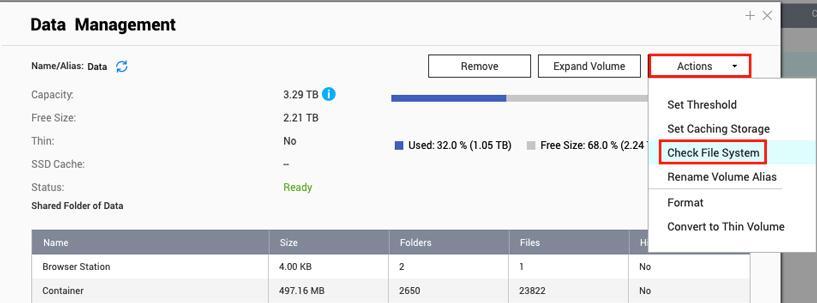
- After the file system check, restart the NAS.
- Check whether QTS still shows the file system warning.
For QTS 4.3.3 (or earlier)
- Restart the NAS.
- Log in to QTS as an administrator.
- Go to Control Panel > System Settings > Storage Manager > Volume Management.
- Select a volume.
- Click Check File System.
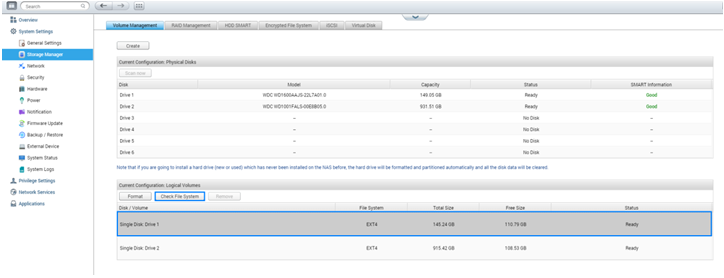 .
. - After the file system check, restart the NAS.
- Check whether QTS still shows the file system warning.
Further Reading
If your NAS still restarts or freezes unexpectedly after a file system check, it may have other issues. For details, see the following FAQ.
Để được hỗ trợ thêm, hãy hỏi những người dùng khác và chuyên gia QNAP trong cộng đồng. Đến Cộng đồng QNAP


