


How can I run a DNS server on my NAS?
Last modified date:
2025-12-09
Applicable Products
- NAS models running QTS or QuTS hero with Container Station installed
Scenario
You want to deploy a lightweight DNS server on your QNAP NAS without running a full virtual machine. This is useful for providing redundancy alongside an existing DNS server or for adding DNS filtering features. You can achieve this by deploying a DNS server Docker container, such as CoreDNS, using Container Station.
Solution
- Install Container Station
- Open the App Center on your QNAP NAS.
- Search for Container Station and click Install.
- Launch Container Station after installation completes.
- Deploy a DNS server using Container Station
- Open Container Station.
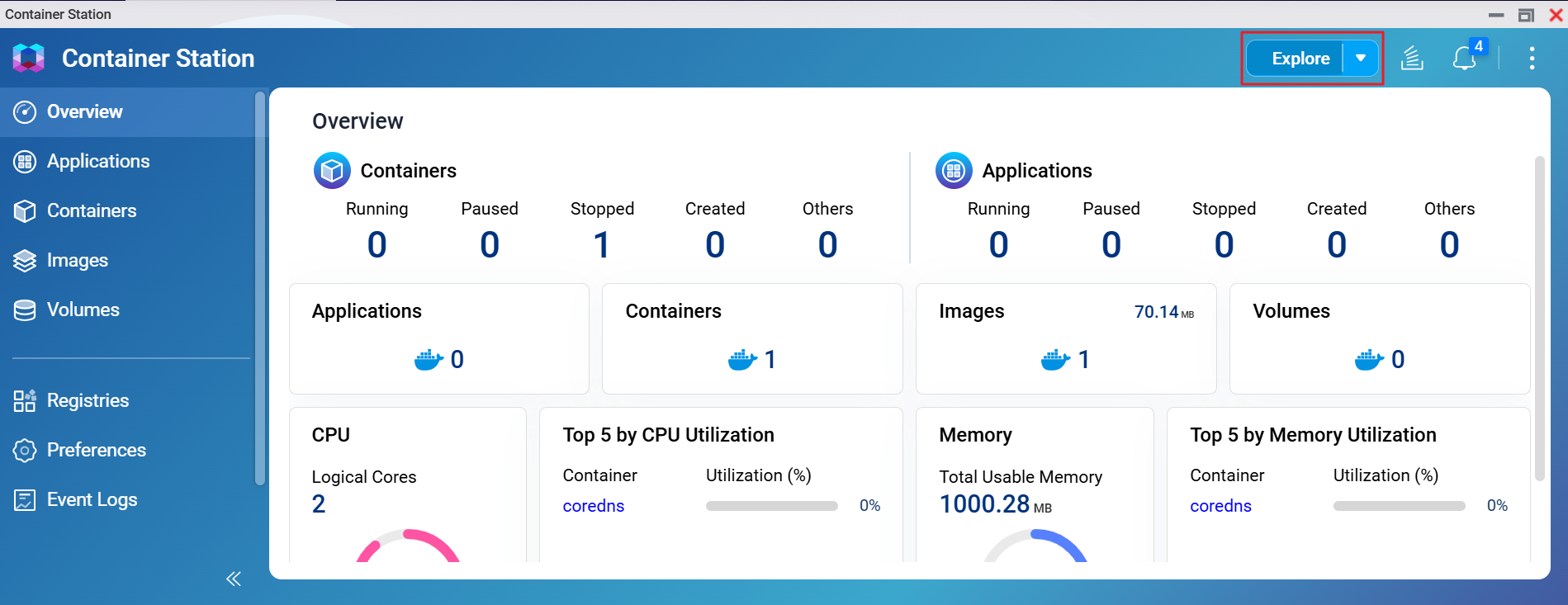
- Click on Explore to search for containers.
- In the search bar, enter
corednsand find the official image.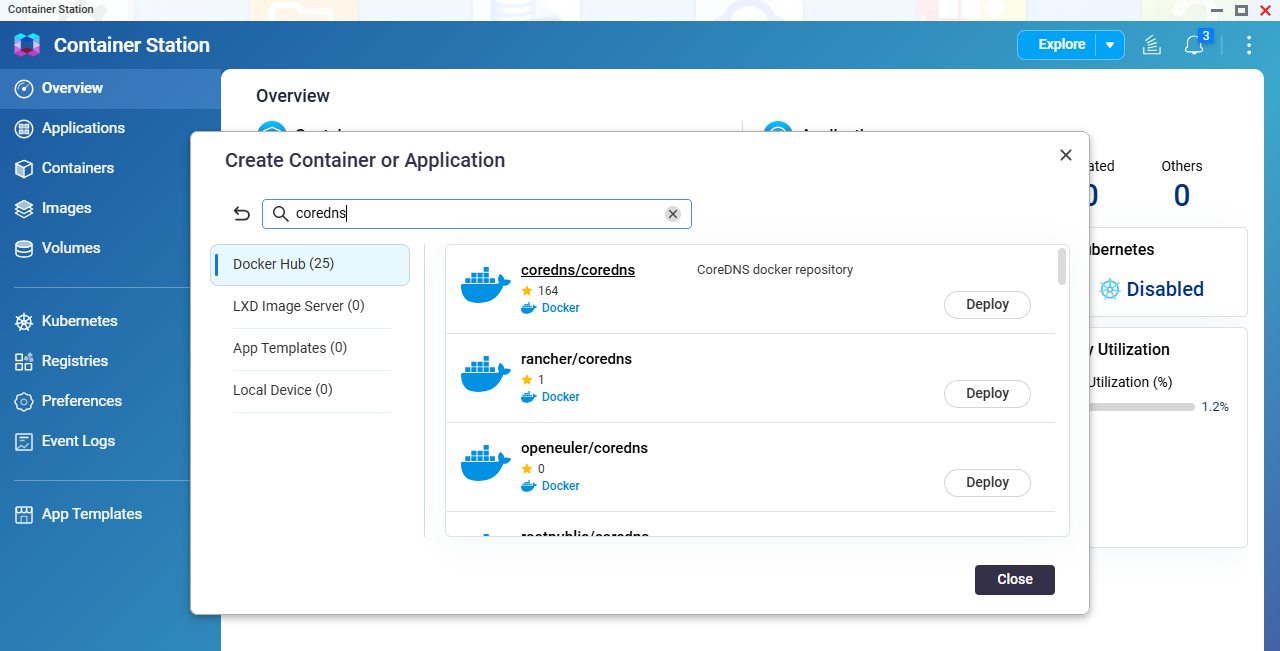
- Click Deploy to deploy the coredns/coredns container.
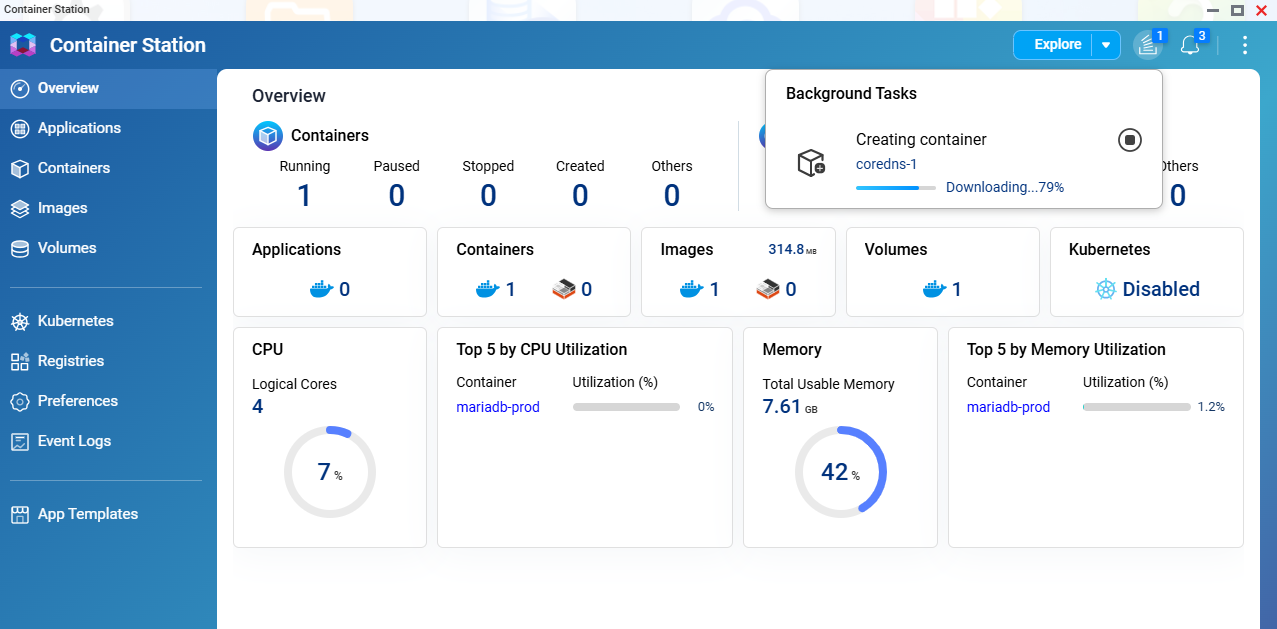
- When prompted, ensure TCP/UDP port 53 is mapped to your NAS and adjust storage/network settings as needed.
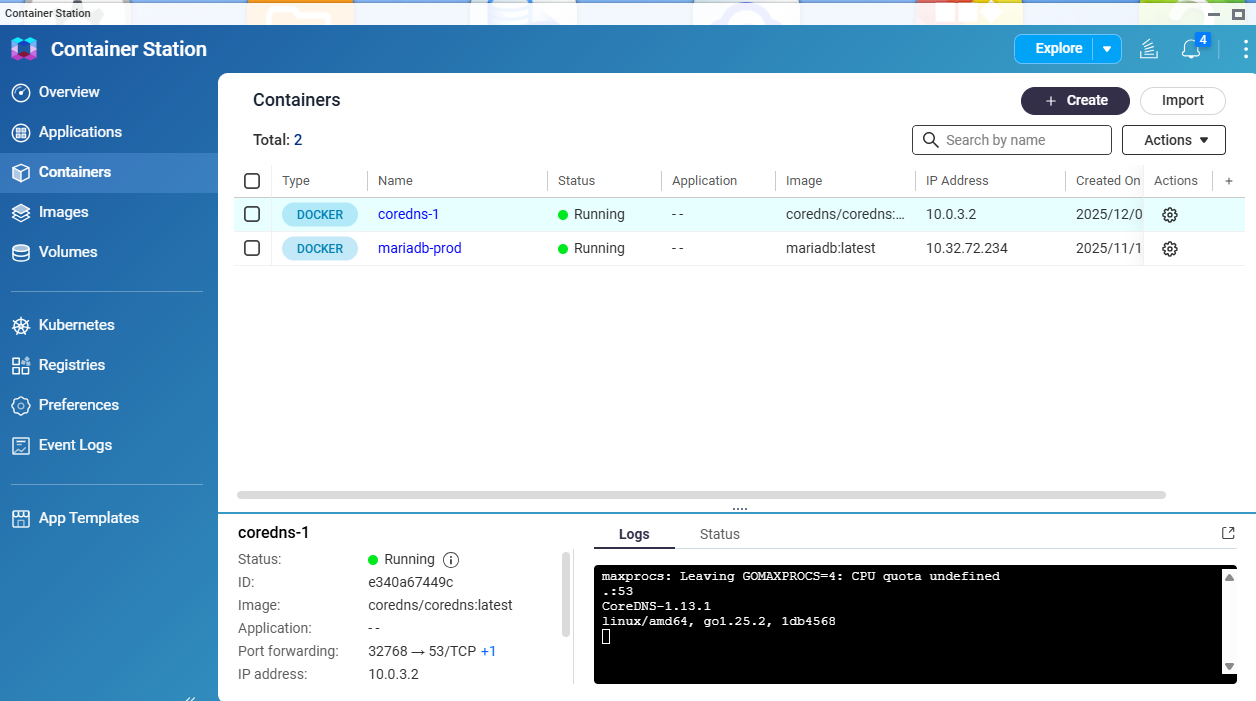
- Click Confirm to start your DNS container. After deployment completes, your container should appear in the list.
- Test and configure the DNS server
- Use
digornslookupfrom another device to verify your new DNS server is running and resolving queries. - Update your network’s DNS settings if you want clients to use your QNAP-based DNS server.
- For advanced configuration (zone files, plugins, etc.), refer to the CoreDNS documentation.
- Use
Further Reading
Để được hỗ trợ thêm, hãy hỏi những người dùng khác và chuyên gia QNAP trong cộng đồng. Đến Cộng đồng QNAP


