


HBS Yedeklerinizi Korumak için Airgap+ Nasıl Kurulur
Geçerli Ürünler
NAS
- Tüm NAS modelleri
- İşletim sistemleri:
- QTS 5.2.x ve sonrası
- QuTS hero h5.2.x ve sonrası
- Uygulamalar: Hybrid Backup Sync (HBS3) 25 ve sonrası
Yönlendiriciler
- QHora-321
- QHora-322
- İşletim sistemi: QuRouter 2.4.2 ve sonrası
Switch'ler
- QSW-M3216R-8S8T
- QSW-M3212R-8S4T
- QSW-M3224-24T
- QSW-M7308R-4X
- İşletim sistemleri:
- QSS 4.3 ve sonrası
- QSS Pro 4.3 ve sonrası
Giriş
Airgap+, kurumsal düzeyde veri koruma için çevrimdışı yedeklemeler oluşturmak adına QNAP'ın çözümüdür.
QNAP NAS cihazlarınızı Airgap+ destekleyen bir QNAP yönlendirici veya switch'e bağlayarak, yönlendirici/switch yalnızca HBS (Hybrid Backup Sync) bir yedekleme veya senkronizasyon işi çalıştırırken NAS cihazları arasında bağlantılara izin veren özel bir ağ oluşturabilirsiniz. Yönlendirici veya switch, diğer zamanlarda yedek NAS'a yapılan tüm bağlantı isteklerini reddeder, böylece yedekleme verilerinizi izole eder ve korur.
Bu eğitim, HBS yedeklemeleriniz için bir Airgap+ ortamı kurmak adına adım adım bir kılavuz sağlar.
Airgap+ Seçenekleri ve Gereksinimleri
| Standart Airgap+ | Gelişmiş Airgap+ | |
|---|---|---|
| QNAP Yönlendirici |
| |
| QNAP Switch |
| |
| QNAP NAS İşletim Sistemi |
| |
| QNAP NAS Uygulaması | HBS 3 (Hybrid Backup Sync) sürüm 25 veya sonrası | |
| QNAP NAS Cihazları | En az iki NAS cihazı:
| En az üç NAS cihazı:
|
| ||
| Airgap Kısıtlaması | Yönlendirici veya anahtar yalnızca aşağıdaki durumlarda bağlantılara izin verir: | |
| Kaynak NAS, HBS aracılığıyla yedekleme NAS'ına veri aktarıyor. | Köprü NAS, kaynak NAS'tan veya yedekleme NAS'ına HBS aracılığıyla veri aktarıyor. | |
| Avantajlar |
|
|
Airgap+’i, sahip olduğunuz ağ cihazına ve izole ağınızı nasıl oluşturmak istediğinize bağlı olarak, yönlendirici tabanlı veya anahtar tabanlı bir kurulum kullanarak dağıtabilirsiniz. Hangi kurulumu seçerseniz seçin, tüm NAS cihazları statik IP adresleri kullandığında Airgap+ en güvenilir şekilde çalışır.
- Yönlendirici tabanlı kurulumlar: Yönlendiriciler, IP atamalarını tutarlı tutmaya yardımcı olan DHCP rezervasyonunu destekler. Bu özelliği kullanmak, Airgap+ işlemleri sırasında iletişim sorunları yaşama olasılığını azaltır.
- Anahtar tabanlı kurulumlar: Anahtarlar, bir DHCP sunucusu içerdiklerinde bile IP rezervasyonunu desteklemez. Bu, tutarsız IP atamalarına neden olabilir ve Airgap+ iletişimini kesintiye uğratabilir. Anahtar tabanlı bir kurulum kullanıyorsanız, HBS işleri sırasında kararlı bağlantıyı sürdürmek için tüm NAS cihazlarında statik IP adresleri yapılandırmanız şiddetle önerilir.
Yönlendirici Tabanlı Bir Ağ ile Airgap+ Kurulumu
Standart Airgap+
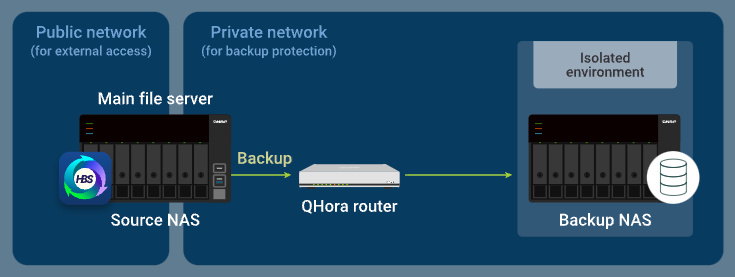
Standart Airgap+ kurulumunda, kaynak ve yedekleme NAS cihazları aynı Airgap+ yönlendiriciye bağlıdır. Kaynak NAS bir genel ağa bağlıyken, yönlendirici aracılığıyla yedekleme NAS ile özel bir ağda da bulunur.
Bu özel ağda, yönlendirici yalnızca kaynak NAS bir HBS işi çalıştırırken kaynak NAS’ın yedekleme NAS’a erişmesine izin verir.
Standart Airgap+ nasıl çalışır
Normalde, yalnızca kaynak NAS yönlendiriciye erişime sahiptir. Yedekleme NAS tamamen izole edilmiştir.

Kaynak NAS, HBS'de bir yedekleme işi çalıştırdığında, router, verilerin kaynak NAS'tan yedek NAS'a aktarılmasına izin verir.
Standart Airgap+ Kurulum Talimatları
Standart bir Airgap+ ortamı kurmak için, HBS işleri oluşturmadan önce Airgap+ router'ı ve her iki NAS cihazını yapılandırmanız gerekir.
A. Router'ı yapılandırın
- Kaynak NAS ve yedek NAS'ı doğrudan Airgap+ router'a bağlayarak özel bir ağ oluşturun.Önemli
Yedek NAS için statik bir IP adresi yapılandırmanızı şiddetle tavsiye ederiz. Bu, tüm cihazlardaki Airgap+ ayarlarının zamanla geçerli kalmasını sağlar.
- Router'a bağlı yedek NAS ağ adaptörü için statik bir IP adresi yapılandırmak için aşağıdakilerden birine bakın:
- "IPv4 ayarlarını yapılandırma" QTS Kullanıcı Kılavuzu veya QuTS hero Kullanıcı Kılavuzu
- "IPv6 ayarlarını yapılandırma" QTS Kullanıcı Kılavuzu veya QuTS hero Kullanıcı Kılavuzu
- IP adreslerini atamak için bir DHCP sunucusu kullanmayı seçerseniz, yedek NAS IP adresini yedek NAS'a bağlı router LAN portunda ayırdığınızdan emin olun.
Yapılandırma detayları için, QHora Yönlendiriciler için QuRouter Kullanıcı Kılavuzu 'deki "Yerel alan ağı (LAN) arayüz ayarlarını yapılandırma" ("Ayrılmış IP Tablosu" ayarı) kısmına bakın.
- Router'a bağlı yedek NAS ağ adaptörü için statik bir IP adresi yapılandırmak için aşağıdakilerden birine bakın:
- Router'da karşılıklı TLS bağlantısını etkinleştirin.
- Router işletim sistemi QuRouter'a giriş yapın.
- Git Sistem > Erişim Denetimi > Erişim Denetimi Ayarları.
- Karşılıklı TLS (mTLS) 'yi etkinleştirin.

- Özel ağdaki yedek NAS'ın IP adresini edinin.
- QuRouter'da, şuraya gidin Bağlı QNAP Cihazları.
- Yedek NAS cihazını tanımlayın.
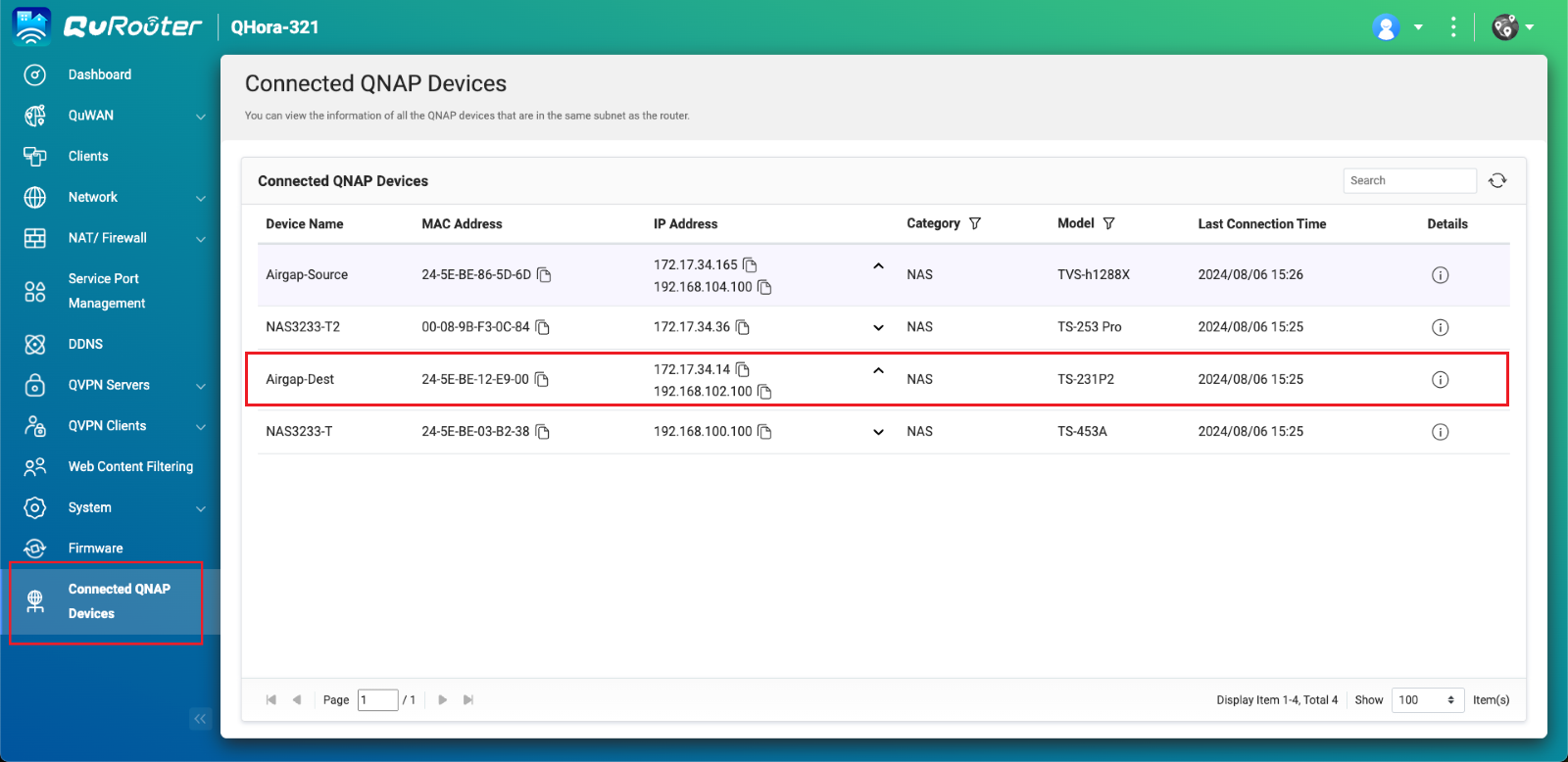
- Yedek NAS IP adresini kopyalayın.Not
- NAS, listelenen birden fazla IP adresine sahip olabilir. Yönlendirici ile aynı IP aralığında olan IP adresini kopyalayın.
Örneğimizde, IP adresi192.168.102.100. - Bu IP adresini B-2c ve D-1e adımlarında kullanın.
- NAS, listelenen birden fazla IP adresine sahip olabilir. Yönlendirici ile aynı IP aralığında olan IP adresini kopyalayın.
- Yedek NAS'a bağlı olan Airgap+ yönlendiricinin LAN portu IP adresini edinin.
- QuRouter'da, şuraya gidin Ağ > Fiziksel Arayüz Ayarları > LAN.
- Yedek NAS'a bağlı olan yönlendirici LAN portunu tanımlayın.
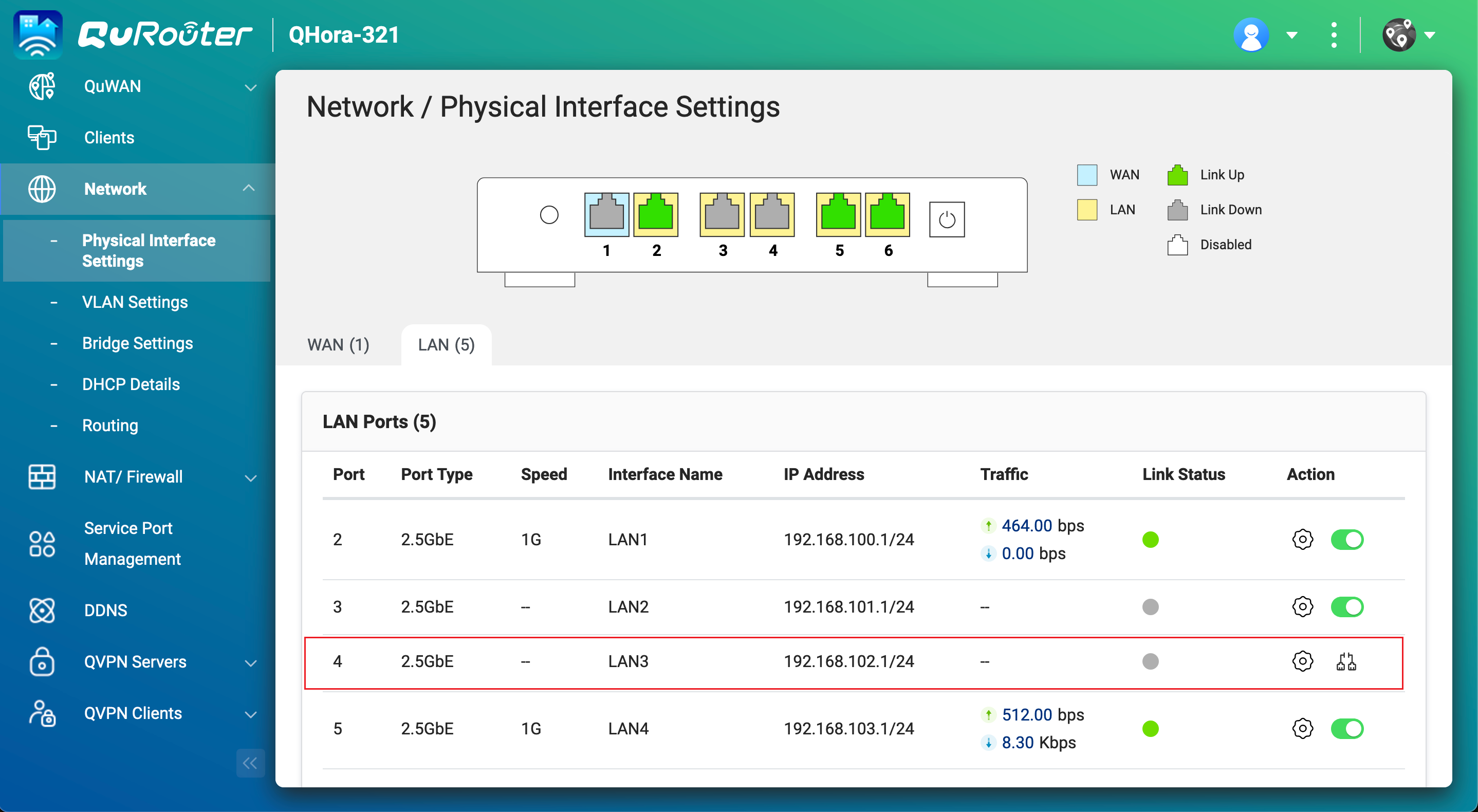
- Altında IP Adresi, IP adresini kopyalayın.NotIP adresinin son oktetini B-2e adımında kullanın.
Örneğimizde, IP adresinin son okteti192.168.102.11. - Altında IP Adresi, alt ağ maskesini kopyalayın.NotBu alt ağ maskesini B-2d adımında belirtin.
Örneğimizde, alt ağ maskesi/24.
B. Kaynak NAS'ı yapılandırın
- Airgap+ yönlendiriciye bağlı olan kaynak NAS adaptörünü tanımlayın.
- Kaynak NAS'ta, Ağ ve Sanal Anahtar açın.
- Şuraya gidin Ağ > Arayüzler.
- Airgap+ yönlendiriciye bağlı olan adaptörü tanımlayın.NotBu adaptörü B-2f adımında kullanın.
Örneğimizde, adaptör 2 Airgap+ yönlendiriciye bağlıdır.
- Adaptörün IP adresini kopyalayın.NotIP adresindeki ilk üç okteti B-2e adımında kullanın.
Örneğimizde, IP adresinin ilk üç okteti192.168.100.100192.168.100.
- Yedek NAS'a bağlanmak için kaynak NAS'ta bir Statik Yol kuralı oluşturun.
- Ağ ve Sanal Anahtar içinde, şuraya gidin Ağ > Yönlendirme.
- Statik Yol altında, Ekle 'ye tıklayın.
Statik Yol (IPv4) penceresi açılır. - Yanında Hedef, yedek NAS'ın IP adresini belirtin (bkz. adım A-3c).
- Yanında Ağ Maskesi, yedek NAS'a bağlı olan yönlendirici LAN portu için alt ağ maskesini belirtin (bkz. adım A-4d).
- Yanında Ağ Geçidi, yönlendiriciye bağlı olan kaynak NAS adaptörünün IP adresinin ilk üç oktetini belirtin (bkz. adım B-1d), ardından yedek NAS'a bağlı olan yönlendirici LAN portunun IP adresinin son oktetini belirtin (bkz. adım A-4c).NotÖrneğimizde:
- Adım B-1d, IP adresinin ilk üç oktetini sağlar (
192.168.100). - Adım A-4c, IP adresinin son oktetini sağlar (
1).
192.168.100.1elde edin. Bu adresi Ağ Geçidi alanına girin.
Bu adresi adım D-1j'de de kullanın. - Adım B-1d, IP adresinin ilk üç oktetini sağlar (
- Arayüz yanında, yönlendiriciye bağlı olan kaynak NAS adaptörünü seçin (bkz. adım B-1c).
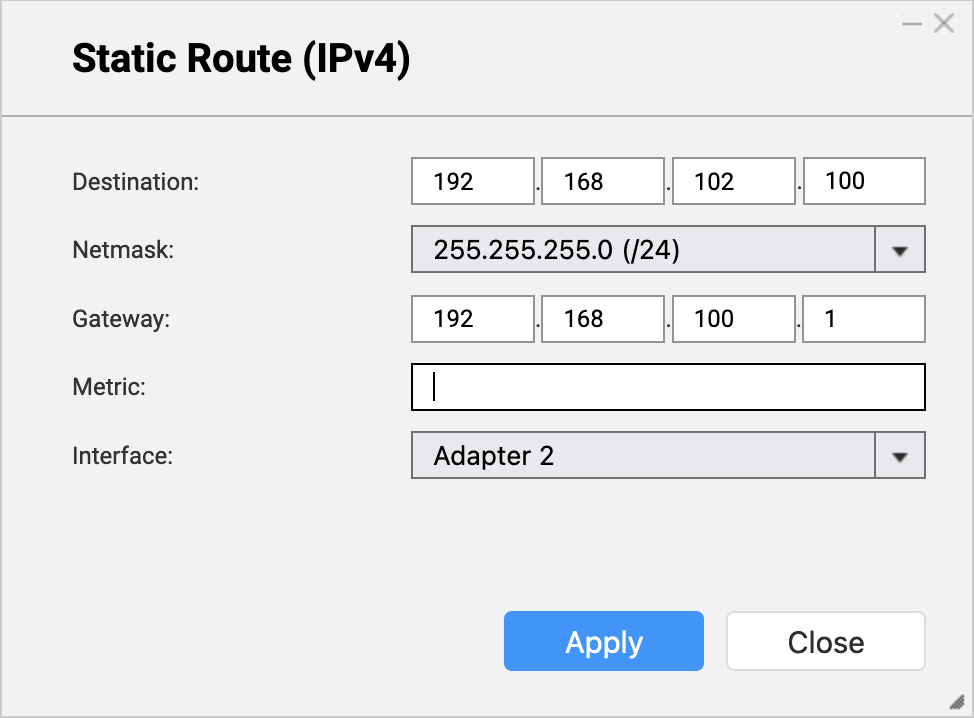
- Uygula 'ya tıklayın.
Ağ ve Sanal Anahtar, Statik Yol kuralını ekler.
C. Yedekleme NAS'ını yapılandırın
- Yedekleme NAS'ında, RTRR sunucusunu etkinleştirin.
Bu, kaynak NAS üzerindeki HBS görevlerinin yedekleme NAS'ını yedekleme hedefi olarak kullanmasına olanak tanır.- Yedekleme NAS'ında, HBS'yi açın.
- Şuraya gidin: Hizmetler > Uzaktan NAS (RTRR Sunucusu).
- Durum 'un yanındaki geçiş düğmesine tıklayarak RTRR sunucusunu etkinleştirin.
- RTRR sunucu ayarlarını yapılandırın.
Detaylar için bkz. RTRR sunucusunu yapılandırma.Not- Bu sayfada belirtilen port numarasını kopyalayın ve D-1f adımında girin.
- Burada yapılandırılan hesap erişim yöntemini ve kimlik bilgilerini hatırlayın ve D-1g ve D-1h adımlarında kullanın.
- Uygula 'ya tıklayın.
HBS, yapılandırılan ayarlarla RTRR sunucusunu etkinleştirir.
D. Kaynak NAS üzerinde bir HBS işi oluşturun
- Kaynak NAS üzerindeki HBS'de, yedekleme NAS'ı için bir Depolama alanı oluşturun.
Bu, yedekleme NAS'ının bağlantı ayarlarını kaydetmenizi ve kaynak NAS ile yedekleme NAS arasında bir Airgap+ bağlantısı etkinleştirmenizi sağlar.- Kaynak NAS üzerinde HBS'yi açın.
- Depolama Alanları bölümüne gidin.
- Oluştur 'ya tıklayın ve ardından Uzak NAS 'a tıklayın.
Depolama Alanı Oluştur penceresi açılır. - Yedekleme NAS'ını tanımlamak için bir ad girin.
- Yedekleme NAS IP adresini girin (bkz. adım A-3c).
- Yedekleme NAS RTRR sunucu port numarasını girin (bkz. adım C-1d).
- Yedekleme NAS üzerindeki RTRR sunucu ayarlarında yapılandırdığınız bir hesap erişim yöntemini seçin (bkz. adım C-1d).
- Hesap erişim yöntemi için kimlik bilgilerini girin (bkz. adım C-1d).
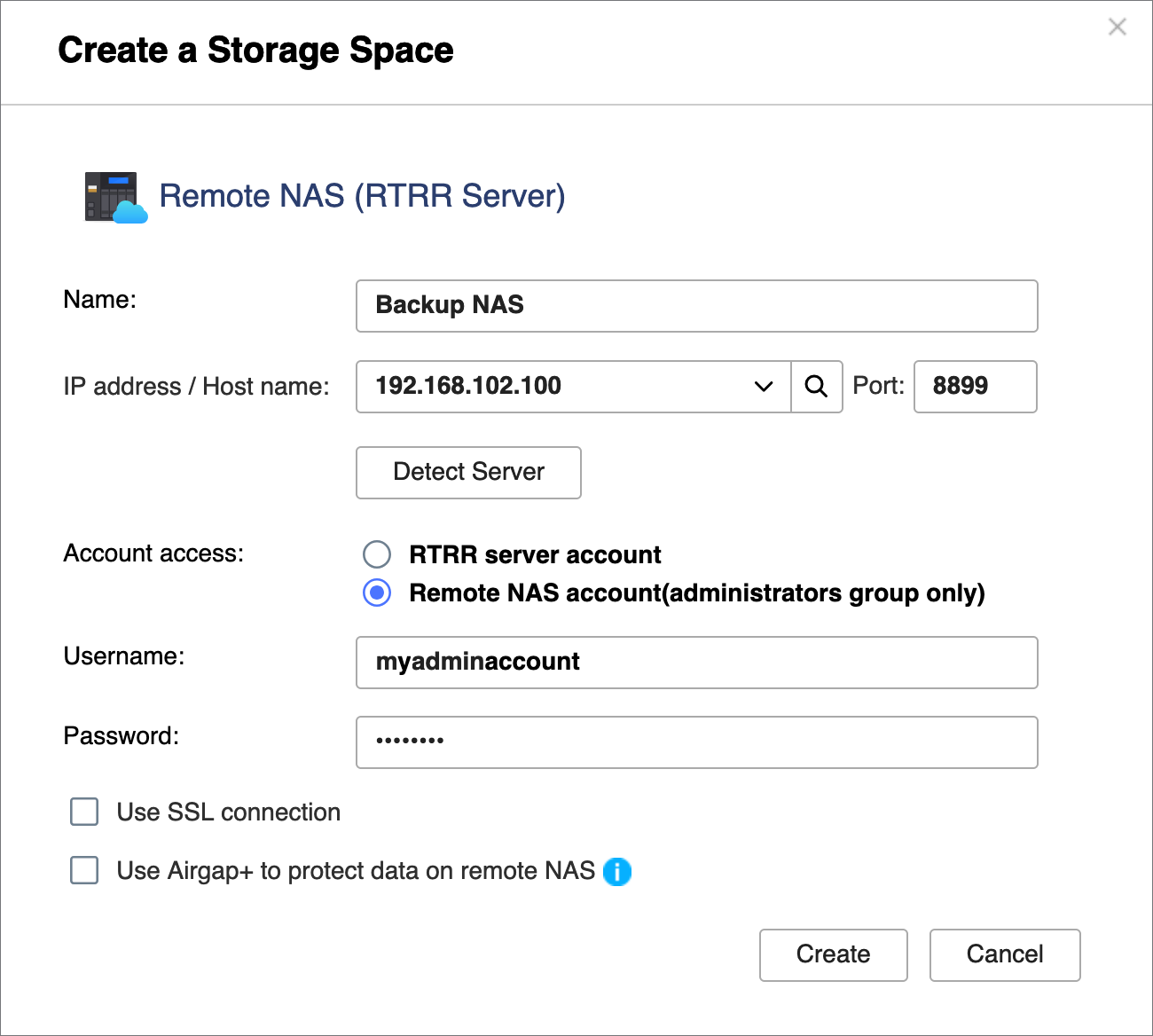
- Uzak NAS üzerindeki verileri korumak için Airgap+ kullan seçeneğini seçin.
- Yönlendirici 'yi Airgap+ cihazı olarak seçin.
- Statik Yol kuralından aldığınız ağ geçidi IP adresini girin (bkz. adım B-2e).
- Port numarasını girin.
- Yönlendirici yönetim hesabı kimlik bilgilerini girin.
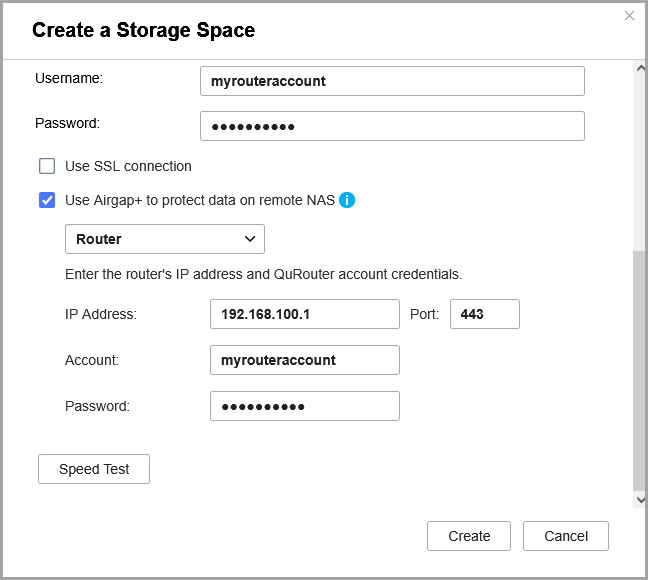
- Oluştur 'a tıklayın.
HBS, Depolama alanını oluşturur ve Depolama alanı listesine ekler.
Depolama alanı girişinin üst kısmında "Airgap+ ile Korunuyor" ifadesini görmelisiniz.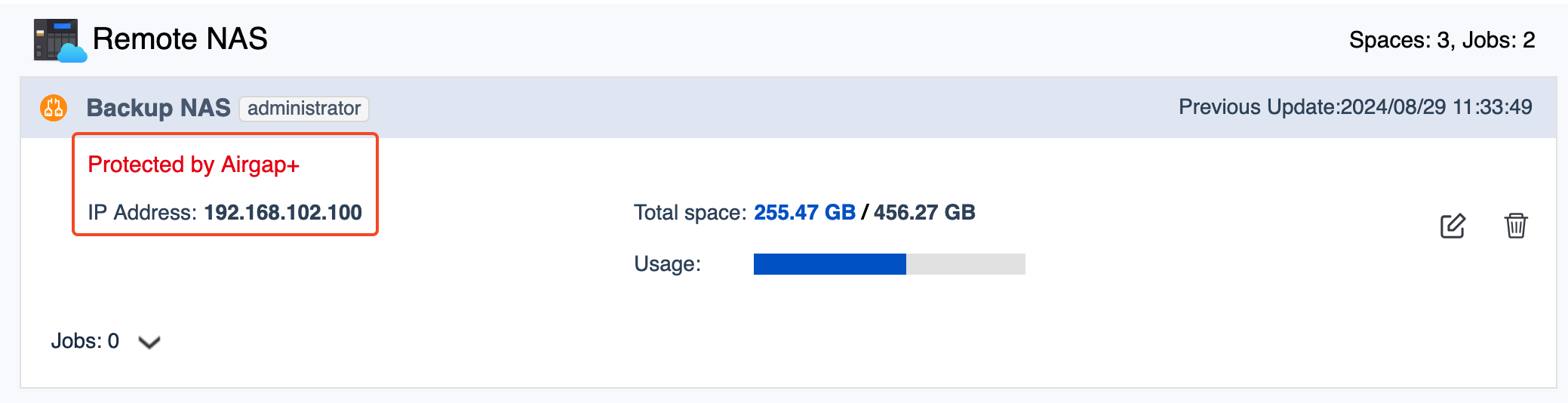
- Kaynak NAS üzerinde bir yedekleme işi oluşturun.
- HBS'de, Yedekleme & Kurtarma.
- Tıklayın Şimdi Yedekle ve ardından tıklayın Yeni yedekleme işi.
- Sihirbazdaki adımları takip edin.
Detaylar için bkz. Yedekleme işi oluşturma.
- Yedekleme işi oluşturulduktan sonra, Airgap+ bağlantısının yönlendiricide kurulduğunu doğrulayın.
- QuRouter'da, gidin Ağ > Fiziksel Arayüz Ayarları > LAN.
- Yedekleme NAS'ına bağlı olan LAN portunu belirleyin.
- Altında Bağlantı Durumu, bir Airgap+ etiketi olduğundan emin olun.
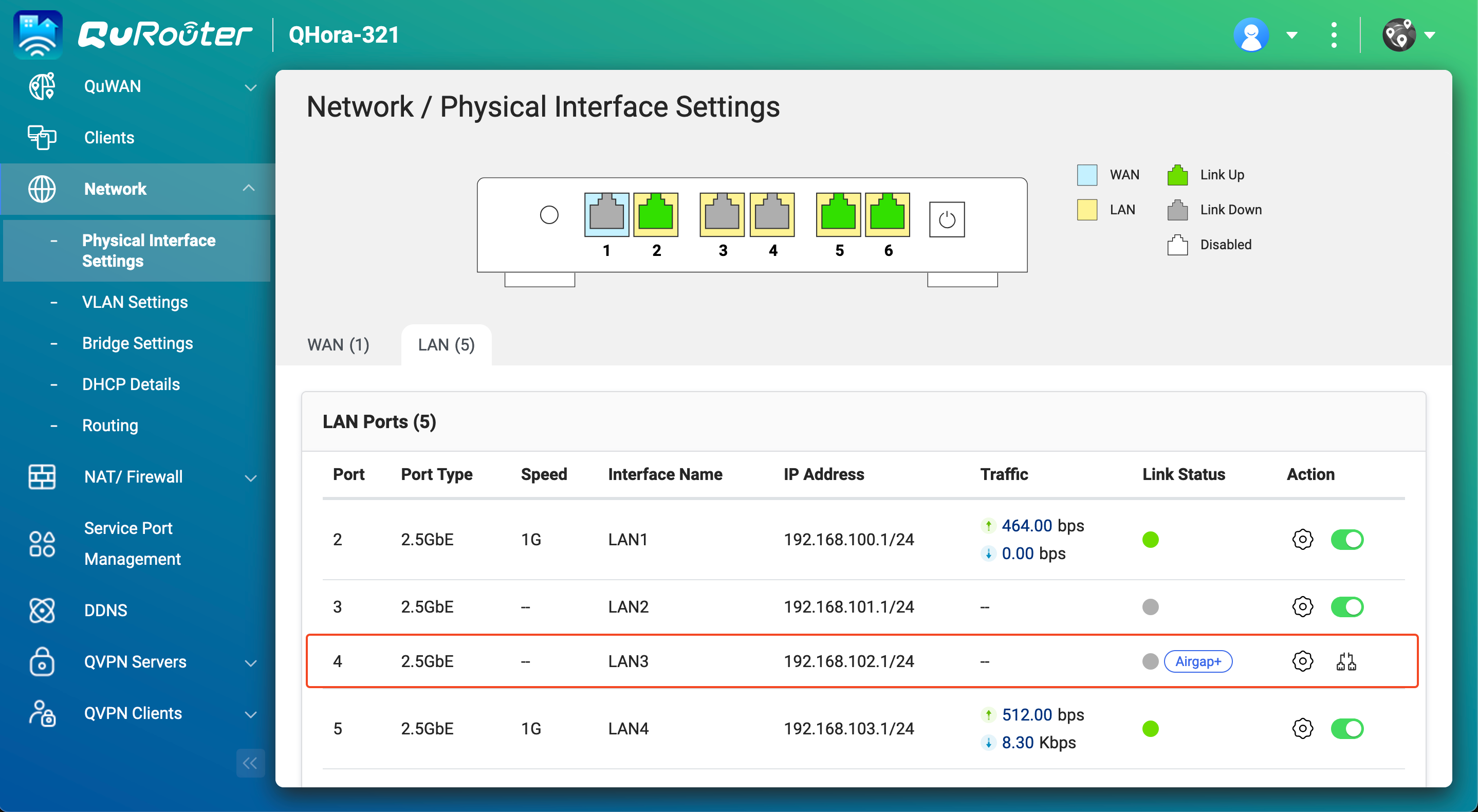
Artık kaynak NAS üzerinde Airgap+ korumalı HBS yedekleme işini çalıştırabilirsiniz.
Gelişmiş Airgap+
Gelişmiş Airgap+ kurulumunda, kaynak, yedekleme ve köprü NAS cihazları aynı yönlendiriciye bağlıdır. Kaynak NAS bir genel ağa bağlıyken, aynı zamanda yönlendirici aracılığıyla yedekleme ve köprü NAS cihazlarıyla özel bir ağdadır.
Bu özel ağda, yönlendirici yalnızca köprü NAS'ın, köprü NAS bir HBS işi çalıştırırken kaynak ve yedekleme NAS cihazlarına erişmesine izin verir.
Köprü NAS tüm HBS işlerini çalıştırdığı için, kaynak NAS diğer önemli görevler ve hizmetler için daha fazla sistem kaynağı koruyabilir ve tahsis edebilir.
Gelişmiş Airgap+ nasıl çalışır
Normalde, yalnızca köprü NAS yönlendiriciye erişebilir. Yedek NAS tamamen izole edilmiştir.
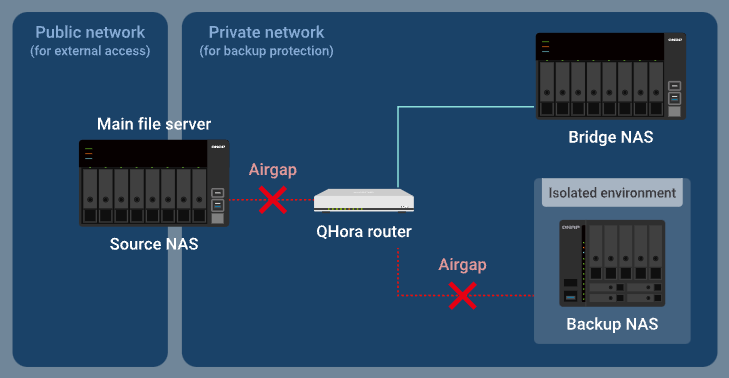
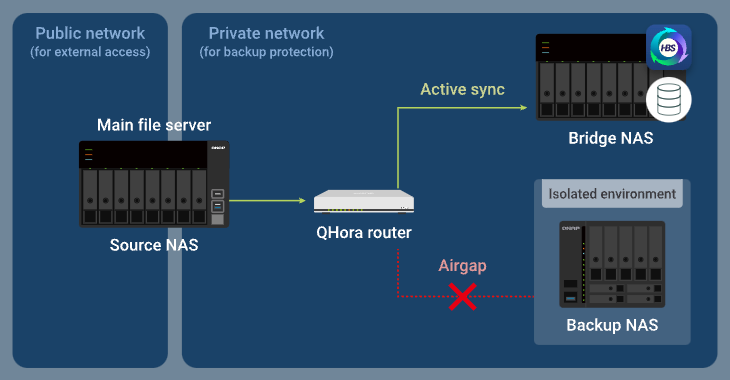
Köprü NAS, HBS'de aktif bir senkronizasyon işi çalıştırdığında, yönlendirici, yedeklemek istediğiniz verilerin kaynak NAS'tan yönlendirici aracılığıyla köprü NAS'a aktarılmasına izin verirken, yedek NAS izole kalır.
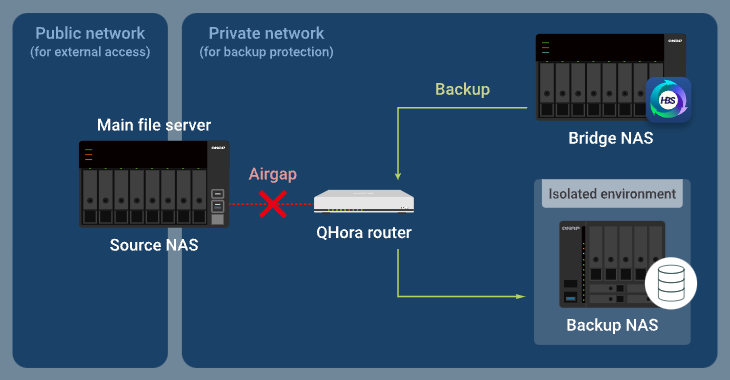
Aktif senkronizasyon işi tamamlandıktan sonra, köprü NAS bir yedekleme işi çalıştırır ve yönlendirici, yedek verilerin köprü NAS'tan yönlendirici aracılığıyla yedek NAS'a aktarılmasına izin verirken, kaynak NAS'ın özel ağa erişimi engellenir.
Gelişmiş Airgap+ Kurulum Talimatları
Gelişmiş bir Airgap+ ortamı kurmak için, verilerinizi yedeklemeye başlamak üzere HBS işleri oluşturabilmeniz için Airgap+ yönlendiriciyi ve tüm NAS cihazlarını yapılandırmanız gerekir.
A. Yönlendiriciyi yapılandırın
- Kaynak, köprü ve yedek NAS cihazlarını doğrudan Airgap+ yönlendiriciye bağlayarak özel bir ağ oluşturun.Önemli
Kaynak ve yedek NAS cihazları için statik IP adresleri yapılandırmanızı şiddetle tavsiye ederiz. Bu, tüm cihazlardaki Airgap+ ayarlarının zamanla geçerli kalmasını sağlar.
- Yönlendiriciye bağlı yedek ve kaynak NAS ağ adaptörleri için statik IP adresleri yapılandırmak için aşağıdakilerden birine bakın:
- "IPv4 ayarlarını yapılandırma" QTS Kullanıcı Kılavuzu veya QuTS hero Kullanıcı Kılavuzu
- "IPv6 ayarlarını yapılandırma" QTS Kullanıcı Kılavuzu veya QuTS hero Kullanıcı Kılavuzu
- IP adreslerini atamak için bir DHCP sunucusu kullanmayı seçerseniz, NAS cihazlarına bağlı yönlendirici LAN portlarında yedek ve kaynak NAS IP adreslerini ayırdığınızdan emin olun.
Yapılandırma detayları için, QHora Yönlendiriciler için QuRouter Kullanıcı Kılavuzu içindeki "Yerel alan ağı (LAN) arayüz ayarlarını yapılandırma" ("Ayrılmış IP Tablosu" ayarı) bölümüne bakın.
- Yönlendiriciye bağlı yedek ve kaynak NAS ağ adaptörleri için statik IP adresleri yapılandırmak için aşağıdakilerden birine bakın:
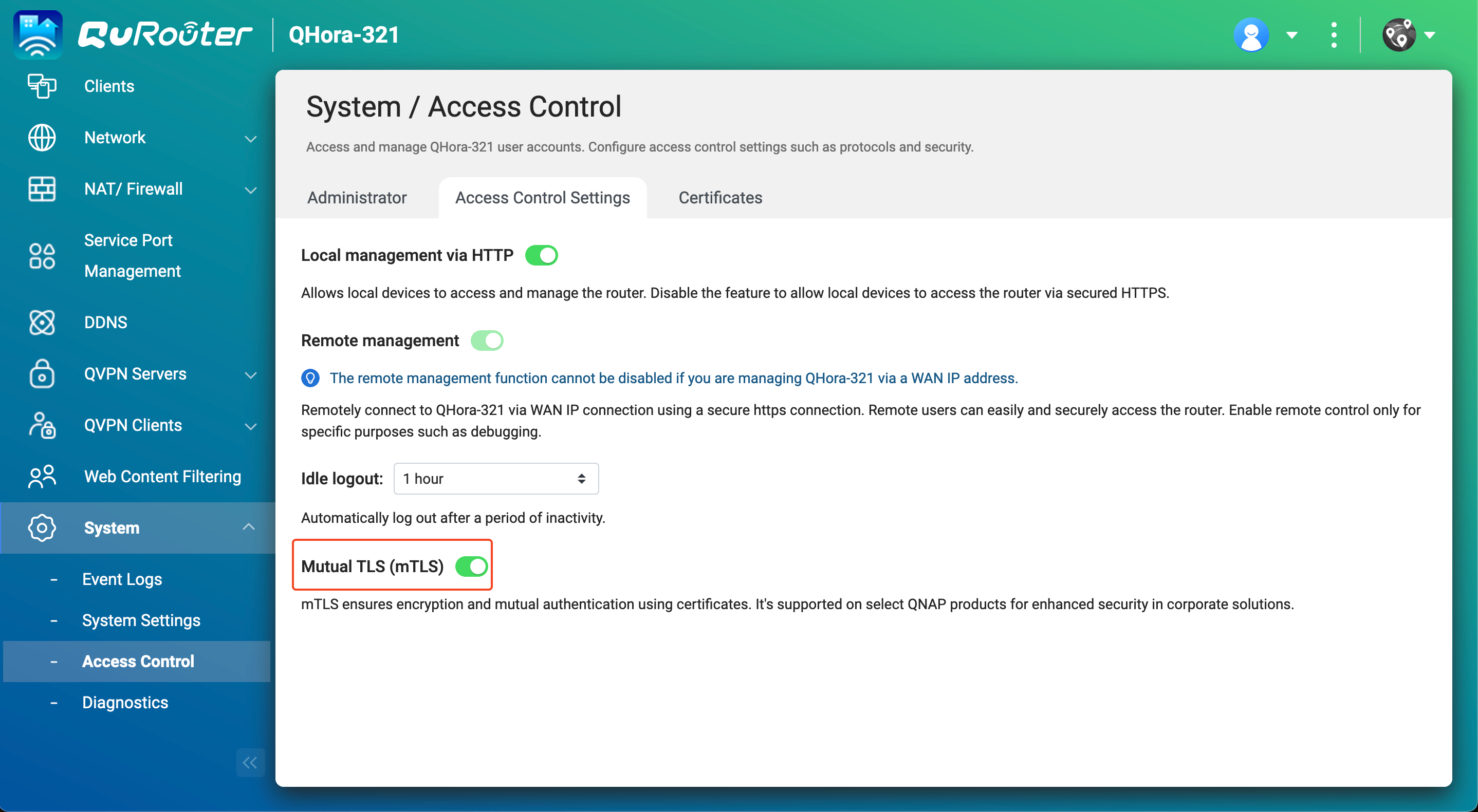
- Yönlendiricide karşılıklı TLS bağlantısını etkinleştirin.
- Yönlendirici işletim sistemi QuRouter'a giriş yapın.
- Git Sistem > Erişim Denetimi > Erişim Denetimi Ayarları.
- Karşılıklı TLS (mTLS) etkinleştirin.
- Özel ağdaki kaynak ve yedek NAS cihazlarınızın IP adreslerini edinin.
- QuRouter'da, Bağlı QNAP Cihazları'na gidin.
- Kaynak ve yedek NAS cihazlarını belirleyin.
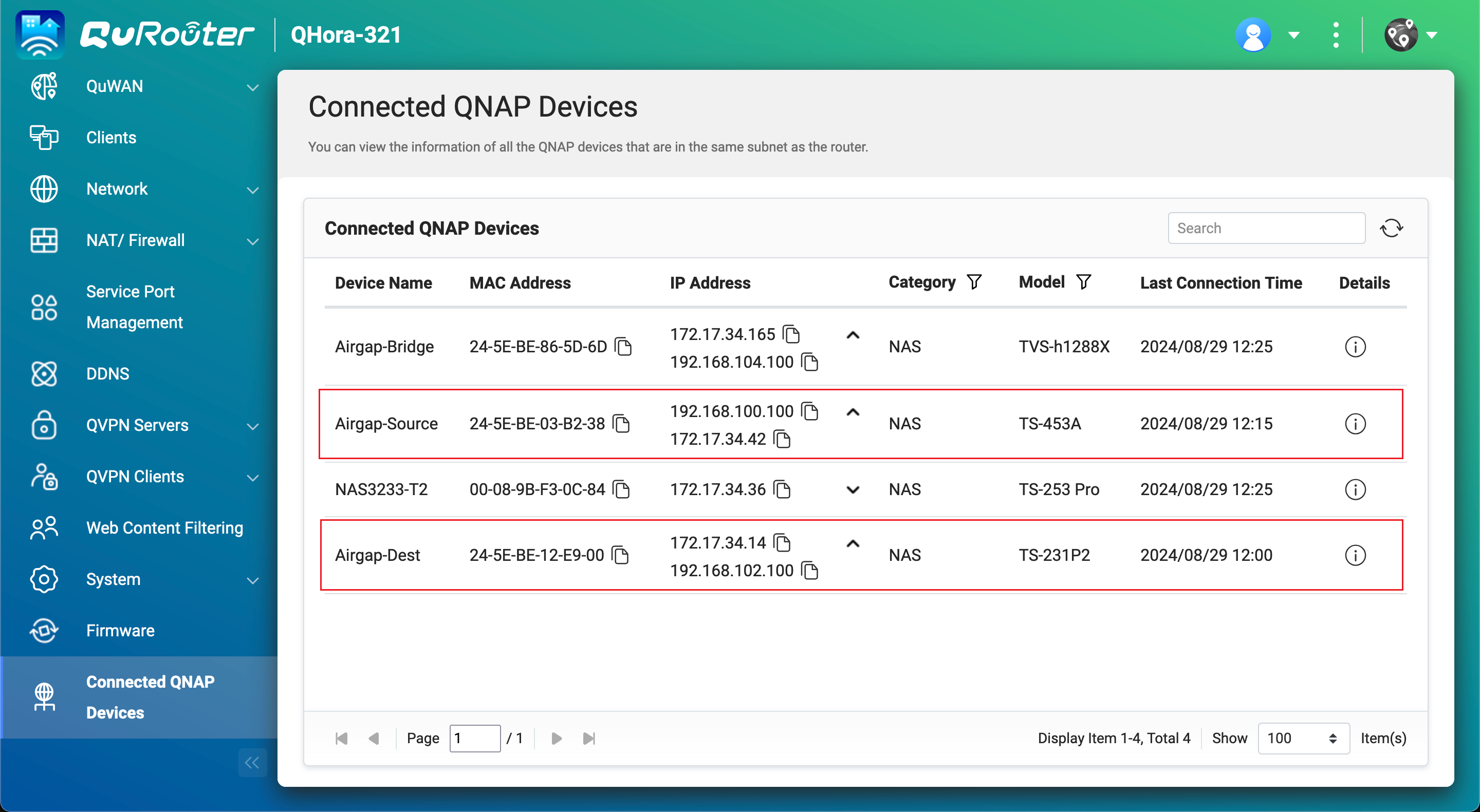
- Kaynak NAS IP adresini kopyalayın.Not
- NAS birden fazla IP adresine sahip olabilir. Yönlendirici ile aynı IP aralığında olan IP adresini kopyalayın.
Örneğimizde, IP adresi192.168.100.100. - Bu IP adresini B-2c ve D-1e adımlarında kullanın.
- NAS birden fazla IP adresine sahip olabilir. Yönlendirici ile aynı IP aralığında olan IP adresini kopyalayın.
- Yedek NAS IP adresini kopyalayın.Not
- NAS birden fazla IP adresine sahip olabilir. Yönlendirici ile aynı IP aralığında olan IP adresini kopyalayın.
Örneğimizde, IP adresi192.168.102.100. - Bu IP adresini B-3c ve D-2e adımlarında kullanın.
- NAS birden fazla IP adresine sahip olabilir. Yönlendirici ile aynı IP aralığında olan IP adresini kopyalayın.
- Kaynak ve yedek NAS cihazlarına bağlı olan Airgap+ yönlendiricinin LAN portu IP adreslerini edinin.
- QuRouter'da, Ağ > Fiziksel Arayüz Ayarları > LAN'a gidin.
- Kaynak ve yedek NAS cihazlarına bağlı olan yönlendiricinin LAN portlarını belirleyin.
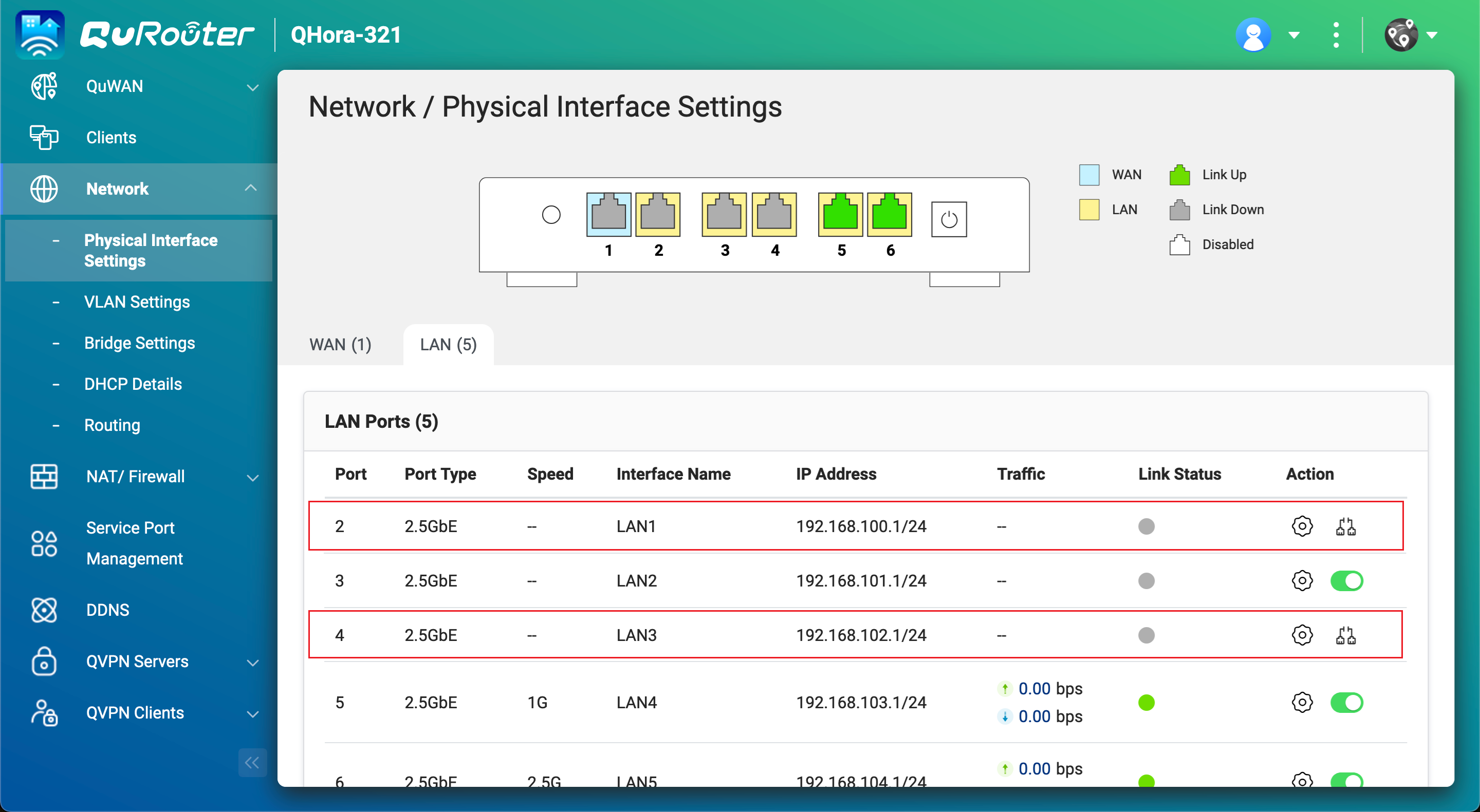
- Altında IP Adresi, kaynak NAS'a bağlı LAN portunun IP adresini kopyalayın.NotIP adresinin son oktetini B-2e adımında kullanın.
Örneğimizde, IP adresinin son okteti192.168.100.11. - Kaynak NAS'a bağlı LAN portunun alt ağ maskesini kopyalayın.NotAlt ağ maskesini B-2d adımında belirtin.
Örneğimizde, alt ağ maskesi/24. - Yedek NAS'a bağlı LAN portunun IP adresini kopyalayın.NotIP adresinin son oktetini B-3e adımında kullanın.
Örneğimizde, IP adresinin son okteti192.168.102.11'dir. - Yedek NAS'a bağlı LAN portunun alt ağ maskesini kopyalayın.NotAlt ağ maskesini B-3d adımında belirtin.
Örneğimizde, alt ağ maskesi/24'tür.
B. Köprü NAS'ı yapılandırın
- Airgap+ yönlendiriciye bağlı olan köprü NAS adaptörünü belirleyin.
- Köprü NAS'ta Ağ ve Sanal Anahtar açın.
- Git Ağ > Arabirimler.
- Airgap+ yönlendiriciye bağlı olan adaptörü belirleyin.NotBu adaptörü B-2f ve B-3f adımlarında kullanın.
Örneğimizde, adaptör 5 Airgap+ yönlendiriciye bağlıdır.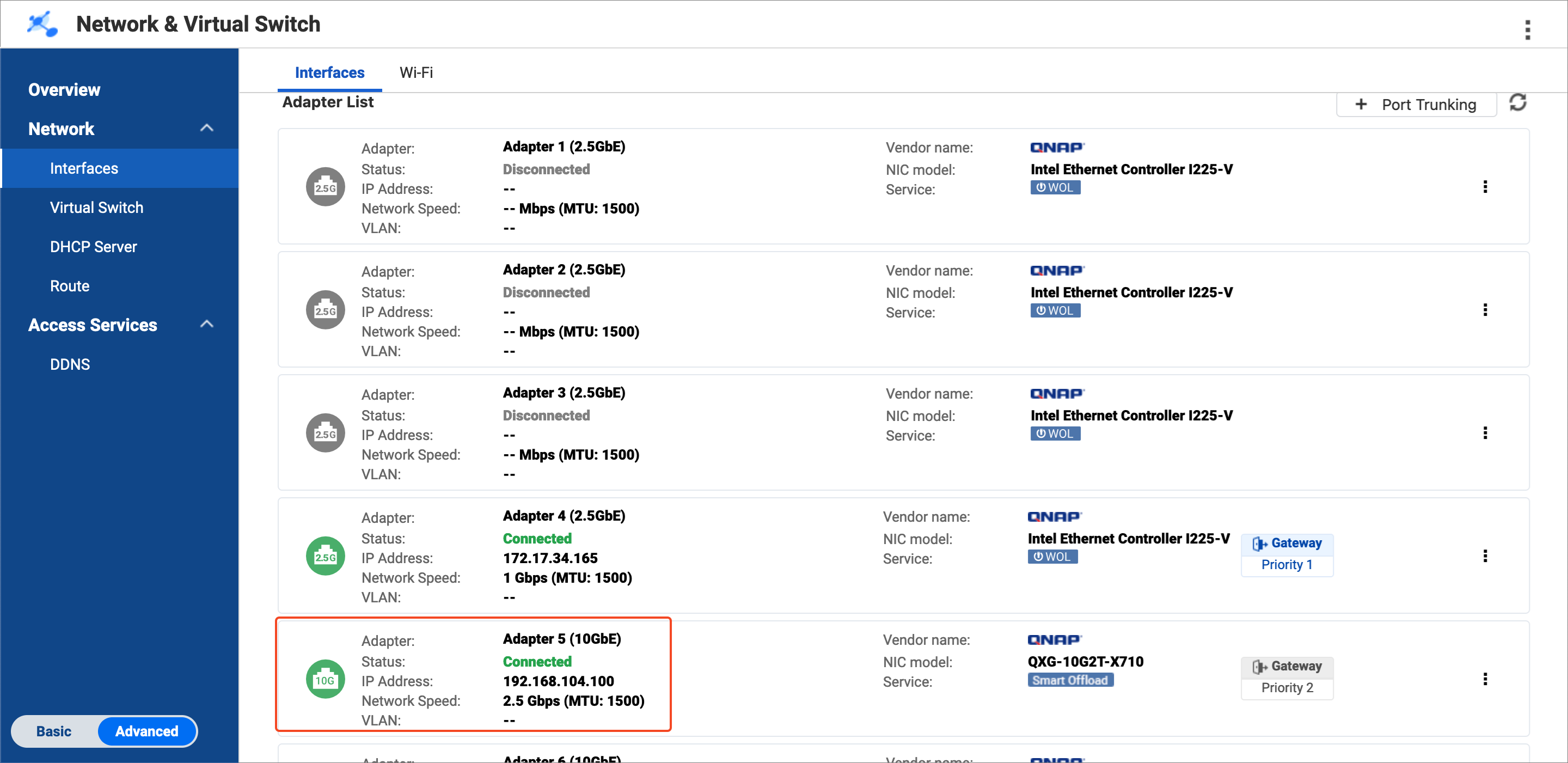
- Adaptörün IP adresini kopyalayın.NotIP adresinin ilk üç oktetini B-2e ve B-3e adımlarında kullanın.
Örneğimizde, IP adresinin ilk üç okteti192.168.104.100192.168.104'tür.
- Köprü NAS'ta kaynak NAS'a bağlanmak için bir Statik Yol kuralı oluşturun.
- Köprü NAS'ta, git Ağ ve Sanal Anahtar > Ağ > Yol.
- Statik Yol altında, Ekle 'ye tıklayın.
Statik Yol (IPv4) penceresi açılır. - Yanında Hedef, kaynak NAS'ın IP adresini belirtin (bkz. A-3c adımı).
- Yanında Ağ Maskesi, kaynak NAS'a bağlı olan yönlendirici LAN portunun alt ağ maskesini belirtin (bkz. A-4d adımı).
- Yanında Ağ Geçidi, yönlendiriciye bağlı köprü NAS adaptörü için IP adresinin ilk üç oktetini belirtin (bkz. adım B-1d), ardından kaynak NAS'a bağlı yönlendirici LAN portu için IP adresinin son oktetini belirtin (bkz. adım A-4c).NotÖrneğimizde:
- Adım B-1d, IP adresinin ilk üç oktetini sağlar (
192.168.104). - Adım A-4c, IP adresinin son oktetini sağlar (
1).
İkisini birleştirerek
192.168.104.1elde edin. Bu adresi Ağ Geçidi alanına girin.
Bu adresi adım D-1j'de de kullanın. - Adım B-1d, IP adresinin ilk üç oktetini sağlar (
- Arayüz yanında, yönlendiriciye bağlı köprü NAS adaptörünü seçin (bkz. adım B-1c).
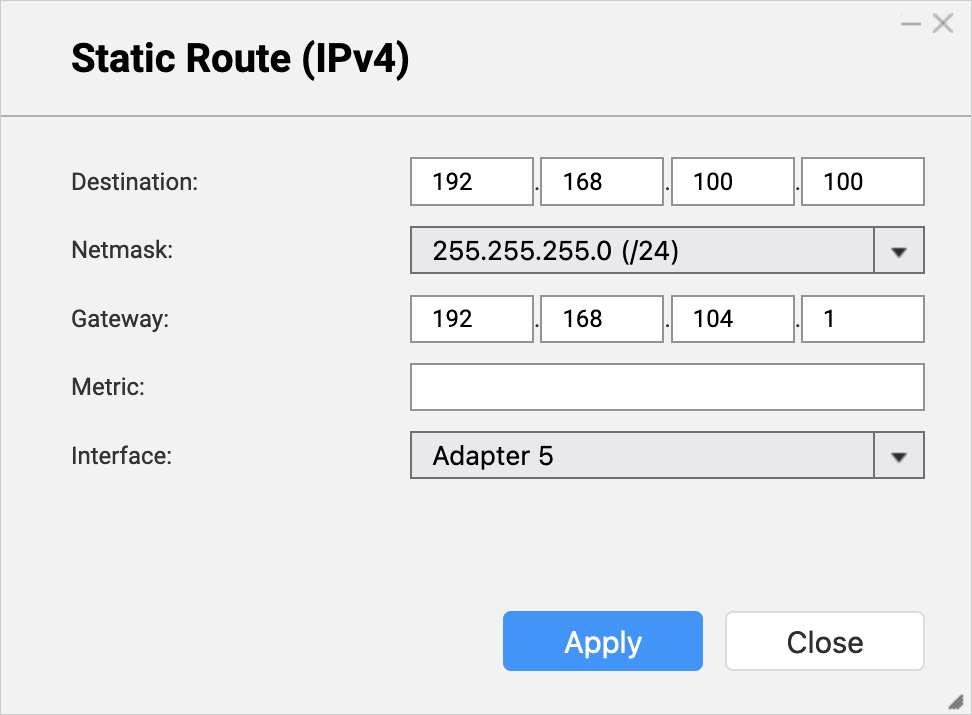
- Uygula 'ya tıklayın.
Ağ ve Sanal Anahtar, Statik Yol kuralını ekler.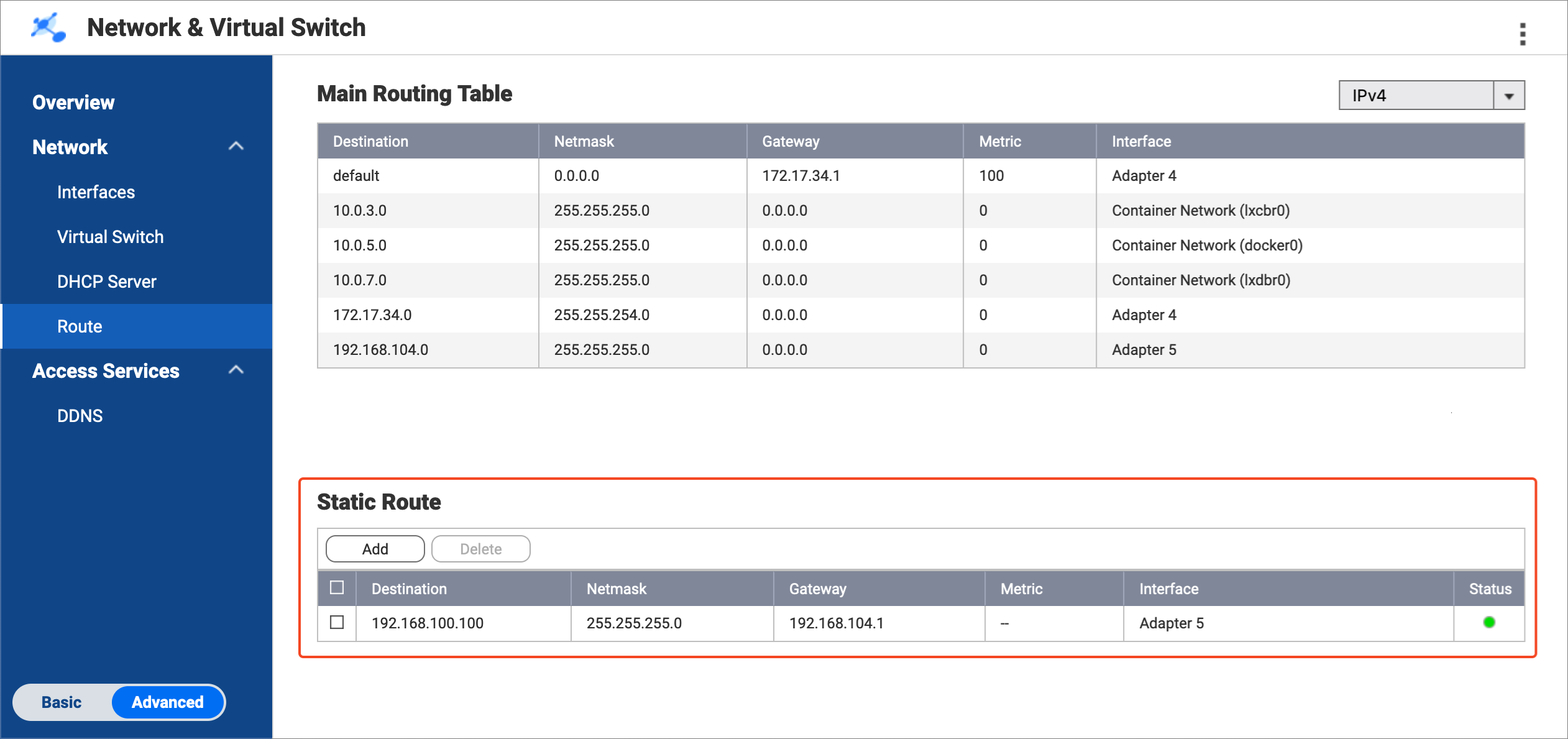
- Yedekleme NAS'a bağlanmak için köprü NAS üzerinde bir Statik Yol kuralı oluşturun.
- Köprü NAS üzerinde kalın Ağ ve Sanal Anahtar > Ağ > Yol.
- Statik Yol altında, Ekle 'ye tıklayın.
Statik Yol (IPv4) penceresi açılır. - Yanında Hedef, yedekleme NAS'ın IP adresini belirtin (bkz. adım A-3d).
- Yanında Ağ Maskesi, yedekleme NAS'a bağlı yönlendirici LAN portunun alt ağ maskesini belirtin (bkz. adım A-4f).
- Yanında Ağ Geçidi, yönlendiriciye bağlı köprü NAS adaptörü için IP adresinin ilk üç oktetini belirtin (bkz. adım B-1d), ardından yedek NAS'a bağlı yönlendirici LAN portu için IP adresinin son oktetini ekleyin (bkz. adım A-4e).NotÖrneğimizde:
- Adım B-1d, IP adresinin ilk üç oktetini sağlar (
192.168.104). - Adım A-4e, IP adresinin son oktetini sağlar (
1).
İkisini birleştirerek
192.168.104.1adresini elde edin. Bu adresi Ağ Geçidi alanına girin.
Bu adresi adım D-2j'de de kullanın. - Adım B-1d, IP adresinin ilk üç oktetini sağlar (
- Arayüz 'ün yanında, yönlendiriciye bağlı olan köprü NAS adaptörünü seçin (bkz. adım B-1c).

- Uygula 'ya tıklayın.
Ağ ve Sanal Anahtar, Statik Yol kuralını ekler.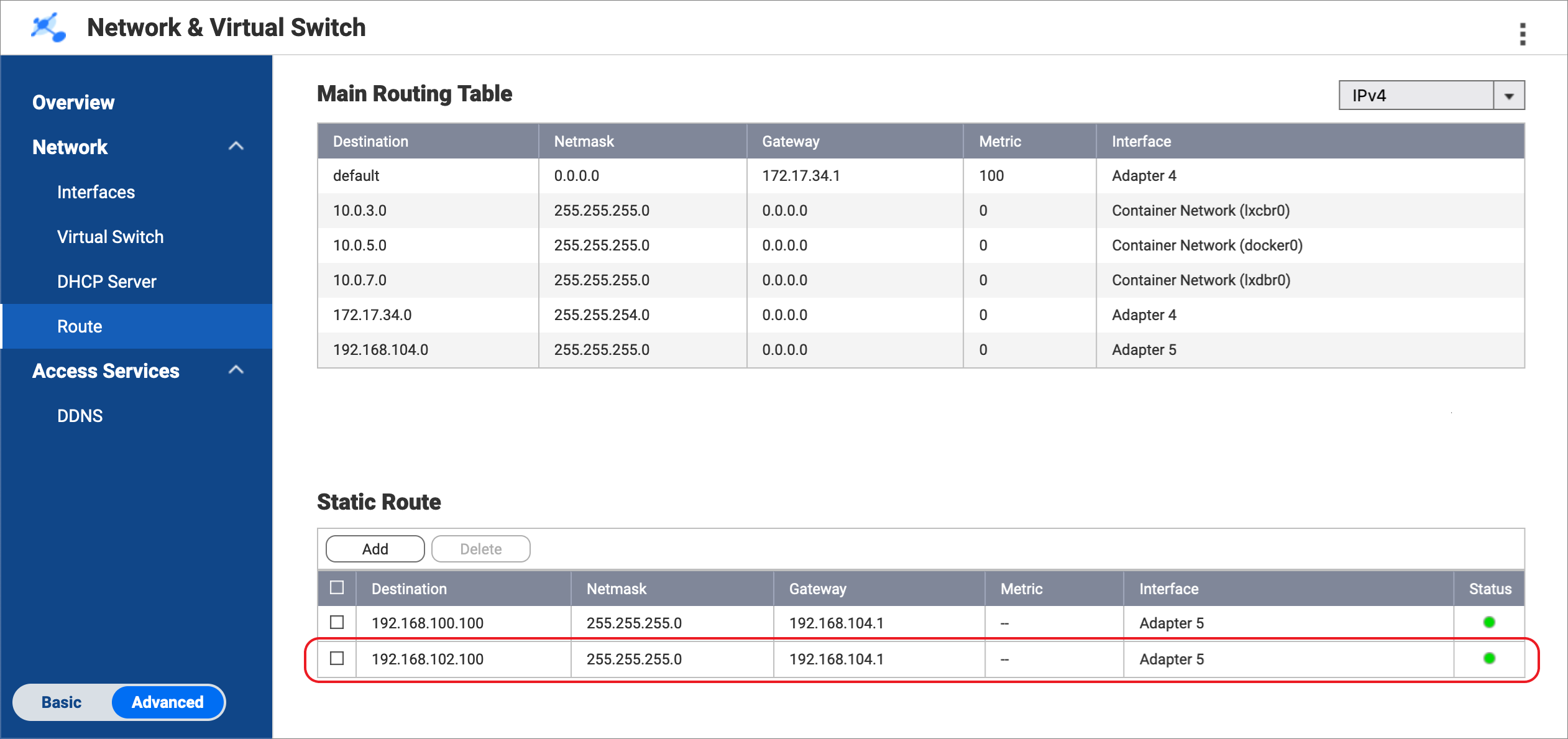
C. Kaynak ve yedekleme NAS cihazlarını yapılandırın
- Kaynak NAS üzerinde RTRR sunucusunu etkinleştirin.
Bu, köprü NAS üzerindeki HBS işlerinin kaynak NAS'ı bir senkronizasyon kaynağı olarak kullanmasına olanak tanır.- Kaynak NAS üzerinde HBS'yi açın.
- Hizmetler > Uzaktan NAS (RTRR Sunucusu) bölümüne gidin.
- Durum yanındaki geçiş düğmesine tıklayarak RTRR sunucusunu etkinleştirin.
- RTRR sunucu ayarlarını yapılandırın.
Detaylar için bkz. RTRR sunucusunu yapılandırma.Not- Bu sayfada belirtilen port numarasını kopyalayın ve D-1f adımında girin.
- Burada yapılandırılan hesap erişim yöntemini ve kimlik bilgilerini hatırlayın ve D-1g ve D-1h adımlarında kullanın.
- Uygula 'ya tıklayın.
HBS, kaynak NAS üzerinde RTRR sunucusunu etkinleştirir.
- Yedekleme NAS'ında RTRR sunucusunu etkinleştirin.
Bu, köprü NAS üzerindeki HBS işlerinin yedekleme NAS'ını bir yedekleme hedefi olarak kullanmasına olanak tanır.- Yedekleme NAS'ında HBS'yi açın.
- Hizmetler > Uzaktan NAS (RTRR Sunucusu) bölümüne gidin.
- Durum yanındaki geçiş düğmesine tıklayarak RTRR sunucusunu etkinleştirin.
- RTRR sunucu ayarlarını yapılandırın.
Detaylar için bkz. RTRR sunucusunu yapılandırma.Not- Bu sayfada belirtilen port numarasını kopyalayın ve adım D-2f'de girin.
- Burada yapılandırılan hesap erişim yöntemini ve kimlik bilgilerini hatırlayın ve adımlar D-2g ve D-2h'de kullanın.
- Uygula tıklayın. HBS, yedekleme NAS'ında RTRR sunucusunu etkinleştirir.
D. Köprü NAS üzerinde HBS işleri oluşturun
- Köprü NAS üzerindeki HBS'de, kaynak NAS için bir Depolama alanı oluşturun.
Bu, kaynak NAS'ın bağlantı ayarlarını kaydetmenize ve kaynak NAS ile köprü NAS arasında bir Airgap+ bağlantısı sağlamanıza olanak tanır.- Köprü NAS üzerinde HBS'yi açın.
- Depolama Alanları bölümüne gidin.
- Oluştur seçeneğine tıklayın ve ardından Uzak NAS seçeneğine tıklayın.
Bir Depolama Alanı Oluştur penceresi açılır. - Kaynak NAS'ı tanımlamak için bir ad girin.
- Kaynak NAS IP adresini girin (bkz. adım A-3c).
- Kaynak NAS RTRR sunucu port numarasını girin (bkz. adım C-1d).
- Kaynak NAS'taki RTRR sunucu ayarlarında yapılandırdığınız bir hesap erişim yöntemini seçin (bkz. adım C-1d).
- Hesap erişim yöntemi için kimlik bilgilerini girin (bkz. adım C-1d).
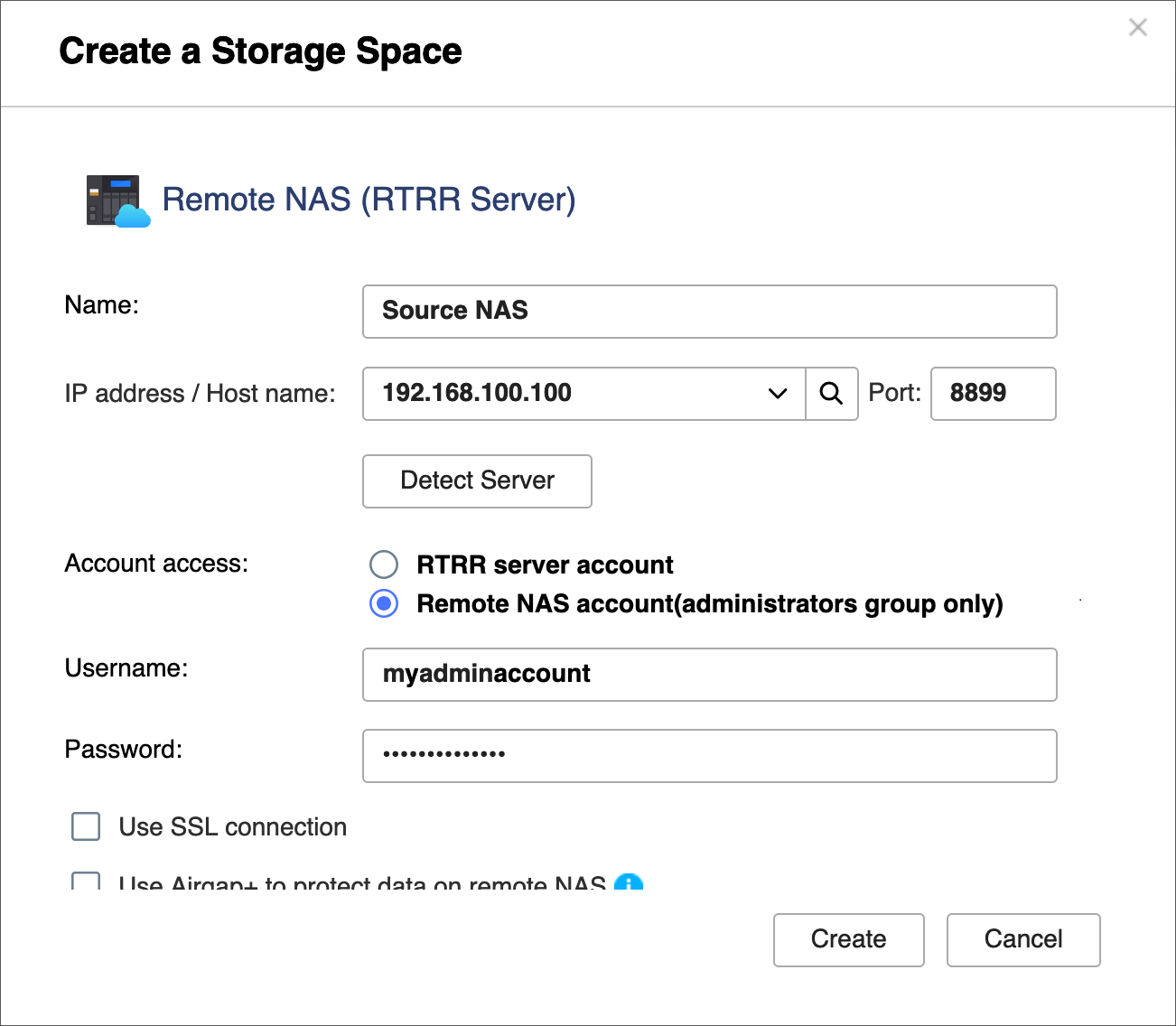
- Uzak NAS'taki verileri korumak için Airgap+ kullan seçeneğini seçin.
- Yönlendirici 'yi Airgap+ cihazı olarak seçin.
- Kaynak NAS'a bağlanmak için köprü NAS üzerindeki Statik Yol kuralından ağ geçidi IP adresini girin (bkz. adım B-2e).
- Port numarasını girin.
- Yönlendirici yönetim hesabı kimlik bilgilerini girin.
- Oluştur seçeneğine tıklayın.
HBS, Depolama alanını oluşturur ve Depolama alanı listesine ekler.
- Köprü NAS üzerinde HBS'de, yedekleme NAS'ı için bir Depolama alanı oluşturun.
Bu, yedekleme NAS'ının bağlantı ayarlarını kaydetmenize ve köprü NAS ile yedekleme NAS arasında bir Airgap+ bağlantısı etkinleştirmenize olanak tanır.- Köprü NAS üzerinde, HBS'de kalın.
- Depolama Alanları bölümüne gidin.
- Oluştur seçeneğine tıklayın ve ardından Uzak NAS seçeneğine tıklayın.
Depolama Alanı Oluştur penceresi açılır. - Yedekleme NAS'ını tanımlamak için bir ad girin.
- Yedekleme NAS IP adresini girin (bkz. adım A-3d).
- Yedekleme NAS RTRR sunucu port numarasını girin (bkz. adım C-2d).
- Yedekleme NAS üzerindeki RTRR sunucu ayarlarında yapılandırdığınız bir hesap erişim yöntemini seçin (bkz. adım C-2d).
- Hesap erişim yöntemi için kimlik bilgilerini girin (bkz. adım C-2d).
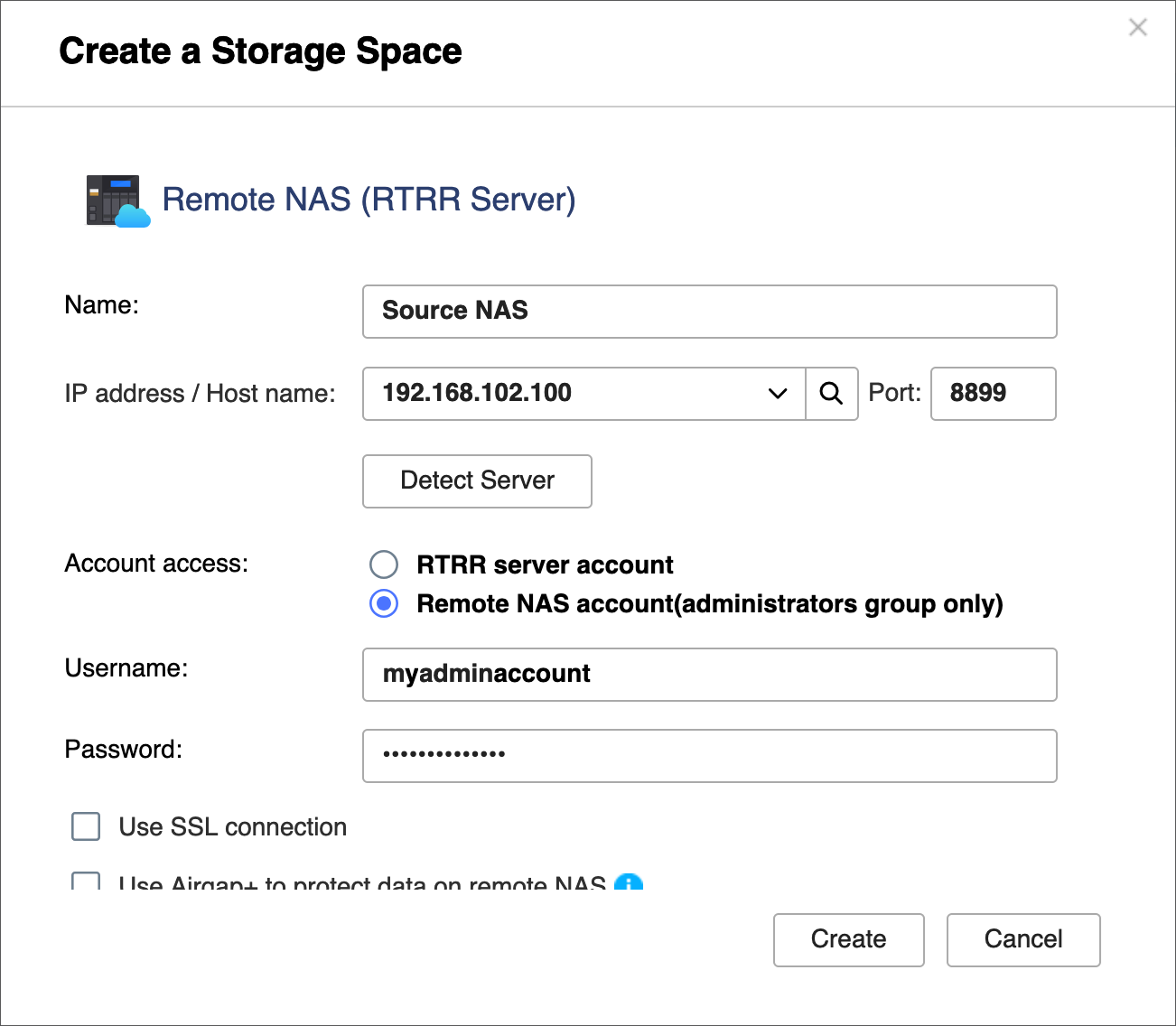
- Uzak NAS üzerindeki verileri korumak için Airgap+ kullan seçeneğini seçin.
- Yedekleme NAS'a bağlanmak için köprü NAS üzerindeki Statik Yol kuralından ağ geçidi IP adresini girin (bkz. adım B-3e).
- Yönlendirici yönetim hesabı kimlik bilgilerini girin.
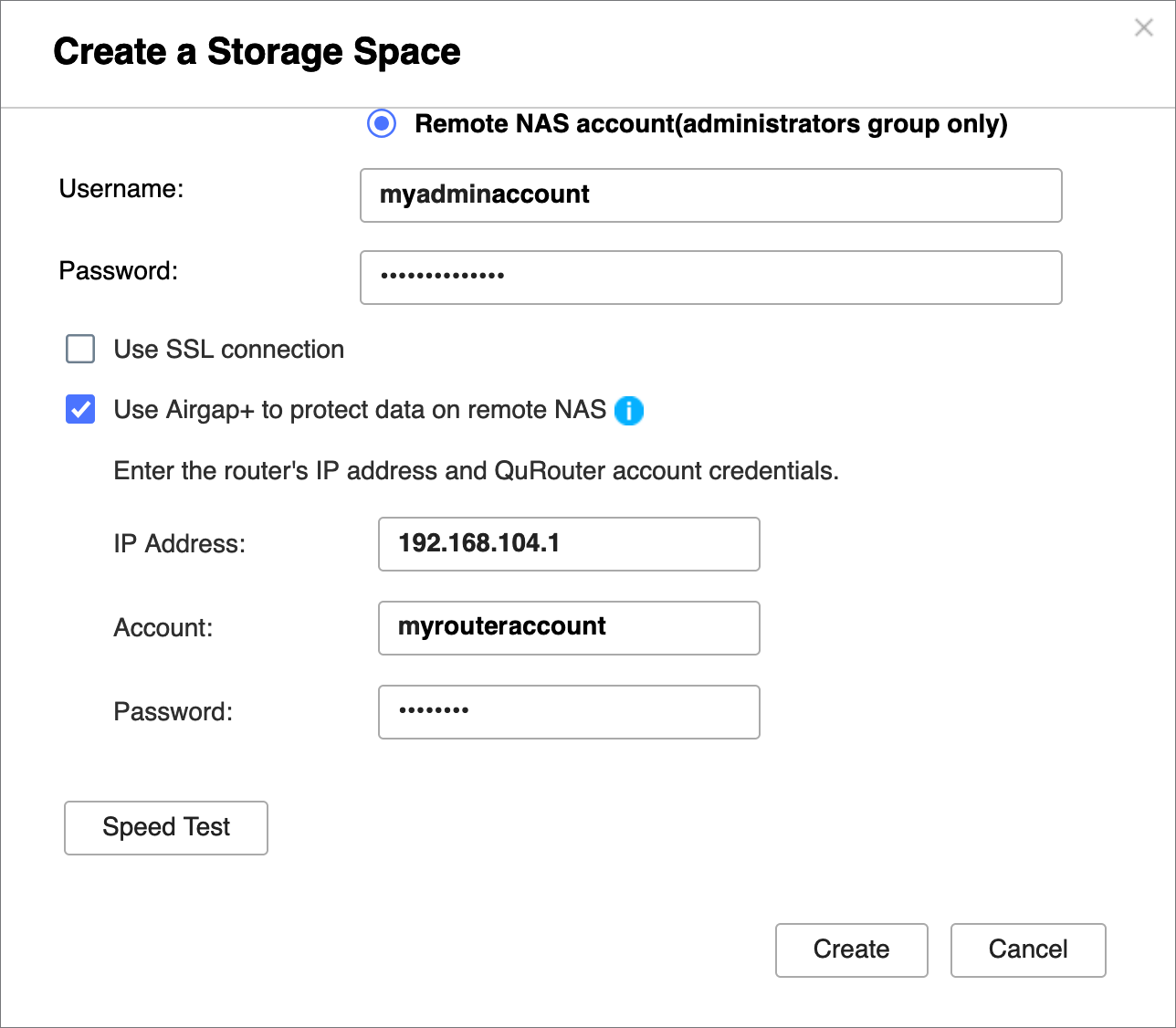
- Oluştur seçeneğine tıklayın.
HBS, Depolama alanını oluşturur ve Depolama alanı listesine ekler.
Her iki Depolama alanı oluşturulduktan sonra, HBS > Depolama Alanları bölümündeki Depolama alanı girişlerinin üst kısmında "Airgap+ ile Korunuyor" ifadesini görmelisiniz.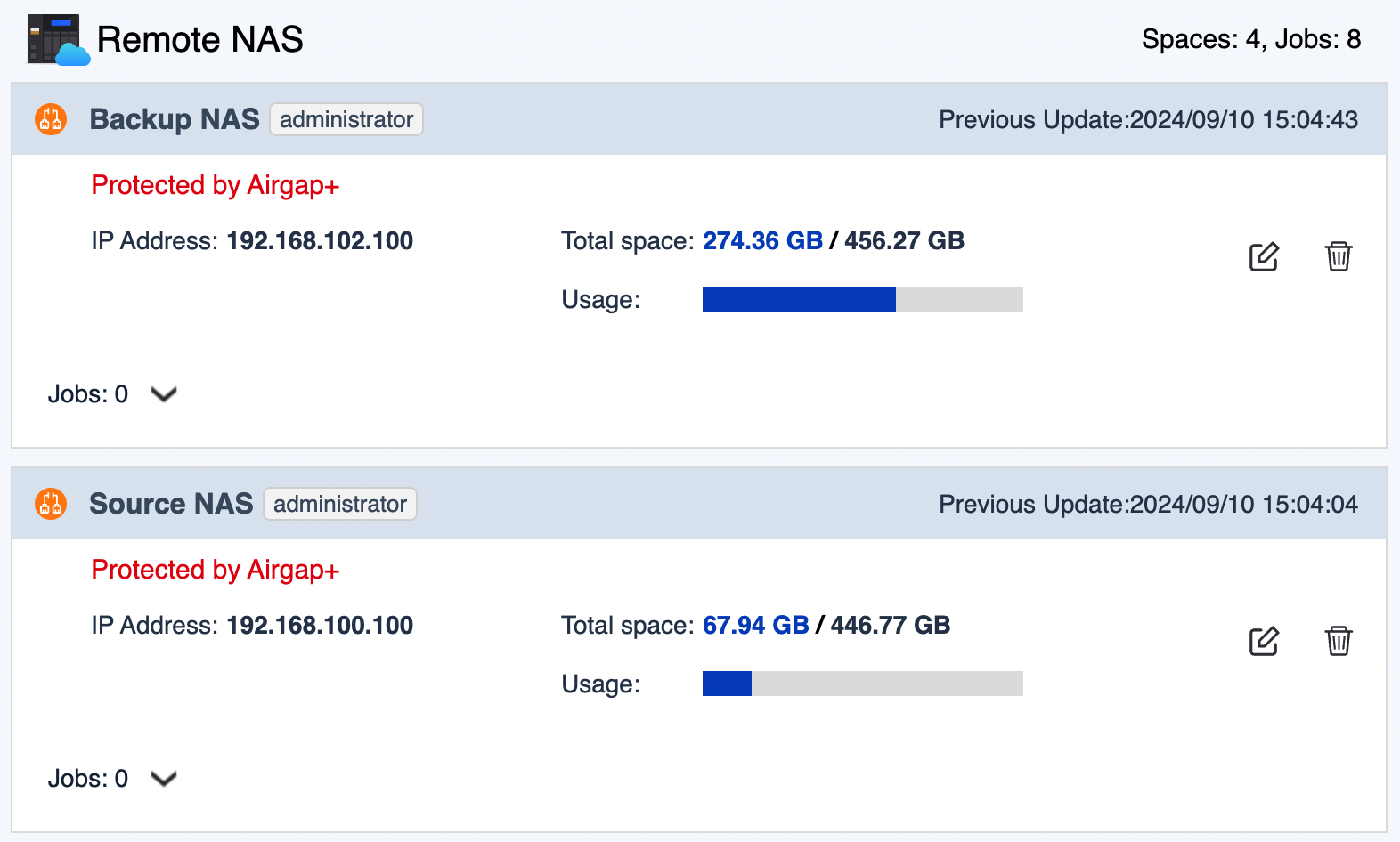
- Köprü NAS üzerinde, kaynak NAS'tan köprü NAS'a yedekleme verilerini aktarmak için aktif bir senkronizasyon işi oluşturun.
- Köprü NAS'ta, şuraya gidin HBS > Sync.
- Tıklayın Şimdi Senkronize Et ve ardından tıklayın Etkin Senkronizasyon İşi.
- Sihirbazdaki adımları izleyin.
Detaylar için, bkz. Etkin eşitleme işi oluşturma.
- Yedekleme verilerini yedekleme NAS'a aktarmak için köprü NAS'ta bir yedekleme işi oluşturun.
- Köprü NAS'ta, şuraya gidin HBS > Yedekleme & Geri Yükleme.
- Tıklayın Şimdi Yedekle ve ardından tıklayın Yeni yedekleme işi.
- Kaynak ve hedef klasörleri seçmek için sihirbazı izleyin.ÖnemliBu yedekleme işindeki kaynak klasörün, az önce oluşturduğunuz etkin senkronizasyon işindeki hedef klasörle aynı olduğundan emin olun.
- Zamanlama sayfasında, İşten sonra çalıştır seçeneğini seçin ve ardından az önce oluşturduğunuz etkin senkronizasyon işini seçin.
Bu, yedekleme işinin her etkin senkronizasyon işi bittiğinde otomatik olarak çalışmasını sağlar ve yedekleme verilerinin yedekleme NAS'ınıza aktarımını tamamlar.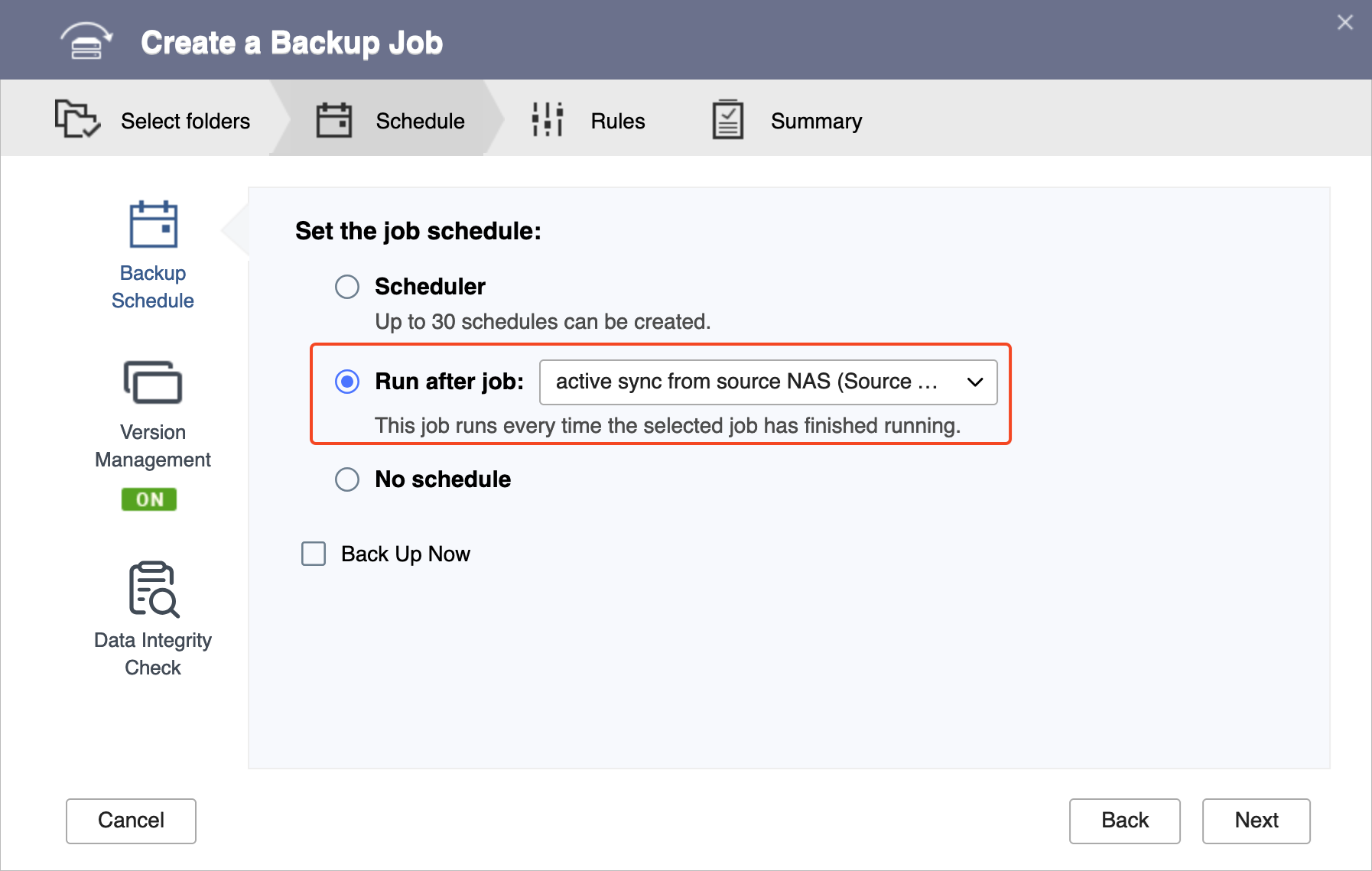
- Sihirbazdaki kalan adımları izleyin.
Detaylar için, bkz. Yedekleme işi oluşturma.
- Etkin senkronizasyon işi ve yedekleme işi oluşturulduktan sonra, Airgap+ bağlantılarının yönlendiricide kurulduğunu doğrulayın.
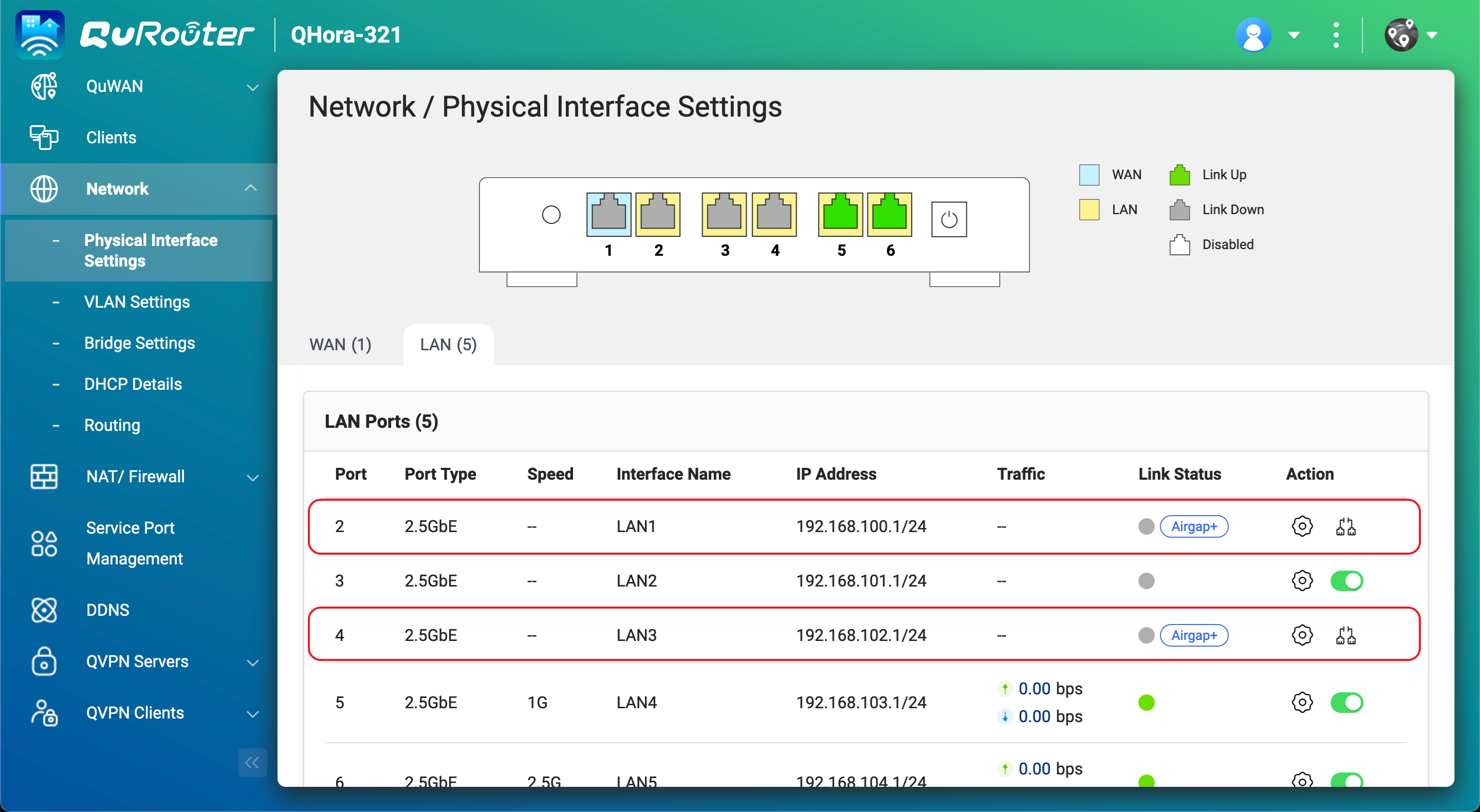
- Yönlendiricide, şuraya gidin QuRouter > Ağ > Fiziksel Arayüz Ayarları > LAN.
- Kaynak ve yedekleme NAS cihazlarına bağlı olan LAN portlarını belirleyin.
- Bağlantı Durumu altında, LAN portları için Airgap+ etiketlerinin olduğundan emin olun.
Artık köprü NAS üzerinde HBS aktif senkronizasyon işini çalıştırarak yedeklemek istediğiniz verileri aktarabilirsiniz.
Aktif senkronizasyon işi, yedekleme verilerini kaynak NAS'tan köprü NAS'a aktardıktan sonra, yedekleme işi otomatik olarak çalışacak ve yedekleme verilerini köprü NAS'tan nihai hedefi olan yedekleme NAS'ına aktaracaktır. Tüm süreç artık Airgap+ ile korunmaktadır.
Switch Tabanlı Ağ ile Airgap+ Kurulumu
Standart Airgap+
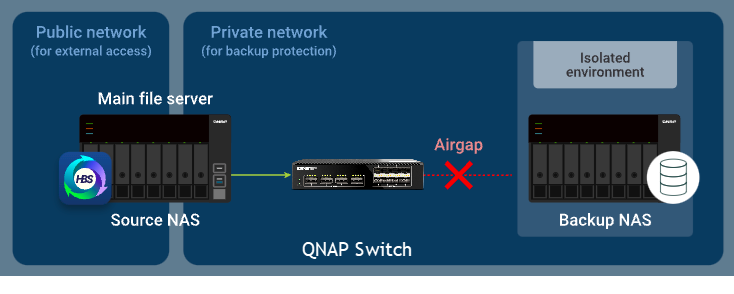
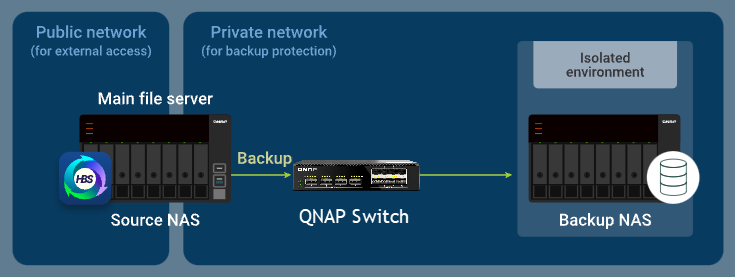
Switch tabanlı bir Airgap+ kurulumunda, hem kaynak NAS hem de yedekleme NAS aynı izole edilmiş switch'e bağlanır. Kaynak NAS ayrıca genel ağa bir bağlantı sürdürür, ancak yedekleme NAS, switch aracılığıyla oluşturulan özel ağ içinde kalır.
Bu izole edilmiş ağ segmenti içinde, switch yalnızca aktif bir HBS yedekleme görevi sırasında kaynak NAS'tan yedekleme NAS'a iletişime izin verir, planlanmış iş dışında başka bir erişimi engeller.
Standart Airgap+ nasıl çalışır
Normal koşullar altında, yalnızca kaynak NAS switch'in ötesinde ağ erişimine sahiptir. Yedekleme NAS, özel ağ segmenti içinde tamamen izole kalır.
Kaynak NAS bir HBS yedekleme görevi başlattığında, switch iki NAS cihazı arasında geçici olarak trafiği etkinleştirir ve iş süresince verilerin kaynak NAS'tan yedekleme NAS'a akmasına izin verir.
Standart Airgap+ Kurulum Talimatları
Bir switch kullanarak standart bir Airgap+ ortamı yapılandırmak için, HBS yedekleme işleri oluşturmadan önce Airgap+ switch'i ve her iki NAS cihazını kurmalısınız.
A. Switch'i yapılandırın
- Kaynak NAS ve yedekleme NAS'ı doğrudan Airgap+ switch'e bağlayarak özel bir ağ oluşturun.Önemli
Yedekleme NAS için statik bir IP adresi yapılandırılması önerilir, böylece tüm cihazlardaki Airgap+ ayarlarının zamanla geçerli kalması sağlanır.
Yedek NAS ağ adaptörü için anahtara bağlı olan statik bir IP adresi yapılandırmak için aşağıdakilerden birine bakın:
- QTS Kullanıcı Kılavuzu veya QuTS hero Kullanıcı Kılavuzu içinde "IPv4 ayarlarını yapılandırma"
- QTS Kullanıcı Kılavuzu veya QuTS hero Kullanıcı Kılavuzu içinde "IPv6 ayarlarını yapılandırma"
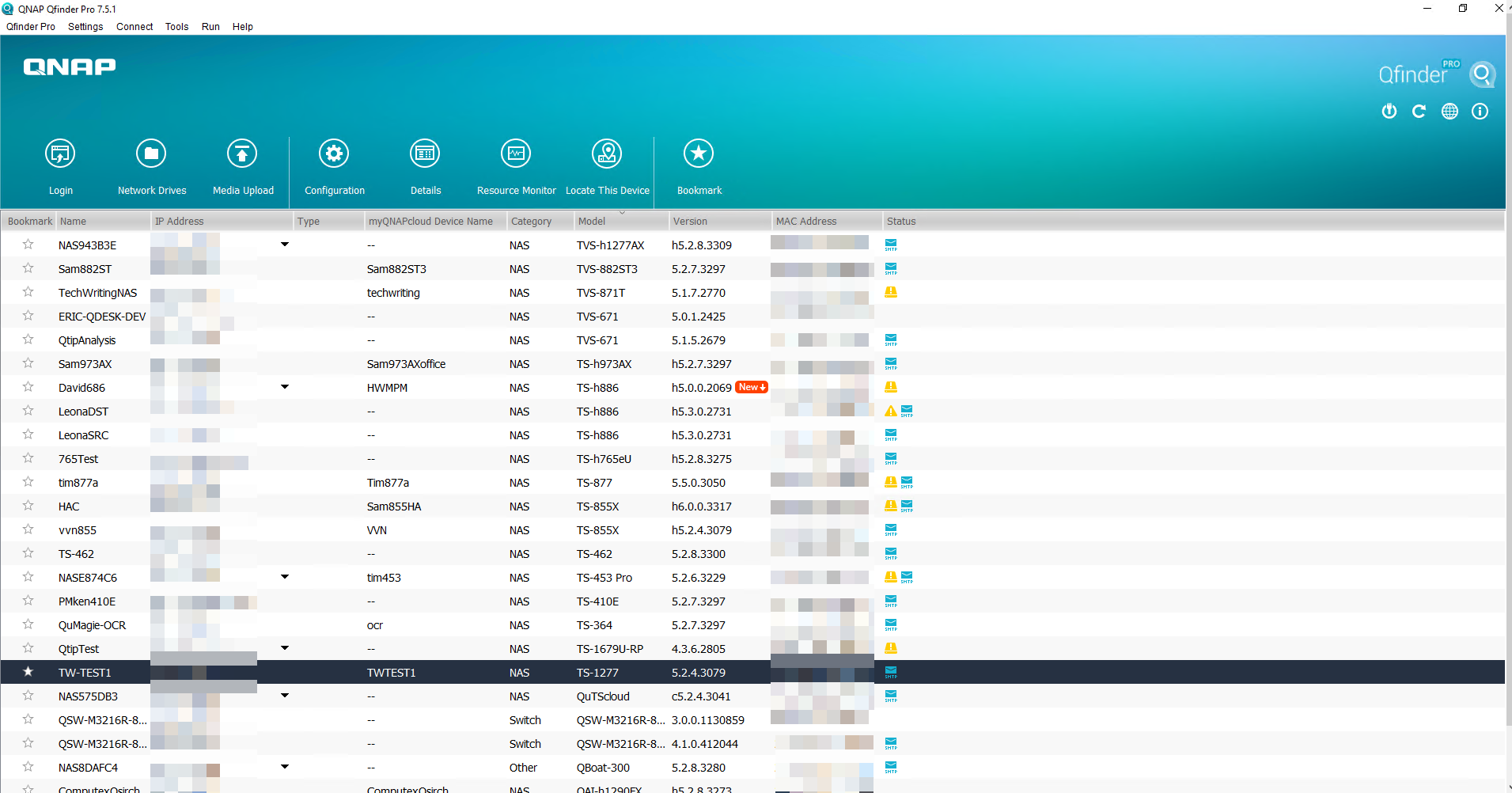
- Özel ağdaki yedek NAS'ınızın IP adresini edinin.
- Qfinder Pro açın.
- Yedek NAS cihazını tanımlayın.
- Yedek NAS IP adresini kopyalayın.
 Not
Not- NAS birden fazla IP adresine sahip olabilir. Anahtarla aynı IP aralığında olan IP adresini kopyalayın.
Örneğimizde, IP adresi192.168.102.100. - Bu IP adresini B-2c ve D-1e adımlarında kullanın.
- NAS birden fazla IP adresine sahip olabilir. Anahtarla aynı IP aralığında olan IP adresini kopyalayın.
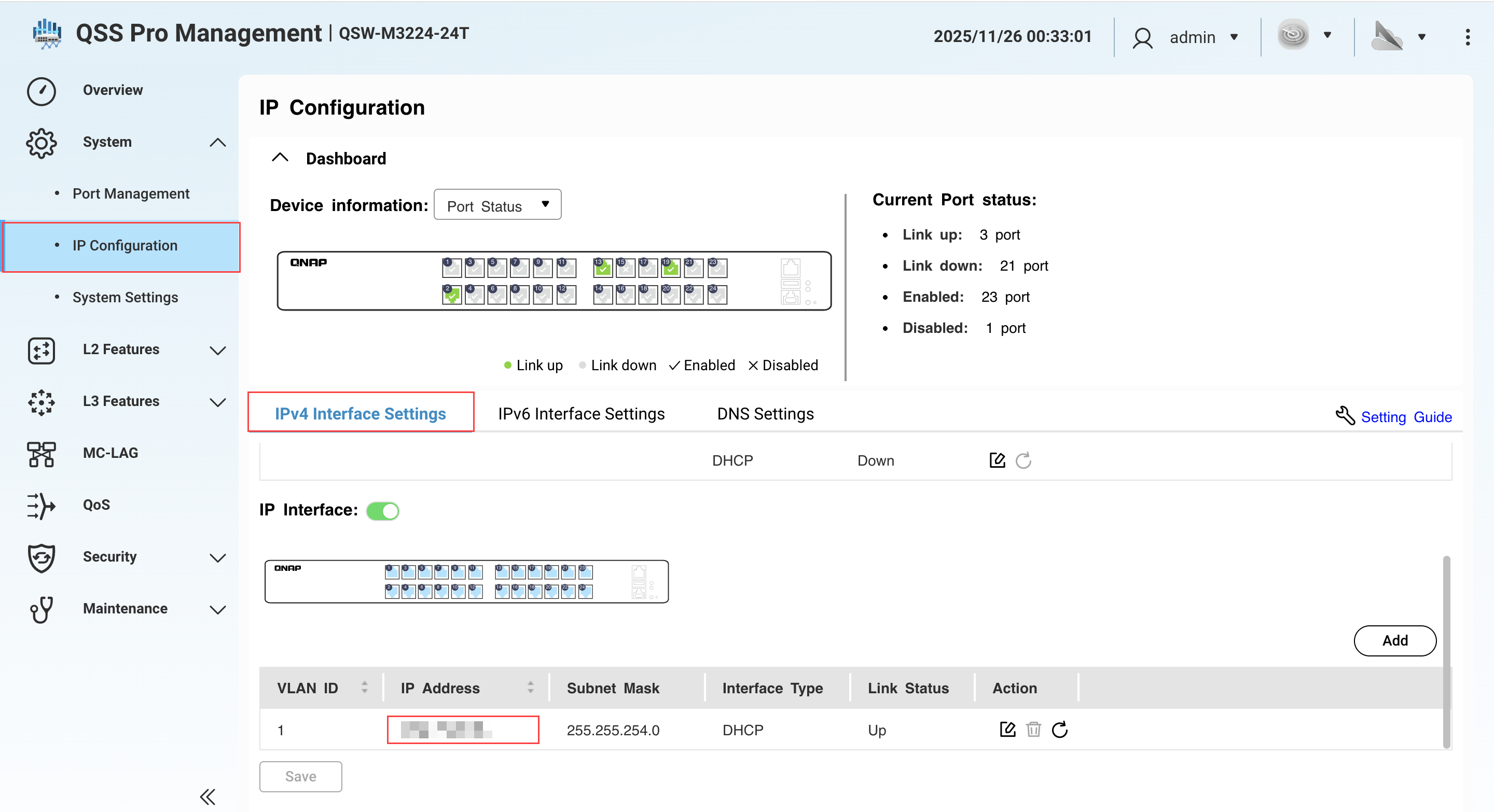
- Yedek NAS'a bağlı olan Airgap+ anahtarındaki LAN portu IP adresini edinin.
- QSS veya QSS Pro'ya giriş yapın.
- Git Sistem > IP Yapılandırması > IPv4 Arayüz Ayarları.
- Altında IP Adresi, NAS'a bağlı olan ağ adaptörünün IPv4 adresini belirleyin.
- Anahtar LAN portu IP adresini kopyalayın.NotBu IP adresinin son oktetini B-2e adımında kullanın. Eğer IP adresi 192.168.102.1 ise, IP adresinin son okteti 1'dir.
- Altında Alt Ağ Maskesi, alt ağ maskesini kopyalayın.NotBu alt ağ maskesini B-2d adımında belirtin. Örneğimizde, alt ağ maskesi
/24.
B. Kaynak NAS'ı yapılandırın
- Airgap+ anahtarına bağlı olan kaynak NAS adaptörünü belirleyin.
- Kaynak NAS'ta Ağ ve Sanal Anahtar açın.
- Git Ağ > Arayüzler.
- Airgap+ anahtarına bağlı olan adaptörü belirleyin.NotBu adaptörü adım B-2f'de kullanın.
Örneğimizde, adaptör 2 Airgap+ anahtarına bağlıdır. - Adaptörün IP adresini kopyalayın.NotIP adresindeki ilk üç okteti adım B-2e'de kullanın.
Örneğimizde, IP adresinin ilk üç okteti192.168.100.100192.168.100'dir.
- Kaynak NAS üzerinde yedekleme NAS'ına bağlanmak için bir Statik Yol kuralı oluşturun.
- Ağ ve Sanal Anahtar içinde, gidin Ağ > Yönlendirme.
- Statik Yol altında, Ekle 'ye tıklayın.
Statik Yol (IPv4) penceresi açılır. - Yanında Hedef, yedek NAS'ın IP adresini belirtin (bkz. adım A-2c).
- Yanında Ağ Maskesi, yedek NAS'a bağlı olan anahtar LAN portu için alt ağ maskesini belirtin (bkz. adım A-3e).
- Yanında Ağ Geçidi, anahtara bağlı olan kaynak NAS adaptörünün IP adresinin ilk üç oktetini belirtin (bkz. adım B-1d), ardından yedek NAS'a bağlı olan anahtar LAN portunun IP adresinin son oktetini belirtin (bkz. adım A-3e).NotÖrneğimizde:
- Adım B-1d, IP adresinin ilk üç oktetini sağlar (
192.168.100). - Adım A-3c, IP adresinin son oktetini sağlar (
1).
192.168.100.1elde edin. Bu adresi Gateway alanına girin.
Bu adresi adım D-1j'de de kullanın. - Adım B-1d, IP adresinin ilk üç oktetini sağlar (
- Arayüz yanındaki, anahtara bağlı olan kaynak NAS adaptörünü seçin (bkz. adım B-1d).
- Uygula 'ya tıklayın.
Ağ ve Sanal Anahtar, Statik Yol kuralını ekler.
C. Yedek NAS'ı yapılandırın
- Yedekleme NAS'ında, RTRR sunucusunu etkinleştirin.
Bu, kaynak NAS'taki HBS görevlerinin yedekleme NAS'ını yedekleme hedefi olarak kullanmasına olanak tanır.- Yedekleme NAS'ında, HBS'yi açın.
- Hizmetler > Uzaktan NAS (RTRR Sunucusu) bölümüne gidin.
- Durum yanındaki geçiş düğmesine tıklayarak RTRR sunucusunu etkinleştirin.
- RTRR sunucu ayarlarını yapılandırın.
Detaylar için, bkz. RTRR sunucusunu yapılandırma.Not- Bu sayfada belirtilen port numarasını kopyalayın ve adım D-1f'de girin.
- Burada yapılandırılan hesap erişim yöntemini ve kimlik bilgilerini hatırlayın ve adımlar D-1g ve D-1h'de kullanın.
- Uygula 'ya tıklayın.
HBS, yapılandırılan ayarlarla RTRR sunucusunu etkinleştirir.
D. Kaynak NAS üzerinde bir HBS işi oluşturun
- Kaynak NAS üzerindeki HBS'de, yedekleme NAS için bir Depolama alanı oluşturun.
Bu, yedekleme NAS'ın bağlantı ayarlarını kaydetmenizi ve kaynak NAS ile yedekleme NAS arasında bir Airgap+ bağlantısı etkinleştirmenizi sağlar.- Kaynak NAS üzerinde HBS'yi açın.
- Depolama Alanları bölümüne gidin.
- Oluştur seçeneğine tıklayın ve ardından Uzak NAS seçeneğine tıklayın.
Depolama Alanı Oluştur penceresi açılır. - Yedekleme NAS'ı tanımlamak için bir ad girin.
- Yedekleme NAS IP adresini girin (bkz. adım A-2c).
- Yedekleme NAS RTRR sunucu port numarasını girin (bkz. adım C-1d).
- Yedekleme NAS üzerindeki RTRR sunucu ayarlarında yapılandırdığınız bir hesap erişim yöntemini seçin (bkz. adım C-1d).
- Hesap erişim yöntemi için kimlik bilgilerini girin (bkz. adım C-1d).
- Uzak NAS üzerindeki verileri korumak için Airgap+ kullan seçeneğini seçin.
- Anahtar seçeneğini Airgap+ cihazı olarak seçin.
- Oluşturduğunuz Statik Yol kuralından geçit IP adresini girin (bkz. adım B-2e).
- Port numarasını girin.
- Anahtar yönetim hesabı kimlik bilgilerini girin.
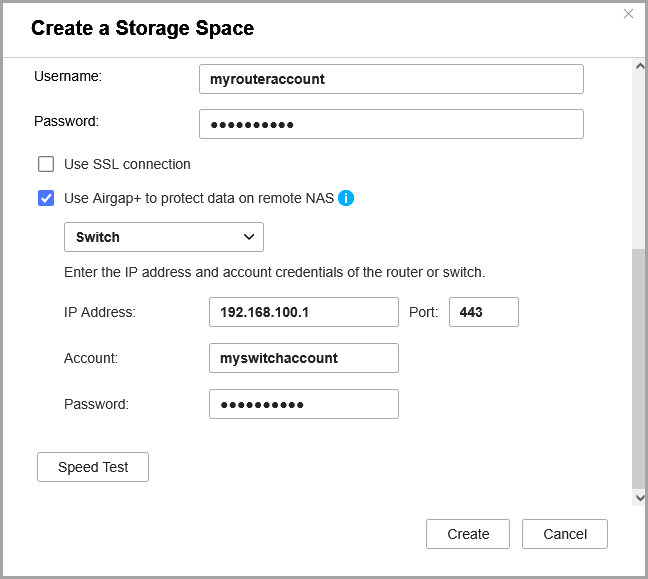
- Oluştur seçeneğine tıklayın.
HBS, Depolama alanını oluşturur ve Depolama alanı listesine ekler.
Depolama alanı girişinin üst kısmında "Airgap+ ile Korunuyor" ifadesini görmelisiniz.
- Kaynak NAS üzerinde bir yedekleme işi oluşturun.
- HBS'de, Yedekleme & Kurtarma'ya gidin.
- Tıklayın Şimdi Yedekle ve ardından tıklayın Yeni yedekleme işi.
- Sihirbazdaki adımları izleyin.
Detaylar için, bkz. Yedekleme işi oluşturma.
- Yedekleme işi oluşturulduktan sonra, Airgap+ bağlantısının switch üzerinde kurulduğunu doğrulayın.
- QSS veya QSS Pro'ya giriş yapın.
- Şuraya gidin Sistem > Port Yönetimi > Airgap+.
- Eylem altında, tıklayın
 .
.
Eşleştirilmiş QNAP Cihaz Detayları penceresi açılır. - Yanında Bağlantı Durumu, durumun Yukarı olduğunu doğrulayın.
Artık kaynak NAS üzerinde Airgap+ korumalı HBS yedekleme işini çalıştırabilirsiniz.
Gelişmiş Airgap+
Switch tabanlı gelişmiş Airgap+ yapılandırmasında, kaynak NAS, yedek NAS ve köprü NAS aynı izole switch'e bağlanır. Kaynak NAS, genel ağa bağlı kalırken, köprü ve yedek NAS cihazları switch üzerinden özel ağda kalır.
Bu güvenli segment içinde, yalnızca köprü NAS'ın hem kaynak NAS hem de yedek NAS ile iletişim kurmasına izin verilir ve bu yalnızca HBS görevlerini aktif olarak çalıştırdığında gerçekleşir. Tüm yedekleme ve senkronizasyon iş yükleri köprü NAS tarafından yönetildiğinden, kaynak NAS diğer önemli işlemler ve hizmetler için kaynaklarını koruyabilir.
Gelişmiş Airgap+ Nasıl Çalışır
Normal koşullar altında, yalnızca köprü NAS'ın özel ağ segmentinde iletişim kurmasına izin verilir. Yedek NAS tamamen izole kalır.

Köprü NAS, HBS'de bir Aktif Senkronizasyon işi başlattığında, switch geçici olarak kaynak NAS'tan köprü NAS'a veri aktarımına izin verir. Bu süre zarfında, yedek NAS izole kalır.
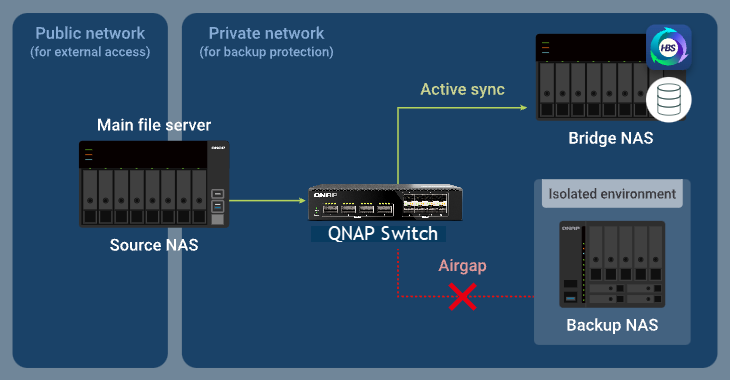
Senkronizasyon işi tamamlandıktan sonra, köprü NAS bir Yedekleme işi çalıştırır. Switch, köprü NAS'tan yedek NAS'a veri akışına izin verirken, kaynak NAS'ın özel ağa erişimini engeller.

Gelişmiş Airgap+ Kurulum Talimatları
Bir switch kullanarak gelişmiş bir Airgap+ ortamı dağıtmak için, Airgap+ switch ve tüm NAS cihazlarını (kaynak, köprü ve yedek) HBS işleri oluşturmadan önce yapılandırmalısınız. Ağ ve cihaz ayarları tamamlandıktan sonra, HBS'de senkronize ve yedekleme iş akışlarını oluşturmaya başlayabilirsiniz.
A. Switch'i yapılandırın
- Kaynak, köprü ve yedek NAS cihazlarını doğrudan Airgap+ switch'e bağlayarak özel bir ağ oluşturun.Önemli
Yedek NAS için statik bir IP adresi yapılandırılması önerilir, böylece tüm cihazlardaki Airgap+ ayarlarının zamanla geçerli kalması sağlanır.
Switch'e bağlı yedek NAS ağ adaptörü için statik bir IP adresi yapılandırmak için aşağıdakilerden birine bakın:
- QTS Kullanıcı Kılavuzu veya QuTS hero Kullanıcı Kılavuzu içinde "IPv4 ayarlarını yapılandırma"
- QTS Kullanıcı Kılavuzu veya QuTS hero Kullanıcı Kılavuzu içinde "IPv6 ayarlarını yapılandırma"
- Özel ağdaki yedek ve kaynak NAS'ın IP adresini edinin.
- Qfinder Pro açın.
- Kaynak NAS cihazını tanımlayın.
- Kaynak NAS IP adresini kopyalayın.Not
- NAS, listelenmiş birden fazla IP adresine sahip olabilir. Anahtar ile aynı IP aralığında olan IP adresini kopyalayın.
Örneğimizde, IP adresi192.168.100.100. - Bu IP adresini adım B-2c ve D-1e'de kullanın.
- NAS, listelenmiş birden fazla IP adresine sahip olabilir. Anahtar ile aynı IP aralığında olan IP adresini kopyalayın.
- Yedek NAS IP adresini belirleyin ve kopyalayın.Not
- NAS, listelenmiş birden fazla IP adresine sahip olabilir. Anahtar ile aynı IP aralığında olan IP adresini kopyalayın.
Örneğimizde, IP adresi192.168.102.100. - Bu IP adresini adım B-3c ve D-2e'de kullanın.
- NAS, listelenmiş birden fazla IP adresine sahip olabilir. Anahtar ile aynı IP aralığında olan IP adresini kopyalayın.
- Kaynak ve yedek NAS cihazlarına bağlı olan Airgap+ anahtarındaki LAN port IP adreslerini ve alt ağ maskelerini edinin.
- QSS'de, şuraya gidin Sistem >IP Yapılandırması > IPv4 Arayüz Ayarları
- NAS'a bağlı olan IPv4 arayüz adreslerini belirleyin.
- Altında IP Adresi, kaynak NAS'a bağlı LAN portunun IPv4 adresini kopyalayın.NotIP adresinin son oktetini adım B-2e'de kullanın. Örneğimizde, IP adresinin son okteti
192.168.100.11'dir. - Kaynak NAS'a bağlı LAN portunun alt ağ maskesini kopyalayın.NotAlt ağ maskesini adım B-2d'de belirtin.
Örneğimizde, alt ağ maskesi/24. - Yedek NAS'a bağlı LAN portunun IP adresini kopyalayın.NotAdım B-3e'de IP adresinin son oktetini kullanın.
Örneğimizde, IP adresinin son okteti192.168.102.11'dir. - Yedek NAS'a bağlı LAN portunun alt ağ maskesini kopyalayın.NotAdım B-3d'de alt ağ maskesini belirtin.
Örneğimizde, alt ağ maskesi/24'tür.
B. Köprü NAS'ı yapılandırın
- Airgap+ anahtarına bağlı olan köprü NAS adaptörünü belirleyin.
- Köprü NAS'ta Ağ ve Sanal Anahtar açın.
- Git Ağ > Arabirimler.
- Airgap+ anahtarına bağlı olan adaptörü belirleyin.NotBu adaptörü adımlar B-2f ve B-3f'de kullanın.
Örneğimizde, adaptör 5 Airgap+ anahtarına bağlıdır. - Adaptörün IP adresini kopyalayın.NotAdımlar B-2e ve B-3e'de IP adresinin ilk üç oktetini kullanın.
Örneğimizde, IP adresinin ilk üç okteti192.168.104.100192.168.104'tür.
- Köprü NAS'ta kaynak NAS'a bağlanmak için bir Statik Yol kuralı oluşturun.
- Köprü NAS'ta, git Ağ ve Sanal Anahtar > Ağ > Yol.
- Statik Yol altında, Ekle 'ye tıklayın.
Statik Yol (IPv4) penceresi açılır. - Yanında Hedef, kaynak NAS'ın IP adresini belirtin (bkz. adım A-2c).
- Yanında Ağ Maskesi, kaynak NAS'a bağlı olan anahtar LAN portunun alt ağ maskesini belirtin (bkz. adım A-3d).
- Yanında Ağ Geçidi, anahtara bağlı köprü NAS adaptörünün IP adresinin ilk üç oktetini belirtin (bkz. adım B-1d), ardından kaynak NAS'a bağlı olan anahtar LAN portunun IP adresinin son oktetini belirtin (bkz. adım A-3c).NotÖrneğimizde:
- Adım B-1d, IP adresinin ilk üç oktetini sağlar (
192.168.104). - Adım A-3c, kaynak NAS'a bağlı olan anahtar LAN portunun IP adresini sağlar. Bu adresten son okteti kullanın (
1).
İkisini birleştirerek
192.168.104.1elde edin. Bu adresi Ağ Geçidi alanına girin.
Ayrıca bu adresi adım D-1j'de kullanın. - Adım B-1d, IP adresinin ilk üç oktetini sağlar (
- Arayüz yanında, anahtara bağlı köprü NAS adaptörünü seçin (bkz. adım B-1c).
- Uygula 'ya tıklayın.
Ağ ve Sanal Anahtar, Statik Yol kuralını ekler.
- Yedekleme NAS'a bağlanmak için köprü NAS üzerinde bir Statik Yol kuralı oluşturun.
- Köprü NAS üzerinde kalın, Ağ ve Sanal Anahtar > Ağ > Yol.
- Statik Yol altında, Ekle 'ye tıklayın.
Statik Yol (IPv4) penceresi açılır. - Yanında Hedef, yedekleme NAS'ın IP adresini belirtin (bkz. adım A-2d).
- Yanında Ağ Maskesi, yedek NAS'a bağlı olan anahtar LAN portunun alt ağ maskesini belirtin (bkz. adım A-3f).
- Ağ Geçidi yanında, anahtar 'a bağlı köprü NAS adaptörünün IP adresinin ilk üç oktetini belirtin (bkz. adım B-1d), ardından yedek NAS'a bağlı anahtar LAN portunun IP adresinin son oktetini belirtin (bkz. adım A-3e).NotÖrneğimizde:
- Adım B-1d, IP adresinin ilk üç oktetini sağlar (
192.168.104). - Bu rota için, yedek NAS'a bağlı anahtar LAN portunun IP adresinin son oktetini (
1) kullanın (bkz. adım A-3e).
İkisini birleştirerek
192.168.104.1elde edin. Bu adresi Ağ Geçidi alanına girin.
Bu adresi adım D-2j'de de kullanın. - Adım B-1d, IP adresinin ilk üç oktetini sağlar (
- Arayüz yanında, anahtara bağlı köprü NAS adaptörünü seçin (bkz. adım B-1c).
- Uygula 'ya tıklayın.
Ağ ve Sanal Anahtar, Statik Yol kuralını ekler.
C. Kaynak ve yedekleme NAS cihazlarını yapılandırın
- Kaynak NAS üzerinde RTRR sunucusunu etkinleştirin.
Bu, köprü NAS üzerindeki HBS işlerinin kaynak NAS'ı bir senkronizasyon kaynağı olarak kullanmasına olanak tanır.- Kaynak NAS üzerinde HBS'yi açın.
- Hizmetler > Uzaktan NAS (RTRR Sunucusu) 'na gidin.
- Durum 'un yanındaki geçiş düğmesine tıklayarak RTRR sunucusunu etkinleştirin.
- RTRR sunucu ayarlarını yapılandırın.
Detaylar için RTRR sunucusunu yapılandırma 'ye bakın.Not- Bu sayfada belirtilen port numarasını kopyalayın ve adım D-1f'de girin.
- Burada yapılandırılan hesap erişim yöntemini ve kimlik bilgilerini hatırlayın ve adımlar D-1g ve D-1h'de kullanın.
- Uygula 'ya tıklayın.
HBS, kaynak NAS üzerinde RTRR sunucusunu etkinleştirir.
- Yedekleme NAS'ında RTRR sunucusunu etkinleştirin.
Bu, köprü NAS üzerindeki HBS görevlerinin yedekleme NAS'ını yedekleme hedefi olarak kullanmasına olanak tanır.- Yedekleme NAS'ında HBS'yi açın.
- Hizmetler > Uzaktan NAS (RTRR Sunucusu) bölümüne gidin.
- Durum yanındaki geçiş düğmesine tıklayarak RTRR sunucusunu etkinleştirin.
- RTRR sunucu ayarlarını yapılandırın.
Detaylar için bkz. RTRR sunucusunu yapılandırma.Not- Bu sayfada belirtilen port numarasını kopyalayın ve adım D-2f'de girin.
- Burada yapılandırılan hesap erişim yöntemini ve kimlik bilgilerini hatırlayın ve bunları adımlar D-2g ve D-2h'de kullanın.
- Uygula 'ya tıklayın.
HBS, yedekleme NAS'ında RTRR sunucusunu etkinleştirir.
D. Köprü NAS üzerinde HBS işleri oluşturun
- Köprü NAS üzerindeki HBS'de, kaynak NAS için bir Depolama alanı oluşturun.
Bu, kaynak NAS'ın bağlantı ayarlarını kaydetmenizi ve kaynak NAS ile köprü NAS arasında bir Airgap+ bağlantısı sağlamanızı mümkün kılar.- Köprü NAS üzerinde HBS'yi açın.
- Depolama Alanları bölümüne gidin.
- Oluştur seçeneğine tıklayın ve ardından Uzak NAS seçeneğine tıklayın.
Bir Depolama Alanı Oluştur penceresi açılır. - Kaynak NAS'ı tanımlamak için bir ad girin.
- Kaynak NAS IP adresini girin (bkz. adım A-2c).
- Kaynak NAS RTRR sunucu port numarasını girin (bkz. adım C-1d).
- Kaynak NAS üzerindeki RTRR sunucu ayarlarında yapılandırdığınız bir hesap erişim yöntemini seçin (bkz. adım C-1d).
- Hesap erişim yöntemi için kimlik bilgilerini girin (bkz. adım C-1d).
- Uzak NAS'taki verileri korumak için Airgap+ kullan seçeneğini seçin.
- Anahtar 'ı Airgap+ cihazı olarak seçin.
- Kaynak NAS'a bağlanmak için köprü NAS üzerindeki Statik Yol kuralından ağ geçidi IP adresini girin (bkz. adım B-2e).
- Port numarasını girin.
- Anahtar yönetim hesabı kimlik bilgilerini girin.
- Oluştur seçeneğine tıklayın.
HBS, Depolama alanını oluşturur ve Depolama alanı listesine ekler.
- Köprü NAS üzerindeki HBS'de, yedekleme NAS için bir Depolama alanı oluşturun.
Bu, yedekleme NAS'ın bağlantı ayarlarını kaydetmenize ve köprü NAS ile yedekleme NAS arasında bir Airgap+ bağlantısı sağlamanıza olanak tanır.- Köprü NAS üzerinde, HBS'de kalın.
- Depolama Alanları bölümüne gidin.
- Oluştur seçeneğine tıklayın ve ardından Uzak NAS seçeneğine tıklayın.
Bir Depolama Alanı Oluştur penceresi açılır. - Yedekleme NAS'ı tanımlamak için bir ad girin.
- Yedekleme NAS IP adresini girin (bkz. adım A-2d).
- Yedekleme NAS RTRR sunucu port numarasını girin (bkz. adım C-2d).
- Yedekleme NAS üzerindeki RTRR sunucu ayarlarında yapılandırdığınız bir hesap erişim yöntemini seçin (bkz. adım C-2d).
- Hesap erişim yöntemi için kimlik bilgilerini girin (bkz. adım C-2d).
- Uzak NAS üzerindeki verileri korumak için Airgap+ kullan seçeneğini seçin.
- Yedekleme NAS'a bağlanmak için köprü NAS üzerindeki Statik Yol kuralından ağ geçidi IP adresini girin (bkz. adım B-3e).
- Anahtar yönetim hesabı kimlik bilgilerini girin.
- Oluştur seçeneğine tıklayın.
HBS, Depolama alanını oluşturur ve Depolama alanı listesine ekler.
Her iki Depolama alanı oluşturulduktan sonra, HBS > Depolama Alanları bölümündeki Depolama alanı girişlerinin üst kısmında "Airgap+ ile Korunuyor" ifadesini görmelisiniz.
- Köprü NAS üzerinde, kaynak NAS'tan köprü NAS'a yedekleme verilerini aktarmak için etkin bir senkronizasyon işi oluşturun.
- Köprü NAS üzerinde, HBS > Senkronizasyon.
- Tıklayın Şimdi Senkronize Et ve ardından tıklayın Etkin Senkronizasyon İşi.
- Sihirbazdaki adımları izleyin.
Detaylar için, bkz. Etkin eşitleme işi oluşturma.
- Köprü NAS üzerinde, yedekleme verilerini yedekleme NAS'ına aktarmak için bir yedekleme işi oluşturun.
- Köprü NAS üzerinde, HBS > Yedekleme & Geri Yükleme.
- Tıklayın Şimdi Yedekle ve ardından tıklayın Yeni yedekleme işi.
- Kaynak ve hedef klasörleri seçmek için sihirbazı izleyin.ÖnemliBu yedekleme işindeki kaynak klasörün, az önce oluşturduğunuz etkin senkronizasyon işindeki hedef klasörle aynı olduğundan emin olun.
- Zamanlama sayfasında, İşten sonra çalıştır seçeneğini seçin ve ardından az önce oluşturduğunuz etkin senkronizasyon işini seçin.
Bu, yedekleme işinin her etkin senkronizasyon işi bittiğinde otomatik olarak çalışmasını sağlar ve yedekleme verilerinin yedekleme NAS'ınıza aktarımını tamamlar. - Kalan adımları sihirbazda izleyin.
Detaylar için, bkz. Yedekleme işi oluşturma.
- Etkin senkronizasyon işi ve yedekleme işi oluşturulduktan sonra, switch üzerinde Airgap+ bağlantılarının kurulduğunu doğrulayın.
- QSS veya QSS Pro'ya giriş yapın.
- Git Sistem > Port Yönetimi > Airgap+.
- Eylem altında, .
tıklayın. Eşleştirilmiş QNAP Cihazı Detayları penceresi açılır. - Yanında Bağlantı Durumu, durumun Yukarıda olduğunu doğrulayın.
- Artık köprü NAS üzerinde HBS etkin eşitleme işini çalıştırarak yedeklemek istediğiniz verileri aktarabilirsiniz.
Etkin eşitleme işi, yedekleme verilerini kaynak NAS'tan köprü NAS'a aktardıktan sonra, yedekleme işi otomatik olarak çalışacak ve yedekleme verilerini köprü NAS'tan nihai hedefi olan yedekleme NAS'ına aktaracaktır. Tüm süreç artık Airgap+ ile korunmaktadır.
Daha Fazla Okuma
Daha fazla yardım için toplulukta diğer kullanıcılara ve QNAP uzmanlarına sorun. QNAP Topluluğuna Git


