QNAP, müşterilerimiz açısından kolaylık olması için web sitemizdeki bazı içeriklerde makine çevirisi kullanır. Bununla birlikte, mevcut teknolojideki kısıtlamalar nedeniyle makine çevirisi her zaman doğru olmayabilir. Çevirinin doğruluğuyla ilgili herhangi bir sorunuz olursa veya uyuşmazlık fark ederseniz lütfen İngilizce sürüme başvurun. QNAP, makine çevirisinden kaynaklanan herhangi bir uyuşmazlık veya farktan sorumlu olmayacaktır.
How to Configure WireGuard VPN Server and Client Settings in QuRouter
QuRouter'da WireGuard VPN Sunucu ve İstemci Ayarlarını Nasıl Yapılandırılır
- How to Configure WireGuard VPN Server and Client Settings in QuRouter
- WireGuard
- Enabling a WireGuard VPN Server
- Adding a WireGuard VPN User
- Connecting to WireGuard on Windows 10
- Connecting to WireGuard on macOS 10.13
- Connecting to WireGuard on iOS
- Connecting to WireGuard on Android 7.0
How to Configure WireGuard VPN Server and Client Settings in QuRouter
This tutorial explains how to configure WireGuard on your QNAP router using QuRouter.
WireGuard
WireGuard is an open-source VPN protocol that uses User Datagram Protocol (UDP) for network communication. The protocol uses several cryptography tools to implement secure VPN tunneling.
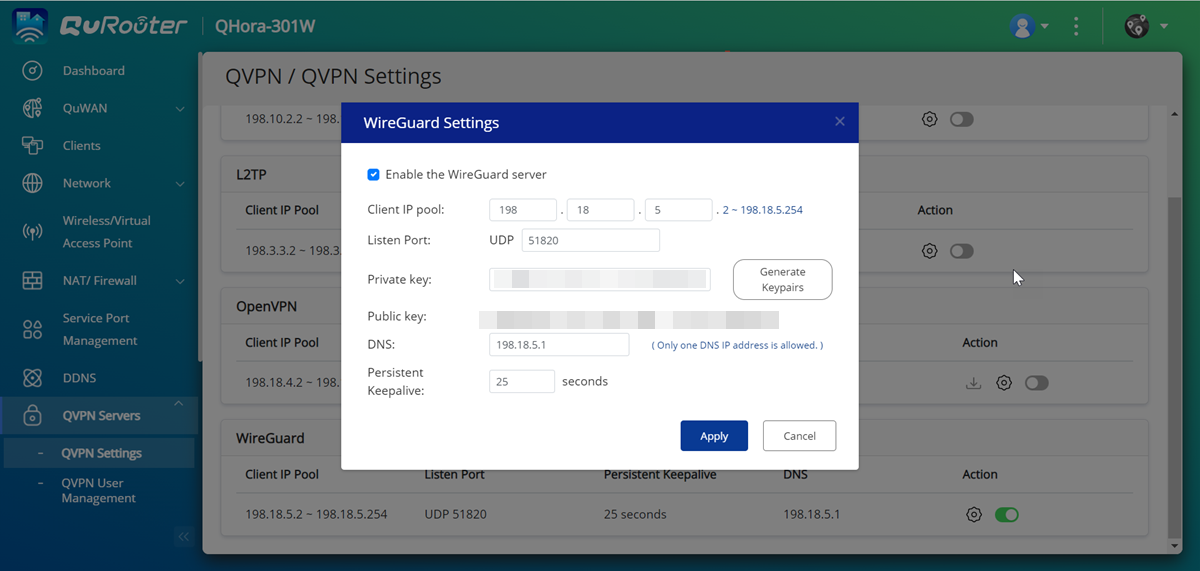
Enabling a WireGuard VPN Server
- Log in to QuRouter.
- Go to QVPN Servers > QVPN Settings.
- Identify the WireGuard server.
- Click
. 
- The QVPN Settings page appears.
- Click Enable QVPN server.
- Configure the WireGuard settings.

Setting
User Action
Client IP pool
Enter a fixed IP subnet for the VPN server.Important:By default, this server reserves the use of IP addresses from 198.18.7.1/24. If another connection is configured to use this range, an IP conflict error will occur. Before adding this server, ensure a VPN client is not configured to use this range as well.
Listen port
Specify a UDP port number between 1 and 65535.
Note:The default WireGuard port number is 51820.
Private key
Click Generate Keypairs to automatically populate a unique 32-byte private key.
DNS Server
Specify a DNS server for the WireGuard server.
Persistent keepalive
Specify the interval in seconds to send keepalive packets if the peer is behind a firewall.
- Click Apply.
- Click
. A confirmation message appears.
- Click Yes.
QuRouter enables the WireGuard server.
Adding a WireGuard VPN User
- Log in to QuRouter.
- Go to QVPN Servers > QVPN User Management > QVPN User Settings.
- In the WireGuard section, click Add.

The Add WireGuard User page appears.

- Specify a user profile name.
- Click Generate Keypairs to generate a private and public key.
- Click Add.
QuRouter adds and enables the WireGuard user profile.
- Download the WireGuard configuration file.
- Under Actions, click
. 
The Download WireGuard Configuration window appears.
- Select the WAN port.
- Click Download.
QuRouter downloads the WireGuard user configuration file.
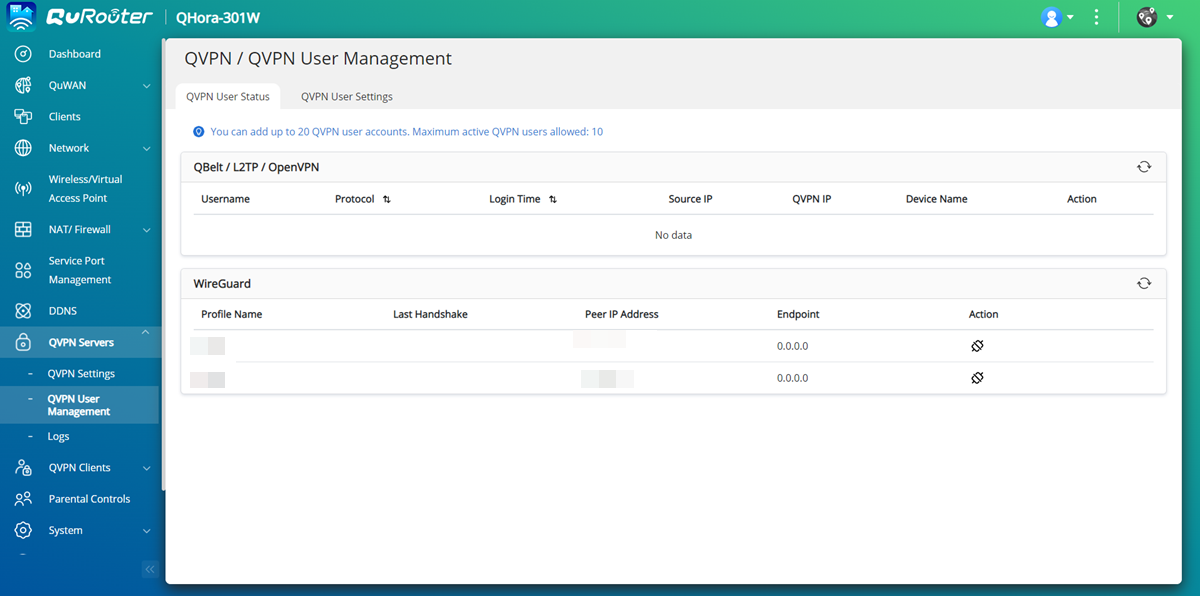
Tip:To view the user status and disconnect the VPN connection of the user, go to QVPN Servers > QVPN User Management > QVPN User Status.

- Under Actions, click
Connecting to WireGuard on Windows 10
Download and install WireGuard from the WireGuard website.
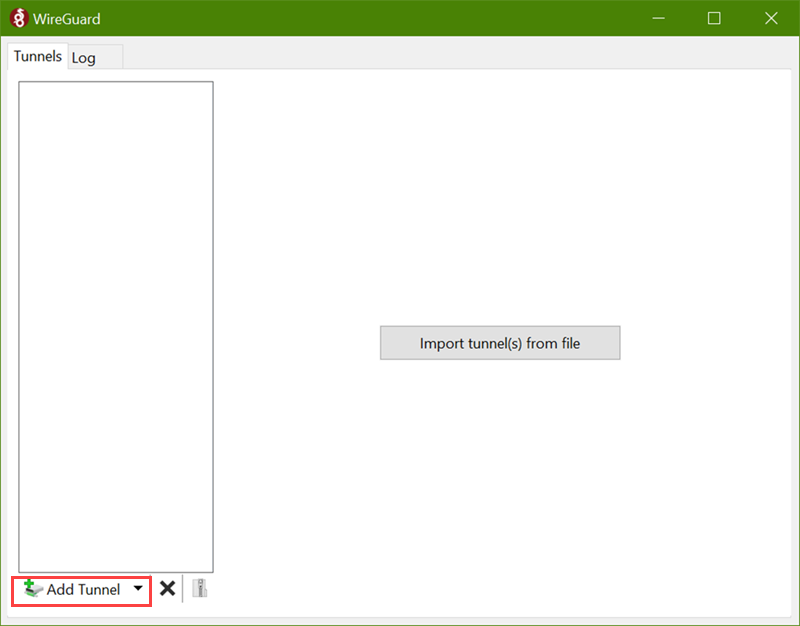
- Open WireGuard.
- Click Add Tunnel.

A File Explorer window opens.
- Select the WireGuard configuration file downloaded from QuRouter.
- Click Open.
WireGuard uploads the configured settings.

- Click Edit to make revisions to the tunnel settings.

The Edit tunnel window appears.
- Modify the tunnel settings.

Setting
User Action
Name
Specify a name for the tunnel.
Public key
Copy the public key.
Important:Ensure that you paste the copied public key in the QVPN Service WireGuard VPN server peer settings page.
Interface
Private key
The private key is automatically generated when creating a new tunnel.
Address
Enter a IP subnet specified in the WireGuard VPN server page.
DNS Server
Specify a dedicated DNS server IP address that the WireGuard VPN client can access through the VPN tunnel.
Peer
Public key
Copy and paste the public key from the WireGuard VPN server page.
Note:The base64-encoded public key generated in the QVPN Service WireGuard VPN server page is required to authenticate both server and client.
Allowed IPs
Specify a list of addresses that are routed to the peer. Enter at least one IP subnet containing the internal IP addresses of the WireGuard connection. To allow packets from any IP subnet, enter 0.0.0.0/0.
Endpoint
Specify the IP address of the WireGuard server using the IP address:listen port format.
Example: 192.168.10.1:51820.
- Optional: Enable Block untunneled traffic (kill-switch).
Enable to ensure that your IP address is not leaked, and block traffic that is not part of the VPN tunnel.
- Click Save.
The WireGuard application adds the tunnel profile.
- Click Activate.

The WireGuard application establishes a VPN tunnel with the VPN server.

Connecting to WireGuard on macOS 10.13
Download and install WireGuard from the WireGuard website.
- Open WireGuard.
- Click + in the bottom left.
- Click Import tunnel(s) from file.

A Finder window opens.
- Select the WireGuard configuration file downloaded from QuRouter.
- Click Import.
WireGuard uploads the configured settings.

- Click Edit to make revisions to the tunnel settings.

The Edit tunnel window appears.
- Modify the tunnel settings.

Setting
User Action
Name
Specify a name for the tunnel.
Public key
Copy the public key.
Important:Ensure that you specify the copied public key in the QVPN Service WireGuard peer settings page.
On-Demand
Specify the network interface for the WireGuard connection.
Interface
Private key
The private key is automatically generated when creating a new tunnel.
Address
Enter a IP subnet specified in the WireGuard VPN server page.
DNS server
Specify a dedicated DNS server IP address that the WireGuard VPN server can access through the VPN tunnel.
Peer
Public key
Copy and paste the public key from the WireGuard VPN server page.
Note:The base64-encoded public key generated in the QVPN Service WireGuard VPN server page is required to authenticate both server and client.
Allowed IPs
Specify a list of addresses that are routed to the peer. Enter at least one IP subnet containing the internal IP addresses of the WireGuard connection. To allow packets from any IP subnet, enter 0.0.0.0/0.
Endpoint
Specify the IP address of the WireGuard server using the IP address:listen port format.
Example: 192.168.10.1:51820.
Persistent keepalive
Specify an optional interval in seconds to send keepalive packets if the peer is behind a firewall.
- Click Save.
The WireGuard application adds the tunnel profile.
- Click Activate.

The WireGuard application establishes a VPN tunnel with the VPN server.

Connecting to WireGuard on iOS
Download and install WireGuard from the WireGuard website.
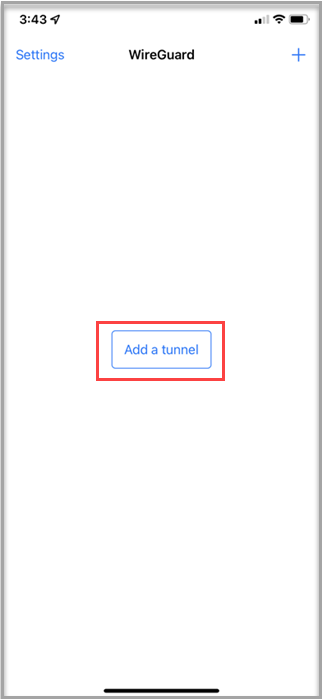
- Open WireGuard.
- Tap Add a tunnel.

- Tap Create from file or archive.

A file manager window appears.
- Select the WireGuard configuration file downloaded from QuRouter.

WireGuard uploads the configuration file.
- Tap the WireGuard configuration file.

WireGuard displays the configuration details.
- Tap Edit.
The WireGuard configuration page opens.
- Configure the tunnel settings. Note:
Open the WireGuard user configuration file downloaded from QuRouter to specify the tunnel information on the mobile device.

Setting
User Action
Name
Specify a name for the tunnel.
Private key
Tap Generate Keypairs to automatically populate a unique 32-byte private and public key.
Public key
Copy the public key to the clipboard.
Important:Ensure that you paste the copied public key in the QuRouter WireGuard VPN server peer settings page.
Addresses
Enter a IP subnet specified in the WireGuard VPN server page.
Listen port
Specify an optional UDP port number between 1 and 65535.
Tip:To allow the application to select the listen port, leave the field blank.
MTU
Specify an optional MTU value.
Note:The recommended value is 1420.
Tip:To allow the application to select the MTU value, leave the field blank.
DNS servers
Specify a dedicated DNS server IP address that the WireGuard VPN client can access through the VPN tunnel.
- Configure the peer settings.

Setting
User Action
Public key
Copy and paste the public key from the WireGuard VPN server page.
Note:The base64-encoded public key generated in the QuRouter WireGuard VPN server page is required to authenticate both server and client.
Pre-shared key
Specify an optional key only if the pre-shared key setting has been configured on the VPN server device.
Important:Ensure that the pre-shared key is specified in both the VPN server and client configuration page to connect to the VPN tunnel.
Endpoint
Specify the IP address of the WireGuard server using the IP address:listen port format.
Example: 192.168.10.1:51820.
Allowed IPs
Specify the list of addresses that are routed to the peer.
Note:-
Enter at least one IP subnet containing the internal IP addresses of the WireGuard connection.
-
To allow packets from any IP subnet, enter 0.0.0.0/0.
Tip:To exclude private IP addresses, select Exclude private IPs.
Persistent keepalive
Specify an optional interval in seconds to send keepalive packets if the peer is behind a firewall.
On-demand activation
Select the network interface for the WireGuard connection.
-
- Tap Save.
WireGuard creates and saves the VPN tunnel settings.
- Beside Active, tap
.
The WireGuard app establishes a VPN tunnel with the VPN server.

Connecting to WireGuard on Android 7.0
Download and install WireGuard from the WireGuard website.
- Open WireGuard.
- Tap +.

- Tap IMPORT FROM FILE OR ARCHIVE.

A file manager window appears.
- Select the WireGuard configuration file downloaded from QuRouter.
WireGuard uploads the configuration file.
- Tap the configuration file.
WireGuard displays the configuration details.
- Tap
. The WireGuard configuration page opens.
- Modify the tunnel settings. Note:
Copy the tunnel information from the WireGuard user configuration file downloaded from QuRouter.

Setting
User Action
Name
Specify a name for the tunnel.
Private key
Tap
to generate the private key for the VPN connection.Public key
Copy the public key.
Important:Ensure that you enter the copied public key in the QuRouter WireGuard VPN server peer settings page.
Addresses
Enter a IP subnet specified in the WireGuard VPN server page.
Listen port
Specify an optional UDP port number between 1 and 65535.
Tip:To allow the application to select the listen port, leave the field blank.
DNS servers
Specify a dedicated DNS server IP address that the WireGuard VPN client can access through the VPN tunnel.
MTU
Specify an optional MTU value.
Note:The recommended value is 1420.
Tip:To allow the application to select the MTU value, leave the field blank.
- Optional: Tap ALL APPLICATIONS.
The applications page appears.

- Optional: Select the applications to exclude from the VPN tunnel connection.
- Configure the peer settings.
Setting
User Action
Public key
Copy and paste the public key from the WireGuard VPN server page.
Note:The base64-encoded public key generated in the QuRouter WireGuard VPN server page is required to authenticate both server and client.
Pre-shared key
Specify an optional key only if the pre-shared key setting has been configured on the VPN server device.
Important:Ensure that the pre-shared key is specified in both the VPN server and client configuration page to connect to the VPN tunnel.
Persistent keepalive
Specify an optional interval in seconds to send keepalive packets if the peer is behind a firewall.
Endpoint
Specify the IP address of the WireGuard server using the IP address:listen port format.
Example: 192.168.10.1:51820.
Allowed IPs
Specify the list of addresses that are routed to the peer.
Note:-
Enter at least one IP subnet containing the internal IP addresses of the WireGuard connection.
-
To allow packets from any IP subnet, enter 0.0.0.0/0.
Tip:To exclude private IP addresses, select Exclude private IPs.
-
- Tap
. WireGuard creates and saves the VPN tunnel settings.
- Tap
. The Connection request window appears.
- Tap OK.
WireGuard establishes a VPN tunnel with the VPN server.

- QuRouter'da WireGuard VPN Sunucusu ve İstemci Ayarlarını Yapılandırma
- WireGuard
- WireGuard VPN Sunucusunu Etkinleştirme
- WireGuard VPN Kullanıcısı Ekleme
- Windows 10'da WireGuard'a Bağlanma
- macOS 10.13'te WireGuard'a Bağlanma
- iOS'ta WireGuard'a Bağlanma
- Android 7.0'da WireGuard'a Bağlanma
QuRouter'da WireGuard VPN Sunucusu ve İstemci Ayarlarını Yapılandırma
Bu eğitim, QuRouter kullanarak QNAP yönlendiricinizde WireGuard'ı nasıl yapılandıracağınızı açıklar.
WireGuard
WireGuard, ağ iletişimi için Kullanıcı Datagram Protokolü (UDP) kullanan açık kaynaklı bir VPN protokolüdür. Protokol, güvenli VPN tünellemesi sağlamak için çeşitli kriptografi araçları kullanır.
WireGuard VPN Sunucusunu Etkinleştirme
- QuRouter 'a giriş yapın.
- QVPN Sunucuları > QVPN Ayarları bölümüne gidin.
- WireGuard sunucusunu belirleyin.
- Tıklayın
. 
- QVPN Ayarları sayfası görünür.
- QVPN sunucusunu etkinleştir seçeneğine tıklayın.
- WireGuard ayarlarını yapılandırın.

Ayar
Kullanıcı Eylemi
İstemci IP havuzu
VPN sunucusu için sabit bir IP alt ağı girin.Önemli:Varsayılan olarak, bu sunucu 198.18.7.1/24 IP adreslerinin kullanımını ayırır. Başka bir bağlantı bu aralığı kullanacak şekilde yapılandırılmışsa, bir IP çatışması hatası oluşur. Bu sunucuyu eklemeden önce, bir VPN istemcisinin de bu aralığı kullanacak şekilde yapılandırılmadığından emin olun.
Dinleme portu
1 ile 65535 arasında bir UDP port numarası belirtin.
Not:Varsayılan WireGuard port numarası 51820'dir.
Özel anahtar
Anahtar Çiftlerini Oluştur seçeneğine tıklayarak otomatik olarak benzersiz bir 32 baytlık özel anahtar oluşturun.
DNS Sunucusu
WireGuard sunucusu için bir DNS sunucusu belirtin.
Kalıcı keepalive
Eş Güvenlik Duvarı arkasındaysa keepalive paketlerini göndermek için saniye cinsinden aralığı belirtin.
- Uygula seçeneğine tıklayın.
- Tıklayın
. Bir onay mesajı belirir.
- Yes öğesine tıklayın.
QuRouter, WireGuard sunucusunu etkinleştirir.
WireGuard VPN Kullanıcısı Ekleme
- QuRouter 'a giriş yapın.
- QVPN Sunucuları > QVPN Kullanıcı Yönetimi > QVPN Kullanıcı Ayarları bölümüne gidin.
- WireGuard bölümünde, Add öğesine tıklayın.

WireGuard Kullanıcısı Ekle sayfası belirir.

- Bir kullanıcı profili adı belirtin.
- Özel ve genel anahtar oluşturmak için Anahtar Çiftleri Oluştur 'a tıklayın.
- Ekle 'ye tıklayın.
QuRouter, WireGuard kullanıcı profilini ekler ve etkinleştirir.
- WireGuard yapılandırma dosyasını indirin.
- İşlemler altında,
'a tıklayın. 
WireGuard Yapılandırmasını İndir penceresi açılır.
- WAN portunu seçin.
- İndir 'a tıklayın.
QuRouter, WireGuard kullanıcı yapılandırma dosyasını indirir.
İpucu:Kullanıcı durumunu görüntülemek ve kullanıcının VPN bağlantısını kesmek için QVPN Sunucuları > QVPN Kullanıcı Yönetimi > QVPN Kullanıcı Durumu 'na gidin.

- İşlemler altında,
Windows 10'da WireGuard'a Bağlanma
WireGuard web sitesinden WireGuard 'i indirin ve yükleyin.
- WireGuard'ı açın.
- Tıklayın Tünel Ekle.

Bir dosya gezgini penceresi açılır.
- QuRouter 'dan indirilen WireGuard yapılandırma dosyasını seçin.
- Tıklayın Aç.
WireGuard yapılandırılmış ayarları yükler.

- Tünel ayarlarını revize etmek için Düzenle 'ye tıklayın.

Tüneli düzenle penceresi açılır.
- Tünel ayarlarını değiştirin.
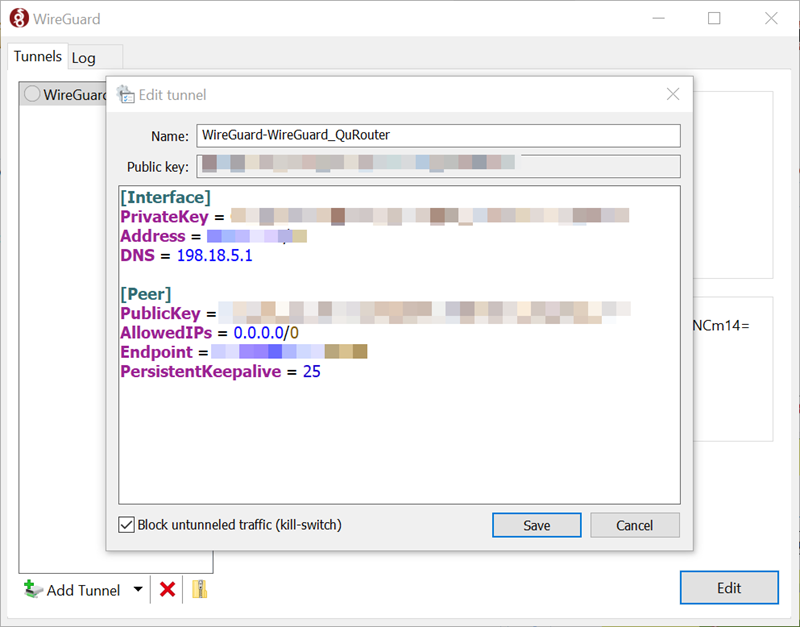
Ayar
Kullanıcı Eylemi
Ad
Tünel için bir ad belirtin.
Genel anahtar
Genel anahtarı kopyalayın.
Önemli:Kopyalanan genel anahtarı QVPN Service WireGuard VPN sunucu eş ayarları sayfasına yapıştırdığınızdan emin olun.
Arayüz
Özel anahtar
Yeni bir tünel oluşturulduğunda özel anahtar otomatik olarak oluşturulur.
Adres
WireGuard VPN sunucu sayfasında belirtilen bir IP alt ağı girin.
DNS Sunucusu
WireGuard VPN istemcisinin VPN tüneli üzerinden erişebileceği özel bir DNS sunucusu IP adresi belirtin.
Eş
Genel anahtar
Genel anahtarı WireGuard VPN sunucu sayfasından kopyalayın ve yapıştırın.
Not:QVPN Service WireGuard VPN sunucu sayfasında üretilen base64 kodlu genel anahtar, hem sunucu hem de istemciyi kimlik doğrulamak için gereklidir.
İzin Verilen IP'ler
Eşe yönlendirilen adreslerin bir listesini belirtin. WireGuard bağlantısının iç IP adreslerini içeren en az bir IP alt ağı girin. Herhangi bir IP alt ağından gelen paketlere izin vermek için 0.0.0.0/0 girin.
Uç Nokta
WireGuard sunucusunun IP adresini IP adresi:dinleme portu formatında belirtin.
Örnek: 192.168.10.1:51820.
- İsteğe bağlı: Etkinleştir Tünellenmemiş trafiği engelle (kill-switch).
IP adresinizin sızdırılmadığından emin olmak ve VPN tünelinin parçası olmayan trafiği engellemek için etkinleştirin.
- Tıklayın Kaydet.
WireGuard uygulaması tünel profilini ekler.
- Tıklayın Etkinleştir.

WireGuard uygulaması, VPN sunucusuyla bir VPN tüneli kurar.

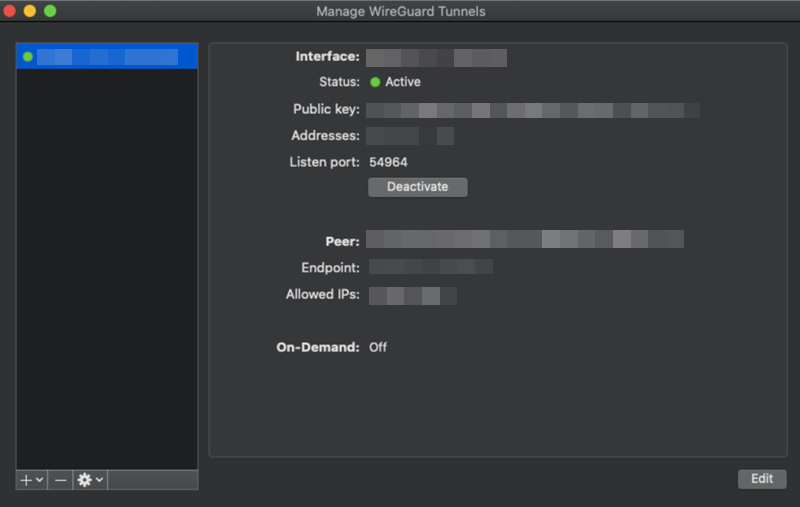
macOS 10.13'te WireGuard'a bağlanma
WireGuard web sitesinden WireGuard indirip yükleyin.
- WireGuard'ı açın.
- Sol alt köşede + üzerine tıklayın.
- Dosyadan tünel(leri) içe aktar üzerine tıklayın..
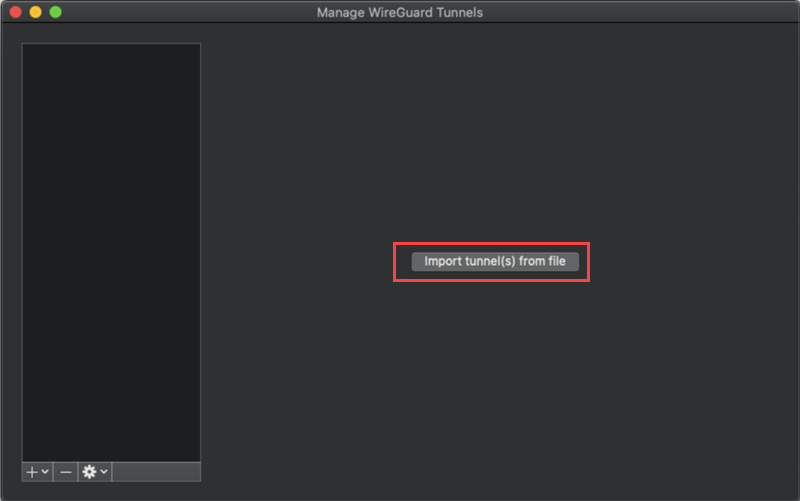
Bir Finder penceresi açılır.
- QuRouter 'dan indirilen WireGuard yapılandırma dosyasını seçin.
- İçe Aktar üzerine tıklayın..
WireGuard yapılandırılmış ayarları yükler.
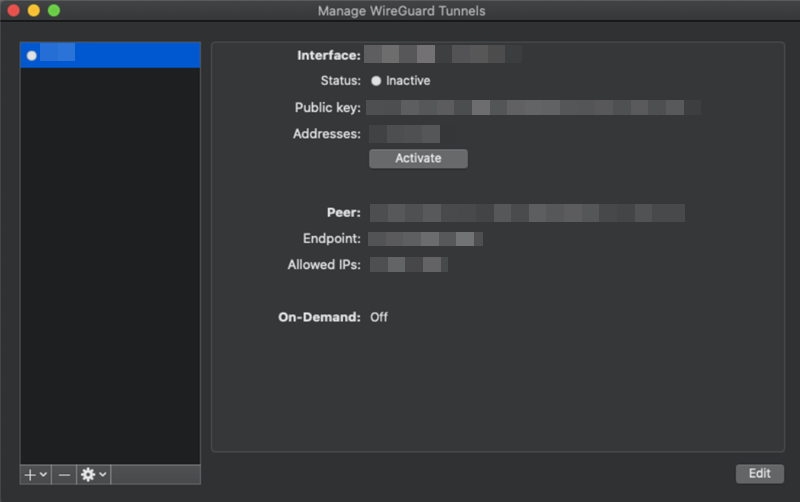
- Tünel ayarlarında değişiklik yapmak için Düzenle 'ye tıklayın.

Tüneli düzenle penceresi açılır.
- Tünel ayarlarını değiştir.

Ayar
Kullanıcı Eylemi
Ad
Tünel için bir ad belirtin.
Genel anahtar
Genel anahtarı kopyalayın.
Önemli:Kopyalanan genel anahtarı QVPN Service WireGuard eş ayarları sayfasında belirttiğinizden emin olun.
Talep Üzerine
WireGuard bağlantısı için ağ arayüzünü belirtin.
Arayüz
Özel anahtar
Yeni bir tünel oluşturulduğunda özel anahtar otomatik olarak üretilir.
Adres
WireGuard VPN sunucu sayfasında belirtilen bir IP alt ağı girin.
DNS sunucusu
WireGuard VPN sunucusunun VPN tüneli üzerinden erişebileceği özel bir DNS sunucusu IP adresi belirtin.
Eş
Genel anahtar
Genel anahtarı WireGuard VPN sunucu sayfasından kopyalayıp yapıştırın.
Not:QVPN Service WireGuard VPN sunucu sayfasında üretilen base64 kodlu genel anahtar, hem sunucu hem de istemciyi kimlik doğrulamak için gereklidir.
İzin Verilen IP'ler
Eşe yönlendirilen adreslerin bir listesini belirtin. WireGuard bağlantısının iç IP adreslerini içeren en az bir IP alt ağı girin. Herhangi bir IP alt ağından gelen paketlere izin vermek için 0.0.0.0/0 girin.
Uç Nokta
WireGuard sunucusunun IP adresini IP adresi:dinleme portu formatında belirtin.
Örnek: 192.168.10.1:51820.
Kalıcı keepalive
Eş bir Güvenlik Duvarı arkasındaysa keepalive paketlerini göndermek için isteğe bağlı bir saniye aralığı belirtin.
- Tıklayın Kaydet.
WireGuard uygulaması tünel profilini ekler.
- Tıklayın Aktive Et.

WireGuard uygulaması VPN sunucusuyla bir VPN tüneli kurar.
iOS'ta WireGuard'a Bağlanma
WireGuard web sitesinden WireGuard indirin ve yükleyin.
- WireGuard'ı açın.
- Dokunun Bir tünel ekle.

- Dokunun Dosyadan veya arşivden oluştur.
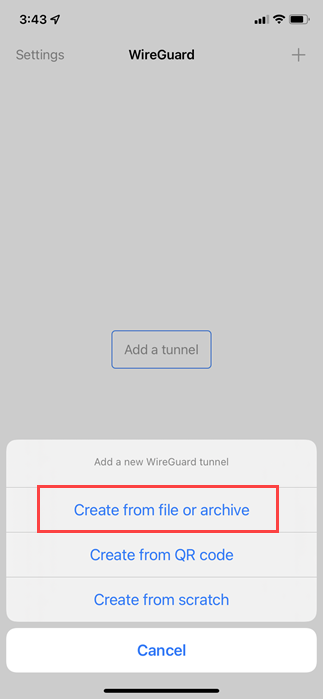
Bir dosya yöneticisi penceresi açılır.
- QuRouter'dan indirilen WireGuard yapılandırma dosyasını seçin QuRouter.

WireGuard yapılandırma dosyasını yükler.
- WireGuard yapılandırma dosyasına dokunun.

WireGuard yapılandırma detaylarını gösterir.
- Düzenle seçeneğine dokunun.
WireGuard yapılandırma sayfası açılır.
- Tünel ayarlarını yapılandırın. Not:
Mobil cihazda tünel bilgilerini belirtmek için QuRouter 'dan indirilen WireGuard kullanıcı yapılandırma dosyasını açın.

Ayar
Kullanıcı Eylemi
Ad
Tünel için bir ad belirtin.
Özel anahtar
Otomatik olarak benzersiz 32 baytlık özel ve genel anahtarları doldurmak için Anahtar Çiftlerini Oluştur 'a dokunun.
Genel anahtar
Genel anahtarı panoya kopyalayın.
Önemli:Kopyalanan genel anahtarı QuRouter WireGuard VPN sunucu eş ayarları sayfasına yapıştırdığınızdan emin olun.
Adresler
WireGuard VPN sunucu sayfasında belirtilen bir IP alt ağını girin.
Dinleme portu
1 ile 65535 arasında isteğe bağlı bir UDP port numarası belirtin.
İpucu:Uygulamanın dinleme portunu seçmesine izin vermek için alanı boş bırakın.
MTU
İsteğe bağlı bir MTU değeri belirtin.
Not:Önerilen değer 1420'dir.
İpucu:Uygulamanın MTU değerini seçmesine izin vermek için alanı boş bırakın.
DNS sunucuları
WireGuard VPN istemcisinin VPN tüneli üzerinden erişebileceği özel bir DNS sunucu IP adresi belirtin.
- Eş ayarlarını yapılandırın.

Ayar
Kullanıcı Eylemi
Genel anahtar
Genel anahtarı WireGuard VPN sunucu sayfasından kopyalayıp yapıştırın.
Not:QuRouter WireGuard VPN sunucu sayfasında üretilen base64 kodlu genel anahtar, hem sunucu hem de istemciyi doğrulamak için gereklidir.
Önceden paylaşılan anahtar
VPN sunucu cihazında önceden paylaşılan anahtar ayarı yapılandırıldıysa, yalnızca isteğe bağlı bir anahtar belirtin.
Önemli:VPN tüneline bağlanmak için önceden paylaşılan anahtarın hem VPN sunucu hem de istemci yapılandırma sayfasında belirtilmesi gerektiğinden emin olun.
Uç nokta
WireGuard sunucusunun IP adresini IP adresi:dinleme portu formatında belirtin.
Örnek: 192.168.10.1:51820.
İzin verilen IP'ler
Eşe yönlendirilen adresler listesini belirtin.
Not:-
WireGuard bağlantısının iç IP adreslerini içeren en az bir IP alt ağı girin.
-
Herhangi bir IP alt ağından gelen paketlere izin vermek için 0.0.0.0/0 girin.
İpucu:Özel IP adreslerini hariç tutmak için Özel IP'leri Hariç Tut seçeneğini seçin.
Kalıcı keepalive
Eş Güvenlik Duvarı arkasındaysa keepalive paketlerini göndermek için isteğe bağlı bir saniye aralığı belirtin.
Talep üzerine etkinleştirme
WireGuard bağlantısı için ağ arayüzünü seçin.
-
- Dokun Kaydet.
WireGuard VPN tünel ayarlarını oluşturur ve kaydeder.
- Aktif'in yanına dokunun.

WireGuard uygulaması, VPN sunucusuyla bir VPN tüneli kurar.

Android 7.0'da WireGuard'a bağlanma
WireGuard web sitesinden WireGuard indirin ve yükleyin.
- WireGuard'ı açın.
- Dokun +.

- Dokun DOSYADAN VEYA ARŞİVDEN İÇE AKTAR.
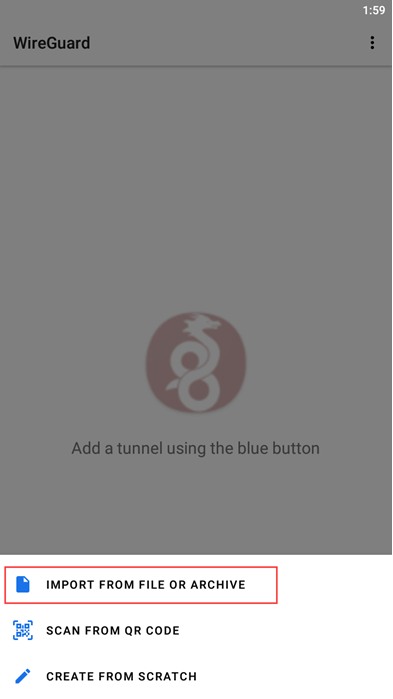
Bir dosya yöneticisi penceresi açılır.
- QuRouter'dan indirilen WireGuard yapılandırma dosyasını seçin. QuRouter.
WireGuard yapılandırma dosyasını yükler.
- Yapılandırma dosyasına dokunun.
WireGuard yapılandırma detaylarını gösterir.
- Dokun
. WireGuard yapılandırma sayfası açılır.
- Tünel ayarlarını değiştirin. Not:
Tünel bilgilerini QuRouter 'dan indirilen WireGuard kullanıcı yapılandırma dosyasından kopyalayın.

Ayar
Kullanıcı Eylemi
Ad
Tünel için bir ad belirtin.
Özel anahtar
VPN bağlantısı için özel anahtarı oluşturmak üzere
'e dokunun.Genel anahtar
Genel anahtarı kopyalayın.
Önemli:Kopyalanan genel anahtarı QuRouter WireGuard VPN sunucu eş ayarları sayfasına girdiğinizden emin olun.
Adresler
WireGuard VPN sunucu sayfasında belirtilen bir IP alt ağı girin.
Dinleme portu
1 ile 65535 arasında isteğe bağlı bir UDP port numarası belirtin.
İpucu:Uygulamanın dinleme portunu seçmesine izin vermek için alanı boş bırakın.
DNS sunucuları
WireGuard VPN istemcisinin VPN tüneli üzerinden erişebileceği özel bir DNS sunucu IP adresi belirtin.
MTU
İsteğe bağlı bir MTU değeri belirtin.
Not:Önerilen değer 1420'dir.
İpucu:Uygulamanın MTU değerini seçmesine izin vermek için alanı boş bırakın.
- İsteğe bağlı: Tüm Uygulamalar'a dokunun.
Uygulamalar sayfası açılır.

- İsteğe bağlı: VPN tünel bağlantısından hariç tutulacak uygulamaları seçin.
- Eş ayarlarını yapılandırın.
Ayar
Kullanıcı Eylemi
Genel anahtar
Genel anahtarı WireGuard VPN sunucu sayfasından kopyalayıp yapıştırın.
Not:QuRouter WireGuard VPN sunucu sayfasında üretilen base64 kodlu genel anahtar, hem sunucu hem de istemciyi doğrulamak için gereklidir. QuRouter WireGuard VPN sunucu sayfasında üretilen base64 kodlu genel anahtar, hem sunucu hem de istemciyi doğrulamak için gereklidir.
Önceden paylaşılan anahtar
Önceden paylaşılan anahtar ayarı VPN sunucu cihazında yapılandırılmışsa, yalnızca isteğe bağlı bir anahtar belirtin.
Önemli:VPN tüneline bağlanmak için hem VPN sunucu hem de istemci yapılandırma sayfasında önceden paylaşılan anahtarın belirtildiğinden emin olun.
Kalıcı keepalive
Eş bir Güvenlik Duvarı arkasındaysa keepalive paketlerini göndermek için isteğe bağlı bir saniye aralığı belirtin.
Uç nokta
IP adresini IP adresi:dinleme portu formatında kullanarak WireGuard sunucusunun IP adresini belirtin.
Örnek: 192.168.10.1:51820.
İzin verilen IP'ler
Eşe yönlendirilen adreslerin listesini belirtin.
Not:-
WireGuard bağlantısının iç IP adreslerini içeren en az bir IP alt ağı girin.
-
Herhangi bir IP alt ağından gelen paketlere izin vermek için 0.0.0.0/0 girin.
İpucu:Özel IP adreslerini hariç tutmak için Özel IP'leri hariç tut seçeneğini seçin.
-
- Dokunun
. WireGuard, VPN tünel ayarlarını oluşturur ve kaydeder.
- Dokunun
. Bağlantı isteği penceresi görünür.
- Tamam düğmesine dokunun.
WireGuard, VPN sunucusuyla bir VPN tüneli kurar.

Hâlâ yardıma mı ihtiyacınız var?
Sorunuzu QNAP Topluluğu'nda paylaşın. QNAP personeli ve deneyimli kullanıcılar yanıtlayacaktır.
Lütfen bu makaleyi nasıl geliştirebileceğimizi bize bildirin:
Bu makaleyi nasıl geliştirebiliriz?
Buradaki geri bildiriminiz bu makaleyi geliştirmemize yardımcı olur. Bu form aracılığıyla gönderilen mesajları yanıtlayamıyoruz.