


Two alternative methods to map the shared folder as the network drive in Windows
Please help to install Qfinder and check if you can find NAS in the list. As the example below,we could know the NAS IP Address is 10.64.72.60.
Method 1:
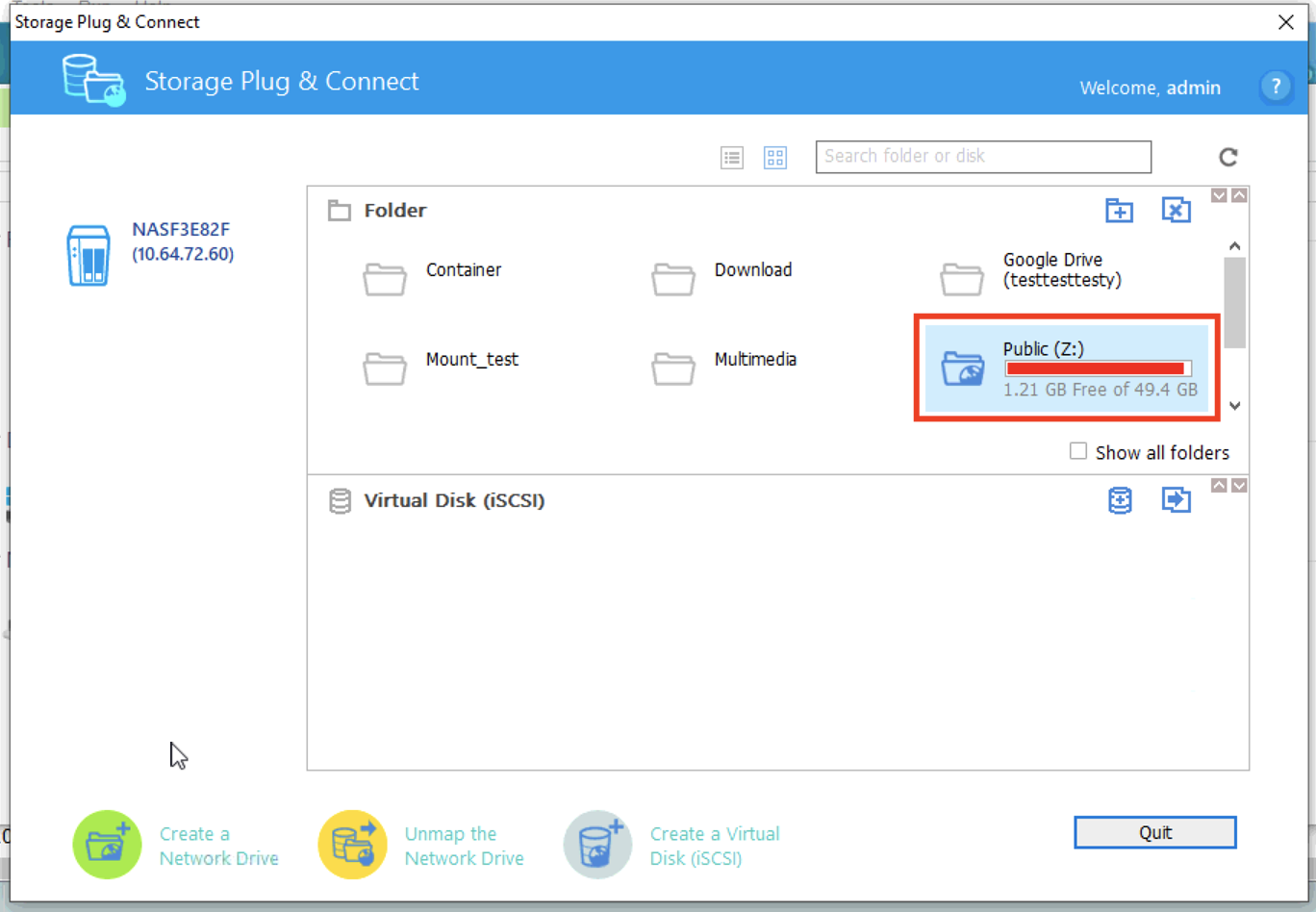
1.1.Point at the NAS you want to connect, Find Connect and click Storage Plug & Connect

1.2 Fill in the username and password and press okay.

1.3 Choose a shared folder from the Folder list and select Map the Network Drive.

1.4 Specify the drive letter.
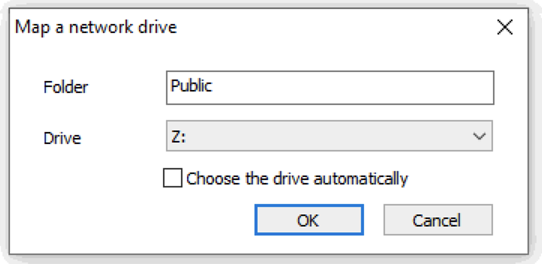
1.5.1 The shared folder is now mounted as a network drive.
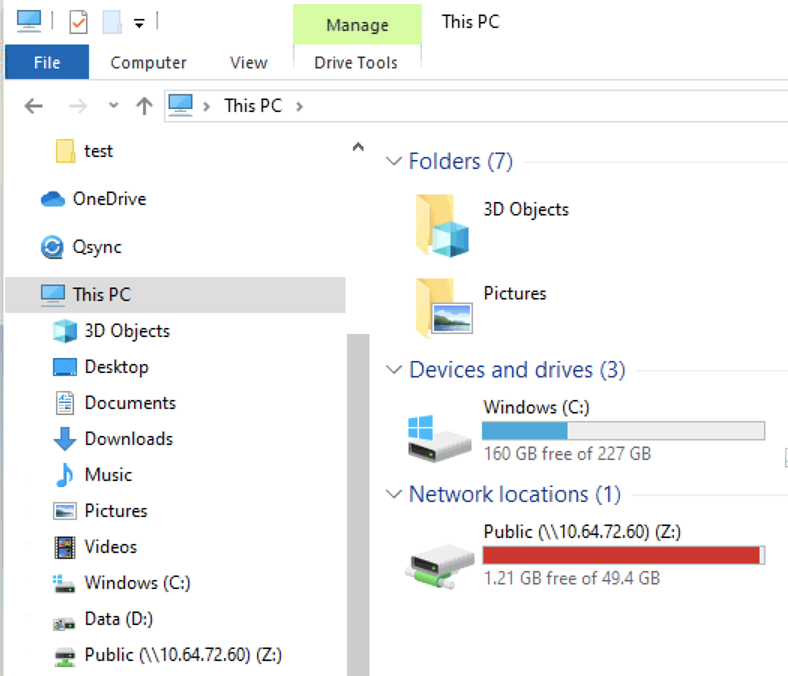
1.5.2 The shared folder is now mounted as a network drive.
Method 2:
2.1.1 Click on network drives
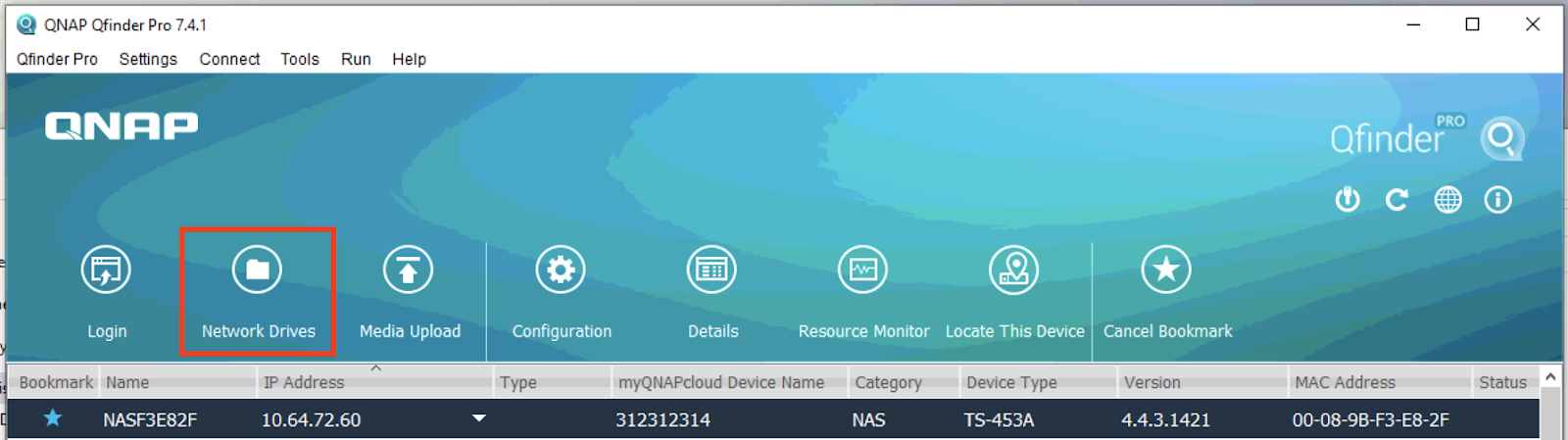
2.1.2 Press Okay.
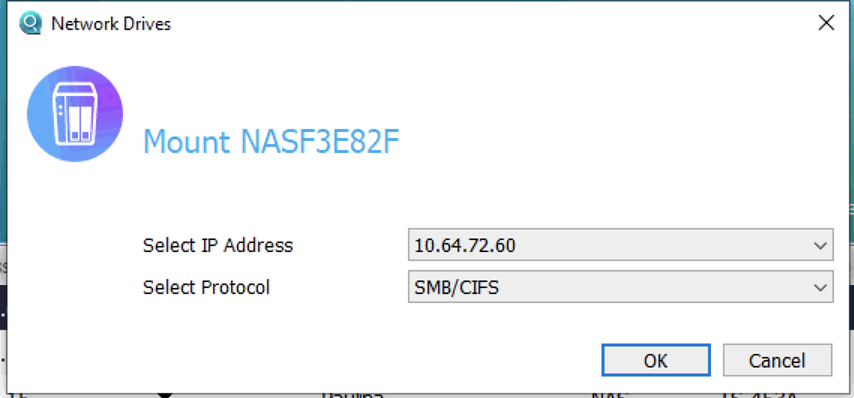
Or 2.2 You could directly put the ip address of NAS into the address bar of Windows file explorer by \\NAS_IP_address
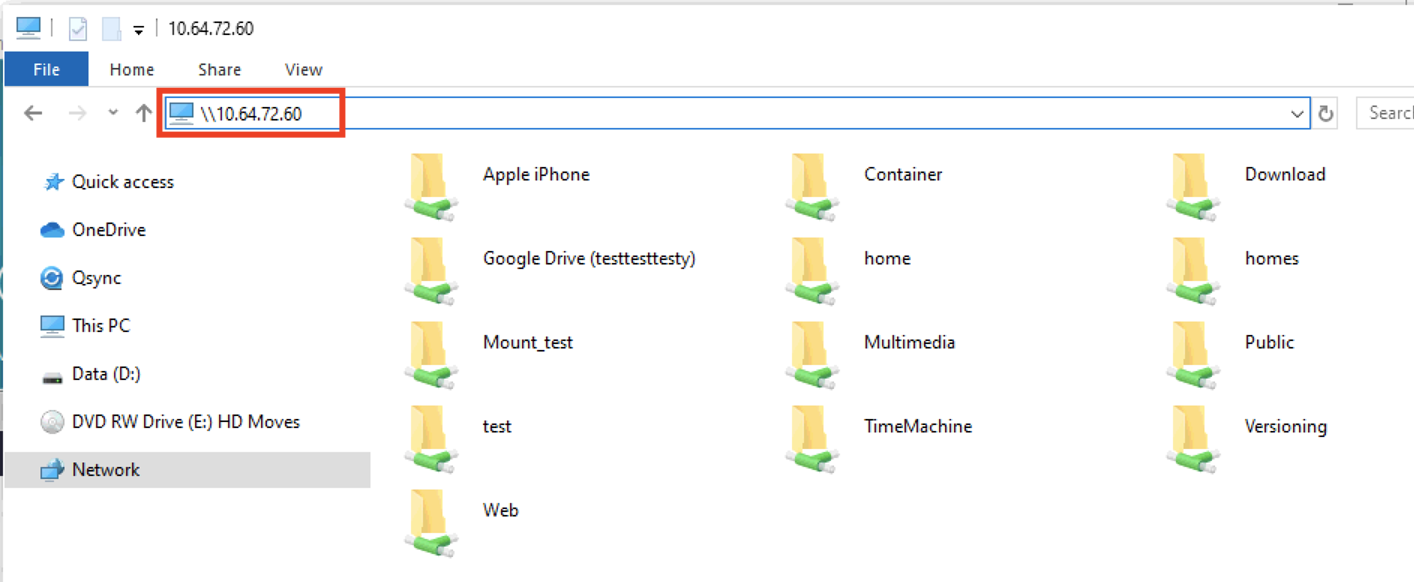
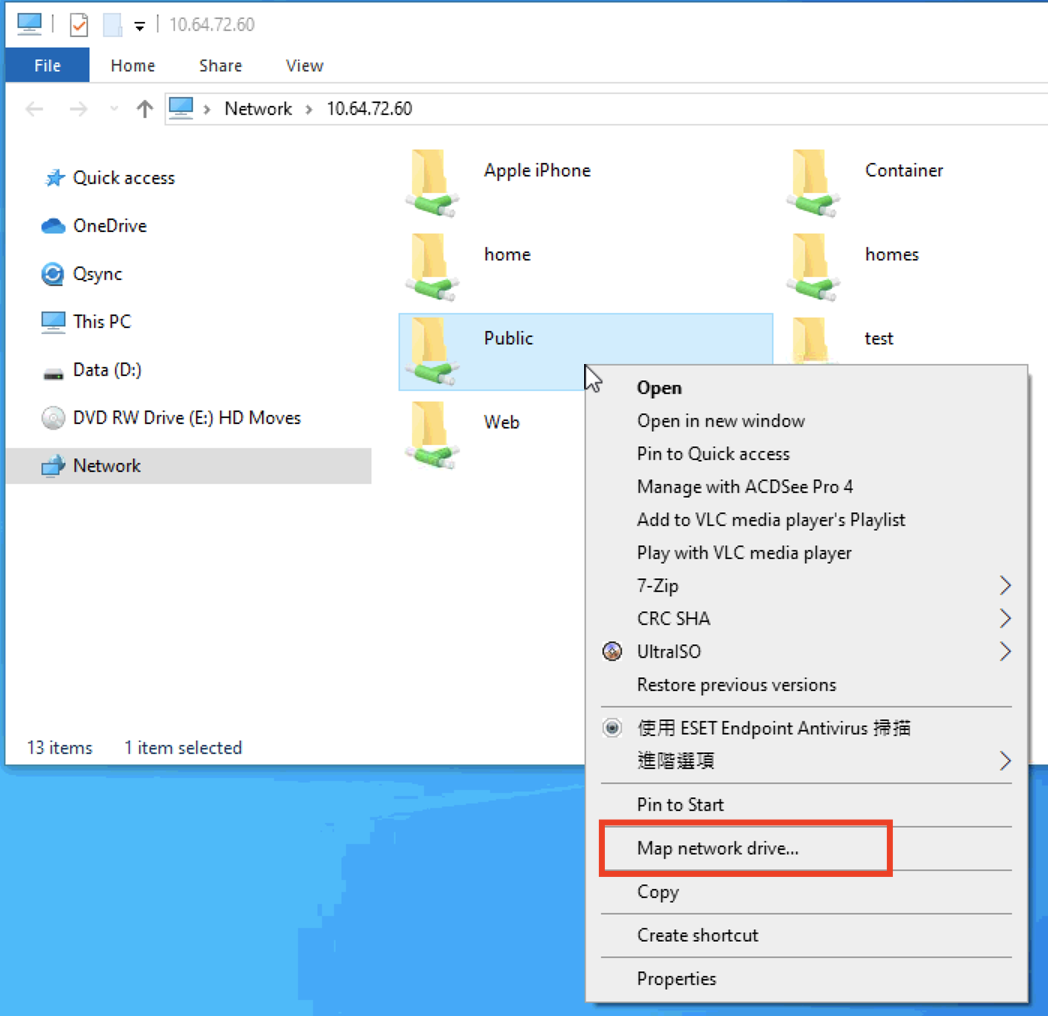
2.3 Shared Folders on the NAS should be listed in file explorer , Right click on a shared folder and select Map network drive...
2.4 Specify the drive letter
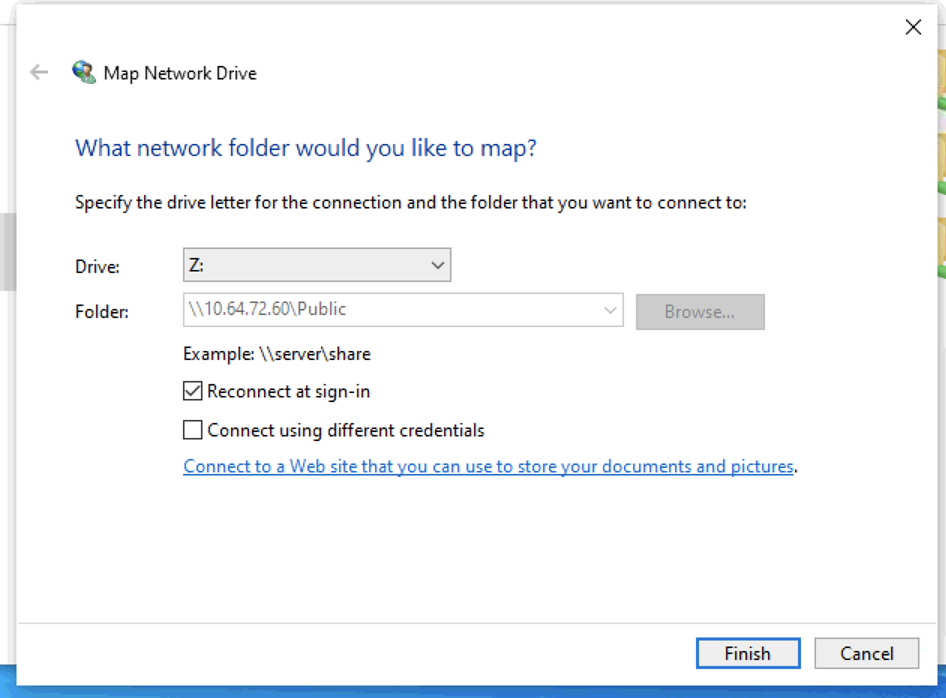
2.5 The shared folder is now mounted as a network drive.

Voor verdere hulp kunt u andere gebruikers en QNAP-experts in de community vragen. Ga naar de QNAP Community


