Applicable Products
QuMagie
Analysis
If you can't see an image or video file in QuMagie, it may be caused by one or more of the following:
The file format of the image/video is not supported
If your file has a format or codec that is not supported by QuMagie, then that image/video will not appear in QuMagie or will not be displayed correctly. For a list of supported file formats, see What file formats and codecs do Photo Station & QuMagie support?
The file format of the image/video requires a license
Certain media file formats require a CAYIN Media Viewer license. If you do not have the required license activated, then the image/video will not appear in QuMagie or will be displayed with a default generic thumbnail. For details on how to purchase and activate licenses, see "Licenses" in the QTS User Guide or QuTS hero User Guide.
The image/video is not in a content source folder
QuMagie only displays images/videos from content source folders. To ensure that QuMagie displays your image/video, you can move your image/video file into an existing content source folder, or add the parent folder of the image/video to QuMagie's content source folder list. To add folders to QuMagie's content source folders list:
Warning
Only shared folders can be content source folders. When adding a folder to QuMagie's content source folder list, ensure that the folder is a shared folder. For details on shared folders, see "Shared Folders" in the
QTS User Guide or
QuTS hero User Guide.
Tip
You can also manage QuMagie's content source folder list in QuMagie > Settings > Content Management (tab) > Content Sources (setting).
- Open Multimedia Console.
- Go to Content Management.
- Select the QuMagie tab.
- Under Content Sources, click Edit.
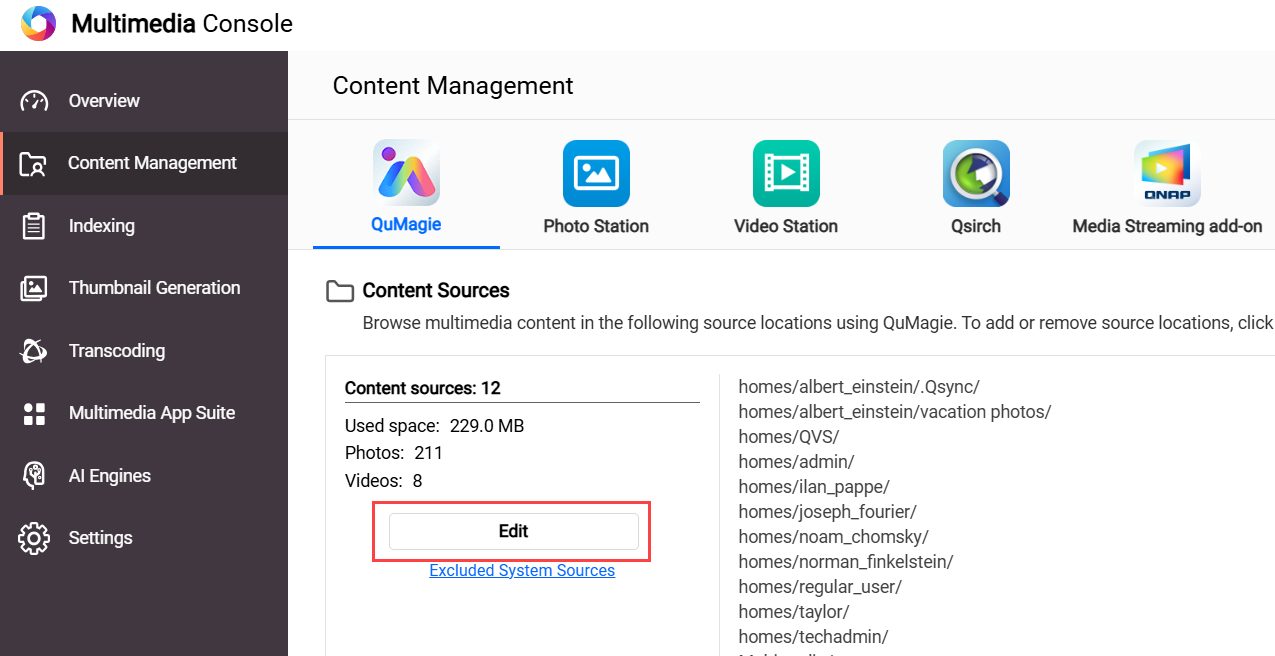 The Edit sources window opens.
 - In the Select Folders panel, select one or more folders.
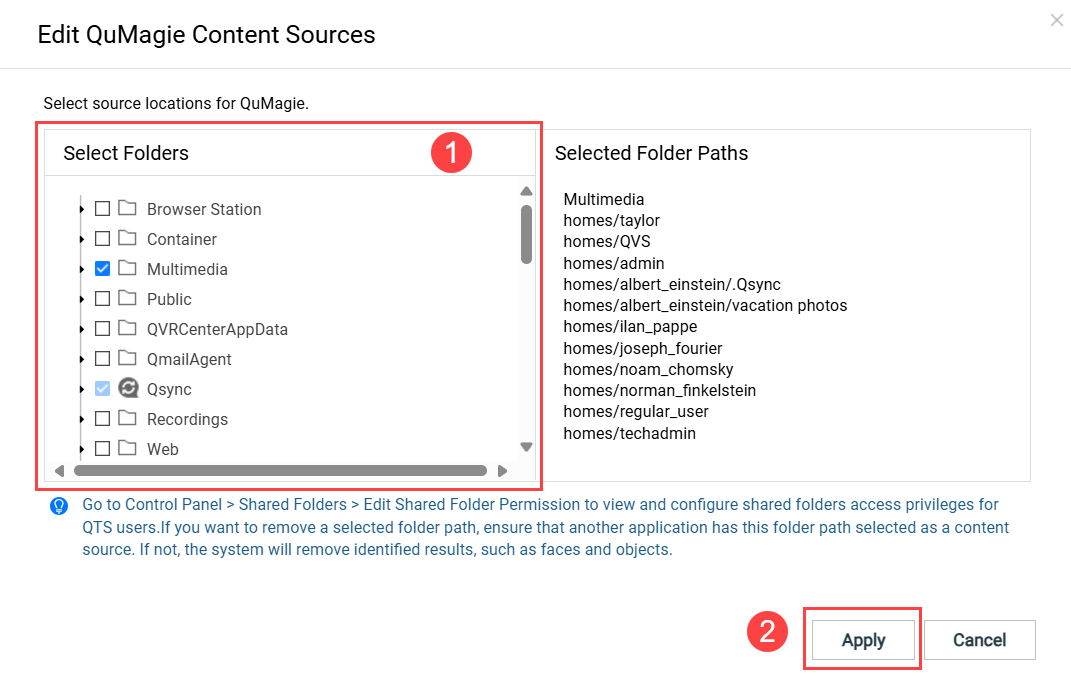
- Click Apply.
Multimedia Console adds the content sources.
You do not have read permissions for the image/video
If you do not have sufficient permissions for the image/video, then the image/video will not appear in QuMagie. To ensure you have sufficient permissions, do the following:
- Ensure you have sufficient permission for the content source folder.
- Open Control Panel.
- Go to Privilege > Shared Folders > Shared folder (tab).
- Locate the shared folder containing your image/video and click
 .
.
The Edit Shared Folder Permission window opens. - Enable either "Read Only" or "Read/Write" permissions for the appropriate users.
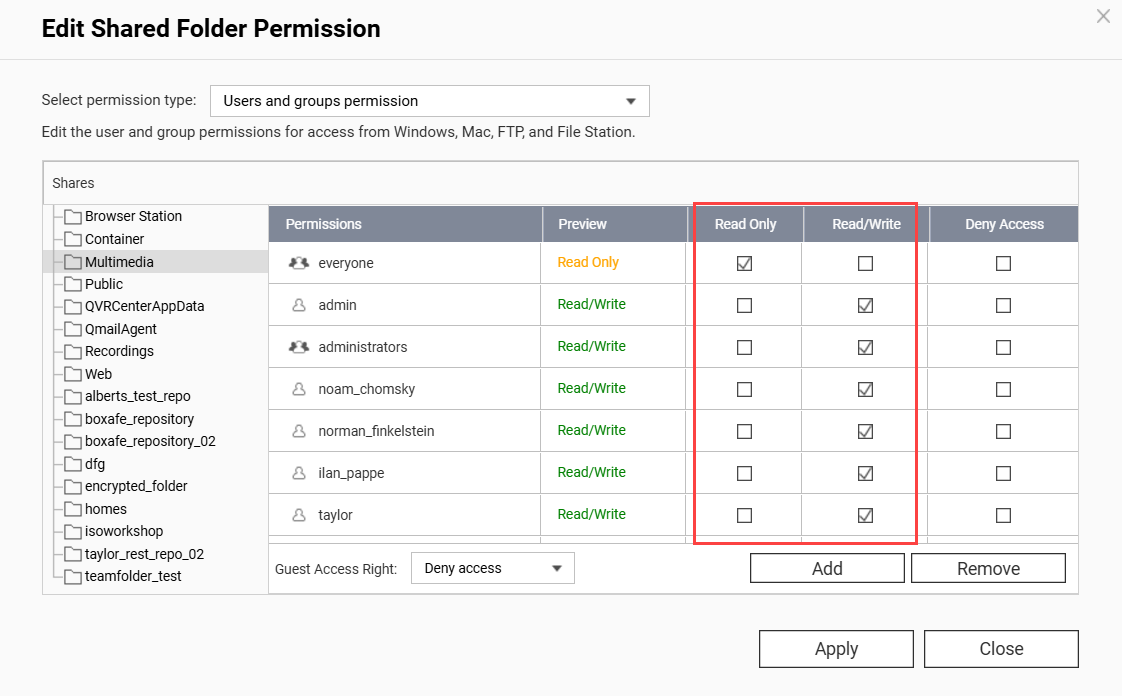
- Click Apply.
- Ensure you have sufficient permission on the individual image/video.
- Open File Station.
- Locate your image/video.
- Right click on the image/video to open the context menu and click Properties.
The Properties window opens. - Select the Permissions tab.
- Enable the "Read" permission for the appropriate groups.
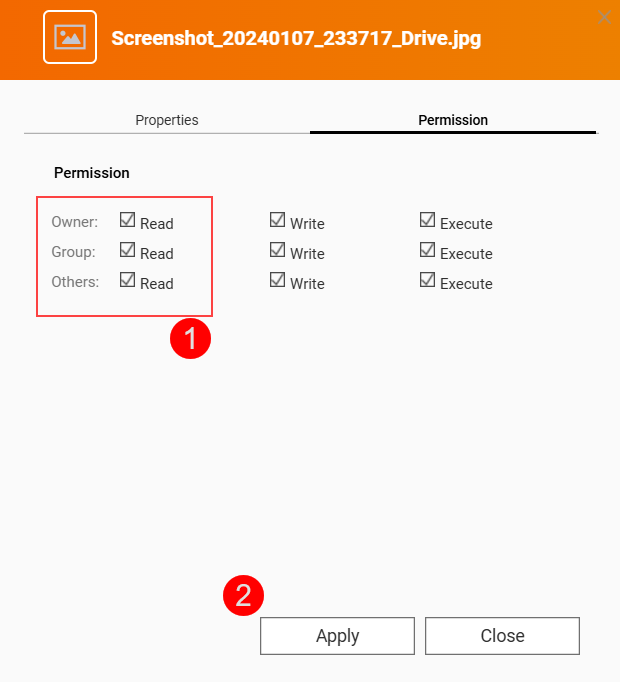
- Click Apply.
QuMagie now has sufficient permissions to display your image/folder.
Your image/video file is above the maximum supported size
QuMagie may not display your image/video correctly if any of the following apply:
- The width x height of the image/video is greater than 500,000,000 pixels.
- Your NAS device has 2058 MB of total RAM or less and the width x height of the image/video is greater than 240,000,000 pixels.
- Your NAS device has 1024 MB of total RAM or less and the width x height of the image/video is greater than 51,000,000 pixels.
- The file size of the image/video is greater than 1/8 of your NAS device's total RAM.
- For TAS files, if the file is greater than 60 MB.
QuMagie settings are hiding images/videos with no thumbnails
To allow QuMagie to display images/videos even when those images/videos do not have thumbnails, do the following:
- Click on your profile icon on the top right.
- Click on Settings.
The Settings window appears. - Go to Miscellaneous (tab) > Display.
- Disable Only display media files with generated thumbnails.
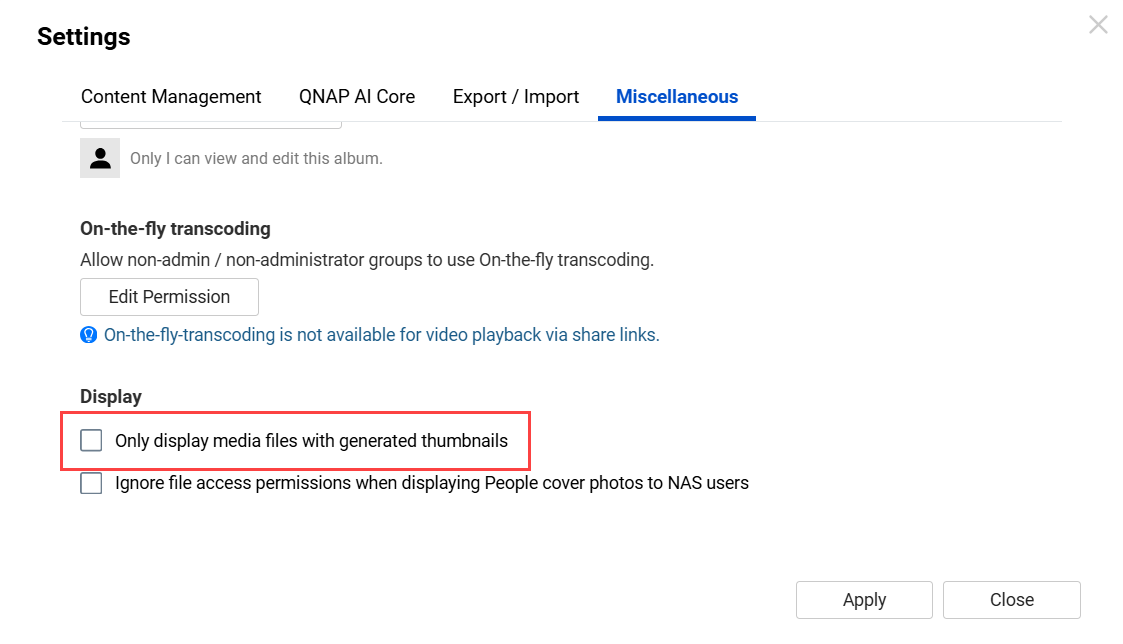
- Click Apply.
QuMagie now displays images/videos that do not have thumbnails.
The image/video file isn't indexed yet
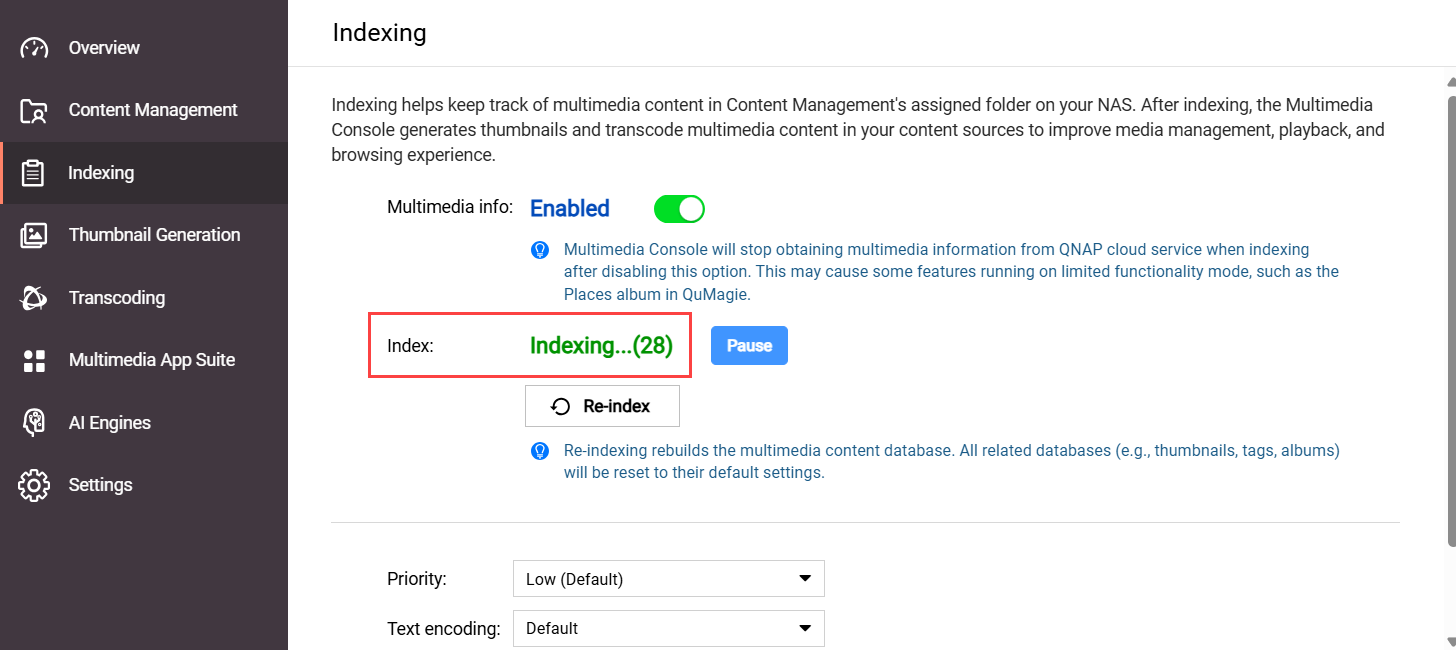
For many multimedia apps, such as QuMagie, to display images/videos the image/video files must be indexed by your system. Indexing is a process of analyzing and storing media files so that they can be more efficiently used by multimedia apps. To ensure that your images/videos have been indexed, do the following:
- Open Multimedia Console.
- Go to Indexing.
- Under Settings, locate the Index field.
If your system is still indexing files, the Index field will be "Indexing...":
 If your system has finished indexing files, the Index field will be "Completed":
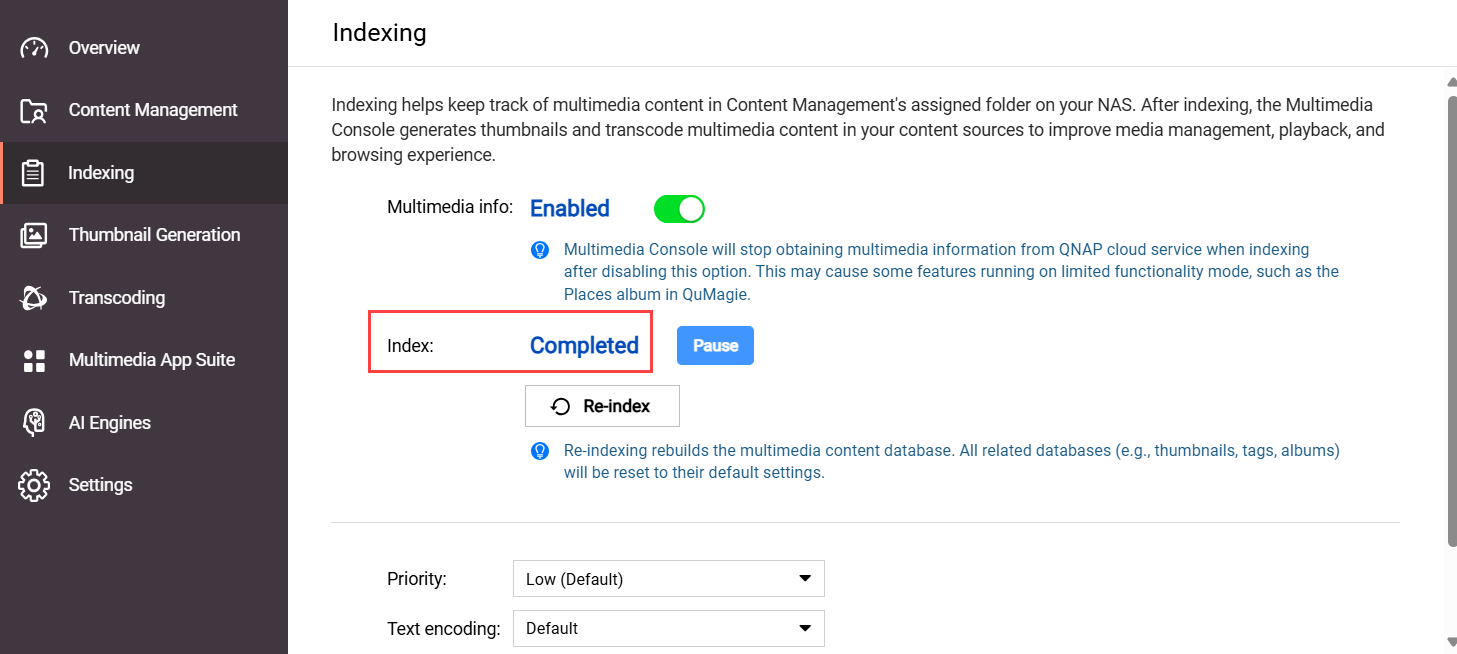
- If your system is still indexing files, wait until the indexing finishes, and then check your image/video in QuMagie again.
If the indexing status is Completed, but your image/video is still missing from QuMagie or not displayed correctly, see the section "The system media file index has been corrupted" in this FAQ.
The system file index has been corrupted
QuMagie may not be able to display images/videos, or display them correctly, if the system media index (also sometimes called the "Multimedia Console index/database") has become corrupted. For various reasons, the system media index may become corrupted. There is no way to confirm if the system file index is corrupted or not, but you can re-index the system file index and see if that resolves your issue:
Warning
Re-indexing the system media file index will delete and rebuild all indexed data. Data that will be deleted includes thumbnails, media file tags, QuMagie albums, and other things. Media files themselves are not affected.
- Open Multimedia Console.
- Go to Indexing.
- Under Settings, click Re-index.
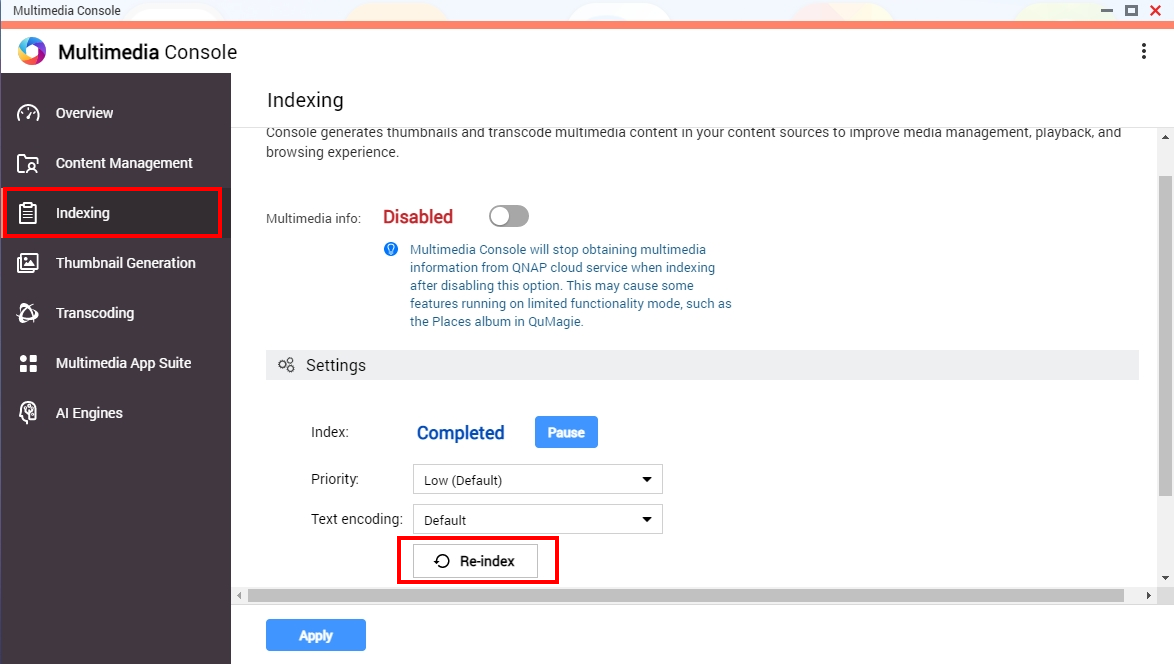 Your system will re-index all media files in your content source folders (not only QuMagie's content source folders). This may take some time. After the indexing is complete, you can check your image/video in QuMagie again.
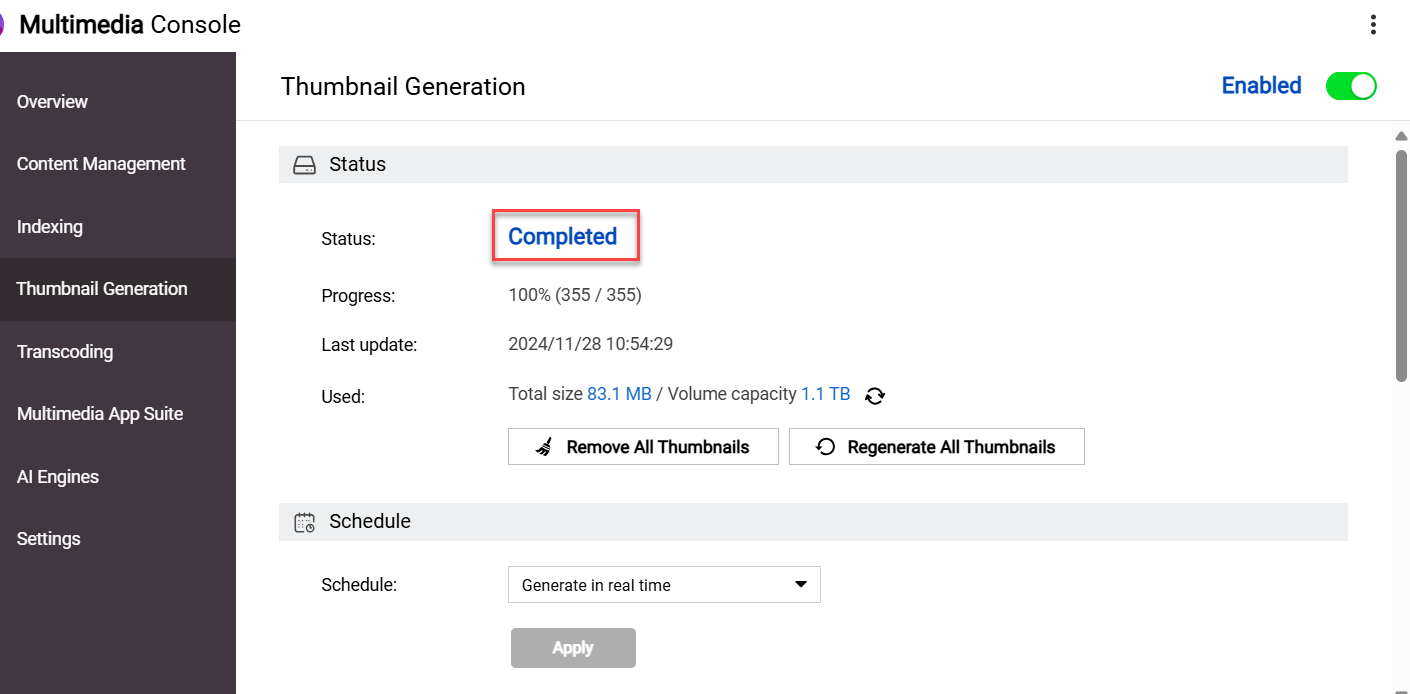
After resolving any of the above issues, you may still need to wait some time before seeing your image/video displayed correctly in QuMagie because your system must first generate a thumbnail for your image/video. To check the status of this thumbnail generation, go to Multimedia Console > Thumbnail Generation > Status. The status should be Completed:
If your images/videos appear in QuMagie but they are not displayed correctly, see Why are some images not displayed correctly in QuMagie?
If your images/videos are still not being displayed correctly in QuMagie, you can content QNAP support for further assistance.
Further Reading
적용되는 제품
QuMagie
분석
QuMagie에서 이미지 또는 비디오 파일을 볼 수 없는 경우, 다음 중 하나 이상의 이유 때문일 수 있습니다:
이미지/비디오의 파일 형식이 지원되지 않음
파일이 QuMagie에서 지원하지 않는 형식 또는 코덱을 사용하는 경우, 해당 이미지/비디오는 QuMagie에 나타나지 않거나 올바르게 표시되지 않습니다. 지원되는 파일 형식 목록은Photo Station과 QuMagie에서 지원하는 파일 형식과 코덱은 무엇입니까?을 참조하십시오.
이미지/비디오의 파일 형식이라이선스을 필요로 함
이미지/비디오가 콘텐츠 소스 폴더에 없음
QuMagie는 콘텐츠 소스 폴더의 이미지/비디오만 표시합니다. QuMagie가 이미지/비디오를 표시하도록 하려면, 이미지/비디오 파일을 기존 콘텐츠 소스 폴더로 이동하거나 이미지/비디오의 상위 폴더를 QuMagie의 콘텐츠 소스 폴더 목록에 추가할 수 있습니다. QuMagie의 콘텐츠 소스 폴더 목록에 폴더를 추가하려면:
경고
공유 폴더만 콘텐츠 소스 폴더로 사용할 수 있습니다. QuMagie의 콘텐츠 소스 폴더 목록에 폴더를 추가할 때 해당 폴더가 공유 폴더인지 확인하십시오. 공유 폴더에 대한 자세한 내용은
QTS 사용 설명서또는
QuTS hero 사용 설명서의 "공유 폴더"를 참조하십시오.
팁
QuMagie > 설정 > 콘텐츠 관리 (탭) > 콘텐츠 소스 (설정)에서 QuMagie의 콘텐츠 소스 폴더 목록을 관리할 수도 있습니다.
- Multimedia Console을 엽니다.
- 콘텐츠 관리로 이동합니다.
- QuMagie 탭을 선택합니다.
- 콘텐츠 소스아래에서편집을 클릭합니다.
소스 편집 창이 열립니다. - 폴더 선택패널에서 하나 이상의 폴더를 선택합니다.
- 적용을 클릭합니다.
Multimedia Console가콘텐츠 소스을 추가합니다.
이미지/비디오에 대한 읽기 권한이 없습니다
이미지/비디오에 대한 충분한 권한이 없으면 QuMagie에 이미지/비디오가 표시되지 않습니다. 충분한 권한이 있는지 확인하려면 다음을 수행하십시오:
- 콘텐츠 소스 폴더에 대한 충분한 권한이 있는지 확인하십시오.
- 제어판을 엽니다.
- 권한 > 공유 폴더 > 공유 폴더 (탭)으로 이동합니다.
- 이미지/비디오가 포함된 공유 폴더를 찾아을 클릭합니다.
공유 폴더 권한 편집창이 열립니다. - 적절한 사용자에 대해 "읽기 전용" 또는 "읽기/쓰기" 권한을 활성화합니다.
- 적용을 클릭합니다.
- 개별 이미지/비디오에 대한 충분한 권한이 있는지 확인합니다.
- File Station을 엽니다.
- 이미지/비디오를 찾습니다.
- 이미지/비디오를 마우스 오른쪽 버튼으로 클릭하여 상황에 맞는 메뉴를 열고속성을 클릭합니다.
속성창이 열립니다. - 권한탭을 선택합니다.
- 적절한 그룹에 대해 "읽기" 권한을 활성화합니다.
- 적용을 클릭합니다.
QuMagie는 이제 이미지/폴더를 표시할 수 있는 충분한 권한을 가지고 있습니다.
이미지/비디오 파일이 지원되는 최대 크기를 초과합니다.
다음 중 하나라도 해당되는 경우 QuMagie가 이미지/비디오를 올바르게 표시하지 않을 수 있습니다:
- 이미지/비디오의 너비 x 높이가 500,000,000 픽셀보다 큽니다.
- NAS 장치의 총 RAM이 2058MB 이하이고 이미지/비디오의 너비 x 높이가 240,000,000 픽셀보다 큽니다.
- NAS 장치의 총 RAM이 1024MB 이하이고 이미지/비디오의 너비 x 높이가 51,000,000 픽셀보다 큽니다.
- 이미지/비디오의 파일 크기가 NAS 장치의 총 RAM의 1/8보다 큽니다.
- TAS 파일의 경우 파일이 60MB보다 클 때.
QuMagie 설정이 섬네일이 없는 이미지/비디오를 숨기고 있습니다.
이미지/비디오에 섬네일이 없더라도 QuMagie가 표시할 수 있도록 하려면 다음을 수행하십시오:
- 오른쪽 상단에서 프로필 아이콘을 클릭합니다.
- Settings을 클릭합니다.
Settings창이 나타납니다. - Miscellaneous (탭) > Display로 이동합니다.
- Only display media files with generated thumbnails을 비활성화합니다.
- 적용을 클릭합니다.
QuMagie는 이제 섬네일이 없는 이미지/비디오를 표시합니다.
이미지/비디오 파일이 아직 인덱싱되지 않았습니다
QuMagie와 같은 많은 멀티미디어 앱에서 이미지/비디오를 표시하려면 이미지/비디오 파일이 시스템에 의해 인덱싱되어야 합니다. 인덱싱은 멀티미디어 앱이 미디어 파일을 보다 효율적으로 사용할 수 있도록 분석하고 저장하는 과정입니다. 이미지/비디오가 인덱싱되었는지 확인하려면 다음을 수행하십시오:
- Multimedia Console을 엽니다.
- 인덱싱으로 이동합니다.
- 설정아래에서색인필드를 찾습니다.
시스템이 아직 파일을 인덱싱 중인 경우, 색인필드는 "인덱싱 중..."으로 표시됩니다:
시스템이 파일 인덱싱을 완료한 경우, 색인필드는 "완료됨"으로 표시됩니다:
- 시스템이 아직 파일을 인덱싱 중인 경우, 인덱싱이 완료될 때까지 기다린 후 QuMagie에서 이미지/비디오를 다시 확인하십시오.
인덱싱 상태가완료됨이지만 QuMagie에서 이미지/비디오가 여전히 누락되었거나 올바르게 표시되지 않는 경우, 이 FAQ의 "시스템 미디어 파일 인덱스가 손상되었습니다" 섹션을 참조하십시오.
시스템 파일 인덱스가 손상되었습니다
시스템 미디어 인덱스(때때로 "Multimedia Console인덱스/데이터베이스"라고도 함)가 손상된 경우 QuMagie가 이미지/비디오를 표시하지 못하거나 올바르게 표시하지 못할 수 있습니다. 여러 가지 이유로 시스템 미디어 인덱스가 손상될 수 있습니다. 시스템 파일 인덱스가 손상되었는지 확인할 방법은 없지만, 시스템 파일 인덱스를 다시 인덱싱하여 문제가 해결되는지 확인할 수 있습니다:
경고
시스템 미디어 파일 인덱스를 다시 인덱싱하면 모든 인덱싱된 데이터가 삭제되고 다시 빌드됩니다. 삭제될 데이터에는 섬네일, 미디어 파일 태그, QuMagie 앨범 및 기타 항목이 포함됩니다. 미디어 파일 자체는 영향을 받지 않습니다.
- Multimedia Console을 엽니다.
- 인덱싱으로 이동합니다.
- 설정에서다시 인덱싱을 클릭합니다.
시스템이 콘텐츠 소스 폴더의 모든 미디어 파일을 다시 인덱싱합니다(QuMagie의 콘텐츠 소스 폴더뿐만 아니라). 이 작업은 시간이 걸릴 수 있습니다. 인덱싱이 완료된 후 QuMagie에서 이미지/비디오를 다시 확인할 수 있습니다.
위의 문제를 해결한 후에도 QuMagie에서 이미지/비디오가 올바르게 표시되기까지 시간이 걸릴 수 있습니다. 시스템이 먼저 이미지/비디오의 섬네일을 생성해야 하기 때문입니다. 이 섬네일 생성 상태를 확인하려면Multimedia Console > 섬네일 생성 > 상태로 이동하십시오. 상태는완료됨:
이어야 합니다.
QuMagie에 이미지/비디오가 표시되지만 올바르게 표시되지 않는 경우일부 이미지가 QuMagie에서 올바르게 표시되지 않는 이유는 무엇입니까?을 참조하십시오.
QuMagie에서 이미지/비디오가 여전히 올바르게 표시되지 않는 경우 추가 지원을 위해QNAP 지원에 문의할 수 있습니다.
추가 읽기


