


How do I set up multiple NAS devices using one UPS?
Applicable Products
- All QNAP NAS devices that support the UPS function.
Overview
You can connect two or more QNAP NAS devices to a single uninterruptible power supply (UPS) by setting one as the UPS master (connected directly to the UPS) and the others as network UPS slaves (receiving UPS status over your network). This helps prevent abnormal shutdowns during power disruptions.
Procedure
To connect multiple NAS devices to one UPS, follow these steps:
Step 1: Connect and configure one NAS as the UPS master
- Use a USB cable to connect the UPS to the first NAS.
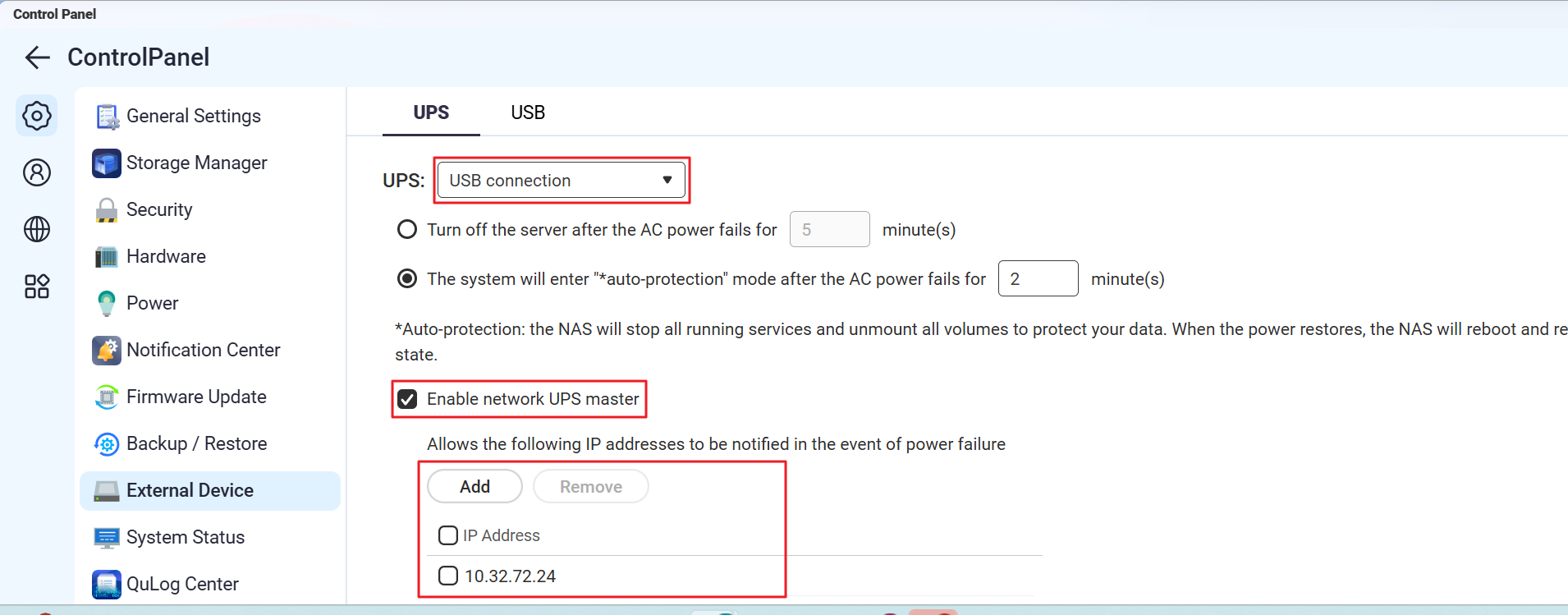
- On the first NAS, go to Control Panel > System > External Device > UPS.
- Select USB connection.
- Choose your desired power management option:
- Power off the server after the power fails for a specified period
- Allow NAS to enter auto-protection mode after the power fails for a specified period
- Select Enable network UPS master and enter the IP addresses of the other NAS devices that will act as slaves.
- Click Apply.
Step 2: Configure each additional NAS as a network UPS slave
A 'network UPS slave' is a NAS device that receives UPS status from the master NAS over your LAN.
- Ensure each slave NAS is on the same subnet as the master NAS.
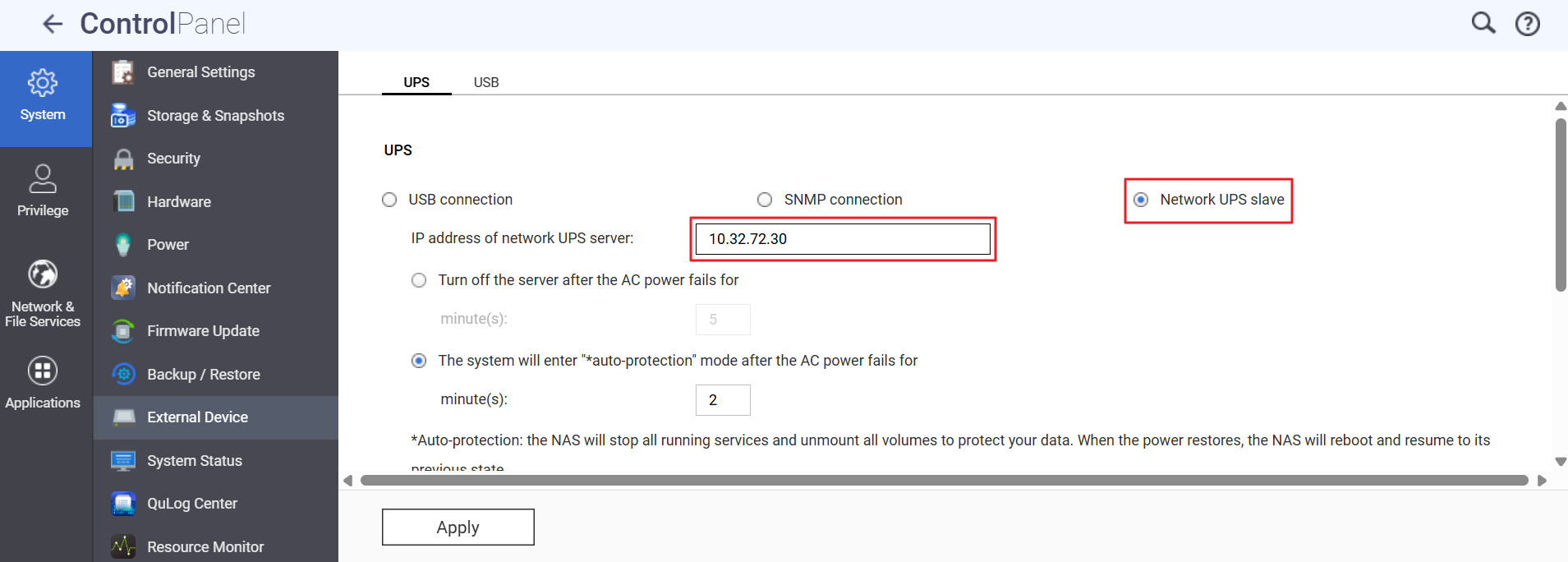
- On each slave NAS, go to Control Panel > System > External Device > UPS.
- Select Network UPS slave.
- Enter the IP address of the master NAS.
- Choose your preferred shutdown or auto-protection option.
- Click Apply.
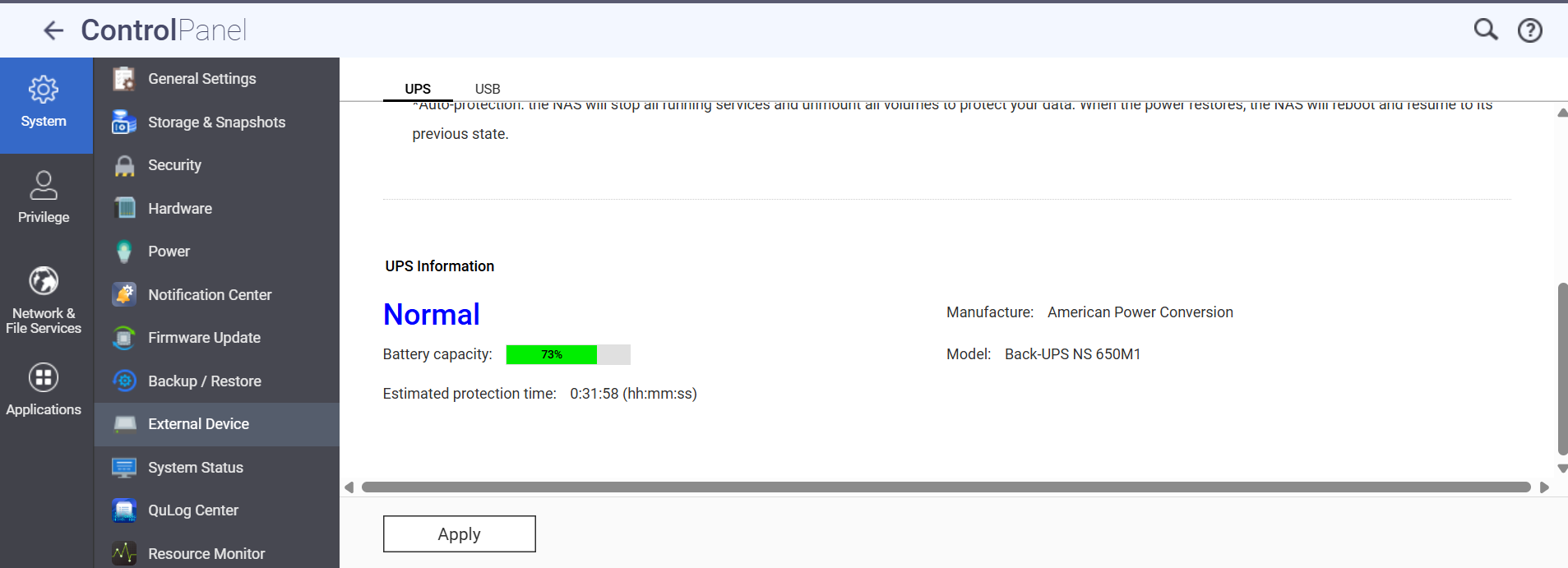
Reminder: If network connectivity between any slave and the master is lost, the slave may not receive UPS notifications.
You can repeat the 'Configure as network UPS slave' steps for any additional NAS devices.
Test your setup: After configuring, safely simulate a power failure to verify that all NAS devices respond appropriately.


