


How do I automatically upload data from a USB external drive to my NAS whenever it connects?
Applicable products
- QTS
- QuTS hero
- Hybrid Backup Sync 3
Scenario
I want the NAS to automatically upload or copy data from a USB flash drive to a NAS shared folder as soon as I insert the drive into the front USB slot, without any further action (such as clicking a button or manually starting a backup job).
Solution
The following procedures describe how to configure the NAS to automatically upload data from a USB external drive when it is connected.
Procedure 1: Ensure USB storage devices are allowed
If USB storage devices are disallowed, the NAS cannot access a USB external drive in the front USB slot, and no automatic or manual upload will work.
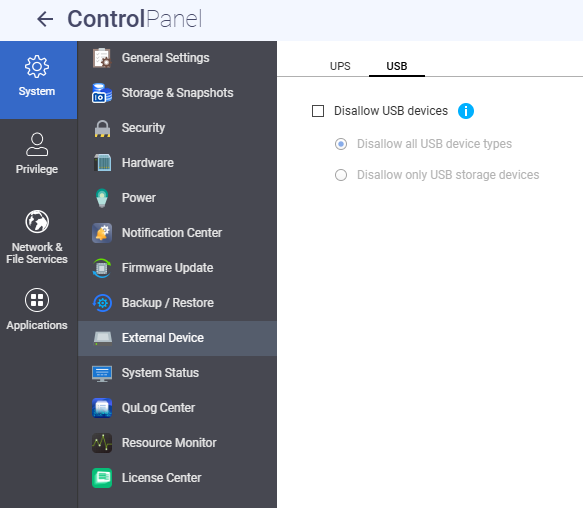
- Go to Control Panel > System > External Device > USB.
- Locate the Disallow USB devices setting.
- Check which option is selected:
- Disallow all USB device types: All USB devices are disabled, including UPS devices, Wi-Fi dongles, USB cameras, USB mice, USB keyboards, USB speakers, and external USB storage devices such as USB flash drives, external hard drives, QNAP JBOD enclosures, and QNAP RAID expansion enclosures. This also disables USB One Touch Copy and file transfers from mobile devices.
- Disallow only USB storage devices: External USB storage devices (including USB flash drives, external hard drives, and QNAP expansion enclosures) are disabled.
- To use a USB external drive for any upload or backup workflow, make sure that neither of these options is selected. In older QTS versions, this setting may not be available, and USB devices are not restricted by this option.
Procedure 2: Configure a one-way sync job in Hybrid Backup Sync (HBS)
Follow the steps below to create a one-way sync job that automatically uploads data from a USB external drive to a NAS shared folder.
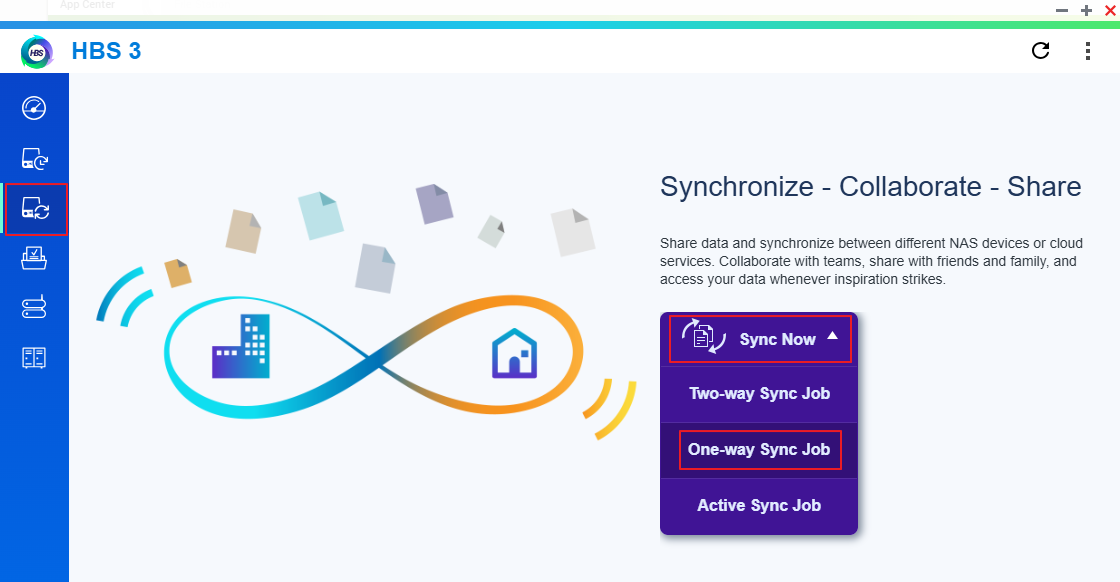
- Open HBS 3.
- Go to Sync.
- In the Sync Now menu, click One-way Sync Job.
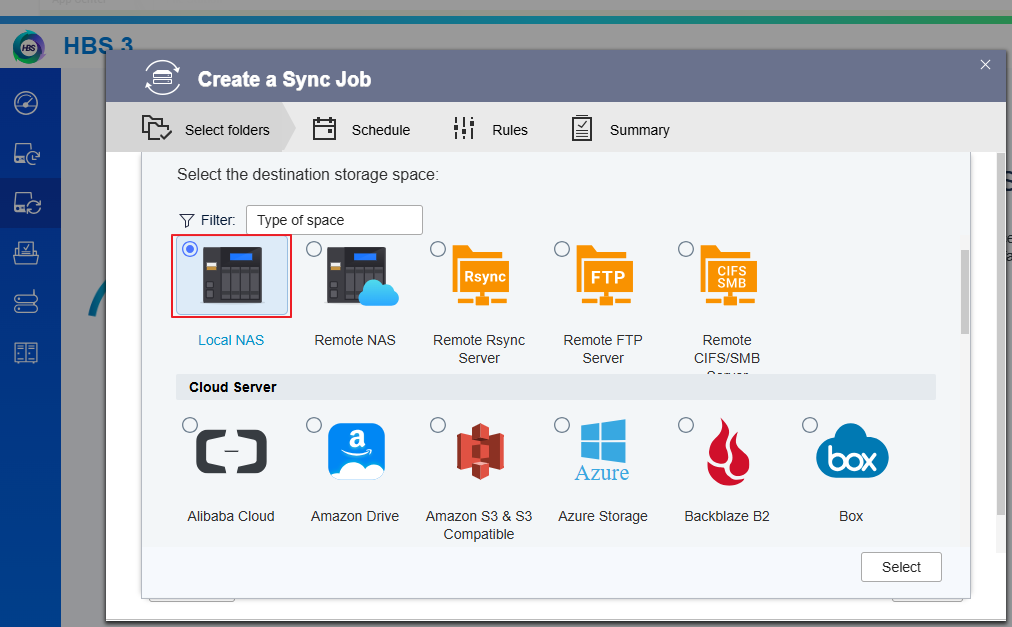
The Create a Sync Job window opens.
- Select the Local NAS option and click Select.
- Enter a Job name.
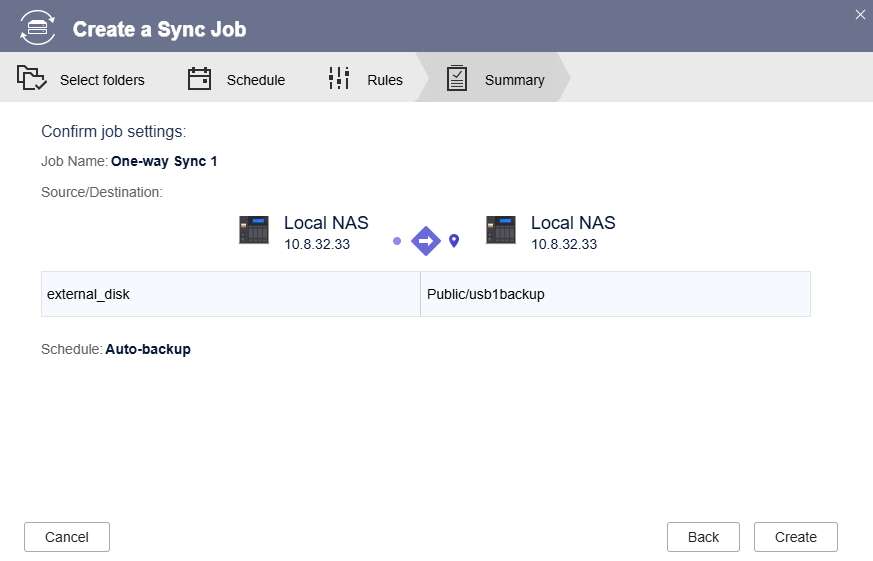
- Create a sync pair from the USB external drive (for example,
external_disk) to the target NAS shared folder, and then click Next.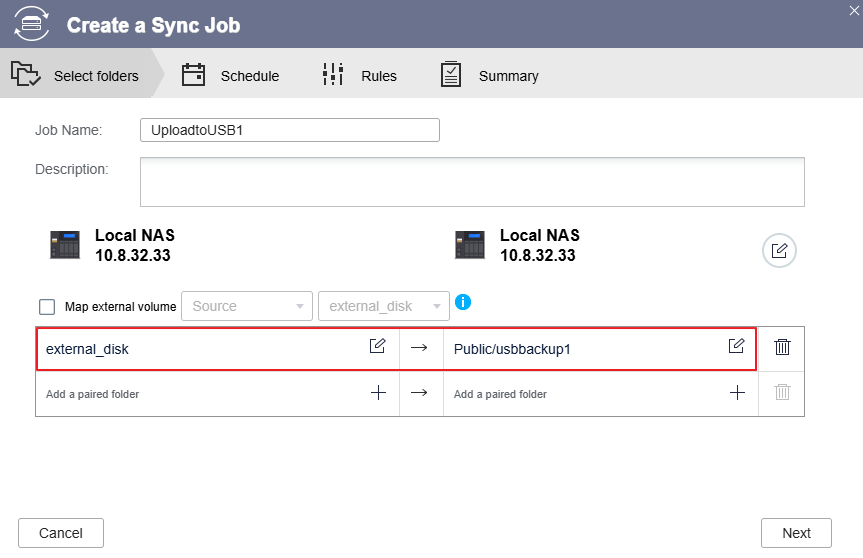
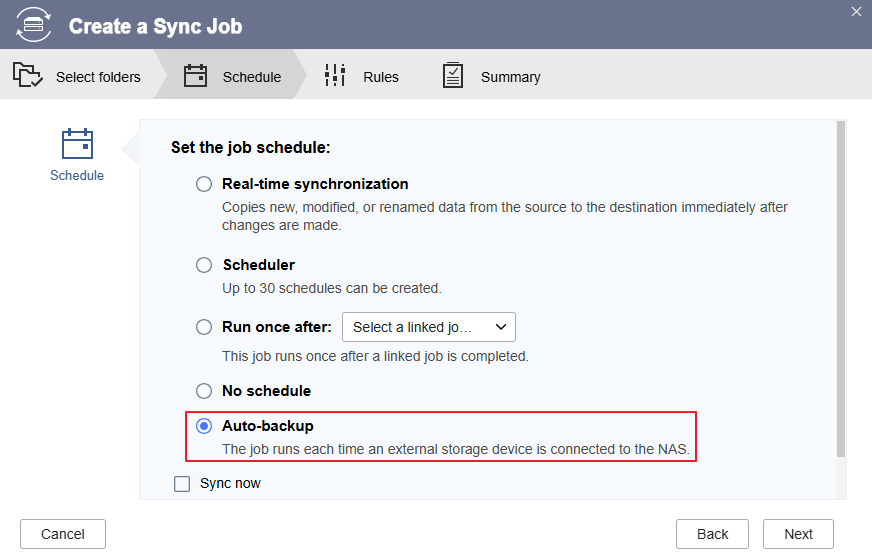
- In the schedule settings, select Auto-backup, and then click Next.
- Follow the wizard to complete the remaining settings, and then click Create.
- After the job is created, you can click Sync now to run the first sync immediately.
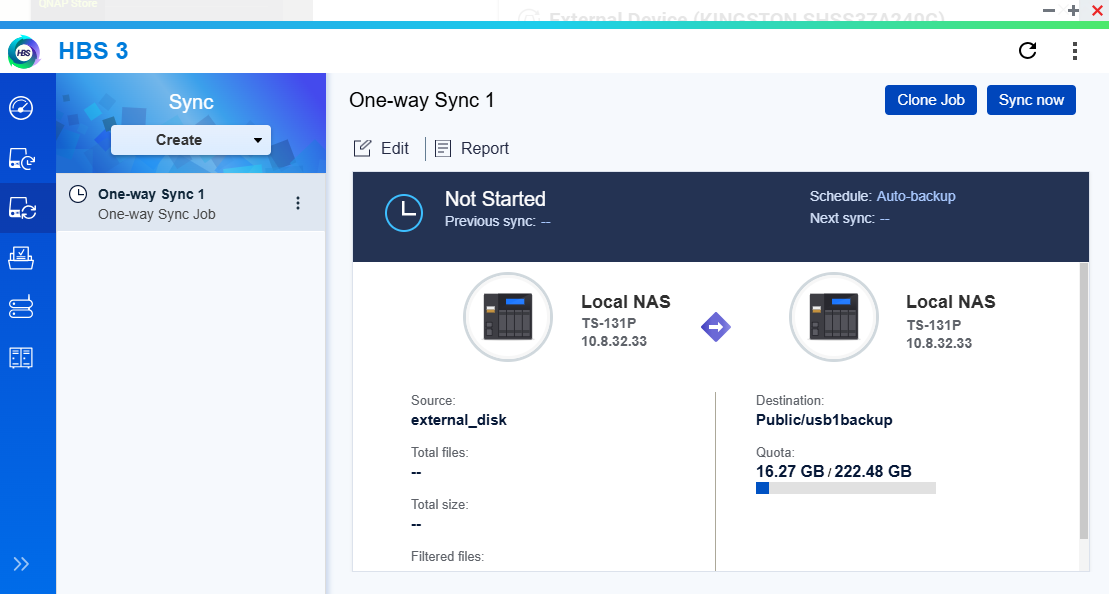
From now on, whenever the USB external drive is connected to the NAS, new or changed data on the drive will be automatically uploaded to the specified NAS shared folder according to the job settings.
To verify the sync job, go to Sync > Report in HBS 3 and review the job report.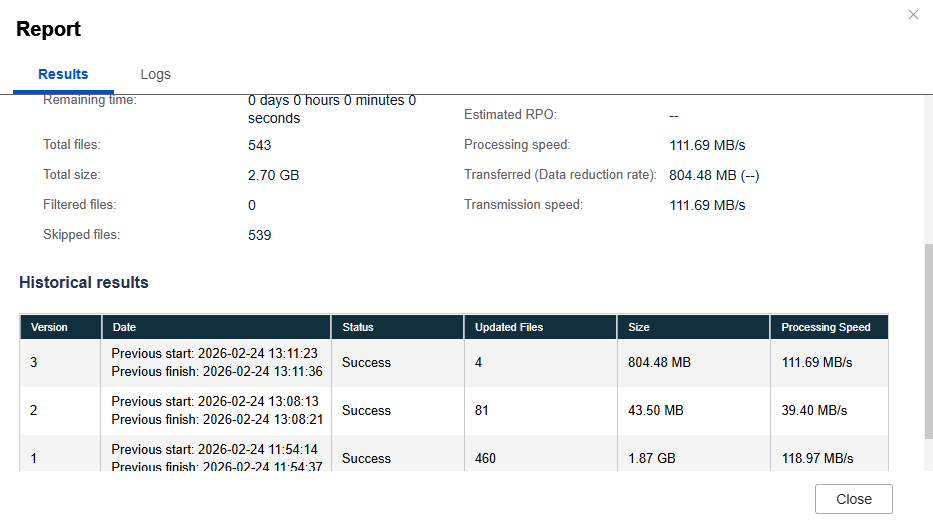
Note: This configuration creates a one-way sync from the USB external drive to the NAS. Files on the NAS are not synchronized back to the USB drive. Depending on your sync policy, files on the NAS may be overwritten or deleted. Review the sync policy settings in HBS 3 before running the job.


