


How can I use a TP-Link Tapo C260 with QVR Surveillance using ONVIF?
Last modified date:
2026-02-25
Applicable Products
- QVR Surveillance or QVR Pro
- TP-Link Tapo C260 (and other TP-Link Tapo series cameras)
Overview
The TP-Link Tapo C260 is not currently listed on the official QVR supported camera list. However, you can typically add it to QVR Surveillance using ONVIF and use most core surveillance functions, such as live view and recording. ONVIF is a standard protocol commonly used to integrate third-party IP cameras with QVR.
Details
What can I expect when using ONVIF?
- Basic stream onboarding and recording should work normally.
- Most core surveillance features are available (actual behavior depends on the camera model and firmware).
- Compared with native support, you may encounter some limitations:
- Some vendor-specific features may not be fully mapped into QVR.
- Certain advanced controls (for example, specific PTZ behavior) may depend on the camera-side implementation.
- Some settings may still need to be configured in the Tapo app rather than entirely in QVR.
When should I choose a different camera?
- If you require the lowest integration risk and the most complete feature mapping, we recommend selecting a camera model that is already listed on the official QVR supported camera list.
- If minor feature differences are acceptable, using the Tapo C260 via ONVIF is typically a practical option.
Procedure
- Complete the initial camera setup in the Tapo app and update the camera firmware to the latest version.
- Enable ONVIF and/or RTSP on the camera, if these options are provided by your model and firmware.
- In QVR Surveillance or QVR Pro, add the camera using ONVIF and enter the correct:
- IP address
- Port
- Username
- Password
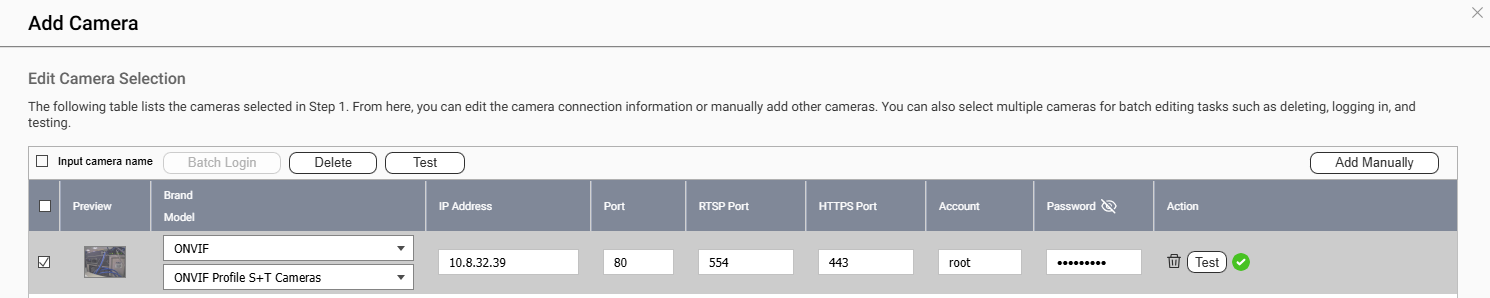
- After onboarding, validate core functions:
- Live view stability
- Recording operation
- Event detection and PTZ (if applicable)
- If the required functions are not met, consider:
- Switching to a camera model on the official QVR supported camera list, or
- Waiting for future native Tapo support updates.
If the camera cannot be added via ONVIF or core functions do not work as expected, we recommend checking the latest QVR camera compatibility list and contacting QNAP technical support with your camera model, firmware version, and QVR version.


