


How to establish a MongoDB to connect with QNAP NAS via QIoT Suite Lite?
Last modified date:
2018-06-20

In this tutorial, you will learn how to establish a MongoDB to connect with QNAP NAS via QIoT Suite Lite.
Step_1: Open Container Station and Set Up MongoDB
- Click "Container Station".

- Click "Create Container".

- Go to MongoDB and click "Install" (Click "MongoDB" for more information).

- Click "Create"
- This will install an empty container. You will need to install, remove, and then install a new MongoDB.

- Choose the container and remove it.


- Choose "Create Container", and click "Install" to rebuild the MongoDB.
- In Command, enter "mongod --auth".

- Click "Advanced Settings".

- Go to "Network", enter a value for the MongoDB "port" number (for example: 37011).

- Go to "Shared Folder", and click "Add".

- In "Volume from host" choose the folder you established earlier (for example: Container > Mongo DB > db).

- In "Mount Point" enter "/data/db".

- In "Volume from host" choose the folder you established earlier (for example: Container > Mongo DB > configdb).
- In "Mount Point" enter "/data/configdb".
The purpose of adding these commands are for easy backup and modification - Click "Create"

Step_2: Set up MongoDB account and permissions
- You may refer MongoDB DockerHub instructions for more information on setting access controls.

- Establish an account: In your MongoDB container, click "Terminal", enter "mongo admin", and click "OK".

- Enter the command " db.createUser({ user: 'input account', pwd: 'input password', roles: [ { role: "userAdminAnyDatabase", db: "admin" } ] }); ".

- Return to the MongoDB container, click "Terminal" and enter the command "mongo -u input account -p input password --authenticationDatabase admin".
- Click "OK".

- Enter the command "use database name" (for example: "use qiotdatabase").
- Enter the command "db.createUser({ user: "input account of DB ", pwd: "input password of DB", roles: [ { role: "dbOwner", db: "input the DB name you established previously"}]});"
(When you "establish another new account and password", it cannot be the same as the previously created user account (for example: "qiotduser")).

Step_3: Connect MongoDB to QIoT Suite Lite
- Open your IoT Application and click "Rule".
- In "storage", choose "mongodb" and pull it into Flow 1, and double click it.

- In Server, click the right button to add a new mongodb.

- Enter the below information:
- Host: 10.0.5.1 (Must be this IP)
- Port: The port number you set up earlier (for example: "37011").
- Database: The database name you set up earlier (for example: "qiotdatabase").
- Username: The username you set up earlier (for example: "qiotuser").
- Password: The password you set up earlier (for example: "qiotuser").
- Name: Enter a name (for example: "qiotdb").
- Click "Add".

- Enter a name in "Collection" (for example: temp).
- In "Operation", choose the operation you want. (More information, read the MongoDB website).
- Name: Enter a name.
- Click "Done".

- In "storage", choose "mongodb". In "function", choose "function". Then pull them into Flow 1.
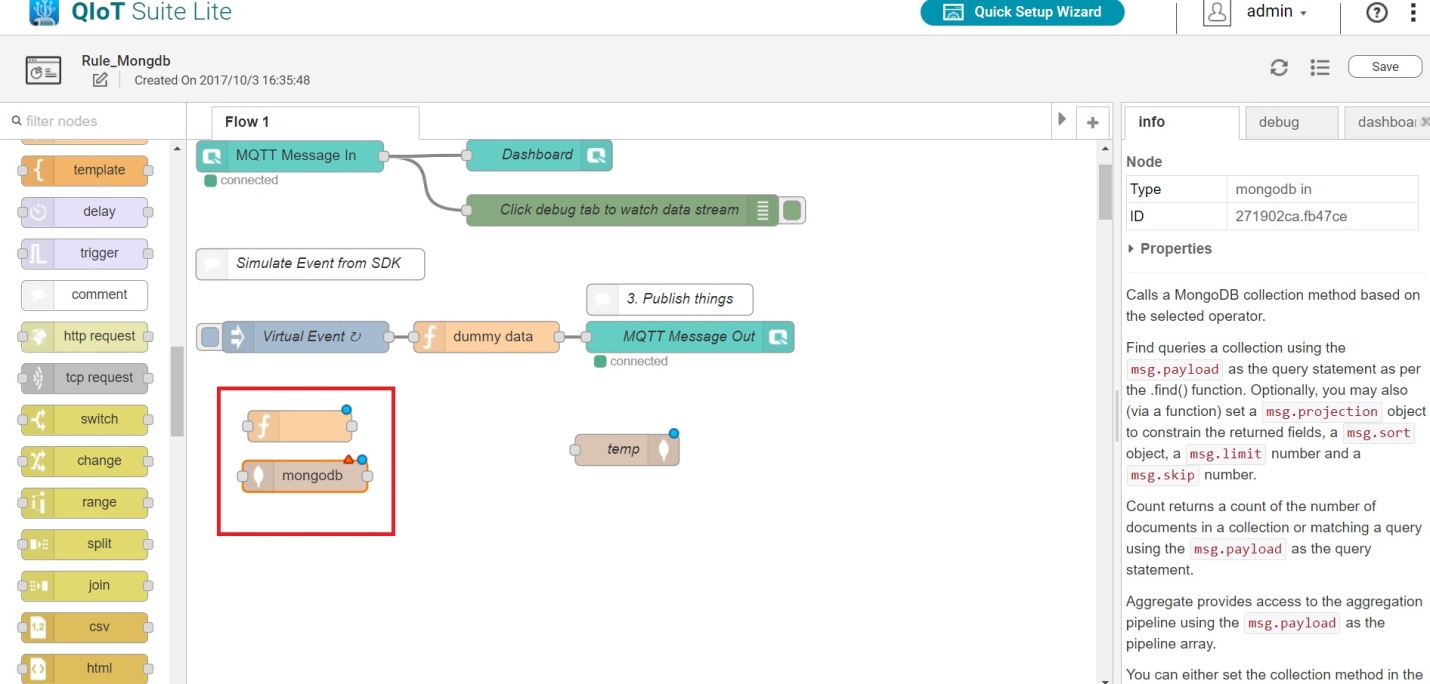
- Double click "function", and enter the code you want to set up. (Refer to the "info" section on the right side for more information)
- Click "Done".

- Double click "mongodb", choose the server name you previously set up and enter the collection name you want (for example: temp).
- Name: Enter a name.
- Click "Done".

- After these settings, you can connect the function node and mongodb node together like below and click "Save".
- On the right side, you will see the value.

For further assistance, ask other users and QNAP experts in the community. Go to QNAP Community


