Applicable Products
QTS, QuTS hero
Container Station
What is Open WebUI?
Open WebUI is a ChatGPT-style, self-hosted web interface designed to connect to local Large Language Models (LLMs) like Ollama. It provides a polished, user-friendly chat experience without requiring cloud subscriptions or sending your data to external servers. Once deployed on your QNAP NAS, you can access Open WebUI from any browser on your network.
What You'll Learn
This tutorial covers:
- Creating a Docker Compose YAML file for Open WebUI
- Configuring network connectivity between Open WebUI and Ollama
- Deploying the container and creating an admin account
- Selecting an LLM and testing the chat interface
- Connecting to a remote Ollama instance if needed
Understanding Docker Networking
When both Open WebUI and Ollama run in separate containers on the same QNAP NAS, they communicate via a shared Docker network. The key point: containers communicate using service names (for example: ollama, but not localhost).
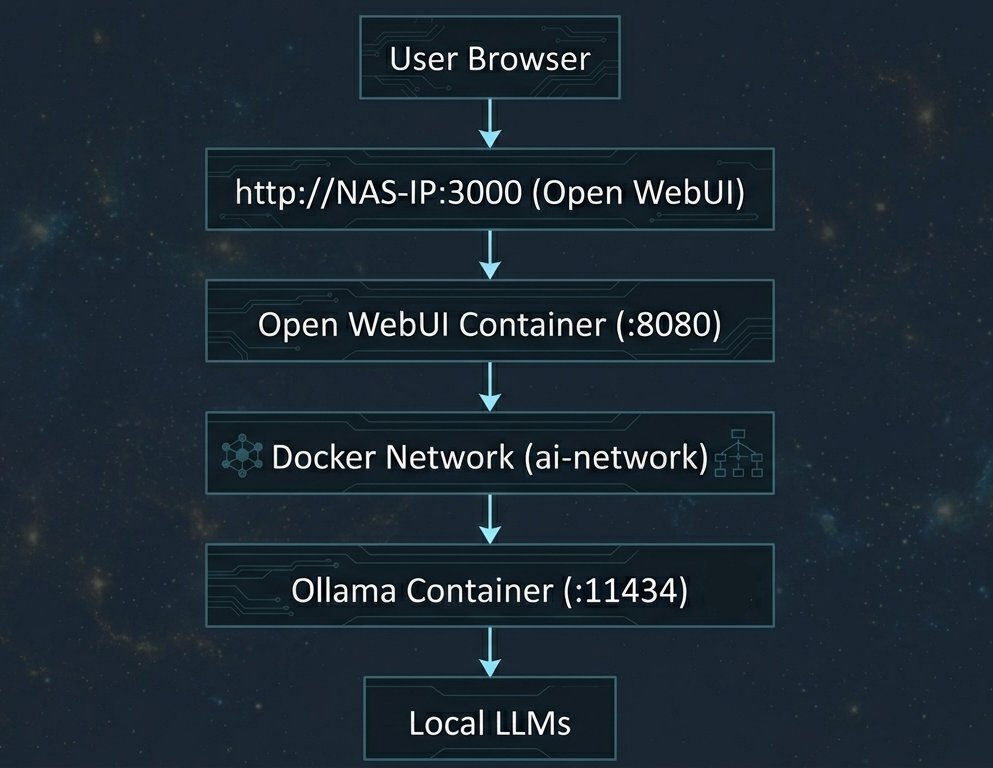
The OLLAMA_BASE_URL environment variable tells Open WebUI where to find Ollama. When both containers are on the same Docker network named ai-network, the URL is http://ollama:11434 (using the container service name).
Prerequisites
- QNAP NAS running QTS 5.2 / QuTS hero h5.2 or later versions
- Container Station 3
- Ollama, deployed on the same QNAP NAS
- At least 2GB of free space for the Open WebUI container and persistent data
- Familiarity with Container Station and Docker Compose basics
Procedure
Step 1: Create Storage Folder
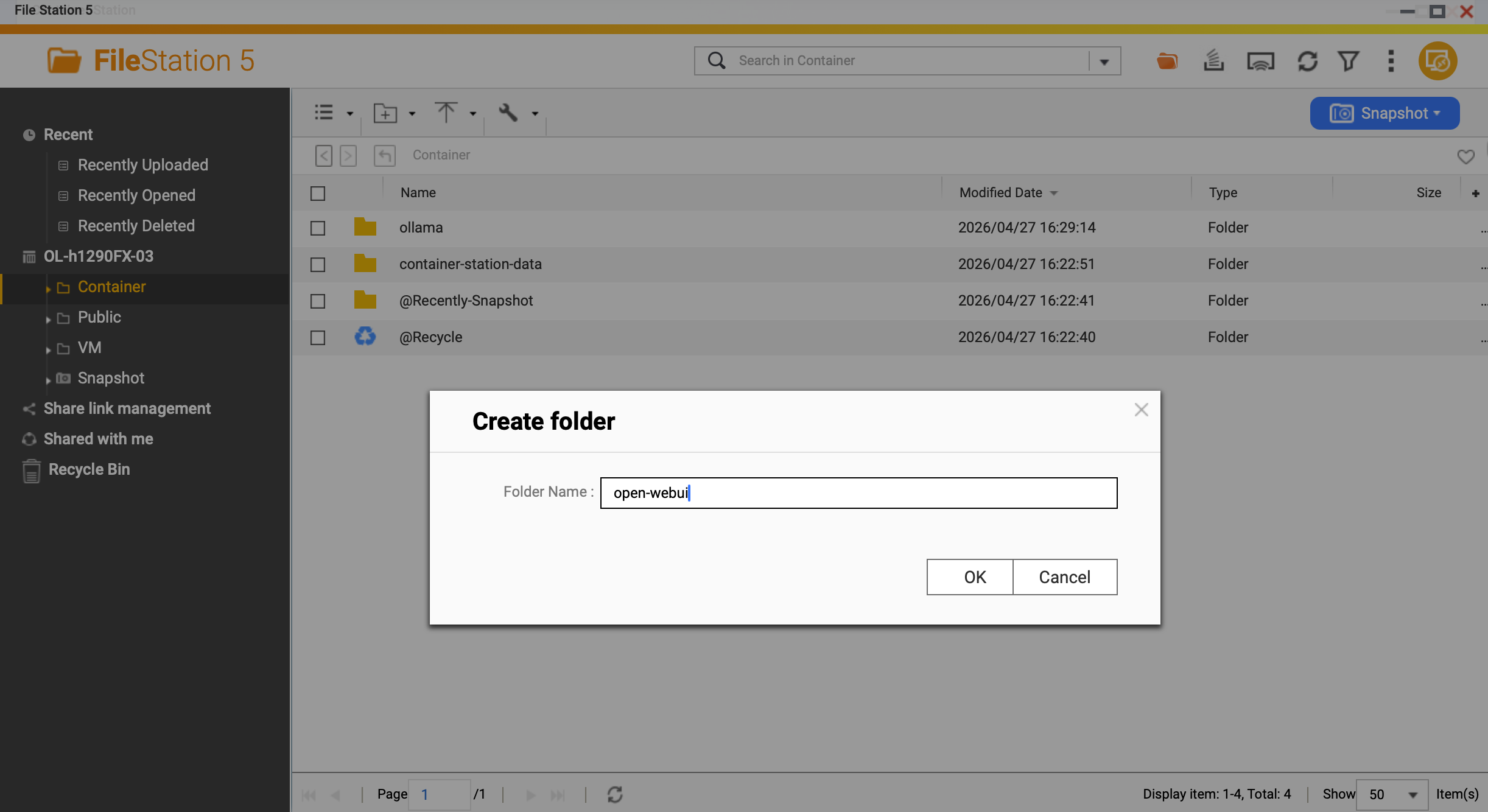
Open SSH or File Station on your QNAP NAS. Create a directory for Open WebUI persistent data:
/share/Container/open-webui
This directory stores chat history, user settings, and configuration data. Without this volume mount, all your conversations disappear when the container restarts.
Step 2: Create the Application
In Container Station, create a new Application with the following content:
version: '3.8'
services:
  open-webui:
    image: ghcr.io/open-webui/open-webui:main
    container_name: open-webui
    ports:
      - "3000:8080"
    volumes:
      - /share/Container/open-webui:/app/backend/data
    environment:
      OLLAMA_BASE_URL: http://ollama:11434
    networks:
      - ai-network
    restart: unless-stopped

networks:
  ai-network:
    name: ai-network
    driver: bridge
Key Configuration Explained
- Image:
ghcr.io/open-webui/open-webui:main — Official Open WebUI image from GitHub Container Registry - Port:
3000:8080 — Access from browser at http://NAS-IP:3000, mapped to container port 8080 - Volume:
/share/Container/open-webui:/app/backend/data — Persistent storage for chats and settings - OLLAMA_BASE_URL:
http://ollama:11434 — Must match your Ollama container service name and port - Network:
ai-network — Shared bridge network with Ollama container - Restart:
unless-stopped — Container restarts automatically after QNAP reboots
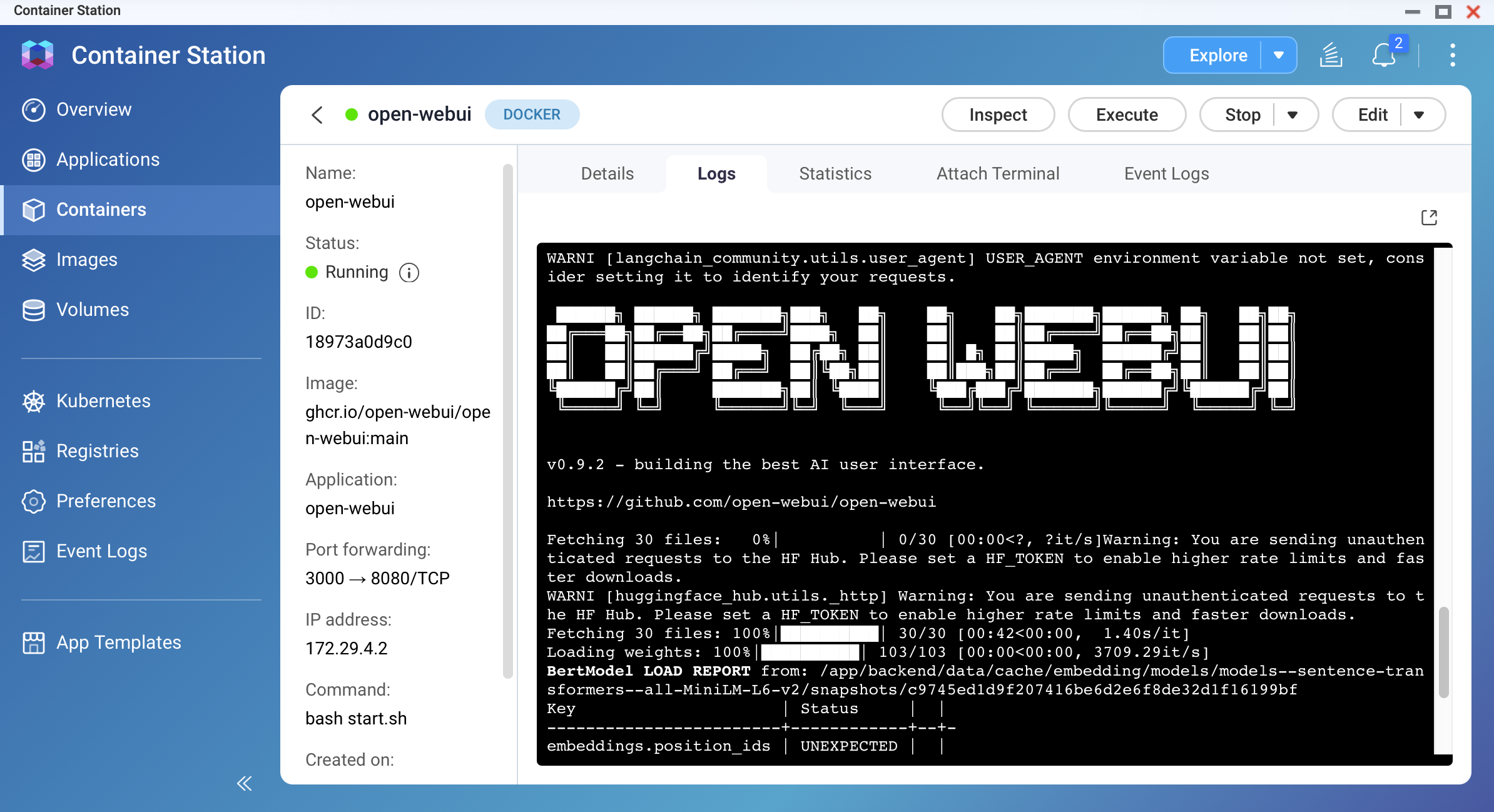
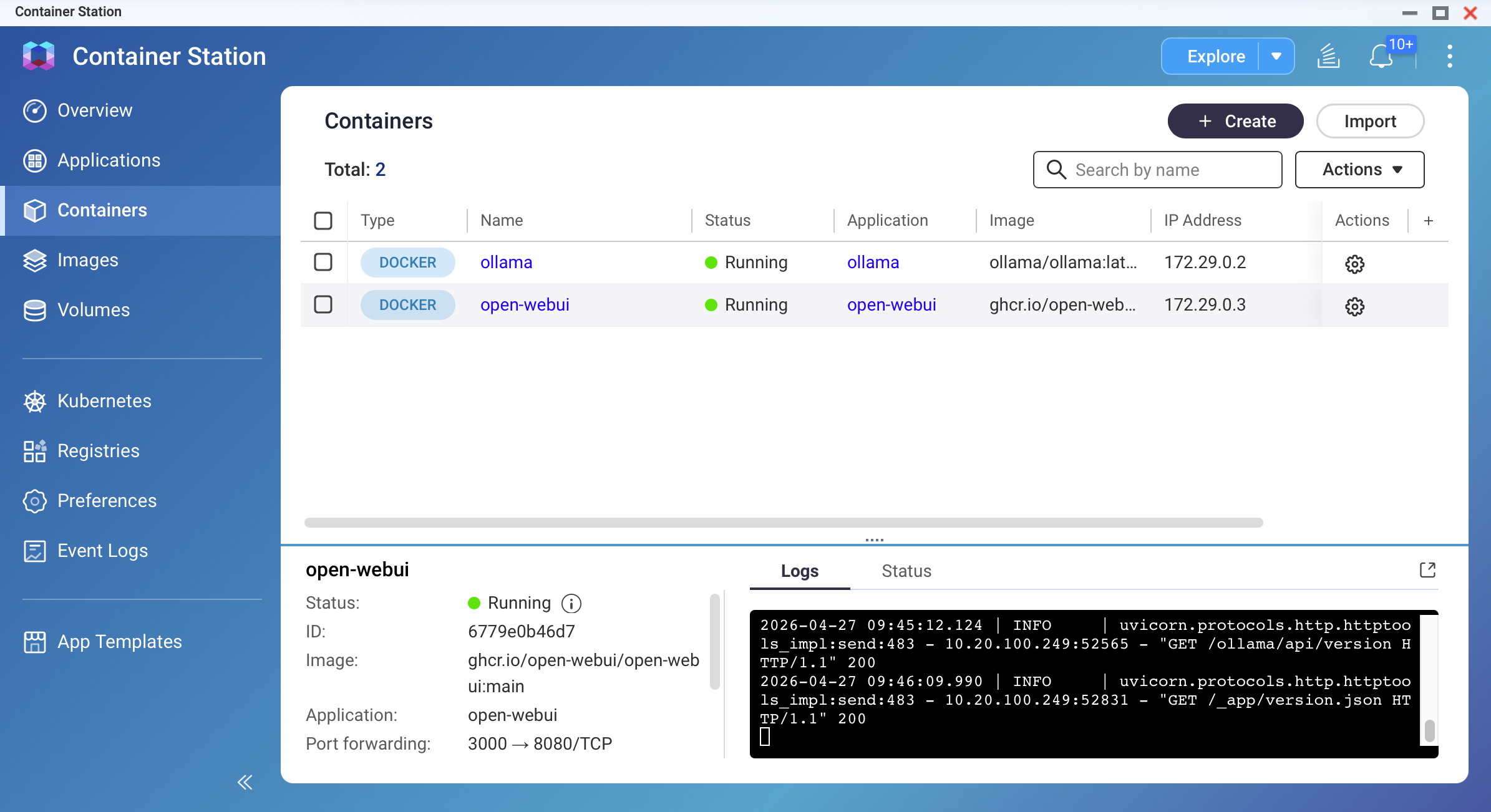
Wait 30-60 seconds for the container to start. Check logs in Container Station.
Step 3: Create Admin Account and Initial Setup
Open your browser and navigate to:
http://YOUR-NAS-IP:3000
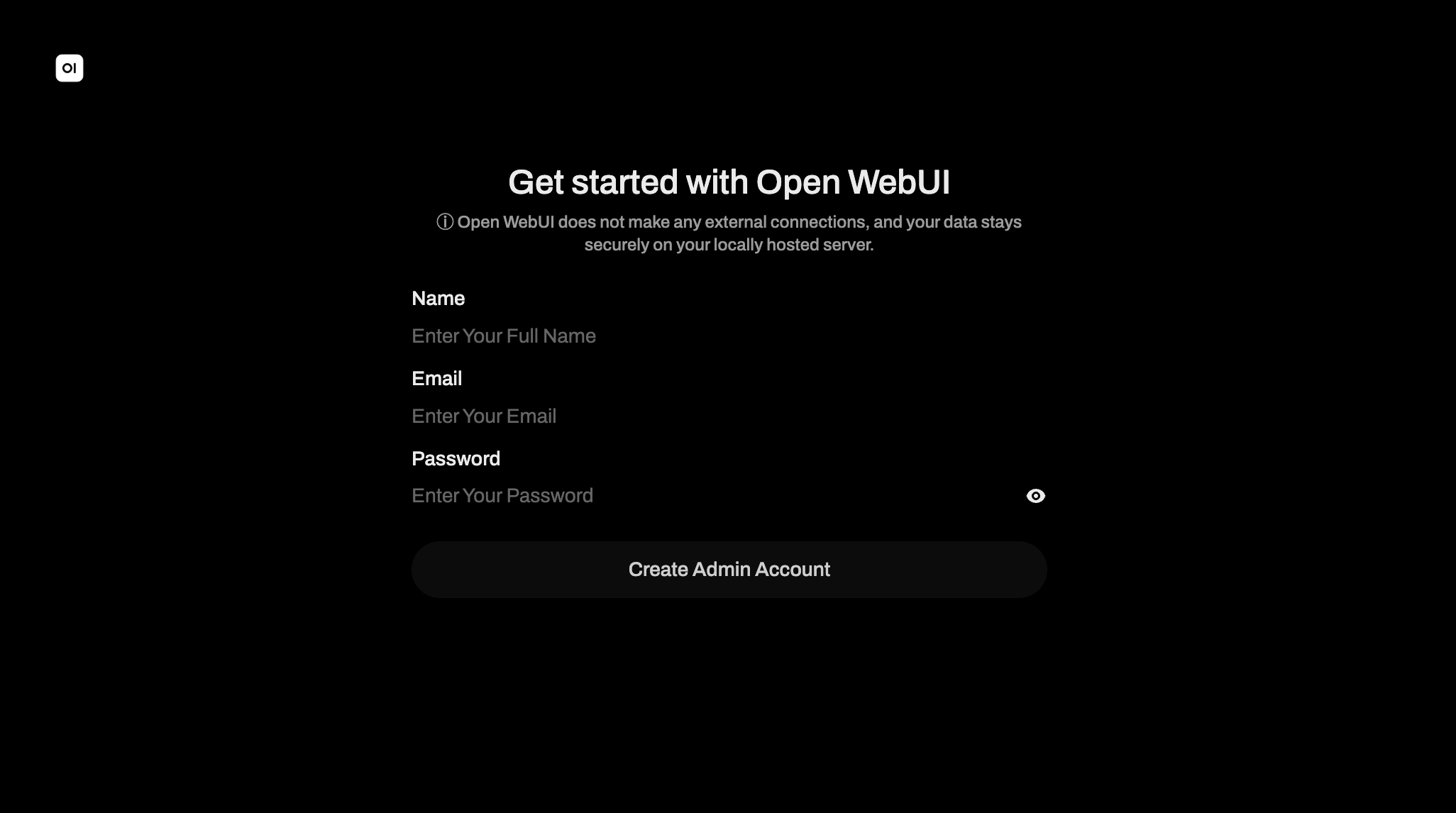 Screenshot: Open WebUI login screen with sign-up fields
On first access, Open WebUI displays a sign-up form. Fill in:
- Name: Your display name
- Email: An email address (does not need to be valid)
- Password: A secure password for your account
The first account created automatically becomes the admin account. You must create this account before the interface unlocks. Click Create Account.
Warning
The first account created becomes admin with full system access. If your QNAP NAS is accessible from the internet, set up a strong password immediately. Do not leave the default or empty credentials.
Step 4: Select a Model and Test
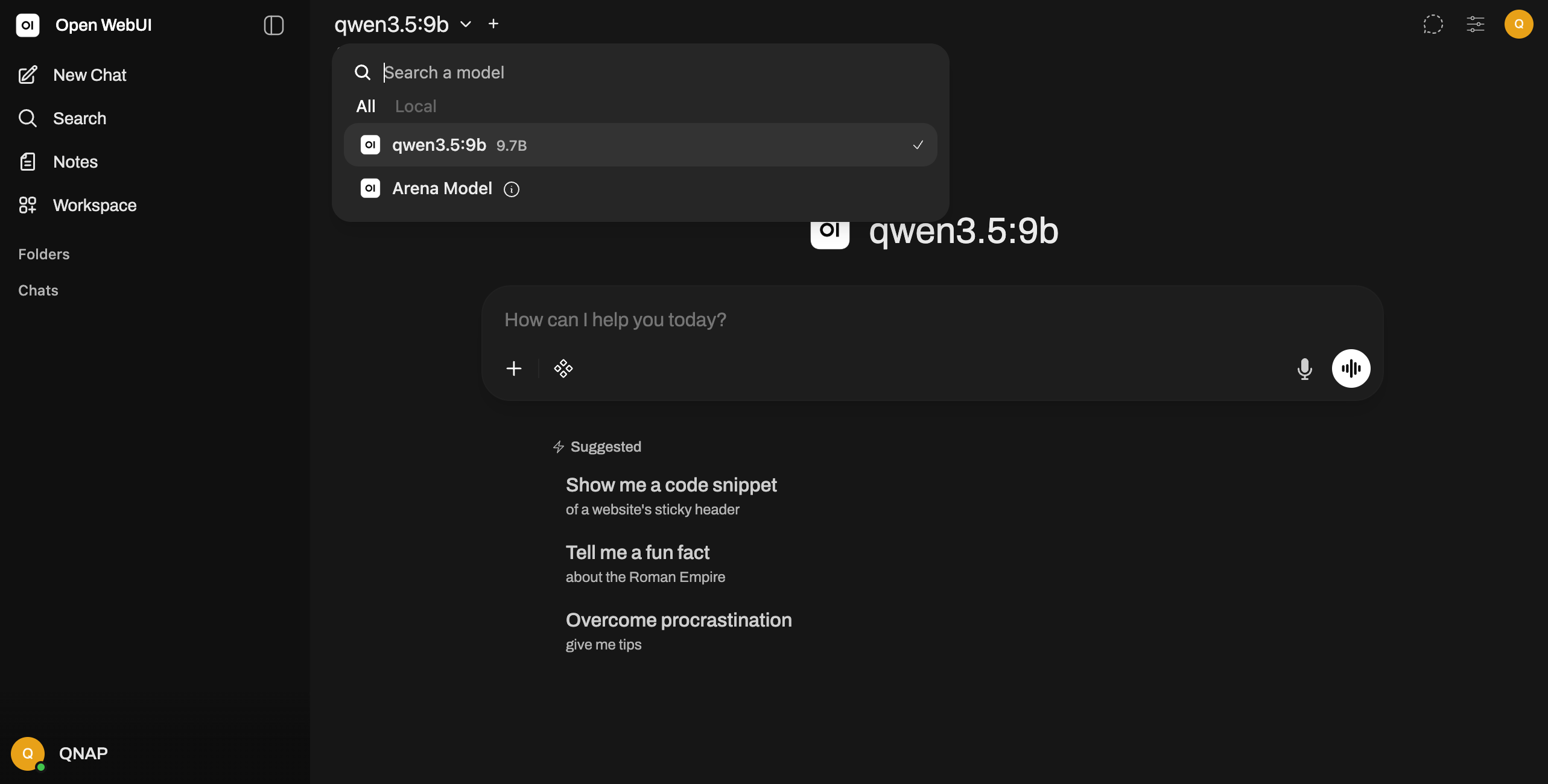
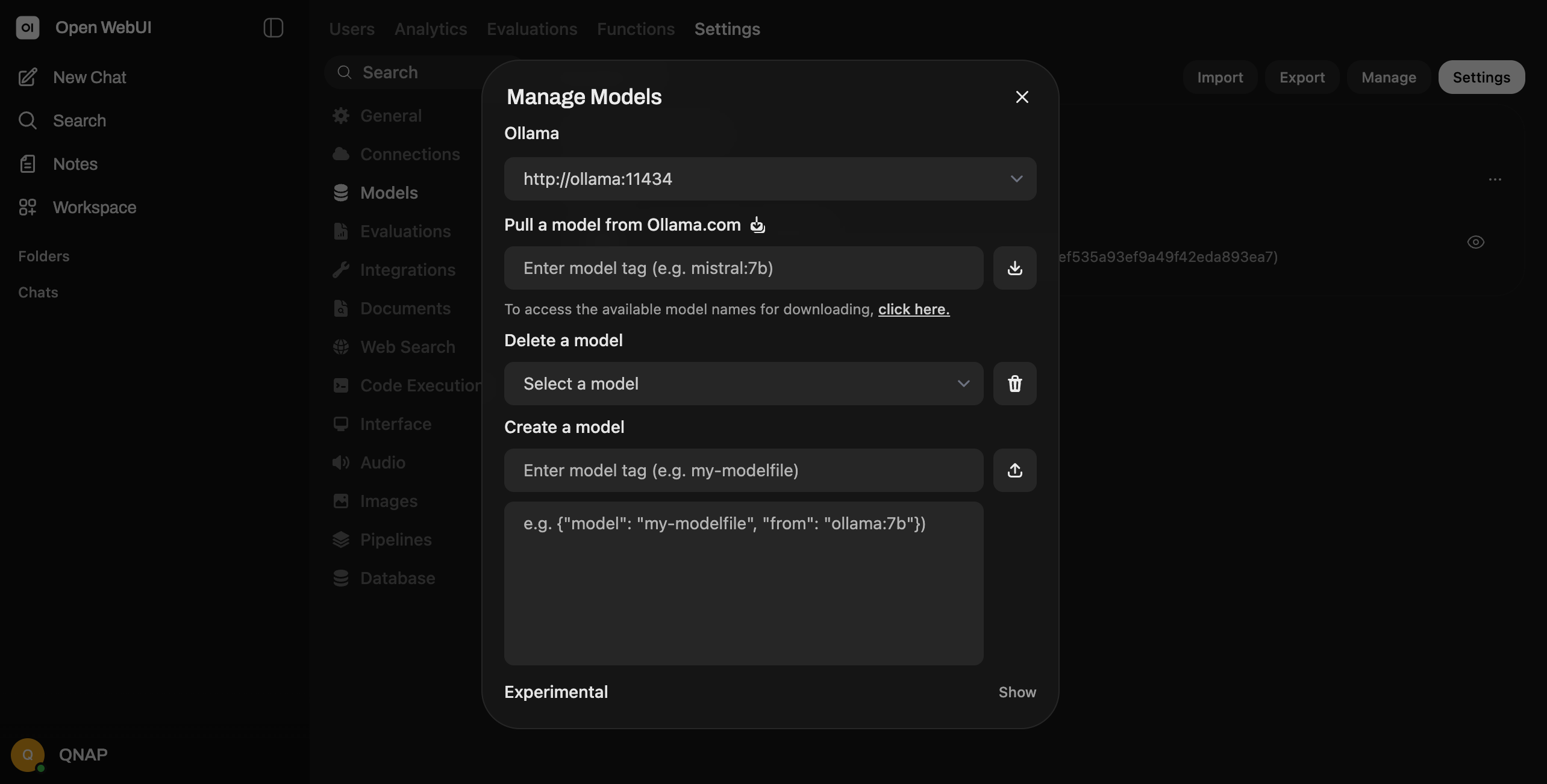
After signing in, Open WebUI shows a model selector. If you have already pulled models in Ollama, they appear here automatically. If no models are listed:
- Go to the Admin Panel menu
- Select Setting -> Models
- Verify Ollama connections and display model availability.
- Pull a model directly from Open WebUI or return to Ollama to pull one first
Select a model from the dropdown (e.g., Gemma, Qwen, Deepseek).
Step 5: Start Chatting
Type a message in the text box at the bottom and press Enter. Open WebUI sends your message to Ollama, which processes it using the selected model and returns a response. The interface stores the full conversation in your persistent volume.
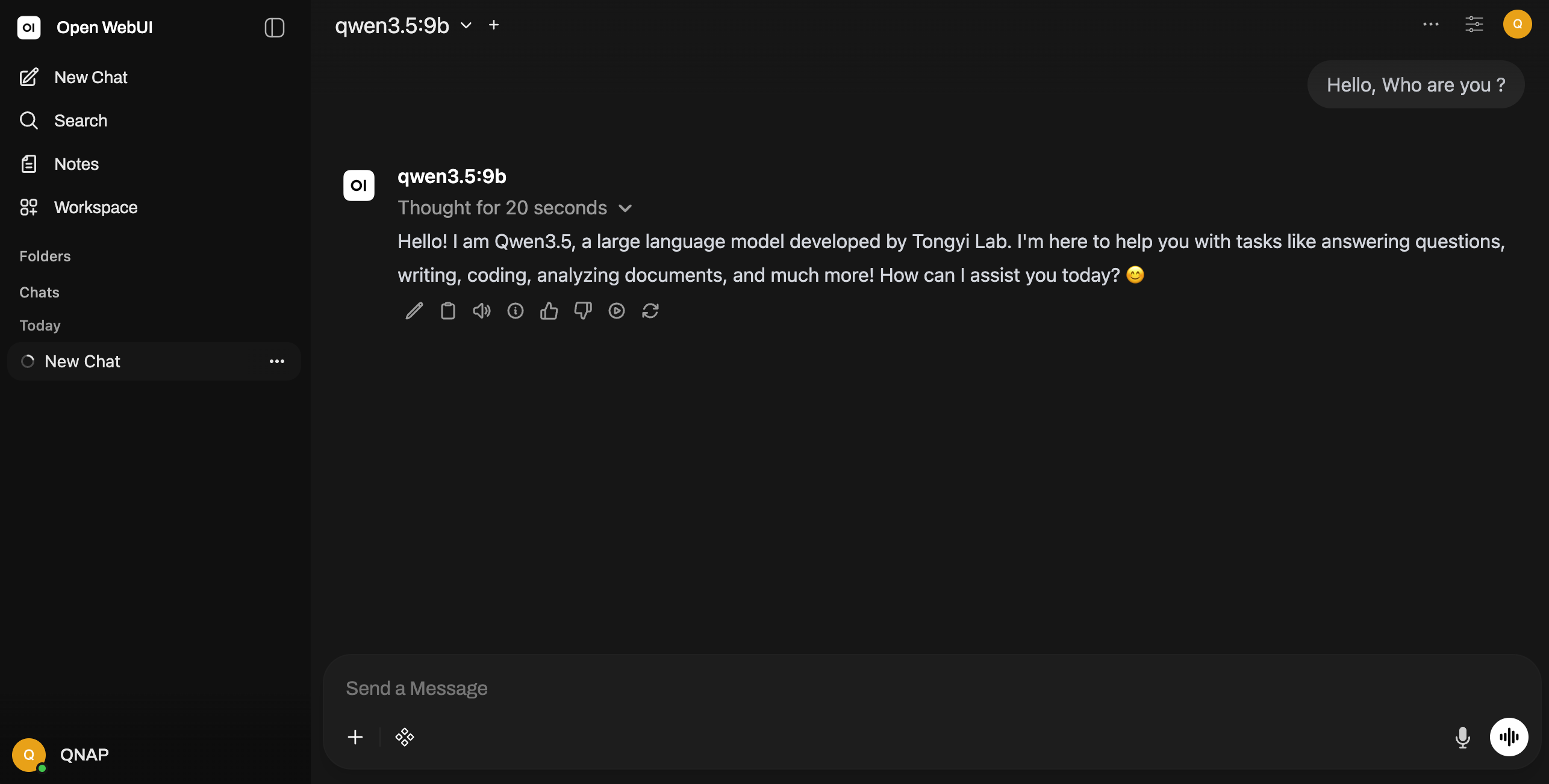
Screenshot: Open WebUI chat interface with a sample conversation
Connecting to a Remote Ollama Instance
If you want Open WebUI to connect to Ollama running on a different QNAP NAS or machine (not the same physical host), modify the environment variable:
OLLAMA_BASE_URL: http://OTHER-NAS-IP:11434
Replace OTHER-NAS-IP with the IP address of the remote machine running Ollama. Ensure that machine's firewall allows port 11434 traffic from your QNAP NAS. Both machines must be on the same network or have proper routing configured.
適用產品
QTS,QuTS hero
Container Station
什麼是 Open WebUI?
Open WebUI 是一種 ChatGPT 風格的自我託管網頁介面,旨在連線到本地大型語言模型(LLM),如 Ollama。它提供了一個精緻且使用者友好的聊天體驗,無需雲端訂閱或將您的資料傳送到外部伺服器。一旦部署在您的 QNAP NAS 上,您可以從網路上的任何瀏覽器訪問 Open WebUI。
您將學到什麼
本教程涵蓋:
- 為 Open WebUI 建立 Docker Compose YAML 檔案
- 配置 Open WebUI 與 Ollama 之間的網路連線
- 部署容器並建立 admin 帳號
- 選擇 LLM 並測試聊天介面
- 如有需要,連線到遠端 Ollama 例項
了解 Docker 網路
當 Open WebUI 和 Ollama 在同一 QNAP NAS 上的不同容器中運行時,它們通過共享的 Docker 網路進行通信。關鍵點:容器使用服務名稱進行通信(例如:ollama,但不是localhost)。
OLLAMA_BASE_URL 環境變數告訴 Open WebUI 在哪裡找到 Ollama。當兩個容器位於同一個名為ai-network的 Docker 網路上時,URL 是http://ollama:11434(使用容器服務名稱)。
先決條件
- 執行 QTS 5.2 / QuTS hero h5.2 或更新版本的 QNAP NAS
- Container Station 3
- Ollama,部署在同一臺 QNAP NAS 上
- 至少 2GB 的空間供 Open WebUI 容器和永續性資料使用
- 熟悉 Container Station 和 Docker Compose 基本知識
程式
步驟 1:建立儲存空間資料夾
在您的 QNAP NAS 上開啟 SSH 或 File Station。為 Open WebUI 持久性資料建立目錄:
/share/Container/open-webui
此目錄存儲聊天記錄、用戶設定和配置資料。若沒有這個卷掛載,當容器重新啟動時,所有對話都會消失。
步驟 2:建立應用程式
在 Container Station 中,建立一個新的應用程式,內容如下:
版本:'3.8'
服務:
  open-webui:
    映像:ghcr.io/open-webui/open-webui:main
    容器名稱:open-webui
    埠:
      - "3000:8080"
    卷:
      - /share/Container/open-webui:/app/backend/data
    環境:
      OLLAMA_BASE_URL: http://ollama:11434
    網路:
      - ai-network
    重啟:除非停止

網路:
  ai-network:
    名稱:ai-network
    驅動:橋接
關鍵配置說明
- 映像:
ghcr.io/open-webui/open-webui:main — 來自 GitHub Container Registry 的官方 Open WebUI 映像 - 端口:
3000:8080 — 從瀏覽器訪問http://NAS-IP:3000,映射到容器端口 8080 - 卷:
/share/Container/open-webui:/app/backend/data — 聊天和設定的持久性儲存空間 - OLLAMA_BASE_URL:
http://ollama:11434 — 必須與您的 Ollama 容器服務名稱和端口匹配 - 網路:
ai-network — 與 Ollama 容器共享的橋接網路 - 重啟:
unless-stopped — QNAP 重啟後容器自動重啟
等待 30-60 秒讓容器啟動。在 Container Station 中檢查日誌。
步驟 3:建立 admin 帳戶並進行初始設定
打開瀏覽器並導航至:
http://YOUR-NAS-IP:3000
截圖:Open WebUI 登入畫面,包含註冊欄位
首次訪問時,Open WebUI 顯示登錄檔單。填寫:
- 名稱:您的顯示名稱
- 電子郵件:電子郵件地址(不需要有效)
- 密碼:您帳戶的安全密碼
第一個建立的帳戶會自動成為 admin 帳戶。您必須在介面解鎖之前建立此帳戶。點擊建立帳戶。
警告
第一個建立的帳戶成為 admin,擁有完整系統存取權。如果您的 QNAP NAS 可以從網際網路存取,請立即設定強密碼。不要使用預設或空白憑證。
步驟 4:選擇型號並測試
登入後,Open WebUI 顯示型號選擇器。如果您已經在 Ollama 中拉取型號,它們會自動顯示在此處。如果沒有列出型號:
- 前往admin 面板選單
- 選擇設定 -> 型號
- 驗證 Ollama 連線並顯示型號可用性。
- 直接從 Open WebUI 拉取型號或返回 Ollama 先拉取一個
從下拉選單中選擇型號(例如,Gemma、Qwen、Deepseek)。
步驟 5:開始聊天
在底部的文字框中輸入訊息並按下 Enter。Open WebUI 將您的訊息傳送到 Ollama,使用選擇的型號處理並返回回應。介面將完整對話儲存在您的永續性儲存中。
螢幕截圖:Open WebUI 聊天介面及範例對話
連線到遠端 Ollama 例項
如果您希望 Open WebUI 連接到在不同 QNAP NAS 或機器上運行的 Ollama(不是同一實體主機),請修改環境變數:
OLLAMA_BASE_URL: http://OTHER-NAS-IP:11434
將OTHER-NAS-IP替換為運行 Ollama 的遠端機器的 IP 位址。確保該機器的防火牆允許來自您的 QNAP NAS 的 11434 埠流量。兩台機器必須在同一網路上或已配置適當的路由。


