


How do I sync HDP for SaaS backup data to another NAS with Hybrid Backup Sync?
Applicable Products
Starting from version 2.4, the product previously known as Boxafe has been renamed to HDP for SaaS.
Scenario
You can sync HDP for SaaS data from one NAS to another NAS using Hybrid Backup Sync (HBS). You may want to do this to create redundant backup or to make backup available from a second NAS.
Sync HDP for SaaS data to another NAS with Hybrid Backup Sync (HBS)
Backup data is stored in the HDP for SaaS storage path. To sync the backup data in the HDP for SaaS storage path from a source NAS to a destination NAS, perform the following steps:
Step 1: Stop HDP for SaaS on both NAS devices
- Log in to the NAS as an administrator.
- Open App Center.
- Locate HDP for SaaS.
- Click
 .
. - Click Stop.
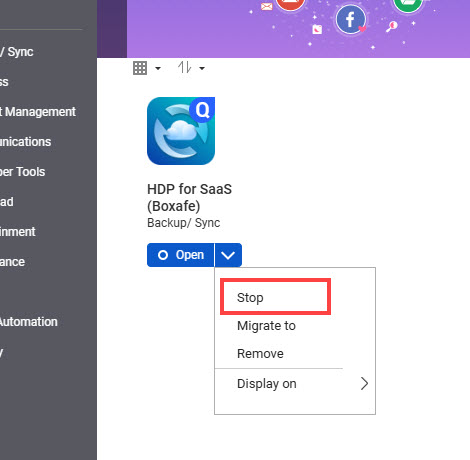
Step 2: Enable RTRR servers on both NAS devices
On both NAS devices, perform the following steps:
- Log in to the NAS as an administrator.
- Install HBS 3 Hybrid Backup Sync if not already installed.
- Open App Center.
- In the search bar, enter "Hybrid Backup Sync".
- Click Install.
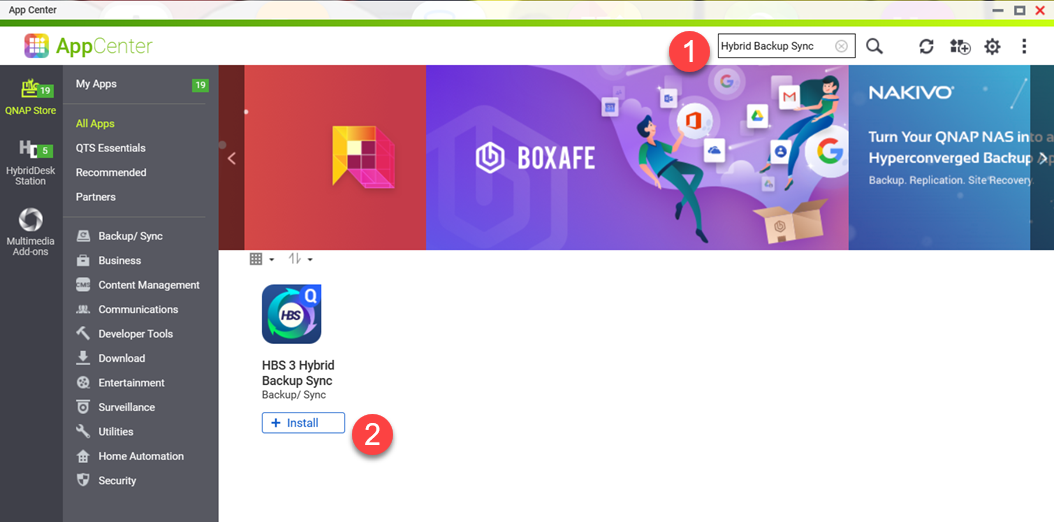
- Open HBS 3 Hybrid Backup Sync.
- Go to Services > RTRR Server.
- Next to Status, toggle the switch to Enable.
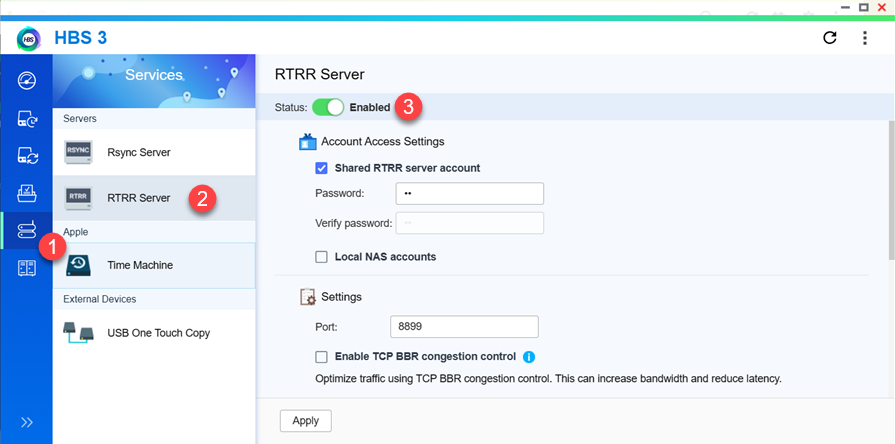
- Under Account Access Settings, enable Shared RTRR server account.
- Specify a password for the RTRR server account.
- Under Network Access Approval, select Allow all connections.
- Click Apply.
A confirmation window appears. - Click OK.
Step 3: Create an HBS one-way sync job on the source NAS
Create an HBS sync job that syncs the HDP for SaaS storage path contents on from the source NAS to the HDP for SaaS storage path on the destination NAS:
- Log in to the source NAS as an administrator.
- Open HBS 3 Hybrid Backup Sync.
- Go to Sync.
- Click Sync Now.
- Click One-way Sync Job.
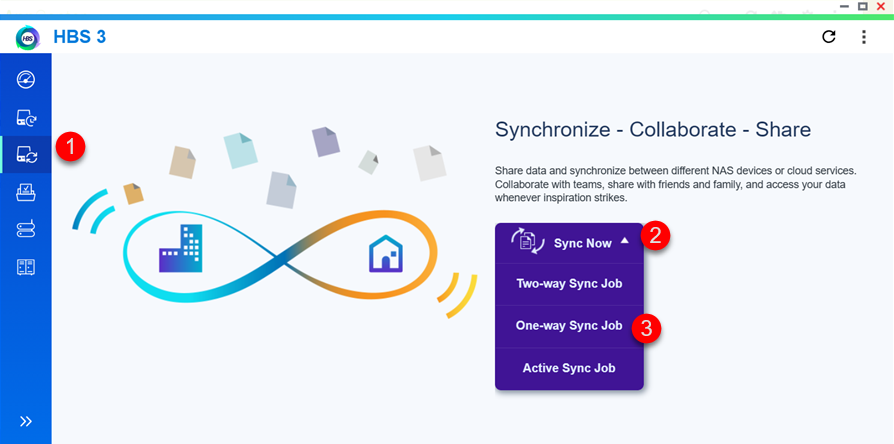 The Create a Sync Job window opens.
 - Select Remote NAS as the destination storage space.
The Create a Storage Space window appears.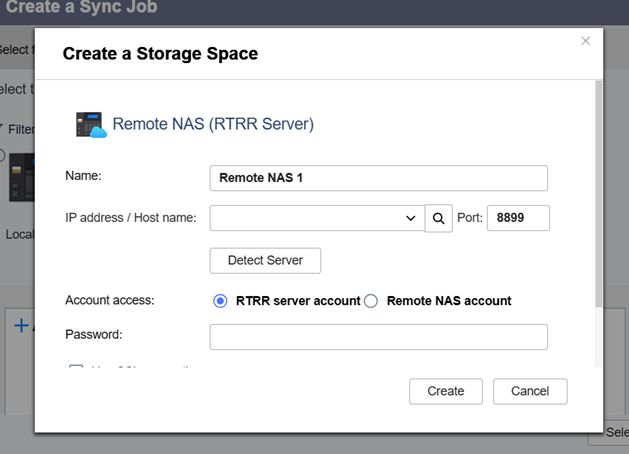
- For Name, specify a name for the destination NAS.
- For IP address/host name, specify the IP address of the destination NAS.
- For Account access, select RTRR server account.
- For Password, specify the RTRR account password created in Step 2 of this tutorial.
- Click Create.
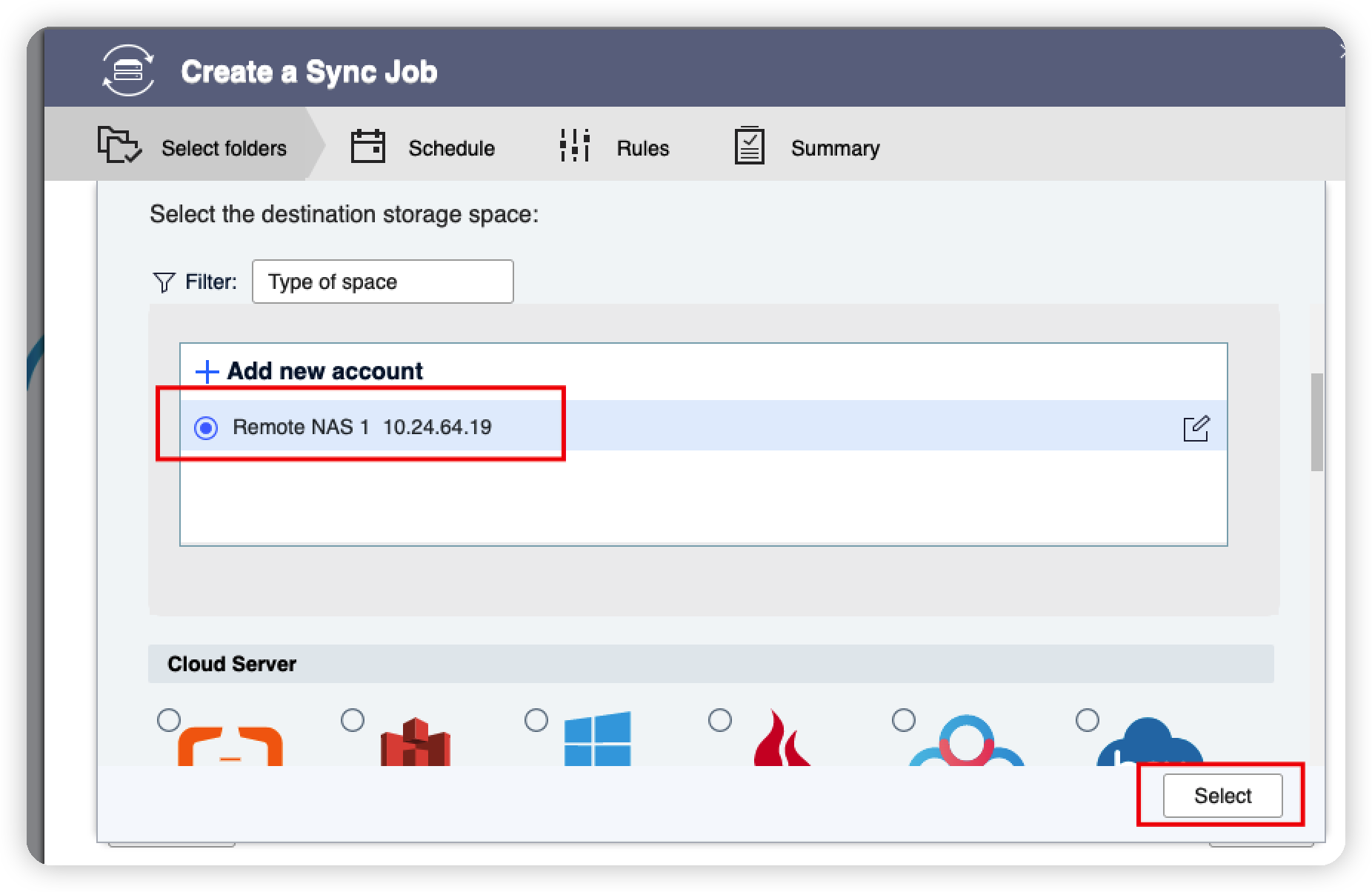
- Select the NAS storage space.
- Click Select.
- For Job Name, specify a name for the sync job.
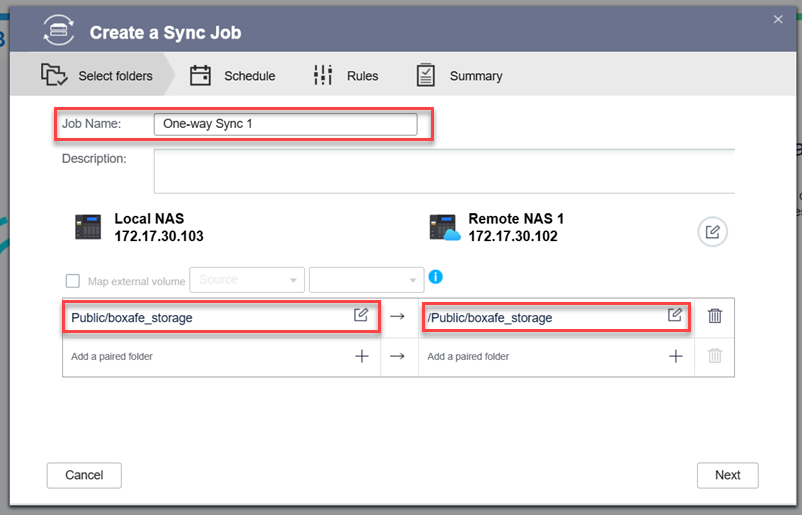
- Specify a folder pair between the source NAS and the destination NAS:
- For the source NAS folder, specify the HDP for SaaS storage path on the source NAS.
- For the destination NAS folder, specify the HDP for SaaS storage path on the destination NAS.TipYou can create a new HDP for SaaS storage space on the destination NAS by setting the HDP for SaaS storage path on the destination NAS to a new folder before syncing.
- Click Next.
The Schedule page appears. - Under Set the job schedule, select No schedule.
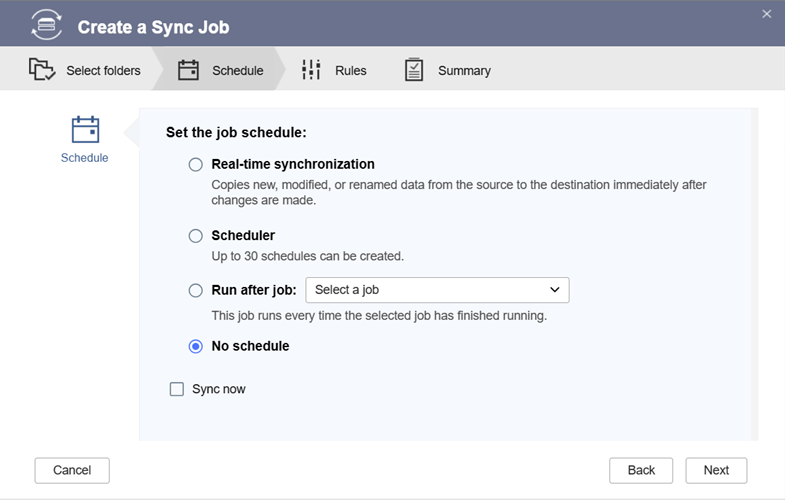
- Click Next.
The Rules page appears. - Deselect Enable filters.
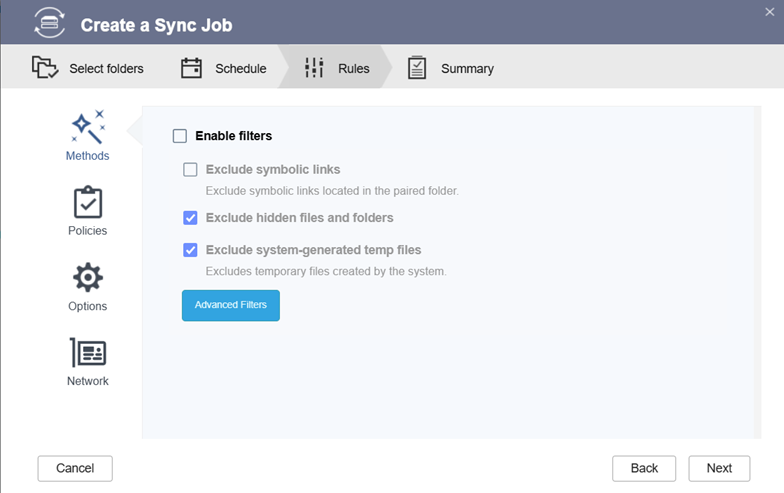
- Click Next.
The Summary page appears. - Click Create.
The one-way sync job will be created.
Step 4: Run the HBS sync job on the source NAS
Run the one-way sync job:
- Go to HBS 3 Hybrid Backup Sync > Sync on the source NAS.
- Select the backup job created in Step 3 of this tutorial.
- Click Sync now.
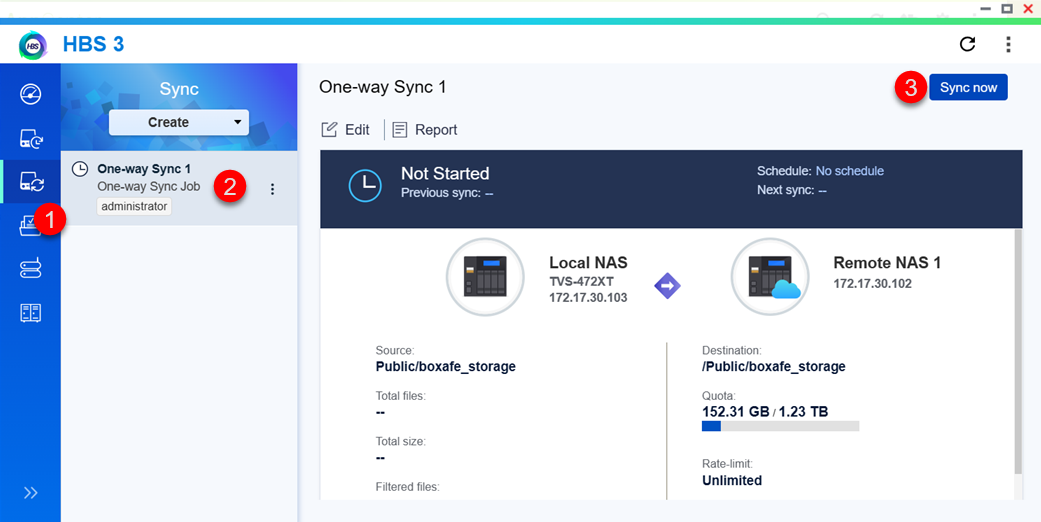 The sync job runs and the HDP for SaaS storage path contents on the source NAS is synced to the HDP for SaaS storage path of the destination NAS.ImportantAll contents of the HDP for SaaS storage path on the destination NAS will be overwritten by the sync job. Double-check before you proceed.
 - After the sync job has finished, start HDP for SaaS again on the NAS devices if needed.
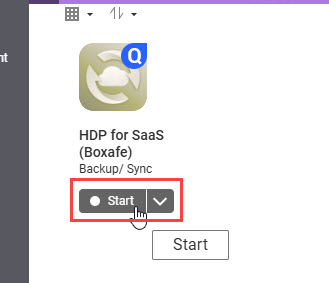
To start HDP for SaaS again, perform the following the steps:- Open App Center.
- Locate HDP for SaaS.
- Click Start.
- The sync job can be run every time you want to sync HDP for SaaS backup data on the source NAS to the destination NAS. However, you must always stop HDP for SaaS on both NAS devices before running the sync job.
Further Reading
How do I set up or change the storage path in HDP for SaaS 2.0?
Để được hỗ trợ thêm, hãy hỏi những người dùng khác và chuyên gia QNAP trong cộng đồng. Đến Cộng đồng QNAP


