


How to copy folder and files to a PC/Mac/Another brand of NAS by Hybrid Backup Sync 3
Topology
QNAP NAS (10.5.10.118) ---------------------------------- (10.5.10.79) Set Windows PC /Mac or another brand of NAS as an FTP server.
Before Start
1.Set up an FTP server on the destination site.
If you have a Windows PC, you may refer to https://www.howtogeek.com/140352/how-to-host-an-ftp-server-on-windows-with-filezilla/
If you have a Mac, you may refer to https://osxtips.net/how-to-run-ftp-sftp-server-in-macos/
If you have another Brand of NAS, please refer to the User Manual.
Here I take Filezilla FTP server on Windows PC as example
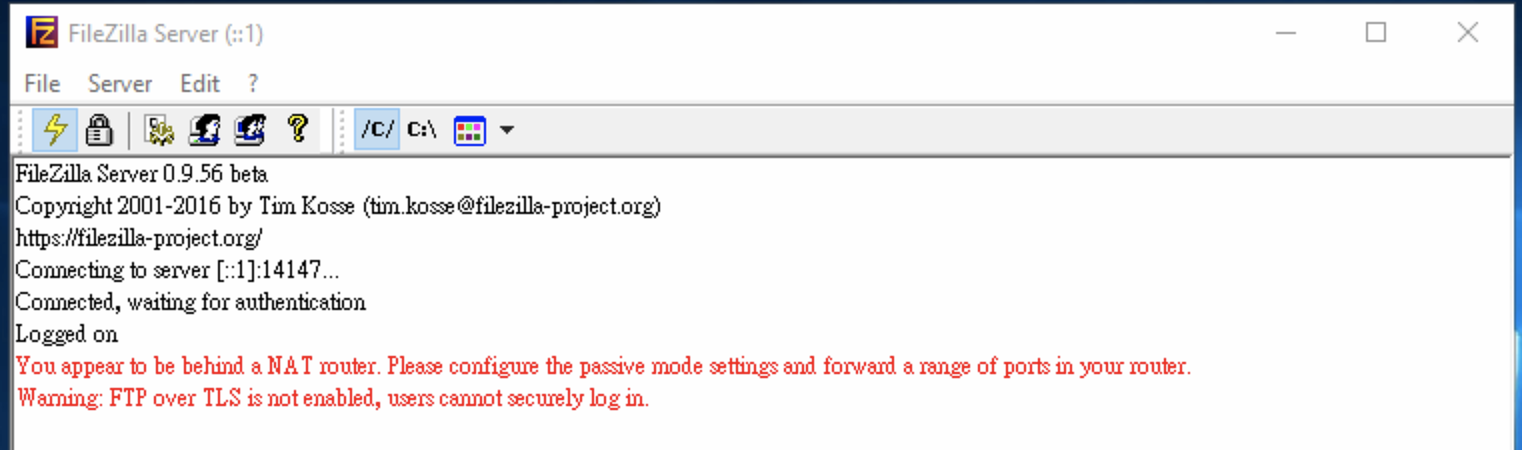
2. Use a Web browser to check if FTP server running properly by putting ftp://FTP_SERVER_IP in the address bar.

Procedure
1. Open Hybrid backup Sync and find Sync > One Way Sync
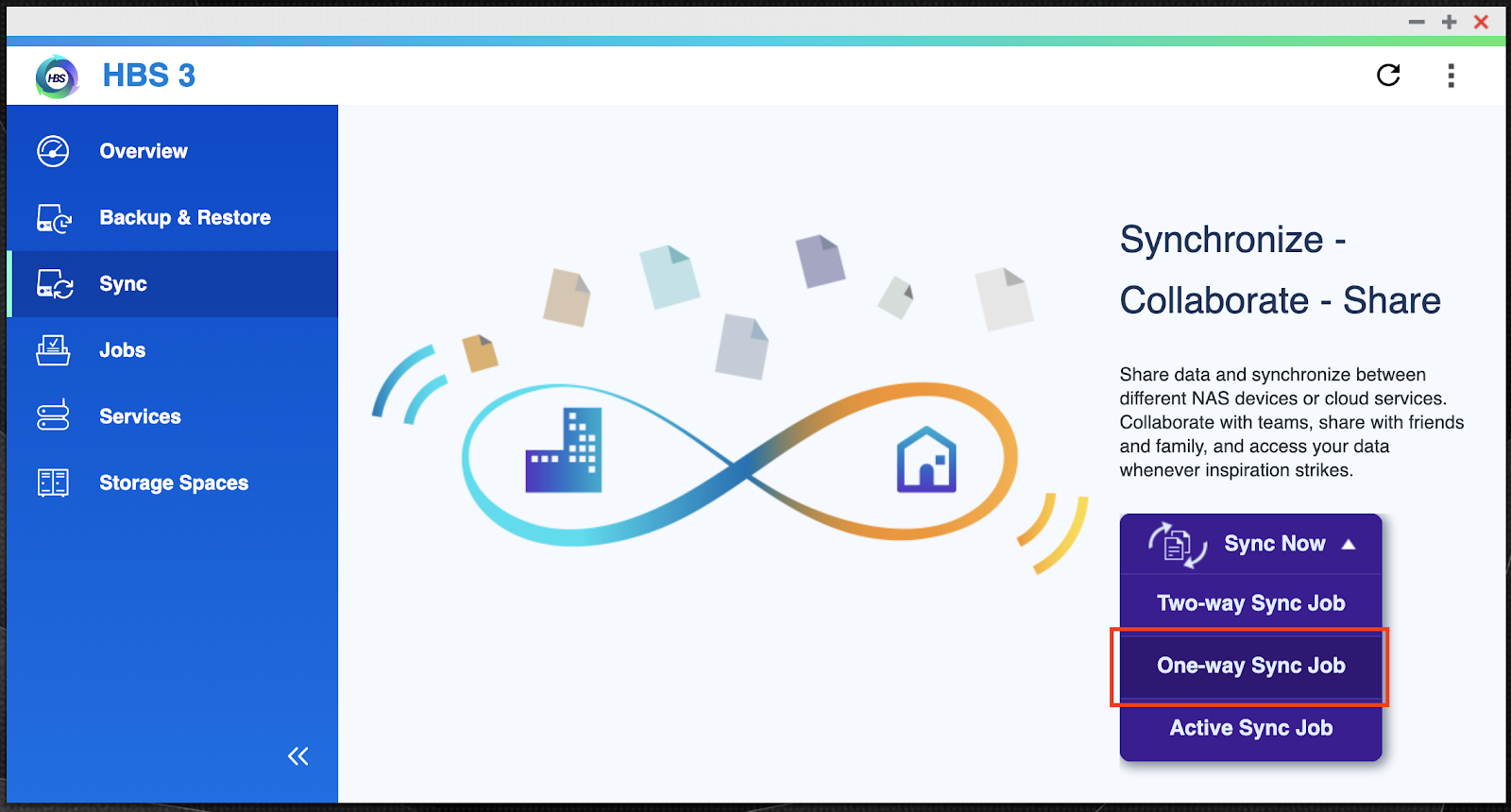
2. Select Remote FTP Server as Destination.

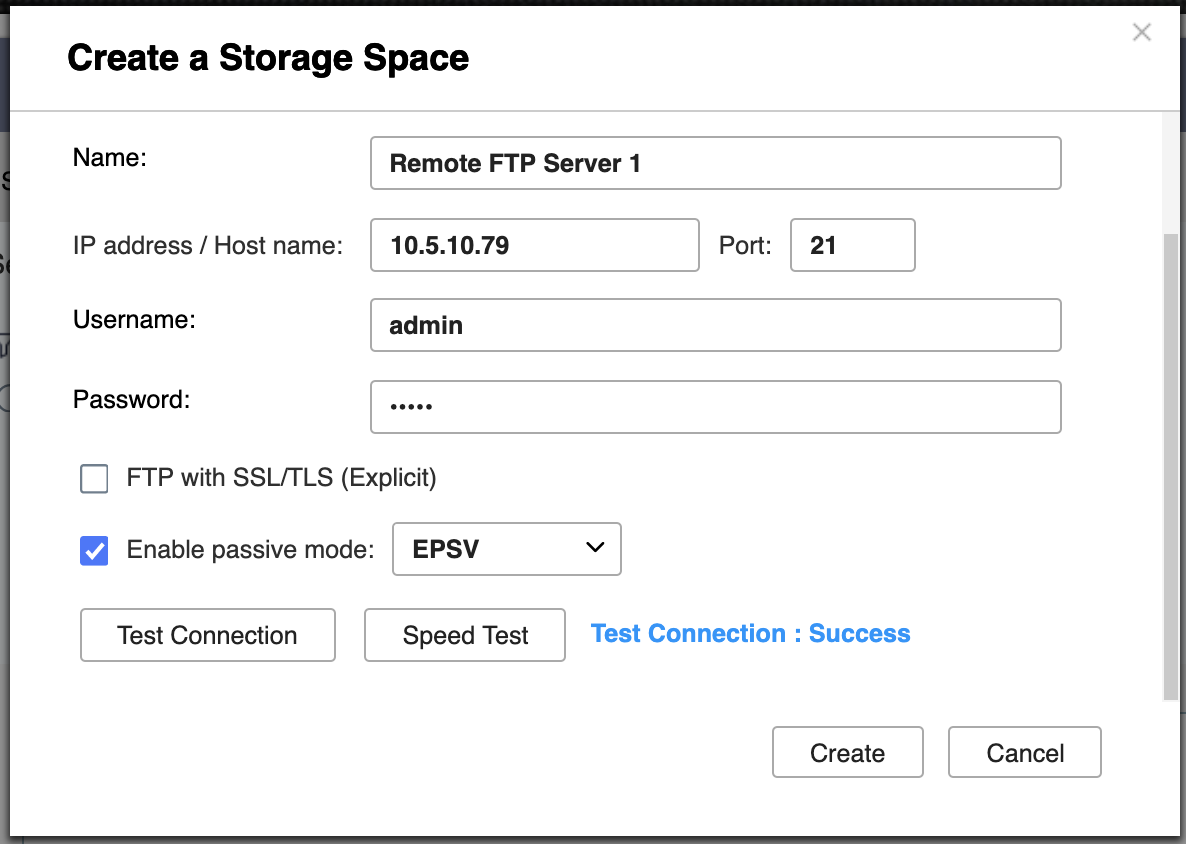
3. Fill in FTP information and suggest to run Test Connection before applying the setting.
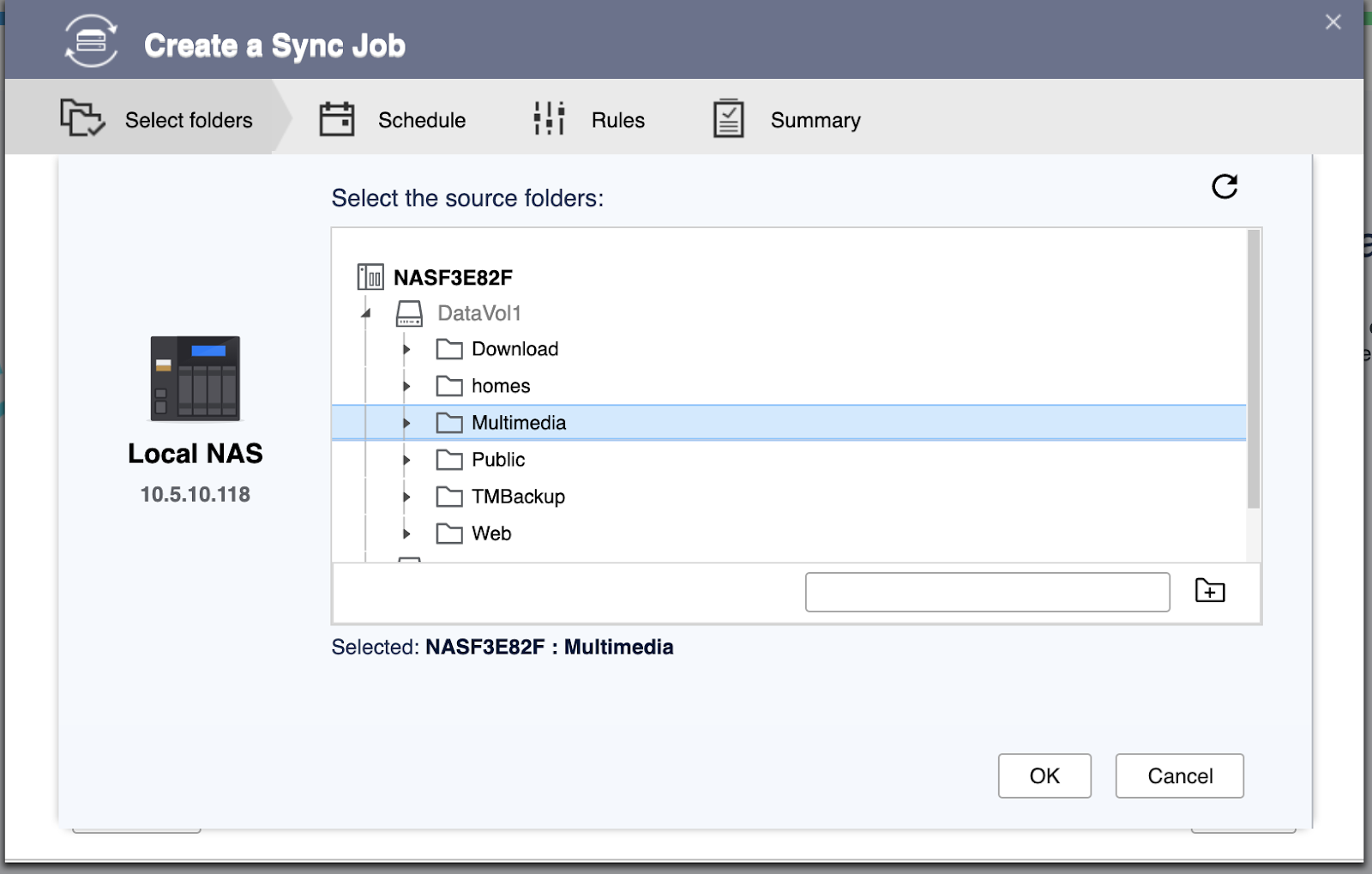
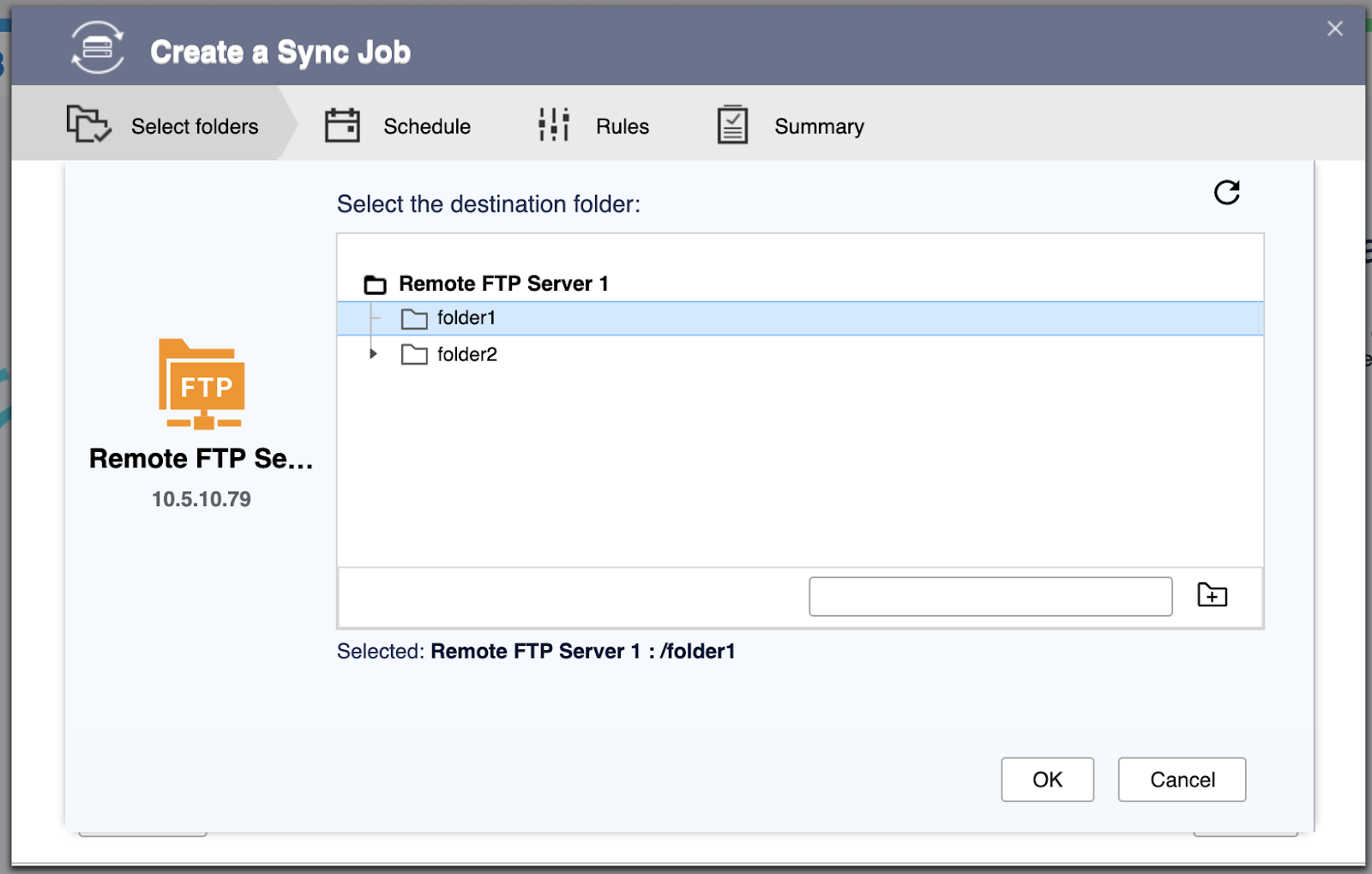
4. Select the source folder on NAS and destination folder on remote FTP Server you want to do the sync job.
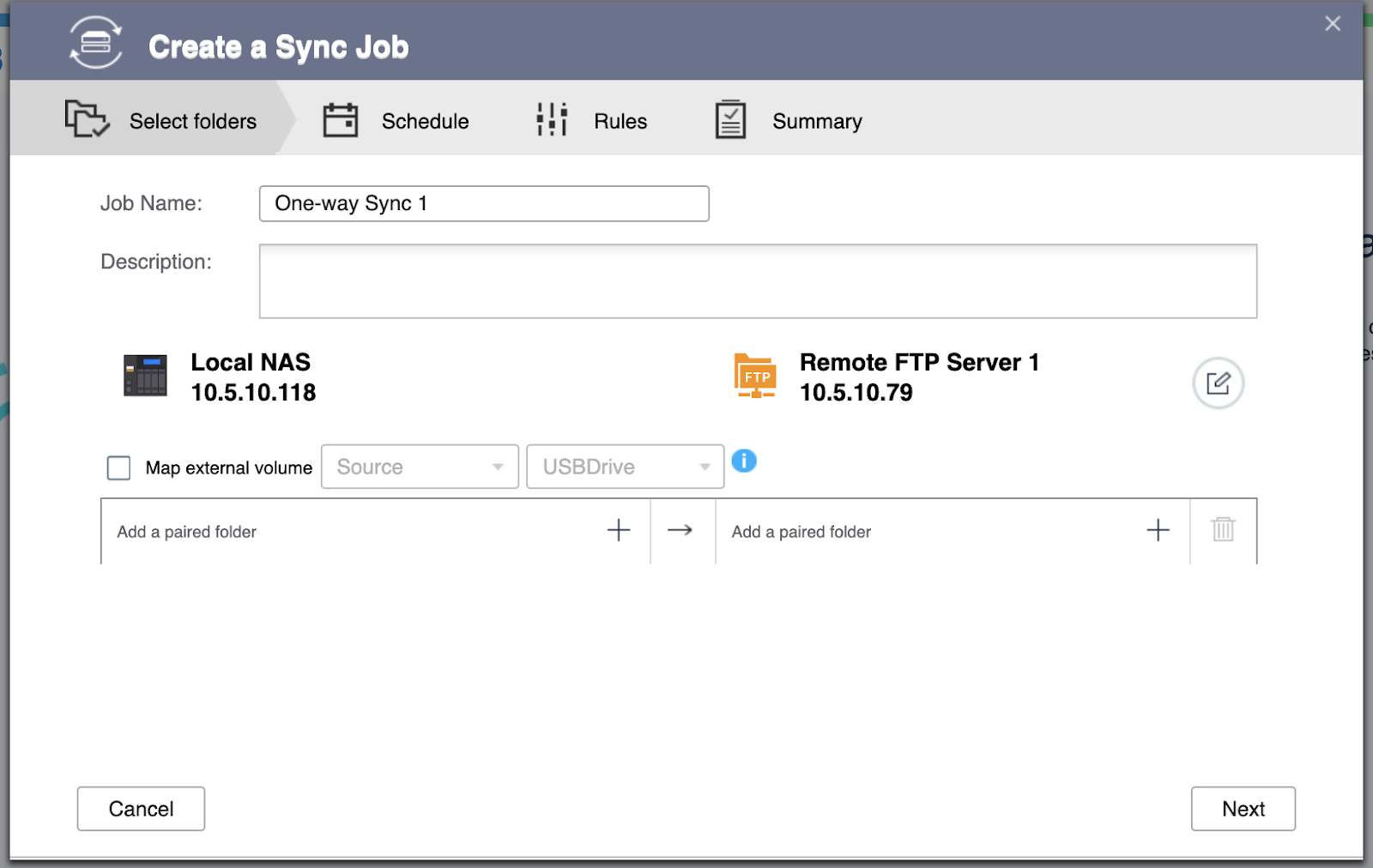
Select the source folder.
Select the destination folder on remote FTP Server
Press Next after selecting the folder pairs.

Set up Schedule

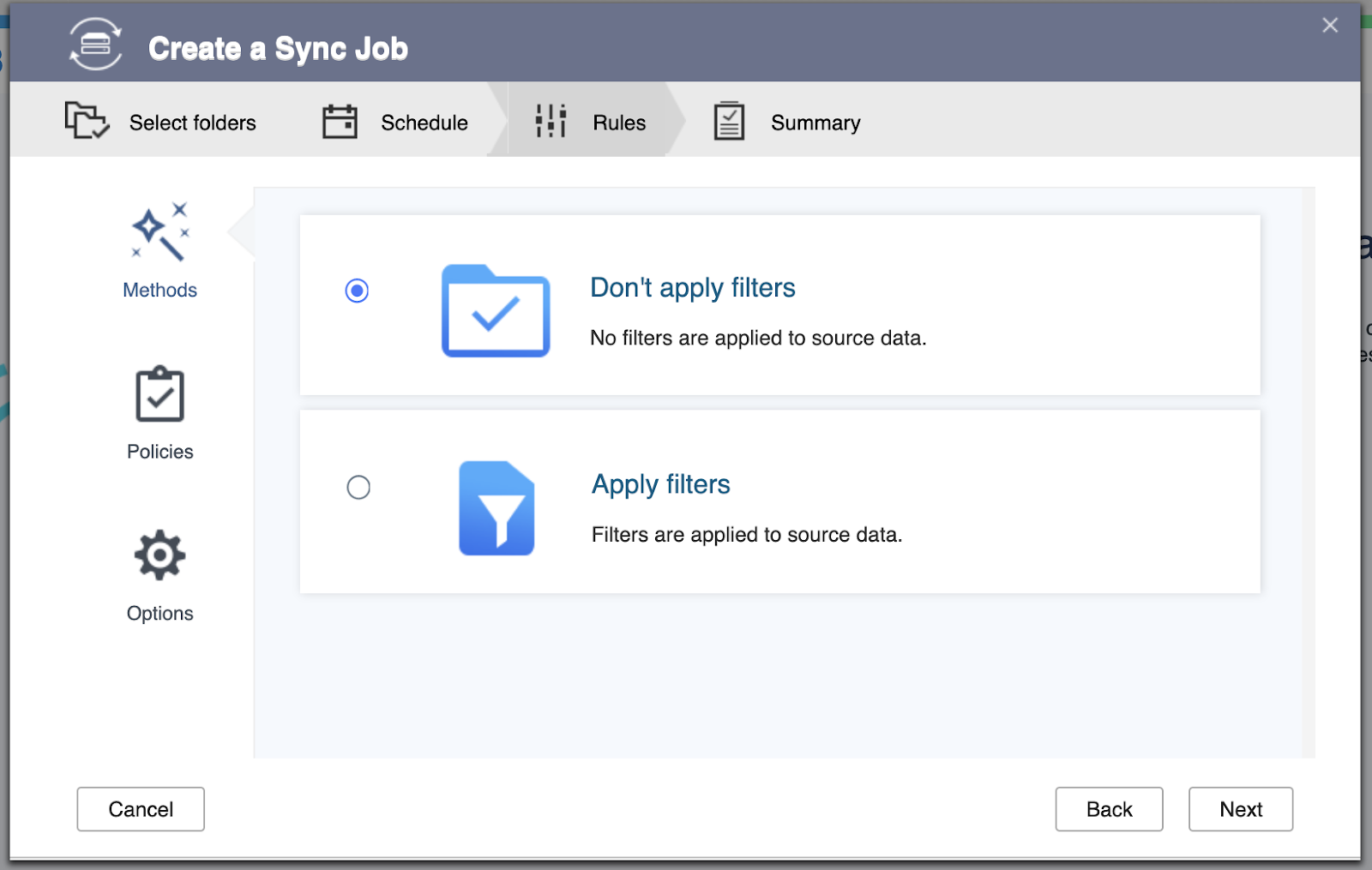
Set up Rules
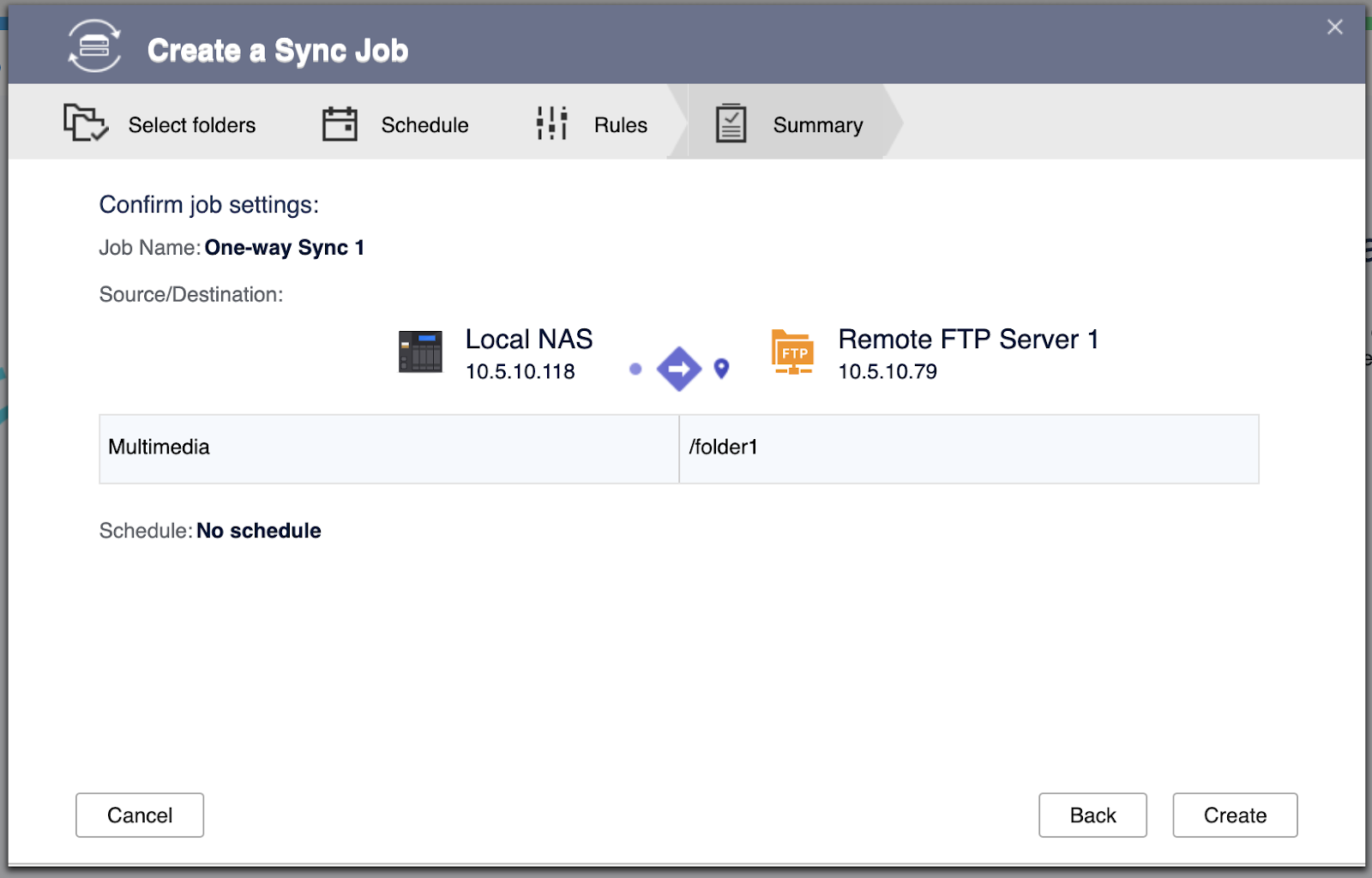
Finish the setup and create the job.
Sync now
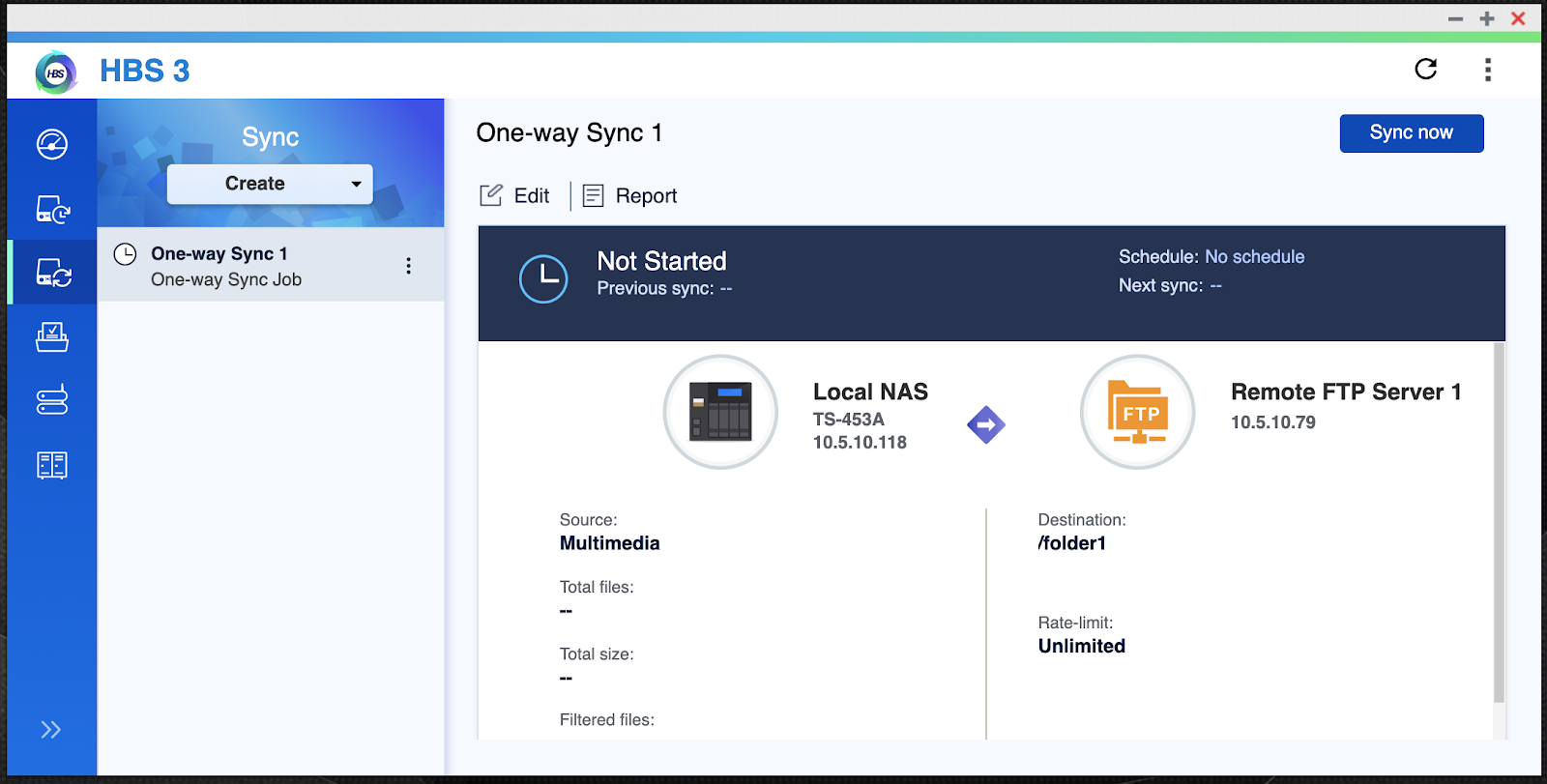
The Result

If you meet error after syncing,
Please help to open a ticket by QNAP Service Portal
And share us the screenshots of what you see and collect the Debug report. 
För ytterligare hjälp kan du fråga andra användare och QNAP-experter i vår community. Gå till QNAP Community


