


How do I backup and restore the Virtual Machines in Virtualization Station 3?
Date de la dernière modification :
2022-06-24
Applicable Products:
- Virtualization Station 3
VM can be backed-up/restored to/from remote or local NAS. Every task can be manually activated, restore, edited and deleted.
Backup VM
- Go to Virtualization Station > Back Up & Restore VM and click Backup VM,
Create Backup Task window opens - In Configuration, the VMs can be backed up at remote or local NAS. You can select the maximum number of backup versions

Select the schedule to arrange automatic backup times.

Restore VM
-
Go to Virtualization Station > Back Up & Restore VM and click Restore VM,
Restore VM window opens -
In Configuration, select the source where the Backup VM is stored. Click Next

-
In Restore method, you can overwrite the existing VM or create a new VM. Click Next
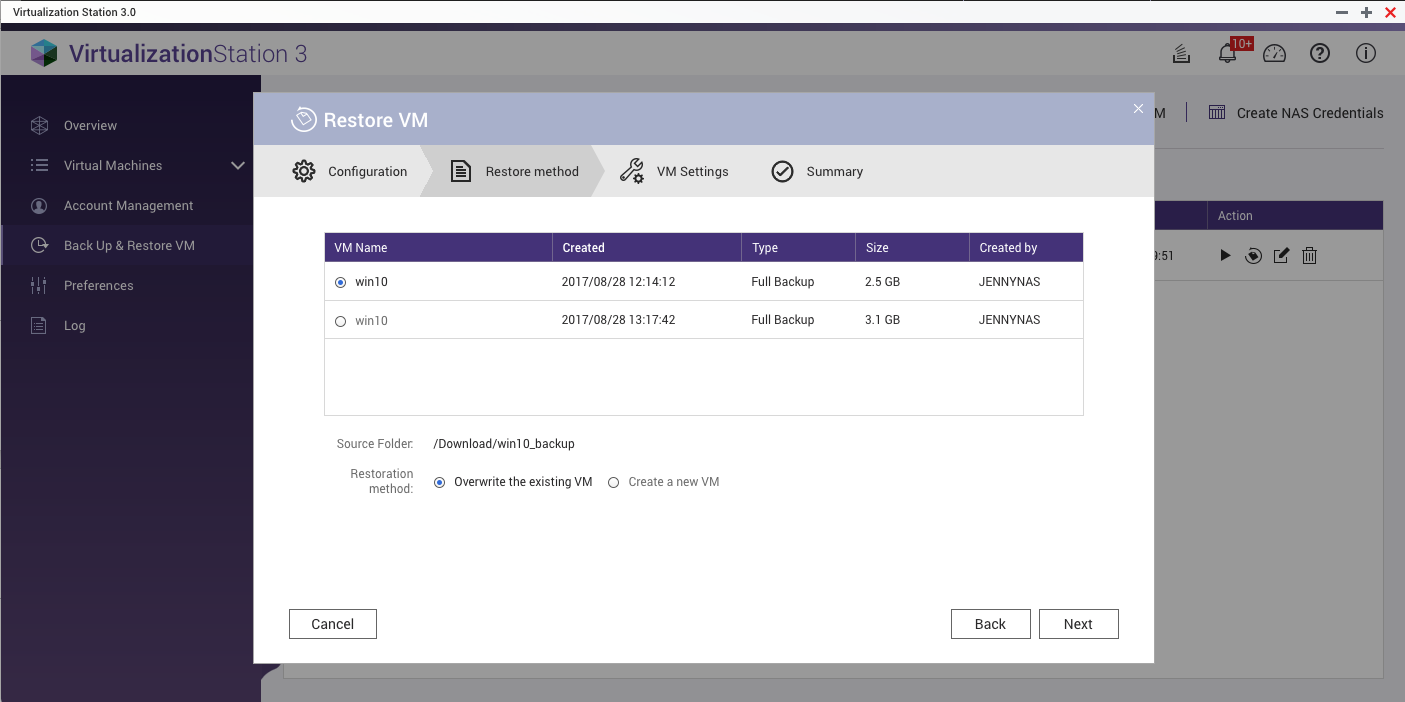
-
The VM will be restored to the state recorded by the backup file. Users can also create a VM from a backup file directly. This method shortens the VM creation process but deletes the backup after completion.


