


Why Can't I Connect to My QNAP NAS via PuTTY (SSH) from Outside My Home Network?
Applicable Products
- All QNAP NAS models running QTS or QuTS hero
Overview
SSH access that works fine on a local network will typically fail when attempted from outside using the WAN (public) IP address. This is expected and correct behaviour — by default, home routers block inbound connections from the internet, and intentionally exposing SSH to the internet invites brute-force attacks and automated exploit scanners.
The correct approach is to first establish a VPN tunnel between your remote computer and the home network, and then connect to the NAS using its local (LAN) IP address exactly as you would from home. The NAS itself never needs to be exposed to the public internet.
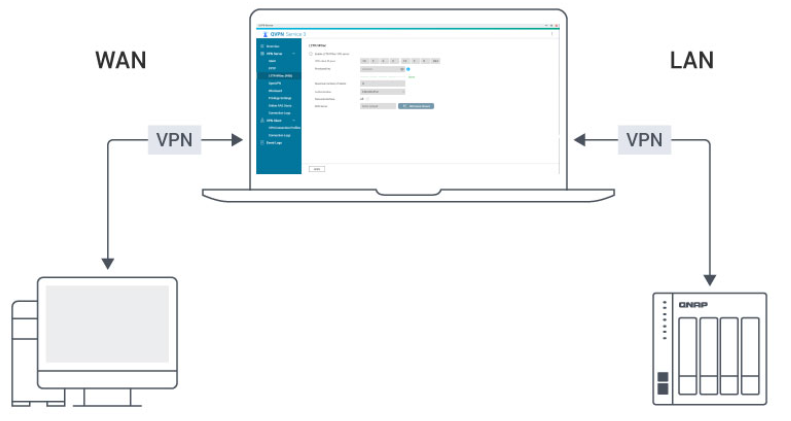
The Solution: Establish a VPN Tunnel First
Once a VPN tunnel is active, your remote computer is effectively on the same private network as the NAS. You can then point PuTTY at the NAS's LAN IP address (e.g., 192.168.1.x) and the SSH connection will succeed just as it does at home.
There are several VPN options available, including QNAP's built-in QVPN Service and third-party solutions such as WireGuard, OpenVPN, and overlay-VPN tools like Tailscale or ZeroTier. Choose the one that fits your infrastructure.
Option A: QVPN Service (Built-in QNAP Solution)
QNAP's QVPN Service app lets the NAS act as a VPN server (supporting OpenVPN, WireGuard, and L2TP/IPSec). Your remote computer connects to the VPN server, joining the home network virtually.
On the NAS — Set up the VPN Server
- In QTS/QuTS hero, open App Center and install QVPN Service if not already installed.
- Open QVPN Service and go to the VPN Server tab.
- Choose a protocol (WireGuard is recommended for performance; OpenVPN for broad client compatibility) and enable the server.
- Configure the allowed IP pool and download or export the client configuration file.
- On your router, forward the corresponding VPN port to the NAS's LAN IP address.
VPN Protocol Default Port(s)Best for Protocol Type L2TP/IPSec 500, 4500, 1701 UDP OpenVPN 1194 UDP WireGuard 51820 UDP QBelt 443 UDP
Note
- Do not open other NAS service ports to the Internet. This ensures all access is tunneled through the VPN.
- The actual port numbers may be customized in your device settings. Always confirm the configured port in your QVPN management interface.
On the Remote Computer — Connect to the VPN
- Install the matching VPN client (e.g., the official WireGuard app or OpenVPN client).
- Import the configuration file exported from QVPN Service.
- Connect to the VPN. Once the tunnel is up, your computer is on the home LAN.
SSH into the NAS via PuTTY
- Open PuTTY.
- In the Host Name field, enter the NAS's LAN IP address (e.g.,
192.168.1.100). - Set Port to the SSH port configured on the NAS (default:
22). - Click Open and log in with your NAS credentials.
Note
The VPN port (not the SSH port) must be forwarded on the router. SSH itself does not need to be exposed to the internet.
Tip
Use Control Panel > Network & Virtual Switch > Overview on the NAS to confirm the LAN IP address before you travel.
Option B: QHORA Router as VPN Server (No NAS Exposure Required)
If your network uses a QNAP Qhora router (e.g., Qhora-301W, Qhora-321), you can run the VPN server directly on the router rather than the NAS. This is the cleanest topology: the router is already the internet-facing device, so no extra port-forwarding rules are needed for the NAS, and every device on the LAN — including the NAS — becomes reachable through the VPN tunnel automatically.
On the Qhora Router — Set up the VPN Server
-
Log in to the Qhora management UI (default:
http://192.168.100.1or via QuRouter in QTS if managed centrally). -
Go to VPN > VPN Server.
-
Select a protocol and click Enable:
Protocol QBelt L2TP OpenVPN WireGuard
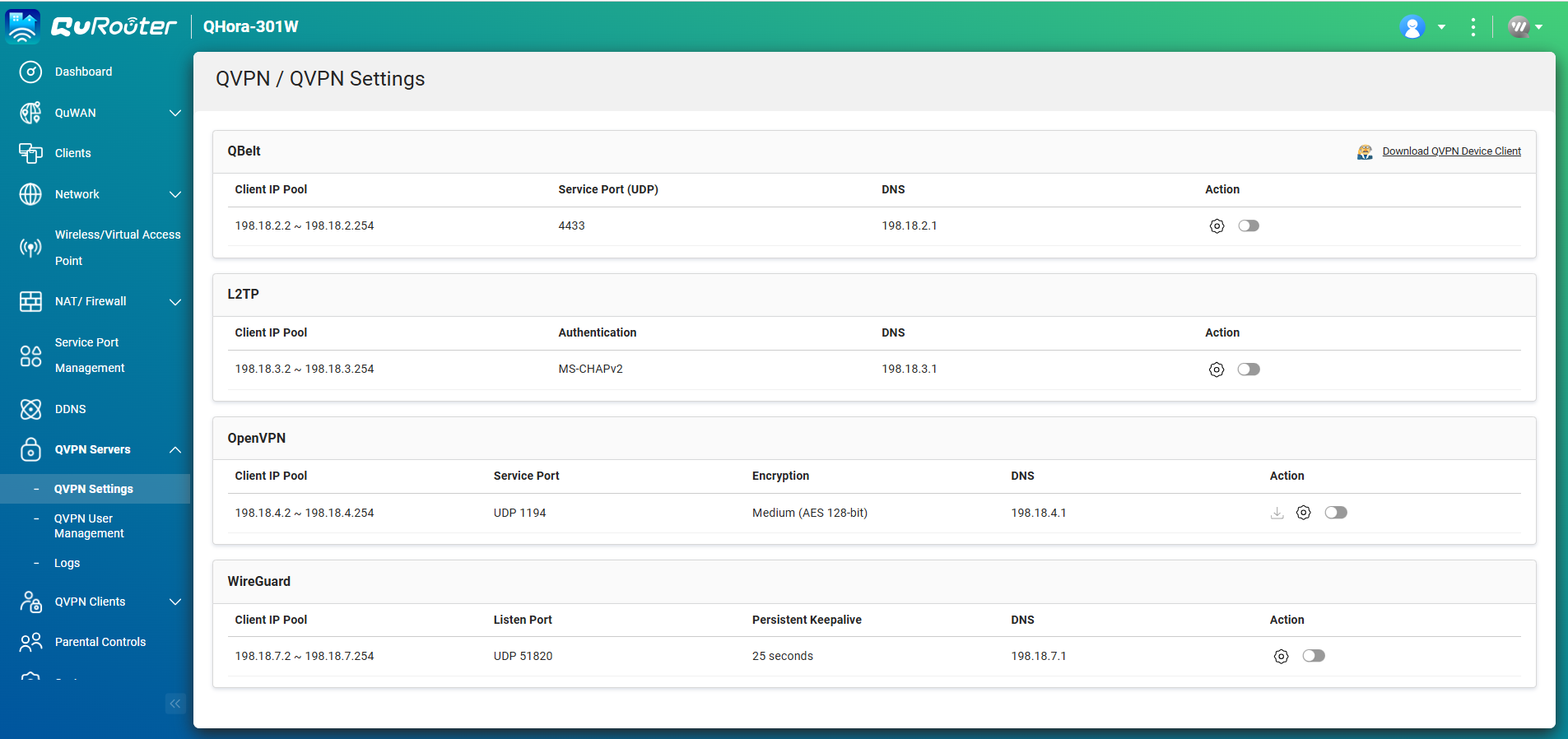
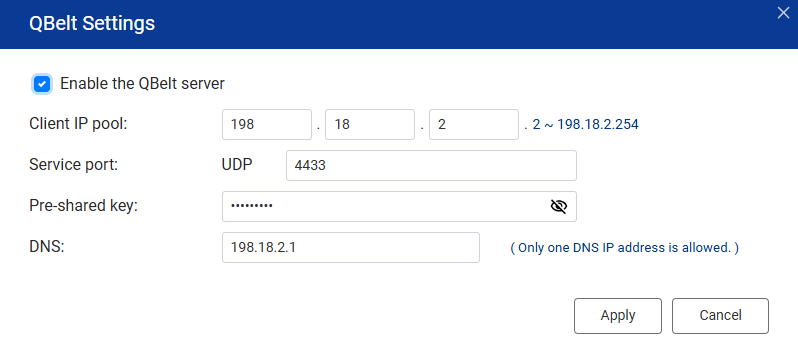
4. Complete the server configuration (port, IP pool, DNS) and click Apply.
Note
Because the Qhora router is already the WAN gateway, its VPN port is directly reachable from the internet — no additional port-forwarding rule is required.
On the Remote Computer — Connect to the VPN
- Install the matching VPN client for the chosen protocol.
- Connect to the VPN. The tunnel terminates at the router and you are placed on the home LAN.
SSH into the NAS via PuTTY
- Open PuTTY.
- In the Host Name field, enter the NAS's LAN IP address (e.g.,
192.168.1.100). - Set Port to the SSH port configured on the NAS (default:
22). - Click Open and log in with your NAS credentials.
Tip
This approach gives you full LAN access through one VPN connection — not just the NAS, but any other device on the home network as well.
Option C: Overlay VPN Tools (e.g., Tailscale, ZeroTier)
Overlay VPN tools create an encrypted virtual network between enrolled devices without requiring any router port forwarding. Install the client on both the NAS (via App Center) and the remote computer, sign in with the same account, and the devices can reach each other as if on a LAN.
Once the overlay VPN is connected, use the virtual IP address assigned to the NAS by the VPN service (not the WAN IP and not the LAN IP) as the PuTTY host.
Note
Each overlay VPN tool has its own setup procedure. Refer to the respective documentation.
Troubleshooting
Issue: PuTTY times out or shows "Network error: Connection timed out" when using the WAN IP.
Solution: The router is blocking the connection. Do not attempt to connect via the WAN IP directly — establish a VPN tunnel first and use the LAN IP.
Issue: PuTTY shows "Connection refused" even after the VPN tunnel is connected.
Solution:
- Confirm SSH is enabled on the NAS: go to Control Panel > Network & File Services > Telnet / SSH and verify SSH is on and note the port number.
- Verify you are using the correct LAN IP address (not the WAN IP or VPN virtual IP, unless using an overlay VPN).
- Check that no NAS-side firewall rule is blocking the connection: go to Control Panel > Security > Security Level.
Issue: VPN connects but the NAS LAN IP is unreachable.
Solution:
- Confirm the VPN tunnel is fully established (check the VPN client status).
- For QVPN, verify the assigned IP pool does not conflict with the home LAN subnet.
- Try pinging the NAS LAN IP from the remote computer to confirm layer-3 reachability before opening PuTTY.
Further Reading
For further assistance, ask other users and QNAP experts in the community. Go to QNAP Community


