


How can I configure trunk mode on a managed switch?
Last modified date:
2023-02-13
Applicable Products
- QSW-M2106-4C
- QSW-M2106-4S
- QSW-M2106PR-2S2T
- QSW-M2106R-2S2T
- QSW-M408-4C
- QSW-M408-2C
- QSW-M408S
- QSW-M1208-8C
- QSW-M1204-4C
- QSW-M804-4C
- QSW-M5216-1T
- QSW-IM1200-8C
- QSW-M2108-2C
- QSW-M2108-2S
- QSW-M2108R-2C
- QSW-M2116P-2T2S
Overview
By default, all QSW managed switches operate using access mode. You can use the trunk mode when you want a switch to carry traffic for several VLANs simultaneously.
By tagging two or more VLANs to a LAN port, allowing the switch to carry traffic of multiple VLANs over a single link.
Procedure
- Log in to QSS.
- Go to
Configuration > VLAN. - Click
 .
. - Select ports to include in the VLAN.
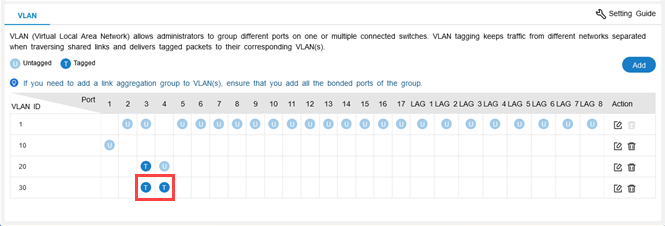 NoteYou must enable two or more tagged port to enable trunk mode on a LAN port.
 - Click Save.
Further Reading
For further assistance, ask other users and QNAP experts in the community. Go to QNAP Community


