


QTS 6.1 Series | Release Notes
You can get all of QNAP operating systems release notes here
QTS 6.1 Series
2026-10-13
QTS 6.1.0 introduces new features to simplify system setup, strengthen login security, and improve management efficiency for your QNAP NAS devices. This release brings a refreshed, modern visual design across the system, giving the interface a cleaner and more intuitive look and feel from the moment you log in.
Underneath, QTS is also upgraded to a newer Linux kernel, strengthening the system with improved stability, stronger security, and broader hardware compatibility. Building on this stronger foundation, this release also brings powerful new AI capabilities to your NAS. AI Service Center provides a centralized hub for managing and deploying AI models across NAS applications. Qsirch now offers AI-powered semantic search to help you find files using natural language. QuAgent, a conversational AI assistant, lets you manage NAS tasks in everyday language. You can also let AI guide you through storage configuration, with a modernized, step-by-step setup experience from start to finish.
You can also monitor your NAS with the redesigned and customizable Dashboard and log in with your QNAP account (formerly QNAP ID). With support for Passkey authentication via FIDO2, your account and device are more secure than ever.
We also include fixes for reported issues and provide information about known issues. For details, see Fixed and Known Issues. You should also see Important Notes before updating QTS.
- Refreshed Visual Design: A Modern, Intuitive Look
- Modernized System Initialization
- Redesigned and Customizable Dashboard
- NAS Login with QNAP account
- Passkey Login with FIDO2 Support
- Resumable Transfers for Snapshot Replica
- Linux Kernel Upgrade: Stronger & More Secure Foundation
- AI Service Center: Your Personal AI Hub
- Qsirch Semantic Search: Next-Gen File Retrieval
- QuAgent: AI Assistant for Your QNAP NAS
- AI Mode for QAI Series Initialization
- AI-Guided Storage Configuration
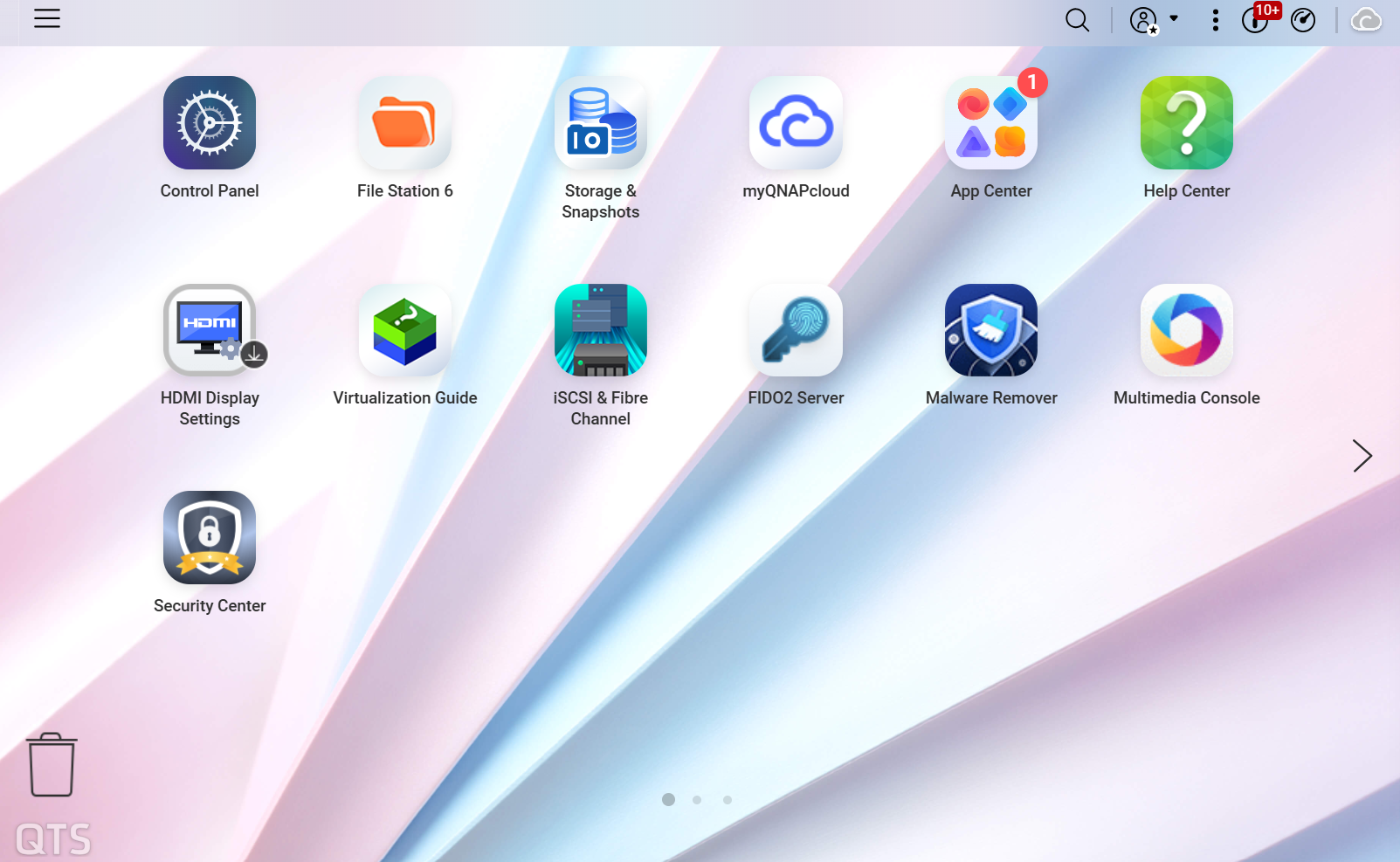
QTS 6.1 introduces a comprehensive visual redesign across the system, giving the interface a cleaner, more modern, and more cohesive look and feel. The updated color palettes, typography, iconography, and spacing all make the interface feel more intuitive and easier on the eyes. Menus, dialogs, and control panels have been visually streamlined for better clarity and consistency throughout your daily NAS experience. Whether you are a long-time QTS user or setting up your NAS for the first time, the new look makes navigating and managing your system feel more natural and enjoyable.
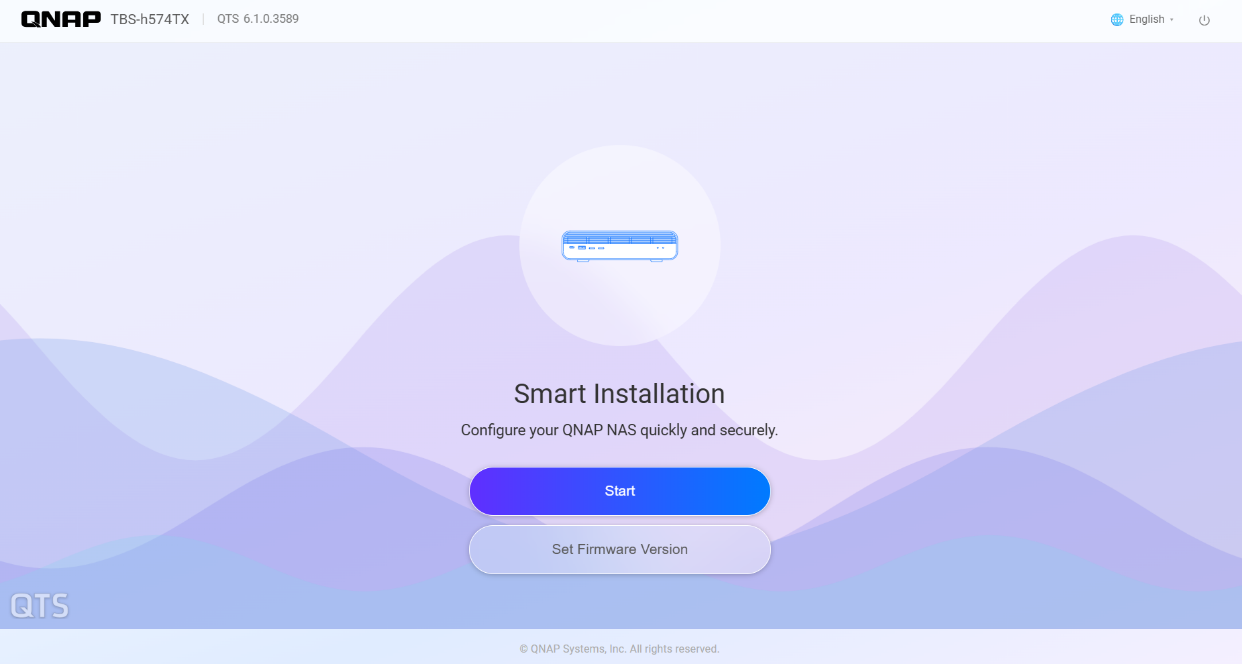
The entire system initialization experience has been modernized with intuitive, step-by-step guidance and a unified visual design carried consistently throughout the process. You are guided clearly from one stage to the next, with a consistent look and feel that makes the whole process cohesive. This brings a streamlined setup experience: hassle-free from the moment you begin initialization to the moment your NAS is ready to use.
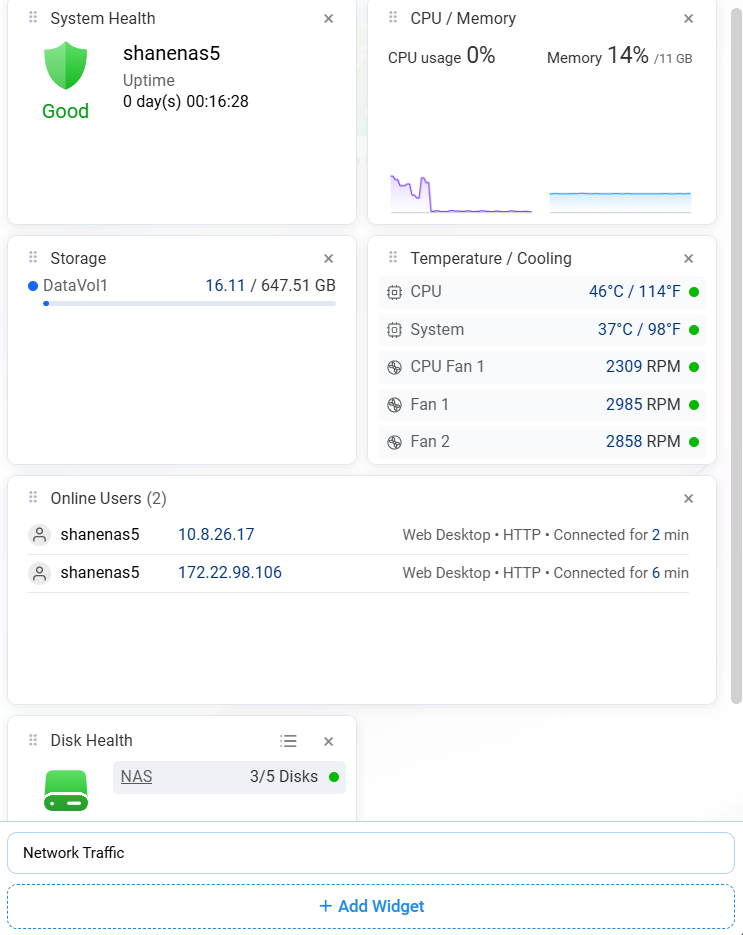
The Dashboard has been redesigned and streamlined to give you a clearer and more organized view of the metrics that matter most: system health, CPU and memory usage, storage capacity, and temperature. Rather than a fixed layout, the new Dashboard lets you customize which information you see by adding, removing, or resizing individual cards to match your priorities. Whatever layout you build, those settings are not limited to a single device. Your dashboard settings sync automatically across devices through your QNAP Account. The dashboard you have set up on one device is exactly what you will see when you log in to another.
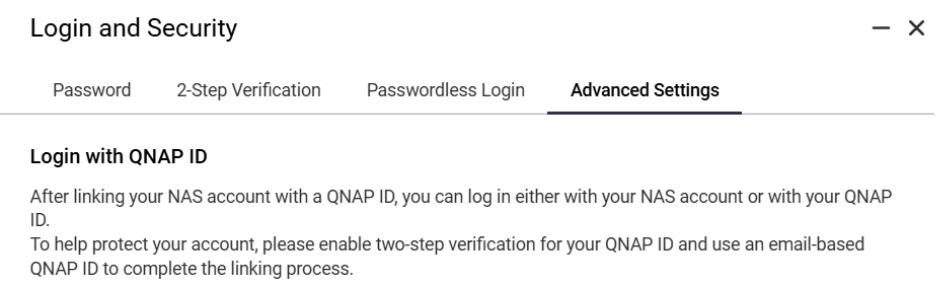
You can now log in to your NAS directly using your QNAP account (formerly QNAP ID), rather than having to use separate local account credentials. To do so, you just need to link your local NAS account with your QNAP Account. Administrators can enable this option for their organization or household by navigating to Control Panel > Security > Login and Password
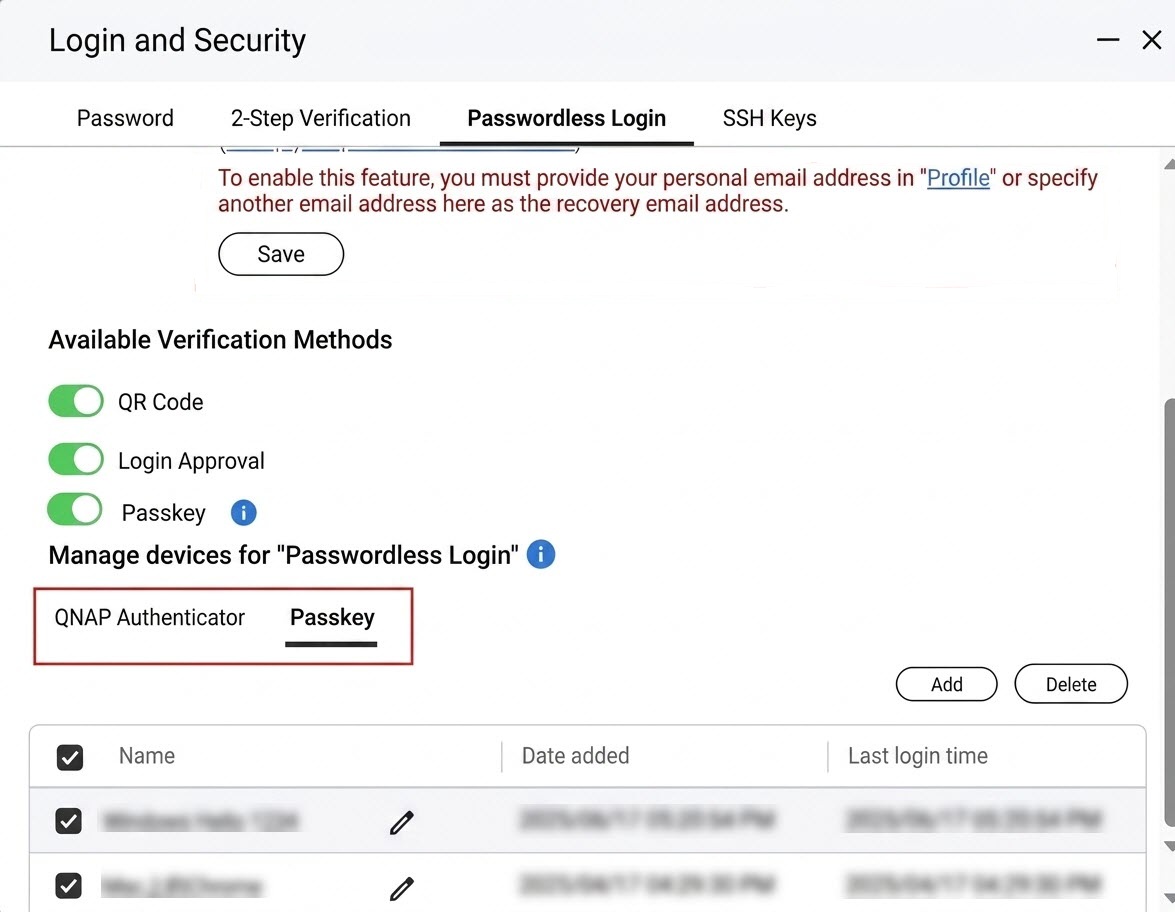
This update enhances NAS login security and the overall login experience by adding support for the FIDO2 authentication standard, a widely recognized standard for strong, phishing-resistant authentication. You can log in using physical security keys such as YubiKey, or platform authenticators already built into your devices, such as Windows Hello and Touch ID, rather than relying solely on a traditional password. This login method, known as Passkey, can be enabled from Desktop > Login & Security > 2-step Verification or Passwordless Login. To enable Passkey login, make sure your system is being accessed via HTTPS with a domain name, and that the FIDO2 Server has been installed beforehand.
Snapshot Replica now supports resumable transfers. If a snapshot transfer is unexpectedly interrupted, the system can resume from the checkpoint recorded on the destination and continue transferring the remaining data blocks, rather than re-transferring the entire snapshot. This feature effectively shortens recovery time after an interruption and reduces unnecessary bandwidth usage, making it especially useful for large snapshot backup jobs or environments with less stable network connections, helping your backup operations run more efficiently and resiliently.
Note: This feature requires both the source and destination NAS to support resumable transfers and requires the use of a supported backup method.
QTS is built on Linux, and this release upgrades the underlying system to Linux Kernel 6.6, which brings years of accumulated improvements from the broader Linux community into your QNAP NAS. This core system-level update strengthens the entire system from the ground up: improved stability under heavy workloads, stronger protection against modern security threats, and broader compatibility with the latest hardware. This upgrade also lays a more solid foundation for QTS going forward, helping ensure that your NAS stays reliable, secure, and ready to support new capabilities as technology continues to evolve.
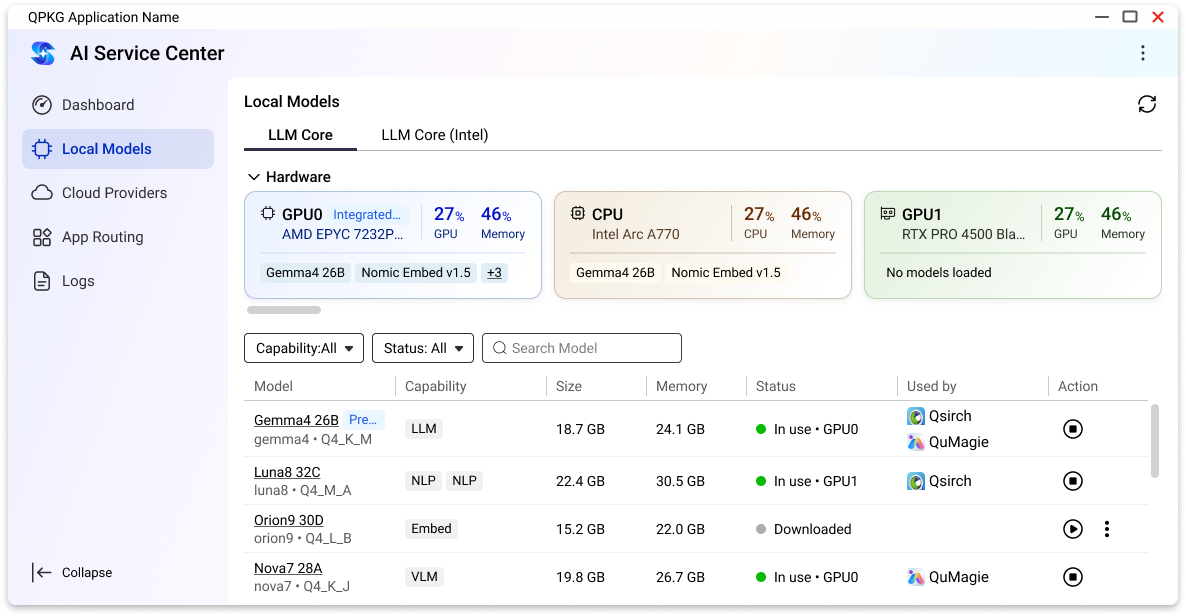
QTS now introduces AI Service Center (AISC) as a centralized hub for managing and deploying AI models across NAS applications. Rather than configuring AI resources separately for each app, AI Service Center gives you one place to allocate and monitor everything, enabling flexible resource allocation, supporting local hardware acceleration (CPU, iGPU, NPU, and discrete GPUs) as well as seamless integration with cloud AI services (OpenAI, Gemini, and Azure). You can mix local computing with cloud-based models depending on your performance, cost, and privacy needs. This unified approach makes it easier to scale AI capabilities across your NAS as your workloads grow.
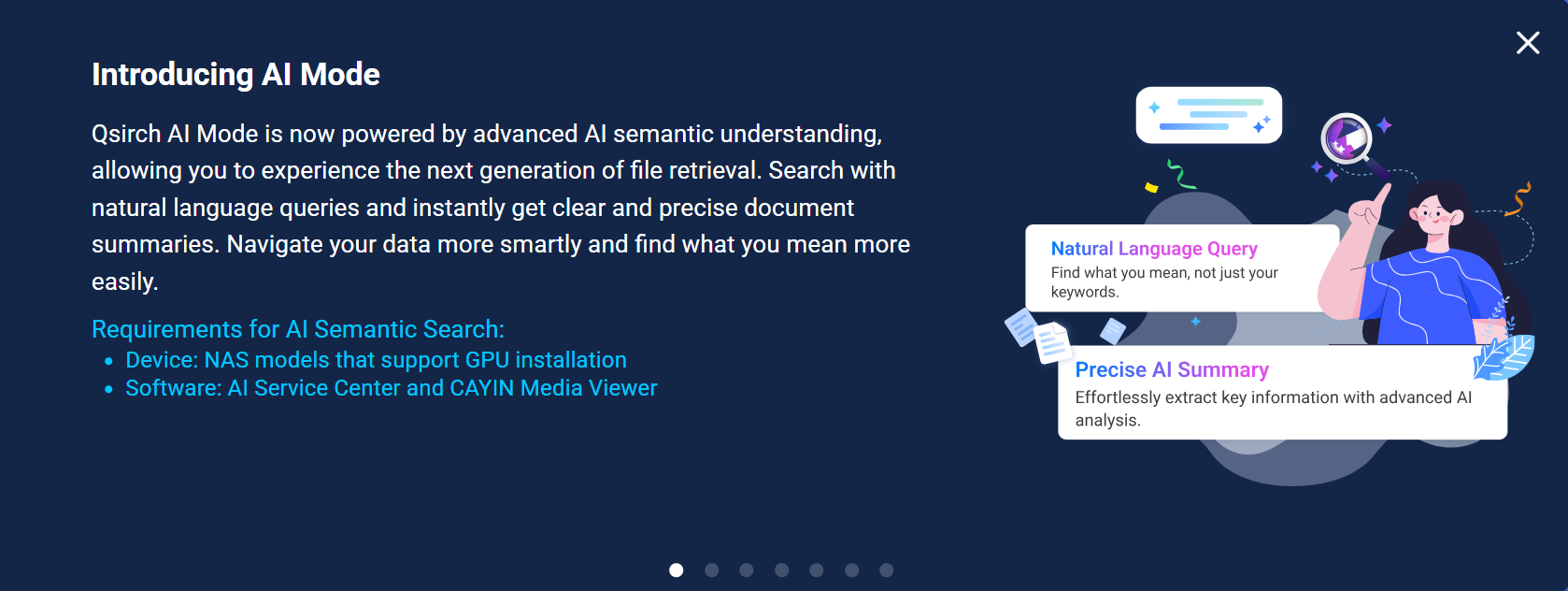
Qsirch introduces an AI-powered semantic search mode, enabling you to describe and find files using conversational natural language instead of exact keywords or file names. Instead of trying to remember precise filenames or search terms, you can simply describe what you are looking for, such as its content, context, or objects. Qsirch will identify the most relevant matches. This makes locating files faster and more intuitive, especially in large or loosely organized file collections. (Note: This feature requires a QNAP NAS with a GPU featuring at least 16 GB VRAM and LLM Core 1.1.0 or later.)
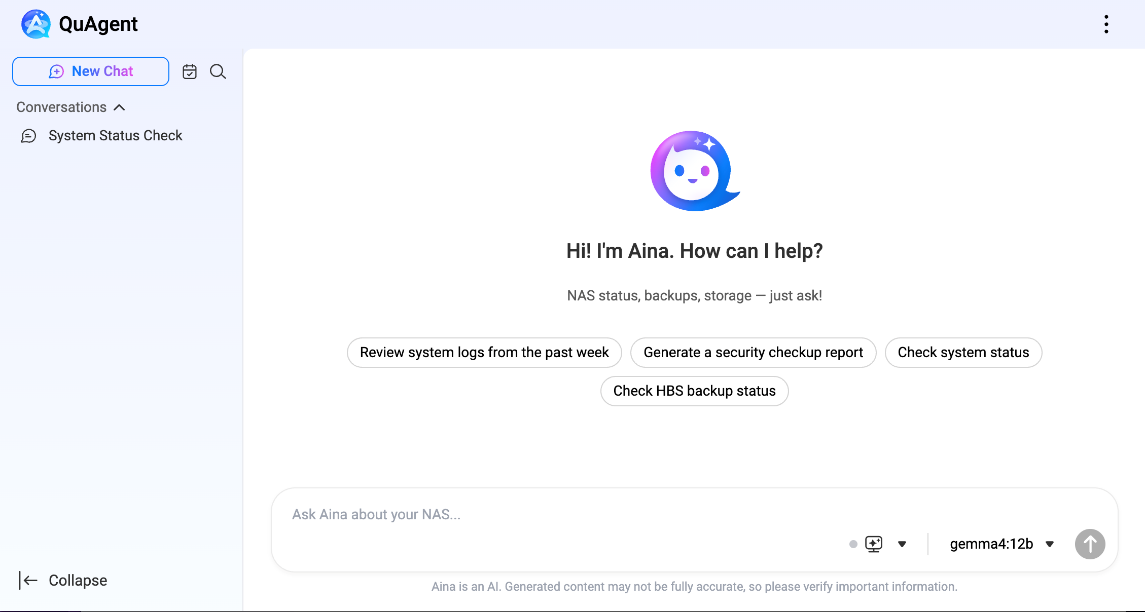
QTS introduces QuAgent, an intelligent conversational AI assistant designed to assist with NAS management tasks through natural language dialogue. Instead of navigating through multiple menus and settings pages, you can simply chat with QuAgent to get tasks done. You can conveniently query system status, perform file operations, check backup tasks, and set up automated schedules simply by chatting with the agent. This makes everyday NAS management faster and more approachable, even for users who are less familiar with technical settings.
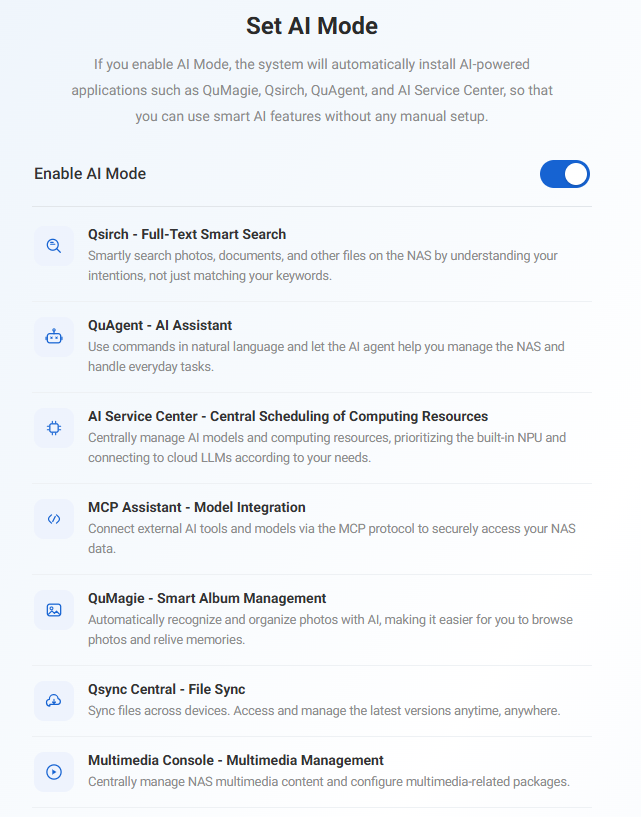
NAS models in the QAI series can now enable AI Mode directly during the initialization process. Once you enable AI Mode, the system automatically installs the AI-related packages your device needs, simplifies general home-use settings so you do not have to configure them manually, and applies a dedicated AI NAS interface style built around AI workflows. Your device will be ready for AI applications right out of the box, with no separate installation steps or manual setup required after initialization finishes.
Note: this option is only for QAI series models. If you are setting up a different model, you will not see AI Mode appear as an option during initialization.
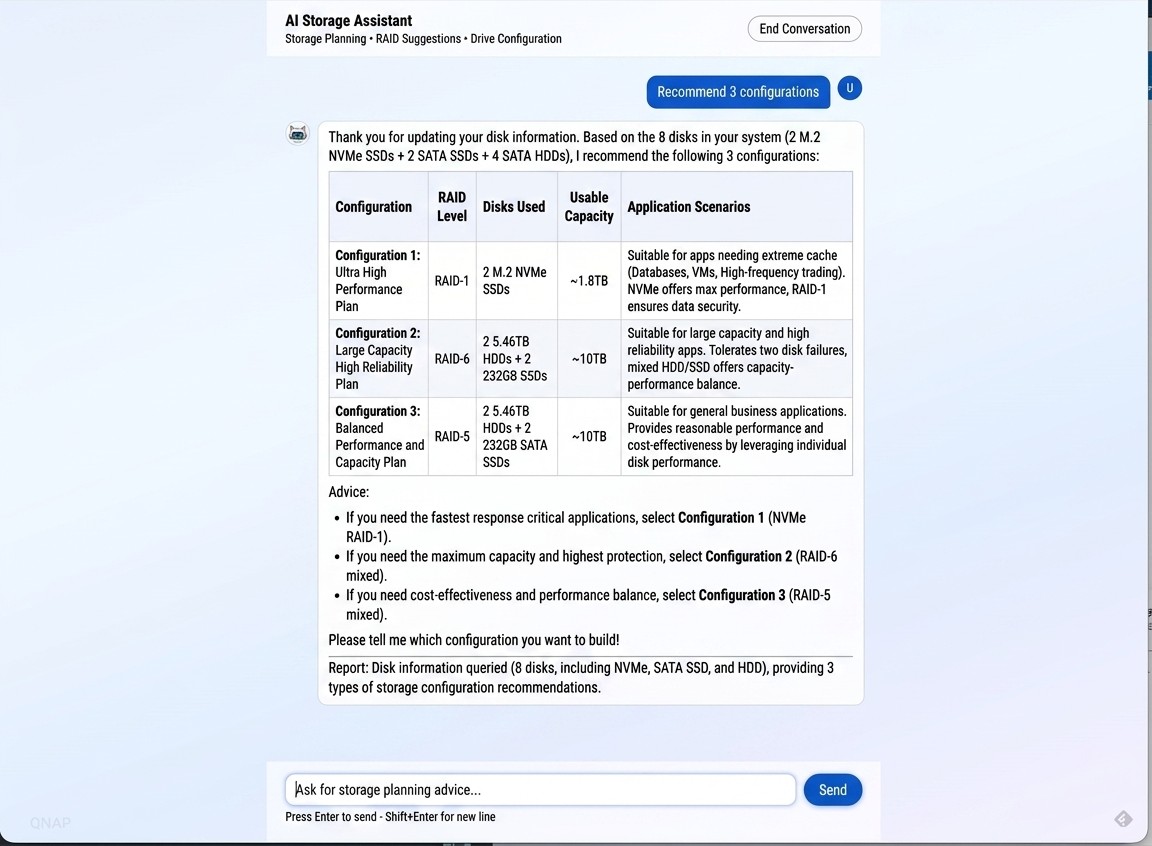
Setting up storage has traditionally required the knowledge of RAID levels and technical tradeoffs, but this is no longer a prerequisite. During system initialization, you can simply describe your use case in plain language. Based on your description, AI analyzes your intended use and provides tailored storage setup recommendations. This means you can move through storage configuration easily and confidently, without having to research or learn RAID technical details on your own.
The Control Panel's Hardware Resource page now supports the Intel Arc B70 discrete graphics card, available on the TS-X74, TVS-AIh1688ATX, QAI-h1290FX, and TS-X77AX models. Once the card is installed, you can view its model, temperature, utilization, and memory usage directly from the Control Panel. This provides a centralized place to keep track of GPU health and performance alongside the rest of your system's hardware resources.
Note: If you are using the QAI-h1290FX, you will need to contact QNAP support to update the BIOS first. This update is required before the system can recognize and support this Intel graphics card.
Fixed and Known Issues
-
QTS 6.1.0.3640 build 20261007 Public Beta
2026-10-13


