How to use IPMI Single Device Dashboard?
IPMI Single Device Dashboard provides detailed information about a managed device, including:
- IPMI version
- Device Information
- Network information
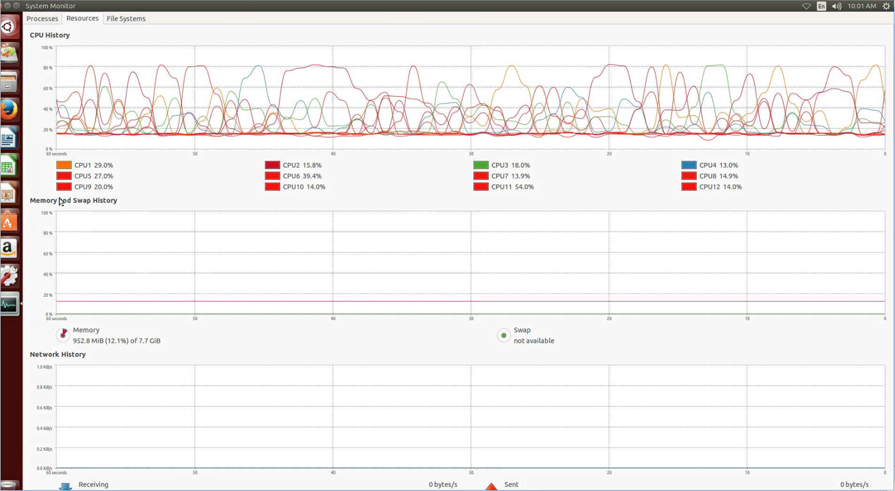
- Remote Snapshot

In IPMI Single Device Dashboard, users can add or remove widgets, select layout modes, and use the tools in the tool set to manage IPMI devices.
Add Widget
Users can add multiple widgets to monitor IPMI devices, which can assist in displaying data of the IPMI server's internal sensors
Setup steps:
Step 1: Go to IPMI Single Device Dashboard page and click the "Add Widget" button
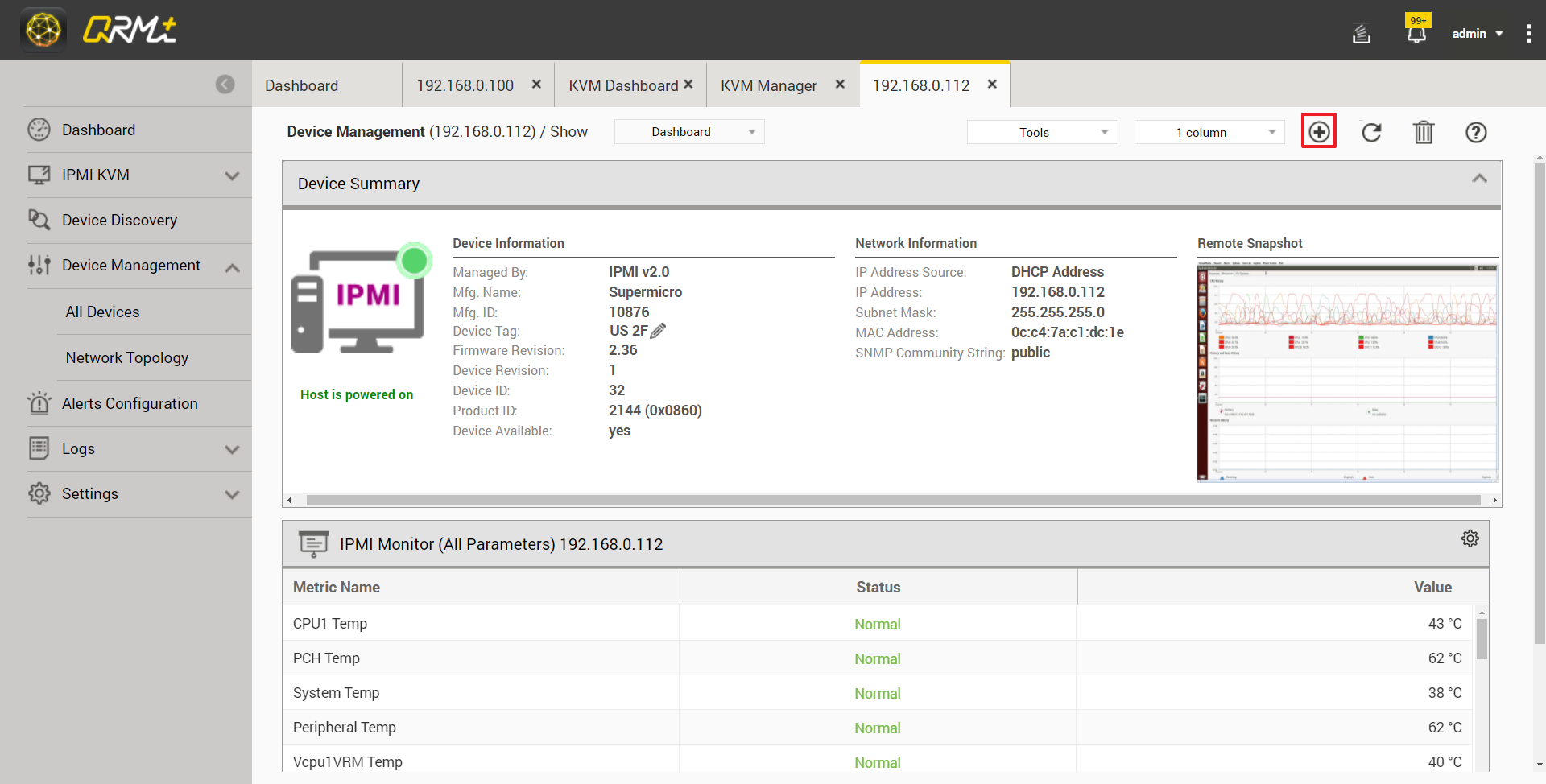
Step 2: Select the widget type, there are four types in total, including IPMI Monitor (All Parameters)
- IPMI Monitor (All Parameters)
- IPMI Monitor (Single Parameter - Live)
- IPMI Monitor (Multiple Parameters - Live)
- IPMI Monitor (Single Parameter / 24H)
Step 3: Click "Next"

Step 4: Select the type of sensor to be monitored in the IPMI device
Step 5: Click "Next"

Step 6: Select the type of chart
Step 7: Click the "Add Widget" button to complete the operation
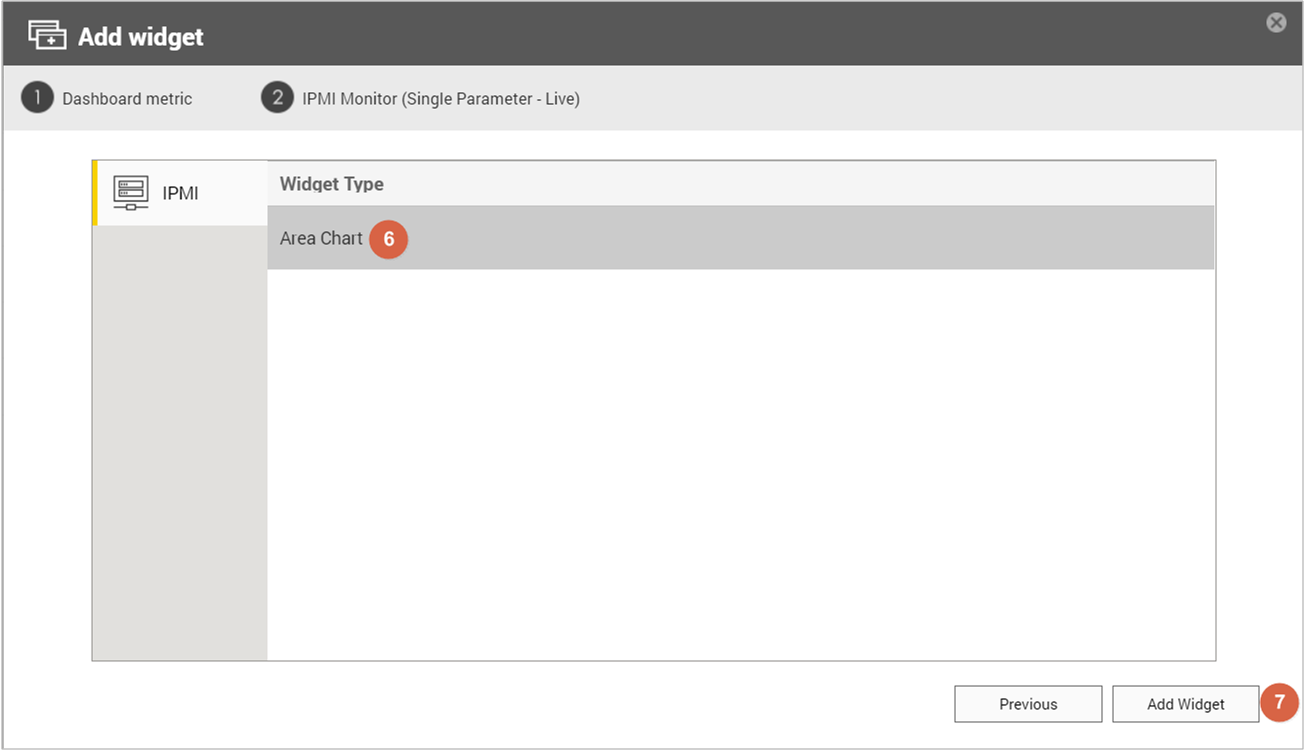
Step 8: When the setup is complete, the widget will be added to the last position in the Dashboard

Delete all widgets in the IPMI Single Device Dashboard
Setup steps:
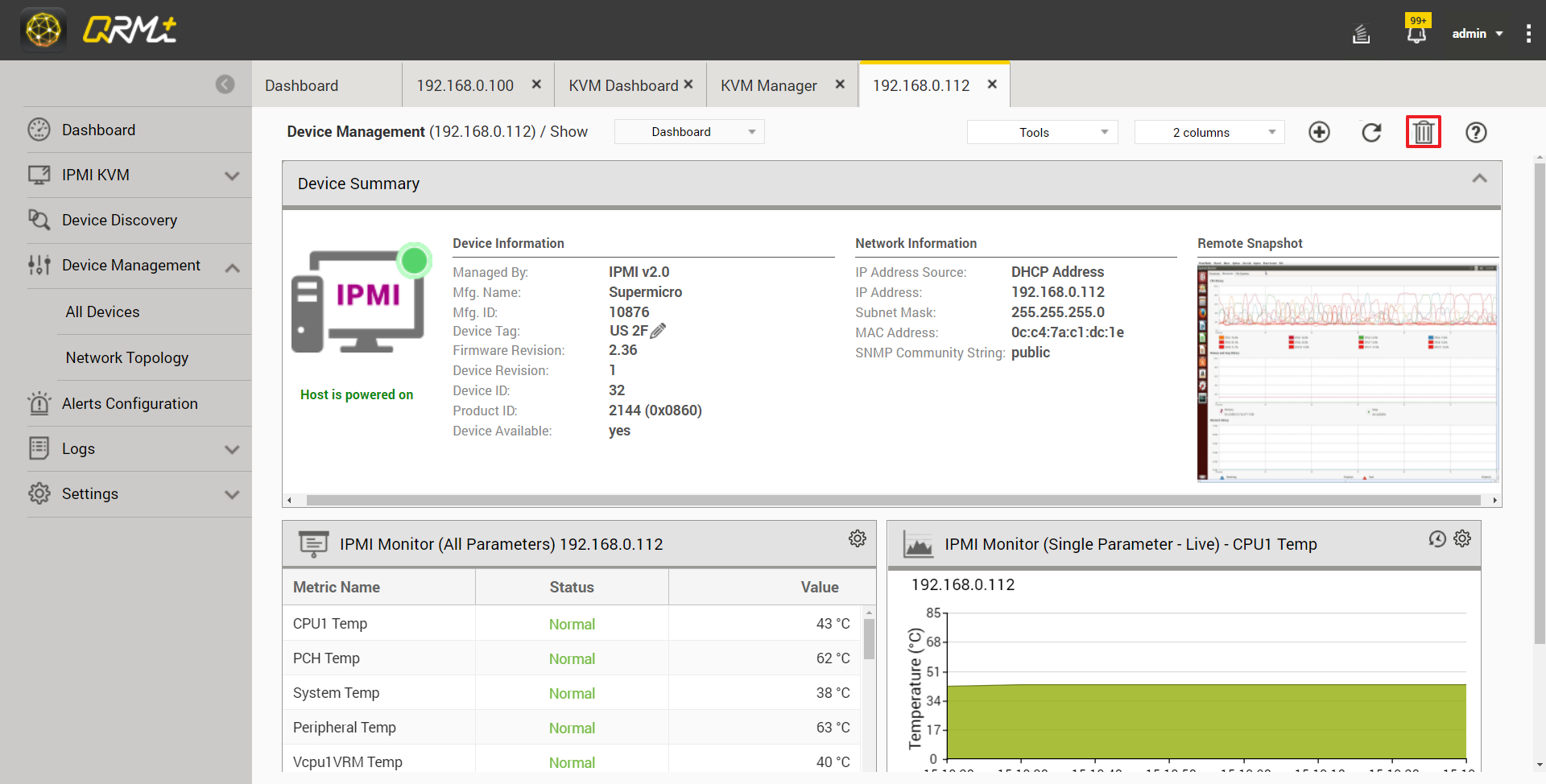
Go to the IPMI Single Device Dashboard page and click the "Delete All Widgets" button
Refresh all widgets in the IPMI Single Device Dashboard
Setup steps:
Go to the IPMI Single Device Dashboard page and click the "Refresh" button
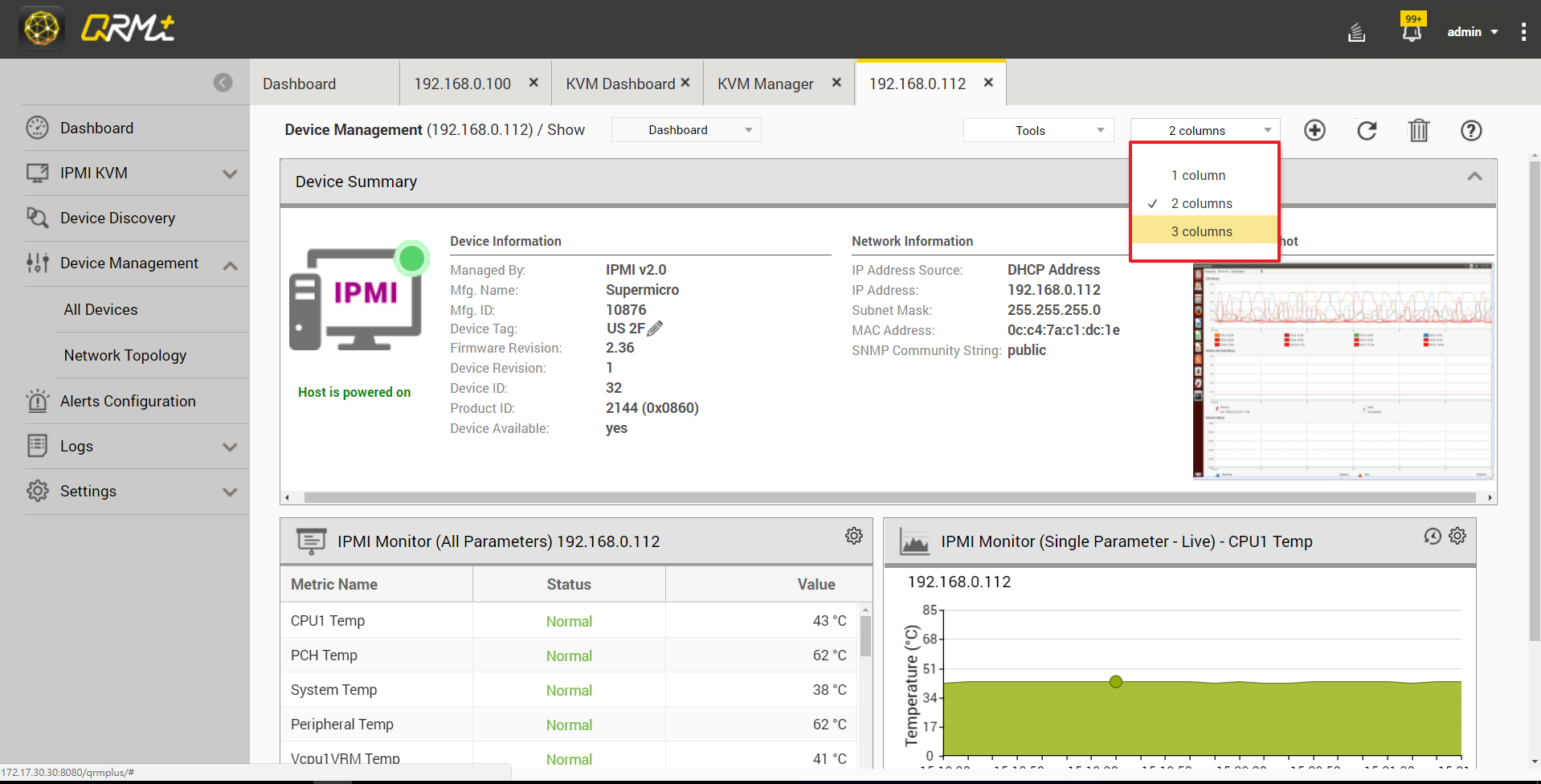
Select the layout mode
Users can customize the layout of IPMI Single Device Dashboard, and the widgets will re-arrange themselves accordingly.
- 1 column display
- 2 columns display
- 3 columns display
Setup steps:
Step 1: Go to IPMI Single Device Dashboard page and Click the "Select Layout" button
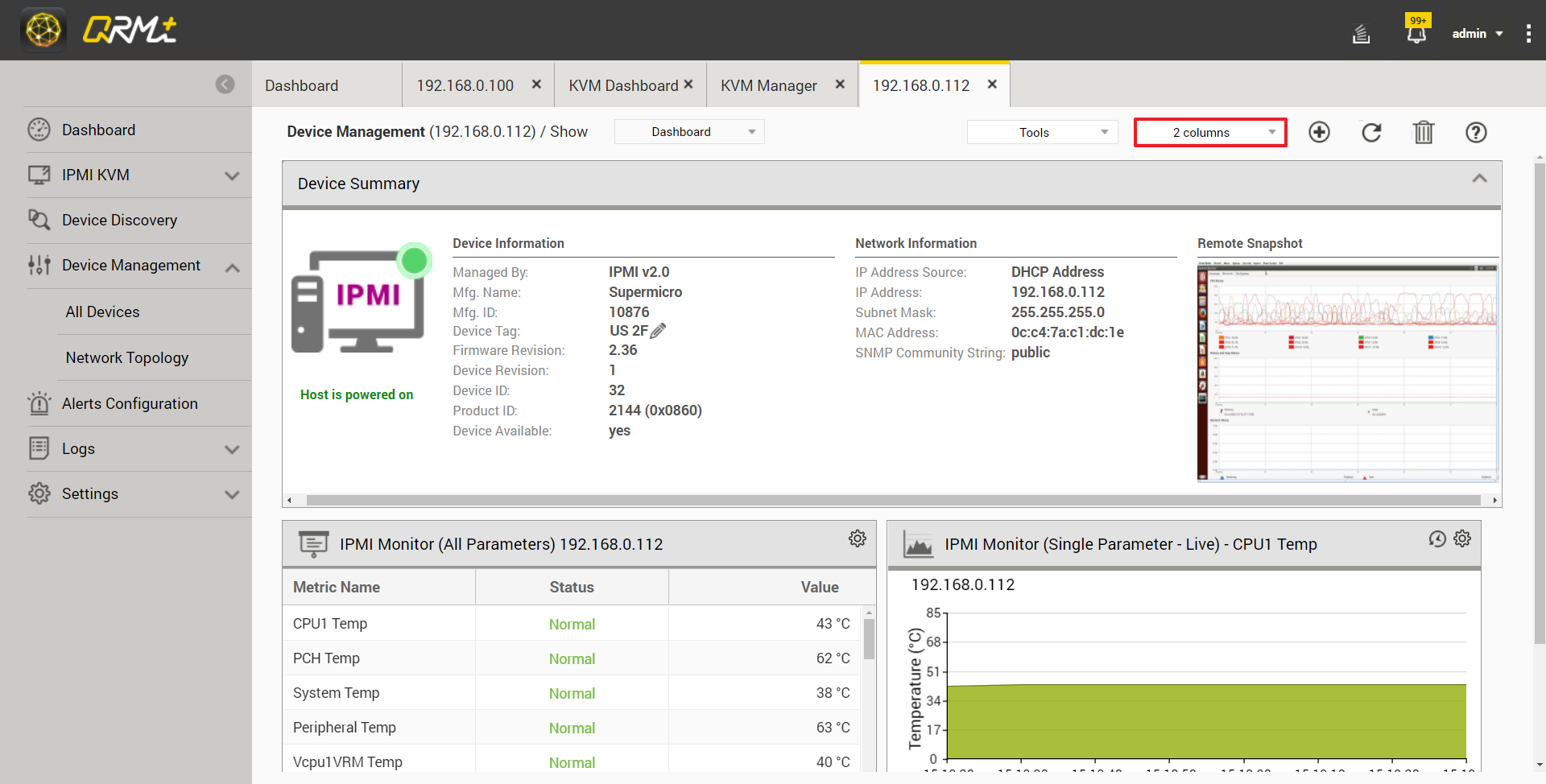
Step 2: Select "1 column", "2 columns" or "3 columns"
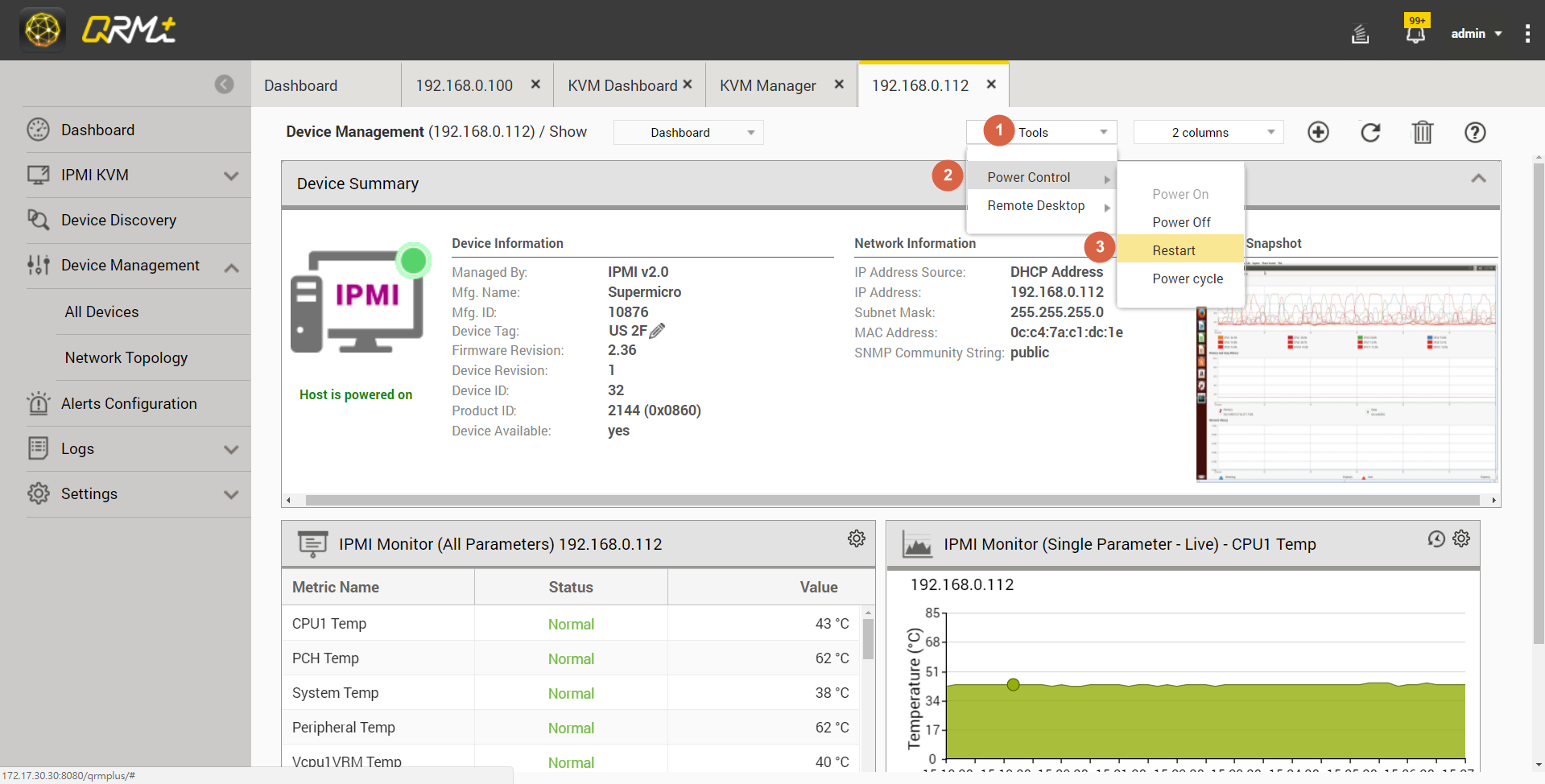
Tools - Power Control
There are four power control modes for IPMI devices:
- Power On
- Power Down
- Restart
- Power Cycle
Setup steps:
Step 1: Go to IPMI Single Device Dashboard page and click the "Tools" button
Step 2: Select "Power Control"
Step 3: Select "Power On", "Power Down", "Restart", or "Power Cycle"
IPMI KVM Remote Desktop
The IPMI KVM feature allows the user to monitor and operate the remote IPMI device on the desktop. (Note: IPMI KVM currently only supports Supermicro and IEI Technology Inc. models)
Setup steps:
Step 1: Go to IPMI Single Device Dashboard page and click the "Tools" button
Step 2: Select "Remote Desktop"
Step 3: Select "IPMI KVM"
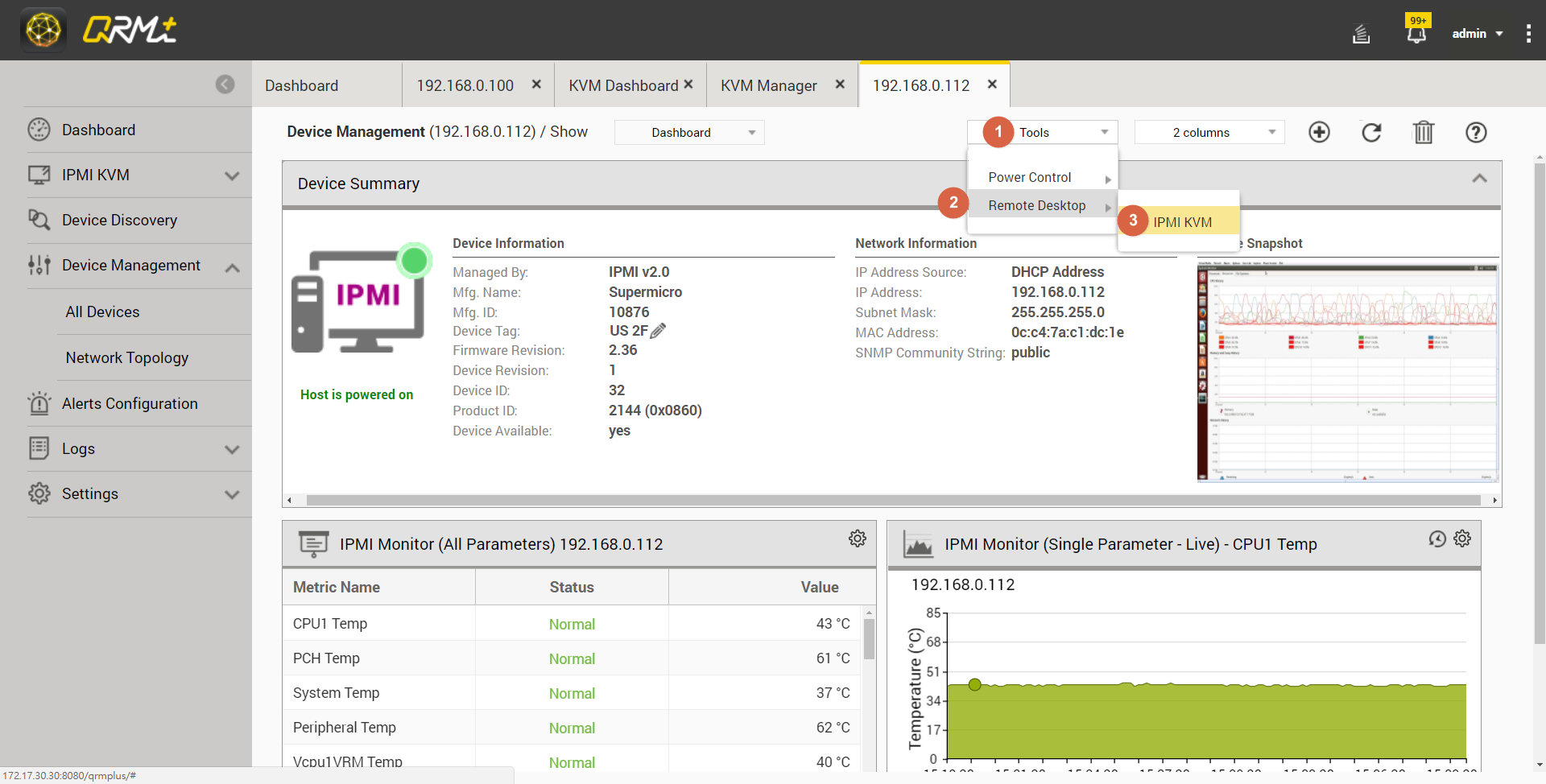
Step 4: When finished, the browser will open a new window to display the desktop screen of the remote IPMI device