


How to Deploy and Configure Hermes Agent on QNAP NAS with Container Station
Hermes Agent is a powerful automation tool that can access local files, execute commands, and use credentials such as API keys or tokens, depending on configuration. Users must therefore configure it with caution and assume full responsibility for its use.
- Access control: Do not expose the Hermes Agent or service port directly to the public Internet. If remote access is required, use a VPN, IP allowlist, or strong authentication mechanisms.
- Third-party extensions: Only install skills or extensions from trusted sources. Security research has shown that malicious extensions may attempt to steal data or credentials.
- Isolation and permissions: Run Hermes Agent in an isolated environment (such as Container Station) and avoid granting unnecessary system or root privileges.
- Credential protection: Protect API keys and tokens carefully and rotate them if exposure is suspected.
Applicable Products
This guide applies to QNAP x86 NAS devices (INTEL / AMD Platform) running Container Station 3.x or later with Docker support enabled.
Scenario
Hermes Agent is an open-source, self-hosted AI agent developed by Nous Research. It runs persistently, retains memory across sessions, supports scheduling, and integrates with messaging platforms such as Telegram and Discord. This guide covers deploying Hermes Agent on a QNAP NAS via Container Station using Docker Compose, and configuring it for ongoing use.
Prerequisites
- QNAP x86 NAS devices (such as INTEL / AMD CPU Platform)
- Container Station 3.x or later installed and running
- At least one LLM API key (Anthropic, OpenAI, or OpenAI Codex)
- Optional: A Telegram Bot Token if using the Telegram messaging gateway
Procedure
Initial Deployment & Setup
Follow these steps to launch the Hermes Agent container and configure your essential API keys and messaging integrations for the first time.
Step 1: Deploy via Docker Compose in Container Station
Container Station will automatically create the hermes-data folder on first run when the volume path is declared in the Compose file. No prior folder creation or SSH access is required. Alternatively, the folder can be created in advance via File Station.
- Open Container Station in the QNAP web interface.
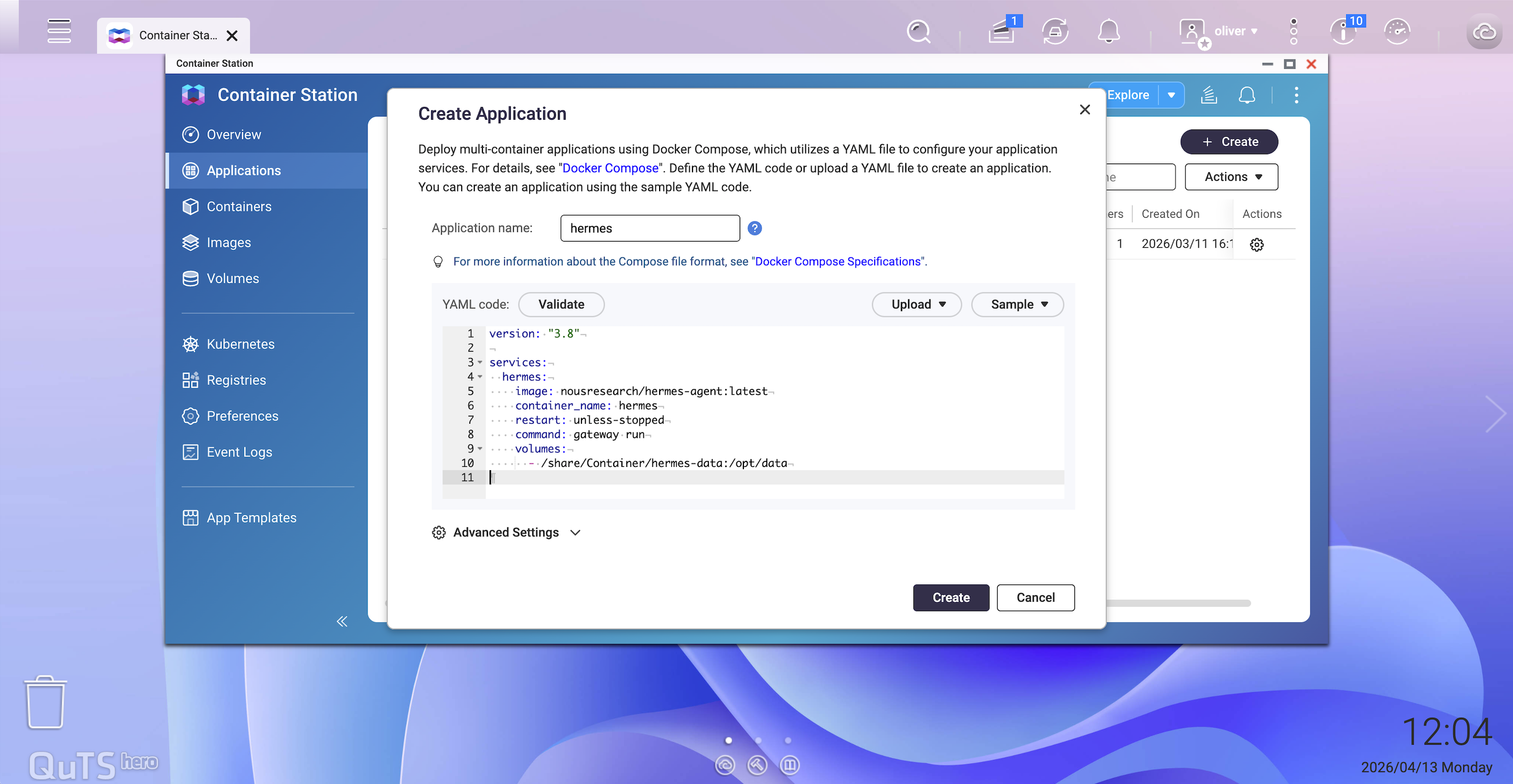
- Navigate to Applications and click Create.
- Select Create Application and paste the following Docker Compose YAML:
version: "3.8" services: hermes: image: nousresearch/hermes-agent:latest container_name: hermes restart: unless-stopped command: gateway run volumes: - /share/Container/hermes-data:/opt/data- Click Create. Container Station will pull the image and start the container. The
hermes-datafolder will be created automatically at/share/Container/hermes-data. - Verify the container is running by checking the Containers list. The status should show Running.
Note: All credentials are managed by the setup wizard in Step 2 and stored in the data volume.
Step 2: Run the Initial Setup Wizard
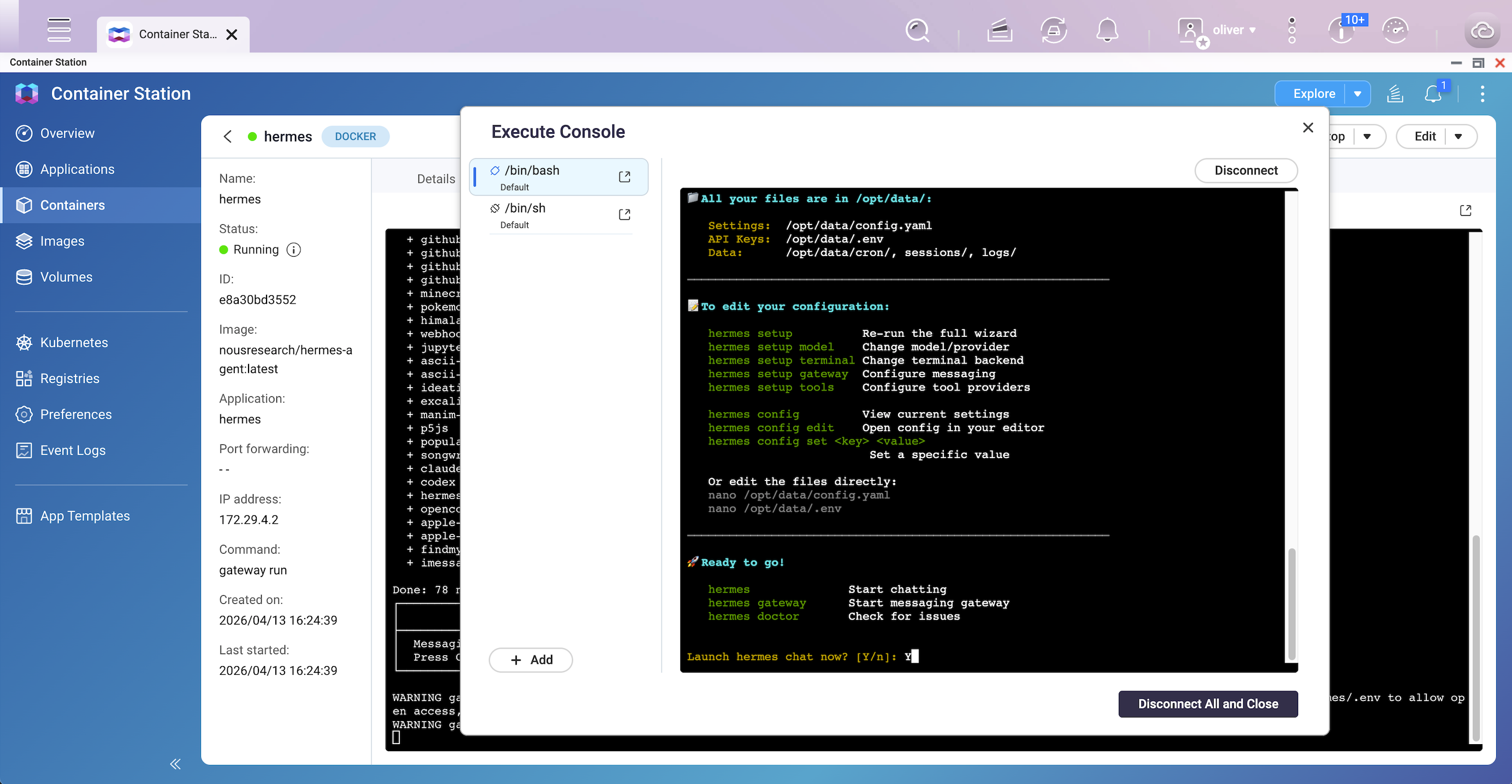
After the container is running, open an interactive shell session to complete first-time configuration. The setup wizard configures your LLM provider, API keys, and messaging platform tokens, writing all settings to the persistent data volume.
- In Container Station, select the hermes container.
- Click Execute and select /bin/bash (or /bin/sh if bash is unavailable) to open an interactive shell.
- In the shell, run:
hermes setup 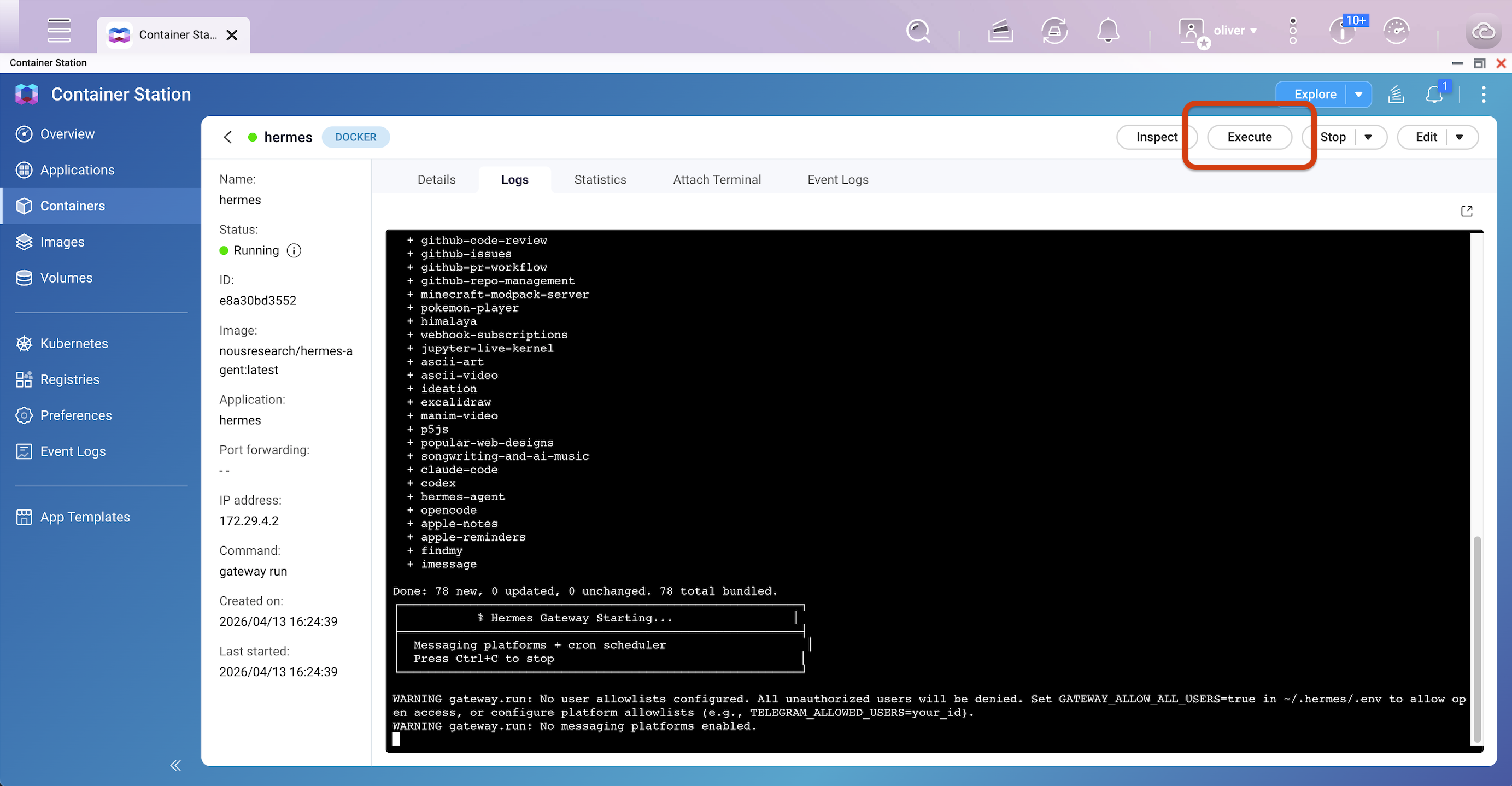
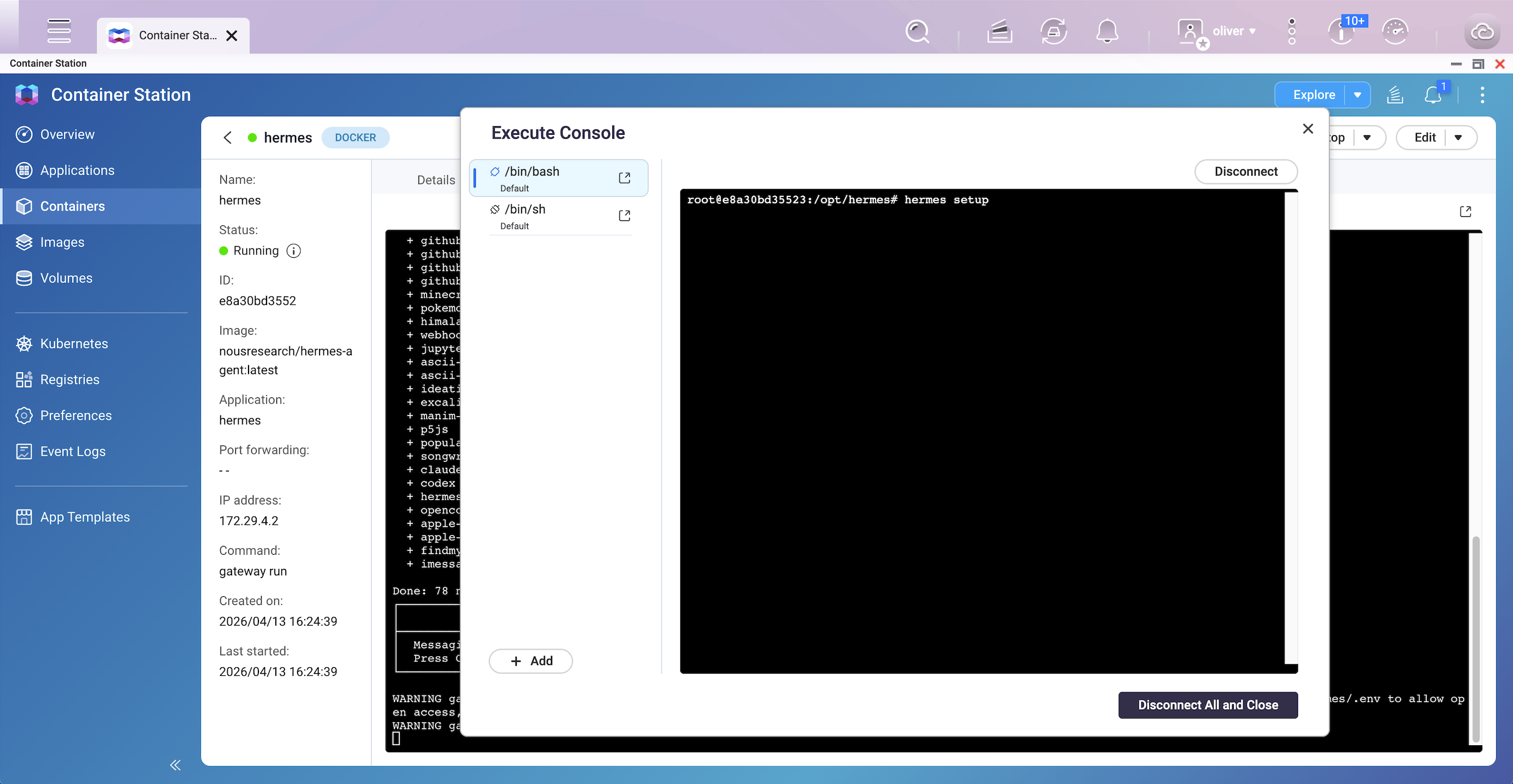
- Follow the on-screen prompts to configure:
- LLM provider and model (e.g., OpenAI, Anthropic, OpenAI Codex)
- API keys
- Messaging platform (e.g., Telegram bot token) — recommended at this stage
- The wizard writes your settings to
/opt/data/config.yamland/opt/data/.env. This step only needs to be performed once. - After the wizard completes, type
exitto close the shell, then restart the container via Container Station to apply the configuration.
Step 3: Verify Gateway is Running
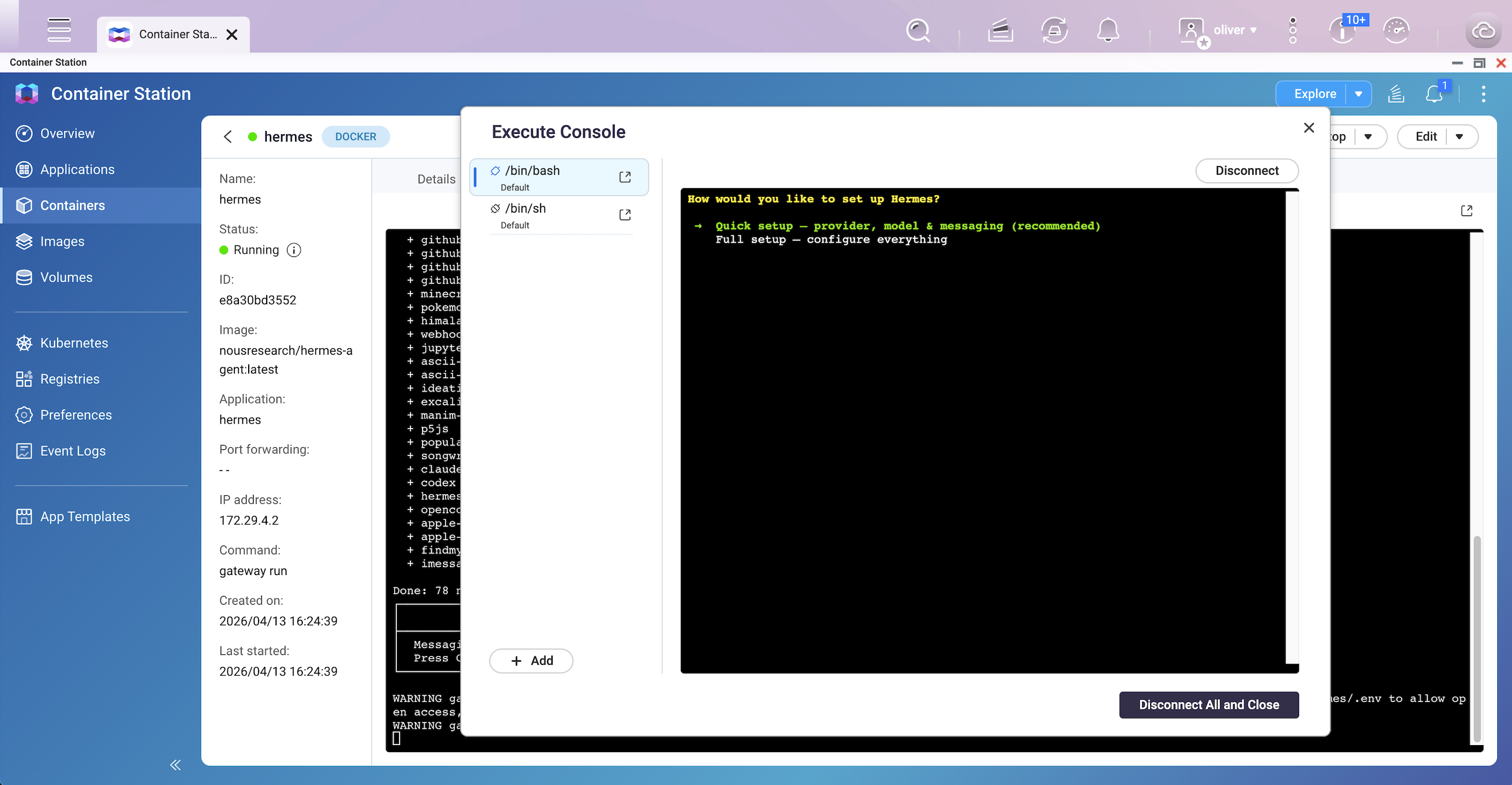
- In Container Station, select the hermes container and click Logs.
- Confirm the following lines appear in the output:
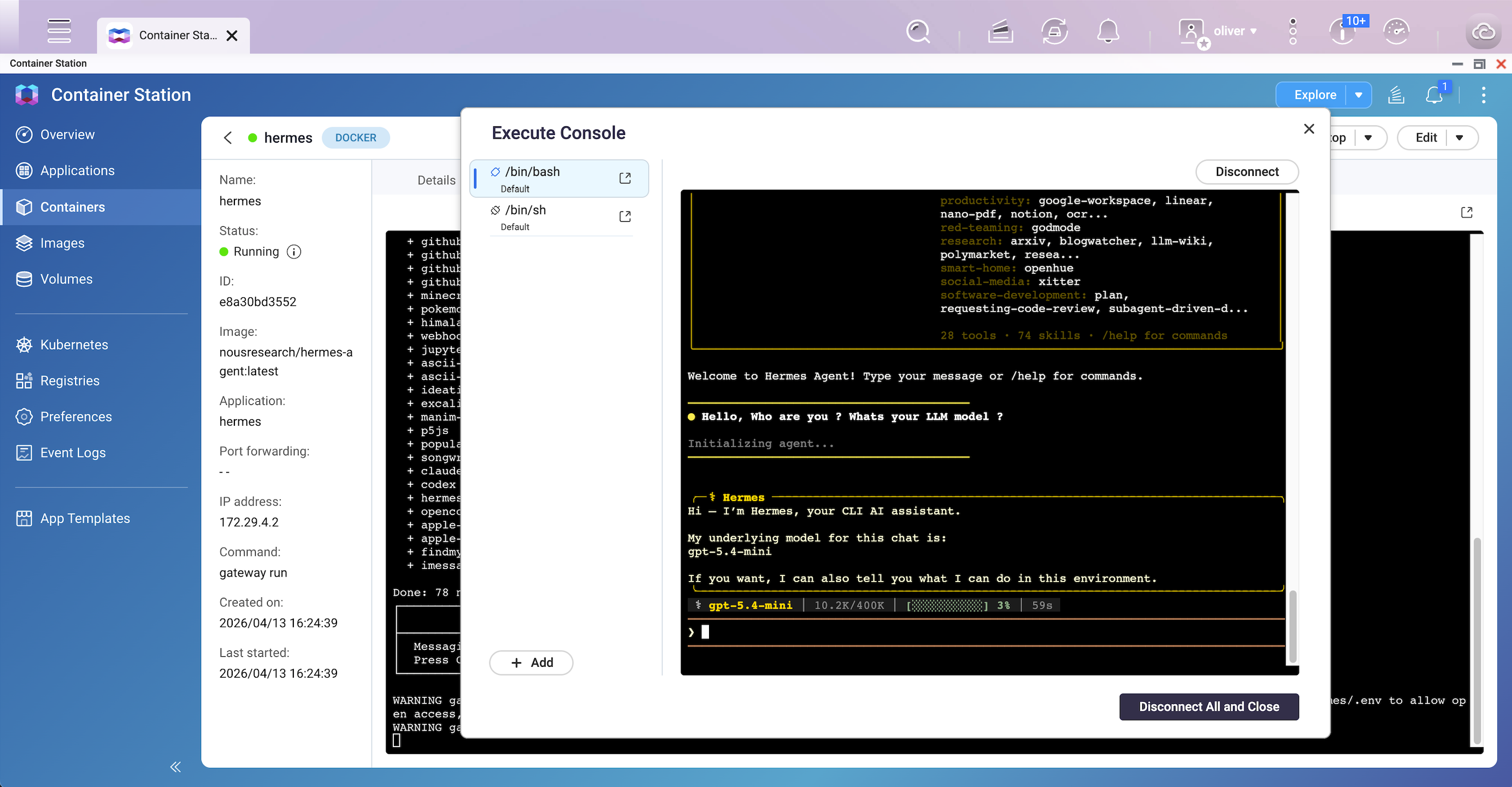
Hermes Gateway Starting... - Click Execute and select /bin/bash (or /bin/sh if bash is unavailable) to open an interactive shell.
- In the shell, run:
hermes - Then you can talk to it.
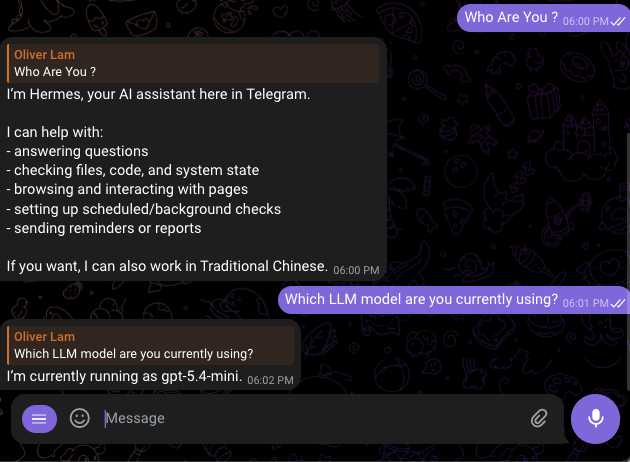
- If using Telegram, send a message to your configured bot to verify the connection.
Post-Deployment Configuration
Once your agent is running, use these methods to swap LLM providers, add new messaging platforms, or adjust agent settings for ongoing maintenance.
Method 1: Changing the LLM Provider or Model
Use the hermes model command to interactively switch providers or models at any time.
- In Container Station, select the hermes container.
- Click Execute and select /bin/bash (or /bin/sh ).
- In the terminal session, run:
hermes model - Follow the interactive prompts to select a new provider and model. The selection is saved to
config.yamlautomatically.
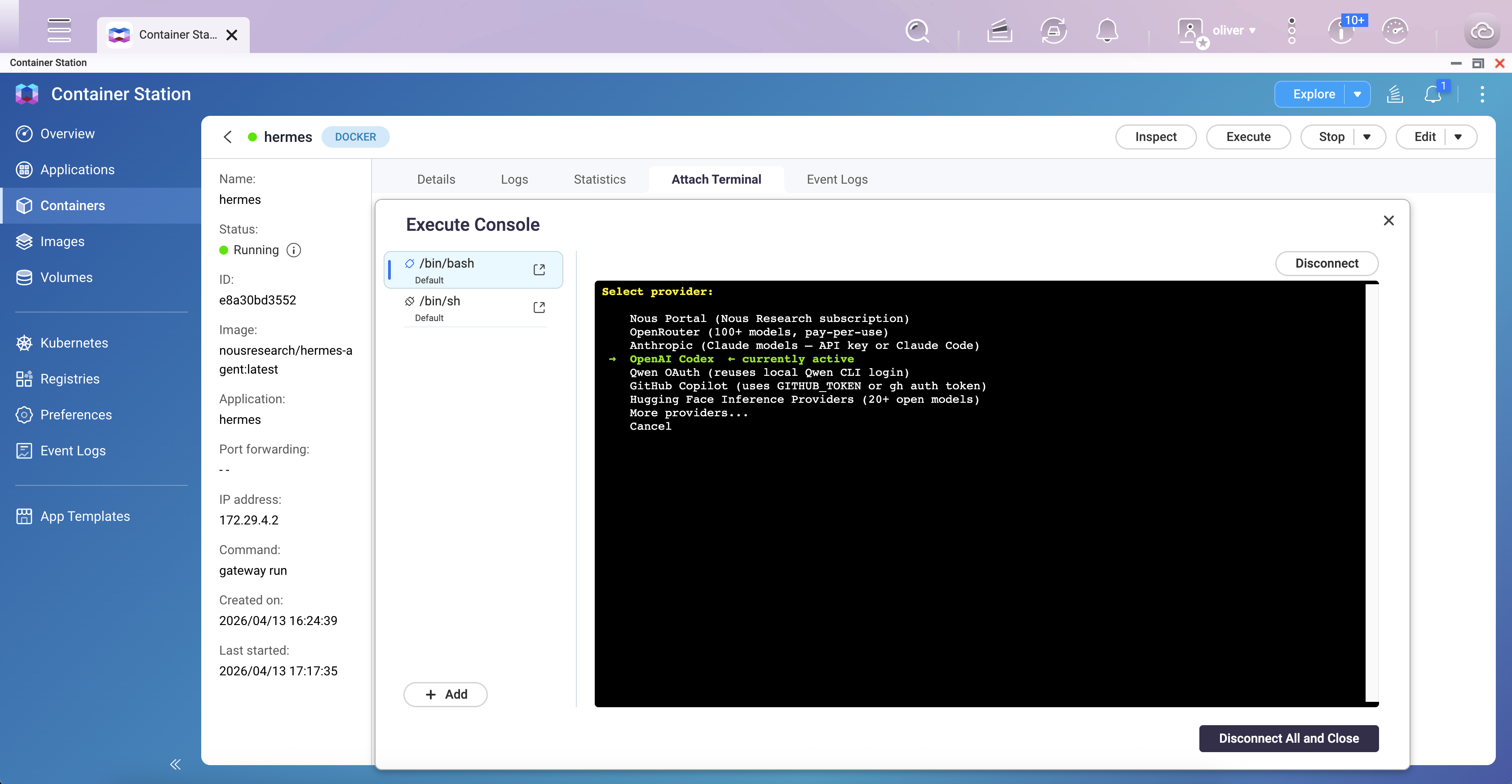
Supported providers include: anthropic, openai-codex, openai, openrouter, nous, deepseek, minimax, and others. For a full list, refer to the official CLI reference.
Method 2: Adding or Reconfiguring a Messaging Platform
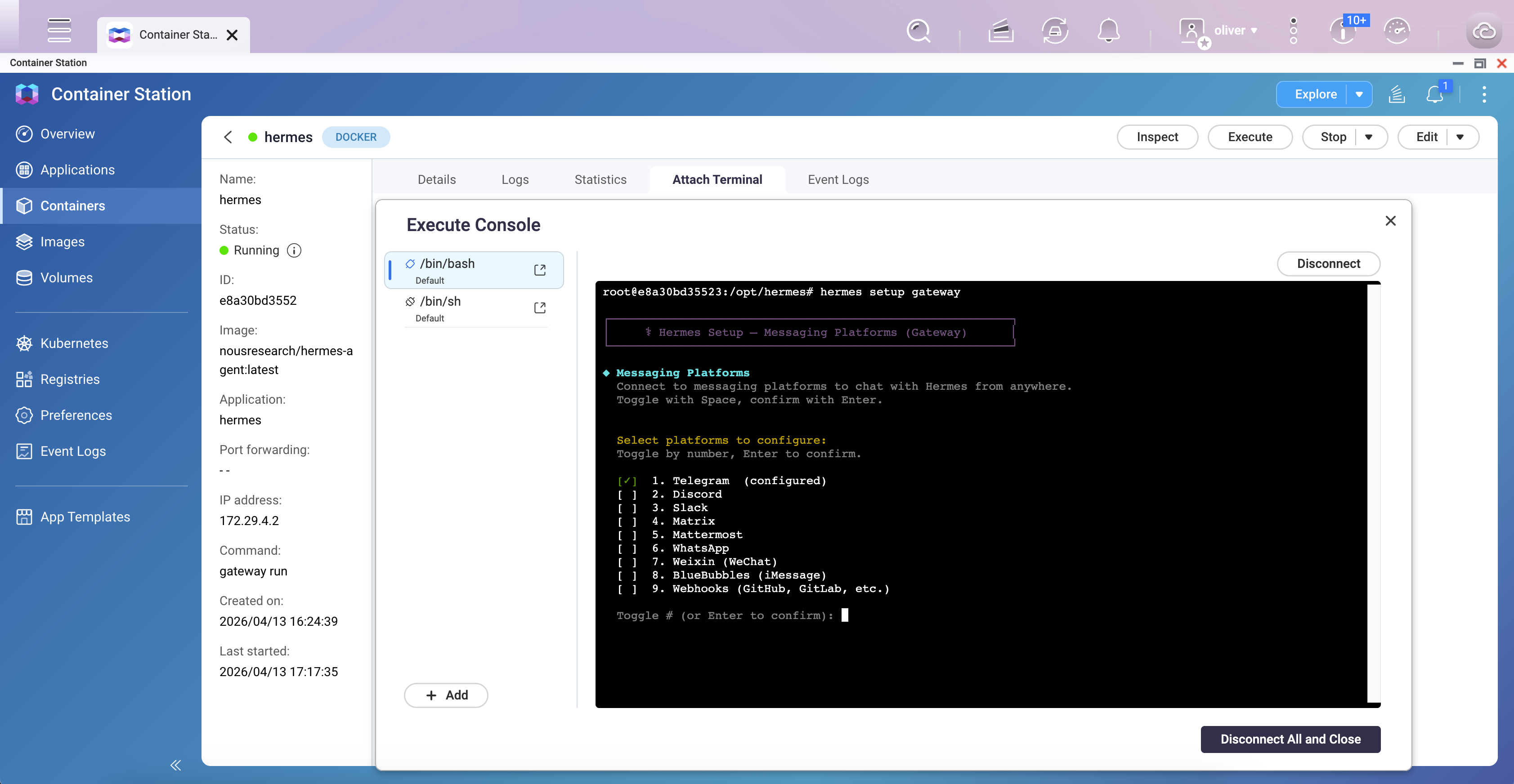
Use hermes setup gateway to add or update messaging integrations (Telegram, Discord, Slack, WhatsApp, Signal, etc.) without re-running the full setup wizard.
- In Container Station, select the hermes container.
- Click Execute and select /bin/bash.
- Run:
hermes setup gateway - Follow the prompts to add or update your messaging platform credentials.
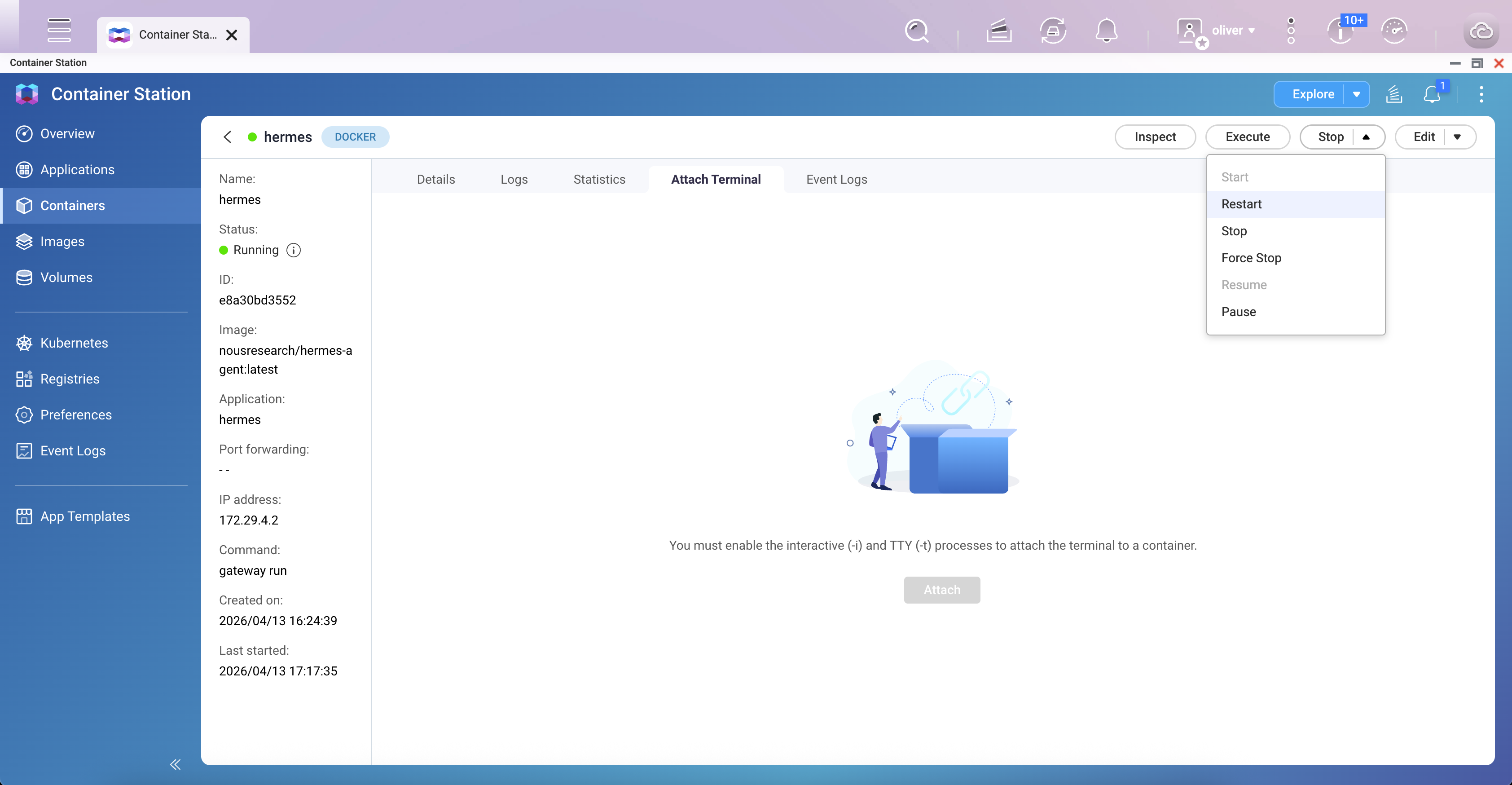
- Restart the container after completing the wizard:
exit
Then restart via Container Station — select the container and click Restart.
Method 3: Re-running the Full Setup Wizard
To reconfigure any part of the setup (model, terminal backend, tools, gateway, agent personality), run the full wizard or a specific section:
- Open a shell in the container via Container Station Execute.
- Run the full wizard:
hermes setup - Or run a specific section only:
hermes setup model— LLM provider and modelhermes setup gateway— Messaging platform configurationhermes setup tools— Enable or disable toolshermes setup terminal— Terminal backend (local, Docker sandbox, SSH)hermes setup agent— Agent identity and personality (SOUL.md)
- Restart the container after making changes.
Result
After completing this guide, Hermes Agent will be running as a persistent gateway on your QNAP NAS. It will be accessible via your configured messaging platform (e.g., Telegram), retain memory across sessions, and be configurable at any time through Container Station's Execute shell without modifying the Docker Compose file.


